

Windows hides a simple, reliable shortcut that flattens hundreds of scattered Control Panel applets, legacy dialogs, and administrative tools into a single, searchable view — the so‑called “God Mode” (officially the All Tasks or Windows Master Control Panel view). This is not a secret privilege escalation or a hidden API; it’s a shell namespace trick that gives you a single index of what Windows already exposes across Settings, Control Panel, and administrative consoles, and it can save minutes (and a lot of clicking) whenever you need to find a setting you can describe but not locate.
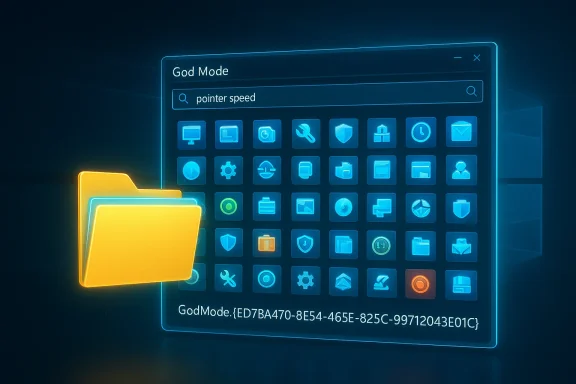
The nickname God Mode stuck because the view surfaces an unusually large collection of configuration entries in one place, but the underlying mechanism is ordinary Windows shell plumbing. Explorer recognizes folder names that end with a specific Class ID (CLSID) and treats those folders as namespace junctions rather than ordinary directories. The All Tasks namespace is identified by the CLSID {ED7BA470-8E54-465E-825C-99712043E01C}, and when Explorer sees a folder with that GUID appended — for example, GodMode.{ED7BA470-8E54-465E-825C-99712043E01C} — it renders the aggregated list of tasks and control panels instead of the folder’s file contents.
That means two important things up front:
A practical example: changing pointer speed can take multiple clicks through Settings and a legacy dialog; in the All Tasks view you can search for “pointer speed” and launch the pointer options dialog in one action. Another frequent use case is finding obscure legacy panels such as “Create a password reset disk,” which are difficult to locate via the modern Settings UI but appear in the All Tasks index.
Note on counts: many write‑ups and tests report roughly 200–250 items on a typical modern installation, but that number is variable. Differences in installed software, OEM control panels, and Microsoft’s migration of panels into Settings mean the exact count will vary by machine and by Windows build.
For technicians who want to shave minutes off routine diagnostics, the All Tasks view is a keeper. For administrators who must maintain governance and auditability at scale, it’s a useful on‑the‑ground troubleshooting tool but not a substitute for scripted, policy‑driven management. Create it on a clean desktop, prefer a shortcut if you want a persistent, named launcher, and convert frequent GUI sequences into scripted checks as your team matures.
If you’re comfortable with a single, searchable index of everything Windows exposes — and you respect the normal privilege model and change control needs of your environment — God Mode is a small, entirely reversible tweak that will streamline many otherwise tedious journeys through Settings and Control Panel.
Source: MakeUseOf There's a secret God Mode folder in Windows that puts every setting in one place
 Background / Overview
The nickname God Mode stuck because the view surfaces an unusually large collection of configuration entries in one place, but the underlying mechanism is ordinary Windows shell plumbing. Explorer recognizes folder names that end with a specific Class ID (CLSID) and treats those folders as namespace junctions rather than ordinary directories. The All Tasks namespace is identified by the CLSID {ED7BA470-8E54-465E-825C-99712043E01C}, and when Explorer sees a folder with that GUID appended — for example, GodMode.{ED7BA470-8E54-465E-825C-99712043E01C} — it renders the aggregated list of tasks and control panels instead of the folder’s file contents.That means two important things up front:
- God Mode is an index, not a new capability. It exposes shortcuts to features that already exist in Windows; it doesn’t unlock hidden APIs or silently elevate privileges.
- The contents vary. The number and identity of items you’ll see depend on your Windows build, installed components, OEM applets, and what Microsoft has already migrated into the modern Settings app. The oft‑quoted “200+ items” figure is a practical heuristic, not a fixed specification.
What God Mode actually is (technical primer)
At a deeper level, God Mode leverages the same GUID‑based shell namespace system Windows uses for many built‑in views and special folders. Some technical points to keep in mind:- A CLSID (Class Identifier) is a GUID that maps to a COM or shell object registered in the Windows registry. Explorer uses those CLSIDs to present special folders like This PC, Control Panel, and the All Tasks view.
- When Explorer encounters a name of the form Label.{CLSID}, it interprets the object as a virtual container and displays the object’s entries instead of normal files.
- The All Tasks object aggregates Control Panel applets, administrative consoles, and other configuration shortcuts into a single, alphabetized list. Because items are simply shortcuts, launching a link that requires elevation will still trigger the usual User Account Control (UAC) prompt.
- You can reach the same view without creating a special folder by invoking the shell command directly (for example, explorer shell:::{ED7BA470-8E54-465E-825C-99712043E01C}), which is useful for technicians who prefer not to modify a user’s desktop.
How to create the God Mode folder safely
Creating the All Tasks view is intentionally simple, but the details matter if you want to avoid surprises. Follow these steps for a safe, repeatable setup:- On a clean area of your desktop (recommended), right‑click and choose New → Folder.
- Rename the folder exactly to:
GodMode.{ED7BA470-8E54-465E-825C-99712043E01C} - You can replace "GodMode" with any label you prefer; the GUID is the key.
- Press Enter. The folder icon should change to a Control Panel–style icon. Double‑click to open the All Tasks view.
- Create a shortcut with this target:
explorer.exe shell:::{ED7BA470-8E54-465E-825C-99712043E01C}
Name the shortcut anything you like; this preserves a visible label and avoids the folder‑renaming quirks some users encounter. - Use the Run box (Win+R) and paste:
explorer shell:::{ED7BA470-8E54-465E-825C-99712043E01C}
Press Enter to open the view immediately. - To programmatically create the folder, use the md (mkdir) command from a command prompt in the desired location with the same folder name format.
- Create the special folder on a clean desktop or in an empty folder. If you append the GUID to a folder that already contains files, Explorer will present the All Tasks view instead of your files, which can be confusing — the original contents are not deleted, but they are hidden from normal view while the folder behaves as a namespace.
- You cannot rename the folder through File Explorer once it becomes the All Tasks view. If you need a different visible name, delete and recreate the folder with a new label or use a shortcut instead.
- Deleting the folder removes the namespace entry; it does not uninstall or change any Windows features. The folder is purely a launcher.
What you’ll find inside God Mode
Open the All Tasks view and you’ll see a large, alphabetized index of system tools and settings. Typical categories and entries you’ll encounter include:- System administration and diagnostics:
- Event Viewer, Performance Monitor, Services, Task Scheduler
- System Properties, Advanced system settings
- Storage and disk management:
- Disk Management, Storage Spaces, Disk Cleanup, BitLocker management
- Device and driver management:
- Device Manager, driver installation options
- Networking and security:
- Firewall and network adapter configuration, Credential Manager
- User and account settings:
- Create a password reset disk, User Accounts, Family & other users shortcuts
- File and display options:
- Folder Options, Indexing Options, Display calibration and color management
- Troubleshooters and recovery:
- Backup and Restore (legacy), Recovery, System Restore
- Accessibility, sound, and peripherals:
- Mouse pointer options, Speech Recognition settings, Sound control panel
A practical example: changing pointer speed can take multiple clicks through Settings and a legacy dialog; in the All Tasks view you can search for “pointer speed” and launch the pointer options dialog in one action. Another frequent use case is finding obscure legacy panels such as “Create a password reset disk,” which are difficult to locate via the modern Settings UI but appear in the All Tasks index.
Note on counts: many write‑ups and tests report roughly 200–250 items on a typical modern installation, but that number is variable. Differences in installed software, OEM control panels, and Microsoft’s migration of panels into Settings mean the exact count will vary by machine and by Windows build.
Why power users and IT pros still love God Mode
Consolidation beats navigation for certain tasks. Here are the practical benefits that make the All Tasks view an enduring productivity tool:- Searchable single pane of glass. Instead of remembering paths like Settings → System → About → Advanced system settings → Performance → Settings, you search for the concept and click the single result.
- Faster troubleshooting flow. Jump between Event Viewer, Disk Management, Services, and Device Manager with fewer context switches.
- Discoverability and education. Skimming the alphabetized list reveals panels you didn’t know existed — useful for building checklists or learning the deeper tools available on Windows.
- Portable technician toolkit. A small shortcut that opens the All Tasks view can be carried on a USB stick and used across machines without installing anything.
- Create persistent shortcuts. Drag any item out of the All Tasks view to the desktop or Start menu to create a one‑click shortcut to your most used admin tools.
Limitations, risks, and governance considerations
God Mode is powerful in the sense of convenience, but it introduces several risks and limits that every responsible user or IT admin should understand:- It is not an elevation bypass. Items that require administrative rights will still prompt for UAC. God Mode does not circumvent security controls.
- Not a substitute for automation or policy-based management. For repeatable, auditable changes in production environments, use PowerShell, Group Policy, Intune, or other MDM tools. GUI clicks through God Mode do not provide the same audit trail or reproducibility as scripted deployments.
- UI changes over time. Microsoft continues migrating functionality between Control Panel and Settings. The All Tasks list evolves with Windows updates; do not rely on a static item list for long-term documentation without periodically re‑validating on the target build.
- Potential user confusion. Creating the All Tasks namespace inside a folder with content will hide that content from ordinary view and has tripped up users who created the special folder in a directory that wasn’t empty. Always create it on a spare desktop or use a shortcut.
- Historical edge cases. Early reports from older Windows releases noted occasional instability on specific configurations (notably 64‑bit Vista in the community’s early reports). Those incidents are historical and rare in current Windows 10/11 builds, but they illustrate why you should avoid experimenting in production images without testing.
- No built‑in audit or rollback. Changes made via the GUI are not automatically logged in the same way as scripted changes and may be harder to roll back.
Practical workflows, shortcuts, and hygiene
Use these practical recipes to incorporate God Mode into your daily workflow safely:- Quick creation and pinning:
- Create a shortcut with target: explorer.exe shell:::{ED7BA470-8E54-465E-825C-99712043E01C}
- Name it “Admin Hub” or “All Tasks” to preserve a visible label.
- Pin that shortcut to Start, Taskbar, or Quick Access for fast access without changing user desktops.
- Build a personal toolbox:
- Open All Tasks and drag your 5 most used items (Device Manager, Disk Management, Event Viewer, Services, Performance Options) out to the desktop.
- Right‑click each shortcut → Properties to set a friendly icon and (if needed) configure compatibility or run‑as‑administrator.
- Portable technician kit:
- Store a small .lnk or script on a USB stick that runs explorer shell:::{ED7BA470-8E54-465E-825C-99712043E01C} so you can access the index on customer machines without leaving artifacts.
- Avoiding naming issues:
- If the special folder “loses” its visible name or you can’t rename it in File Explorer, delete it and recreate with the desired label before appending the GUID; or prefer the shortcut method to preserve the name.
- Removing the folder:
- To delete a God Mode folder, remove it like any other folder. If Explorer doesn’t cooperate, remove it from an elevated command prompt using rd "C:\Path\To\GodMode.{ED7BA470-8E54-465E-825C-99712043E01C}".
- Convert frequently used GUI checks into scripts:
- When you find yourself repeatedly opening the same sequence of GUI tools, script the checks in PowerShell for repeatability and logging.
When to use God Mode — and when to avoid it
Use God Mode when:- You’re troubleshooting a single machine and need fast access to multiple administrative tools.
- You’re onboarding to a new PC or building a technician’s toolkit.
- You need to find a legacy Control Panel item that the Settings app doesn’t surface directly.
- You’re documenting a one‑off fix and want to create a quick shortcut for repeat use.
- You need to make audited, repeatable changes across many devices (use automation and policy tools).
- You’re training inexperienced users to tweak system settings (the All Tasks view exposes advanced options that can break systems if misused).
- You manage a locked down enterprise desktop image where introducing new shortcuts would violate change control.
Final assessment: pragmatic, not mystical
The God Mode folder deserves its reputation as a practical, low‑cost convenience for power users and IT professionals. It tidies a longstanding usability problem — Windows’ scattered configuration surfaces — by providing a single index you can search and act from. But it’s important to call out what it is and what it isn’t: a human‑facing aggregator, not a security exploit or a management API.For technicians who want to shave minutes off routine diagnostics, the All Tasks view is a keeper. For administrators who must maintain governance and auditability at scale, it’s a useful on‑the‑ground troubleshooting tool but not a substitute for scripted, policy‑driven management. Create it on a clean desktop, prefer a shortcut if you want a persistent, named launcher, and convert frequent GUI sequences into scripted checks as your team matures.
If you’re comfortable with a single, searchable index of everything Windows exposes — and you respect the normal privilege model and change control needs of your environment — God Mode is a small, entirely reversible tweak that will streamline many otherwise tedious journeys through Settings and Control Panel.
Source: MakeUseOf There's a secret God Mode folder in Windows that puts every setting in one place
