

NVIDIA’s GeForce driver labeled “382.33” is real, WHQL‑signed, and was released in May 2017 — but the SEO‑styled “Clearance / Hotsell” pages pushing a purported “GeForce Game Ready Driver 382.33 Windows 10 32‑bit” for a GT 1030 carry real supply‑chain and compatibility risks. Before you click any download button, understand which NVIDIA packages actually added GT 1030 support, how to verify a driver binary safely, and why third‑party repackagers and advertorial landing pages (including the Born2Invest snippet you supplied) must be treated as unverified until proven otherwise. The authoritative driver pages and independent archives confirm the technical facts about 382.33 and the GT 1030 lineage, while community audits and security guidance warn that repackaged “clearance” downloads are a high‑risk way to obtain kernel‑level code.
The GeForce GT 1030 arrived as NVIDIA’s low‑power, entry desktop GPU in 2017. NVIDIA’s driver development in that window was unusually granular: an early, GT 1030–specific driver (382.23) briefly appeared to add support for that one SKU, and was shortly followed by a broader Game‑Ready release in the 382.3x family (382.33) that included general fixes and game optimizations. Independent press coverage and NVIDIA’s driver archive confirm those release identities and dates.
A few important clarifications up front:
However, the GT 1030-specific story begins with 382.23: NVIDIA pushed a very narrow release (382.23) that explicitly added the GT 1030. Some early posts and forum threads warned that 382.23 only listed GT 1030 in its supported‑products table. A short time later, the broader 382.33 served as the Game‑Ready driver for the week’s major titles and included a fuller set of supported GPUs. If your system is a GT 1030, you can rely on the vendor timelines to establish compatibility — but always match the exact installer variant (desktop vs notebook, DCH vs Standard, 32‑bit vs 64‑bit) to your machine.
Other frequent causes of “not compatible” or install failures:
In practice:
By following a rigorous verification checklist and using vendor sources, you protect system stability and reduce the real supply‑chain risks that come with repackaged or SEO‑driven driver downloads.
Source: Born2Invest https://born2invest.com/?b=style-229968712/
 Background / Overview
The GeForce GT 1030 arrived as NVIDIA’s low‑power, entry desktop GPU in 2017. NVIDIA’s driver development in that window was unusually granular: an early, GT 1030–specific driver (382.23) briefly appeared to add support for that one SKU, and was shortly followed by a broader Game‑Ready release in the 382.3x family (382.33) that included general fixes and game optimizations. Independent press coverage and NVIDIA’s driver archive confirm those release identities and dates. A few important clarifications up front:
- 382.23 — a vendor‑published WHQL driver that explicitly added GT 1030 support when the card first shipped; community articles at the time called this a “GT 1030 only” release.
- 382.33 — the subsequent Game‑Ready driver (WHQL), published a few days later, which appears in NVIDIA’s archives as version 382.33 with release notes and packages for multiple Windows builds and architectures (desktop and notebook variants).
Why the distinction matters: kernel drivers are high‑risk software
GPU drivers operate at kernel privilege. A tampered or repackaged installer can:- Replace or modify INF files so the binary will install on unintended hardware.
- Bundle adware, telemetry agents, or worse — unsigned kernel components that break driver signing expectations.
- Introduce altered binaries that defeat integrity checks and open a supply‑chain attack vector.
What NVIDIA’s official records show about 382.33 and GT 1030
NVIDIA lists 382.33 as a WHQL Game‑Ready driver with a May 22, 2017 release date. The package was published with release notes and platform variants (Windows 10 64‑bit among them), and independent outlets mirrored those notes in contemporary coverage. Tech sites that maintain driver archives — TechPowerUp and TechSpot, among others — carry mirrored data and download options for the 382.33 family, including desktop and notebook variants and both 32‑bit and 64‑bit options for some platform builds. That confirms the driver family’s existence and official status.However, the GT 1030-specific story begins with 382.23: NVIDIA pushed a very narrow release (382.23) that explicitly added the GT 1030. Some early posts and forum threads warned that 382.23 only listed GT 1030 in its supported‑products table. A short time later, the broader 382.33 served as the Game‑Ready driver for the week’s major titles and included a fuller set of supported GPUs. If your system is a GT 1030, you can rely on the vendor timelines to establish compatibility — but always match the exact installer variant (desktop vs notebook, DCH vs Standard, 32‑bit vs 64‑bit) to your machine.
Common compatibility traps and why “Windows 10 32‑bit” matters
Many Windows 10 systems today run 64‑bit builds; 32‑bit Windows 10 installs are comparatively rare. Nevertheless, NVIDIA historically provided both 32‑ and 64‑bit packages for certain legacy and notebook variants. When a driver page advertises a “Windows 10 32‑bit” installer for a Game‑Ready build, check the NVIDIA product selector and the installer’s supported product list — the vendor page is the canonical authority on whether a given package includes GT 1030 support on that specific architecture. TechSpot and NVIDIA’s driver pages show that 382.33 had multiple platform binaries; nonetheless, you should not assume any third‑party page’s “32‑bit” label is accurate without vendor confirmation.Other frequent causes of “not compatible” or install failures:
- Hardware ID mismatch: NVIDIA installers only install on card IDs explicitly enumerated in the INF. If your card is an OEM‑branded GT 1030 with a custom subsystem ID, a generic installer might refuse to install.
- Desktop vs notebook package mismatch: laptops require the OEM‑specific or NVIDIA notebook package; the desktop package often won’t install on a laptop.
- DCH vs Standard packaging mismatch: switching packaging families without a clean uninstall can break installs or produce “incompatible” errors.
- Windows build mismatch: some installers require a minimum Windows 10 build level. Older installs (like an 1803 build) might fail on newer driver metadata. Community guides emphasize checking Device Manager → Details → Hardware Ids and comparing them against the INF before running anything.
Practical verification: how to tell a driver installer is safe (checklist)
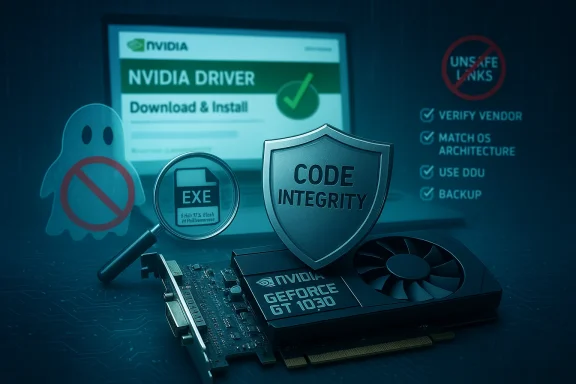
Before you run any EXE that claims to be an NVIDIA driver, perform these checks:- Confirm the vendor listing: the binary should be downloadable from NVIDIA’s official driver archive (use the driver search on NVIDIA’s site) or your OEM’s support page. The vendor page lists release date, WHQL status, file size, and the supported products table.
- Verify the supported products table inside the release notes: ensure your GPU (GT 1030) appears in the exact installer variant (desktop vs notebook, 32‑bit vs 64‑bit). Independen help cross‑check this.
- Check the digital signature: after download, right‑click → Properties; the signer should be “NVIDIA Corporation.” For maximum assurance, compute the SHA‑256 of the file and compare it to vendor‑published hashes when NVIDIA provides them. If the third‑party page is your on the installer until you validate the signature or hash. Community audits recommend this step to prevent tampered binaries.
- Confirm package type (DCH vs Standard) and match it to your OS: mixing types without a clean uninstall is a common cause of failure. If you must switch types, use a driver cleanup before installing the new family.
- Keep a rollback plan: create a full disk image or at minimum a Windows System Restore point, and keep a copy of your current working driver installer so you can revert quickly if the update regresses.
Step‑by‑step safe installation workflow (recommended)
- Identify your GPU and OS architecture precisely:
- Device Manager → Display adapters → Properties → Details → Hardware Ids. Copy VEN_xxxx & DEV_xxxx.
- Confirm Windows architecture via Settings → System → About.
- Use NVIDIA’s official Advanced Driver Search and select:
- Product Type → Product Series → Product → OS → Language.
- Confirm the rele 1030 and that the package matches your platform (desktop/notebook, 32/64 bit).
- Backup and prepare:
- Create a full image or at minimum a System Restore point.
- Save your current driver installer and create a recovery USB.
- If switching DCH/Standard families or you have persistent problems:
- Boot to Safe Mode and run Display Driver Uninstaller (DDU) to remove traces of previous NVIDIA installs.
- Follow DDU documentation carefully and only use trusted copies of DDU.
- Install:
- Run the NVIDIA installer as Administrator.
- Choose Custom (Advanced) and check “Perform a clean installation.”
- Uncheck GeForce Experience if you prefer driver‑only, or leave it if you rely on its features.
- Verify after install:
- Confirm the driver version and date in NVIDIA Control Panel → System Information and Device Manager.
- Check Windows Event Viewer for driver errors or TDR events over the next few days.
If you already clicked a “Clearance” / Born2Invest link: how to proceed safely
If you’ve already downloaded or run a driver installer from an unverified, advertorial page, take these immediate steps:- Do not connect the machine to sensitive networks until you confirm integrity. Treat the system as potentially compromised.
- Check the digital signature of the installer (right‑click → Properties → Digital Signatures). If absent or not “NVIDIA Corporation,” assume untrusted.
- Run an offline malware scan from a known‑good rescue media. If you have a fleet or sensitrensic analysis.
- If the installer modified system files or introduced instability (black screen, repeated VIDEO_TDR_FAILURE bugs), boot to Safe Mode and use DDU to remove NVIDIA drivers, then reinstall from NVIDIA’s official archive.
Technical analysis: does 382.33 officially cover GT 1030 on Windows 10 32‑bit?
Short answer: 382.33 is an official Game‑Ready release in May 2017, and NVIDIA provides platform variants for multiple Windows builds; GT 1030 support was first formally exposed in 382.23, and the 382.33 family consolidated broader fixes and game optimizations that followed. Whether a specific 382.33 package includes a Windows 10 32‑bit binary that lists GT 1030 as supported depends on the exact variant you download — desktop vs notebook, DCH vs Standard, and the OS architecture selected in NVIDIA’s driver search. Do not rely on third‑party advertisements claiming an arbitrary 32‑bit package; use the vendor’s product selector to confirm the supported product table in the release notes for the exact variant you intend to run.In practice:
- If your GT 1030 is a generic desktop card and you run Windows 10 64‑bit, download the NVIDIA desktop 64‑bit package (382.33 desktop 64‑bit if you need that specific release).
- If you truly run Windows 10 32‑bit, carefully use NVIDIA’s product selector and pick the correct Windows 10 32‑bit variant (if available) — note that modern usage of 32‑bit Windows 10 is rare and vendors de‑prioritize 32‑bit builds over time, so verify that the vendor page actually lists 32‑bit Windows 10 for the release. TechSpot’s archive shows multiple download options for 382.33 (including 32‑bit listings in its repository), but the canonical vendor page is the final authority.
Lifecycle and risk context (Windows 10 lifecycle and legacy drivers)
A final practical factor: Microsoft’s support lifecycle for Windows 10 changed the long‑term security calculus for archived drivers. Community advisories and archived analyses note that Windows 10 reached end‑of‑mainstream support on October 14, 2025 — that reduces routine OS‑level updates for many consumer systems and increases the operational risk of running archived, legacy drivers on machines that remain internet‑connected and used for sensitive tasks. If you must continue running Windows 10 longer term, plan for a migration path or for strict network segmentation and security controls rather than relying indefinitely on archived driver installers.Strengths and weaknesses of the evidence (critical appraisal)
Strengths- NVIDIA’s own driver archive and reputable tech archives (TechPowerUp, TechSpot) corroborate the existence and identity of the 382.23/382.33 driver family and the timeline for GT 1030 support. These are primary or high‑quality secondary sources for driver metadata.
- Community and technical documentation provile guidance for safe installation (DDU‑first clean installs, verifying digital signatures, matching INF hardware IDs). These are operationally useful and widely peer‑validated.
- Third‑party advertorial pages (e.g., the Born2Invest snippet you supplied) frequently lack the metadata needed to verify claims. Automated checks flagged the supplied Born2Invest URL as unreliable or unreachable; unique claims from those pages must be treated as unverified until the binary is matched to NVIDIA or OEM pages. Using such pages to obtain kernel drivers presents a material supply‑chain risk.
- Some community mirrors or archives may list 32‑bit variants or repackaged instalvendor‑signed; independent archives are helpful for historical research but are not a substitute for vendor‑published binaries with digital signatures and published hashes. Always prefer NVIDIA or OEM pages when live systems are at stake.
- Any specific download link or EXE hosted solely on the Born2Invest landing page could not be corroborated by vendor archives in automated checks. Treat direct download claims from that page as unverified until you can produce the vendor‑signed EXE and verify its hash/signature.
Practical recommendations — what to do next
- If you have not downloaded anything from the Born2Invest page: stop. Use NVIDIA’s official driver search and select your card (GT 1030), then pick the matching OS variant (Windows 10 32‑bit or 64‑bit) and download directly from NVIDIA. Verify the digital signature before running the installer.
- If you have already used a third‑party installer: verify the installer signature, run an offline malware scan, and if in doubt perform a DDU removal and reinstall from NVIDIA’s archive. If the machine hosnsider reimaging from a trusted backup or performing a forensic check.
- If you’re buying a “clearance” PC advertised with a GT 1030 and driver promises: require the seller to supply the exact OEM service tag or a screenshot of Device Manager with the hardware IDs and the driver version. Do not accept a generic, unverified “download link” as proof of compatibility.
- Consider upgrading to a supported OS (or follow Microsoft’s Extended Security Update options) if the machine will remain online and exposed; Windows 10’s support changes in 2025 make long‑term reliance on archived drivers a riskier proposition.
Conclusion
There is no technical mystery: NVIDIA’s 382.33 Game‑Ready driver is a legitimate WHQL release published in May 2017, and GT 1030 support first appeared publicly in a targeted 382.23 driver shortly before that. The danger in the scenario you supplied lies not in whether 382.33 exists, but in the provenance of the installer you might be tempted to download. Advertorial “Clearance / Hotsell” pages are commonly unverified and frequently omit the certifying metadata you need to trust kernel‑level code. Use NVIDIA’s official driver archive or your OEM support portal, verify digital signatures and supported product lists, and follow a clean‑install workflow (DDU if necessary). If a page offers a driver but can’t demonstrate vendor metadata or a matching entry on NVIDIA’s site, treat that download as unsafe until proven otherwise.By following a rigorous verification checklist and using vendor sources, you protect system stability and reduce the real supply‑chain risks that come with repackaged or SEO‑driven driver downloads.
Source: Born2Invest https://born2invest.com/?b=style-229968712/
