

If you still have a GeForce GT 730 in a desktop or small-form-factor PC and you’re running Windows 10 or Windows 11, choosing the right driver is the single most important step to keep video playback smooth, minimize crashes, and avoid Windows Update replacing a working driver with an incompatible one. This guide walks you through the real-world options for NVIDIA GT 730 drivers, explains how to identify which GT 730 variant you actually own, ranks the driver choices for different scenarios, and gives step-by-step, conservative advice for installation and troubleshooting on both Windows 10 and Windows 11 systems.
The GeForce GT 730 family is an entry-level, widely rebranded product built from several different GPU dies and memory configurations. Over the years NVIDIA has placed many GT 730 variants into different support buckets — some variants are maintained by NVIDIA’s main “unified” Game Ready/Studio driver branches, while others are treated as legacy and receive support from older, dedicated legacy driver packages. That split is essential: the driver version you must use depends not just on the card’s name but on the chip and hardware ID on your exact board.
NVIDIA’s driver policy for older GPUs has evolved: while Game Ready Driver support and feature development have focused on newer architectures, NVIDIA continues to provide security fixes and limited maintenance for many older GPU families. For GT 730 owners this means there is still a usable path forward, but it requires a few identification and compatibility steps before you download and install anything.
Following the identification-first approach will save hours of trial and error and keep your GT 730‑equipped Windows 10 or Windows 11 machine stable and usable.
Source: Born2Invest https://born2invest.com/?b=style-230630412/
 Background
The GeForce GT 730 family is an entry-level, widely rebranded product built from several different GPU dies and memory configurations. Over the years NVIDIA has placed many GT 730 variants into different support buckets — some variants are maintained by NVIDIA’s main “unified” Game Ready/Studio driver branches, while others are treated as legacy and receive support from older, dedicated legacy driver packages. That split is essential: the driver version you must use depends not just on the card’s name but on the chip and hardware ID on your exact board.NVIDIA’s driver policy for older GPUs has evolved: while Game Ready Driver support and feature development have focused on newer architectures, NVIDIA continues to provide security fixes and limited maintenance for many older GPU families. For GT 730 owners this means there is still a usable path forward, but it requires a few identification and compatibility steps before you download and install anything.
Know your GT 730: variants, chips and why identification matters
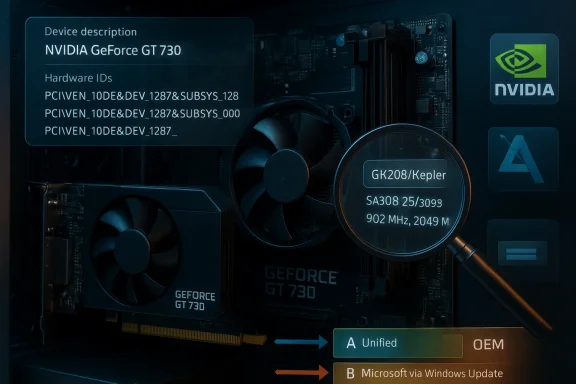
Not all GT 730 cards are the same. NVIDIA and board partners shipped at least three distinct hardware families under the GT 730 model name:- Kepler-based variants (common GK208 / “Kepler” chips) — typically the best-supported modern path.
- Fermi/older variants and OEM rebrands — sometimes treated as legacy devices and restricted to older driver branches.
- OEM-specific variants with custom firmware, clocking, or memory (DDR3 vs GDDR5) — often require vendor drivers.
How to identify your exact GT 730 variant
- Open Device Manager (right‑click Start → Device Manager) and expand Display adapters.
- Right‑click the NVIDIA device → Properties → Details tab → choose “Hardware Ids.” Copy the PCI\VEN and DEV IDs (for example PCI\VEN_10DE&DEV_0FC9).
- Optionally use a third‑party utility such as GPU‑Z to display the GPU code name (e.g., GK208) and clock/memory details, or use a system information tool to capture the exact board name.
Driver options explained: which path to pick
There are five realistic driver options for GT 730 owners. Each has strengths and risks depending on your card variant and desired outcome.- Option A — Latest NVIDIA Unified Game/Studio Driver that lists your device
- Best when your GT 730 hardware ID appears in the current driver’s supported-products list. Provides the latest bug fixes, security hardening, and any compatibility improvements NVIDIA is still shipping for older GPUs. Use this if the installer explicitly includes your hardware ID.
- Option B — NVIDIA Legacy Driver (390-series family and similar)
- Applicable when your GT 730 is a legacy ID. Legacy drivers are older branches that NVIDIA maintains specifically for chips no longer included in the unified releases. They provide the fullest feature set for older hardware but will not receive modern game optimizations or GeForce Experience feature updates.
- Option C — Microsoft-supplied driver via Windows Update (basic display driver)
- Good fallback if nothing else installs cleanly. Provides basic display output and multi-monitor support but often lacks Nvidia control-panel features, hardware video decoding optimizations, and gaming fixes.
- Option D — OEM/vendor driver (ASUS/MSI/Gigabyte etc.)
- Use when your card was shipped by an OEM with a vendor‑customized BIOS or driver package. The vendor-supplied driver may include device IDs that the generic NVIDIA installer ignores.
- Option E — Community-modded or third‑party drivers (not recommended)
- These can add support for otherwise unsupported combinations but come with stability, security, and trust risks. Avoid unless you understand the implications and have a full system backup.
Which option is “best”?
- If your hardware ID is included in NVIDIA’s modern unified drivers, choose Option A for security and compatibility.
- If the unified installer rejects your device and documentation shows that ID in a legacy list, choose Option B (Legacy 390.x family is a typical example for GT 730 legacy IDs).
- If you have an OEM card, check the OEM first for an Option D driver before trying NVIDIA’s generic installers.
- Use Option C only as a temporary fallback.
Recommended drivers and practical rules
Rather than a single “top driver version,” here are practical, ranked recommendations tailored to common situations.- Check NVIDIA’s current driver catalog for your hardware ID. If the latest Game/Studio driver explicitly supports your GT 730 hardware ID, download that package and install with a clean install (see the installation checklist below).
- If the unified driver doesn’t include your hardware ID, locate the proper legacy driver (390.x family or equivalent). Many GT 730 legacy IDs are supported on NVIDIA’s legacy packages — these remain the correct choice for those specific variants.
- If you bought the card bundled in a brand PC or as an OEM module, check the vendor’s support page first. Vendor builds sometimes require vendor-signed drivers.
- For Windows 11, the same identification process applies. Windows 11 will accept and use supported NVIDIA drivers if the driver itself is compatible with Windows 11. If a driver was only released for Windows 10, do not assume it will install on Windows 11 without verifying the driver’s OS support in the release notes.
- Avoid driver aggregator websites unless they explicitly reference the OEM or NVIDIA driver package names. Third‑party driver portals sometimes redistribute repackaged or unsigned INF files that cause problems.
Step-by-step: how to install the correct GT 730 driver safely
Follow this conservative workflow to minimize risk and avoid Windows Update swapping your driver.- Identify your hardware ID (Device Manager → Details → Hardware Ids).
- Confirm which driver branch includes your ID (NVIDIA release notes / supported products list or your vendor’s support page).
- Create a System Restore point and a small image backup (recommended for business or daily‑use machines).
- Download the correct driver package (NVIDIA unified, NVIDIA legacy, or OEM) — do not use third‑party driver updaters for the initial install.
- Optional but recommended: use Display Driver Uninstaller (DDU) in Safe Mode to remove previous NVIDIA drivers cleanly. This removes registry leftovers and prevents installer conflicts.
- Run the NVIDIA installer, choose “Custom (Advanced),” and select “Perform a clean installation.” This removes existing settings and ensures fresh driver files are used.
- Reboot and verify functionality (hardware acceleration, video decoding, and 3D apps).
- If Windows Update later installs a different driver version, roll back through Device Manager (Driver tab) and optionally set the device to prevent automatic driver updates (Group Policy or Registry) if consistent behavior is required.
Tips for Windows Update driver interference
Windows Update can install a Microsoft‑signed NVIDIA driver that might replace an installed NVIDIA package. If you rely on a legacy or vendor-supplied driver, consider:- Using the Group Policy Editor to “Prevent installation of devices not described by other policy settings,” or
- Use the “Show or hide updates” troubleshooter to block a specific driver update temporarily, or
- Lock down the driver by uninstalling the Microsoft version and installing the correct NVIDIA/OEM driver with driver signature checks in place.
Troubleshooting: common GT 730 problems and fixes
- Symptom: NVIDIA installer fails with “No compatible hardware found.”
- Fix: Confirm the hardware ID. If the device ID is not listed in the driver’s supported product list, try a different driver branch (legacy vs unified) or the OEM driver. Avoid forcing the driver if the ID is absent — forcing can lead to black screens.
- Symptom: After installing, the OS reports “Microsoft Basic Display Adapter.”
- Fix: Re-run the driver installer as Administrator, perform a clean install, or use DDU to remove remnants and reinstall.
- Symptom: Game performance or video playback stuttering after a driver update.
- Fix: Roll back the driver in Device Manager to the previous working version. Long‑lived stability often comes from slightly older, proven driver revisions rather than the newest bleeding‑edge build for old hardware.
- Symptom: GeForce Experience or modern NVIDIA app will not install or does not detect the GT 730.
- Fix: GeForce Experience / NVIDIA app support varies by GPU generation. If your card is in the legacy bucket, these apps may not fully support it; manage drivers manually in that case.
Advanced: DDU, driver rollback and version choices
- DDU (Display Driver Uninstaller): This free tool is the industry‑standard for removing NVIDIA driver traces. Use DDU in Safe Mode if you see persistent driver problems, installation failures, or control‑panel anomalies after several attempts.
- Driver rollback: If a particular driver introduces bugs, use Device Manager → Properties → Driver → Roll Back Driver to revert. Keep the installer for the previous working driver handy.
- 32‑bit vs 64‑bit: NVIDIA’s driver strategy ended broad 32‑bit support in recent years for new driver branches. If you remain on a 32‑bit Windows version, you may be limited to very old driver revisions. Upgrading to 64‑bit Windows is recommended for better driver availability and future updates.
Performance and expectations for GT 730 on modern Windows
The GT 730 is an entry-level GPU originally targeted at HD video, light gaming, and desktop multimedia tasks. On Windows 10 and Windows 11 you can expect:- Smooth hardware‑accelerated video playback for 1080p and some 4K codecs depending on the variant and driver support.
- Light gaming at low/medium settings on older titles; modern AAA games will exceed the card’s practical capabilities.
- Improved stability and security when running a driver that is still within NVIDIA’s supported branch for your specific hardware ID.
Security and longevity considerations
- NVIDIA has committed to extended security fixes for older architecture families on occasion. Some older driver branches receive periodic security updates even if feature development has ended. However, support timelines and frequency depend on the architecture and company policy. Verify whether your card’s architecture is still receiving critical updates before relying on it for secure, long-term use.
- Avoid unofficial drivers from unverified repositories; these can include unsigned drivers or modified installers that compromise system security.
- If you manage multiple machines with GT 730 cards in an enterprise context, pin driver versions and validate them in a test environment before mass deployment.
Risks, common mistakes and how to avoid them
- Installing the wrong branch (e.g., trying a modern unified driver when your device ID is legacy-only) is the single most common user error. Always check the supported device list first.
- Relying on third‑party “driver updaters” often results in installing incorrect INF files or mismatched components; prefer official NVIDIA, Microsoft (Windows Update), or OEM downloads.
- Not backing up before driver changes — particularly when using DDU — leaves no quick rollback path if something breaks. Take a full disk image if the machine is critical.
- Forgetting that “GT 730” is a model name, not a guarantee of identical hardware across every card. Two GT 730 cards can behave differently if one is GK208/Kepler and the other a different die or OEM variant.
Quick reference checklist: choosing and installing a GT 730 driver
- Step 1: Identify hardware ID (Device Manager → Details → Hardware Ids).
- Step 2: Verify which NVIDIA or OEM driver branch explicitly lists that hardware ID.
- Step 3: Back up and create a restore point. Use DDU in Safe Mode for a truly clean slate.
- Step 4: Install the appropriate NVIDIA unified or legacy driver, or the OEM driver. Choose “Custom” → “Clean install.”
- Step 5: Reboot and test video/3D workloads. If problems appear, roll back to a previously working driver.
- Step 6: If using Windows Update, monitor whether it replaces your driver; block that replacement if necessary.
When to replace rather than fix the driver
There comes a point where driver workarounds yield diminishing returns. Consider hardware replacement when:- You need modern gaming features or DirectX 12-level performance that the GT 730 cannot deliver.
- You rely on driver features that are only available in current driver branches but your specific GT 730 variant is legacy-only.
- You require long-term security updates and vendor support for business-critical systems.
Conclusion
For owners of the GeForce GT 730 the driver story is not one-size-fits-all. The core rule is simple: identify the card precisely, then match the driver branch to your hardware ID. If your device ID is supported in NVIDIA’s modern unified drivers, install that package for the best mix of security and compatibility. If your card is a legacy variant, use the NVIDIA legacy driver branch or the vendor-supplied driver to get the full feature set and stability. Use DDU for problematic installs, avoid third‑party driver updaters, and keep Windows Update from quietly replacing a working legacy driver with a generic adapter.Following the identification-first approach will save hours of trial and error and keep your GT 730‑equipped Windows 10 or Windows 11 machine stable and usable.
Source: Born2Invest https://born2invest.com/?b=style-230630412/
