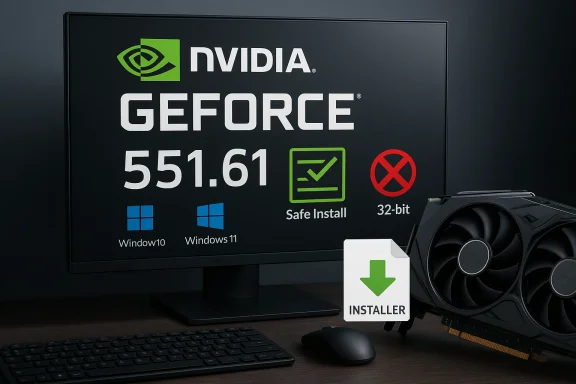
If you’re looking to download drivers for an NVIDIA GeForce GTX 650 on a Windows 10 PC — or you found an odd sales/mirror page promising “NVIDIA GeForce Graphics Driver 551.61 for Windows 10/11” — pause for a moment and read this first. The technical facts, the safest download options, and the practical installation and rollback steps are what matter here: NVIDIA did publish driver branch 551.61 as a WHQL release in February 2024, but whether that exact build is the right choice for a GTX 650 depends on the driver’s supported‑product list, the packaging type (DCH vs Standard), and whether your system is a desktop or an OEM laptop. Always prefer vendor sources and verified archives over random “outlet” or sports‑site mirrors; the throughthefencebaseball.com URL you provided is a baseball site and not an official driver host, and it should not be used as your driver source. (nvidia.co.uk)
The GeForce GTX 650 is a Kepler‑architecture desktop GPU introduced in 2012 (GK107). It was a mainstream, energy‑efficient card for its time and remains in use in many older systems for basic gaming and multimedia work. Kepler‑era GPUs can run under modern Windows 10 systems, but they fall into the “legacy”/long‑tail support conversation: NVIDIA has steadily shifted support and feature focus toward newer architectures while maintaining various archival or security update policies for older hardware. In other words, the card works — but which driver you should install is a decision that needs verification.
Two contemporary facts every Windows 10 user should be aware of:
Source: Through The Fence Baseball https://www.throughthefencebaseball.com/?t=category-304825711/
 Background / Overview
The GeForce GTX 650 is a Kepler‑architecture desktop GPU introduced in 2012 (GK107). It was a mainstream, energy‑efficient card for its time and remains in use in many older systems for basic gaming and multimedia work. Kepler‑era GPUs can run under modern Windows 10 systems, but they fall into the “legacy”/long‑tail support conversation: NVIDIA has steadily shifted support and feature focus toward newer architectures while maintaining various archival or security update policies for older hardware. In other words, the card works — but which driver you should install is a decision that needs verification. Two contemporary facts every Windows 10 user should be aware of:
- NVIDIA published a Studio and Game Ready driver branch labeled 551.61 (WHQL) in February 2024; the release pages and notes are the canonical references for what that build fixes and which GPUs it supports. (nvidia.co.uk)
- NVIDIA and the tech press documented a multi‑year change in how long different architectures will receive new features or security updates; Windows 10’s lifecycle and NVIDIA’s own support timelines mean you must confirm current compatibility rather than assume it. Major outlets covered NVIDIA’s Windows 10 support policies and the company’s EOL/extended cadence decisions.
Why 551.61 shows up in searches — what it is and what it isn’t
What the 551.61 build is
- Version and pedigree: 551.61 is an official NVIDIA driver branch released in February 2024, available as WHQL (Windows Hardware Quality Labs) certified packages for Windows 10 (64‑bit) and Windows 11. NVIDIA published both Studio and Game‑centric variants around that timeframe; the official download pages and release notes list supported products, file size, fixes, and caveats. If you see a download labeled “NVIDIA Studio Driver 551.61 WHQL,” that is the official descriptor on NVIDIA’s site. (nvidia.co.uk)
- Who it targets: Studio builds target creators and multi‑app workflows; Game Ready builds focus on the latest gaming titles and zero‑day fixes. Both can be used on many desktop and notebook graphics cards — but the supported‑products table is the authoritative compatibility list you must consult before installing. (nvidia.co.uk)
What 551.61 is not
- 551.61 is not a universal “one size fits all” installer for every historic GeForce card. Some older families were moved to legacy status years ago, and newer driver branches may explicitly drop feature support for Kepler or other legacy architectures even if Windows 10 compatibility is still maintained at a basic level. Always check the release notes’ supported products table for the exact SKU. If the driver page does not list your device, do not force the install. (nvidia.co.uk)
The safe download triage: where to get NVIDIA drivers (and where not to)
When you need a graphics driver, there are three authoritative sources and a bunch of risky ones to avoid.- Prefer these (in order):
- NVIDIA’s official driver download pages and the downloadable release notes packaged with each driver. This is the canonical place to confirm release date, WHQL status, file size, and the “Supported products” table. Always confirm the digital signature after download. (nvidia.co.uk)
- Your OEM/laptop vendor support page (Dell, HP, Lenovo, ASUS, Acer, etc.) — for notebooks this is the preferred source because OEMs can ship vendor‑tuned INFs and power/thermal tweaks that generic drivers do not include. Community experience repeatedly recommends OEM packages for laptops.
- The Microsoft Update Catalog for WHQL packages you may want to install via Device Manager (less common for full feature driver installs, but useful in some recovery scenarios).
- Avoid these:
- Third‑party “driver download” portals, repackagers, or random mirrors. Kernel‑level drivers are a high‑value attack surface; repackaged installers may include intrusive extras, altered INFs, or even malware. Community audits and forensic analyses repeatedly flag non‑vendor mirrors as risk vectors.
- Generic blog posts or sports/advertising sites that mirror a binary — for example, the throughthefencebaseball.com domain is a baseball content site and is not an authoritative driver source. Use vendor pages instead.
How to confirm a driver supports your GTX 650 (step‑by‑step)
- Identify your GPU and OS build precisely: Open Settings → System → About to confirm Windows 10 64‑bit. Open Device Manager → Display adapters → note the exact adapter string. If you need absolute precision, open the device Properties → Details → Hardware Ids and copy VEN and DEV identifiers. This ensures you match the driver INF entries to your hardware.
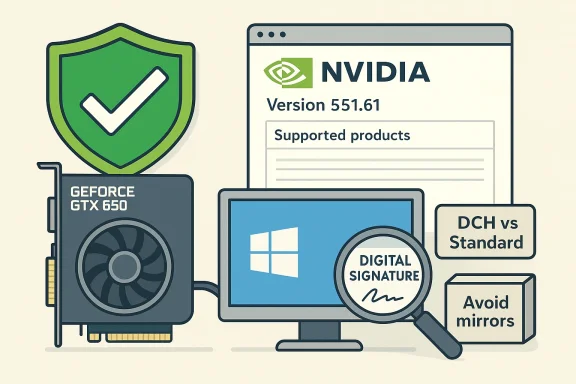
- Open the NVIDIA driver page for the build you care about (e.g., 551.61) and read the Supported products table or the release notes PDF. If your exact SKU (e.g., GeForce GTX 650, or the OEM variant) is listed, the package is intended to support it. If the table does not list it, do not assume compatibility. (nvidia.co.uk)
- Confirm package type (DCH vs Standard) and device variant (desktop vs notebook). If your PC uses a DCH driver style (common on newer Windows images), switching to a Standard package without a clean uninstall can produce errors. The NVIDIA release page notes packaging and exceptions; double-check that before proceeding.
- Verify the binary’s provenance after download:
- Check file name and file size against NVIDIA’s published metadata.
- Right‑click the installer → Properties → Digital Signatures → confirm it’s signed by NVIDIA Corporation.
- If the vendor provides checksums (SHA256), verify them against the downloaded file. These steps guard against tampered or truncated downloads.
Step‑by‑step: safest install workflow for Windows 10 (recommended)
Follow this workflow if you plan to install a new NVIDIA driver on a Windows 10 machine that uses a GTX 650.- Back up first
- Create a System Restore point or, better, a full disk image if the machine is production‑critical. Kernel drivers can break boot; backups make recovery straightforward.
- Record the baseline
- Note the current driver version: Device Manager → Display adapters → Driver tab → Driver Version.
- Save the current installer (if you have it) into an archive folder for rollback.
- Download from NVIDIA or OEM
- Use NVIDIA’s driver search or your OEM’s support page. Save the EXE locally; do not run from a browser temp folder. Check size and digital signature. (nvidia.co.uk)
- Optional — DDU clean uninstall (for problem cases)
- If you previously had driver corruption or are switching package types (DCH ↔ Standard), boot to Safe Mode and run Display Driver Uninstaller (DDU). DDU is a community tool that removes driver residues and registry entries; use it only from Safe Mode and follow its instructions. This reduces INF/driver mixups.
- Run the NVIDIA installer as Administrator
- Right‑click → Run as administrator.
- Choose Custom (Advanced) install and, if you want a fresh start, check Perform a clean installation. Uncheck GeForce Experience if you prefer a driver‑only install. Reboot when prompted.
- Verify post‑install
- Open NVIDIA Control Panel → System Information and confirm the installed driver version.
- Run representative tests (a video playback, a quick game, or a benchmark) and watch for crashes or display anomalies. If problems appear, use Device Manager → Roll Back Driver (if available) or reinstall your archived previous driver.
Troubleshooting: common failure cases and fixes
- Installer reports “unsupported GPU” or fails early
- Confirm hardware ID vs INF table. If the INF does not include your device, the installer may refuse to continue. Use an older archived driver that explicitly lists the GTX 650 or use an OEM package.
- Black screen during or after install
- Boot to Safe Mode, uninstall the NVIDIA drivers via DDU, then reinstall a driver that you verified on another system. If you cannot boot at all, use Windows’ recovery environment to roll back.
- Driver download finishes but installer fails
- Verify file signature and file size. Re‑download from NVIDIA’s official page. Some users have reported cached or partial downloads produced this symptom; re‑downloading and running as administrator can fix it. Community threads note intermittent download/installer issues for some builds — check NVIDIA’s forums/known issues if you run into it.
Which driver should GTX 650 owners realistically use in 2024–2026?
- If you prioritize maximum stability and the GPU is in a branded OEM system (HP/Dell/Lenovo/etc.), prefer the OEM’s Windows 10 driver for your exact laptop/desktop model. OEM packages may carry signed INFs and vendor tweaks you should not overwrite lightly.
- If you run a discrete desktop GTX 650 and want the latest WHQL branch that still lists your GPU, check NVIDIA’s release notes for the branch in question (for example, earlier R304/306 era drivers explicitly listed the GTX 650). If a modern branch (e.g., 551.x) lists your card in the supported products table, the latest WHQL is fine; if not, use the last official archived release that lists the card. Archival release pages from NVIDIA (and community archives) document which driver families covered the 600‑series historically.
- If you need features introduced after Kepler’s era (DLSS, RTX effects, hardware encoders, newer codec acceleration) — those are not available on GTX 650 hardware. Don’t expect modern driver branches to add new feature sets to this GPU; drivers can fix bugs and occasionally squeeze optimizations, but they cannot change the card’s hardware capabilities.
Security and lifecycle considerations
- Windows 10 lifecycle affects risk: Windows 10’s mainstream support and the vendor attention around it changed after Microsoft’s official timelines; NVIDIA clarified certain extended cadences for Game Ready and security updates. For systems remaining on Windows 10 into extended lifecycle windows, verify whether your GPU architecture still receives security updates or feature releases and plan hardware refresh accordingly. Major tech outlets covered NVIDIA’s Windows 10 support extension for certain GPUs; keep that context in mind when planning long‑term maintenance.
- Kernel drivers are privileged: obtaining drivers from unknown mirrors risks integrity. Always verify digital signatures and prefer vendor pages. Community resources and forum audits repeatedly warn against “discount” mirrors or repackagers; treat any non‑vendor binary that does not match NVIDIA metadata as suspect.
Practical checklist before you click “Install”
- Confirm your GPU model and hardware IDs in Device Manager.
- Open the NVIDIA release‑notes page for the driver build you intend to install and confirm the card appears in the Supported products table. (nvidia.co.uk)
- Check package type (DCH vs Standard) and match your current install style or plan a DDU clean uninstall.
- Create a restore point or full image.
- Verify file size and digital signature for the downloaded installer. (nvidia.co.uk)
- Keep an archived copy of the previous working driver installer to facilitate rollback.
Why you shouldn’t use random “Outlet” or mirrored downloads (and what to do instead)
- Random mirrors and unrelated content sites (including sports blogs or advertising pages) frequently host repackaged binaries or simply copy phrasing for SEO. The throughthefencebaseball.com domain you referenced publishes baseball content and advertising — it is not a verified driver host. Do not use it to download drivers. Use NVIDIA’s official download pages or your OEM site instead.
- If you already downloaded a driver from an untrusted source:
- Don’t run it. Verify the file signature; if it lacks an NVIDIA digital signature, delete it.
- Run an offline antivirus scan on any machine where you ran an untrusted binary and consider restoring from a clean image if you suspect compromise. Kernel‑level tampering is a high‑severity condition.
A final word for GTX 650 owners: practical recommendations
- If your GTX 650 is in a branded OEM system (prebuilt desktop or laptop), use the OEM’s Windows 10 driver first. OEM drivers are safer for notebooks because they include thermal/power INFs and verified signing.
- If your GTX 650 is a desktop discrete card and you want the most recent WHQL branch that explicitly supports it, read the 551.61 release notes (or the release notes for whatever branch you plan to install) and confirm the Supported products table lists the GTX 650 SKU. If the card is not listed, choose the latest archived NVIDIA driver that does list it instead. (nvidia.co.uk)
- Do not rely on advertising pages, cheap download portals, or unrelated domains for kernel drivers. Verify using the vendor’s site, the release notes PDF, and a file signature check before installing. (nvidia.co.uk)
- If you experience problems after an install, use Device Manager’s rollback function or perform a DDU clean removal and reinstall a known working driver. Keep logs and DxDiag output if you need to escalate the issue to NVIDIA/your OEM.
Conclusion
Drivers are the glue between Windows and your GPU. For a decade‑old card like the GTX 650, the safe play is conservative and verifiable: identify your exact GPU SKU, consult NVIDIA’s release notes’ supported‑products table for the driver branch you plan to install (for example, 551.61 is an actual WHQL build issued in early 2024), and download only from NVIDIA or your OEM. Avoid mirrored “outlet” downloads and any site unrelated to official vendor support; the baseball site you cited is not a driver host and should not be trusted for installers. Follow a disciplined install workflow — backup, verify, optional DDU clean, custom install with a recorded rollback option — and you’ll minimize the risk of driver‑level failures. If you need help confirming whether a specific 551.61 package lists your GTX 650 SKU, provide your Device Manager adapter string or hardware IDs and I’ll read the NVIDIA release notes with you and confirm the match. (nvidia.co.uk)Source: Through The Fence Baseball https://www.throughthefencebaseball.com/?t=category-304825711/