

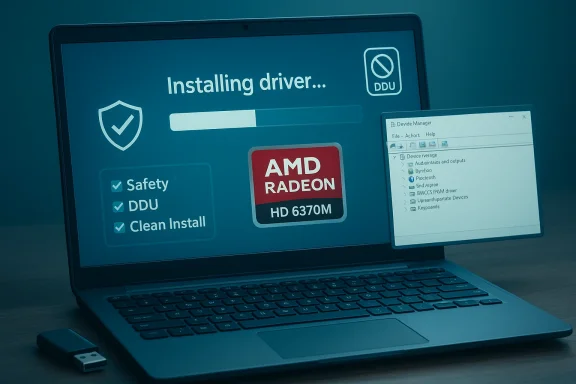
HD 6370M on Windows 10 x64 sits in the awkward middle ground that defines so much legacy PC hardware in 2026: still usable, still supported by a few official downloads, but no longer part of AMD’s forward-looking driver ecosystem and now running on an operating system that itself reached end of support on October 14, 2025. For owners of laptops with the AMD Radeon HD 6370M, that means the real question is no longer whether the GPU can “work” on Windows 10 x64, but whether it can do so safely, predictably, and without turning a well-loved machine into a troubleshooting project. AMD still maintains a product page for the HD 6370M, but the available material shows only legacy-era packages and older release trains rather than an active modern driver cadence (amd.com)
Background — full context
The Radeon HD 6370M belongs to AMD’s mobile Radeon HD 6000M family, a generation built for thin-and-light laptops of the early 2010s. These GPUs were common in OEM systems from ASUS, Lenovo, HP, Acer, and others, often paired with Intel integrated graphics in switchable-graphics designs. That detail matters because mobile Radeon parts are not treated like desktop cards: laptop vendors, chipset drivers, BIOS versions, and Intel graphics packages can all influence whether the AMD GPU initializes correctly under Windows 10 x64.What makes the HD 6370M especially tricky is that its “support story” spans several layers of time. The hardware is old, the driver family is legacy, and the operating system has moved on. AMD’s current support page for the HD 6370M still exists, but the visible download history is dominated by dated packages rather than ongoing feature updates, which is a strong signal that users should approach it as a legacy compatibility case rather than a current-platform driver target (amd.com)
There is also the larger Windows lifecycle issue. Microsoft’s official guidance states that Windows 10 reached end of support on October 14, 2025, meaning no more free security updates, feature updates, or technical assistance for standard consumer and business editions. That does not instantly stop the machine from booting, but it does change the risk profile of every driver decision on the system, especially for older graphics hardware that depends on aging software stacks (support.microsoft.com)
This is why a “safe driver guide” for the HD 6370M cannot simply say “download the latest driver.” The latest official package is not necessarily the best choice for stability, and on older laptops the correct answer may be a combination of vendor driver, Windows Update compatibility layer, and conservative installation practices. For many users, the safest outcome is not maximum benchmark performance, but a stable display device that supports brightness controls, external monitors, video playback, and normal desktop use.
What the HD 6370M actually is
A legacy mobile GPU with modern baggage
The HD 6370M is a low-end mobile discrete GPU from AMD’s older mobile Radeon stack. It was designed before today’s unified Windows driver model expectations, before the current Adrenalin software era, and before laptop vendors standardized on the kind of evergreen driver delivery we now take for granted.In practical terms, that means:
- It can run Windows 10 x64 in many systems
- It may not receive contemporary AMD feature support
- Its best behavior often depends on OEM-provided components
- Switchable graphics systems are more fragile than single-GPU desktops
- Legacy control-panel behavior may differ from modern Radeon software
Mobile vs desktop matters
Laptop GPUs like the HD 6370M are often tied to chipset and firmware decisions made by the notebook manufacturer. A desktop card can usually be swapped, re-seated, or paired with more flexible power and BIOS options. A mobile part usually cannot.That leads to three common realities:
- OEM support pages may offer only Windows 7 or Windows 8-era downloads
- Generic AMD downloads may install, but not always cleanly
- Device Manager may show the hardware as functional even when brightness or switching features misbehave
What AMD’s official pages imply
The product page exists, but the era is old
AMD still hosts a dedicated HD 6370M drivers page, and the page structure indicates legacy support materials rather than a modern active branch. The download history visible on the page is dated and includes older Catalyst-era packages, along with non-Windows entries that reinforce how old the support tree is (amd.com)That matters because it tells us two things:
- There is an official path to identify the GPU
- There is not a modern, ongoing feature-driver program for it
Previous versions tell an important story
AMD also maintains a “Previous Versions” page for the HD 6370M, which reinforces the idea that this GPU sits in a legacy maintenance bucket rather than a current active one. In a practical driver guide, that means users should expect older package naming, older installer logic, and older Catalyst-era conventions rather than the polished behavior of today’s Radeon Software stack (amd.com)The hidden risk of “latest”
For a legacy laptop GPU, “latest” can be the wrong instinct. A newer package may:- install but fail to expose all display controls,
- break brightness adjustment,
- cause black-screen or sleep-resume issues,
- or conflict with an Intel integrated graphics component in a switchable configuration.
Why Windows 10 x64 still matters for this GPU
Windows 10 remains the most realistic target
Even though Windows 10 reached end of support in 2025, it is still widely deployed on older hardware because it offers the best balance of compatibility and usability for legacy laptops. For the HD 6370M, Windows 10 x64 is often the last mainstream OS that can run the machine with enough driver support to remain useful for basic work, media, web access, and office tasks.But there is a caveat: after end of support, the operating system itself becomes a less secure platform. Microsoft states plainly that Windows 10 no longer receives free security updates or technical assistance, so the graphics driver discussion is now part of a broader system-security decision, not just a device-setup decision (support.microsoft.com)
The OS is not the only layer at risk
Older drivers on an unsupported OS create a compound risk:- the OS gets fewer or no security updates,
- the driver stack may have unresolved bugs,
- the vendor may no longer patch installer issues,
- and the laptop may rely on components that are themselves end-of-life.
- Can the HD 6370M be made to work on Windows 10 x64?
- Should the machine be trusted for high-risk tasks once it does?
Safe driver strategy
Start with the OEM, not random downloads
The safest first step is the notebook manufacturer’s support page. OEM packages are often customized for the laptop’s power management, brightness keys, BIOS behavior, and switchable graphics design. Even when the OEM page only lists Windows 7 or Windows 8 drivers, those packages can still be more stable than an arbitrary third-party mirror.Use the OEM path when:
- the laptop has switchable graphics,
- brightness keys are broken,
- external monitor output is unstable,
- or the system uses unusual power-saving behavior.
Then fall back to AMD’s legacy package
If the OEM path fails, AMD’s own HD 6370M page is the next logical stop. AMD’s official product page is the source most likely to provide the correct hardware identifier and the least risky installer compared with random download sites (amd.com)Avoid driver aggregator sites
Driver “updaters,” scraping sites, and repackaged installers are risky because they often bundle:- outdated or modified INF files,
- unwanted utilities,
- adware,
- or unsigned components.
Installation approach that minimizes trouble
Clean the old stack before adding a new one
The most common failure mode with old mobile AMD graphics is residue from prior installs. A safe installation sequence should begin by removing older AMD and Intel display components carefully, then installing the chosen driver package once the system is in a clean state.Best-practice steps include:
- create a system restore point,
- download the intended driver package in advance,
- disconnect from unreliable network conditions during install,
- uninstall old display software from Apps and Features where appropriate,
- and reboot between major driver transitions.
Be careful with DDU and similar tools
Display Driver Uninstaller is often recommended in enthusiast circles, but on OEM laptops it should be used cautiously. Aggressive cleanup can remove components that the system still depends on, especially on switchable-graphics machines. If you use a cleanup tool:- make sure you know the exact laptop model,
- note the current driver version first,
- and have a fallback plan in case Windows boots at a low resolution.
Install in this order when possible
A conservative order is usually safest:- Chipset drivers
- Intel integrated graphics driver
- AMD mobile graphics driver
- Reboot
- Verify Device Manager status
- Test brightness, sleep, resume, and external display output
Switchable graphics and laptop-specific pitfalls
Intel plus AMD can be more fragile than expected
The HD 6370M often appeared in systems where Intel graphics handled baseline display and AMD kicked in for selected workloads. If the Intel side is missing, outdated, or mismatched, the AMD driver may appear to install while still failing in real use.Signs of hybrid-graphics trouble include:
- the AMD device appears with warnings in Device Manager,
- the laptop refuses to switch performance modes,
- brightness sliders stop responding,
- or certain applications always run on the integrated GPU regardless of settings.
Windows 10 changed the switching model
Older AMD switchable-graphics software depended on its own control mechanisms, but Windows 10 introduced system-level graphics preference controls that changed the user experience. That can help some users, but it can also expose incompatibilities on aging OEM configurations.If the laptop has a vendor-provided graphics switch utility, it may still be important even if Windows offers its own per-app GPU selection.
BIOS and firmware are not optional
Older notebooks may need BIOS updates or firmware revisions to behave properly under Windows 10 x64. If the system has unresolved display issues even after a correct driver install, the problem may be platform-level rather than driver-level.Real-world symptoms to watch for
Brightness control is the canary in the coal mine
One of the most common HD 6370M-on-Windows-10 complaints involves brightness controls. When brightness adjustment works, it often suggests the driver and ACPI stack are cooperating. When it fails, it can indicate a mismatch between the GPU driver, the Intel graphics layer, and the laptop’s power management.Watch for:
- brightness keys doing nothing,
- the brightness slider moving without effect,
- display dimming stuck at one level,
- or sleep/resume changing brightness unexpectedly.
Display anomalies may not be “GPU failure”
The HD 6370M is old, but many “GPU problems” are actually:- wrong Intel chipset drivers,
- missing hotkey utilities,
- bad OEM ACPI integration,
- or a driver that is technically installed but not fully functional.
- external HDMI or VGA output,
- safe mode behavior,
- device status in Device Manager,
- and whether a fresh Windows profile changes the behavior.
Performance expectations should be modest
Users should not expect modern gaming, heavy browser acceleration, or GPU-intensive workflows. This card is best thought of as a legacy desktop and media accelerator, not a modern graphics solution.A practical safety checklist
Before you install anything
- Back up important files
- Create a restore point
- Identify the exact laptop model
- Check the current BIOS version
- Download Intel chipset and graphics drivers first
- Save the AMD package locally
- Verify whether the system uses switchable graphics
- Have a rollback path ready
During installation
- Use only one driver source at a time
- Do not stack multiple AMD packages
- Reboot when prompted
- Let Windows finish device detection
- Avoid simultaneous Windows Update driver installs if troubleshooting
After installation
- Check Device Manager for warning symbols
- Test sleep and resume
- Test brightness hotkeys
- Test external monitor output
- Open video playback and a browser
- Check whether the GPU is being used where expected
Where users go wrong
They trust mirror sites too easily
Old hardware creates a temptation: if the official path seems too slow, users grab the first “HD 6370M Windows 10 x64 driver” download they see. That is almost always the wrong move. The older the hardware, the more valuable the official package becomes.They chase newer driver numbers
Legacy GPUs do not benefit from the same release cadence as current hardware. A newer package can be less compatible than an older one. The safest approach is to identify the last known-good driver for the specific laptop design, not the latest driver in the abstract.They ignore the Intel side of the stack
On hybrid notebooks, Intel graphics is not optional background plumbing. It is frequently the foundation for the entire display pipeline. If Intel drivers are broken or missing, AMD troubleshooting becomes misleading.They assume Windows 10 support equals security
It does not. Windows 10’s end-of-support date is now in the past, and that changes the threat model for any machine still running it. Microsoft’s guidance is explicit that unsupported Windows 10 systems no longer receive security fixes (support.microsoft.com)Best use cases for an HD 6370M laptop in 2026
Good fits
- office documents,
- local media playback,
- archived software use,
- offline diagnostics,
- light web use on low-risk networks,
- and legacy application compatibility.
Poor fits
- sensitive banking or finance tasks,
- modern gaming,
- 3D creation,
- high-resolution video editing,
- long-term always-online use,
- and any workflow requiring current driver support or strong security guarantees.
Strengths and Opportunities
What still works in its favor
The HD 6370M’s biggest strength is simple: it is old, documented, and predictable enough to be managed. That sounds faint praise, but for a legacy mobile GPU it is meaningful. AMD still provides a product page, and that gives users an authoritative place to confirm the exact model and trace the last official support materials (amd.com)Other strengths include:
- Low power demand by modern standards
- Adequate support for basic desktop use
- Compatibility with older OEM laptop designs
- Potentially functional on Windows 10 x64
- Useful for restoring older notebooks to service
Where there is room to succeed
A careful installation can still produce a stable machine for everyday legacy tasks. Success is most likely when:- the laptop BIOS is current,
- Intel drivers are installed correctly,
- the AMD package is chosen conservatively,
- and the user avoids mixing multiple driver sources.
Risks and Concerns
Security risk is now the headline issue
Because Windows 10 has reached end of support, even a perfectly working HD 6370M setup sits on a platform with no ongoing Microsoft security fixes. That is the most important risk in 2026, and it is larger than any single graphics bug (support.microsoft.com)Driver compatibility is inherently limited
Legacy mobile graphics drivers may work today and fail after a cumulative update, BIOS change, or reinstall. There is no strong reason to expect new fixes from AMD for a GPU of this age.System stability can depend on OEM quirks
A driver that works on one HP notebook may fail on another ASUS model with the same GPU because the surrounding platform differs. On mobile hardware, that is normal.Users may overestimate the card’s capability
The HD 6370M was never a powerhouse, and time has not improved that fact. Its role is compatibility, not performance.What to Watch Next
The biggest variable is the owner’s tolerance for risk
If you are keeping an HD 6370M laptop on Windows 10 x64 in 2026, the decisive issue is not whether a driver can be installed. It is whether the machine’s remaining purpose justifies using an unsupported operating system with a legacy graphics stack. Microsoft’s end-of-support timeline means that any additional usage should be judged through a security lens first (support.microsoft.com)Watch for OEM driver archives
If you are lucky, the notebook vendor’s archive may still host the exact graphics package or chipset bundle the machine needs. That can often outperform a generic download because it preserves the original power-management assumptions.Watch for Windows Update behavior
Even after end of support, Windows Update behavior on older systems can be inconsistent, especially if the machine has been offline for a while. Updates may affect display device detection, hotkeys, or sleep behavior in subtle ways.Watch for replacement thresholds
At some point the safe answer is not another driver tweak but retirement. If the laptop is used online, if the battery is unstable, or if the user depends on reliable security, replacement becomes the responsible choice.Conclusion
The AMD Radeon HD 6370M can still be made to work on Windows 10 x64, but in 2026 the smarter question is not whether it can be installed, but whether it can be installed safely and used responsibly. AMD’s own legacy support pages show that the hardware belongs to an older driver era, and Microsoft’s Windows 10 end-of-support status means the entire platform now carries more risk than it did even a year ago (amd.com)For the right user, the safe path is straightforward: use official or OEM sources, install conservatively, verify Intel and chipset drivers first, and treat the machine as a legacy system with limited trust. For everyone else, the best driver guide may be the one that points toward a newer, supported PC.
Source: born2invest.com https://born2invest.com/?b=style-237201312/
Last edited:
