

Windows includes a surprising number of productivity tools that most people never discover — and the payoff for using even one of them can be hours saved every month.
Windows has, over the last several releases, folded a set of quietly powerful features into the OS that were originally aimed at power users, enterprise admins, or accessibility-minded folks. Many of those features — from quick local file transfers to ephemeral sandboxes — sit behind small UI gestures (a hover, a keystroke, a toggle in Settings) and are easy to overlook. A recent community roundup flagged many of these tools as underused, calling them “game changers” for day-to-day workflows. breaks down the most useful of those under-the-radar tools, verifies the key technical details, and offers realistic advice, privacy warnings, and practical workflows so you can actually use them. For each item I cross-check official Microsoft guidance with independent tech coverage so you get both the how and the why.
Third-party guides and community threads confirm the same basic behavior and add troubleshooting tips when discovery or transfers fail. If you have an updater-friendly fleet, Nearby Sharing can replace ad-hoc cloud upload/download trips for same-office or same-house transfers.
Independent tutorials show how Snap Layouts removes friction for multi-app workflows and explain how Snap Assist helps you quickly populate the chosen layout.
Tech coverage highlights how this lowers friction compared with third‑party timers because Windows can automatically suppress notifications and integrate with task lists and Spotify.
If you’ve only ever relied on third‑party utilities or old habits like thumb drives and manual window resizing, enable one of these features today. Start with Clipboard History (flip the switch, press Win+V) and Snapshot Layouts (hover that maximize button) — those two produce immediate, tangible benefits with virtually no configuration. Then add Focus Sessions and Virtual Desktops to tame interruptions and context switching. Use Nearby Sharing and Windows Sandbox when you need secure local transfers and safe testing.
These are native tools that reduce friction, but like any OS feature they’re subject to updates, policy control, and build-specific quirks — always verify behavior on your Windows build and consult Microsoft’s documentation and troubleshooting notes when something acts up.
Give one of them a try this week; you’ll find the tiny time investment in learning a keystroke or a toggle returns dividends in simplified workflows and fewer interruptions.
Source: TweakTown 5 Underused Windows Features That Deserve Attention
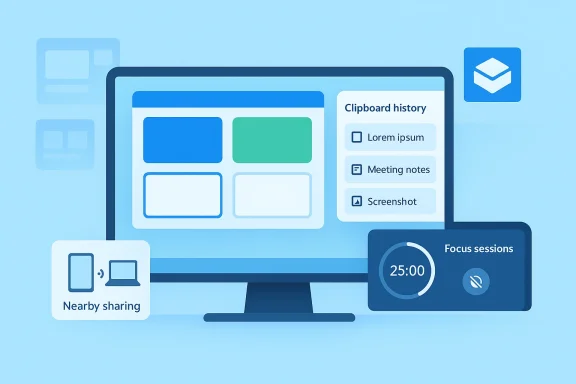 Background
Windows has, over the last several releases, folded a set of quietly powerful features into the OS that were originally aimed at power users, enterprise admins, or accessibility-minded folks. Many of those features — from quick local file transfers to ephemeral sandboxes — sit behind small UI gestures (a hover, a keystroke, a toggle in Settings) and are easy to overlook. A recent community roundup flagged many of these tools as underused, calling them “game changers” for day-to-day workflows. breaks down the most useful of those under-the-radar tools, verifies the key technical details, and offers realistic advice, privacy warnings, and practical workflows so you can actually use them. For each item I cross-check official Microsoft guidance with independent tech coverage so you get both the how and the why.Nearby Sharing — ditch the flash drive, not your privacy
What it does and why it’s useful
Nearby Sharing is Windows’ built-in peer-to-peer file-and-link transfer feature. It uses Bluetooth for discovery and either Bluetooth or Wi‑Fi to transfer content between Windows PCs on the same network. That means photos, documents, and even web links can be shared instantly without a USB stick, email, or file-sync service. Microsoft documents the feature and the basic workflows (Settings > System > Nearby sharing; right‑click a file > Share).Third-party guides and community threads confirm the same basic behavior and add troubleshooting tips when discovery or transfers fail. If you have an updater-friendly fleet, Nearby Sharing can replace ad-hoc cloud upload/download trips for same-office or same-house transfers.
Requirements and limitations (verified)
- Works on Windows 10 (version 1803 and later) and Windows 11, but specifics vary by build. Check your version if you run into compatibility issues.
- Devices must have Bluetooth enabled for discovery; transfers can go over local Wi‑Fi when supported.
How to use it (quick steps)
- Open Settings > System > Nearby sharing and enable the feature on both devices. Choose “My devices only” (requires same Microsoft account) or “Everyone nearby.”
- In File Explorer, right‑click a file and select Share; then pick the recipient. The recipient accepts the prompt to receive the file.
Risks, gotchas, and mitigation
- Privacy: Choosing “Everyone nearby” makes your PC’s Bluetooth name and MAC address discoverable to others, which could be used to link devices to users in public spaces. Use “My devices only” when possible, and switch to “Everyone nearby” only on trusted networks.
- Network quirks: Corporate policies, VPNs, or firewall rules can block discovery or transfer. Microsoft’s troubleshooting guide is a necessary first stop if Nearby Sharing appears missing.
Pro tip
If you rely on Nearby Sharing daily, map a folder to receive items (Settings lets you change the “Save files I receive to” location). That keeps transfers predictable and avoids cluttering Downloads.Snap Layouts — an immediate upgrade to window management
Why Snap Layouts matter
Windows 11’s Snap Layouts transform a small UI interaction (hover the maximize button or press Win+Z) into a fast, consistent way to tile windows and create focused workspaces. Unlike manual resizing, Snap Layouts preserve relative sizes and let you fill the remaining space with suggested apps — this is especially helpful on large or ultrawide displays. Microsoft’s developer documentation outlines both the user gestures and the API behaviors.Independent tutorials show how Snap Layouts removes friction for multi-app workflows and explain how Snap Assist helps you quickly populate the chosen layout.
Verified behaviors and shortcuts
- Invoke by hovering on the maximize button or by using Win+Z; the available layouts adjust to screen size and orientation.
- Snap Assist presents other open windows to fill the remaining zones; keyboard navigation and Win+Arrow remain supported.
Strengths and limitations
- Strength: It’s built into Windows 11 with no extra tooling required; layout options scale for laptop and large monitors.
- Limitation: Windows does not natively save named layouts that are restored after a reboot — if that’s critical for your workflow, use third‑party tools like PowerToys FancyZones or layout savers (community tools) to persist complex arrangements. Independent coverage confirms FancyZones remains the go‑to for persistent, custom zone layouts.
Practical workflow
- Use Snap Layouts for “quick triage” — open a browser, docs, and chat app into a 3‑column layout during meetings. When you need persistent multi‑monitor workspaces, combine Snap Layouts with a PowerToys FancyZones profile.
Clipboard History (Win+V) — the tiny switch that stops rework
What it is
Clipboard History stores up to 25 clipboard items (text, HTML, images under 4 MB) and makes them available with Win+V. This is a lifesaver when you accidentally copy over content you still need. HowToGeek and Microsoft community docs both document the behavior, limits, and how to pin items to keep them across reboots.Verified specs
- Up to 25 items stored; each item limited to 4 MB (text, HTML, bitmap). Pinning prevents an item from being lost on reboot or Clear All.
How to enable
- Settings > System > Clipboard; toggle Clipboard History on. Then use Win+V to open the menu and paste any saved entry. How‑to guides walk through both Windows 10 and Windows 11 steps.
Known problems and cautionary notes
- Stability and UI glitches happen after certain cumulative updates and on managed devices. Microsoft’s Q&A threads and community forums show recurring reports where Win+V doesn’t show items or the Clipboard settings disappear under some update/policy combinations. If your Clipboard pane is empty, toggling Suggested Actions or doing a settings reset is a commonly advised fix, but expect to troubleshoot if you’re on managed enterprise images.
- Synchronization across devices (cloud clipboard) requires setting up clipboard sync and a Microsoft account; the sync feature is distinct from local history and has its own privacy considerations.
Productivity tip
Pin frequently used clips (passwords and sensitive data should not be pinned) and combine pinned clips with text expansion tools for boilerplate replies. If Clipboard History disappears after enterprise policies are applied, check group policy and device management rules — this is a known enterprise behavior.Focus Sessions and Focus (Clock app integration) — structured time, fewer interruptions
The idea
Windows’ Focus and Focus Sessions (the Clock app) provide a built-in, Microsoft-first implementation of Pomodoro‑style blocks: start a timed session, mute notifications, optionally pull tasks from Microsoft To Do, and play background music from Spotify. Microsoft’s support documentation describes the Clock app integration and the fact that Do Not Disturb turns on automatically during sessions.Tech coverage highlights how this lowers friction compared with third‑party timers because Windows can automatically suppress notifications and integrate with task lists and Spotify.
How it works (verified)
- Start Focus Sessions from the Clock app (or from the calendar/notification area). The session starts a timer, switches Do Not Disturb on, and can show selected Microsoft To Do tasks. Spotify linking is supported via the Clock app.
Where it helps
- Use Focus Sessions to enforce short bursts of distraction‑free work: 25/5 Pomodoro cycles, or longer stretches for deep work. Because Windows ties this to Do Not Disturb, you get system‑level notification suppression without extra manual steps.
Limitations and notes
- The feature relies on the presence of the Clock app; if you’ve uninstalled it, reinstall from the Store. Integration with third‑party task tools is limited; Microsoft To Do is the native integration.
Virtual Desktop — clean screens, clearer focus
What it offers
Virtual Desktops let you create separate workspaces so different projects and contexts don’t compete for screen real estate. Unlike full virtual machines, virtual desktops share the same OS instance and profile — they are logical desktops, not sandboxed VMs. Microsoft documentation and independent how‑to guides explain creation (Win+Tab > New desktop, or Win+Ctrl+D), switching (Win+Ctrl+Left/Right), and moving windows between desktops.Verified shortcuts and behaviors
- Create a new desktop: Win+Ctrl+D or Task View (Win+Tab) > New desktop.
- Switch: Win+Ctrl+Left/Right or Task View.
- Close current desktop: Win+Ctrl+F4 (windows move to next desktop).
When to use it
- Separate work from personal browsing during hybrid workdays.
- Keep audio monitoring or chat windows on a dedicated desktop while you present from another.
- Prepare different desktops per project to reduce context switching.
Caveats
- Virtual desktops share system resources and the same user account — they are a UX boundary, not a security boundary. Don’t rely on them for isolation or sandboxing. If you need security isolation, use Windows Sandbox or a VM.
Windows Sandbox — a disposable, secure test bench
What it is
Windows Sandbox is a lightweight, disposable Windows environment built into supported Windows editions. It boots a fresh ephemeral Windows instance where you can run untrusted apps; when you close Sandbox, everything inside it (installed apps, files, settings) is discarded. Microsoft’s Windows Sandbox docs explain the feature, and the requirements are explicit.Verified system requirements and edition support
- Supported editions: Windows Pro, Enterprise, Education on Windows 10 and 11 (Home does not include Sandbox). Microsoft’s documentation explicitly lists supported editions and license entitlements.
- Hardware: Virtualization-capable CPU (Intel VT‑x or AMD‑V), virtualization enabled in BIOS/UEFI, at least 4 GB RAM (8 GB recommended), at least 1 GB free disk space (SSD recommended), and at least two CPU cores (four recommended). Microsoft Learn states those minimums and recommended levels.
How to enable and use
- Ensure your edition and hardware meet the requirements. Use systeminfo.exe or Task Manager to verify virtualization support.
- Turn the feature on: “Turn Windows features on or off” > check Windows Sandbox (Hyper-V features may be required). Launch Sandbox from the Start menu to get a clean Windows environment each time.
Security model and warnings
- Sandbox uses hardware-based virtualization and a separate kernel to isolate the guest from the host; it is robust for testing untrusted binaries. However, Sandbox allows networking by default — that means malware running in Sandbox may still interact with the network unless you explicitly disable networking in the sandbox config. Microsoft warns about that behavior.
- Sandbox is disposable but not a forensic containment solution — it’s designed for convenience testing, not full enterprise containment or persistent research labs. For multi-instance persistent testing, use Hyper‑V, VirtualBox, or a dedicated lab environment. Community and HowTo guides emphasize this distinction.
Practical use cases
- Open suspicious email attachments safely.
- Test small installers and system tweaks without polluting your primary install.
- Trial-run a little utility or driver before committing to the host.
Cross‑feature workflows and power‑user recipes
Below are actionable recipes that combine multiple features into practical workflows.- Quick client handoff (no cloud): On your laptop, open the file → right‑click → Share → choose Nearby Sharing to send to a colleague’s PC; while you wait, open Snap Layouts to tile your editor, meeting window, and chat app for the post-transfer review.
- Deep‑work session: Start a Focus Session in the Clock app, hide all non‑essential apps on a separate Virtual Desktop, and use Snap Layouts to position the When the timer ends, your notifications return and your workspace is intact.
- Safe testing loop: Download an untrusted installer into Sandbox, run it there, take notes using Clipboard History (pin recurring notes), and eject the Sandbox when done. If you need to debug further, open a dedicated Virtual Desktop for your host debugging tools.
Strengths, risks, and what to watch for
- Strength: These are built‑in features — no extra installs for most workflows. They reduce friction and integrate with OS-level controls (notifications, network, account sync). Microsoft docs are the authoritative configuration and troubleshooting reference for all of them.
- Risk: Enterprise management and cumulative updates can change availability or behavior (Clipboard History glitches and missing settings are reported in Microsoft community threads and Q&A pages). If you manage a fleet, test updates in a lab before broad deployment.
- Risk: Privacy vs. convenience. Nearby Sharing’s discoverability can expose identifying device information if you pick “Everyone nearby.” Windows Sandbox enables networking by default; untrusted code inside can still talk to external hosts unless you disable networking in sandbox configuration. Always validate the default behaviors before relying on “safe” features.
- What to watch: Microsoft continues to iterate features. For example, clipboard syncing with Android phones has appeared in Dev channel testing — useful if it lands broadly, but it's currently in preview and subject to change. Treat such features as experimental until they appear in stable channels.
Quick checklist: enable and secure the five features
- Nearby Sharing: Settings > System > Nearby sharing — set to “My devices only” by default and review your Receive location.
- Snap Layouts: Hover maximize or Win+Z; toggle Snap behavior in Settings > System > Multitasking if you want different assist options.
- Clipboard History (Win+V): Settings > System > Clipboard — enable history and sync only if you accept cloud clipboard implications; remember 25 items / 4 MB limit per item.
- Focus Sessions: Open the Clock app > Focus sessions; link Microsoft To Do or Spotify as desired, and let Do Not Disturb hide incoming noise.
- Virtual Desktop: Use Win+Ctrl+D to create a new desktop; Win+Ctrl+Left/Right to switch; rename desktops from Task View for clarity.
- (Bonus) Windows Sandbox: Confirm edition/hardware support; enable via “Turn Windows features on or off”; disable network in sandbox configs if you need fully offline testing.
Final verdict
Windows has quietly invested in sensible, low‑friction utilities that solve concrete daily problems: local file transfers without cloud friction (Nearby Sharing), fast window organization (Snap Layouts), recovery from accidental overwrite (Clipboard History), disciplined interruption control (Focus Sessions), clean workspace separation (Virtual Desktops), and safe app testing (Windows Sandbox). Each feature stands on its own, and together they form a productivity toolkit that most users already carry inside Windows.If you’ve only ever relied on third‑party utilities or old habits like thumb drives and manual window resizing, enable one of these features today. Start with Clipboard History (flip the switch, press Win+V) and Snapshot Layouts (hover that maximize button) — those two produce immediate, tangible benefits with virtually no configuration. Then add Focus Sessions and Virtual Desktops to tame interruptions and context switching. Use Nearby Sharing and Windows Sandbox when you need secure local transfers and safe testing.
These are native tools that reduce friction, but like any OS feature they’re subject to updates, policy control, and build-specific quirks — always verify behavior on your Windows build and consult Microsoft’s documentation and troubleshooting notes when something acts up.
Give one of them a try this week; you’ll find the tiny time investment in learning a keystroke or a toggle returns dividends in simplified workflows and fewer interruptions.
Source: TweakTown 5 Underused Windows Features That Deserve Attention
