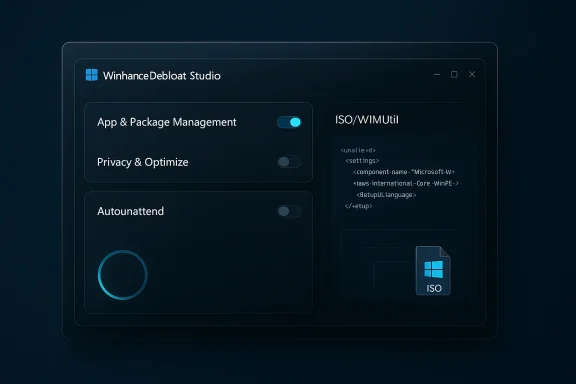
Winhance puts a surprisingly powerful, free, open‑source control panel on top of Windows 10 and 11 that lets you remove preinstalled apps, silence in‑OS ads and suggestions, tune privacy and services, and apply visual and taskbar customizations — all from a single, searchable interface.
Windows has long shipped with a mix of useful system apps, promotional content, and OEM trialware that many users call “bloatware.” That clutter is more than cosmetic: it can cost storage, add background processes, increase telemetry surface area, and repeatedly reintroduce themselves after feature updates. Over the past several years, a lively ecosystem of open‑source debloaters and scripts has emerged to give users more control. Among them, Winhance has gained attention because it bundles a broad set of actions behind a graphical, user‑friendly front end.
Winhance is distributed as free, open‑source software and is designed to be a one‑stop utility for:
Key takeaways:
In short: Winhance makes debloating Windows 11 approachable for more people, but the best outcome comes from pairing the tool’s convenience with disciplined backup and update practices so your lean, clean system stays secure and reliable.
Source: PCWorld Strip out Windows 11's bloatware, ads, and other nastiness—for free
 Background / Overview
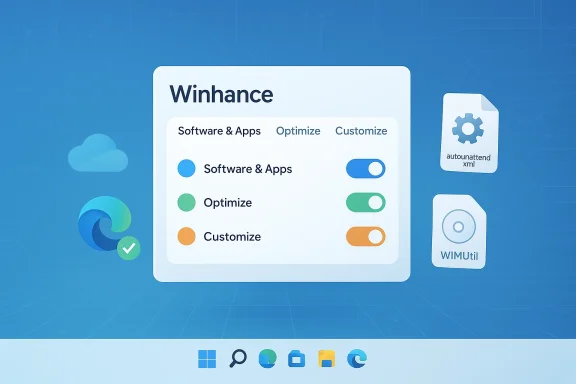
Windows has long shipped with a mix of useful system apps, promotional content, and OEM trialware that many users call “bloatware.” That clutter is more than cosmetic: it can cost storage, add background processes, increase telemetry surface area, and repeatedly reintroduce themselves after feature updates. Over the past several years, a lively ecosystem of open‑source debloaters and scripts has emerged to give users more control. Among them, Winhance has gained attention because it bundles a broad set of actions behind a graphical, user‑friendly front end.Winhance is distributed as free, open‑source software and is designed to be a one‑stop utility for:
- Removing inbox apps and OEM trialware,
- Managing third‑party programs,
- Tweaking privacy and telemetry settings,
- Changing system services safely with descriptions,
- Controlling Windows Update behavior,
- Applying theme, taskbar, and File Explorer customizations.
What Winhance actually does
Debloat: remove inbox apps and OEM cruft
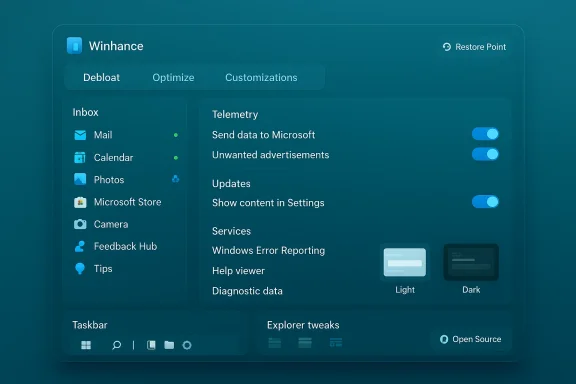
Winhance presents the built‑in list of Microsoft inbox apps and OEM preloads in a single panel. You can:- Select multiple built‑in apps and remove them in batch,
- See visual indicators that show whether an app can be reinstalled later,
- Reinstall apps that were removed (where supported) via a built‑in restore/reinstall mechanism.
External software management
Beyond inbox apps, Winhance can enumerate installed third‑party software and let you uninstall or (where possible) reinstall those programs from the same UI. That’s useful when setting up a new machine: you can both strip unwanted Microsoft components and prune the vendor-installed extras in one pass.Optimize: privacy, services, and update control
The Optimize area is a curated list of toggles and service controls spanning:- Telemetry, diagnostics, and advertising ID settings,
- Suggestions, tips, and promotional content toggles,
- System Services and scheduled tasks with human‑readable descriptions of what each change does,
- Windows Update options, including the ability to pause or shift to security‑only updates in some configurations.
Customizations: themes, taskbar, and Explorer tweaks
Winhance collects common personalization options into a Customizations tab:- Switch system theme (Light / Dark),
- Adjust taskbar appearance and what icons show,
- Restore classic context menus and Explorer options,
- Apply specific visual tweaks for gamers or low‑resource systems.
How Winhance works (install, run, requirements)
Winhance ships as a Windows desktop app with an installer and a portable mode. Key technical points to verify before you click Install:- Requirements: runs on Windows 10 and Windows 11; recent builds have been tested across multiple 22H2–25H2 releases and both x64 and arm64 platforms in community reports.
- Installation: the project supports a one‑line PowerShell bootstrap and a downloadable installer that includes both Installable and Portable options. Portable mode can be helpful for testing without committing to a full install.
- First run: on initial launch Winhance often checks whether System Restore is enabled and may take extra time to initialize while it verifies system safety controls.
- Permissions: most useful actions require administrator privileges (uninstalling inbox apps, toggling services, and modifying update behavior).
A hands‑on walkthrough (practical user flow)
- Install Winhance or run the portable version as Administrator.
- Let the app complete its first‑time checks (System Restore, service enumerations).
- On the Debloat / Apps screen, scan the inbox list:
- Items with a green dot are installed and available.
- Red dots indicate removed items.
- Some red entries show a blue recycle symbol indicating reinstall is supported.
- A cross on a removed app signals it may not be recoverable via the app’s UI.
- Use the External Software tab to review and selectively uninstall vendor bloats.
- Open Optimize:
- Read descriptions for each service before toggling it.
- Disable telemetry/ads toggles if you want less Microsoft tracking.
- Change update behavior cautiously: Winhance can pause updates or prioritize security-only updates, but disabling Windows Update carries security tradeoffs.
- Visit Customizations to apply UI and taskbar changes.
- Create a restore point manually and test a small subset of changes before applying large batch operations.
Why Winhance stands out (strengths)
- Unified GUI for many tasks. Users who prefer point‑and‑click control will appreciate a single interface that replaces dozens of Settings screens and scripting steps.
- Open source and auditable. The project is hosted on GitHub and accepts community input; that transparency builds trust compared with opaque commercial “one‑click tuneup” apps.
- Service descriptions reduce risk. Providing plain‑English descriptions for what each service toggle does is a practical safeguard for non‑expert users.
- Batch operations speed setup. For system builders, refurbishers, or anyone provisioning multiple machines, batched uninstall/install and preset profiles dramatically reduce setup time.
- Portable mode for safer trials. If you want to test features on a VM, the portable option is convenient.
- Active development and UI modernization. Recent builds have migrated to modern UI frameworks to better match Windows 11, which improves compatibility on high‑DPI and touch devices.
The risks and tradeoffs you must know
No debloater is risk‑free. The following are realistic, evidence‑backed concerns that every user should weigh before using Winhance:- Disabling updates can be dangerous. Temporarily pausing feature updates may be acceptable for stability, but turning off security updates or auto‑update entirely exposes you to patched vulnerabilities. Use selective update options responsibly.
- Some removals are not trivially reversible. Although Winhance shows reinstall availability for many inbox apps, not every removed component can be restored through the UI. Some changes may require manual reinstallation or a system refresh.
- System Restore and restore points are not a panacea. Restore points may be disabled by OEMs or consumed by storage constraints; the app’s checks are helpful but you should still maintain full backups or system images before wide‑ranging changes.
- Potential for breakage after major Windows updates. Microsoft feature upgrades sometimes reintroduce removed components or change service behavior; you may need to reapply debloat presets or troubleshoot after large updates.
- Real user reports of side effects. Community reports include edge cases such as disabled lock screen or login prompts after certain toggles. These are often fixable (for example, toggling the specific Lock Screen setting back on), but they demonstrate that powerful system changes can have unintended interactions with other features.
- Enterprise and warranty implications. On managed or corporate devices, running third‑party debloat tools may violate IT policies. On warranty or OEM support, aggressive changes could complicate support tickets.
- Trust and supply chain risk. While open source reduces the risk of hidden telemetry, always download code from the official project repository or trusted distribution channels and verify signatures where provided.
How to use Winhance safely — a recommended checklist
Before you let any debloat tool loose on a production machine, follow a conservative safety workflow:- Create a full disk image or system backup (recommended).
- Ensure System Restore is enabled and create a manual restore point.
- Test Winhance on a non‑critical machine or a virtual machine first.
- Apply changes in small batches; reboot between batches.
- Keep a list (or screenshot) of changes you applied so you can reverse them later.
- Avoid disabling Windows Update completely; prefer pause or security only modes if you need to limit feature updates.
- Read each service description before toggling anything labeled as critical or unknown.
- If a problem appears, consult Winhance’s built‑in settings (many toggles can be restored) or re‑run only the required reinstallation operations.
- For business or managed devices, coordinate with IT before making changes.
Alternatives and complementary tools
Winhance sits inside a broader toolkit for Windows power users. Depending on your needs, you may prefer or combine these options:- PowerShell scripts (Win11Debloat, Win11‑Debloat variants): Scripted and often more surgical, these are preferred by administrators who automate deployments.
- Unattended/answer file installers (UnattendedWinstall): For clean install workflows, unattended answer files let you build a debloated image that applies changes during setup.
- Image builders (Tiny11, Nano11): For extreme minimal footprints, community builders rebuild ISOs; note these are the riskiest for compatibility and support.
- Tweaking utilities (StartAllBack, Explorer alternatives): For UI customization without deep system changes, these are lighter options.
- Manual settings and Local Group Policy / Registry edits: The safest long‑term approach for experienced admins who want deterministic, documented changes.
Real‑world examples and community feedback
Community coverage and reviews highlight common themes:- Reviewers praise Winhance’s modern interface and that it bundles many tasks previously done through scripts or scattered settings.
- Users report that Winhance’s service descriptions and the ability to reinstall many apps are practical safety features for non‑expert users.
- Edge cases and forum posts show how certain toggles can cause unexpected behavior (for example, lock screen/login quirks), usually fixable by reversing a specific setting or reapplying a tweak.
Maintenance: keeping a debloated system healthy
Debloating is not a “set it and forget it” task. To maintain a stable, secure system after using a tool like Winhance:- Revisit your debloat profile after major Windows feature updates — not all changes persist across upgrades.
- Reapply or re‑audit settings after driver or OEM utility updates that might reintroduce software.
- Schedule monthly checks for software you intentionally removed that you might later need (e.g., a reinstalled OneDrive if a new workflow requires it).
- Monitor security updates: keep automatic security patches enabled or schedule a regular manual patch window.
- Keep Winhance itself up to date, and review its change log before upgrading to learn about new features or modified presets.
When Winhance is the right choice — and when it isn’t
Use Winhance if:- You want a single, user‑friendly control panel to remove inbox apps and tune privacy settings.
- You’re setting up personal systems or several home machines and want to reduce repetitive clicks.
- You value an open‑source solution you can inspect and adapt.
- You’re on a corporate/managed machine where policy dictates what can be changed.
- You lack recent backups or a recovery plan.
- You require absolute warranty or vendor support that forbids third‑party system modification.
- You prefer a minimal, purely manual approach or full image rebuilding for fleet deployment.
Final assessment: benefits, practical recommendations, and closing thoughts
Winhance is not a miracle fix for every Windows complaint, but it’s a practical, well‑packaged tool that brings order to what would otherwise be a scattered and technical cleanup task. For many enthusiasts, refurbishers, and privacy‑conscious home users, it removes the friction of finding dozens of toggles across Windows Settings and organizes them into easily reversible steps.Key takeaways:
- Power and convenience: Winhance centralizes debloat, optimization, and customization tasks behind a GUI, significantly lowering the skill barrier for meaningful Windows maintenance.
- Open source advantage: Transparency and an active community development model reduce the risk of hidden telemetry or malicious behavior that plagues some commercial “tuneup” tools.
- Risk awareness: The ability to disable updates and toggle services is powerful — and power always carries responsibility. Backups, cautious incremental changes, and a willingness to learn a few recovery steps are essential.
- Not a substitute for good maintenance: Even after debloating, keep security updates active, audit settings after feature upgrades, and maintain a backup regimen.
In short: Winhance makes debloating Windows 11 approachable for more people, but the best outcome comes from pairing the tool’s convenience with disciplined backup and update practices so your lean, clean system stays secure and reliable.
Source: PCWorld Strip out Windows 11's bloatware, ads, and other nastiness—for free