

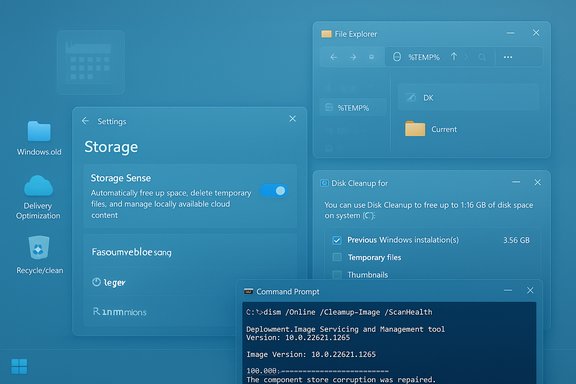
Temporary files are a normal byproduct of Windows 10 and Windows 11 activity, but when they accumulate they can steal gigabytes, slow updates, and complicate troubleshooting — this guide walks through five built‑in methods to safely delete temporary files, explains when to use each, and highlights pitfalls and advanced cleanup options every Windows enthusiast should know.
Background / Overview
Temporary files are transient data that Windows and applications create to store intermediate state, caches, installers, and download fragments. They commonly live in per‑user temp folders (%TEMP%), the system temp folder (C:\Windows\Temp), browser caches, and update/installation caches such as Windows.old or the WinSxS component store. Deleting them reclaims disk space and can resolve odd behavior caused by stale or corrupted caches, but some cleanup actions are irreversible (for example removing previous Windows installations), so a careful, informed approach is required.This article covers five safe, built‑in methods:
- Use the Settings app (Temporary files UI)
- Automate with Storage Sense
- Use the classic Disk Cleanup (cleanmgr)
- Manually delete with File Explorer (%temp% and C:\Windows\Temp)
- Use the Command Prompt and DISM for advanced scenarios
Why temporary files matter
Temporary files can be harmless and short‑lived, but over months and years they accumulate into gigabytes of unused data. This is especially noticeable on small SSDs and tablets where every gigabyte counts. Regular cleanup improves:- Available free storage (critical for updates)
- App responsiveness (less I/O clutter)
- Privacy (removes fragments of documents or cached credentials)
- Update reliability (clearing corrupted update caches can fix update failures)
How to Delete Temporary Files Using the Settings App (Recommended for most users)
This is the friendliest, visual method for how to delete temporary files in Windows 11 and how to clear temp files in Windows 10. It shows what Windows classifies as temporary and prevents accidental deletion of important user data — except when you explicitly choose to include Downloads or Previous Windows installations.Steps (concise)
- Open Settings (Windows + I) and go to System > Storage.
- Wait while Windows analyzes disk usage, then click Temporary files to view categories.
- Review the pre‑selected safe items; be careful with Downloads and Previous Windows installation(s).
- Click Remove files to delete the chosen items.
Why use this method
- Visual preview reduces mistakes.
- Targets common temp types (thumbnails, Windows update caches, delivery optimization files).
- Good first step before more aggressive cleanups.
Common caveats
- The Settings UI may not surface everything (for deep WinSxS cleanup you’ll need DISM).
How to Automatically Delete Temporary Files with Storage Sense
Storage Sense is Windows’ built‑in “set it and forget it” cleaner. It’s ideal if you prefer automated routines — configure the cadence and retention rules for Recycle Bin, Downloads, and temporary files. Storage Sense can run daily, weekly, monthly, or only when disk space is low.Configure Storage Sense (quick)
- Settings > System > Storage > Storage Sense. Turn on the toggle.
- Choose frequency (Daily/Weekly/Monthly/When low disk space) and retention rules for Recycle Bin and Downloads.
- Click Run Storage Sense now to execute an immediate cleanup.
Pros and cons
- Pros: hands‑off maintenance, reduces recurring build‑up, easy to configure.
- Cons: may accidentally target Downloads if configured to do so — always double‑check those rules.
How to Delete Temporary Files Using the Classic Disk Cleanup Tool (cleanmgr.exe)
Disk Cleanup remains useful for system administrators and advanced users who want the veteran tool that can clear older Windows update backups and Windows.old entries when run as an administrator. For some systems, Disk Cleanup still finds Windows Update leftovers that the Settings UI does not expose.Steps (classic)
- Search Start for Disk Cleanup, run it, and select your system drive (usually C
 .
. - Click Clean up system files to re‑scan with elevated permissions (this uncovers Windows Update and previous installation files).
- Check categories to delete (Temporary files, Thumbnails, Delivery Optimization Files, Previous Windows installation(s). Click OK and Delete Files.
When to prefer Disk Cleanup
- After major upgrades (to remove Windows.old and rollback data).
- When Settings > Temporary files doesn’t free expected space.
Important warning
- Removing previous Windows installations deletes your rollback option. Confirm you won’t need to revert before deleting Windows.old.
How to Delete Temporary Files Manually with File Explorer (%temp% and C:\Windows\Temp)
Manual deletion gives you direct control and immediate results. It’s useful when you want to inspect files first or when automated tools miss a specific cache location. Always close applications before starting to reduce locked files.Steps
- Press Windows + R, type %temp%, press Enter to open C:\Users\<you>\AppData\Local\Temp.
- Select all (Ctrl + A) and press Delete. Skip any in‑use files when prompted.
- Optionally repeat with C:\Windows\Temp (requires admin rights).
- Empty the Recycle Bin to permanently free space.
Tips
- Files in use will be skipped — that’s normal. Close offending apps or reboot and try again.
- Use Details view and sort by Date Modified to prioritize old files if you’re unsure.
How to Delete Temporary Files Using the Command Prompt (For Advanced Users)
For speed and automation, the Command Prompt delivers deterministic results. These commands are powerful and irreversible; type exactly and run elevated when required. The following are common examples shared by community resources and admin guides.Common commands (run in an elevated Command Prompt where shown)
- Delete user temp files:
del /q /f /s %TEMP%*
(Deletes quietly, forces deletion, recurses subfolders. - Delete system temp files:
del /q /f /s C:\Windows\Temp*
(You’ll see occasional “Access denied” for locked system files. - Flush DNS cache (network troubleshooting):
ipconfig /flushdns
(Resets the DNS resolver cache.
When to use command line
- When scripting repeatable cleanups.
- When GUI tools won’t delete certain files due to permission scope.
- For power users comfortable with elevated commands.
Safety note
- These commands do not remove user documents, but using wildcards or wrong paths can delete valuable data. Always double‑check the path before pressing Enter.
Advanced: WinSxS / DISM and Delivery Optimization Cleanup
If you’ve freed the obvious caches and still need more space, targeted system maintenance may help. The WinSxS component store holds previous component versions and can grow after updates. Microsoft’s recommended approach is DISM. Use these commands only after reading their implications — some options are irreversible.Useful DISM commands
- Analyze component store:
Dism.exe /Online /Cleanup-Image /AnalyzeComponentStore
(Shows whether cleanup is recommended. - Reclaim superseded components:
Dism.exe /Online /Cleanup-Image /StartComponentCleanup
(Removes older versions that are no longer required. - Irreversible base reset (use only if you don’t plan to uninstall updates):
Dism.exe /Online /Cleanup-Image /StartComponentCleanup /ResetBase
(This permanently removes old component versions — you cannot uninstall updates released before the reset.
Delivery Optimization
Delivery Optimization caches can be cleared either via Settings > Temporary files or manually (folder: C:\ProgramData\Microsoft\Windows\DeliveryOptimization\Cache). You can also stop the delivery optimization service, delete the contents, and restart the service for a clean slate.Caution
- /ResetBase prevents rollback of superseded updates. Use on stable systems only and ideally after a full backup.
Troubleshooting common problems
Storage Sense isn’t running
Storage Sense may be configured to run only “During low free disk space.” Change the schedule to weekly or daily if you want more frequent automatic cleanups.Locked files prevent deletion
Files in use cannot be deleted. Options:- Close the app using the file and retry.
- Reboot and delete before the app restarts.
- Use safe mode or schedule deletion at next boot.
Disk Cleanup did not free expected space after a major update
Windows 11 updates (notably changes introduced around 24H2) altered how some update data is handled; users have reported leftover update data that isn’t removed by standard cleanup tools. In such cases, analyze the component store with DISM and run StartComponentCleanup if safe for your scenario. Flag this behavior as potential for change if Microsoft adjusts update baselines again.Browser cache remains after temporary file deletion
Built‑in temp cleanup covers some browser caches, but modern browsers maintain their own caches and sync stores. For a complete browser cache purge, clear it from the browser settings (Edge, Chrome, Firefox have clear‑cache options).Privacy and risk considerations
Temporary files can contain sensitive fragments of documents, authentication tokens, and browsing traces. Regular cleanup reduces exposure, but note:- Deleting temp files may make it harder to recover unsaved work if you delete too aggressively. Always verify Downloads and active working folders before mass deletion.
- Some system cleanups (like removing Windows.old or running DISM /ResetBase) are irreversible; flag them clearly and back up before proceeding.
- Third‑party “optimizers” promise deeper cleans but vary in trustworthiness; the safest route is the built‑in tools and Microsoft‑recommended commands.
Recommended schedule and best practices
- Casual users: run Settings > Temporary files every 2–3 months or enable Storage Sense weekly.
- Power users: combine monthly Disk Cleanup (system files) and a quarterly DISM Analyze/Cleanup if you install frequent updates.
- Before major updates: ensure at least 10–15% free disk space and consider pruning large unused files or offloading media to external/cloud storage.
- Back up important files before any irreversible system‑level cleanup.
- Avoid automatic deletion of Downloads unless you maintain a separate backup.
- Use built‑in tools first; escalate to command line or DISM only if needed.
Step‑by‑step recovery options if something goes wrong
- If you accidentally deleted files and the Recycle Bin still contains them: Restore from Recycle Bin.
- If you deleted Windows.old and need to roll back: Recovery is not possible after deletion — plan ahead, and consider system restore points or a full backup before removing Windows.old.
- If a DISM operation fails or stalls: allow it to finish, then consult CBS/DISM logs. Reboot and retry in Safe Mode if necessary.
Conclusion
Cleaning temporary files in Windows 11 and Windows 10 is a straightforward, high‑value maintenance task that reclaims storage and often improves reliability. Start with the Settings app for a safe, visual cleanup; use Storage Sense to automate routine maintenance; reach for Disk Cleanup and %TEMP% when you need extra control; and apply command‑line and DISM tools only when you understand the tradeoffs. Remember to back up before irreversible system cleanups and be cautious with Downloads and Windows.old items. These built‑in tools give you robust, low‑risk ways to keep your PC lean without third‑party utilities, and the commands and behaviors described here are in line with community guidance and built‑in Windows functionality.If deeper component store cleanup is required, use DISM with care and understand that some options (for example /ResetBase) permanently remove the ability to uninstall older updates — make that choice only on a stable, backed‑up system. For everyday maintenance, though, the Settings app and Storage Sense will cover the majority of cleanup needs while protecting your important files.
Source: WinBuzzer How to Delete Temporary Files in Windows 11 and Windows 10 - WinBuzzer
