

Microsoft’s Copilot chat history is easy to overlook until you want it gone, and the cleanup process depends on whether you’re using the app, the browser, or just removing a single conversation. In the current Microsoft setup, signed-in Copilot activity can persist for up to 18 months, while unsign-in sessions are treated as temporary and disappear when the session ends. The practical result is that users who want a cleaner slate need to know which history they are deleting and where Microsoft stores it. The steps below walk through the process clearly, while also highlighting a few privacy and usability implications that matter more than they first appear.
Copilot has evolved from a simple chat helper into a broader Microsoft account–backed experience, which is why its history is no longer just local app data. When you’re signed in, Microsoft retains your activity history so you can revisit prior prompts, continue unfinished threads, or use past interactions as a reference. That convenience is useful, but it also creates a lasting record that some users would rather not keep around indefinitely.
The key detail is that Copilot treats signed-in and unsigned-in usage differently. If you’re not logged in, your chats are temporary by design and are deleted once the session closes. If you are logged in, however, history is attached to your Microsoft account and can be managed through profile and privacy settings rather than just by clearing a browser cache or uninstalling an app. That distinction is the difference between local cleanup and account-level deletion.
This is also why so many users feel confused when they “close” Copilot but later see the same chat again. The history lives in the Copilot sidebar and Microsoft account privacy controls, not merely in the window you were using. In other words, shutting the app is not the same as deleting the activity.
The article’s step-by-step guidance reflects a larger trend in Microsoft’s AI products: more personalization, more persistence, and more account-centric control surfaces. That means users get a better memory, but they also have to be more deliberate about what they keep. Convenience and retention now travel together, and that changes how users should think about privacy hygiene.
This difference matters because users often think of “history” as a single thing. In practice, there are at least three layers: the visible sidebar conversation list, the account-level activity history, and the privacy settings that govern retention. Deleting one layer may not automatically mean the others disappear in every context, so users should be careful to choose the right path. That is the core mistake most people make.
A useful mental model is to treat Copilot like a hybrid between a chat app and an account service. If you want to remove only the current thread, delete the conversation itself. If you want to remove broader account-level activity, use Microsoft’s privacy history controls. If you only close the app or browser tab, you may be doing nothing to the stored record.
At that point, Microsoft sends you to your account page in your default browser. If prompted, sign in again. Once there, select the Copilot apps tab and click Delete all activity history. Finally, confirm by pressing Clear. That sequence is important because the deletion is finalized in Microsoft account settings, not purely inside the app itself.
The app workflow has a slightly indirect feel, but that’s part of Microsoft’s account-first design. It centralizes data management, which is helpful for consistency, yet it also creates friction for users who expected a local app setting to be enough. In practice, the extra step is the privacy control.
The limitation is that it requires a Microsoft account login and browser handoff, which can feel awkward if you expected the app to be self-contained. Still, that design reflects how Microsoft now treats AI interaction history: as account data, not just interface clutter. That is an important distinction.
This browser route is useful because it is quicker and more direct than the app path. It also reinforces that Microsoft is offering similar privacy controls across platforms, even if the navigation differs. For users who split their Copilot usage between Edge, other browsers, and the app, that consistency makes the service easier to manage.
There is still a subtle caveat: clearing browser-side Copilot history is not the same thing as deleting a single conversation thread from the sidebar. If your goal is only to remove one topic, the sidebar thread deletion method is more surgical. If your goal is broader decluttering, the privacy page is the more powerful tool. Choose the narrowest fix that matches the problem.
For users on shared devices, this is especially important. A browser session can disappear after close, but a signed-in Copilot account may still remember what happened. That is why the privacy page matters more than simply closing the tab.
This is the most user-friendly option for people who treat Copilot like a working notebook. It lets you prune one-off chats without giving up the rest of your saved context. For productivity users, that matters because they may want to preserve useful exchanges while deleting personal or outdated ones.
The downside is that selective deletion can create a false sense of completeness. Users sometimes remove the visible sidebar conversation and assume the assistant has forgotten everything. But account-level activity retention may still exist unless you use the broader privacy controls too. Visible removal is not always invisible removal.
It’s also the least disruptive method. You keep your normal workflow and only remove the threads that feel noisy, sensitive, or irrelevant. For users who like a tidy interface but still want continuity, this is usually the right starting point.
That design has a broader implication: Microsoft is normalizing the idea that AI chats are durable account assets. In practical terms, this is similar to how search history, location history, or cloud-based preferences work. The assistant may feel conversational, but the company treats the record as structured data with a lifecycle.
For enterprise users, that can be a feature. For consumer users, it can feel like a burden. The same persistence that helps you continue a project can also preserve prompts you would rather not see again. That tradeoff is the heart of the privacy conversation.
It is also worth being deliberate about where you sign in. On shared or public devices, the account-level history is the key risk, not the UI itself. If the device is not yours, sign-out discipline matters as much as deletion discipline.
What Microsoft gets right here is flexibility. What it still needs to do better is transparency. People should not have to guess whether they’ve deleted a conversation, cleared the app, or removed account-level history; those should be clearly distinct actions with equally clear consequences. That clarity will determine trust.
Source: Guiding Tech How to Delete Copilot Chat History
 Background
Copilot has evolved from a simple chat helper into a broader Microsoft account–backed experience, which is why its history is no longer just local app data. When you’re signed in, Microsoft retains your activity history so you can revisit prior prompts, continue unfinished threads, or use past interactions as a reference. That convenience is useful, but it also creates a lasting record that some users would rather not keep around indefinitely.The key detail is that Copilot treats signed-in and unsigned-in usage differently. If you’re not logged in, your chats are temporary by design and are deleted once the session closes. If you are logged in, however, history is attached to your Microsoft account and can be managed through profile and privacy settings rather than just by clearing a browser cache or uninstalling an app. That distinction is the difference between local cleanup and account-level deletion.
This is also why so many users feel confused when they “close” Copilot but later see the same chat again. The history lives in the Copilot sidebar and Microsoft account privacy controls, not merely in the window you were using. In other words, shutting the app is not the same as deleting the activity.
The article’s step-by-step guidance reflects a larger trend in Microsoft’s AI products: more personalization, more persistence, and more account-centric control surfaces. That means users get a better memory, but they also have to be more deliberate about what they keep. Convenience and retention now travel together, and that changes how users should think about privacy hygiene.
How Copilot Stores Chat History
Copilot history is not handled the same way in every context, which is why a one-size-fits-all “delete history” button is not always obvious. In the signed-in experience, Microsoft ties chat activity to your account and keeps it available for a long period, described here as up to 18 months. That gives the service a memory, but it also means your prompts and conversations may remain visible long after you’ve forgotten them.Signed-in sessions versus temporary sessions
If you are signed in, Copilot can preserve activity and surface previous chats. If you are not signed in, Microsoft treats the session as temporary, and the chats are deleted when the session ends or the app closes. That makes unsigned sessions much closer to an ephemeral browser interaction, while signed sessions behave more like a personalized service.This difference matters because users often think of “history” as a single thing. In practice, there are at least three layers: the visible sidebar conversation list, the account-level activity history, and the privacy settings that govern retention. Deleting one layer may not automatically mean the others disappear in every context, so users should be careful to choose the right path. That is the core mistake most people make.
A useful mental model is to treat Copilot like a hybrid between a chat app and an account service. If you want to remove only the current thread, delete the conversation itself. If you want to remove broader account-level activity, use Microsoft’s privacy history controls. If you only close the app or browser tab, you may be doing nothing to the stored record.
- Signed-in Copilot can retain history.
- Unsigned Copilot sessions are temporary.
- Sidebar deletion removes individual conversations.
- Microsoft account privacy settings handle broader history deletion.
- Closing the app is not the same as deleting history.
Deleting History in the Copilot App
If you’re using the Copilot app, the process is straightforward once you know where Microsoft buried the controls. The path begins in the sidebar, then moves through your profile and into account privacy settings. From there, you are redirected to your Microsoft account in a browser, where the final deletion action takes place.Step-by-step in the app
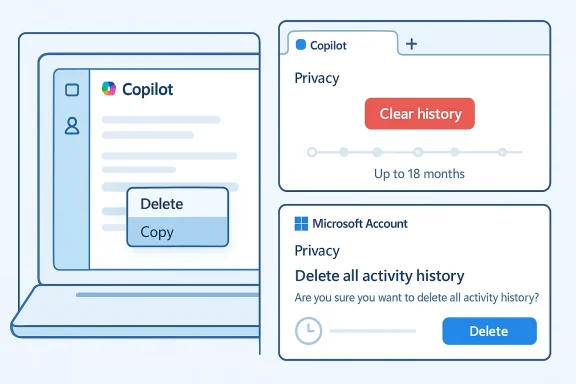
First, open the Copilot app and expand the sidebar. Next, click your profile icon near the bottom-left corner, then select Settings from the menu. Inside settings, go to Privacy, and under the Activity History section choose Export or delete history.At that point, Microsoft sends you to your account page in your default browser. If prompted, sign in again. Once there, select the Copilot apps tab and click Delete all activity history. Finally, confirm by pressing Clear. That sequence is important because the deletion is finalized in Microsoft account settings, not purely inside the app itself.
The app workflow has a slightly indirect feel, but that’s part of Microsoft’s account-first design. It centralizes data management, which is helpful for consistency, yet it also creates friction for users who expected a local app setting to be enough. In practice, the extra step is the privacy control.
What this means for users
For everyday users, this method is best when you want a full reset rather than a cleanup of one or two threads. It is the closest thing to wiping Copilot’s account-level memory from the app side. For privacy-conscious users, it’s also the more reassuring route because it explicitly targets the stored activity history.The limitation is that it requires a Microsoft account login and browser handoff, which can feel awkward if you expected the app to be self-contained. Still, that design reflects how Microsoft now treats AI interaction history: as account data, not just interface clutter. That is an important distinction.
- Open the Copilot app.
- Expand the sidebar.
- Open your profile menu.
- Go to Settings.
- Select Privacy.
- Choose Export or delete history.
- In Microsoft account, open Copilot apps.
- Select Delete all activity history.
- Confirm with Clear.
Deleting History in the Browser
If you use Copilot in a browser, the cleanup path is even shorter. You still start from the profile menu in the sidebar, but the controls appear more directly in the browser-based interface. Microsoft’s guidance here centers on privacy settings and a visible red history-clearing option.Browser workflow
Open Copilot in a new browser tab, then click the profile picture in the bottom-left corner. From the menu that appears, select Settings, then open Privacy in the sidebar. At the bottom of that page, click Clear history in red and confirm the warning prompt. Once you approve that action, your Copilot history should be cleared.This browser route is useful because it is quicker and more direct than the app path. It also reinforces that Microsoft is offering similar privacy controls across platforms, even if the navigation differs. For users who split their Copilot usage between Edge, other browsers, and the app, that consistency makes the service easier to manage.
There is still a subtle caveat: clearing browser-side Copilot history is not the same thing as deleting a single conversation thread from the sidebar. If your goal is only to remove one topic, the sidebar thread deletion method is more surgical. If your goal is broader decluttering, the privacy page is the more powerful tool. Choose the narrowest fix that matches the problem.
Why browser clearing matters
Browser users often assume cookies or tab history are the only privacy concern. Copilot complicates that assumption because the assistant itself can preserve a chat record independent of ordinary browsing remnants. That means a browser-based AI session may feel temporary while still leaving behind a service-level history unless you explicitly clear it.For users on shared devices, this is especially important. A browser session can disappear after close, but a signed-in Copilot account may still remember what happened. That is why the privacy page matters more than simply closing the tab.
- Open Copilot in the browser.
- Open the profile menu.
- Select Settings.
- Click Privacy.
- Choose Clear history.
- Confirm the deletion prompt.
Deleting Individual Conversations
Not everyone wants a total reset. Sometimes you only need to remove a few awkward prompts, an old project thread, or a conversation that no longer belongs in the sidebar. Copilot supports that more targeted cleanup in both the app and browser.Removing one thread at a time
To delete a single conversation, open the sidebar and find the thread you want to remove. Click the three-dot menu next to that conversation, choose Delete, and confirm the warning by clicking the Delete button. That action removes the selected thread while keeping the rest of your history intact.This is the most user-friendly option for people who treat Copilot like a working notebook. It lets you prune one-off chats without giving up the rest of your saved context. For productivity users, that matters because they may want to preserve useful exchanges while deleting personal or outdated ones.
The downside is that selective deletion can create a false sense of completeness. Users sometimes remove the visible sidebar conversation and assume the assistant has forgotten everything. But account-level activity retention may still exist unless you use the broader privacy controls too. Visible removal is not always invisible removal.
When selective deletion is the best choice
Selective deletion makes the most sense when you are cleaning up after a temporary task, such as an experiment, a draft request, or a single personal query you don’t want hanging around in the sidebar. It also works well when you use Copilot as a repeated reference tool and do not want to wipe the entire workspace. That balance is why the single-thread option is so valuable.It’s also the least disruptive method. You keep your normal workflow and only remove the threads that feel noisy, sensitive, or irrelevant. For users who like a tidy interface but still want continuity, this is usually the right starting point.
- Open the sidebar.
- Find the conversation.
- Click the three-dot menu.
- Select Delete.
- Confirm the deletion.
Privacy, Retention, and Microsoft Account Controls
The most important thing to understand about Copilot history is that the visible app experience sits on top of Microsoft account infrastructure. That means deletion behavior is shaped by account privacy settings, retention rules, and the service’s handling of activity history. The article’s reference to up to 18 months of retained chat history shows that this is not just a cosmetic feature.Why the Microsoft account layer matters
Because Copilot history is tied to your Microsoft account, deleting it often requires leaving the chat interface and entering the privacy dashboard. That makes sense from a governance standpoint because Microsoft wants a single place where users can manage their activity. But it also means users need to think like administrators, not just app users.That design has a broader implication: Microsoft is normalizing the idea that AI chats are durable account assets. In practical terms, this is similar to how search history, location history, or cloud-based preferences work. The assistant may feel conversational, but the company treats the record as structured data with a lifecycle.
For enterprise users, that can be a feature. For consumer users, it can feel like a burden. The same persistence that helps you continue a project can also preserve prompts you would rather not see again. That tradeoff is the heart of the privacy conversation.
Practical privacy advice
If you’re concerned about Copilot history, it helps to think in layers. Delete individual conversations for day-to-day hygiene, clear account history when you want a broader reset, and use unsigned sessions when you do not want a permanent record at all. That layered approach is more reliable than assuming one deletion method covers everything.It is also worth being deliberate about where you sign in. On shared or public devices, the account-level history is the key risk, not the UI itself. If the device is not yours, sign-out discipline matters as much as deletion discipline.
- Copilot history can be tied to your Microsoft account.
- Retention can extend far beyond one session.
- Deletion may require Microsoft’s privacy dashboard.
- Unsigned sessions are temporary.
- Shared devices raise the privacy stakes.
Common Mistakes Users Make
Many users try to delete Copilot history the same way they would close a browser tab or clear a download list, and that is where confusion starts. Copilot’s persistence model is more layered than ordinary app history, so the wrong action often looks successful while leaving the underlying record intact.Mistake 1: thinking closing the app deletes history
Closing Copilot does not necessarily remove signed-in activity history. If you are logged in, the service may still keep chat records tied to your account. This is why the instructions direct you to profile and privacy settings rather than just asking you to exit the app.Mistake 2: deleting one thread and assuming everything is gone
Deleting one conversation is useful, but it only removes that selected thread. It does not automatically replace a full history clear if you want a broader cleanup. Users should decide whether they want a surgical deletion or a full reset.Mistake 3: confusing browser cleanup with account cleanup
A browser-based clear history action is a good first step, but signed-in Microsoft account history can still be involved. That means the browser UI alone may not answer every privacy concern. This is why the Microsoft account privacy page is such a critical part of the workflow.Mistake 4: ignoring unsigned-in mode
Unsigned-in mode is the simplest privacy option because it is temporary by design. Users who only need Copilot occasionally may prefer that mode precisely because it avoids long-lived chat retention. In many cases, that is the easiest way to minimize cleanup later.Mistake 5: overlooking the sidebar
The article repeatedly notes that the sidebar is the consistent place where problems get solved. That’s not a throwaway detail; it is the navigation hub for both thread deletion and access to settings. If you cannot find the history controls, start there.- Closing the app is not deletion.
- One-thread deletion is not full-history deletion.
- Browser cleanup may not equal account cleanup.
- Unsigned mode avoids persistence.
- The sidebar is the main control center.
Strengths and Opportunities
Copilot’s history controls have a few genuine strengths: they are accessible, they are flexible, and they make room for both privacy-conscious users and power users who want continuity. The current design is not perfect, but it does give users multiple ways to manage their footprint. That’s a meaningful improvement over a system that only offered a blunt “on/off” switch.- The app provides a clear account-level deletion path.
- The browser interface offers a faster clear-history option.
- Users can delete individual threads without wiping everything.
- Unsigned sessions offer a simple privacy-first mode.
- Microsoft centralizes controls in one account system.
- The sidebar makes navigation relatively consistent.
- The workflow supports both casual and frequent users.
Risks and Concerns
The biggest concern is user misunderstanding. Because the deletion paths vary by app, browser, and conversation type, users can easily think they erased more than they actually did. That creates a privacy gap between expectation and reality, which is exactly where problems tend to show up.- Users may confuse sidebar deletion with full history removal.
- Signed-in history can persist longer than users expect.
- The account-level handoff adds friction.
- Shared-device usage raises privacy exposure.
- Retention policies can feel opaque to nontechnical users.
- The interface may encourage false confidence after a single deletion.
- Cleanup remains less intuitive than it should be.
Looking Ahead
As Copilot becomes more deeply woven into Windows, browsers, and Microsoft account services, history management will likely matter even more. The more useful the assistant becomes, the more valuable its memory becomes too, and that puts pressure on Microsoft to keep privacy controls visible and understandable. Users will keep demanding a balance between persistence and discretion, especially as AI chat becomes part of everyday work.What Microsoft gets right here is flexibility. What it still needs to do better is transparency. People should not have to guess whether they’ve deleted a conversation, cleared the app, or removed account-level history; those should be clearly distinct actions with equally clear consequences. That clarity will determine trust.
- More Copilot usage will increase demand for better history controls.
- Privacy dashboards should become easier to find.
- Users will expect clearer separation between local and account data.
- Unsigned sessions may become more attractive for occasional use.
- Microsoft may need more explicit retention messaging.
Source: Guiding Tech How to Delete Copilot Chat History
Last edited:
