

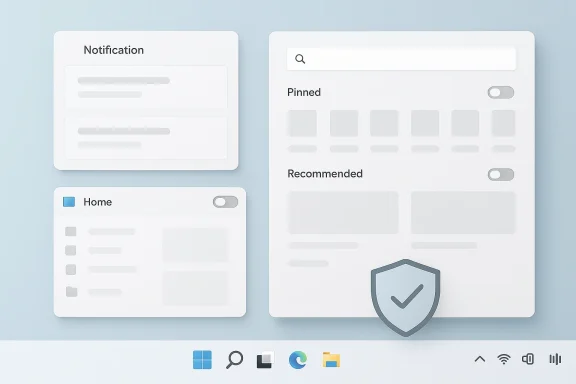
Windows 11’s advertising problem is no longer a minor annoyance; it has become one of the defining frustrations of the platform. What used to feel like a few stray prompts has evolved into a system-wide pattern of promotions, recommendations, and service nudges woven into notifications, File Explorer, the Settings app, the Start menu, and the Widgets board. The good news is that a large chunk of this can still be dialed back with the right settings, but the broader trend is unmistakable: Microsoft keeps testing how much attention it can claim before users push back.
Windows has always mixed operating-system functions with product promotion, but Windows 11 pushes that blend harder than its predecessors. Microsoft’s own support material now openly documents settings for notifications, recommendations, offers, and personalization, which is a polite way of saying that the OS includes multiple surfaces for content the company wants you to see. That may be acceptable when the prompts are genuinely useful, but users increasingly experience them as clutter.
The shift is not happening in isolation. Microsoft has been steadily turning core shell experiences into discovery surfaces for services like OneDrive, Microsoft 365, Copilot, and the Microsoft Store. In parallel, Windows 11 has continued to absorb more suggestions and curated content into places that used to be comparatively neutral, such as Widgets and File Explorer. Even Microsoft’s own documentation for suggested actions and recommendations shows how broad the company’s definition of “helpful” has become.
What makes the current backlash different is scale. A single promotional toast is easy to ignore. A notification here, a widget card there, a lock-screen suggestion, a Start menu recommendation, and a File Explorer banner start to feel like an experience design philosophy rather than isolated incidents. That distinction matters, because it changes how users interpret the product: not as an OS that occasionally suggests features, but as a platform that continually markets to its own customers.
There is also a historical wrinkle. Microsoft offered Windows 11 as a free upgrade for many eligible Windows 10 devices, which helped accelerate adoption, but the exchange was never purely altruistic. Free at the point of upgrade does not mean free from commercial pressure afterward. As Windows 10 support ended on October 14, 2025, more users have been nudged toward Windows 11, increasing the number of people exposed to the newer system’s more aggressive recommendation engine.
For Microsoft, the tension is strategic. Windows remains the desktop standard in enterprise, education, and a huge consumer installed base, but the company increasingly wants the shell itself to be a distribution channel for its services. The problem is that the more Windows behaves like an advertising platform, the more it risks undermining one of its strongest selling points: trust in the desktop.
That distinction matters because it tells us something about the state of Windows. When a cleanup guide can lean almost entirely on built-in switches, it means the problem is not malware or third-party junkware. It is the operating system’s own design choices. In other words, the ads are not an accident; they are a feature waiting to be muted.
It also reflects a larger truth about Windows 11: the most annoying parts are usually distributed across several menus, not concentrated in one obvious place. If one setting is missed, the “ad” experience can still leak through elsewhere. That is why a checklist approach is more effective than a single master toggle.
The user-facing problem is not that notifications exist. It is that the boundary between useful system guidance and product marketing has become porous. Once “Get tips and suggestions when using Windows” is enabled, you are effectively opening the door to a more assertive relationship with the OS, one in which Microsoft can keep reminding you what else it wants you to do.
Microsoft frames some of these prompts as “helpful” or “suggested,” but the intent is still to influence behavior. The company’s own support pages show that Windows can surface app-launch actions, calendar suggestions, and other context-sensitive prompts. Useful? Sometimes. Pushy? Also sometimes.
This is where the debate becomes more than cosmetic. File Explorer is a functional work surface, not a content feed. When Microsoft uses it to promote OneDrive, Microsoft 365, or recommended files, it changes the character of the app from a neutral utility into a channel for engagement. That is a meaningful design shift, especially for power users and enterprise admins.
Microsoft’s own documentation for mobile device management also shows how Explorer can be used to surface linked-phone files, photos, and new-photo notifications. Those capabilities are legitimate for some users, but they also widen the number of places where Windows can push content into the file workflow. That makes careful configuration especially important on shared or business machines.
Windows Spotlight plays a similar role on the lock screen and background surfaces. What begins as tasteful personalization can easily become a pipeline for recommendations, wallpaper content, and calls to action. The problem is not that customization exists; it is that the default posture favors Microsoft’s editorial and commercial preferences over user restraint.
This is also why users often say they “turned off the ads” only to find that some other element still feels commercial. Widgets, Spotlight, and content suggestions all participate in the same general ecosystem of ongoing engagement. Remove one layer and another often remains.
This is an important point because many users assume that disabling ads is only about hiding banners. In reality, the depth of personalization determines how aggressively Windows can tailor content, offers, and suggestions. Less data often means less persuasive clutter.
For enterprise environments, this matters even more. Organizations often want a controlled desktop with predictable behavior, not a shell that changes tone based on individual usage patterns. For consumers, the issue is subtler: a highly personalized system can feel more convenient at first, then more invasive over time.
The problem is compounded by OEM bloatware. Dell, HP, Lenovo, and other manufacturers often preload apps and utilities that create their own notifications or marketing hooks. In other words, some “Windows ads” are not from Microsoft at all, but they still land in the same mental bucket because they arrive through the same desktop.
That confusion is part of the ecosystem problem. Microsoft, hardware partners, and app vendors all benefit from the same screen space, but users experience the result as one blended stream of noise. The brand labels differ; the annoyance does not.
In enterprise, the stakes are different. IT departments care less about whether a pop-up is obnoxious and more about whether it disrupts workflows, creates support tickets, or increases the risk of user confusion. Any feature that introduces nondeterministic messaging into the shell is a governance issue, not just a UX issue.
Consumers, by contrast, usually have to discover these settings themselves. That asymmetry matters because it means Microsoft can keep defaulting to maximum engagement while only a portion of users ever opt out. The result is a product that feels calmer to experts than to ordinary owners.
Another advantage is that the changes are modular. You do not have to accept an all-or-nothing configuration; you can keep useful features like notifications and linked-device support while stripping out the noisiest promotional elements. That flexibility makes Windows 11 more adaptable to different user types.
There is also the danger of overcorrecting. Some suggestions, notifications, and integrations are genuinely useful, especially for beginners or users who rely on Microsoft services. The challenge is finding the right level of restraint rather than stripping away every helpful prompt and leaving the OS harder to use.
The second thing to watch is whether Microsoft starts simplifying these controls. Right now, the settings are scattered enough that ordinary users can miss several of them. A more transparent and consolidated privacy-and-recommendations panel would do more to rebuild trust than another wave of “helpful” content ever could.
Source: PCWorld Windows 11's ads are way too pushy. These 9 settings fix the worst
 Background
Windows has always mixed operating-system functions with product promotion, but Windows 11 pushes that blend harder than its predecessors. Microsoft’s own support material now openly documents settings for notifications, recommendations, offers, and personalization, which is a polite way of saying that the OS includes multiple surfaces for content the company wants you to see. That may be acceptable when the prompts are genuinely useful, but users increasingly experience them as clutter.The shift is not happening in isolation. Microsoft has been steadily turning core shell experiences into discovery surfaces for services like OneDrive, Microsoft 365, Copilot, and the Microsoft Store. In parallel, Windows 11 has continued to absorb more suggestions and curated content into places that used to be comparatively neutral, such as Widgets and File Explorer. Even Microsoft’s own documentation for suggested actions and recommendations shows how broad the company’s definition of “helpful” has become.
What makes the current backlash different is scale. A single promotional toast is easy to ignore. A notification here, a widget card there, a lock-screen suggestion, a Start menu recommendation, and a File Explorer banner start to feel like an experience design philosophy rather than isolated incidents. That distinction matters, because it changes how users interpret the product: not as an OS that occasionally suggests features, but as a platform that continually markets to its own customers.
There is also a historical wrinkle. Microsoft offered Windows 11 as a free upgrade for many eligible Windows 10 devices, which helped accelerate adoption, but the exchange was never purely altruistic. Free at the point of upgrade does not mean free from commercial pressure afterward. As Windows 10 support ended on October 14, 2025, more users have been nudged toward Windows 11, increasing the number of people exposed to the newer system’s more aggressive recommendation engine.
Why this matters now
The ad problem lands differently in 2026 than it did in 2022. Windows 11 is no longer the fresh new thing, so users are less likely to interpret prompts as part of discovery and more likely to see them as persistent friction. That makes each new “suggestion” feel less like onboarding and more like encroachment.For Microsoft, the tension is strategic. Windows remains the desktop standard in enterprise, education, and a huge consumer installed base, but the company increasingly wants the shell itself to be a distribution channel for its services. The problem is that the more Windows behaves like an advertising platform, the more it risks undermining one of its strongest selling points: trust in the desktop.
What the PCWorld Advice Is Really About
The core value of the PCWorld-style approach is not just disabling individual annoyances. It is about restoring a sense of control over an operating system that now ships with a lot of opinionated defaults. Most of the recommended settings are not hacks; they are legitimate toggles Microsoft itself exposes, which means the article is really a guide to reclaiming the most visible parts of the Windows 11 UI.That distinction matters because it tells us something about the state of Windows. When a cleanup guide can lean almost entirely on built-in switches, it means the problem is not malware or third-party junkware. It is the operating system’s own design choices. In other words, the ads are not an accident; they are a feature waiting to be muted.
The nine settings approach
A nine-setting guide is attractive because it is practical. Rather than demanding registry edits or third-party tools, it gives users a sequence of changes they can make in a few minutes. That lowers the barrier to entry and makes the article useful to both casual users and power users who simply want a cleaner desktop.It also reflects a larger truth about Windows 11: the most annoying parts are usually distributed across several menus, not concentrated in one obvious place. If one setting is missed, the “ad” experience can still leak through elsewhere. That is why a checklist approach is more effective than a single master toggle.
- Turn off Sync provider notifications in File Explorer.
- Disable tips and suggestions in notification settings.
- Reduce or remove recommendations and offers in Privacy and security.
- Switch away from Windows Spotlight if you want a static background.
- Reconfigure Widgets to reduce news and promotional content.
- Review Start menu suggestions and promoted apps.
- Cut back on diagnostic data that fuels personalization.
- Audit OEM apps such as Dell or HP utilities.
- Check Microsoft 365 / OneDrive promotion settings.
Notifications: The Noisiest Ad Surface
Windows 11 notifications are one of the easiest places for promotional clutter to show up because users expect banners there already. Microsoft’s support documentation confirms that Windows notifications can include not only app alerts but also tips, suggestions, and welcome experiences after updates. That gives the platform a built-in vehicle for messaging that may be technically allowed yet still deeply irritating.The user-facing problem is not that notifications exist. It is that the boundary between useful system guidance and product marketing has become porous. Once “Get tips and suggestions when using Windows” is enabled, you are effectively opening the door to a more assertive relationship with the OS, one in which Microsoft can keep reminding you what else it wants you to do.
Why notification ads feel worse than they sound
Notification ads are especially intrusive because they interrupt the user’s flow. A promotional card that appears while you are working, gaming, or presenting carries more psychological weight than the same message hidden in a menu. That is why so many users view these pop-ups as behavioral trespassing, not mere convenience features.Microsoft frames some of these prompts as “helpful” or “suggested,” but the intent is still to influence behavior. The company’s own support pages show that Windows can surface app-launch actions, calendar suggestions, and other context-sensitive prompts. Useful? Sometimes. Pushy? Also sometimes.
What to disable first
If a user wants the quickest payoff, notification-related changes should be first on the list. They remove the most visible clutter with the least effort and immediately change how the desktop feels. Even if some promotional components remain elsewhere, muting this layer often produces the biggest perceived improvement.- Disable Get tips and suggestions when using Windows.
- Turn off Show the Windows welcome experience after updates.
- Review per-app notification permissions for Microsoft services.
- Silence distracting apps that bundle promotions with alerts.
- Keep Do not disturb handy for focus-heavy sessions.
File Explorer: Where Utility Meets Upsell
File Explorer should be the most boring part of Windows. That is precisely why the introduction of promotional content there has generated such strong reactions. Microsoft has experimented with service messages and recommendation panels in Explorer, and its own support material now acknowledges features like mobile device integration, sync-related notifications, and content surfacing in the file manager.This is where the debate becomes more than cosmetic. File Explorer is a functional work surface, not a content feed. When Microsoft uses it to promote OneDrive, Microsoft 365, or recommended files, it changes the character of the app from a neutral utility into a channel for engagement. That is a meaningful design shift, especially for power users and enterprise admins.
Sync provider notifications and related prompts
One of the most common recommendations is to disable Show sync provider notifications in Folder Options. That setting is small, but it prevents Explorer from surfacing the kind of service messaging that often feels like marketing dressed up as helpful guidance. It is one of the most effective ways to quiet the file manager without breaking core file access.Microsoft’s own documentation for mobile device management also shows how Explorer can be used to surface linked-phone files, photos, and new-photo notifications. Those capabilities are legitimate for some users, but they also widen the number of places where Windows can push content into the file workflow. That makes careful configuration especially important on shared or business machines.
The broader Explorer trend
Explorer has become a battleground for product strategy. Microsoft has tested, paused, and adjusted features in this area, including “recommended” files and related Home tab enhancements. Even when these features are framed as convenience improvements, they can read to users as another attempt to occupy visual real estate that used to belong to files, folders, and nothing else.- Turn off Show sync provider notifications.
- Review Home tab recommendation settings.
- Disable linked-device features you do not use.
- Remove unnecessary OneDrive and Microsoft 365 prompts.
- Keep File Explorer focused on files, not promotions.
Widgets, Spotlight, and the Feed Problem
Windows 11’s Widgets board is one of the clearest examples of how Microsoft blends utility and content monetization. Microsoft’s own support materials describe widgets as a place for curated and suggested content, and that content ecosystem is exactly what makes the panel feel ad-heavy to many users. Even when the feed includes legitimate news or weather, the visual logic is still closer to a media dashboard than a desktop tool.Windows Spotlight plays a similar role on the lock screen and background surfaces. What begins as tasteful personalization can easily become a pipeline for recommendations, wallpaper content, and calls to action. The problem is not that customization exists; it is that the default posture favors Microsoft’s editorial and commercial preferences over user restraint.
Why feed-based ads are sticky
Feed-based ads are hard to eliminate because they blur into content. A weather card, a finance item, and a sponsored tile can all occupy the same visual grammar, which makes the whole surface feel less like a feature and more like a curated distraction zone. That ambiguity is part of the business model.This is also why users often say they “turned off the ads” only to find that some other element still feels commercial. Widgets, Spotlight, and content suggestions all participate in the same general ecosystem of ongoing engagement. Remove one layer and another often remains.
Practical cleanup
The best defense is to stop relying on dynamic content where possible. A static lock screen image, a pared-back widgets setup, and a reviewed feed configuration can dramatically reduce the sense that Windows is trying to narrate your day. The changes are simple, but the difference in perceived quality is large.- Replace Windows Spotlight with a static background.
- Reduce or remove the Widgets board.
- Audit news feed preferences.
- Turn off content suggestions where available.
- Use only the feed elements that genuinely add value.
Privacy, Diagnostics, and Personalization
A lot of Windows 11’s advertising behavior is powered by data collection and personalization logic rather than a standalone “ad engine.” Microsoft’s privacy and recommendations pages explain that Windows uses settings tied to app launches, diagnostic data, and personalization to shape suggestions. That makes privacy controls a genuine part of the anti-ad toolbox, not a separate debate.This is an important point because many users assume that disabling ads is only about hiding banners. In reality, the depth of personalization determines how aggressively Windows can tailor content, offers, and suggestions. Less data often means less persuasive clutter.
The trade-off Microsoft wants you to accept
Microsoft presents diagnostic and personalization settings as ways to improve the product experience. That is not inherently false, but the company also benefits when those signals help it surface services and promotions more effectively. The more Windows knows about usage patterns, the better it can predict when to insert a prompt.For enterprise environments, this matters even more. Organizations often want a controlled desktop with predictable behavior, not a shell that changes tone based on individual usage patterns. For consumers, the issue is subtler: a highly personalized system can feel more convenient at first, then more invasive over time.
Settings worth reviewing
Windows’ support pages make it clear where these controls live, which is useful because many users never revisit them after setup. A quick privacy audit can reduce both overt promotions and the “smart” suggestions that surround them. That makes privacy maintenance a recurring task, not a one-time fix.- Review Recommendations & offers settings.
- Consider limiting diagnostic data where appropriate.
- Check app-launch tracking and personalization toggles.
- Revisit privacy settings after major Windows updates.
- Treat personalization as a convenience feature, not a default.
Start Menu and OEM Bloatware
The Start menu remains one of the most visible places where Windows 11 tries to surface recommendations, recently added apps, and promoted content. That matters because the Start menu is often the first thing users see when they begin work, so any commercial framing there feels especially intrusive. Microsoft and third-party guides alike continue to point users toward Start menu toggles that reduce suggestions and app promotions.The problem is compounded by OEM bloatware. Dell, HP, Lenovo, and other manufacturers often preload apps and utilities that create their own notifications or marketing hooks. In other words, some “Windows ads” are not from Microsoft at all, but they still land in the same mental bucket because they arrive through the same desktop.
Why this feels worse on consumer PCs
Prebuilt consumer PCs are the most likely to ship with layered promotional experiences. Users may blame Windows for an alert that actually comes from the OEM, and the distinction is almost irrelevant from a practical standpoint. What they remember is that the machine keeps interrupting them.That confusion is part of the ecosystem problem. Microsoft, hardware partners, and app vendors all benefit from the same screen space, but users experience the result as one blended stream of noise. The brand labels differ; the annoyance does not.
What to clean up in Start
A good Start menu audit should focus on reducing surface area. Turning off recommendations is not glamorous, but it can remove a lot of visual friction from routine use. Combined with uninstalling junk utilities, it helps restore the menu’s original purpose as a launch point rather than a billboard.- Disable recommendations and app promotions.
- Remove apps you never use from the pinned area.
- Uninstall OEM utilities that duplicate Windows functions.
- Watch for “helpful” vendor assistants that generate pop-ups.
- Keep the Start menu lean and predictable.
Consumer Impact vs. Enterprise Impact
For home users, Windows 11’s ad problem is mostly emotional and ergonomic. It creates frustration, makes the system feel less premium, and encourages the belief that buying a licensed PC does not actually buy a quiet operating system. That perception matters because consumer trust is fragile and easy to lose.In enterprise, the stakes are different. IT departments care less about whether a pop-up is obnoxious and more about whether it disrupts workflows, creates support tickets, or increases the risk of user confusion. Any feature that introduces nondeterministic messaging into the shell is a governance issue, not just a UX issue.
How organizations should think about it
Enterprises can often mitigate a lot of this through policy, account management, and device configuration, but they still inherit the same product direction. If Microsoft keeps expanding promotional surfaces, admins must spend more time suppressing them across fleets. That is wasted attention that could have gone toward security, updates, or app deployment.Consumers, by contrast, usually have to discover these settings themselves. That asymmetry matters because it means Microsoft can keep defaulting to maximum engagement while only a portion of users ever opt out. The result is a product that feels calmer to experts than to ordinary owners.
The support burden
A more promotional OS also creates more support variance. One user may see very little clutter because they changed settings early; another may see a barrage of prompts and assume the system is “full of ads.” Both experiences are valid, which is precisely why the issue keeps resurfacing in public debate.- Enterprises need policy-based suppression.
- Consumers need discoverable default controls.
- Shared PCs need stricter recommendation limits.
- Help desks benefit from standardization.
- The less surprise in the shell, the fewer support problems.
Strengths and Opportunities
The biggest strength of this cleanup playbook is that it uses built-in Windows settings rather than third-party hacks. That means users can reduce clutter without risking stability, and it keeps the changes reversible if they later want more personalization. It also exposes how much of the ad burden is already controllable, which is good news for anyone willing to spend a few minutes in Settings.Another advantage is that the changes are modular. You do not have to accept an all-or-nothing configuration; you can keep useful features like notifications and linked-device support while stripping out the noisiest promotional elements. That flexibility makes Windows 11 more adaptable to different user types.
- Built-in toggles reduce the need for risky tweaks.
- Users can target the most annoying surfaces first.
- Static backgrounds make the desktop feel calmer.
- Removing recommendations improves perceived polish.
- Enterprises can standardize cleaner defaults.
- Privacy controls can reduce personalization creep.
- Users keep the ability to re-enable features later.
Risks and Concerns
The main risk is that Windows 11’s ad problem keeps evolving faster than cleanup guides can keep up. Microsoft has repeatedly experimented with new content surfaces, and recent reporting suggests the company is still adjusting how Copilot, File Explorer, and other system areas are used for engagement. That means today’s tidy setup may not stay tidy for long.There is also the danger of overcorrecting. Some suggestions, notifications, and integrations are genuinely useful, especially for beginners or users who rely on Microsoft services. The challenge is finding the right level of restraint rather than stripping away every helpful prompt and leaving the OS harder to use.
- Microsoft may add new promotional surfaces in future updates.
- Users can accidentally disable genuinely helpful features.
- OEM apps may reintroduce clutter outside Windows settings.
- Privacy changes can reduce convenience as well as ads.
- The line between “suggestion” and “promotion” remains blurry.
- Enterprise policy gaps can leave some surfaces unsuppressed.
- Frequent updates can reset or complicate user preferences.
What to Watch Next
The most important question is whether Microsoft sees user frustration as a design signal or merely as background noise. Recent reporting suggests the company has reconsidered at least some AI-branded additions in Windows 11, which hints that the feedback loop is not completely broken. But until the defaults become less promotional, the burden still falls on users to clean up the experience themselves.The second thing to watch is whether Microsoft starts simplifying these controls. Right now, the settings are scattered enough that ordinary users can miss several of them. A more transparent and consolidated privacy-and-recommendations panel would do more to rebuild trust than another wave of “helpful” content ever could.
Key developments to monitor
- New Windows 11 preview builds that change File Explorer behavior.
- Further adjustments to Copilot integration across the shell.
- Any changes to the Widgets board or feed controls.
- Microsoft’s default stance on recommendations and offers.
- OEM policy changes around preinstalled promotional software.
Source: PCWorld Windows 11's ads are way too pushy. These 9 settings fix the worst
