

Bluetooth is handy for wireless headsets, mice, keyboards, and controllers — but there are times when turning it off is the right choice: to conserve battery, stop a troublesome pairing loop, reduce RF interference, or tighten a privacy posture. The short Windows Report how‑to provided by the user lays out four simple, practical methods to disable Bluetooth on Windows 11 (Quick Settings, Settings app, Device Manager, and stopping Bluetooth services). This feature article expands on that guide: it verifies each step against Microsoft’s official guidance and independent tech coverage, explains trade‑offs and hidden caveats, and offers a safe, step‑by‑step playbook for both casual users and IT professionals who need reproducible, low‑risk procedures.
Windows 11 exposes several user-friendly ways to toggle the Bluetooth radio, but the underlying radio and driver stack can be influenced by OS updates, OEM utilities, and power‑management rules. Microsoft documents the two primary, supported user interfaces for switching Bluetooth on or off — the Settings app and Quick Settings — and recommends these as the first, safest options. Beyond the basic UI toggles, power users sometimes want to stop the Bluetooth adapter entirely (Device Manager) or prevent the operating system from starting the Bluetooth support service (services.msc). Those approaches are effective but carry more side effects and require extra caution on managed or corporate machines. Community troubleshooting threads mirror this escalation path: start with quick toggles, then run the Bluetooth troubleshooter, then update drivers, and only disable drivers or services if other fixes fail.
Steps:
Steps:
Steps:
Caveats and risks:
Steps:
Follow the escalation path: toggle in the UI first, use the built‑in troubleshooter and driver updates next, and only then disable hardware or services — and always document how to restore functionality. Stay updated on Windows 11 driver and LE Audio developments, because improvements in the Bluetooth stack may eliminate the very problems that prompt users to turn the radio off in the first place.
Source: Windows Report How to Disable Bluetooth on Windows 11 (Simple Steps)
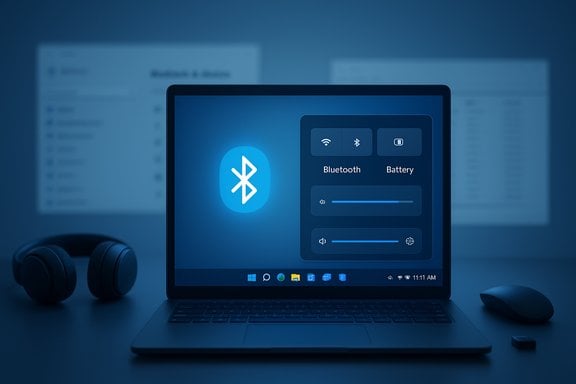 Background
Windows 11 exposes several user-friendly ways to toggle the Bluetooth radio, but the underlying radio and driver stack can be influenced by OS updates, OEM utilities, and power‑management rules. Microsoft documents the two primary, supported user interfaces for switching Bluetooth on or off — the Settings app and Quick Settings — and recommends these as the first, safest options. Beyond the basic UI toggles, power users sometimes want to stop the Bluetooth adapter entirely (Device Manager) or prevent the operating system from starting the Bluetooth support service (services.msc). Those approaches are effective but carry more side effects and require extra caution on managed or corporate machines. Community troubleshooting threads mirror this escalation path: start with quick toggles, then run the Bluetooth troubleshooter, then update drivers, and only disable drivers or services if other fixes fail.Quick summary of the four ways Windows Report described
- Use Quick Settings (taskbar) to toggle Bluetooth instantly for fast on/off changes.
- Use Settings > Bluetooth & devices (Win + I) for the same toggle plus device management and pairing options.
- Use Device Manager to disable the Bluetooth adapter completely so Windows cannot use the radio until you re‑enable it manually.
- Use services.msc to set Bluetooth Support Service to Disabled so the Bluetooth stack will not start after reboot — an advanced approach for when you want to prevent any automatic Bluetooth behavior.
Verification: Microsoft’s guidance and independent confirmation
What Microsoft says (official)
Microsoft’s support pages explicitly document the two user‑facing methods: the Settings app and Quick Settings. The Settings path is Settings > Bluetooth & devices and the Quick Settings tile appears under the Network/Sound/Battery area of the taskbar; clicking the Bluetooth tile toggles the radio on and off. Microsoft also notes that if the Bluetooth option is missing, the device may not have a Bluetooth adapter or the appropriate driver may be absent.Independent third‑party confirmation
Reputable tech publications (Lifewire, Tom’s Hardware, The Verge and others) repeat the same instructions and add real‑world notes such as how OEM drivers, USB‑3.0 interference, and Windows updates can change behavior. These sources also document Device Manager and Service-level interventions as valid escalation steps when the Settings/Quick Settings toggles don’t resolve an issue. That corroboration makes the four‑method playbook credible and safe to adopt for most users.How to disable Bluetooth on Windows 11 — step‑by‑step playbook
The next sections lay out each method with short, copyable steps. Each method is followed by immediate verification, practical caveats, and a short “when to use” guide.1) Fastest: Turn off Bluetooth from Quick Settings
When to use: You need to quickly cut the radio (e.g., during a meeting or while traveling).Steps:
- Click the Network / Sound / Battery icon at the far right of the taskbar to open Quick Settings.
- Locate the Bluetooth tile and click it to toggle off. The tile will appear unhighlighted or gray when off.
- If the Bluetooth tile is missing, add it via Quick Settings editing or confirm the adapter/driver is present.
- Quick Settings is ideal for temporary toggles; the tile does not permanently remove drivers or services.
2) The Settings app: turn Bluetooth off and manage paired devices
When to use: You want to shut Bluetooth off and also manage pairings or troubleshoot the device list.Steps:
- Press Windows + I to open Settings.
- Select Bluetooth & devices from the left pane.
- Switch Bluetooth to Off.
- If the toggle is missing, the adapter might not be present or drivers could be missing; check Device Manager.
3) Device Manager: disable the Bluetooth adapter (hardware level)
When to use: You want to ensure the OS cannot use the Bluetooth radio (e.g., for privacy or to prevent unwanted re‑pairing after troubleshooting).Steps:
- Press Windows + X and choose Device Manager.
- Expand the Bluetooth category.
- Right‑click the Bluetooth adapter (for example, Intel Wireless Bluetooth) and select Disable device. Confirm the action.
Caveats and risks:
- On some laptops, OEM vendor utilities or firmware settings may override the OS; check manufacturer‑provided wireless utility if the adapter reappears.
- On managed/corporate devices, device inventory/MDM policies may re‑enable adapters or block you from disabling them; consult your IT team first.
- Disabling the adapter via Device Manager removes Bluetooth entirely for all users until re‑enabled.
4) Turn off Bluetooth support at the service level (advanced)
When to use: You need to prevent background Bluetooth services from starting (for example, to stop automatic pairing attempts or background discovery).Steps:
- Press Windows + R, type services.msc and press Enter.
- Scroll to Bluetooth Support Service (bthserv).
- Right‑click → Properties → set Startup type to Disabled, then Apply and OK.
- Optionally stop the service immediately by right‑click → Stop.
- Disabling services can break dependent features, including OS‑level Bluetooth media controls, Swift Pair behavior, and some accessibility devices.
- Some OEM Bluetooth stacks may use additional services not named exactly “Bluetooth Support Service,” so this method is best reserved for advanced users and administrators.
- If you set the service to Disabled and later need Bluetooth again, you must re‑enable the service and reboot.
What actually happens when you disable Bluetooth
- All active Bluetooth connections are immediately disconnected.
- Paired devices remain in the Windows device list but are inactive until the radio and services are restored.
- Disabling Bluetooth does not disable Wi‑Fi; the two radios operate separately unless your hardware vendor specifically ties them together. Microsoft confirms Wi‑Fi and Bluetooth are distinct radios in their documentation.
Practical troubleshooting and safety checklist
Before disabling the adapter or services, try these safer, reversible steps — they fix most common problems:- Toggle Bluetooth Off → On (Quick Settings or Settings). Often resolves transient glitches.
- Restart the Bluetooth peripheral (headphones, mouse) and put it in pairing mode. Low battery or stale pairings are common failure points.
- Run the Windows Bluetooth troubleshooter: Settings > System > Troubleshoot > Other troubleshooters > Bluetooth > Run. The troubleshooter can restart services and reinitialize adapters.
- Update or roll back Bluetooth drivers from Device Manager (prefer OEM/chipset drivers from Intel, Qualcomm, Realtek rather than third‑party updaters).
- If Bluetooth broke after a Windows update, consider System Restore or uninstalling the problematic update as a measured remediation (document and verify the update before undoing it).
Security, battery life, and privacy: how much do you gain by disabling Bluetooth?
- Battery benefit: Disabling Bluetooth reduces background radio usage and can save battery on laptops and tablets. The exact amount varies by device, usage, and whether peripherals stay connected — a precise percentage change can't be universally guaranteed and depends on hardware and usage patterns (this claim is practical rather than precisely quantifiable without device‑specific testing). Flag: unverifiable as a single number.
- Privacy and attack surface: Turning the radio off reduces the chance of unsolicited pairing requests and limits the local attack surface. That said, Wi‑Fi, USB, and other interfaces remain potential vectors; Bluetooth is just one part of an overall security strategy. Disabling Bluetooth is a pragmatic privacy step but not a complete security fix.
- Troubleshooting benefit: Cutting the radio or disabling the driver is a reliable diagnostic tool. If the problem follows the device (works on phone, not on PC), disabling and re‑enabling or reinstalling drivers helps isolate whether the issue is OS, driver, or peripheral side.
Corporate or managed devices: special considerations
- Device management systems (Intune, SCCM, third‑party MDM) may control radio policies. Changing drivers or disabling services without IT approval can cause compliance violations or support escalation. Always coordinate with IT before making persistent changes to networking or radio settings in a managed environment.
- If you are preparing a fleet‑wide policy to restrict Bluetooth, use Group Policy or MDM controls rather than manual Device Manager changes. Manual changes on individual machines are not scalable or auditable.
Re‑enabling Bluetooth: quick reminders
- To re‑enable a disabled adapter: Device Manager → right‑click adapter → Enable device.
- To re‑enable the Bluetooth Support Service: services.msc → right‑click Bluetooth Support Service → Properties → set a Startup type of Manual or Automatic → click Start.
- Re‑pair devices as necessary from Settings > Bluetooth & devices.
New and evolving behaviors to watch for (LE Audio and recent Windows improvements)
Bluetooth on Windows is not static. Microsoft has been rolling out LE Audio improvements that change how Windows handles audio profiles and can eliminate older tradeoffs (like stereo collapsing to mono when using a headset mic). These features require OS support (Windows 11 builds that include LE Audio improvements) and compatible headset firmware. Recent reporting highlights a “super wideband stereo” update in Windows 11 24H2 that improves game‑chat and voice call audio quality when using Bluetooth LE Audio devices — but adoption is dependent on both PC and peripheral firmware/driver support. In short, some audio problems that used to justify disabling Bluetooth (to force wired audio) are being addressed at the OS and codec level — but only when the full hardware + driver + firmware chain supports it. Treat LE Audio enhancements as a reason to update drivers and firmware before disabling the radio permanently.Strengths and limitations of the Windows Report guide (critical analysis)
Strengths- The Windows Report original guide is concise and user‑actionable: four clear methods cover the spectrum from quick toggles to deep service changes. That structure is well aligned with both Microsoft guidance and community troubleshooting playbooks.
- The recommendations are safe and reversible when followed in order: UI toggles → Device Manager → services.msc. That escalation model minimizes risk for novice users.
- The guide omits explicit warnings about managed devices and MDM policies; disabling drivers or services on corporate machines can violate configurations or temporarily break device inventory. The article should emphasize an IT sign‑off step for enterprise environments.
- The guide states benefits like battery savings and privacy but does not quantify them — these effects are hardware‑dependent and therefore not universally measurable without device‑specific tests (flagged here as unverifiable).
- The advanced step to disable Bluetooth Support Service is useful but riskier than the article’s short description implies; readers should be told how to restore the service (set Startup type back and start it) and warned about dependent features that may break. Microsoft’s troubleshooting guidance highlights service restarts as part of diagnosis, not as a routine permanent change.
Recommended best practices (concise checklist)
- Start with Quick Settings or Settings toggle — it’s fast and reversible.
- If a pairing is stubborn, restart the peripheral, remove the device from Windows, then re‑pair.
- Update OEM Bluetooth drivers before disabling hardware or services. Prefer vendor drivers (Intel/Qualcomm/Realtek) over generic third‑party updaters.
- For corporate environments, use MDM/Group Policy to control radios; don’t change services or drivers ad hoc.
- If you disable services, document the change and keep a step‑by‑step restore plan (how to re‑enable the service and the expected reboot).
Conclusion
Disabling Bluetooth on Windows 11 is intentionally straightforward: Quick Settings and the Settings app cover day‑to‑day needs, while Device Manager and services.msc give deeper control for advanced troubleshooting or stronger privacy measures. The Windows Report guide the user provided outlines these same four methods and aligns with Microsoft’s official guidance and independent reporting. However, deeper interventions (disabling the adapter or Bluetooth Support Service) should be used judiciously — especially on managed devices or when critical accessories rely on the radio.Follow the escalation path: toggle in the UI first, use the built‑in troubleshooter and driver updates next, and only then disable hardware or services — and always document how to restore functionality. Stay updated on Windows 11 driver and LE Audio developments, because improvements in the Bluetooth stack may eliminate the very problems that prompt users to turn the radio off in the first place.
Source: Windows Report How to Disable Bluetooth on Windows 11 (Simple Steps)
