

Microsoft’s Copilot has quietly been stitched into Windows 11 so tightly that for many users it behaves less like an optional assistant and more like a permanent background service — which is exactly why you may want to turn it off today. The built‑in Copilot experience offers fast answers, summaries, and system shortcuts, but it also runs cloud‑backed processes, shows up in multiple places across the OS, and can reappear after updates. For users who don’t need always‑on AI or who worry about background activity and data flows, disabling Copilot is a reasonable, low‑risk choice — provided you follow the right steps and understand the tradeoffs.
Copilot is Microsoft’s AI companion for Windows: an assistant integrated into the operating system that can generate or rewrite text, summarize content, help adjust settings, and surface contextual suggestions in apps like File Explorer, Notepad, Photos, and Microsoft Edge. Unlike older, local assistants, Copilot relies heavily on cloud processing, which means user prompts and certain contextual data are sent to Microsoft’s cloud services to compute responses and generative outputs.
The integration is broad by design. Copilot can appear in:
But bundling cloud‑first AI features at the OS level also increases the number of decisions users and admins must make about privacy, telemetry, and software provisioning. The practical result: many users will prefer on‑demand AI tools they explicitly launch, rather than a built‑in assistant that runs as a background presence.
The sensible middle ground is to treat Copilot like any other nonessential OS feature: evaluate whether it improves your work, then choose the least invasive method to disable or enable it based on your needs. For casual users, the Settings toggle is fast and reversible. For privacy‑conscious individuals, combine uninstallation with the registry or PowerShell steps. For organizations, use Group Policy or MDM controls and coordinate with security and legal teams.
Disabling Copilot is not a statement of technophobia — it’s about control. Windows has always offered a choice: add the features you need, trim the ones you don’t. Copilot is another item on that list. If it isn’t adding value for you, turning it off is a practical and supported course of action.
Source: MakeUseOf This Windows AI feature runs in the background — disable it now
 Background / Overview
Copilot is Microsoft’s AI companion for Windows: an assistant integrated into the operating system that can generate or rewrite text, summarize content, help adjust settings, and surface contextual suggestions in apps like File Explorer, Notepad, Photos, and Microsoft Edge. Unlike older, local assistants, Copilot relies heavily on cloud processing, which means user prompts and certain contextual data are sent to Microsoft’s cloud services to compute responses and generative outputs.The integration is broad by design. Copilot can appear in:
- The Taskbar as a dedicated icon or search box cue.
- The right‑hand side panel as an overlay assistant.
- App toolbars and context menus (Notepad, Photos, Paint, File Explorer).
- Microsoft Edge’s sidebar and toolbar.
Why users are choosing to disable Copilot
Multiple, legitimate reasons push people to remove or hide Copilot. These are the practical pain points most commonly reported:- Workflow mismatch. If you prefer dedicated AI services (research engines, specialist creative tools, or paid generative platforms), a constantly present Copilot can feel redundant and clutter the UI.
- Privacy concerns. Because Copilot uses cloud processing, it will transmit prompts and contextual data to Microsoft services. Even with privacy protections in place, many users prefer to minimize cloud‑connected features on personal machines.
- Surface and UI clutter. Copilot adds icons and entries across the OS. For users who prefer a minimal Taskbar and traditional workflows, those additions are unwelcome.
- Background activity. While Copilot isn’t a system killer, it consumes memory and may run background tasks. For low‑spec devices or users who value maximum responsiveness, trimming nonessential services is appealing.
- Unwanted reinstall behaviors. Users report Copilot can be provisioned or re‑installed after major updates unless proactively blocked.
What disabling Copilot actually does (and doesn’t)
Before you change settings, understand the outcomes:- Turning off Copilot’s Taskbar toggle removes the icon and stops direct launches from the Taskbar.
- Uninstalling the Copilot app removes the primary Copilot package but may leave UI traces (buttons or sidebar entries) in some apps until those apps are updated or their settings are changed.
- Group Policy or registry settings that explicitly turn off Copilot aim to block the service for a user or across a device, and can prevent automatic reinstall in many cases.
- PowerShell removal commands can uninstall Copilot for all local user accounts and remove provisioning so new user profiles won’t get it automatically.
- Some OS updates can re‑provision built‑in apps; preventing silent reinstallation sometimes requires changing Content Delivery Manager settings or additional policy locks.
How to safely disable Copilot — step‑by‑step
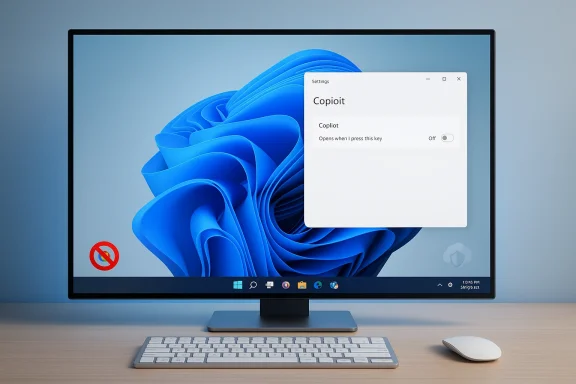
Below are practical paths depending on your Windows edition and comfort level. Always create a system restore point or a full backup before editing the Registry or running PowerShell as administrator. These steps are reversible, but mistakes in Registry edits or misapplied commands can cause system issues.For most users (fast and reversible): Settings toggle
- Open Settings.
- Go to Personalization → Taskbar.
- Find the Copilot setting and flip the toggle to Off.
- Restart (optional but recommended) to ensure the Taskbar is refreshed.
To uninstall the Copilot app (Windows 11 builds that list it)
- Open Settings → Apps → Installed apps.
- Search for Copilot or “Windows Copilot”.
- Click the three‑dot menu and select Uninstall.
- If you have multiple user accounts, consider the PowerShell method below to remove the app for all users and from provisioned packages.
For administrators and Pro/Enterprise users: Group Policy
- Press Start, type gpedit.msc, and run the Group Policy Editor.
- Navigate to: User Configuration → Administrative Templates → Windows Components → Windows Copilot.
- Open Turn off Windows Copilot and set it to Enabled.
- Optionally configure Remove Microsoft Copilot App for broader removal.
- Apply and exit. Reboot to ensure policy propagation.
For Home users or when Group Policy is unavailable: Registry edit
- Open Registry Editor (regedit) as administrator.
- Create or navigate to:
HKEY_LOCAL_MACHINE\SOFTWARE\Policies\Microsoft\Windows\WindowsCopilot- (If the keys don’t exist, create them.)
- Create a new 32‑bit DWORD value named
TurnOffWindowsCopilot. - Set the value to
1to disable. - Reboot.
Remove Copilot for all users and stop provisioning (PowerShell)
Run PowerShell as Administrator and use the following, carefully:- To remove Copilot from all users:
Get-AppxPackage -AllUsers -Name "Microsoft.Windows.Copilot" | Remove-AppxPackage -AllUsers- To remove Copilot from Windows image provisioning (so new local users don’t receive it):
Get-AppxProvisionedPackage -Online | Where-Object { $_.DisplayName -like "*Microsoft.Copilot*" } | Remove-AppxProvisionedPackage -Online
Prevent silent reinstallation (optional but common step)
Windows historically can silently install recommended inbox apps through the Content Delivery Manager mechanism. Many users set the Content Delivery Manager flag to prevent automatic silent reinstalls:- Open Registry Editor as admin.
- Navigate to:
HKEY_CURRENT_USER\Software\Microsoft\Windows\CurrentVersion\ContentDeliveryManager- Find
SilentInstalledAppsEnabledand set it to0. If it doesn’t exist, create a 32‑bit DWORD namedSilentInstalledAppsEnabledand set its value to0. - Reboot.
Advanced: scripts and community toolkits — pros and pitfalls
GitHub and community projects offer scripts that automate removal of Copilot and other AI features. These scripts are convenient and can save time, but they carry real risk:- Scripts often run as Administrator and change many system settings. That accelerates both results and potential breakage.
- Not all community projects are audited; an incorrectly authored script could remove more than intended or leave the system unstable.
- If you rely on Microsoft support, running community removal scripts may complicate support outcomes.
What changed (and what likely won’t) after disabling Copilot
Users who disable Copilot usually report the following:- Taskbar feels less crowded. Removing the icon clears visual noise and speeds initial interactions with the desktop.
- Fewer background cloud connections. If you remove the app and set policies, you reduce the number of cloud calls originating from the OS.
- No catastrophic breakage. For most consumer workflows, Windows keeps working exactly as before; core functionality is unchanged.
- Some AI‑assisted conveniences disappear. Features like in‑app generative helpers, quick summarization shortcuts, or integrated image generation (where available) will no longer be accessible via the OS integration.
Privacy, security, and enterprise considerations
Copilot’s cloud architecture raises a few specific concerns to weigh.- Data transmission. Prompts and contextual data used to create responses can be transmitted to Microsoft services. Microsoft publishes data handling policies, but organizations should confirm those controls meet their compliance requirements.
- Exposure surfaces. Because Copilot integrates into many apps, there are more touchpoints — each integration increases the chance of accidental data sharing (e.g., a user pasting sensitive text into a prompt).
- Administrative control. Enterprises have policy controls via Group Policy and MDM (policy CSPs) to disable Copilot and related features centrally; administrators should test, document, and apply these controls if corporate policy requires it.
- Regulatory posture. Organizations subject to strict data sovereignty or sectoral regulations should coordinate with legal and security teams before enabling broad AI integrations.
Tradeoffs: When disabling is the right call — and when it isn’t
Consider these user profiles to decide your approach:- You should turn it off if:
- You rarely use Copilot and prefer specialist tools.
- You handle sensitive data and want to reduce cloud exposure.
- Your machine is older and you want to minimize background services.
- You simply want a cleaner UI with fewer Microsoft‑driven suggestions.
- You should keep it on if:
- You rely on Copilot for frequent, quick tasks — drafting, summarizing, or automating system workflows.
- Your organization permits or supports Copilot as part of productivity tooling.
- You prefer Microsoft’s integrated experience and accept its cloud model for AI.
Troubleshooting and recovery
If something goes wrong, or you change your mind later:- Reinstall Copilot from the Microsoft Store (if you removed the app). Search for Copilot in the Store and reinstall.
- Revert Group Policy: open gpedit.msc and set Turn off Windows Copilot to Not Configured or Disabled.
- Revert Registry: delete the
TurnOffWindowsCopilotDWORD or set it to0. - If you used PowerShell to remove provisioned packages and you want Copilot returned in a fresh image, reinstall via the Store or re‑provision via DISM/app package deployment.
Final analysis: balancing convenience, control, and trust
Copilot represents Microsoft’s broad push to make AI a first‑class part of Windows. That brings real productivity opportunities: integrated drafting, quick contextual help, and a reduction in context switching for common tasks. For certain users and teams, those benefits justify the always‑available integration.But bundling cloud‑first AI features at the OS level also increases the number of decisions users and admins must make about privacy, telemetry, and software provisioning. The practical result: many users will prefer on‑demand AI tools they explicitly launch, rather than a built‑in assistant that runs as a background presence.
The sensible middle ground is to treat Copilot like any other nonessential OS feature: evaluate whether it improves your work, then choose the least invasive method to disable or enable it based on your needs. For casual users, the Settings toggle is fast and reversible. For privacy‑conscious individuals, combine uninstallation with the registry or PowerShell steps. For organizations, use Group Policy or MDM controls and coordinate with security and legal teams.
Disabling Copilot is not a statement of technophobia — it’s about control. Windows has always offered a choice: add the features you need, trim the ones you don’t. Copilot is another item on that list. If it isn’t adding value for you, turning it off is a practical and supported course of action.
Source: MakeUseOf This Windows AI feature runs in the background — disable it now
