

Installing McAfee on a Windows 11 PC usually takes only minutes — but the real work that prevents most failures happens before you click “Install.” This guide walks you, step-by-step, through a reliable, technician-tested installation process for McAfee on Windows 11 and Windows 10, explains the common failure modes (and how to fix them), and verifies key technical details against official vendor and independent-lab sources so you can install with confidence.
McAfee’s consumer products remain a common choice for users who want a single bundle that combines antivirus, firewall, VPN, identity protection, and device management. That said, Windows 11 ships with Windows Security (Microsoft Defender) enabled by default, and modern Windows versions actively manage which security product is the “primary” real-time protector. This means installers must contend with leftover AV remnants, S Mode restrictions on some systems, and strict driver / service registration steps that require a clean environment to complete successfully. Independent lab testing shows Defender is a high-quality baseline, while McAfee scores strongly for performance in recent lab tests — but the choice to install a third-party suite should be intentional and based on the features you need.
This article covers:
Fix: Confirm S Mode status and switch out if present. Also check Settings > Apps > Advanced app settings > Choose where to get apps and set it to “Anywhere.”
Fix:
Fix: Run MCPR (McAfee Consumer Product Removal Tool), reboot, and try again. MCPR is updated periodically; always download the latest copy before using it.
Fix: Restart the PC. If the problem persists, check Windows Security to see whether McAfee is listed under “Other providers.” If not present, re-run the McAfee installer or use MCPR and reinstall.
Fix: Windows is supposed to disable Defender real-time scanning when a third-party AV is active. If Defender remains active, reboot and ensure McAfee is registered as the active provider. Only toggle Defender off manually as a diagnostic step if McAfee is properly installed and still misbehaving.
Following the steps above will resolve the majority of real-world installation failures and leave you with a correctly registered, up-to-date protection suite on your Windows 11 PC.
Source: H2S Media How to Install McAfee Antivirus on Windows 11 or 10
 Background / Overview
McAfee’s consumer products remain a common choice for users who want a single bundle that combines antivirus, firewall, VPN, identity protection, and device management. That said, Windows 11 ships with Windows Security (Microsoft Defender) enabled by default, and modern Windows versions actively manage which security product is the “primary” real-time protector. This means installers must contend with leftover AV remnants, S Mode restrictions on some systems, and strict driver / service registration steps that require a clean environment to complete successfully. Independent lab testing shows Defender is a high-quality baseline, while McAfee scores strongly for performance in recent lab tests — but the choice to install a third-party suite should be intentional and based on the features you need.This article covers:
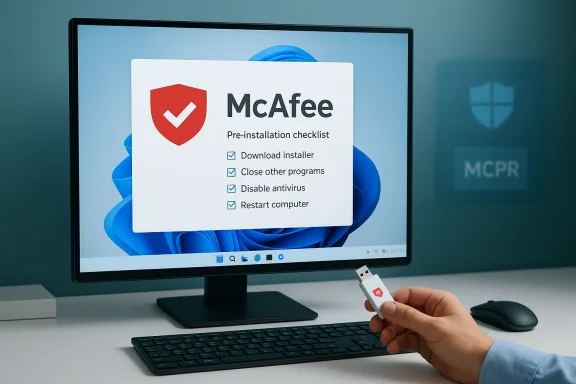
- Pre-install checklist and why each step matters
- Download, activation, and account setup best practices
- Full installation walkthrough with screenshots-equivalent step descriptions
- Troubleshooting the top failure modes (S Mode, leftover AV, network issues)
- Post-install verification, configuration, and removal steps
- Critical analysis of strengths, trade-offs, and risks
Why prepare before you install (and what goes wrong if you don’t)
Many users treat installation as a single-click step. The installer often completes, but Windows — which enforces a single active real-time AV provider — will not hand off protection correctly if leftover drivers, services, or unknown security agents remain on the system. That leads to:- Silent failures where the installer finishes but protection never registers
- Conflicts that cause high CPU or I/O during scans
- Installer error codes that don’t explain the underlying cause (e.g., generic “0” types)
Community threads and technician notes repeatedly show that the most common root cause for failed installs is leftover third-party AV components that weren’t fully removed.
System requirements and compatibility — verify first
Before attempting installation, confirm your machine meets McAfee’s documented consumer product requirements:- Supported OS: Windows 11 and Windows 10 (x64). ARM64 Windows 11 is supported by McAfee’s newer builds. Consumer McAfee products primarily target Home, Pro, and Education editions. Check the specific product page if you’re on a specialized or enterprise SKU.
- Minimum hardware: 1 GHz CPU, 2 GB RAM, and approximately 1.3 GB free disk space (installation footprint varies with bundled features such as VPN and identity tools).
- Internet: Required for initial download, activation, and ongoing signature/cloud updates — consumer McAfee installers use a small stub that downloads full components during setup. Offline/air-gapped installs are not supported for the consumer product line.
Step 1 — Preparation checklist (do this first)
- Confirm Windows edition and S Mode status
- Open Settings > System > About and check “Windows specifications.” If the machine reports “Windows 11 Home in S mode” you cannot install McAfee until you switch out of S Mode. Switching is free and irreversible on that device. Follow Settings > System > Activation > Switch to Windows 11 Home (or the appropriate link) and follow the Store prompts to switch out.
- Remove any existing third-party antivirus products completely
- Uninstall via Settings > Apps > Installed apps, but don’t stop there. Most AV vendors provide a removal utility that cleans drivers, services, scheduled tasks, and registry remnants. Examples:
- Norton: Norton Remove and Reinstall tool
- Bitdefender: Bitdefender Uninstall Tool
- Kaspersky: kavremvr.exe
- Avast/AVG: Avast Clear
- If standard uninstall fails or you see persistent McAfee components, run McAfee Consumer Product Removal (MCPR) to scrub remnants. MCPR is McAfee’s official cleanup utility and should be your canonical next step before reinstalling.
- Fully update Windows and reboot
- Open Settings > Windows Update and install all pending updates. Some McAfee installers check OS build numbers and will produce obscure errors on older builds.
- Disable (temporarily) any VPN, proxy, or strict firewall rules
- Stubbing installers and activation routines need direct access to McAfee’s servers. Temporarily disable VPNs and test on a direct network path if possible.
- Confirm disk space
- Ensure at least 1.3 GB free on the system drive; more is recommended if you plan to add local backups or use the product’s heavier components.
Step 2 — Obtain the correct McAfee installer and create/confirm your account
Do not trust random search-result download pages. The web is full of fake “McAfee download” sites that bundle adware or malicious installers. Use McAfee’s official account portal or the installer link included with your purchase. Key points:- If you purchased a subscription, sign in to your McAfee account and download the product listed under “My Protection.”
- If you have an activation code from retail packaging, use the McAfee activation flow provided with your product to create or link your account and download the appropriate installer.
- New users can typically obtain a 30-day free trial via McAfee’s official promotion/registration flow (trial requires account creation and payment details in many regions). Always use official pages to avoid scams.
Step 3 — Run the installer (what to expect)
- Double-click McAfee_Installer.exe (or the product-specific name).
- The installer stub will download the full product from McAfee’s servers — expect several minutes depending on bandwidth.
- Follow the on-screen prompts to sign into your McAfee account (or create one). Activation commonly happens inline as part of sign-in.
- When the installer finishes, it will show a confirmation message such as “You’re protected” or “Installation complete.”
Step 4 — Post-install verification and first-run steps
After reboot:- Look for the McAfee shield icon in the system tray. A green shield typically indicates an active and current protection state.
- Open Windows Security (Settings > Privacy & Security > Windows Security > Virus & threat protection) and check whether McAfee is listed as the active antivirus provider. If Windows Security still lists another product, reboot again and verify removal steps.
- Open the McAfee dashboard, sign in if prompted, then run Check for updates to fetch the latest signatures right away.
- Run a Full system scan to establish a baseline. This can take anywhere from 30 minutes to several hours depending on storage size and the number of files.
Common installation problems and fixes
1) “This app can’t run on your PC” or blocked installer
Cause: S Mode or Store-only installation preference.Fix: Confirm S Mode status and switch out if present. Also check Settings > Apps > Advanced app settings > Choose where to get apps and set it to “Anywhere.”
2) Installer stalls or hangs at download
Cause: Unstable connection, VPN/proxy blocking, or a corrupted partial download.Fix:
- Disconnect VPNs and proxies.
- Delete any partial McAfee downloads and re-download the installer.
- Ensure Windows Update and Microsoft Store components are healthy (stalling downloads can impair the stub).
3) Error code 0 or ambiguous installer errors
Cause: Leftover files from a previous McAfee or a competitor’s product.Fix: Run MCPR (McAfee Consumer Product Removal Tool), reboot, and try again. MCPR is updated periodically; always download the latest copy before using it.
4) McAfee installed but not active in Windows Security
Cause: The handoff to Windows Security didn’t register; sometimes installation completed without the required reboot.Fix: Restart the PC. If the problem persists, check Windows Security to see whether McAfee is listed under “Other providers.” If not present, re-run the McAfee installer or use MCPR and reinstall.
5) High CPU or file conflicts after installation
Cause: Two real-time engines (Defender + McAfee) running simultaneously or conflicting components.Fix: Windows is supposed to disable Defender real-time scanning when a third-party AV is active. If Defender remains active, reboot and ensure McAfee is registered as the active provider. Only toggle Defender off manually as a diagnostic step if McAfee is properly installed and still misbehaving.
Advanced: cleaning multiple machines (power-user tips)
If you manage multiple Windows PCs, automate cleanup and deployment to reduce manual troubleshooting:- Use Microsoft’s winget or a package script to push MCPR and a fresh McAfee installer to endpoints, or to remove factory-trial installations quickly.
- Example command to install MCPR via winget (accept prompts and vendor IDs may vary by region/product packaging):
- winget install --id McAfee.MCPR --accept-package-agreements --silent
- Start-Process "C:\Program Files\McAfee\MCPR\mccleanup.exe" -ArgumentList "-p StopServices,MFSY,PEF,MXD,CSP,Tracker,FirewallEngine,RealProtect,MAS,AntiSpam" -Wait
Removal: how to fully uninstall McAfee (if you change your mind)
- Settings > Apps > Installed Apps > select McAfee product and choose Uninstall.
- Restart the computer after uninstall completes.
- If trace components remain, run the MCPR tool, reboot again, and confirm Windows Security returns to active protection.
- Confirm Windows Security (Defender) is active via Settings > Privacy & Security > Windows Security after the restart.
Which McAfee plan should you pick? A practical take
McAfee’s consumer lineup has historically grouped similar antivirus engines with different bundles of extras (VPN, password manager, identity monitoring, parental controls). For most single-device users who only need malware protection, Windows Security is a competent, no-cost option. McAfee is worth it if:- Your organization or employer mandates a McAfee subscription for compliance.
- You bought a laptop with a bundled McAfee trial and want to keep the extras.
- You want the identity protection, VPN, or centralized family controls that McAfee bundles.
Critical analysis — strengths, trade-offs, and risks
Strengths
- Low performance impact: Recent independent performance testing places McAfee among the lowest-impact consumer suites, which is important for users on low-end hardware. This reduces friction for people who are sensitive to AV slowdowns.
- Feature set: Bundled VPN, password manager, and identity tools make McAfee a one-stop consumer security suite for families and multi-device households. Tech reviews highlight the completeness of the bundle as a major selling point.
- Centralized management: For households with many devices, McAfee’s account-linked management is convenient.
Trade-offs and risks
- Vendor lock and renewal pricing: Paid subscription renewal prices can be substantially higher than introductory offers. Buyers should check second-year pricing before committing.
- Bundled extras complexity: More features = more background services. While performance impact is low in tests, feature-rich builds have a larger attack surface for bugs, false positives, and support complexity compared to a minimal AV-only product.
- Installer trust and fake sites: McAfee’s popularity means malicious actors frequently clone download pages. Always download from your account portal or the official vendor page. Failure to do so risks installing unwanted software.
- S Mode and enterprise scenarios: McAfee consumer products are not designed for Windows 11 Enterprise or locked enterprise environments where group policies restrict driver or kernel-level installation. In managed environments, use your organization’s approved endpoint solution.
Evidence-backed perspective
- Microsoft’s built-in Defender rates highly in AV-TEST and AV-Comparatives protection and usability metrics; for many users it offers a trustworthy baseline without additional cost. Add a third-party product when you need extras (VPN, identity restoration, centralized family tools), or when corporate policy requires it.
Troubleshooting matrix — a quick reference
- Problem: Installer stalls at download
- Likely cause: VPN/proxy or unstable network
- Fix: Disconnect VPN, retry on direct connection
- Problem: “This app can’t run on your PC”
- Likely cause: Windows S Mode or Store-only setting
- Fix: Switch out of S Mode via Settings > System > Activation (irreversible).
- Problem: Install completes but McAfee not active
- Likely cause: Leftover AV components or no restart after install
- Fix: Run MCPR, reboot, reinstall.
- Problem: High CPU / duplicate scans
- Likely cause: Defender still active or multiple AV engines
- Fix: Reboot, confirm McAfee listed as the active provider in Windows Security; if Defender remains active, investigate leftover components.
Final checklist before you call support
- Did you confirm Windows is not in S Mode?
- Did you uninstall other third-party AV and run vendor removal tools where available?
- Is Windows fully updated and rebooted? (Installers often detect OS build.)
- Did you run the McAfee installer as administrator and restart after installation?
- Did you update definitions immediately after first launch and run a full scan?
- Exact McAfee product name and installer filename
- Windows edition and build number (Settings > System > About)
- Any error codes or screenshots of installer messages
- Output from Windows Security indicating what it lists as active provider
Providing those to support shortens the diagnostic process.
Conclusion
Installing McAfee on Windows 11 or Windows 10 is straightforward when you treat preparation as the primary task. Verify system compatibility and S Mode status, fully remove competing AV software (use the official MCPR tool if needed), update Windows, disable VPNs or proxies during installation, and always reboot after the installer finishes. Independent labs show both Microsoft Defender and McAfee performing strongly in recent tests — Defender as a robust built-in baseline and McAfee as a lightweight, feature-rich paid alternative — so choose based on features and device management needs rather than perceived necessity alone.Following the steps above will resolve the majority of real-world installation failures and leave you with a correctly registered, up-to-date protection suite on your Windows 11 PC.
Source: H2S Media How to Install McAfee Antivirus on Windows 11 or 10
