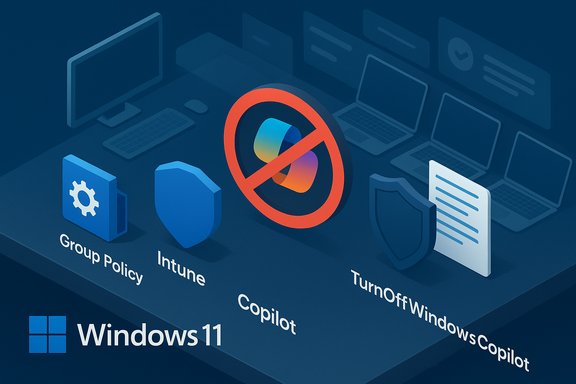
If Copilot feels like unwanted bloat on your Windows 11 PC, you can remove or disable most of its visible components — but a truly permanent, universal removal is increasingly difficult because Microsoft has been delivering Copilot in multiple forms and via multiple channels; administrators and power users must combine UI, policy, and application-control techniques to keep it off for good.
Microsoft introduced Copilot as an AI assistant built into Windows 11 and the Microsoft 365 ecosystem, then folded it into the desktop in several ways: a taskbar button, a keyboard shortcut (Win+C or a dedicated Copilot key on some devices), context‑menu entries (Ask Copilot), and as an installable app package. That breadth of delivery makes Copilot highly discoverable — and occasionally intrusive — for users who prefer a minimal system. Community investigations and Microsoft’s management guidance both show multiple enforcement points (taskbar toggle, Group Policy, registry, Appx package removal, and AppLocker/MDM controls).
Microsoft also publishes a policy mapping for Copilot (the TurnOffWindowsCopilot policy), which is the official administrative channel for disabling the feature; importantly, Microsoft’s documentation notes that the policy and delivery mechanisms are evolving and that behavior may vary by Windows build and servicing channel. This means the steps that work on one machine today may need re‑application after a feature update.
Source: Emegypt Fed Up with AI? Discover How to Uninstall Copilot from Windows 11
 Background
Microsoft introduced Copilot as an AI assistant built into Windows 11 and the Microsoft 365 ecosystem, then folded it into the desktop in several ways: a taskbar button, a keyboard shortcut (Win+C or a dedicated Copilot key on some devices), context‑menu entries (Ask Copilot), and as an installable app package. That breadth of delivery makes Copilot highly discoverable — and occasionally intrusive — for users who prefer a minimal system. Community investigations and Microsoft’s management guidance both show multiple enforcement points (taskbar toggle, Group Policy, registry, Appx package removal, and AppLocker/MDM controls).Microsoft also publishes a policy mapping for Copilot (the TurnOffWindowsCopilot policy), which is the official administrative channel for disabling the feature; importantly, Microsoft’s documentation notes that the policy and delivery mechanisms are evolving and that behavior may vary by Windows build and servicing channel. This means the steps that work on one machine today may need re‑application after a feature update.
Why users want to remove or disable Copilot
Many Windows users describe Copilot as unwanted bloat for three common reasons:- It adds UI clutter (taskbar button, context menus) that some users never use.
- It introduces additional background processes, which can matter on constrained devices.
- It raises privacy questions for highly sensitive workflows, particularly where AI features can access local files or context.
What “remove” and “disable” actually mean
Before proceeding, pick your target level of removal — each approach has different permanence and risk:- Cosmetic hide: Remove the taskbar button and other visible UI. Reversible and safe.
- Local disable (user): Prevent Copilot from launching for the signed‑in user (Group Policy or registry). Blocks most invocation paths but may not stop re‑installation.
- Uninstall app: Remove the Copilot app package where Windows exposes it as removable. Cleaner locally but not guaranteed to survive provisioning or updates.
- Enforced block (fleet): Combine AppLocker/WDAC + Intune/Microsoft 365 tenant settings to prevent installation and execution across many machines. Most robust but requires admin overhead.
Quick (safe) first steps — what every user should try first
If you only want Copilot out of sight with minimal risk, try these UI steps first:- Hide the Copilot button: Right‑click the taskbar → Taskbar settings → under Taskbar items toggle Copilot (preview) off. This removes the visual affordance immediately and is fully reversible.
- Disable the Copilot keyboard shortcut (if your build exposes it): Settings → Personalization → Taskbar → Taskbar behaviors → turn off the Copilot hotkey. This reduces accidental launches without registry edits.
Method 1 — Uninstall Copilot from Settings (when available)
When Copilot is packaged as an uninstallable app on your device, the Settings UI can remove it:- Press Windows key + I to open Settings.
- Go to Apps → Installed apps (or Apps & features).
- Search for “Copilot.” Click the three‑dot menu next to the entry and choose Uninstall.
- Reboot and verify the taskbar and shortcuts no longer launch Copilot.
Method 2 — PowerShell removal (power users)
If Copilot is present as an Appx/AppX package, PowerShell can remove it. This is powerful but must be used carefully — confirm package names before removing anything.- Example (verify first, then run removal only when you know the package name):
- Open PowerShell as Administrator.
- List Copilot packages:
Get-AppxPackage | Where-Object { $_.Name -like "Copilot" } - Remove for the current user:
$pkg = Get-AppxPackage -Name "Microsoft.Copilot"
Remove-AppxPackage -Package $pkg.PackageFullName - To remove a provisioned package for all users:
Get-AppxPackage -AllUsers -Name "Microsoft.Copilot" | Remove-AppxPackage -AllUsers
Method 3 — Group Policy (Windows 11 Pro / Enterprise / Education)
For managed or Pro/Enterprise users the supported mechanism is Group Policy:- Press Win + R, type gpedit.msc and press Enter to open the Group Policy Editor.
- Navigate to: User Configuration → Administrative Templates → Windows Components → Windows Copilot.
- Double‑click Turn off Windows Copilot, set it to Enabled, then Apply → OK.
- Run gpupdate /force or restart to apply.
Method 4 — Registry edit (Windows 11 Home or scripted deployments)
Home users or admins scripting for mixed environments can set the registry equivalent:- Per-user (current user):
Path: HKEY_CURRENT_USER\Software\Policies\Microsoft\Windows\WindowsCopilot
Value: TurnOffWindowsCopilot (DWORD, 32‑bit) = 1 - Machine‑wide (all users):
Path: HKEY_LOCAL_MACHINE\SOFTWARE\Policies\Microsoft\Windows\WindowsCopilot
Value: TurnOffWindowsCopilot (DWORD, 32‑bit) = 1
Method 5 — Remove the “Ask Copilot” context menu (safe, reversible)
If the right‑click “Ask Copilot” entry is your main annoyance, you can block the Copilot shell extension without uninstalling the app. This is safer than editing PackagedCom entries and reversible:- Open Registry Editor (regedit).
- For a system‑wide block, create the key:
HKEY_LOCAL_MACHINE\SOFTWARE\Microsoft\Windows\CurrentVersion\Shell Extensions\Blocked
Add a new String Value named:
{CB3B0003-8088-4EDE-8769-8B354AB2FF8C}
Set its data to "Ask Copilot". - Alternatively, apply the same under HKEY_CURRENT_USER for a per‑user tweak.
- Restart File Explorer or reboot.
Making the removal stick — enterprise and fleet strategies
Uninstalling Copilot locally is often temporary in managed environments because Microsoft can re‑provision components via updates or tenant controls. To enforce durable removal across a fleet, combine these controls:- AppLocker / WDAC: Create rules that block the Copilot package by publisher and package family name (for example, publisher = CN=MICROSOFT CORPORATION; package family = MICROSOFT.COPILOT). Test thoroughly — misconfigured rules can block legitimate software.
- Intune / MDM: Deploy the TurnOffWindowsCopilot policy (or push the registry key) via Intune configuration profiles and combine with AppLocker profiles.
- Microsoft 365 Apps admin center: If your tenant is deploying Microsoft 365 apps, check modern app settings to prevent tenant‑driven provisioning of Copilot. This closes a common re‑installation path.
Known gotchas, update behavior, and why removal isn’t always permanent
Several important caveats are repeatedly observed in community testing and Microsoft’s documentation:- Windows updates have accidentally removed Copilot for some users and later restored it; conversely, updates can also reintroduce Copilot after local removal. Microsoft has acknowledged and fixed an accidental uninstall bug in the past, demonstrating update-side volatility. That means a one‑time uninstall may reappear after servicing.
- The TurnOffWindowsCopilot policy is documented by Microsoft but is flagged as subject to change or deprecation for future Copilot experiences; reliance on a single policy is therefore brittle. Test on your exact Windows build and servicing channel.
- Some Group Policy / registry settings remove only the visible taskbar affordance while other invocation paths (Search, ms‑copilot: URIs, re‑installation via tenant) remain possible. For strict enforcement combine policy, AppLocker, and tenant controls.
- Appx package names and CLSIDs vary across Windows builds and Insider experiments. Always verify the exact package or GUID on the target machine before acting. Community scripts that assume a fixed package name can fail or remove the wrong package if not double‑checked.
Step‑by‑step checklists
Home user — safe and reversible (recommended)
- Hide Copilot: Settings → Personalization → Taskbar → toggle Copilot off.
- Disable keyboard shortcut: Settings → Personalization → Taskbar → Taskbar behaviors → turn off Copilot hotkey (if available).
- If context menu bothers you, block the CLSID under HKCU: HKCU\Software\Microsoft\Windows\CurrentVersion\Shell Extensions\Blocked → add "{CB3B0003-8088-4EDE-8769-8B354AB2FF8C}" = "Ask Copilot".
- Reboot and confirm.
Power user — local removal
- Create a system restore point and backup registry.
- Use Settings → Apps → Installed apps → Uninstall Copilot (if present).
- If not available, use PowerShell to find package names: Get‑AppxPackage | Where‑Object { $_.Name -like "Copilot" }
- Remove carefully with Remove‑AppxPackage (confirm package full name).
- Block the context menu CLSID and/or add Shell Extensions\Blocked entries.
- Monitor for re‑provisioning after updates.
IT admin — fleet enforcement (recommended)
- Test on a pilot group that receives the same update channel as your fleet.
- Deploy Group Policy: User Configuration → Administrative Templates → Windows Components → Windows Copilot → Turn off Windows Copilot = Enabled. Map to ADMX as needed.
- Deploy AppLocker rules that block MICROSOFT.COPILOT package family names and publisher signatures. Ensure allow rules exist to avoid collateral blocking.
- Configure Intune to push the TurnOffWindowsCopilot registry key for Home devices and apply AppLocker profiles via MDM where supported.
- In Microsoft 365 Apps admin center, disable tenant‑level automatic Copilot installs.
- Maintain an operations playbook and verify after each Windows feature update.
Security, privacy, and support tradeoffs
- Privacy: Disabling or removing Copilot reduces the surface area of AI‑driven telemetry and accidental uploads from UI‑driven suggestions; it’s a defensible step for sensitive environments.
- Feature loss: Copilot features (contextual drafting, integrations with Office tools, Designer assistance) will be unavailable after removal, which can degrade productivity for users who rely on them. Balance privacy concerns against productivity needs.
- Operational cost: Maintaining blocking at scale requires testing, rule maintenance (AppLocker/WDAC), and monitoring post‑update behavior. That overhead must be budgeted.
- Risk of system instability: PowerShell removal of provisioned packages or careless registry edits can harm the OS. Always back up and use restore points.
Troubleshooting — common post‑removal issues
- Copilot reappears after a cumulative or feature update: Re‑apply Group Policy/AppLocker and re‑verify tenant settings. Keep a small test machine on the same update channel to detect regressions early.
- “Uninstall” is greyed out in Settings: The package may be provisioned or protected; use PowerShell only after confirming package identity, or prefer policy/AppLocker in managed environments.
- Right‑click menu still shows “Ask Copilot”: Ensure you blocked the correct CLSID and that you applied the registry change under the correct hive (HKLM for system‑wide). Restart Explorer.
What Microsoft says and why it matters
Microsoft documents the TurnOffWindowsCopilot policy and the associated registry mapping; that is the official, supported management path. However, the documentation also warns that the policy may not apply to newer Copilot experiences in Insider builds and that the policy metadata is subject to change. That combination — official control with evolving behavior — is why community and enterprise playbooks use layered enforcement. Treat Microsoft’s policy as the foundation, not the sole solution.Final recommendations
- Start with safe, reversible steps (taskbar toggle, hide hotkey). Most users will be satisfied with those changes.
- If you need a firmer block on a single PC, use the Group Policy or registry key and confirm behavior after a reboot. Back up first.
- For durable enterprise enforcement, combine Group Policy/Intune + AppLocker + tenant settings and maintain a short playbook to reapply controls after major updates. Test on a pilot group.
- If you remove packages with PowerShell, confirm the exact package name on each machine and always have recovery media. Community scripts can help but are not one‑size‑fits‑all.
Conclusion
You can make Copilot disappear from the Windows 11 taskbar, context menus, and often from the system entirely — but complete permanent removal across every update channel, tenant, and delivery vector requires layered administrative controls and ongoing maintenance. Microsoft provides an official policy (TurnOffWindowsCopilot) and a registry mapping that administrators should use as their primary lever, but community‑tested techniques (PowerShell removal, CLSID blocking, AppLocker, Intune/Microsoft 365 tenant controls) fill the gaps when Microsoft’s delivery choices change. Back up, test, and document a repeatable playbook: that’s the only reliable path to a Copilot‑free experience you can maintain.Source: Emegypt Fed Up with AI? Discover How to Uninstall Copilot from Windows 11