

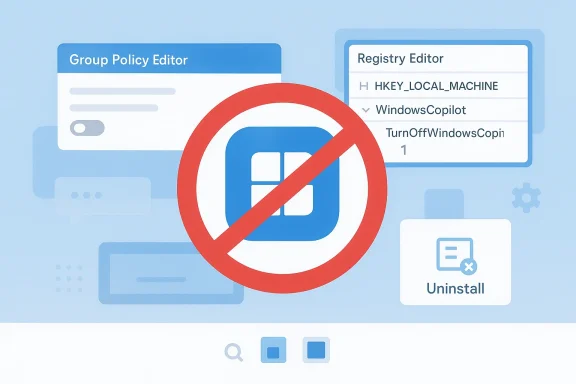
Microsoft’s Copilot has become deeply intertwined with Windows 11, but it is still possible to remove the standalone app, disable the taskbar entry, and block the classic Windows Copilot experience through policy or registry settings. The catch is that Microsoft’s implementation has evolved, and the “best” method depends on whether you’re on Home, Pro, Enterprise, or managing a fleet of PCs. In practice, the most durable approach is usually a combination of uninstalling the app and enforcing a policy-based block, rather than relying on a single toggle. (support.microsoft.com)
Background — full context
Windows 11 users have increasingly been confronted with Copilot in the Start menu, taskbar, Microsoft apps, and even adjacent services that Microsoft folds into its AI strategy. Microsoft’s own support guidance confirms that the Copilot app can be installed by default on new Windows 11 PCs and that users can remove it from the system through Settings. (support.microsoft.com)At the same time, Microsoft has been changing how Copilot is delivered. The classic “Windows Copilot” policy still exists, but Microsoft documents it as deprecated, and it explicitly notes that it does not cover newer Copilot experiences being rolled out in Insider builds and other Windows 11/10 scenarios. That matters because it means older block methods may stop being sufficient over time. (learn.microsoft.com)
For users who only want the app gone, Microsoft’s current support answer is straightforward: open Settings, go to Apps, open Installed apps, find Copilot, and uninstall it. Microsoft also notes that IT administrators can remove the app with a PowerShell script, which is useful for managed environments. (support.microsoft.com)
But for many people, uninstalling the app is not enough. Copilot may reappear via Windows updates, taskbar features, app integration, or policy defaults. That is why Microsoft’s own policy documentation for Windows AI now includes a registry-backed setting for controlling Copilot at the user-policy level. (learn.microsoft.com)
The article you provided also reflects a common user reality: many people want to “de-bloat” Windows 11 and suppress AI features broadly, not just one Copilot icon. That broad goal is understandable, but it’s important to separate supported Microsoft controls from third-party debloat tools, because the latter can remove more than you intended and may break future updates or app behavior. Microsoft’s documentation is the safer baseline. (support.microsoft.com)
1. Uninstall the Copilot app first
The simplest and most official first step is to remove the Copilot app from Windows 11 through the Settings app. Microsoft’s support guidance says to open Settings > Apps > Installed apps, search for Copilot, and select Uninstall. On Windows 11, Microsoft also documents an alternate path through the Start menu’s app list. (support.microsoft.com)What this removes
- The installed Copilot app entry
- The visible app shortcut in the app list
- The most obvious user-facing installer footprint
- A common reinstallation path for casual users if the app is not pinned elsewhere (support.microsoft.com)
What it does not guarantee
- It does not necessarily stop Windows from offering Copilot again later
- It does not block newer Copilot experiences embedded elsewhere in Windows
- It does not replace policy enforcement on Pro/Enterprise systems (learn.microsoft.com)
When this is enough
- You only want the app removed from one PC
- You are not managing a business deployment
- You are comfortable checking back after updates to see whether the app returns (support.microsoft.com)
Practical note
Microsoft says the app can also be removed by administrators through PowerShell in managed environments, which is useful if you’re building a repeatable admin workflow rather than clicking through Settings on every machine. (support.microsoft.com)2. Disable Windows Copilot with Group Policy
If you’re on Windows 11 Pro, Enterprise, Education, or IoT Enterprise, Group Policy is the cleaner way to stop the classic Windows Copilot experience. Microsoft’s policy documentation lists Turn off Windows Copilot under User Configuration > Administrative Templates > Windows Components > Windows Copilot. When enabled, users can’t use Copilot and the Copilot icon won’t appear on the taskbar. (learn.microsoft.com)How the policy works
- It is a user-scoped policy
- It suppresses the taskbar icon
- It disables the user-facing Copilot entry point
- It maps to a registry policy value behind the scenes (learn.microsoft.com)
Why this is better than uninstalling alone
- It helps prevent the feature from surfacing again
- It is easier to enforce across multiple users
- It survives normal user-level tampering better than a manual taskbar tweak (learn.microsoft.com)
Important limitation
Microsoft explicitly says the policy is deprecated and may be removed in a future release. It also does not apply to the newer Copilot experience in some Insider builds and gradual rollouts. In other words, this is useful, but it is not a forever guarantee. (learn.microsoft.com)Best-fit scenarios
- Small business deployments
- School devices
- Power users on Pro editions
- Any system where you want a centrally enforced setting rather than a one-time UI change (learn.microsoft.com)
3. Use the Registry on Windows 11 Home
Windows 11 Home does not include the full Group Policy Editor, so the registry is the usual fallback. Microsoft’s policy mapping shows the underlying registry location for the Copilot policy as SOFTWARE\Policies\Microsoft\Windows\WindowsCopilot with the value TurnOffWindowsCopilot. Microsoft community guidance and Microsoft’s policy documentation both support this approach for systems without Group Policy. (learn.microsoft.com)The registry path to know
- Key: HKEY_CURRENT_USER\Software\Policies\Microsoft\Windows\WindowsCopilot
- Value: TurnOffWindowsCopilot
- Type: DWORD (32-bit)
- Data: 1 to disable Copilot, 0 to allow it (learn.microsoft.com)
Why people use it
- It works on Home editions
- It mirrors the policy engine used by Pro/Enterprise
- It can be scripted for setup or troubleshooting (learn.microsoft.com)
What to be careful about
- Registry editing is easy to get wrong
- Wrong keys or values can have no effect
- Back up the registry first if you are not comfortable editing it manually (learn.microsoft.com)
A key correction to watch for
The article you supplied references a misspelled command and a slightly inconsistent registry path. Microsoft’s own documentation identifies the policy mapping as WindowsCopilot and the value as TurnOffWindowsCopilot under the Policies branch. That is the cleaner reference point to follow. (learn.microsoft.com)4. Understand the taskbar toggle versus full disable
Many users confuse hiding the Copilot taskbar button with disabling Copilot itself. Those are not the same thing. Microsoft and Microsoft Q&A guidance separate the taskbar visibility switch from the deeper policy/registry controls. Hiding the icon only changes the interface; it does not necessarily stop the underlying feature from being available. (learn.microsoft.com)Taskbar toggle effects
- Removes the visible Copilot button
- Reduces clutter
- Does not always block feature invocation elsewhere (learn.microsoft.com)
Policy effects
- Prevents Copilot from being used in the classic supported policy path
- Removes the taskbar icon as part of enforcement
- Better suited to “no Copilot on this device” goals (learn.microsoft.com)
Why this distinction matters
- A UI hide is cosmetic
- A policy block is administrative
- A registry policy is the Windows Home equivalent of that administrative block (learn.microsoft.com)
Takeaway
If your goal is merely to reduce visual noise, the taskbar setting may be enough. If your goal is to stop Copilot from surfacing at all, use policy or registry controls in addition to uninstalling the app. (learn.microsoft.com)5. Keep Copilot from returning after updates
A common frustration is that Windows updates can restore features users thought they had removed. Microsoft’s documentation makes clear that the classic Copilot policy applies in upgrade scenarios and can prevent installation from an image that would otherwise include the Copilot pane. That makes policy control more durable than a one-time uninstall. (learn.microsoft.com)Why updates matter
- Windows feature updates can reintroduce app packages
- Microsoft may change delivery methods over time
- AI features are being distributed across multiple inbox apps and experiences (learn.microsoft.com)
Best defense strategy
- Uninstall the app
- Apply the Group Policy or registry block
- Recheck after major Windows updates
- In managed environments, push the setting centrally (support.microsoft.com)
For IT administrators
Microsoft’s documentation and Q&A references suggest policy plus provisioning control is the right way to stop repeat exposure across multiple machines. That is especially relevant for enterprise images or devices that are reimaged regularly. (learn.microsoft.com)A realistic expectation
No single tweak is guaranteed forever, especially as Microsoft changes the Copilot platform. The goal is to make reappearance less likely and easier to reverse if it happens. (learn.microsoft.com)6. Third-party debloat tools: useful, but risky
The article you provided mentions third-party tools that remove Copilot and other AI features from Windows 11. Tools like that can be attractive because they promise a one-click cleanup. But they are not Microsoft-supported, and their results vary depending on the Windows version and the specific apps/features installed on the PC. (learn.microsoft.com)Potential benefits
- Faster than manually changing multiple settings
- Can bundle removal of several AI-related features
- Useful for enthusiasts who want broader customization (learn.microsoft.com)
Potential downsides
- May remove more than Copilot
- Can break app dependencies
- May be undone by future updates
- Can complicate support and troubleshooting (learn.microsoft.com)
Why caution is warranted
Microsoft’s own docs already give you official ways to remove the app and disable the feature. Once you move beyond those methods, you are trading convenience for uncertainty. For most users, that is a bad bargain unless they fully understand the consequences. (support.microsoft.com)Best practice
- Prefer official uninstall and policy controls first
- Use third-party tools only if you accept the maintenance burden
- Keep a recovery plan in case Windows behavior changes (support.microsoft.com)
7. AI features in Windows 11 go beyond Copilot
One of the most important points in the article is that Copilot is only one part of Microsoft’s broader AI push. The list of AI-adjacent features in Windows 11 now spans Paint, Photos, Snipping Tool OCR, Live Captions and translations, Voice Access, Windows Studio Effects, Recall, Auto Super Resolution, Click to Do, and Copilot integration in Edge. Microsoft’s support and policy pages show that Copilot is just one controllable element in a larger ecosystem. (learn.microsoft.com)Examples of the broader AI stack
- Paint AI tools
- Photos app AI features
- Live Captions and translations
- Voice Access
- Auto Super Resolution
- Click to Do
- Copilot in Microsoft Edge
- OCR in Snipping Tool
- Windows Recall
- Windows Studio Effects (learn.microsoft.com)
What this means for users
- Removing Copilot does not remove all AI from Windows 11
- Microsoft is integrating AI into both apps and system features
- Debloating one feature may not satisfy users who want a broader opt-out (learn.microsoft.com)
The strategic reality
Microsoft is positioning Copilot as a platform feature, not just a standalone app. That means removal often feels like playing whack-a-mole unless you address the whole policy surface. (learn.microsoft.com)Strengths and Opportunities
The strongest part of the article is that it gives readers multiple paths depending on edition and skill level. That’s the right approach because Windows 11 Home, Pro, and Enterprise users do not have the same administrative tools available. Microsoft’s own documentation supports this split approach: uninstall the app for basic removal, use Group Policy where possible, and fall back to registry policy on Home. (support.microsoft.com)Another strength is that it reflects the real-world frustration many users feel about AI being integrated everywhere. Even if a reader disagrees with the article’s tone, the operational advice is still practical: it focuses on the steps needed to reduce Copilot’s presence, not on debating whether the feature is good. The article also correctly signals that a single toggle is often insufficient, which aligns with Microsoft’s increasingly fragmented Copilot rollout. (learn.microsoft.com)
There is also an opportunity here for better documentation from Microsoft. Users would benefit from a single, clear page that explains what can be removed, what can be disabled, and what is merely hidden. Today, that information is spread across support pages, policy docs, and community answers. (support.microsoft.com)
Risks and Concerns
The biggest risk is assuming that an older Windows Copilot policy still controls every Copilot surface. Microsoft explicitly warns that the classic policy is deprecated and not meant for newer Copilot experiences being introduced in Insider and broader rollout channels. That means a method that works today may not cover tomorrow’s version of the feature. (learn.microsoft.com)A second concern is the registry guidance in informal articles and forum posts. Registry methods can work, but they are easy to mistype and easy to misapply. The difference between HKEY_CURRENT_USER and HKEY_LOCAL_MACHINE, or between a typo like “regeddit” and the correct regedit, can be the difference between success and nothing happening. (learn.microsoft.com)
Third-party tools are the largest uncertainty. They can strip out multiple AI features at once, but that can also affect app behavior, updates, and supportability. If you rely on them, you are effectively taking responsibility for future compatibility issues. (learn.microsoft.com)
Finally, there is the broader product concern: Windows 11 keeps absorbing more AI functionality across multiple Microsoft apps. Even if you successfully remove Copilot today, you may still encounter AI features in Edge, Paint, Photos, Snipping Tool, or future inbox experiences. That makes the “remove Copilot” question part of a larger conversation about how much AI users can realistically opt out of in Windows. (learn.microsoft.com)
What to Watch Next
Watch for changes in Microsoft’s policy documentation. Because the current Windows Copilot policy is deprecated, the next major Windows 11 release could alter or replace it. Microsoft’s own policy page is the clearest signal that the control surface may shift again. (learn.microsoft.com)Also watch the difference between the classic Windows Copilot and the newer Copilot experiences. Microsoft explicitly says the deprecated policy does not cover newer rollouts in some Insider builds, so users who think they have “turned off Copilot” may still see AI surfacing in other places. (learn.microsoft.com)
For administrators, the key thing to monitor is whether Microsoft introduces a new unified policy or MDM setting that supersedes the old WindowsCopilot key. If that happens, it will likely be the preferred enterprise method going forward. The current WindowsAI CSP already hints at that direction. (learn.microsoft.com)
For home users, the practical watch item is simpler: after each feature update, check whether Copilot has returned, whether the app is reinstalled, or whether the taskbar button has come back. That is the easiest way to know whether your chosen removal method is still holding. (support.microsoft.com)
In the end, the article’s core message is sound: if you do not want Copilot on Windows 11, you can remove the app and suppress the feature, but the most reliable path is a layered one. Uninstall the app, apply policy or registry controls, and assume Microsoft may change the implementation again. That is the reality of Windows in 2026. (support.microsoft.com)
The short version is this: uninstall Copilot for immediate cleanup, use Group Policy or the registry to keep it away, and be aware that Microsoft’s newer AI rollout may require fresh controls later. For users who want a quieter, less AI-heavy Windows 11, that is the most practical and honest answer available today. (support.microsoft.com)
Source: ytechb.com How to Remove Copilot from Windows 11 [Easily]
Last edited:
