

If you’re sick of an ever-present AI companion on your desktop, you can strip Windows 11’s Copilot down to a quiet, inert leftover — and in most cases remove the user-facing app entirely — but there’s no guaranteed, one‑click method to erase every trace on every build. The steps below explain exactly what to do, why some traces can linger, and how IT teams can make the removal durable across updates and fleets.
Microsoft has moved Copilot from a web‑only novelty into a first‑class Windows experience: a taskbar button, a keyboard shortcut, a packaged app, context‑menu extensions, and deep links that sometimes fall back to Edge. That level of integration means you have several practical options:
Note: Microsoft has also changed Copilot behavior across updates. There have been cases where uninstall or accidental removal was later reverted, and fixes were applied. This makes regular verification part of any durable removal strategy.
Windows Copilot can be removed from everyday view and disabled for practical use, but it’s not a simple “delete everything” problem: Microsoft treats Copilot as a platform feature and distributes it through multiple channels. For home users the right mix of hiding + uninstalling is simple and effective; for enterprises a layered, managed approach is required. Keep backups, pilot changes, and expect that future Windows feature updates will require re‑verification — then you can keep Copilot out of your workflow without sacrificing system stability.
Source: Mashable How to remove Copilot from Windows 11
 Overview
Microsoft has moved Copilot from a web‑only novelty into a first‑class Windows experience: a taskbar button, a keyboard shortcut, a packaged app, context‑menu extensions, and deep links that sometimes fall back to Edge. That level of integration means you have several practical options:- Quick cosmetic fixes (hide the button, disable the Win+C shortcut).
- Local uninstall of the Copilot app (when Windows exposes it as a removable package).
- Administrative controls (Group Policy / registry) to disable Copilot for users or machines.
- Enterprise controls (AppLocker, Intune, M365 tenant settings, protocol blocking) for durable enforcement.
Background: Why Copilot is harder to “fully delete”
Copilot exists in several forms simultaneously:- A separable app that can show up in Settings → Apps when Microsoft packages it as a Store/APPX app.
- A taskbar affordance and keyboard shortcut handled by shell settings.
- Context menu / Packaged COM shell extensions that add “Ask Copilot” entries in File Explorer.
- Protocol handlers (ms‑copilot: and related URIs) and Edge/Sidebar fallbacks that can invoke Copilot-style experiences.
Note: Microsoft has also changed Copilot behavior across updates. There have been cases where uninstall or accidental removal was later reverted, and fixes were applied. This makes regular verification part of any durable removal strategy.
Quick wins — Hide Copilot from sight (safe, reversible)
If your priority is a cleaner taskbar and fewer accidental launches, start here. This is the least risky and entirely reversible.- Open Settings → Personalization → Taskbar.
- Under Taskbar items, toggle Copilot (preview) off.
- Optionally disable the Copilot keyboard shortcut (Win + C) from Taskbar → Taskbar behaviors if your build exposes that toggle.
Uninstalling the Copilot app (the “clean” user step)
When Windows makes Copilot a separable app, you can often uninstall it exactly like any other app:- Press Windows, search for “Copilot.”
- Right‑click the Copilot app → select Uninstall (or use Settings → Apps → Installed apps and click the kebab menu next to Copilot → Uninstall).
- Reboot and confirm the taskbar icon, Start menu entry, and Win+C behavior are gone.
- Confirm package(s): Get‑AppxPackage | Where‑Object { $_.Name -like "copilot" }
- Remove for current user: Get‑AppxPackage -Name "PACKAGE.NAME" | Remove‑AppxPackage
- Remove system‑provisioned package (all users): Get‑AppxPackage -AllUsers -Name "PACKAGE.NAME" | Remove‑AppxPackage.
- The package name can vary (Microsoft.Copilot, Microsoft.Windows.Copilot, etc., so confirm with Get‑AppxPackage first.
- Some builds show the Uninstall option but make it ineffective; PowerShell may still remove the package in those cases.
- Local uninstall is not guaranteed to survive certain provisioning channels or tenant‑level installs; enterprise admin controls are required for durability.
Disabling Copilot via Group Policy (recommended for Pro/Edu/Enterprise)
For managed devices or any user on Windows 11 Pro, Education, or Enterprise, the supported path is Group Policy.- Open gpedit.msc (Local Group Policy Editor).
- Navigate: User Configuration → Administrative Templates → Windows Components → Windows Copilot.
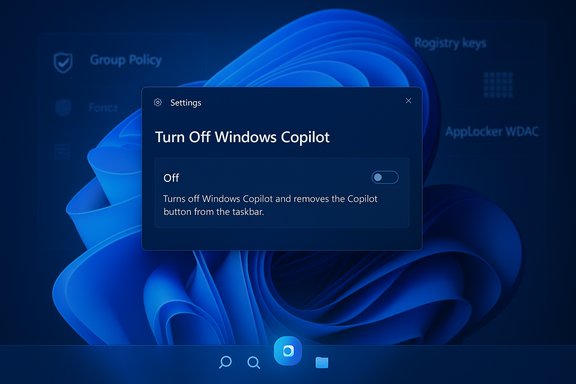
- Locate Turn off Windows Copilot, open it, set to Enabled, then Apply → OK.
- Optionally run gpupdate /force or reboot.
Disabling Copilot via the Registry (for Windows Home and scripted deployments)
Windows 11 Home lacks gpedit.msc by default, so the same administrative control is achievable with a registry key. Back up your Registry and create a restore point before editing.- Per‑user (affects signed‑in user):
Path: HKEY_CURRENT_USER\Software\Policies\Microsoft\Windows\WindowsCopilot
Value: TurnOffWindowsCopilot (DWORD 32‑bit) = 1 - Machine‑wide (affects all users — requires admin):
Path: HKEY_LOCAL_MACHINE\SOFTWARE\Policies\Microsoft\Windows\WindowsCopilot
Value: TurnOffWindowsCopilot (DWORD 32‑bit) = 1
- Mistakes in the registry can destabilize Windows. Export keys before editing.
- Some newer builds may require additional keys or controls (e.g., Explorer/URI blocking) for full coverage.
Removing the “Ask Copilot” context menu safely
If the Copilot context‑menu entry (“Ask Copilot”) in File Explorer is the primary annoyance, you can block the Packaged COM shell extension without uninstalling the app. This is safer than deleting Package COM entries.- The context menu is registered under a Packaged COM CLSID: {CB3B0003‑8088‑4EDE‑8769‑8B354AB2FF8C}.
- To hide it, add that CLSID to the Shell Extensions\Blocked key:
- Per‑user (no admin): HKEY_CURRENT_USER\Software\Microsoft\Windows\CurrentVersion\Shell Extensions\Blocked
- System‑wide (admin): HKEY_LOCAL_MACHINE\SOFTWARE\Microsoft\Windows\CurrentVersion\Shell Extensions\Blocked
Making the removal durable: AppLocker, MDM, and tenant controls (enterprise)
For organizations that must keep Copilot off a fleet, local uninstall plus Group Policy is insufficient — provisioning channels and Microsoft 365 tenant settings can reintroduce the app. Recommended layered strategy:- Pair the TurnOffWindowsCopilot policy (GPO/registry) with an AppLocker or WDAC rule that blocks the Copilot package by publisher and package family (e.g., package family MICROSOFT.COPILOT) or by executable path.
- Use Intune/MDM to push the same registry/Microsoft Security Baseline settings to unmanaged devices.
- In Microsoft 365 admin center, disable automatic Copilot installs for the tenant when applicable.
- If needed, block the protocol handler ms‑copilot: or Edge Sidebar Copilot via Edge policy to stop deep‑link fallbacks.
Advanced: Block protocol handlers and Edge fallbacks
Newer Copilot invocations sometimes use URI handlers or the Edge Sidebar as a fallback. In enterprise environments you can:- Block the URI handler at the system level or with AppLocker rules that disallow ms‑copilot: activation.
- Use Microsoft Edge administrative templates to disable the Sidebar Copilot integration or the Copilot handler in Edge.
Remapping or disabling the physical Copilot key
Many laptops now ship with a dedicated “Copilot” key that fires the assistant. If you don’t want to touch policies or uninstall anything, remapping the key is an elegant solution:- Use Microsoft PowerToys → Keyboard Manager → Remap a Key to map the Copilot key to a harmless key or to “Disabled.” This is reversible and user friendly.
Safety, privacy, and functional trade‑offs
Removing or disabling Copilot has real tradeoffs:- Benefits:
- Cleaner UI and fewer accidental launches.
- Reduced background/ network activity in some cases.
- Lower privacy surface (fewer accidental data uploads to AI).
- Costs and risks:
- Loss of Copilot‑driven features across Office and Windows (contextual suggestions, Designer features). Plan for user impact.
- Update churn and re‑provisioning risk — major Windows updates or tenant provisioning can reintroduce Copilot unless blocked at the enterprise level. Microsoft has previously fixed an issue that unintentionally removed Copilot and later restored it, illustrating how update behavior can be unpredictable.
- Potential for breakage if you remove system packages incorrectly or misconfigure AppLocker/WDAC. Always test and have recovery options.
Practical checklist — step-by-step depending on your goal
Use the checklist that fits your objective.- Goal: Hide the UI fast (least risk)
- Settings → Personalization → Taskbar → toggle Copilot off.
- Disable Win+C in Taskbar behaviors if present.
- Goal: Remove the app locally
- Settings → Apps → Installed apps → search “Copilot” → Uninstall.
- If necessary, remove via PowerShell after confirming package name.
- Restart and verify.
- Goal: Stop Copilot permanently on one machine
- Create a system restore point and back up registry.
- Apply Group Policy: Turn off Windows Copilot = Enabled (Pro/Enterprise) OR create registry keys (HKLM/HKCU) TurnOffWindowsCopilot = 1.
- Remove app if present. Remove “Ask Copilot” with the Shell Extensions blocked CLSID if needed.
- Goal: Prevent re‑installation across a fleet (Enterprise)
- Enforce TurnOffWindowsCopilot via AD/Intune.
- Deploy AppLocker/WDAC rules to block MICROSOFT.COPILOT package family or Copilot.exe path.
- Disable automatic Copilot installs in the Microsoft 365 Apps admin center and block ms‑copilot: protocol handlers where necessary.
- Maintain a small pilot group and a playbook to reapply controls after feature updates.
Testing and ongoing maintenance
Because Microsoft frequently modifies how Copilot is packaged and invoked, the removal process is often not a one‑and‑done task. Practical maintenance tips:- Maintain a test device on the same Windows servicing channel as your fleet to catch reintroductions early.
- After each major update, verify:
- Copilot isn’t present in Settings → Apps.
- The taskbar button remains hidden and Win+C does nothing.
- The context menu entry is still blocked (if you used the CLSID trick).
- AppLocker rules haven’t been bypassed.
- Log changes and keep rollback instructions; use automation to reapply controls if you manage many devices.
What cannot be guaranteed (and why you should be cautious)
- There is no universal, future‑proof method to “erase all traces” of Copilot for every build and every delivery channel. Microsoft’s changing packaging and provisioning mean new Copilot entry points (Edge, protocol handlers, Microsoft 365 provisioning) can appear, requiring fresh controls. Consider this a persistent configuration management problem, not a one‑time tweak.
- Officially supported controls (TurnOffWindowsCopilot GPO / MDM) are the correct starting point, but they may not block future delivery experiments — AppLocker/tenant controls are the correct follow‑up for durability.
Final analysis — pragmatic recommendations
- For most users who simply want Copilot out of sight: hide the taskbar button, disable the shortcut, and optionally uninstall the app from Settings. This fixes ~90% of daily annoyances and works with minimal risk.
- For power users on Home edition: use the Registry method to implement TurnOffWindowsCopilot and uninstall the app via PowerShell if present. Back up the Registry first.
- For enterprise admins: use a layered approach — policy + AppLocker/WDAC + tenant controls + protocol/Edge policies, and maintain a test device and a re‑apply playbook after feature updates. This is the only way to reliably prevent reinsertion across many devices.
- Avoid aggressive manual removal of system files or unsupported ISOs unless you accept potential update breakage and support consequences. Prefer supported policy paths first.
Windows Copilot can be removed from everyday view and disabled for practical use, but it’s not a simple “delete everything” problem: Microsoft treats Copilot as a platform feature and distributes it through multiple channels. For home users the right mix of hiding + uninstalling is simple and effective; for enterprises a layered, managed approach is required. Keep backups, pilot changes, and expect that future Windows feature updates will require re‑verification — then you can keep Copilot out of your workflow without sacrificing system stability.
Source: Mashable How to remove Copilot from Windows 11
