

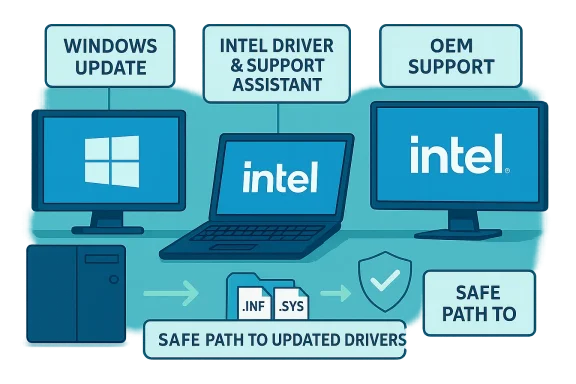
Keeping Intel graphics drivers current on Windows 11 or Windows 10 sounds simple, but the reality is a little more nuanced: the safest, most reliable route for most users is to let Windows Update handle routine deliveries and to use vendor or OEM tools only when you need features, performance gains, or fixes that Microsoft hasn’t staged for your device. This in-depth guide walks through every practical way to update Intel graphics drivers — Windows Update, Device Manager, Intel Driver & Support Assistant, OEM downloads, manual INF installs, and advanced clean-reinstalls — and explains when each path is appropriate, the risks to watch for, and how to recover if a driver causes trouble.
Background / Overview
Graphics drivers are the software bridge between Windows and your Intel integrated GPU. They deliver performance improvements, device compatibility, security patches, and feature support (for example, accelerated media codecs, Power and display features, and game-oriented fixes). Microsoft distributes many validated vendor drivers through Windows Update, but vendors and OEMs also publish specialized builds. Understanding the trade-offs between the Microsoft-curated path and vendor/OEM packages is crucial to avoid regressions or unsupported behavior.Windows Update often supplies a broadly compatible driver that prioritizes stability and security, while Intel or your PC maker may release feature drivers that enable the latest hardware optimizations or vendor-specific utilities. For laptops and brand-name systems, OEM-published drivers are usually validated for your exact model and can be safer than a generic vendor build.
Why update — and when to hold off
Updating a graphics driver can:- Fix crashes, visual artifacts, and compatibility issues with apps and games.
- Improve GPU-accelerated video playback, hardware-accelerated encoding/decoding, and power efficiency.
- Add or enable new features (for example, new codec support or telemetry fixes).
Preparation: backups, driver inventory, and a rollback plan
Before changing drivers, follow these conservative steps:- Create a System Restore point or a full image backup. This is your fastest recovery option if an update breaks something.
- Record the current driver version: Start → Device Manager → Display adapters → Right-click the Intel adapter → Properties → Driver tab → note Driver Provider, Driver Date, and Driver Version. Keep this information handy for rollback.
- Note the precise Windows build (winver) so you can match driver guidance to the correct OS version.
Safe path #1 — Windows Update (the recommended first stop)
For most users, Windows Update is the safest way to get Intel graphics drivers. Microsoft signs and stages driver packages, and the OS delivers them in a way that balances compatibility and security. Follow this flow:- Open Settings → Windows Update → Check for updates.
- If updates appear, click View optional updates → Driver updates and inspect vendor names and versions.
- Install only the driver you need and reboot as required.
Why start here? Because Microsoft’s distribution checks and signing provide a safety net you don’t get from unvetted downloads, and because many common devices do not require vendor-specific features.
Safe path #2 — Intel Driver & Support Assistant (IDSA)
Intel provides the Intel Driver & Support Assistant to scan your machine and recommend validated Intel graphics packages. IDSA is a convenient option for users with Intel integrated graphics who want a vendor-updated package. Typical steps:- Run the Intel Driver & Support Assistant and allow it to detect the installed Intel GPU.
- Review the recommended package and install the vendor’s installer (EXE) using Administrator privileges.
- Reboot and verify behavior.
Safe path #3 — OEM support pages (best for laptops and prebuilt systems)
If you have a laptop or a prebuilt desktop, start with your PC maker’s support page. OEM drivers are tailored to the system firmware and included hardware like display panels, power-management firmware, or docking-station behavior. The recommended order:- Check Windows Update first.
- If you need a more specific driver or OEM utility, download the package from the OEM support page for your model.
- Install using the OEM installer and reboot.
Manual update via Device Manager (quick manual install)
If you have a downloaded driver folder (INF + *.sys + other files) or a vendor-extracted driver .zip, Device Manager offers a safe manual installation path:- Open Device Manager → Display adapters → right-click your Intel adapter → Update driver.
- Choose Browse my computer for drivers.
- Point to the folder containing the extracted driver and ensure Include subfolders is checked.
- Click Next, allow installation, and reboot when finished.
Advanced: installing or removing driver packages from the driver store (pnputil)
For advanced troubleshooting or cleanup, Windows provides pnputil to list and remove driver packages from the driver store. Use with care:- List published drivers: open an elevated Command Prompt and run:
- pnputil /enum-drivers
- Remove a published package (replace oemXX.inf with the package name):
- pnputil /delete-driver oemXX.inf /uninstall /force
Clean reinstall and third-party tools — DDU and cautions
A clean uninstall is sometimes necessary when a driver is corrupted or upgrading fails repeatedly. Display Driver Uninstaller (DDU) is the well-known third-party tool used by enthusiasts to fully remove GPU drivers before reinstalling. Important notes:- DDU is a third-party utility and is not officially supported by Microsoft or Intel. Use it only if you understand the consequences.
- Always create a system backup or restore point before using DDU.
- After DDU removal, reinstall the Intel/OEM driver and reboot.
Rollback, blocking, and recovery options
If a driver update causes problems, there are recovery options:- Roll back via Device Manager: Device Manager → Display adapters → Properties → Driver → Roll Back Driver (if available).
- Uninstall via Device Manager and allow Windows to reinstall a working driver on reboot.
- Use System Restore to revert to a pre-update system image.
- Historically, Microsoft supplied the Show or Hide Updates troubleshooter (wushowhide.diagcab) to block specific updates; this tool has been deprecated or is inconsistently available and should not be relied on long-term. Prefer a tested rollback or pausing updates in Windows Update.
Common troubleshooting scenarios and targeted fixes
Memory Integrity (Core isolation) blocking igdkmd64.sys
Windows Security’s Memory Integrity (HVCI / Core isolation) may flag igdkmd64.sys — the Intel graphics kernel-mode driver — as incompatible. If Windows lists igdkmd64.sys as an incompatible driver, the usual remedy is updating to a driver signed and built for Memory Integrity, preferably from your OEM or Intel. Steps:- Open Windows Security → Device security → Core isolation details → check for incompatible drivers.
- Update the Intel driver via OEM or Intel; reboot and re-check Memory Integrity.
- If update fails, consider clean uninstall + reinstall or contacting OEM support.
HAGS (Hardware-accelerated GPU scheduling) enabled or missing
Hardware-accelerated GPU scheduling (HAGS) is a Windows feature that can reduce input latency by offloading scheduling to the GPU. It requires a compatible GPU and a driver that supports the appropriate WDDM level (WDDM 2.7+ is commonly necessary). If you don’t see the HAGS toggle, update the GPU driver using Intel’s tools or Windows Update. If you enable HAGS, restart and then test — some users see improvements, others see negligible change, and a small number report regressions. If you notice worse behavior, disable HAGS and reboot.Step-by-step: update Intel graphics driver in Windows 11 / 10 — common workflows
Below are clear, numbered workflows for the most typical scenarios.A. Update via Windows Update (recommended for most users)
- Open Settings → Windows Update → Check for updates.
- Click View optional updates → Driver updates.
- If an Intel driver appears, inspect the Driver Provider, Version, and Date. Install if it resolves your issue.
- Reboot and verify functionality (Device Manager → Display adapters → check Driver tab).
B. Update with Intel Driver & Support Assistant (IDSA)
- Download and run IDSA (Intel’s detection tool).
- Allow it to detect your Intel GPU and review recommended packages.
- Install the Intel-provided installer with Administrator rights.
- Reboot and test.
C. Manual install from OEM or Intel site (advanced but common)
- Identify your GPU and Windows build (Device Manager + winver).
- Download the correct driver package for your model from the OEM or Intel.
- Run the vendor EXE installer as Administrator and select any clean install option if offered.
- Reboot, verify behavior, and keep the downloaded package for reinstall/rollback.
D. Manual INF install via Device Manager (when you have extracted driver files)
- Extract the vendor driver to a folder.
- Device Manager → Display adapters → Update driver → Browse my computer for drivers → point to folder.
- Install and reboot.
E. Clean reinstall (advanced)
- Backup and create a restore point.
- Optionally boot to Safe Mode and run a cleanup tool (e.g., DDU) — advanced step only.
- Reinstall the OEM or Intel driver package.
- Reboot and validate.
Security and third‑party driver updaters: strong caution
Third-party “driver updater” programs promise convenience but often pull packages from unvetted sources and can install unsigned or malicious drivers. They are unnecessary for most users and increase risk. Stick to Windows Update, Intel Driver & Support Assistant, or OEM support pages — those are the trustworthy sources.Enterprise considerations and recommended rollout practices
For IT admins and power users managing multiple machines:- Inventory device models and OS builds. Test vendor driver packages in a pilot ring before broad deployment.
- Prefer OEM-validated builds for workstations with model-specific firmware.
- Use staged rollouts and monitor for 48–72 hours on representative hardware; prioritize systems that run capture cards, virtualization hosts, or specialized workloads.
Troubleshooting checklist (if the new driver causes issues)
- Reboot into Safe Mode and uninstall the newly installed driver from Device Manager.
- Use Device Manager’s Roll Back Driver option if available.
- Reinstall the previous driver manually using the saved package or Device Manager’s manual install.
- Use pnputil to inspect and remove problematic published driver packages from the driver store if duplicates cause issues.
- If problems persist, consult the OEM’s support knowledge base or contact Intel support.
What this guide verifies and what remains time-sensitive
The workflows and commands in this guide reflect established Windows and vendor procedures: Windows Update’s optional driver flow, Device Manager installs, Intel Driver & Support Assistant, pnputil usage, and the advanced use of DDU for clean uninstalls. These approaches are general best practices. For platform-specific driver versions, exact package numbers, or security bulletins, refer to your OEM or Intel’s current support documents because driver versioning and CVE patches are time-sensitive and may change after this article is published. If a driver release includes a security patch for a specific CVE, confirm the CVE and the vendor bulletin before deploying widely.Strengths, risks, and final recommendations
Strengths of this approach- Windows Update provides a vetted, staged distribution that reduces risk for most users.
- Intel’s IDSA and OEM support pages supply targeted fixes and features when needed.
- Device Manager and pnputil give administrators and advanced users precise control when manual installs or cleanup are required.
- Installing the wrong package (e.g., desktop vendor driver on a laptop) can break power-management or display features. Always match driver packages to your model.
- Third-party driver updaters present security and stability risks; avoid them.
- Clean-uninstall tools like DDU are powerful but unsupported by Microsoft/Intel; use them only with backups.
- Check Windows Update first and use View optional updates if you need vendor packages.
- If Windows Update lacks a fix you need, use Intel Driver & Support Assistant or your OEM support page.
- Create a restore point, record driver versions, and keep the downloaded installer so you can roll back if necessary.
This guide gives you a full toolbox: the conservative default path (Windows Update), vendor/OEM options for feature needs, and advanced cleanup steps when necessary — along with clear cautions and recovery techniques. Follow the recommended order, avoid third‑party updaters, and always keep backups and driver records before making changes. That combination delivers the best balance of safety, performance, and access to vendor features when updating Intel graphics drivers on Windows 11 and Windows 10.
Source: Born2Invest https://born2invest.com/?b=style-231024412/
