

Knowing how to update PC drivers for free is one of the simplest ways to keep a Windows machine stable, secure, and responsive. The basic idea is straightforward: use Windows Update, try Device Manager for a targeted fix, and go directly to the manufacturer’s official support site when you need the newest or most specialized driver. That workflow is still the safest one because Microsoft explicitly recommends Windows Update first, then the hardware maker’s site if Windows can’t find what you need.
Driver updates sound technical, but they really sit at the center of everyday PC reliability. A driver is the software layer that lets Windows communicate with hardware like graphics cards, printers, network adapters, and storage devices, so when a driver is outdated or broken, the symptoms can range from minor glitches to full device failure. Microsoft’s guidance is clear that updated drivers help hardware work properly, while Windows Update can install recommended drivers automatically and offer optional driver updates when available.
The reason this matters now is that Windows users are often tempted by “one-click” updater apps that promise convenience but can create more problems than they solve. Microsoft advises avoiding driver downloads from sites other than the manufacturer’s official support pages, which is a good rule of thumb for anyone who values system stability. In practice, the best free driver update method is usually the least flashy one.
There is also a practical split between consumer use and power-user use. For general office work, browsing, and school PCs, Windows Update usually handles the essentials well enough. For gaming rigs, creator workstations, and machines with specialty components, the manufacturer’s driver packages often matter more because they may include performance tuning, feature support, or fixes that Windows has not yet rolled out. NVIDIA, AMD, and Intel all maintain dedicated driver portals and support utilities for exactly that reason.
The important thing is not to treat driver maintenance as an emergency task. It works best as a routine check, especially after a hardware swap, a new peripheral install, or a Windows feature update. That is where the free tools built into Windows still outperform many paid utilities: they are integrated, trusted, and good enough for most users most of the time.
Windows Update is also efficient for mixed-device households where people are not sure what hardware is inside the PC. If the system already knows the device and has a certified package available, it can install the driver without the user needing to identify chipset revisions or model numbers. That is a huge advantage for everyday users who just want the machine to stop acting up.
The limit is that Windows Update does not always carry the newest release on day one. Microsoft notes that optional driver updates may appear there, but if Windows cannot find what you need, the hardware manufacturer’s site is the next stop. In other words, Windows Update is the safest default, not the final word.
A useful habit is to restart after updates finish, even if Windows does not insist on it. Microsoft recommends restarting once updates are installed, and driver changes often do not fully take effect until the reboot completes. That is especially true for graphics, networking, and audio components.
If you are troubleshooting a problem device, Windows Update is also worth revisiting periodically. Microsoft says to check for optional updates, especially after adding new hardware. That advice is practical rather than glamorous, but it is often the difference between a quick fix and hours of unnecessary troubleshooting.
It is also a good diagnostic tool because the menu structure helps you identify the device category before you act. That matters when you have multiple similar devices installed, such as several USB peripherals or multiple display outputs. The process is simple, but precision is what makes it useful.
Still, Device Manager is not magic. Microsoft notes that if Windows cannot update the driver this way, you should contact the manufacturer or visit its official site. So Device Manager is best understood as a quick in-box repair tool, not a guarantee that Windows will find the latest package.
This is where some users get stuck because they assume “best driver” means “newest driver on the planet.” It usually does not. It means the best available package Windows can verify at that moment, which may be older than what the hardware maker offers directly. That distinction is subtle but important.
For many people, Device Manager is enough to solve short-term issues without any web searching. For enthusiasts, it is a useful checkpoint before moving to vendor-specific tooling. Either way, it remains one of the simplest free driver maintenance paths in Windows.
Official driver sites also tend to be more complete than Windows Update. NVIDIA maintains current, beta, and archived driver paths; AMD provides driver support tools for Radeon graphics and Ryzen chipsets; Intel offers both its Download Center and the Intel Driver & Support Assistant. These ecosystems exist because different users need different levels of freshness and control.
The tradeoff is complexity. A manufacturer site usually asks for exact product identification, operating system version, and sometimes driver branch selection. That is more work than clicking “Check for updates,” but it also gives you more precise control over what gets installed.
This step matters most for graphics cards, Wi-Fi adapters, audio devices, and chipset components. Those categories can look similar across product generations, but the driver requirements may differ significantly. If you are not sure, pause and verify rather than guessing.
A good rule is simple: if the component is critical and vendor-specific, use the vendor’s own identifier or auto-detect tool. That is safer than relying on a third-party updater or a random driver repository. Convenience without provenance is a bad trade.
That does not mean everyone needs to chase every new release immediately. Sometimes the newest driver is a performance win; sometimes it is a tradeoff until the next patch. This is why vendor release notes and support pages exist, and why measured updates are better than blind ones.
AMD’s support pages, for example, explicitly offer Windows driver downloads and auto-detect options for Radeon graphics and Ryzen chipsets. NVIDIA likewise provides direct downloads, beta and older drivers, and separate paths for enterprise users. Intel’s support tools similarly aim to identify products and surface available updates.
For a home user, the latest Game Ready or Adrenalin package may be enough. For an IT department, the question is often which driver branch can be deployed reliably across dozens or hundreds of systems without breaking applications. Those two goals are related, but they are not the same.
That is why driver guidance should always match the use case. Home users want simple and current; enterprises want controlled and supportable. The official vendor sites support both, but they do it through separate pathways.
There is also the reliability problem. Even if a third-party utility finds a newer driver, that does not mean it is the correct one for your exact hardware revision or Windows version. Installing the wrong package can create the very instability you were trying to fix.
A safer mindset is to assume that if a tool needs to shout about “critical errors” or demand payment before solving them, it is probably not the tool you want. Confidence is not the same as credibility.
If you want a repeatable maintenance routine, the formula is simple. Check Windows Update, use Device Manager when one device needs attention, and go to the vendor site when precision matters. That approach is free, conservative, and far more defensible than letting a third-party app manage your hardware stack.
It is also smart to test the affected device immediately after reboot. Check whether the symptom you were trying to fix actually disappeared, and watch for any new side effects such as instability, fan noise, resolution changes, or connectivity issues. Validation is part of the update.
If everything works, leave it alone until the next routine check. If it does not, roll back mentally before you start layering on more changes. Driver work is best done one variable at a time.
The bigger trend is that users now expect drivers to update like apps, but hardware is not always that cooperative. Some components benefit from frequent updates; others are best left alone once stable. The smarter approach is selective maintenance, not constant intervention. Less fiddling often means more reliability.
Source: incpak.com How to Update PC Drivers for Free in 3 Simple Steps
 Overview
Driver updates sound technical, but they really sit at the center of everyday PC reliability. A driver is the software layer that lets Windows communicate with hardware like graphics cards, printers, network adapters, and storage devices, so when a driver is outdated or broken, the symptoms can range from minor glitches to full device failure. Microsoft’s guidance is clear that updated drivers help hardware work properly, while Windows Update can install recommended drivers automatically and offer optional driver updates when available.The reason this matters now is that Windows users are often tempted by “one-click” updater apps that promise convenience but can create more problems than they solve. Microsoft advises avoiding driver downloads from sites other than the manufacturer’s official support pages, which is a good rule of thumb for anyone who values system stability. In practice, the best free driver update method is usually the least flashy one.
There is also a practical split between consumer use and power-user use. For general office work, browsing, and school PCs, Windows Update usually handles the essentials well enough. For gaming rigs, creator workstations, and machines with specialty components, the manufacturer’s driver packages often matter more because they may include performance tuning, feature support, or fixes that Windows has not yet rolled out. NVIDIA, AMD, and Intel all maintain dedicated driver portals and support utilities for exactly that reason.
The important thing is not to treat driver maintenance as an emergency task. It works best as a routine check, especially after a hardware swap, a new peripheral install, or a Windows feature update. That is where the free tools built into Windows still outperform many paid utilities: they are integrated, trusted, and good enough for most users most of the time.
Step 1: Start with Windows Update
Windows Update remains the first place to look because it is the most integrated and least risky option for routine driver maintenance. Microsoft says Windows 11 uses Windows Update to install recommended drivers automatically, and it can also surface optional driver updates when needed. That means many users never have to search the web at all.Why Windows Update is the safest first stop
The main advantage of Windows Update is trust. Microsoft controls the delivery path, and the update catalog is filtered through the platform that actually manages the hardware on your system. That reduces the odds of installing the wrong package, especially for devices that need only mainstream compatibility rather than a vendor-specific feature set.Windows Update is also efficient for mixed-device households where people are not sure what hardware is inside the PC. If the system already knows the device and has a certified package available, it can install the driver without the user needing to identify chipset revisions or model numbers. That is a huge advantage for everyday users who just want the machine to stop acting up.
The limit is that Windows Update does not always carry the newest release on day one. Microsoft notes that optional driver updates may appear there, but if Windows cannot find what you need, the hardware manufacturer’s site is the next stop. In other words, Windows Update is the safest default, not the final word.
How to check for updates
The process is simple and entirely free. Open Settings, go to Windows Update, and check for updates. If Windows offers optional updates, open that section and look for driver items that match your hardware.A useful habit is to restart after updates finish, even if Windows does not insist on it. Microsoft recommends restarting once updates are installed, and driver changes often do not fully take effect until the reboot completes. That is especially true for graphics, networking, and audio components.
If you are troubleshooting a problem device, Windows Update is also worth revisiting periodically. Microsoft says to check for optional updates, especially after adding new hardware. That advice is practical rather than glamorous, but it is often the difference between a quick fix and hours of unnecessary troubleshooting.
- Check Settings first before hunting elsewhere.
- Look specifically for optional updates.
- Restart after the update cycle ends.
- Re-check after installing new hardware.
Step 2: Use Device Manager for targeted fixes
Device Manager is the second free tool worth knowing because it lets you update a specific device rather than the whole system. Microsoft documents the path clearly: open Device Manager, expand the device category, right-click the device, and choose Update driver. That makes it especially useful when one component is misbehaving while the rest of the PC seems fine.When Device Manager makes sense
Device Manager is ideal for situations where the problem is isolated. Maybe the printer disappeared, the display adapter is acting strangely, or a network device stopped working after an update. In those cases, a targeted driver update can be faster than waiting for Windows Update to surface something relevant.It is also a good diagnostic tool because the menu structure helps you identify the device category before you act. That matters when you have multiple similar devices installed, such as several USB peripherals or multiple display outputs. The process is simple, but precision is what makes it useful.
Still, Device Manager is not magic. Microsoft notes that if Windows cannot update the driver this way, you should contact the manufacturer or visit its official site. So Device Manager is best understood as a quick in-box repair tool, not a guarantee that Windows will find the latest package.
What to expect from automatic search
When you choose automatic search, Windows looks for a suitable driver already available to the system or through its update channels. If it finds an updated version, it installs it; if not, it may say the best driver is already installed. That message is not necessarily a dead end, but it does mean Windows has nothing newer in its approved sources.This is where some users get stuck because they assume “best driver” means “newest driver on the planet.” It usually does not. It means the best available package Windows can verify at that moment, which may be older than what the hardware maker offers directly. That distinction is subtle but important.
For many people, Device Manager is enough to solve short-term issues without any web searching. For enthusiasts, it is a useful checkpoint before moving to vendor-specific tooling. Either way, it remains one of the simplest free driver maintenance paths in Windows.
Step 3: Go to the manufacturer’s official website
When Windows Update and Device Manager are not enough, the most reliable next step is the hardware maker’s own support page. Microsoft specifically recommends checking the manufacturer’s website if Windows cannot find the needed driver, and the big vendors all operate official download hubs for this reason.Why official sites matter
The biggest advantage of official downloads is authenticity. You know the package came from the company that built the hardware, which sharply reduces the risk of installing tampered or bundled software. That is why Microsoft warns against downloading drivers from non-official sites.Official driver sites also tend to be more complete than Windows Update. NVIDIA maintains current, beta, and archived driver paths; AMD provides driver support tools for Radeon graphics and Ryzen chipsets; Intel offers both its Download Center and the Intel Driver & Support Assistant. These ecosystems exist because different users need different levels of freshness and control.
The tradeoff is complexity. A manufacturer site usually asks for exact product identification, operating system version, and sometimes driver branch selection. That is more work than clicking “Check for updates,” but it also gives you more precise control over what gets installed.
How to identify the correct hardware
Before you download anything, identify the exact part you own. On many systems, that means checking System Information, Device Manager, or the PC maker’s support documentation for model details. AMD and NVIDIA both provide guidance and product-detection tools because the wrong package can lead to installation failure or compatibility issues.This step matters most for graphics cards, Wi-Fi adapters, audio devices, and chipset components. Those categories can look similar across product generations, but the driver requirements may differ significantly. If you are not sure, pause and verify rather than guessing.
A good rule is simple: if the component is critical and vendor-specific, use the vendor’s own identifier or auto-detect tool. That is safer than relying on a third-party updater or a random driver repository. Convenience without provenance is a bad trade.
- Confirm the exact model name.
- Match the operating system version.
- Prefer the vendor’s download assistant when available.
- Avoid third-party driver bundles.
Graphics drivers deserve special attention
Graphics drivers get singled out because they influence so much more than display quality. They can affect game performance, video playback, power management, multiple-monitor behavior, and even system stability. That is why NVIDIA, AMD, and Intel all maintain dedicated graphics driver pages and support tools.Why gamers and creators care more
For gamers, a driver update can mean better compatibility with a new release, improved frame pacing, or a fix for a rendering bug. For content creators, the stakes may be color accuracy, hardware acceleration, or smoother export performance. In both cases, the latest official driver can matter more than the generic package Windows ships first.That does not mean everyone needs to chase every new release immediately. Sometimes the newest driver is a performance win; sometimes it is a tradeoff until the next patch. This is why vendor release notes and support pages exist, and why measured updates are better than blind ones.
AMD’s support pages, for example, explicitly offer Windows driver downloads and auto-detect options for Radeon graphics and Ryzen chipsets. NVIDIA likewise provides direct downloads, beta and older drivers, and separate paths for enterprise users. Intel’s support tools similarly aim to identify products and surface available updates.
Consumer versus enterprise needs
The consumer driver model is mostly about stability and performance. The enterprise model adds another layer: long-term support, reproducibility, certification, and compatibility across fleets. NVIDIA’s download pages, for example, explicitly distinguish enterprise and vGPU customers from standard consumer downloads. That separation is not marketing fluff; it reflects different operational requirements.For a home user, the latest Game Ready or Adrenalin package may be enough. For an IT department, the question is often which driver branch can be deployed reliably across dozens or hundreds of systems without breaking applications. Those two goals are related, but they are not the same.
That is why driver guidance should always match the use case. Home users want simple and current; enterprises want controlled and supportable. The official vendor sites support both, but they do it through separate pathways.
Why third-party updater apps are a bad bet
Third-party driver updater utilities are popular because they promise convenience, but that convenience often comes at the cost of trust. Microsoft’s own guidance is to avoid downloading drivers from anywhere other than the manufacturer’s official site, and that caution exists for good reason.The hidden cost of “free” updater tools
A lot of these apps package driver scans together with aggressive marketing, paid upgrades, or bundled extras the user never requested. Some users end up with browser changes, privacy annoyances, or unwanted background software. The problem is not just bad software; it is the entire business model around it.There is also the reliability problem. Even if a third-party utility finds a newer driver, that does not mean it is the correct one for your exact hardware revision or Windows version. Installing the wrong package can create the very instability you were trying to fix.
A safer mindset is to assume that if a tool needs to shout about “critical errors” or demand payment before solving them, it is probably not the tool you want. Confidence is not the same as credibility.
Better alternatives already exist
Windows already includes the most important free tools for general users. For specialized hardware, Intel, AMD, and NVIDIA all offer official detection and download paths. That means there is little reason to gamble on a random updater app when reputable options are built in or provided by the manufacturer.If you want a repeatable maintenance routine, the formula is simple. Check Windows Update, use Device Manager when one device needs attention, and go to the vendor site when precision matters. That approach is free, conservative, and far more defensible than letting a third-party app manage your hardware stack.
- Avoid generic updater utilities.
- Trust official vendor portals.
- Match packages to exact hardware.
- Prefer stability over novelty.
A practical free driver-update routine
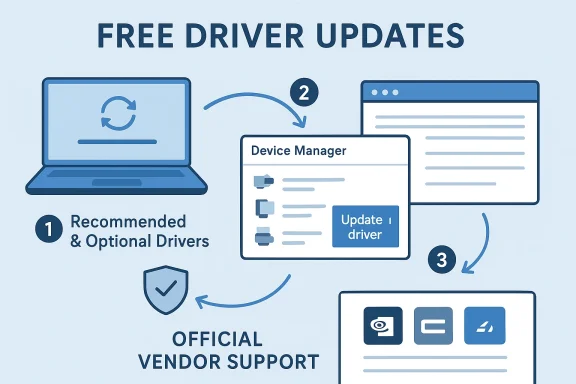
The strongest argument for a simple workflow is that most users do not need more than three steps. The routine below keeps the process manageable and minimizes the chance of installing something wrong. It also mirrors Microsoft’s own guidance, which is a good sign that the method is not just convenient but well aligned with Windows behavior.A simple sequence to follow
- Open Windows Update and install any recommended or optional driver updates.
- If one device is still acting up, open Device Manager and try an update on that specific component.
- If Windows still cannot resolve the issue, visit the manufacturer’s official support site and install the correct driver manually.
What to do after installation
After installing any driver, restart the PC unless the vendor says otherwise. Rebooting clears out stale sessions, reloads the kernel components, and gives the new driver a fair chance to initialize properly. Skipping that step is a classic way to misdiagnose a successful update as a failure.It is also smart to test the affected device immediately after reboot. Check whether the symptom you were trying to fix actually disappeared, and watch for any new side effects such as instability, fan noise, resolution changes, or connectivity issues. Validation is part of the update.
If everything works, leave it alone until the next routine check. If it does not, roll back mentally before you start layering on more changes. Driver work is best done one variable at a time.
Strengths and Opportunities
The free driver-update model in Windows has real strengths because it is already built into the operating system, it relies on official sources, and it gives users a sensible escalation path. For most households, that means fewer downloads, fewer risks, and fewer chances to break something while trying to fix it.- No added cost for core maintenance.
- Trusted delivery path through Windows Update.
- Targeted troubleshooting with Device Manager.
- Vendor precision when exact models matter.
- Better security posture than random updater tools.
- Useful for both beginners and power users.
- Scales from consumer to enterprise workflows with official vendor branches.
Risks and Concerns
The main risk is assuming that “free” means “effortless” or “always current.” It does not. Driver updates can still require model identification, operating system matching, and careful verification, especially for graphics and specialized peripherals.- Wrong-driver installs can cause instability.
- Windows Update may lag behind vendor releases.
- Third-party tools may bundle unwanted software.
- Reboots are sometimes ignored, leading to false troubleshooting conclusions.
- Enterprise and consumer drivers are not interchangeable in many cases.
- Generic search results can lead users to unofficial sites.
- Older hardware may need manual hunting for legacy support.
Looking Ahead
Driver management is getting easier in one sense and more fragmented in another. Windows keeps improving its built-in update channels, but hardware vendors are also expanding their own detection tools and support portals. That means the best free method will probably remain a layered one: use Windows first, then the vendor when needed.The bigger trend is that users now expect drivers to update like apps, but hardware is not always that cooperative. Some components benefit from frequent updates; others are best left alone once stable. The smarter approach is selective maintenance, not constant intervention. Less fiddling often means more reliability.
- Watch for Windows Update optional driver listings.
- Use manufacturer detection tools for graphics and chipset hardware.
- Treat Device Manager as a diagnostic bridge, not a universal fix.
- Reboot and test after every meaningful update.
- Avoid third-party updater software unless you have a very specific, trusted reason.
Source: incpak.com How to Update PC Drivers for Free in 3 Simple Steps
