

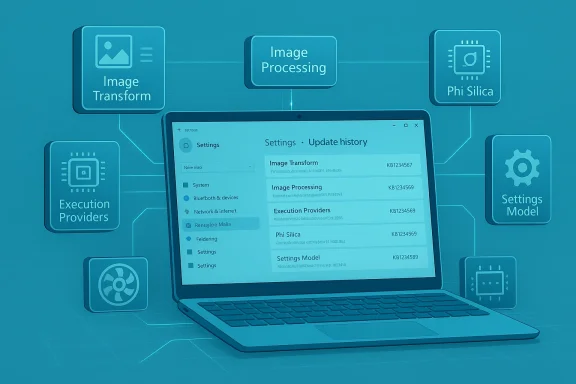
Microsoft now recommends that owners of AI-capable Windows devices keep the latest on‑device AI components installed — and provides a straightforward way to confirm those updates via Settings > Windows Update > Update history, with the newest component entries shown at the top of each list.
Over the past two years Microsoft shifted from treating AI improvements as part of monolithic monthly cumulative updates to publishing and shipping discrete, versioned AI components that update independently. That evolution recognizes that models and runtimes move faster than traditional OS servicing cycles, and it lets Microsoft release targeted quality, performance, and vendor-optimization fixes outside the monthly cumulative cadence.
The company now maintains a central release registry — often described as a Release information for AI components index — which lists component names, availability dates, component versions, and the corresponding KB article for each release. The registry is designed as a public release history: a high‑level table of versions and KB identifiers that points administrators and users back to compact KB notes for installation instructions. That page is not an engineering notebook; Microsoft’s KB short pages remain the primary public entry for the consumer-facing summary of what each component update contains.
For most consumers, the change is largely positive: updates will install automatically on eligible Copilot+ PCs and improve the quality and responsiveness of features like image editing and Copilot Vision. For enterprises and administrators, the prudent path is clear: treat AI component KBs like any other sensitive platform change — validate in a controlled environment, stage rollouts, preserve golden images, and ensure telemetry and rollback plans are in place. That combination of cautious operational hygiene and Microsoft’s faster, componentized cadence delivers the benefits of on‑device AI while limiting the operational surprises that can accompany rapid model evolution.
Source: Microsoft Support History of AI updates - Microsoft Support
 Background: why Microsoft changed how AI lands on Windows
Over the past two years Microsoft shifted from treating AI improvements as part of monolithic monthly cumulative updates to publishing and shipping discrete, versioned AI components that update independently. That evolution recognizes that models and runtimes move faster than traditional OS servicing cycles, and it lets Microsoft release targeted quality, performance, and vendor-optimization fixes outside the monthly cumulative cadence.The company now maintains a central release registry — often described as a Release information for AI components index — which lists component names, availability dates, component versions, and the corresponding KB article for each release. The registry is designed as a public release history: a high‑level table of versions and KB identifiers that points administrators and users back to compact KB notes for installation instructions. That page is not an engineering notebook; Microsoft’s KB short pages remain the primary public entry for the consumer-facing summary of what each component update contains.
What “AI components” are and which Windows experiences they power
Microsoft has broken down on‑device AI into several components, each responsible for different capabilities and app surfaces. Commonly referenced components include:- Image Transform — generative fill / object erase and background reconstruction used by Photos, Paint, and File Explorer AI actions.
- Image Processing — scaling, foreground/background extraction, and other media pipeline improvements.
- Execution Providers (EPs) — vendor‑specific runtimes and kernel optimizations enabling models to run efficiently on different NPUs and GPUs.
- Phi Silica and other on‑device language‑model variants used by Copilot‑style features.
- Settings Model, Image Search, Semantic Analysis, Content Extraction — smaller, task‑focused components used by search, summarization, and contextual system actions.
How AI component updates are delivered and installed
Microsoft delivers AI component updates as standalone KB packages through standard Windows Update channels. Key operational facts administrators and power users should know:- Updates are automatic on eligible machines (Copilot+ PCs) once the device has the required cumulative OS update applied. After installation, the component and its KB are visible in Settings > Windows Update > Update history.
- The Microsoft Update Catalog also lists these KBs as downloadable MSU packages. Because model binaries and multiple architecture checkpoints are often bundled, offline installers can be significantly larger than traditional cumulative updates — independent traces have found MSU packages in the ~3.9–4.3 GB range for certain client architectures.
- Microsoft frequently ships vendor‑optimized variants (e.g., separate Image Processing packages targeted at AMD, Qualcomm, Intel) and distinct Execution Provider updates to tune kernels per NPU microarchitecture. That means a single component version number may share metadata while underlying kernels, quantization, or vendor runtime details differ per platform.
Examples from recent component releases
To make the model concrete, here are real‑world examples and the kinds of notes Microsoft publishes for component KBs:- Image Processing (AMD) — Microsoft shipped an Image Processing AI component for Copilot+ AMD systems as version 1.2511.1196.0, delivered as KB5072640, described as “includes improvements” to image‑scaling and foreground/background extraction models. The KB requires Windows 11 version 24H2 or 25H2 with the latest cumulative update installed, and it is delivered automatically via Windows Update. The public KB is intentionally concise and does not include engineering diffs or benchmark numbers.
- Image Transform — component updates such as KB5071603 and others incrementally refine the OS image editing pipeline used by Photos, Paint, and File Explorer. Typical published notes describe that the update “includes improvements to the Image Transform AI component” and reiterate the prerequisite of having the latest cumulative update; post‑install, the entry appears in Update history.
- Newer Image Transform variants — community tracking has observed later releases (for example, a component showing as version 1.2601.1268.0 associated with KB5077533) where the public KB again describes improvements without line‑by‑line engineering details. In some cases the exact KB or catalog entry may not be immediately visible in Microsoft’s public index at the time community notes are published; those discrepancies should be treated with caution until Microsoft’s official release index shows the entry.
Why Microsoft moved to componentized AI releases — benefits and technical rationale
- Faster iteration on model quality and bug fixes
- Models and inference runtimes evolve faster than OS servicing. Componentized delivery lets Microsoft ship accuracy improvements, artifact reductions, and regression fixes quickly — without waiting for the monthly LCU cycle.
- Per‑vendor optimization and kernel tuning
- NPUs and vendor drivers vary widely. Shipping separate Execution Provider and per‑vendor packages enables optimizations specific to Intel, AMD, Qualcomm, and other silicon partners, improving performance and efficiency on each platform.
- Better privacy and latency for on‑device experiences
- Running models locally on Copilot+ NPUs reduces the need to send sensitive data to the cloud and delivers lower latency for interactive experiences like Copilot Vision, image editing, and recall.
- Visibility through a centralized release index
- Publishing a release history table with component names, versions, availability dates, and KBs helps IT owners track what changed and when — a transparency improvement over buried cumulative patch notes.
Risks, limitations, and what the KBs don’t tell you
Microsoft’s component KBs are intentionally concise. That brevity creates gaps that matter operationally:- No line‑by‑line model diffs or operator‑level changelogs. KBs usually confirm a version and a general “includes improvements” statement but omit details about quantization changes, operator mapping changes, model weight deltas, or first‑run compilation behavior. That lack of engineering granularity complicates predeployment validation and forensic analysis.
- No published benchmarks or security‑CVE mappings. Public notes rarely include latency/throughput numbers, memory footprints, or explicit security CVE references tied to model or runtime changes. Organizations should treat precise performance claims as provisional until validated in lab.
- Numerical/behavioral drift. Incremental model updates can change inference outputs subtly — different fill patterns in Image Transform, slightly altered segmentation masks, or a changed tone in summarization. For automated or production pipelines that depend on deterministic outputs, those changes can be operationally disruptive.
- Offline distribution complexity. MSU packages bundling models and vendor runtimes can be multiple gigabytes; offline deployment strategies (WSUS, ConfigMgr, offline images) must plan for storage and bandwidth impacts. Differential/express updates help for connected fleets, but offline installers remain large.
- Staged rollouts and gating. Microsoft often stages AI component rollouts by device ID, OEM integration, or region. A KB may be published but withheld from parts of a fleet for safety validation. That can complicate controlled enterprise rollouts and cause inconsistent behavior across the same hardware fleet.
Practical guidance: how to check, validate, and manage AI component updates
Below are practical, step‑by‑step recommendations for administrators and advanced users who want to adopt a cautious, repeatable approach.Quick checks for consumers and power users
- Open Settings.
- Go to Windows Update.
- Click Update history.
- Look for entries such as “Image Transform version 1.x.x.x (KB######)” or “Image Processing version …” — the newest entries are listed at the top.
A disciplined validation workflow for IT teams
- Baseline and golden images. Preserve a known good image (golden image) and test component updates against it in a lab environment before mass deployment. Keep precise records of component version numbers and KB identifiers.
- Staged rollout. Deploy to a small pilot group first (preferably across multiple vendors and driver stacks) before broader rollout. Watch telemetry for changes in latency, CPU/NPU utilization, and user telemetry around feature correctness.
- Device‑level gating. Use hardware gating and device inventory to ensure only Copilot+ PCs intended to run NPUs receive targeted packages. Validate that the devices meet the NPU performance threshold required for the component (Microsoft references the 40+ TOPS metric for gating many experiences).
- Telemetry and synthetic tests. Run automated, reproducible synthetic tests that exercise the changed functionality (image erase/fill, super‑resolution, segmentation masks, language assistant prompts) and compare outputs across baseline and updated images to detect regressions or drift.
- Rollback plan. Because KBs are installed automatically on eligible devices, ensure your management tools can remove or block specific KBs if a regression is detected, or use image reinstatement strategies for worst‑case recovery.
- Document and communicate. Maintain a short internal bulletin for affected users describing what changed (component name, version, KB number) and suggested actions if they see unexpected behavior. The public KB will often be terse, so internal notes help reduce support noise.
Handling large offline installers
- Anticipate multi‑gigabyte MSU artifacts and budget storage and distribution bandwidth accordingly. Use express/differential channels for connected devices where possible to reduce transfer size; prepare offline mirrors and throttled distribution windows for bandwidth‑constrained environments.
Operational case studies and lessons from the field
Community tracking and catalog traces during late 2024–2025 show a burst of component activity:- A cluster of component updates appeared around December 2025 with versions such as 1.2511.1224.0 and earlier 1.2511.1196.0, corresponding to Execution Providers and Image Processing/Image Transform releases. These entries frequently correspond to KBs such as KB5071603, KB5072639, KB5072640, and others observed in update histories and catalog entries.
- Administrators reported that these targeted packages produced visible improvements in Photos’ Super Resolution and generative erase results on Copilot+ PCs, but also noted cases where first‑run compilation on the NPU or the inference runtime introduced initial latency spikes as kernels compiled in place. These behaviors underscore the need to validate warm and cold scenarios.
Security and auditability considerations
Model and runtime updates raise distinct security and audit questions:- Model provenance and verification. Component KBs do not typically publish cryptographic provenance for model weights in a public, machine‑verifiable way suitable for enterprise compliance workflows. Organizations with high assurance needs should ask vendors and Microsoft for supplemental attestation mechanisms.
- CVE mapping and attack surface. Runtime and kernel changes can introduce or remove vulnerabilities; the public KBs rarely map model or runtime changes to explicit CVEs. Administrators should correlate component installation events with their security telemetry and engage with vendor support for risk assessment.
- Privacy trade‑offs. While on‑device execution reduces cloud exposure, not all operations may remain purely local — some features still rely on cloud services for heavier or non‑local model executions. Confirm privacy settings and product documentation for the specific feature behavior your organization uses.
What’s still opaque — and what to watch for
Microsoft’s public release index and KB structure have improved transparency at the level of versioning and KB cross‑reference, but several key areas remain intentionally opaque:- The exact model architectures, training data provenance, and weight deltas between component versions are not published in the KBs. That makes fine‑grained verification and reproducibility difficult for independent auditors.
- Engineering‑level performance deltas (latency, memory, throughput) are seldom published. Expect to perform in‑house benchmarking rather than rely on vendor numbers when operational performance matters.
- Catalog and KB entries may lag real‑world rollout behavior. In some cases community trackers report updates tied to KB IDs that are not immediately visible in Microsoft’s public index; treat such early reports as provisional until Microsoft’s release index or the Update Catalog records the entry.
A practical checklist for end users and IT leaders
- For end users:
- Keep your device updated and check Settings > Windows Update > Update history to confirm component installs.
- If you rely on a specific feature (for example, Photos’ generative erase), test it after updates and restart the device to allow any first‑run compilation to settle.
- For IT leaders:
- Add AI component KBs to your internal update inventory and track them alongside cumulative OS updates.
- Maintain a lab validation plan that includes synthetic tests to detect drift.
- Budget for larger offline package sizes in your distribution strategy.
- Request vendor documentation for Execution Providers if you operate mixed hardware fleets.
Conclusion: a pragmatic view on componentized AI updates
Microsoft’s move to a componentized update model for on‑device AI is a pragmatic and necessary response to the tempo of model and runtime change. The approach brings tangible benefits — faster fixes, vendor‑specific optimizations, improved privacy, and clearer versioning — while also shifting some responsibilities to IT and advanced users: larger offline installers, a need for lab validation, and the challenge of interpreting concise KBs that omit engineering‑level detail.For most consumers, the change is largely positive: updates will install automatically on eligible Copilot+ PCs and improve the quality and responsiveness of features like image editing and Copilot Vision. For enterprises and administrators, the prudent path is clear: treat AI component KBs like any other sensitive platform change — validate in a controlled environment, stage rollouts, preserve golden images, and ensure telemetry and rollback plans are in place. That combination of cautious operational hygiene and Microsoft’s faster, componentized cadence delivers the benefits of on‑device AI while limiting the operational surprises that can accompany rapid model evolution.
Source: Microsoft Support History of AI updates - Microsoft Support
