

HP’s decision to fold Pavilion, Envy and Spectre into a single, tiered OmniBook family aims to make laptop choices simpler—and its regional Quick Start Guide walks new owners through a fast, practical route from unboxing to a secure, updated machine.
HP launched the OmniBook family as a streamlined consumer laptop lineup that emphasizes three headlines: battery endurance, on‑device AI (Copilot+ readiness and NPUs), and a simpler purchase taxonomy that maps real workloads to three primary tiers (OmniBook 5, OmniBook X, OmniBook Ultra), plus lighter/value and ultra‑budget options in the broader OmniBook family. The company’s Tech Takes Quick Start guidance is designed to shorten onboarding time for buyers upgrading from older HP lines while stressing configuration verification and region‑aware maintenance. This article synthesizes HP’s Quick Start guidance with official product pages and independent, community‑level analyses to provide a practical, verifiable, and critical roadmap for anyone in the market for an OmniBook—especially students, creatives, and professionals who need a dependable, Windows 11‑ready laptop. Key claims and technical numbers are validated against HP product pages and Microsoft lifecycle notices where possible; any vendor “up to” figures that rely on lab conditions are explicitly flagged for caution.
Before you buy:
Source: HP HP OmniBook Quick Start Guide: Setup & Tips
 Background / Overview
HP launched the OmniBook family as a streamlined consumer laptop lineup that emphasizes three headlines: battery endurance, on‑device AI (Copilot+ readiness and NPUs), and a simpler purchase taxonomy that maps real workloads to three primary tiers (OmniBook 5, OmniBook X, OmniBook Ultra), plus lighter/value and ultra‑budget options in the broader OmniBook family. The company’s Tech Takes Quick Start guidance is designed to shorten onboarding time for buyers upgrading from older HP lines while stressing configuration verification and region‑aware maintenance. This article synthesizes HP’s Quick Start guidance with official product pages and independent, community‑level analyses to provide a practical, verifiable, and critical roadmap for anyone in the market for an OmniBook—especially students, creatives, and professionals who need a dependable, Windows 11‑ready laptop. Key claims and technical numbers are validated against HP product pages and Microsoft lifecycle notices where possible; any vendor “up to” figures that rely on lab conditions are explicitly flagged for caution. What the Quick Start Guide Promises
The Quick Start Guide supplied to regional markets is short, action‑oriented and built around three practical aims:- Get you working quickly: OOBE steps, account setup, updates, HP Support Assistant.
- Harden the machine: privacy/security defaults, Windows Hello, BitLocker/device encryption suggestions.
- Tailor care to local conditions: battery and thermal hygiene in warm, humid climates, surge protection, and regular vent cleaning.
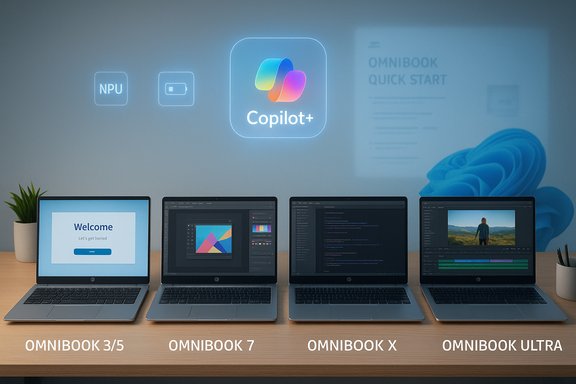
HP OmniBook Lineup: The High‑Level Map
HP has organized the consumer family into tiers that correspond to typical user types. Across official product pages and the Quick Start narrative, these tiers are described as:- OmniBook 3 / 5 (value / everyday) — long battery life, light builds, and accessible pricing. Good for students and families.
- OmniBook 7 (durable performance) — more robust build, premium display options, higher thermal tolerance for heavier workloads.
- OmniBook X (creator balance / convertible options) — 2‑in‑1 designs, better displays, webcams and audio for creators and hybrid workers.
- OmniBook Ultra (premium / power users) — highest CPU/NPU headroom, more RAM and SSD options, OLED touch on select SKUs.
Model Comparison: What Each Tier Offers (Practical Summary)
HP OmniBook 3 / OmniBook 5 — Everyday value and long runtime
- Best for: students, families, casual users.
- Typical strengths:
- Lightweight designs for commuting and pocketable bags.
- Long nominal battery figures on some SKUs (Snapdragon/ARM SKUs headline very long local playback times).
- Simple displays (FHD/2K) with efficient integrated graphics.
- Realities to check:
- “Up to” battery hours are measured in controlled scenarios—expect mixed‑use runtimes to be lower. Confirm battery Wh on the SKU page.
HP OmniBook 7 — Durable performance for heavy students and power users
- Best for: users who need a more robust chassis, better displays (OLED options), and higher sustained CPU performance.
- Typical strengths:
- Premium OLED options, stronger thermal design.
- Options for discrete or higher‑tier integrated graphics on selected SKUs.
- Realities to check:
- Confirm whether a particular OmniBook 7 SKU is ARM‑based or x86; compatibility differences can matter for legacy or niche apps.
HP OmniBook X — Creators, hybrid workers, and frequent videocallers
- Best for: creators who want a balance of portability and display fidelity, plus flexible Flip/2‑in‑1 designs.
- Typical strengths:
- Higher‑resolution displays (2K/3K on premium SKUs), 5MP IR webcams, enhanced audio options.
- Configurable NPUs and Copilot+ readiness for local AI features such as live transcription and camera enhancements.
- Realities to check:
- Verify display panel variant and color gamut if you need accurate color reproduction for professional work.
HP OmniBook Ultra — Premium power users and creatives
- Best for: heavy editors, 3D workflows, developers and professionals who value top CPU/GPU/NPU headroom.
- Typical strengths:
- Higher memory ceilings, larger SSD options (up to multiple TB), premium OLED touch displays, and larger NPUs on some SKUs.
- Marketed as the follow‑up to Spectre with Copilot+ readiness and elevated finishes.
- Realities to check:
- NPU TOPS numbers are theoretical ceilings. Software must be optimized to use the NPU before you see productivity gains; bench tests matter.
Detailed Use Cases: Which OmniBook for Which User
For Students: OmniBook 3 or OmniBook 5
Students typically value battery life, portability, and price. The Quick Start Guide recommends the OmniBook 3 for budget‑conscious buyers and the OmniBook 5 when a better screen or longer real‑world battery is required. Key student benefits include light weight for commuting, long nominal runtimes, and quick‑charge support when you need a boost between classes. Always check the local SKU battery capacity and weigh lab “playback” numbers against community hands‑on reviews for mixed‑use reliability.For Creatives and Hybrid Pros: OmniBook X
The X family targets creators who need accurate displays, better webcams and microphones for client calls, and a convertible form factor. If color accuracy and a stylus‑friendly screen are mission critical, choose an X SKU with an OLED or 3K panel and validate the panel variant for color gamut coverage. The Quick Start guidance recommends color calibration for professional work.For Power Users: OmniBook Ultra
If your workflows include 3D rendering, heavy video edit timelines, or running local AI models, the Ultra’s higher CPU/NPU headroom and larger RAM/SSD options are the right match—provided the specific applications you rely on support on‑device NPUs. The Quick Start Guide explicitly warns that TOPS numbers alone don’t guarantee performance improvements; verify software integration and independent benchmarks.Initial HP OmniBook Setup and Configuration (15–30 minutes)
The Quick Start Guide’s OOBE checklist is concise and sensible. Follow this recommended path to get a secure, updated machine fast:- Unbox, connect the charger and place on a surge protector.
- Power on and complete Windows OOBE: region, language, keyboard, and Wi‑Fi.
- Sign in with a Microsoft account (recommended) and enable Windows Hello where available.
- Run Windows Update repeatedly until the system reports fully updated.
- Install HP Support Assistant and run OEM firmware/driver updates via the tool.
- Enable recommended privacy/security toggles: Windows Security, BitLocker (or device encryption), camera/mic permissions.
- Set up OneDrive sync for Documents/Pictures and add a second backup (File History or external drive).
- Calibrate the display if you’re doing color‑critical work; if not, use Night Light and auto‑brightness conservatively.
HP OmniBook Optimization Tips and Tricks
- Battery
- Use Battery Saver for long unplugged days.
- Avoid constant 100% charge; prefer topping up when needed.
- Use Fast Charge only when necessary—fast charging is measured in ideal conditions and real‑world charge time may increase with heavy use.
- Thermal hygiene
- Keep vents unobstructed, avoid soft surfaces, and prefer AC environments for sustained workloads.
- If you need cooler idle operation and light web workloads, consider ARM/Snapdragon SKUs (they often run cooler under light loads).
- Display & audio
- Calibrate displays with a colorimeter for professional editing.
- Disable intrusive audio enhancements if you need uncolored output for audio monitoring—many community experts recommend this for fidelity.
- NPU / Copilot+ usage
- Enable on‑device AI features selectively; background AI tasks (transcription, camera enhancements) increase power draw and heat.
- Treat TOPS numbers as theoretical; validate with hands‑on tests for the apps you use.
Essential Software and Accessories
- Software
- Microsoft 365 / Office for productivity.
- Microsoft Teams and Zoom for collaboration.
- HP Support Assistant, HP QuickDrop, HP Smart.
- OneDrive for continuous backups; File History or external SSD as a second copy.
- Accessories
- USB‑C / Thunderbolt hub for external monitors and ports.
- External NVMe SSD for large media libraries and fast project swaps.
- Surge protector or small UPS for areas with power instability.
- Quality sleeve/bag for daily commuting.
Critical Analysis: Strengths, Trade‑offs, and Risks
Strengths
- Simplified buying taxonomy reduces decision friction by mapping tiers to real workloads; this is a clear improvement over multiple overlapping brand families.
- On‑device AI and Copilot+ readiness push useful local features (transcription, camera enhancements, low‑latency assistant responses) that improve privacy and latency for supported tasks.
- Good post‑setup guidance: the Quick Start Guide is pragmatic—OOBE checklist, security prompts, and regional care guidance are concise and actionable.
Trade‑offs and risks
- Lab vs real world battery claims: HP quotes “up to” numbers (for example, very long local playback on Snapdragon SKUs) that are useful for comparison but rarely match mixed‑use scenarios. Always confirm battery Wh and look for independent battery tests before buying.
- NPU and TOPS promises: TOPS figures are theoretical maximums. They speak to hardware capacity, not guaranteed application speedups. Real benefit requires software to explicitly use the NPU; independent hands‑on reviews are necessary to judge real gains.
- ARM compatibility caveat: Some OmniBook SKUs use Snapdragon/ARM platforms. Windows on ARM has matured, but legacy or niche apps may behave differently—if app compatibility is essential, prioritize x86 (Intel/AMD) SKUs.
- SKU variation and regional differences: Ports, panel variants, battery Wh and warranty packages vary by SKU and country; the Quick Start Guide repeatedly urges confirming the exact model code before purchase. Don’t assume global specs match your local storefront listing.
Verification of Key Claims (What I checked and where)
- HP’s Tech Takes Quick Start Guide and the OmniBook product pages confirm the rebranding and the three main tiers. The Quick Start guide itself is published by HP on its Tech Takes site.
- HP product pages contain SKU‑level details (battery Wh, CPU options, memory and storage) and confirm that battery life and fast‑charge figures are measured under specific conditions; one example SKU page shows 59 Wh battery and fast charge “~50% in 30 minutes” disclaimers.
- Microsoft’s official lifecycle pages confirm Windows 10 reached end of support on October 14, 2025, which makes buying a Windows 11‑ready OmniBook the safer long‑term option for security updates. This is important context when deciding whether to upgrade an older device or buy new.
- Community and regional guidance in the Quick Start and forum syntheses underline the same buying cautions: verify SKU, test apps for NPU support, and prioritize local warranty/service options.
Buying Checklist: Quick Practical Steps
- Confirm the exact model code (not just the family name) before purchase.
- Verify battery capacity (Wh), display panel type (OLED vs IPS), RAM amount and type (LPDDR5x vs DDR), and NPU specs listed for that SKU.
- Prefer x86 (Intel/AMD) SKUs if you have legacy/enterprise apps that may not be ARM‑ready.
- Check local warranty and service center availability and consider accidental damage protection if you commute daily.
- After purchase, run the Quick Start OOBE checklist: Windows Update → HP Support Assistant firmware/drivers → configure privacy/security → set up OneDrive + backup.
Frequently Asked Questions (short, actionable answers)
- Which OmniBook should a student pick?
- OmniBook 3 or OmniBook 5 for battery life and portability; confirm real‑world reviews for battery runtime.
- Are NPUs useful for productivity?
- They can be, but only for workloads and apps that use them; treat TOPS as a ceiling, not guaranteed speed. Validate with third‑party tests.
- Do I need to sign in with a Microsoft account during setup?
- The Quick Start Guide recommends a Microsoft account for OneDrive and Copilot integration; Microsoft’s ESU requirements and HP’s features often assume account linkage for full functionality.
Conclusion and Next Steps
HP’s OmniBook family and its Quick Start Guide deliver a pragmatic, modern onboarding path for buyers who want a Windows 11‑ready machine with clearer tradeoffs between endurance, display fidelity and AI headroom. The lineup’s strengths are its simplified tiering and focus on battery and local AI; its risks are the usual vendor caveats—lab “up to” claims, SKU fragmentation, and the uncertain real‑world benefit of NPUs unless your software uses them.Before you buy:
- Confirm the exact SKU and check HP’s product page for the model code.
- Cross‑check battery Wh, display panel variant and port support.
- Look for hands‑on reviews that exercise the specific SKU under workloads similar to yours.
- After purchase, follow the Quick Start OOBE checklist, run HP Support Assistant, enable device encryption and schedule regular backups.
Source: HP HP OmniBook Quick Start Guide: Setup & Tips
