

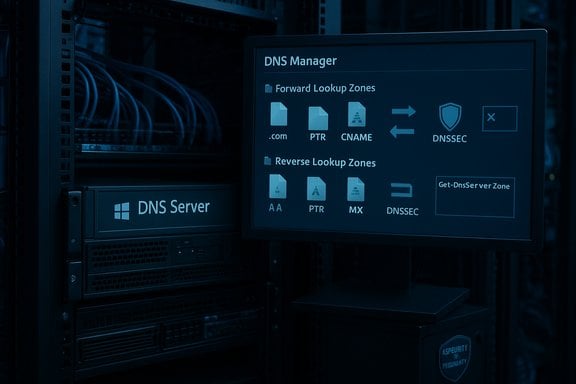
This step-by-step guide distills a practical, production-ready method for installing and configuring the DNS Server role on Windows Server, explains the core DNS concepts you need to operate and secure a DNS infrastructure, and provides hard-won troubleshooting and maintenance guidance so your service stays reliable and auditable in production environments. The instructions follow the same straightforward sequence used in the Petri guide and expand on it with verification from official Microsoft documentation and community-tested commands and checks.
Background / Overview
DNS (Domain Name System) is the foundational name-resolution system of IP networks: it maps human-readable hostnames to IP addresses and is critical for virtually every networked application. Running an internal authoritative or recursive resolver on Windows Server gives you control over internal name resolution, allows integration with Active Directory, and enables features such as conditional forwarders, reverse lookups, and, where required, DNSSEC signing for tamper detection.Windows Server supports the DNS Server role across modern releases — Windows Server 2016, 2019, 2022 and the most recent Long-Term Servicing releases — and Microsoft documents the DNS Server role, installation procedures, and GUI/PowerShell management workflows on its Learn site.
Why run a Windows DNS server in your environment?
- Control and predictability: you determine name-to-IP mappings and TTLs for internal services.
- Performance: internal resolvers reduce query latency for local clients and cut external lookup volume.
- Integration with AD: Active Directory and many Windows services depend on integrated DNS behavior.
- Security controls: features like DNSSEC, conditional forwarders, and scavenging help harden and manage the namespace.
Prerequisites (do these first)
Before you begin, confirm the following:- A supported Windows Server machine (physical or virtual) patched to current updates and joined to the appropriate administrative domain or workgroup. Microsoft’s DNS Server guidance applies to modern LTSC releases; check lifecycle guidance if you need precise support dates for a given release.
- Administrative privileges (local Administrator or equivalent) for role installation and DNS configuration.
- A static IP address assigned to the server’s network interface (dynamic addressing can break authoritative and reverse lookup behavior). The DNS role installation and validation will fail or be unreliable without a static address.
- If the server will be an AD-integrated DNS host, ensure AD DS is installed and functioning prior to delegating AD-integrated zones.
Installation: Add the DNS Server role (GUI and PowerShell)
Microsoft provides two common approaches: Server Manager GUI and PowerShell. The Petri walkthrough uses Server Manager; these commands mirror that flow and offer a safe automation path.GUI (Server Manager)
- Open Server Manager. If it does not open automatically, launch it from Start.
- From Dashboard → Add roles and features, walk the wizard until you reach Select server roles.
- Tick DNS Server and accept the required management tools when prompted.
- Complete the wizard and click Install. The role does not normally require an immediate reboot.
PowerShell (recommended for automation)
- Open an elevated PowerShell session.
- Run:
- Install-WindowsFeature -Name DNS
- Optionally, install the DNS administration tools or manage remotely via RSAT on a workstation. PowerShell is scriptable and preferred in infrastructure-as-code workflows.
Initial configuration: what the server does out of the box
After the role installs, the DNS Server service is running and the server will generally populate its Root Hints list to reach the global root servers for recursive resolution unless you configure forwarders. If the server has no upstream DNS configured, root hints allow it to resolve Internet names. In standalone setups the server may also self-register as a resolver in the adapter settings, which explains why name resolution begins to work immediately after install in a lab.Create zones: forward and reverse
Zones are the DNS server’s authoritative data stores. Create a zone for each namespace you manage.Forward lookup zone (authoritative for your domain)
- Open DNS Manager (Start → DNS).
- Right-click Forward Lookup Zones → New Zone…
- Choose Primary zone (or AD-integrated zone if this server participates in Active Directory).
- Specify the zone name (example: mycorp.local or ad.example.com).
- For lab or non-AD setups, leave Dynamic updates set to None or Disabled; in AD environments you typically enable secure dynamic updates so Windows clients can register.
Reverse lookup zone (recommended)
- Right-click Reverse Lookup Zones → New Zone…
- Select the appropriate network ID (e.g., 192.168.1) so PTR records map IP addresses back to hostnames.
- Reverse zones are optional but invaluable for diagnostics, logging, and certain application behaviors.
Resource records: A, PTR, CNAME, and MX — what to create and why
- A record — host name → IPv4 address. The most common authoritative mapping; create one per server/service.
- PTR record — reverse map for IP address → hostname. Provides readable logs and is often used in SMTP anti-spam checks.
- CNAME — alias record that points one name to another FQDN; useful for human-friendly aliases.
- MX — mail exchanger record that points a domain to one or more mail servers and priorities.
- Right-click your forward zone → New Host (A or AAAA) → give the name and IP.
- For alias: New Alias (CNAME).
- For mail: New Mail Exchanger (MX).
Advanced management: forwarders, conditional forwarders, scavenging, and DNSSEC
Forwarders and conditional forwarders
- Forwarders are used to send queries for unknown namespaces to an upstream resolver (ISP, corporate resolver, or recursive cache). They reduce root-hint traffic and can centralize filtering.
- Conditional forwarders let you forward queries for specific domains to specific servers — ideal for inter-site DNS delegation or multi-tenant environments.
DNS Scavenging (stale record cleanup)
- Scavenging automates removal of stale dynamic records to prevent DNS clutter and stale host entries.
- Configure appropriate timestamps and scavenging intervals; do not enable server-wide scavenging without a careful inventory and pilot, as aggressive scavenging can delete legitimate records. Periodic auditing before activation is best practice.
DNSSEC (recommended for authoritative zones)
- Windows Server supports zone signing and DNSSEC validation. You can sign zones using the DNS Manager Zone Signing Wizard or PowerShell cmdlets; the process requires creating Key Signing Keys (KSK) and Zone Signing Keys (ZSK) and deciding on algorithms and rollover policies. Microsoft documents the full signing flow and the algorithms supported (ECDSA, RSA variants, and NSEC/NSEC3 choices).
- DNSSEC defends against spoofing and cache poisoning by cryptographically validating records, but it increases zone complexity and requires secure DS record management at parent zones for public delegations.
Testing and validation: nslookup, Resolve-DnsName, and Event Viewer
Validating DNS functionality is straightforward and essential.- Use nslookup or PowerShell to query your server:
- nslookup example.com <your-dns-server-ip>
- In PowerShell: Resolve-DnsName example.com -Server <your-dns-server-ip>
- Check server-side logs: Event Viewer → Applications and Services Logs → DNS Server for warnings and errors.
- Validate zone contents in DNS Manager and test A→PTR mapping for each host.
- Confirm the server can reach upstream forwarders or root hints by resolving public names. If you changed adapter DNS settings during install, verify the adapter’s DNS entries to avoid loops or misconfiguration.
Common pitfalls and troubleshooting checklist
- No static IP assigned — DNS server must have a stable IP. If the server uses DHCP, client registrations and reverse mapping will be inconsistent.
- Firewall blocking port 53 (UDP/TCP) — ensure Windows Firewall or edge devices permit DNS traffic for both UDP (queries) and TCP (zone transfers and larger responses).
- Mis-typed A/CNAME records — incorrect mappings are a frequent cause of resolution failures. Double-check FQDNs and IPs.
- Upstream resolver loops — avoid configuring your DNS server to forward to a resolver that will forward back to you; this can cause resolution failure or latency.
- Managed or overridden settings — DHCP, Group Policy, or VPN clients can override adapter-level DNS configuration on clients; verify on affected machines using ipconfig /all and Get-DnsClientServerAddress. Community documentation and forums contain practical troubleshooting sequences for these cases.
Security considerations and known risks
- Patch promptly. Windows DNS has historically had critical vulnerabilities (for example, severe flaws in DNS handling that were fixed with emergency updates). Running an unpatched DNS server can expose your network. Maintain a patch schedule and subscribe to vendor security advisories.
- Minimize exposure. Do not publish your authoritative internal DNS servers directly to the Internet. Use split-horizon DNS (internal vs. external views) or a dedicated authoritative infrastructure for public zones.
- DNSSEC complexity. While DNSSEC protects against spoofing, implementation errors (incorrect DS records at parent, bad rollover planning) can make a zone unreachable. Test DNSSEC in a lab and prepare roll-back plans before enabling in production.
- Monitor for abuse. DNS servers can be abused for amplification or as part of command-and-control channels; enable logging and integrate DNS logs into SIEM tools for anomalous query detection.
Client-side configuration: pointing devices to your new server
- For small environments, manually set clients’ primary DNS server to the new server’s IP or distribute it via DHCP (configure DHCP option 006).
- In Active Directory environments, DHCP and group policy can push DNS settings to connected clients; ensure your DHCP scopes and GPOs are aligned with the intended resolver architecture.
- Verify clients receive the correct resolver with ipconfig /all, and run nslookup to validate end-to-end resolution.
Maintenance plan and operational best practices
- Keep a documented inventory of zones and delegated administrators.
- Schedule periodic audits of:
- Zone records (stale A/CNAME/PTR entries)
- Scavenging settings and timestamps
- Forwarders and conditional forwards
- Event Viewer for DNS Server warnings or transfer failures
- Test and document disaster recovery:
- Export zone files or implement zone transfer replication strategies with secondary servers.
- Verify AD-integrated zone replication behavior and backup/restore procedures.
- Automate where possible with PowerShell (Get-DnsServerResourceRecord, Add-DnsServerResourceRecord, Get-DnsServerZone, Sign-DnsZone) to enforce standards and reproducibility.
Step-by-step quick checklist for first-time config (concise)
- Assign a static IP to the server and verify network connectivity.
- Install DNS role (Server Manager or Install-WindowsFeature -Name DNS).
- Open DNS Manager; confirm root hints and server health.
- Create a forward lookup zone (Primary or AD-integrated).
- (Optional) Create a reverse lookup zone for your subnet.
- Add essential records (A, PTR, CNAME, MX) for servers and services.
- Configure forwarders/conditional forwarders as needed.
- Validate with nslookup/Resolve-DnsName and check Event Viewer logs.
- Plan DNSSEC and scavenging only after an inventory and pilot.
Critical analysis — strengths, limitations, and operational risks
Strengths
- The Windows DNS Server role is well-integrated with Active Directory, which simplifies zone replication, secure dynamic updates, and key distribution for DNSSEC in AD environments. This integration reduces management overhead for Windows-centric infrastructures.
- Microsoft provides both GUI and rich PowerShell tooling for automation, enabling rapid deployment and repeatable infrastructure-as-code scenarios.
- DNSSEC support is built-in and supports widely used algorithms and automated rollover paths when configured correctly, giving organizations a path to cryptographic validation of DNS responses.
Limitations and caveats
- Operational complexity with DNSSEC: while supported, DNSSEC requires planning for key management, DS publishing at parent zones, and careful rollover testing. Missteps can break resolution for entire zones.
- Exposure risk on misconfiguration: a publicly reachable internal DNS server or an unpatched service can be a high-value target for attackers; historical vulnerabilities have proven Windows DNS can be exploited if not patched.
- Non-Windows interoperability: some edge cases exist when integrating with non-Windows DNS tools; careful testing is needed when delegations cross heterogeneous DNS software (Bind, PowerDNS, cloud resolvers).
- Scavenging danger: incorrectly configured scavenging can remove valid records; pilot and audit before enabling automation.
Practical mitigation strategies
- Keep DNS servers on restricted management networks and use dedicated forwarding or public authoritative systems for public zones.
- Use staged rollouts for DNSSEC: lab sign → limited public test → publish DS → full enforcement.
- Automate backups and store signed zone keys securely. Use HSM or platform-provided crypto stores for KSKs where available.
- Monitor CVE feeds and apply security updates promptly.
When the Petri walkthrough is the right starting point — and when it isn’t
The Petri step-by-step demo is an excellent practical primer for getting a DNS Server up and serving basic internal records in a workgroup or lab environment. It covers the exact GUI clicks and the common sequences to create forward and reverse zones, add records, and validate with nslookup. For a production rollout, however, add the following before trusting the service:- A design document describing zone scoping, replication, delegation, and redundancy.
- A security plan covering patching frequency, firewall rules, and monitoring.
- An operational policy for DNSSEC key lifecycle, scavenging, and backup/restore.
Final checklist and recommended next steps
- Confirm supported Windows Server versions and patch level for your environment and align with lifecycle guidance.
- Apply the DNS Server role using PowerShell for automation-friendly deployments.
- Create primary forward and reverse zones, add authoritative A/PTR/CNAME/MX records, and test with nslookup and Resolve-DnsName.
- Pilot DNSSEC on non-critical public zones first; document KSK/ZSK procedures and protect private keys.
- Harden network exposure — keep DNS restricted, firewall ports controlled, and logs centralized for SIEM ingestion.
- Establish a scheduled maintenance window for patching and a periodic review of scavenging/TTL policies.
Configuring a DNS Server on Windows Server is straightforward for the basic use cases described in the Petri walkthrough, and that same process scales into production when paired with planning, automation, and security measures. The combination of Microsoft’s documented procedures for installation and zone management and community-tested troubleshooting commands will get your DNS service into production quickly — provided you treat DNS like the critical, high-availability service it is and maintain it accordingly.
Source: Petri IT Knowledgebase How to Configure DNS Server on Windows Server
