

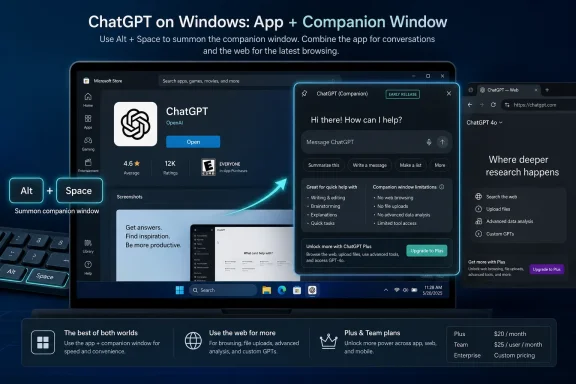
OpenAI’s early ChatGPT Windows app is available through the Microsoft Store for paid ChatGPT plans on Windows 10 x64 and ARM64 version 17763.0 or higher, and its defining feature is a companion window launched with Alt + Space while the app is open. If you use ChatGPT constantly on a Windows PC, the desktop app is worth installing now; if you need the full web or macOS feature set, it should remain a sidecar rather than your primary ChatGPT home. The browser is still the safer default for users who cannot tolerate missing features, unmanaged rollout behavior, or workplace Store restrictions.
For most Windows enthusiasts and paid ChatGPT users, the practical answer is simple: try the Windows app, pin it, learn the Alt + Space workflow, and keep the browser version available. This is not a replacement decision so much as a split-workflow decision. The desktop app is for fast invocation; the browser remains the place to fall back when something expected is not present.
The app currently targets paid plans, including Plus, Team, Edu, and Enterprise. That matters because the desktop experience is not being positioned as a universal Windows accessory for every casual ChatGPT account. It is aimed first at people and organizations that already treat ChatGPT as a daily productivity layer.
The system requirement is also unusually broad by modern Windows standards: Windows 10 x64 and ARM64 version 17763.0 or higher. In plain English, this is not a Windows 11-only play, and it is not restricted to traditional Intel and AMD PCs. OpenAI is leaving room for both older Windows 10 fleets and newer ARM64 machines, which is exactly where many IT departments still live.
The basic setup path is straightforward. Open the Microsoft Store on a supported Windows PC, find the ChatGPT app, install it, sign in with an eligible paid account, and launch the app. Once it is open, press Alt + Space to bring up the companion window, assuming another application has not already claimed that shortcut.
The companion window changes the posture of the product. In the browser, ChatGPT is a tab you visit. On the desktop, it becomes something closer to a transient command surface: summon, ask, paste, upload, generate, dismiss, return to work.
That distinction is not cosmetic. Windows power users live by launchers, hotkeys, clipboard utilities, terminal panes, and small windows that interrupt work without taking it over. A ChatGPT client that can be called with Alt + Space fits that culture better than a browser tab buried between documentation, email, and a half-dozen admin portals.
OpenAI says the companion window can be used to ask ChatGPT anything, upload files, generate a new image, or start a new conversation. That gives the app enough utility to become a genuine daily tool, particularly for users who already lean on ChatGPT for drafting, scripting, summarizing, or turning vague intent into usable text.
But the shortcut also exposes the app’s biggest tension. Alt + Space is historically meaningful in Windows, and OpenAI notes that the companion shortcut will not work if it is already registered by another Windows application. If your setup already uses that key combination, the app may not feel as effortless as advertised until you change the companion-window hotkey under Settings > App > Companion window hotkey.
Early desktop apps often begin as convenience layers before they become full product surfaces. That appears to be the right mental model here. The Windows client is not uselessly thin, but it is also not yet the canonical ChatGPT experience.
For paid users, this creates a strange hierarchy. You may be paying for ChatGPT, running Windows, and still find that the richest or most familiar path is the browser. That does not make the app a failure. It means the app is currently optimized for access, not parity.
This is where enthusiasts and IT pros should resist the launch-day reflex. The question is not whether native is better than web in theory. The question is whether this native app gives up anything you rely on in practice.
If your work is mostly quick prompts, rewriting, file-based questions, image generation, or short bursts of analysis, the desktop app may immediately feel better. If your workflow depends on a web feature that has not made the trip yet, the app becomes a launcher for convenience rather than a full-time workspace.
For home users, the Store path is mostly a convenience. For sysadmins, it is a control plane. If employees cannot install Store apps directly, they may not be able to install ChatGPT either unless IT deploys or permits it.
That is not a minor implementation detail. It means the ChatGPT Windows app arrives as both a productivity tool and a managed application. The same distribution channel that makes installation familiar also makes it subject to existing Microsoft Store restrictions, endpoint policy, and organizational app governance.
In an Enterprise or Edu setting, the app’s value depends less on whether one power user likes Alt + Space and more on whether the organization is ready to bless a desktop AI client. The user experience is only half the rollout. The other half is policy.
This is where the browser has an institutional advantage. Many organizations already have web access controls, identity rules, monitoring practices, and browser management habits. A desktop app changes the deployment surface, even when the service behind it is familiar.
Still, OpenAI’s language around the app matters. This is an early version, and the company explicitly says some web and macOS features may be missing. That puts Windows users in a familiar position: included, but not necessarily first-class in every detail.
The good news is that the app’s foundation is aligned with Windows behavior. Keyboard access, Microsoft Store distribution, support for both x64 and ARM64, and compatibility with Windows 10-era systems all point in the right direction. This does not feel like a token port aimed only at the newest machines.
The bad news is that parity is the line between novelty and replacement. Until Windows users can assume the desktop app has the capabilities they expect from the web version, the browser remains part of the workflow. The Windows app is no longer a curiosity, but it is not yet the whole platform.
That makes this release more strategic than spectacular. OpenAI has put ChatGPT where Windows users can reach it without opening a browser. Now it has to prove that the app can keep up.
The app is most compelling when ChatGPT is part of the surrounding task rather than the main task. You are editing a document, debugging a command, triaging text, preparing a reply, or comparing language. In those moments, the app’s job is to appear quickly and get out of the way.
The browser is better when ChatGPT is the workspace itself. If you are managing long sessions, checking whether a specific feature is available, or relying on the most complete interface, the web version remains the more dependable anchor. The desktop app should complement that, not replace it by force.
This is the sensible split: use the app for speed, use the browser for certainty. That may sound like a compromise, but it is how many mature Windows workflows already operate. Power users do not choose one interface for everything; they choose the fastest interface for the current job.
If the Microsoft Store is blocked, restricted, or centrally managed, the ChatGPT app inherits that posture. Users may not be able to self-install it, and that may be exactly what the organization wants. The desktop app’s arrival should trigger a policy review before it triggers a deployment wave.
Enterprise and Edu customers also need to separate account entitlement from endpoint readiness. A user may have access to a paid ChatGPT plan while their managed Windows device remains unable to install the app. Conversely, permitting the Store app without clear usage guidance can create a support and governance gap.
The app is therefore a useful forcing function. If an organization has not decided where ChatGPT belongs on managed Windows devices, the desktop release makes the ambiguity harder to ignore. Browser-only access can feel temporary; a desktop app feels operational.
IT teams should test the app on representative hardware, verify Store policy behavior, document shortcut conflicts, and decide whether the browser remains the supported path. That is the sober version of adoption. The reckless version is letting the app arrive user by user with no support model.
The trouble is that missing features are rarely abstract to the person who depends on them. One user may never notice. Another may hit a wall in the first hour and retreat to the browser permanently.
That uncertainty changes the recommended migration path. Do not uninstall your browser shortcuts. Do not retrain a team around the desktop app alone. Do not write internal documentation that assumes feature parity unless you have tested the specific flows your users need.
For WindowsForum readers, this is the practical distinction between a useful app and a finished platform. The Windows client is useful now because it improves access. It becomes platform-grade later only when users stop asking whether the web version can do more.
The feature gap also affects support expectations. If a user reports that something works in the browser but not in the app, that may not be a bug in the traditional sense. It may simply be the state of the early release.
WindowsForum readers have already been following the broader arc: ChatGPT as a platform, ChatGPT as a mini OS, mobile monetization signals, outages, and alternatives. The Windows desktop app belongs to that same story. OpenAI wants ChatGPT to be present wherever work starts.
That ambition cuts both ways. A desktop app can make ChatGPT feel more useful, immediate, and ambient. It can also make organizations more cautious, because ambient AI tools quickly become part of sensitive workflows.
The browser model kept ChatGPT slightly contained. You opened a site, did the work, and left. A desktop companion window lowers that barrier, which is the whole point. But lowering the barrier also raises the stakes around policy, data handling, and user training.
This is why the app’s most important audience may not be the casual user who asks a few questions a week. It is the knowledge worker who starts to treat ChatGPT like a reflex. Once an AI assistant becomes muscle memory, the client matters.
That is a good fit for developers, admins, writers, analysts, students, and support technicians. These are people who often need a fast second opinion, not a separate destination. A companion window can be less disruptive than opening a browser, finding the right tab, and reorienting around a full-page interface.
But the same design may feel underwhelming to users who wanted a deeply native Windows application with every possible control exposed. If your expectation is a full desktop productivity suite, the early app may feel modest. Its best feature is speed, not breadth.
This is not a criticism so much as a warning against the wrong benchmark. The app should be judged by whether it reduces friction in real work. If it does, it has earned a place on the taskbar even before it replaces the web.
The first hour with the app should be a workflow audit. Try the tasks you perform most often in ChatGPT. Check whether the companion window helps, whether the shortcut conflicts with anything, and whether any missing feature sends you back to the browser.
If you are an individual user, the risk is mostly inconvenience. If you are an admin, the risk is inconsistency. One user’s shortcut-driven productivity boost can become another user’s support ticket if expectations are not set.
This is also a good moment to clean up how ChatGPT is presented internally. If an organization supports ChatGPT in the browser but has no view on the Store app, that gap will become visible as users discover the desktop client. Better to decide the policy before adoption happens by accident.
 The Right Answer Is Install It, But Do Not Crown It Yet
For most Windows enthusiasts and paid ChatGPT users, the practical answer is simple: try the Windows app, pin it, learn the Alt + Space workflow, and keep the browser version available. This is not a replacement decision so much as a split-workflow decision. The desktop app is for fast invocation; the browser remains the place to fall back when something expected is not present.The app currently targets paid plans, including Plus, Team, Edu, and Enterprise. That matters because the desktop experience is not being positioned as a universal Windows accessory for every casual ChatGPT account. It is aimed first at people and organizations that already treat ChatGPT as a daily productivity layer.
The system requirement is also unusually broad by modern Windows standards: Windows 10 x64 and ARM64 version 17763.0 or higher. In plain English, this is not a Windows 11-only play, and it is not restricted to traditional Intel and AMD PCs. OpenAI is leaving room for both older Windows 10 fleets and newer ARM64 machines, which is exactly where many IT departments still live.
The basic setup path is straightforward. Open the Microsoft Store on a supported Windows PC, find the ChatGPT app, install it, sign in with an eligible paid account, and launch the app. Once it is open, press Alt + Space to bring up the companion window, assuming another application has not already claimed that shortcut.
Alt + Space Is the Product, Not the Window Dressing
The Windows app’s most important feature is not that ChatGPT now has an icon in the Start menu. Windows has never lacked ways to wrap a website in an app-shaped container. The interesting part is that OpenAI is making ChatGPT feel less like a destination and more like a keyboard-first overlay.The companion window changes the posture of the product. In the browser, ChatGPT is a tab you visit. On the desktop, it becomes something closer to a transient command surface: summon, ask, paste, upload, generate, dismiss, return to work.
That distinction is not cosmetic. Windows power users live by launchers, hotkeys, clipboard utilities, terminal panes, and small windows that interrupt work without taking it over. A ChatGPT client that can be called with Alt + Space fits that culture better than a browser tab buried between documentation, email, and a half-dozen admin portals.
OpenAI says the companion window can be used to ask ChatGPT anything, upload files, generate a new image, or start a new conversation. That gives the app enough utility to become a genuine daily tool, particularly for users who already lean on ChatGPT for drafting, scripting, summarizing, or turning vague intent into usable text.
But the shortcut also exposes the app’s biggest tension. Alt + Space is historically meaningful in Windows, and OpenAI notes that the companion shortcut will not work if it is already registered by another Windows application. If your setup already uses that key combination, the app may not feel as effortless as advertised until you change the companion-window hotkey under Settings > App > Companion window hotkey.
The Browser Still Wins on Completeness
The strongest argument against switching fully is OpenAI’s own caveat: some features available on macOS and web are not yet present in the early Windows release. That is the sentence that should stop anyone from declaring the browser obsolete.Early desktop apps often begin as convenience layers before they become full product surfaces. That appears to be the right mental model here. The Windows client is not uselessly thin, but it is also not yet the canonical ChatGPT experience.
For paid users, this creates a strange hierarchy. You may be paying for ChatGPT, running Windows, and still find that the richest or most familiar path is the browser. That does not make the app a failure. It means the app is currently optimized for access, not parity.
This is where enthusiasts and IT pros should resist the launch-day reflex. The question is not whether native is better than web in theory. The question is whether this native app gives up anything you rely on in practice.
If your work is mostly quick prompts, rewriting, file-based questions, image generation, or short bursts of analysis, the desktop app may immediately feel better. If your workflow depends on a web feature that has not made the trip yet, the app becomes a launcher for convenience rather than a full-time workspace.
Microsoft Store Distribution Makes This an IT Policy Story
The Microsoft Store detail sounds mundane until you put it inside an enterprise. Because the app is distributed through the Store, access follows whatever Store policies an organization already uses. That makes the Windows app easier to govern in some environments and impossible to casually adopt in others.For home users, the Store path is mostly a convenience. For sysadmins, it is a control plane. If employees cannot install Store apps directly, they may not be able to install ChatGPT either unless IT deploys or permits it.
That is not a minor implementation detail. It means the ChatGPT Windows app arrives as both a productivity tool and a managed application. The same distribution channel that makes installation familiar also makes it subject to existing Microsoft Store restrictions, endpoint policy, and organizational app governance.
In an Enterprise or Edu setting, the app’s value depends less on whether one power user likes Alt + Space and more on whether the organization is ready to bless a desktop AI client. The user experience is only half the rollout. The other half is policy.
This is where the browser has an institutional advantage. Many organizations already have web access controls, identity rules, monitoring practices, and browser management habits. A desktop app changes the deployment surface, even when the service behind it is familiar.
Windows Users Are Getting the Mac Treatment, But Not Yet the Same App
The Windows release signals that OpenAI no longer sees desktop ChatGPT as an experiment reserved for macOS users. That is the broader significance. Windows is where enterprise desktops, gaming rigs, developer workstations, school fleets, and budget PCs all collide, and a serious Windows app is a statement about where ChatGPT expects to live.Still, OpenAI’s language around the app matters. This is an early version, and the company explicitly says some web and macOS features may be missing. That puts Windows users in a familiar position: included, but not necessarily first-class in every detail.
The good news is that the app’s foundation is aligned with Windows behavior. Keyboard access, Microsoft Store distribution, support for both x64 and ARM64, and compatibility with Windows 10-era systems all point in the right direction. This does not feel like a token port aimed only at the newest machines.
The bad news is that parity is the line between novelty and replacement. Until Windows users can assume the desktop app has the capabilities they expect from the web version, the browser remains part of the workflow. The Windows app is no longer a curiosity, but it is not yet the whole platform.
That makes this release more strategic than spectacular. OpenAI has put ChatGPT where Windows users can reach it without opening a browser. Now it has to prove that the app can keep up.
Paid Users Should Treat the App as a Fast Lane
For Plus users, the calculus is personal. If ChatGPT is a daily habit, installing the app is low-friction and likely useful. The companion window alone justifies testing it, because shaving a few seconds off repeated interactions changes how often you use a tool.The app is most compelling when ChatGPT is part of the surrounding task rather than the main task. You are editing a document, debugging a command, triaging text, preparing a reply, or comparing language. In those moments, the app’s job is to appear quickly and get out of the way.
The browser is better when ChatGPT is the workspace itself. If you are managing long sessions, checking whether a specific feature is available, or relying on the most complete interface, the web version remains the more dependable anchor. The desktop app should complement that, not replace it by force.
This is the sensible split: use the app for speed, use the browser for certainty. That may sound like a compromise, but it is how many mature Windows workflows already operate. Power users do not choose one interface for everything; they choose the fastest interface for the current job.
Enterprise and Edu Admins Have a Different First Question
For administrators, the first question is not whether the shortcut is nice. It is whether the app fits existing software distribution and AI usage policy. Store distribution makes the answer depend heavily on the environment.If the Microsoft Store is blocked, restricted, or centrally managed, the ChatGPT app inherits that posture. Users may not be able to self-install it, and that may be exactly what the organization wants. The desktop app’s arrival should trigger a policy review before it triggers a deployment wave.
Enterprise and Edu customers also need to separate account entitlement from endpoint readiness. A user may have access to a paid ChatGPT plan while their managed Windows device remains unable to install the app. Conversely, permitting the Store app without clear usage guidance can create a support and governance gap.
The app is therefore a useful forcing function. If an organization has not decided where ChatGPT belongs on managed Windows devices, the desktop release makes the ambiguity harder to ignore. Browser-only access can feel temporary; a desktop app feels operational.
IT teams should test the app on representative hardware, verify Store policy behavior, document shortcut conflicts, and decide whether the browser remains the supported path. That is the sober version of adoption. The reckless version is letting the app arrive user by user with no support model.
The Missing-Features Caveat Is Bigger Than It Looks
OpenAI’s statement that some macOS and web features are absent from the early Windows release is doing a lot of work. It is both an honest disclaimer and a warning label. Users should not assume that “ChatGPT for Windows” equals “everything ChatGPT can do, but in a native window.”The trouble is that missing features are rarely abstract to the person who depends on them. One user may never notice. Another may hit a wall in the first hour and retreat to the browser permanently.
That uncertainty changes the recommended migration path. Do not uninstall your browser shortcuts. Do not retrain a team around the desktop app alone. Do not write internal documentation that assumes feature parity unless you have tested the specific flows your users need.
For WindowsForum readers, this is the practical distinction between a useful app and a finished platform. The Windows client is useful now because it improves access. It becomes platform-grade later only when users stop asking whether the web version can do more.
The feature gap also affects support expectations. If a user reports that something works in the browser but not in the app, that may not be a bug in the traditional sense. It may simply be the state of the early release.
The Desktop App Is Part of a Larger ChatGPT Platform Push
The Windows app should not be read in isolation. ChatGPT has been moving from chatbot to platform, and Windows is one of the places where that shift becomes visible to mainstream users. A desktop app is not just another client; it is a claim on attention at the operating-system level.WindowsForum readers have already been following the broader arc: ChatGPT as a platform, ChatGPT as a mini OS, mobile monetization signals, outages, and alternatives. The Windows desktop app belongs to that same story. OpenAI wants ChatGPT to be present wherever work starts.
That ambition cuts both ways. A desktop app can make ChatGPT feel more useful, immediate, and ambient. It can also make organizations more cautious, because ambient AI tools quickly become part of sensitive workflows.
The browser model kept ChatGPT slightly contained. You opened a site, did the work, and left. A desktop companion window lowers that barrier, which is the whole point. But lowering the barrier also raises the stakes around policy, data handling, and user training.
This is why the app’s most important audience may not be the casual user who asks a few questions a week. It is the knowledge worker who starts to treat ChatGPT like a reflex. Once an AI assistant becomes muscle memory, the client matters.
The Windows App Rewards Keyboard People First
The early Windows app is clearly most valuable to people who already think in shortcuts. Alt + Space is not just a launch command; it is a design philosophy. It tells users that ChatGPT should be summoned in the middle of something else.That is a good fit for developers, admins, writers, analysts, students, and support technicians. These are people who often need a fast second opinion, not a separate destination. A companion window can be less disruptive than opening a browser, finding the right tab, and reorienting around a full-page interface.
But the same design may feel underwhelming to users who wanted a deeply native Windows application with every possible control exposed. If your expectation is a full desktop productivity suite, the early app may feel modest. Its best feature is speed, not breadth.
This is not a criticism so much as a warning against the wrong benchmark. The app should be judged by whether it reduces friction in real work. If it does, it has earned a place on the taskbar even before it replaces the web.
The Sensible Windows Playbook Is Hybrid for Now
The best Windows setup today is not ideological. Install the app if you are on a supported paid plan, use the companion window for fast interactions, and keep the web version available for full-feature work. That gives you the benefit of the desktop app without pretending the early release has finished its catch-up phase.The first hour with the app should be a workflow audit. Try the tasks you perform most often in ChatGPT. Check whether the companion window helps, whether the shortcut conflicts with anything, and whether any missing feature sends you back to the browser.
If you are an individual user, the risk is mostly inconvenience. If you are an admin, the risk is inconsistency. One user’s shortcut-driven productivity boost can become another user’s support ticket if expectations are not set.
This is also a good moment to clean up how ChatGPT is presented internally. If an organization supports ChatGPT in the browser but has no view on the Store app, that gap will become visible as users discover the desktop client. Better to decide the policy before adoption happens by accident.
The WindowsForum Verdict Belongs on the Taskbar, Not in the Default Slot
The practical advice is narrow but useful:- Install the ChatGPT Windows app if you have a Plus, Team, Edu, or Enterprise plan and run Windows 10 x64 or ARM64 version 17763.0 or higher.
- Use Alt + Space to test whether the companion-window workflow makes ChatGPT faster than switching to a browser tab.
- Keep the browser version available because OpenAI says some web and macOS features are not yet included in the early Windows release.
- Check Settings > App > Companion window hotkey if Alt + Space conflicts with another Windows application.
- Treat Microsoft Store distribution as an IT governance issue on managed devices, not merely as an installation convenience.
- Avoid rolling it out as the only supported ChatGPT interface until your required workflows have been tested in the Windows app.
References
- Primary source: help.openai.com
Ads in ChatGPT | OpenAI Help Center
Explore general FAQs about ads in ChatGPT, including eligibility, personalization, privacy, and controls. help.openai.com
- Independent coverage: openai.com
Developers can now submit apps to ChatGPT | OpenAI
Developers can now submit apps for review and publication in ChatGPT, with approved apps appearing in a new in-product directory for easy discovery. Updated tools, guidelines, and the Apps SDK help developers build powerful chat-native experiences that bring real-world actions into ChatGPT.openai.com
