

To install the Krita AI Diffusion plugin on Windows 11 or Windows 10, install a current Krita build, import Acly’s plugin ZIP through Krita’s Python plugin importer, enable the AI Image Generation docker, choose a local or external ComfyUI backend, and download the required models. That sounds like a software setup chore, but the larger story is that generative image tools are moving from websites into the actual creative workspace. The plugin is less a novelty button than a bridge between a serious painting application and the sprawling Stable Diffusion ecosystem. For Windows users, the appeal is obvious: local generation, no subscription gate, and enough control to make AI feel like a tool rather than a slot machine.
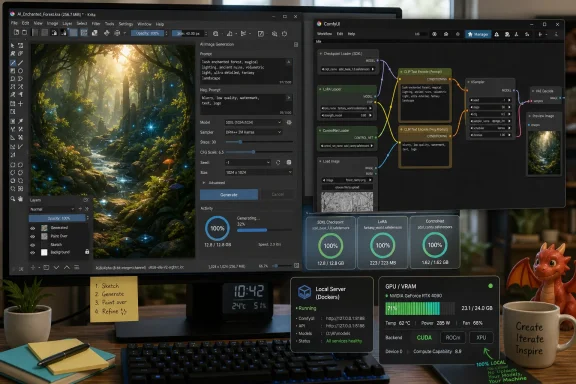
Krita remains what it has always been: a free, open-source painting and illustration program with a loyal following among artists who prefer a desktop tool over a cloud subscription. The AI Diffusion plugin does not turn Krita into a new product or replace its drawing tools. It adds a panel that lets Krita talk to ComfyUI, the backend that actually loads diffusion models and performs the generation.
That separation matters. Krita is the canvas, the plugin is the control surface, and ComfyUI is the engine under the hood. If the setup works, the user experiences it as a new docker inside Krita; if it breaks, the problem is usually in the backend, the models, the Python environment, or the GPU stack.
This is why the plugin is powerful but not quite consumer-simple. It hides much of ComfyUI’s complexity, especially when using the managed server option, but it cannot abolish the physics of local AI generation. Models are large, VRAM is finite, and Windows graphics drivers remain part of the equation.
The upside is that the workflow feels native once the plumbing is in place. Instead of uploading an image to a web generator, waiting for credits to burn, and then dragging the result back into an editor, you can select a region in Krita, type a prompt, and generate directly where the edit belongs.
A practical minimum is a 64-bit Windows 10 or Windows 11 machine, 16GB of system memory, a discrete GPU with at least 6GB of VRAM, and roughly 30GB to 40GB of free disk space. That minimum is not a promise of comfort. It is the threshold where the experience starts to become plausible.
NVIDIA remains the easiest path because CUDA is still the best-supported route for many local AI workflows. An RTX card with 8GB to 12GB of VRAM is a far safer target than an older 6GB card, especially if you want to use SDXL or newer models. The first image may take a while as the model loads into memory, but subsequent generations should be much faster if the GPU is being used properly.
AMD and Intel users are no longer locked out, but they should expect more caveats. Recent plugin releases have improved support for ROCm on supported AMD hardware and XPU on Intel Arc GPUs, but the smoothest Windows experience still tends to belong to NVIDIA users. DirectML may still exist as a fallback in some workflows, but it is not where most users should start if a better backend is available.
Storage is the sleeper issue. One SDXL checkpoint can take several gigabytes by itself, and the supporting ecosystem of ControlNet models, upscalers, LoRAs, and alternative base models grows quickly. Put the installation on an SSD if possible, because model loading from a slow hard drive makes an already heavy workflow feel worse than it needs to.
After installing, launch Krita once before doing anything else. This creates the expected configuration folders and gives you a quick sanity check that the application opens cleanly. If Krita itself is unstable, adding a plugin and an AI backend will only make troubleshooting harder.
Next, download the latest Krita AI Diffusion release ZIP from Acly’s GitHub releases page. The important detail is that Krita imports the ZIP directly. Do not extract it first, do not cherry-pick files from it, and do not drag folders manually into Krita’s plugin directory unless you are deliberately doing a manual repair.
Inside Krita, open the menu path Tools, then Scripts, then Import Python Plugin from File. Select the ZIP file you downloaded. Krita should import the plugin and prompt for a restart.
Restart means restart. Close Krita fully, then open it again. On Windows, especially on machines with background indexing or security tools, a lazy restart can leave users thinking a plugin failed when Krita simply has not reloaded its Python plugin state.
If the docker appears, the plugin portion of the install is probably fine. If it does not appear in the Dockers menu at all, the import likely failed or the wrong file was imported. The most common culprit is still the same old mistake: extracting the ZIP and importing the wrong thing.
Once the docker is visible, the setup moves from Krita into the backend layer. Click Configure in the AI Image Generation panel. This is the fork in the road where you decide whether Krita will manage ComfyUI for you, connect to an existing ComfyUI server, or use a cloud backend.
For most Windows users, the local managed server is the right answer. It installs and manages the ComfyUI environment used by the plugin, including dependencies that beginners would otherwise have to chase manually. It is not magic, but it is the closest this ecosystem gets to a sane installer.
Existing ComfyUI users may prefer to connect the plugin to a server they already run. That is more flexible, but it assumes you understand ComfyUI models, custom nodes, paths, and ports. If the phrase “127.0.0.1:8188” means nothing to you, use the managed option first.
CUDA is the path of least resistance on a modern NVIDIA card. It is the route most local AI image generation guides assume, and it is the configuration most likely to behave predictably under Windows. That does not mean every NVIDIA card is equal; older cards can run into CUDA or VRAM limits even if they technically meet a rough memory target.
ROCm support is the most interesting change for AMD users. For years, Windows-based AMD users often had to rely on workarounds, slower paths, or Linux setups to get good diffusion performance. The managed ROCm option is an important step, but users should still check whether their particular card is supported before assuming parity with NVIDIA.
Intel’s XPU route gives Arc users a credible path into the plugin. It is not the performance king, but it matters because it broadens local AI beyond a CUDA-only club. For hobbyists with Arc hardware, usability may matter more than benchmark leadership.
The cloud option sits outside this local-first story. It can be useful for weak PCs, laptops, or users who do not want to manage GPU memory at all. But it changes the privacy, cost, and offline-use equation; at that point, Krita becomes a front end to remote compute rather than a fully local AI workstation.
SD1.5 is lighter and more forgiving on limited hardware. SDXL generally produces stronger results and supports many modern checkpoints, but it uses more VRAM and disk space. Newer model families such as Flux and Z-Image can offer impressive results, but they raise the stakes for hardware compatibility and installation size.
The sensible first install is conservative. Choose the core pieces, one base workload, and the upscalers or inpainting components you know you need. You can always add more later after proving the system works.
Model downloads take time because they are large. On a fast connection, this is merely boring; on a slow or unreliable connection, it can be the part of the setup that fails repeatedly. Leave the installer alone until it finishes, and avoid judging the plugin before the required files are actually present.
This is also the point where free disk space stops being theoretical. A Windows machine with 20GB free may look fine for normal desktop work and still be a terrible candidate for local diffusion. If the drive fills mid-download, the failure may not look as obvious as a friendly “you are out of space” dialog.
Expect the first generation to be slower than later ones. The model has to load into VRAM, and Windows may need a moment to settle as the backend initializes. If the first successful generation takes longer than expected but subsequent ones improve, that is normal.
If generation is painfully slow every time, assume the GPU is not being used properly. Check the selected backend, update the GPU driver, and make sure another application is not consuming VRAM. Web browsers, games, screen recorders, and other GPU-heavy tools can all make a local AI session less stable.
Out-of-VRAM errors are not moral failures. They are the local AI equivalent of trying to open a 200-layer file on an underpowered machine. Lower the resolution, use a smaller model, reduce batch size, or switch from SDXL to SD1.5.
Windows users should also leave the pagefile enabled. Some performance tweakers disable it out of habit, but AI workloads and large creative applications often behave better when Windows is allowed to manage virtual memory. Even systems with plenty of RAM can encounter weird failures when the pagefile is missing.
Object removal follows the same logic. Select the unwanted object, prompt for the background or simply let the model infer it, and generate. The result will not always be perfect, but it is often fast enough to be useful as a first pass.
Outpainting is just as practical. Resize the canvas, select the new blank region, and ask the plugin to extend the scene. Instead of manually painting sky, wall texture, foliage, or abstract background elements, you can generate a plausible continuation and then clean it up with Krita’s normal tools.
This is why the plugin belongs inside an editor rather than off to the side. Generative AI becomes more useful when it is constrained by selections, layers, masks, and reference imagery. The closer it gets to ordinary image editing, the less it feels like gambling on prompts.
The Photoshop comparison is unavoidable, but not quite complete. Adobe’s generative features sell convenience and integration inside a commercial ecosystem. Krita AI Diffusion sells control, locality, and openness, but demands more patience from the user.
Existing ComfyUI setups add another layer of ambiguity. The server must be running, the address and port must match the plugin settings, and the required custom nodes and models must be available in the right locations. A browser-accessible ComfyUI instance is not automatically a plugin-ready ComfyUI instance.
Model failures are equally common. A missing inpaint model can break workflows that otherwise seem installed. A mismatched LoRA or ControlNet model can produce errors because it belongs to a different base architecture. SD1.5, SDXL, Flux, and Z-Image are not interchangeable labels; they imply different model expectations.
Performance problems deserve a different mindset from installation failures. Slow generation does not necessarily mean the plugin is broken. It may mean the workload is too heavy for the card, the wrong backend was selected, or the model has spilled beyond comfortable VRAM limits.
The fastest fix is often restraint. Start with one known-good model, a modest resolution, and a simple prompt. Once that works, add complexity. Local AI troubleshooting becomes miserable when users install everything at once and then try to identify which one of 20 new variables caused the failure.
For Windows 10 users, the biggest advice is to stay current where it matters. Install recent GPU drivers, keep Krita updated, and make sure the Microsoft Visual C++ Redistributables are present. These are boring steps, but boring steps solve a surprising number of Windows AI setup problems.
Windows 11 users get broadly the same workflow. The plugin does not fundamentally care whether the machine is Windows 10 or 11 as much as it cares about GPU support, driver maturity, VRAM, storage, and whether the backend can run cleanly. A weak Windows 11 laptop is not better than a strong Windows 10 workstation.
The managed installer is the right default precisely because it narrows the blast radius. Manual ComfyUI installs are powerful, but they also invite dependency drift, custom-node conflicts, and folder confusion. If your goal is to make images in Krita rather than maintain an AI lab, let the plugin manage the server first.
That said, advanced users may eventually outgrow the managed path. A dedicated ComfyUI installation can make sense for people who already use multiple front ends, maintain custom workflows, or share a model library across tools. The key is to move there after you understand the baseline, not before.
That matters for hobbyists, but it matters even more for professionals. Concept art, client materials, product mockups, internal storyboards, and unpublished assets are not always things people want to upload to a remote service. A local workflow gives users more control over where their data goes.
The trade-off is maintenance. Cloud tools hide model updates, GPU allocation, and environment management behind a website. Local tools make those things your problem. The Krita plugin reduces the burden, but Windows users still need to know enough to update, troubleshoot, and manage storage.
There is also a creative trade-off. Web tools often optimize for a polished prompt-to-result pipeline, while Krita AI Diffusion is strongest when treated as part of a larger editing process. The best results usually come from selection discipline, iteration, paint-over work, and understanding which model is suited to which job.
That is not a weakness. It is the reason the plugin is interesting. It pulls AI back into the craft layer, where the user’s decisions matter more than the prompt box.
But the word “install” undersells what is really happening. You are assembling a small local AI workstation inside a painting program. That workstation has dependencies, drivers, model files, and memory limits.
The payoff is a workflow that feels unusually capable for free software. Krita supplies the mature editing environment, ComfyUI supplies the model execution layer, and the plugin gives artists a usable interface between the two. When it works, it makes web-based generators look strangely detached from the work of actually editing an image.
The best candidate is someone who already uses Krita or wants a serious local art tool. If you only want to type prompts and download pretty images, a web service may be simpler. If you want to paint, repair, extend, remix, and control images locally, the plugin is worth the setup.
 Krita Gets an AI Workbench Without Becoming an AI App
Krita remains what it has always been: a free, open-source painting and illustration program with a loyal following among artists who prefer a desktop tool over a cloud subscription. The AI Diffusion plugin does not turn Krita into a new product or replace its drawing tools. It adds a panel that lets Krita talk to ComfyUI, the backend that actually loads diffusion models and performs the generation.That separation matters. Krita is the canvas, the plugin is the control surface, and ComfyUI is the engine under the hood. If the setup works, the user experiences it as a new docker inside Krita; if it breaks, the problem is usually in the backend, the models, the Python environment, or the GPU stack.
This is why the plugin is powerful but not quite consumer-simple. It hides much of ComfyUI’s complexity, especially when using the managed server option, but it cannot abolish the physics of local AI generation. Models are large, VRAM is finite, and Windows graphics drivers remain part of the equation.
The upside is that the workflow feels native once the plumbing is in place. Instead of uploading an image to a web generator, waiting for credits to burn, and then dragging the result back into an editor, you can select a region in Krita, type a prompt, and generate directly where the edit belongs.
The Hardware Requirement Is the First Installation Step
The biggest mistake is treating the plugin like a normal Krita add-on. A brush pack or color palette can run on almost anything; a local diffusion model cannot. Before downloading anything, Windows users should look at their GPU, VRAM, system RAM, and available storage.A practical minimum is a 64-bit Windows 10 or Windows 11 machine, 16GB of system memory, a discrete GPU with at least 6GB of VRAM, and roughly 30GB to 40GB of free disk space. That minimum is not a promise of comfort. It is the threshold where the experience starts to become plausible.
NVIDIA remains the easiest path because CUDA is still the best-supported route for many local AI workflows. An RTX card with 8GB to 12GB of VRAM is a far safer target than an older 6GB card, especially if you want to use SDXL or newer models. The first image may take a while as the model loads into memory, but subsequent generations should be much faster if the GPU is being used properly.
AMD and Intel users are no longer locked out, but they should expect more caveats. Recent plugin releases have improved support for ROCm on supported AMD hardware and XPU on Intel Arc GPUs, but the smoothest Windows experience still tends to belong to NVIDIA users. DirectML may still exist as a fallback in some workflows, but it is not where most users should start if a better backend is available.
Storage is the sleeper issue. One SDXL checkpoint can take several gigabytes by itself, and the supporting ecosystem of ControlNet models, upscalers, LoRAs, and alternative base models grows quickly. Put the installation on an SSD if possible, because model loading from a slow hard drive makes an already heavy workflow feel worse than it needs to.
The Clean Path Starts With a Current Krita Build
The installation begins with Krita itself. Download the current stable Windows version from Krita’s official site and install it normally. If Krita is already installed, update it before installing the plugin; old 4.x-era builds are the wrong foundation for this workflow.After installing, launch Krita once before doing anything else. This creates the expected configuration folders and gives you a quick sanity check that the application opens cleanly. If Krita itself is unstable, adding a plugin and an AI backend will only make troubleshooting harder.
Next, download the latest Krita AI Diffusion release ZIP from Acly’s GitHub releases page. The important detail is that Krita imports the ZIP directly. Do not extract it first, do not cherry-pick files from it, and do not drag folders manually into Krita’s plugin directory unless you are deliberately doing a manual repair.
Inside Krita, open the menu path Tools, then Scripts, then Import Python Plugin from File. Select the ZIP file you downloaded. Krita should import the plugin and prompt for a restart.
Restart means restart. Close Krita fully, then open it again. On Windows, especially on machines with background indexing or security tools, a lazy restart can leave users thinking a plugin failed when Krita simply has not reloaded its Python plugin state.
The Docker Is Where the Plugin Becomes Visible
After Krita relaunches, create a new document or open an existing image. Then go to Settings, Dockers, and enable AI Image Generation. The new panel usually appears on the right side of the workspace, although Krita’s dock layout may place it elsewhere depending on your previous configuration.If the docker appears, the plugin portion of the install is probably fine. If it does not appear in the Dockers menu at all, the import likely failed or the wrong file was imported. The most common culprit is still the same old mistake: extracting the ZIP and importing the wrong thing.
Once the docker is visible, the setup moves from Krita into the backend layer. Click Configure in the AI Image Generation panel. This is the fork in the road where you decide whether Krita will manage ComfyUI for you, connect to an existing ComfyUI server, or use a cloud backend.
For most Windows users, the local managed server is the right answer. It installs and manages the ComfyUI environment used by the plugin, including dependencies that beginners would otherwise have to chase manually. It is not magic, but it is the closest this ecosystem gets to a sane installer.
Existing ComfyUI users may prefer to connect the plugin to a server they already run. That is more flexible, but it assumes you understand ComfyUI models, custom nodes, paths, and ports. If the phrase “127.0.0.1:8188” means nothing to you, use the managed option first.
The Backend Choice Is Really a GPU Choice
The backend dropdown is where Windows users should slow down. Pick CUDA for NVIDIA, ROCm for supported AMD GPUs, and XPU for Intel Arc hardware. Choosing the wrong backend is a classic way to end up with slow CPU generation, failed launches, or dependency errors that look more mysterious than they are.CUDA is the path of least resistance on a modern NVIDIA card. It is the route most local AI image generation guides assume, and it is the configuration most likely to behave predictably under Windows. That does not mean every NVIDIA card is equal; older cards can run into CUDA or VRAM limits even if they technically meet a rough memory target.
ROCm support is the most interesting change for AMD users. For years, Windows-based AMD users often had to rely on workarounds, slower paths, or Linux setups to get good diffusion performance. The managed ROCm option is an important step, but users should still check whether their particular card is supported before assuming parity with NVIDIA.
Intel’s XPU route gives Arc users a credible path into the plugin. It is not the performance king, but it matters because it broadens local AI beyond a CUDA-only club. For hobbyists with Arc hardware, usability may matter more than benchmark leadership.
The cloud option sits outside this local-first story. It can be useful for weak PCs, laptops, or users who do not want to manage GPU memory at all. But it changes the privacy, cost, and offline-use equation; at that point, Krita becomes a front end to remote compute rather than a fully local AI workstation.
Model Downloads Are the Longest Part of the Job
Once the backend is selected, the installer offers workloads and model components. This is where many beginners over-install because everything looks important. In practice, you need the core components plus at least one model workload that matches what you intend to use.SD1.5 is lighter and more forgiving on limited hardware. SDXL generally produces stronger results and supports many modern checkpoints, but it uses more VRAM and disk space. Newer model families such as Flux and Z-Image can offer impressive results, but they raise the stakes for hardware compatibility and installation size.
The sensible first install is conservative. Choose the core pieces, one base workload, and the upscalers or inpainting components you know you need. You can always add more later after proving the system works.
Model downloads take time because they are large. On a fast connection, this is merely boring; on a slow or unreliable connection, it can be the part of the setup that fails repeatedly. Leave the installer alone until it finishes, and avoid judging the plugin before the required files are actually present.
This is also the point where free disk space stops being theoretical. A Windows machine with 20GB free may look fine for normal desktop work and still be a terrible candidate for local diffusion. If the drive fills mid-download, the failure may not look as obvious as a friendly “you are out of space” dialog.
The First Generation Is a Test of the Whole Stack
When the status indicator shows the server is connected, type a simple prompt and generate an image. Something plain, such as a fox in a snowy forest at golden hour, is enough. The goal is not to create portfolio art; it is to verify that Krita, the plugin, ComfyUI, the selected backend, and the downloaded model all agree with each other.Expect the first generation to be slower than later ones. The model has to load into VRAM, and Windows may need a moment to settle as the backend initializes. If the first successful generation takes longer than expected but subsequent ones improve, that is normal.
If generation is painfully slow every time, assume the GPU is not being used properly. Check the selected backend, update the GPU driver, and make sure another application is not consuming VRAM. Web browsers, games, screen recorders, and other GPU-heavy tools can all make a local AI session less stable.
Out-of-VRAM errors are not moral failures. They are the local AI equivalent of trying to open a 200-layer file on an underpowered machine. Lower the resolution, use a smaller model, reduce batch size, or switch from SDXL to SD1.5.
Windows users should also leave the pagefile enabled. Some performance tweakers disable it out of habit, but AI workloads and large creative applications often behave better when Windows is allowed to manage virtual memory. Even systems with plenty of RAM can encounter weird failures when the pagefile is missing.
Inpainting Is the Feature That Justifies the Trouble
Text-to-image generation is the obvious demo, but inpainting is where Krita AI Diffusion starts to feel less like a toy. Select part of an image with Krita’s normal selection tools, describe the replacement, and let the model fill only that area. The surrounding pixels give the model context, which is why the result can blend more naturally than a separate generated image pasted on top.Object removal follows the same logic. Select the unwanted object, prompt for the background or simply let the model infer it, and generate. The result will not always be perfect, but it is often fast enough to be useful as a first pass.
Outpainting is just as practical. Resize the canvas, select the new blank region, and ask the plugin to extend the scene. Instead of manually painting sky, wall texture, foliage, or abstract background elements, you can generate a plausible continuation and then clean it up with Krita’s normal tools.
This is why the plugin belongs inside an editor rather than off to the side. Generative AI becomes more useful when it is constrained by selections, layers, masks, and reference imagery. The closer it gets to ordinary image editing, the less it feels like gambling on prompts.
The Photoshop comparison is unavoidable, but not quite complete. Adobe’s generative features sell convenience and integration inside a commercial ecosystem. Krita AI Diffusion sells control, locality, and openness, but demands more patience from the user.
The Troubleshooting Pattern Is Usually the Same
Most installation problems fall into a handful of buckets. If the plugin does not appear, the ZIP may have been extracted or imported incorrectly. If the docker is missing, the plugin may not be enabled or the import may have failed. If the server will not connect, the managed ComfyUI process may not be running, or Windows Firewall may have interrupted the first launch.Existing ComfyUI setups add another layer of ambiguity. The server must be running, the address and port must match the plugin settings, and the required custom nodes and models must be available in the right locations. A browser-accessible ComfyUI instance is not automatically a plugin-ready ComfyUI instance.
Model failures are equally common. A missing inpaint model can break workflows that otherwise seem installed. A mismatched LoRA or ControlNet model can produce errors because it belongs to a different base architecture. SD1.5, SDXL, Flux, and Z-Image are not interchangeable labels; they imply different model expectations.
Performance problems deserve a different mindset from installation failures. Slow generation does not necessarily mean the plugin is broken. It may mean the workload is too heavy for the card, the wrong backend was selected, or the model has spilled beyond comfortable VRAM limits.
The fastest fix is often restraint. Start with one known-good model, a modest resolution, and a simple prompt. Once that works, add complexity. Local AI troubleshooting becomes miserable when users install everything at once and then try to identify which one of 20 new variables caused the failure.
Windows Makes This Easier Than It Used to, Not Effortless
The Windows local-AI story has improved dramatically, but it is still not the same as installing a normal desktop app. GPU compute stacks are specialized, model files are huge, and Python-based tools often reveal assumptions that ordinary software hides. The Krita AI Diffusion plugin smooths over much of this, but it cannot make the ecosystem smaller.For Windows 10 users, the biggest advice is to stay current where it matters. Install recent GPU drivers, keep Krita updated, and make sure the Microsoft Visual C++ Redistributables are present. These are boring steps, but boring steps solve a surprising number of Windows AI setup problems.
Windows 11 users get broadly the same workflow. The plugin does not fundamentally care whether the machine is Windows 10 or 11 as much as it cares about GPU support, driver maturity, VRAM, storage, and whether the backend can run cleanly. A weak Windows 11 laptop is not better than a strong Windows 10 workstation.
The managed installer is the right default precisely because it narrows the blast radius. Manual ComfyUI installs are powerful, but they also invite dependency drift, custom-node conflicts, and folder confusion. If your goal is to make images in Krita rather than maintain an AI lab, let the plugin manage the server first.
That said, advanced users may eventually outgrow the managed path. A dedicated ComfyUI installation can make sense for people who already use multiple front ends, maintain custom workflows, or share a model library across tools. The key is to move there after you understand the baseline, not before.
The Local AI Bargain Is Privacy for Patience
The reason to do all this locally is not merely to avoid a monthly fee. Local generation changes the relationship between the artist and the tool. Prompts, drafts, reference images, and unfinished work do not have to leave the machine once the models are installed.That matters for hobbyists, but it matters even more for professionals. Concept art, client materials, product mockups, internal storyboards, and unpublished assets are not always things people want to upload to a remote service. A local workflow gives users more control over where their data goes.
The trade-off is maintenance. Cloud tools hide model updates, GPU allocation, and environment management behind a website. Local tools make those things your problem. The Krita plugin reduces the burden, but Windows users still need to know enough to update, troubleshoot, and manage storage.
There is also a creative trade-off. Web tools often optimize for a polished prompt-to-result pipeline, while Krita AI Diffusion is strongest when treated as part of a larger editing process. The best results usually come from selection discipline, iteration, paint-over work, and understanding which model is suited to which job.
That is not a weakness. It is the reason the plugin is interesting. It pulls AI back into the craft layer, where the user’s decisions matter more than the prompt box.
The Setup Is Simple Only If You Respect the Stack
For anyone installing the plugin today, the process is straightforward in outline and fussy in the details. Install Krita, import the plugin ZIP, restart, enable the docker, configure the backend, download models, generate a test image. The entire journey can fit into an hour if the hardware is suitable and the downloads behave.But the word “install” undersells what is really happening. You are assembling a small local AI workstation inside a painting program. That workstation has dependencies, drivers, model files, and memory limits.
The payoff is a workflow that feels unusually capable for free software. Krita supplies the mature editing environment, ComfyUI supplies the model execution layer, and the plugin gives artists a usable interface between the two. When it works, it makes web-based generators look strangely detached from the work of actually editing an image.
The best candidate is someone who already uses Krita or wants a serious local art tool. If you only want to type prompts and download pretty images, a web service may be simpler. If you want to paint, repair, extend, remix, and control images locally, the plugin is worth the setup.
The Hour You Spend Installing Buys a Different Kind of Control
The practical advice is less glamorous than the demos, but it is what keeps the installation from becoming a weekend project. Treat the first run as a controlled setup, not a shopping spree through every model you have heard about.- Install the latest stable Krita build before importing the plugin, because old Krita versions are a poor base for current AI Diffusion releases.
- Import the plugin ZIP directly through Krita’s Python plugin importer, then fully restart the application before looking for the AI Image Generation docker.
- Use the managed local server unless you already understand ComfyUI paths, ports, custom nodes, and model placement.
- Choose CUDA for NVIDIA, ROCm for supported AMD hardware, and XPU for Intel Arc rather than hoping the installer guesses your intent.
- Start with one base workload and verify a simple generation before adding extra models, LoRAs, ControlNet files, and upscalers.
- If performance collapses, check VRAM pressure, model size, resolution, backend selection, GPU drivers, and the Windows pagefile before blaming Krita.
References
- Primary source: H2S Media
Published: 2026-06-25T14:30:36.051222
How to Install the Krita AI Diffusion Plugin on Windows 11 or 10 - H2S Media
Install the Krita AI Diffusion plugin on Windows 10 with a 6GB GPU — no Docker needed. Real steps, backend setup, model downloads, and VRAM error fixes.www.how2shout.com - Official source: github.com
Releases · Acly/krita-ai-diffusion · GitHub
Streamlined interface for generating images with AI in Krita. Inpaint and outpaint with optional text prompt, no tweaking required. - Releases · Acly/krita-ai-diffusion github.com
- Related coverage: newreleases.io
Acly/krita-ai-diffusion v1.34.0 on GitHub
New release Acly/krita-ai-diffusion version v1.34.0 Version 1.34.0 on GitHub. newreleases.io
- Related coverage: linuxcompatible.org
Krita AI Diffusion 1.51.0 Fixes GPU Crashes and Streamlines Inpaint Workflows
Krita AI Diffusion 1.51.0 cleans up the messy interface that has frustrated digital painters since the plugin first shipped. The update removes endless parameter hunting by letting inpaint and outpaint run with optional text prompts, which stops creative momentum from dying over broken layer...www.linuxcompatible.org
