

I stopped getting predictable hour‑long crashes in a modern PC game by running a tiny, portable utility that watches Windows’ memory standby list and purges it before cached pages starve the game for usable RAM — an unglamorous, surgical workaround that fixed what looked like a memory‑management problem without reinstalling drivers, swapping hardware, or touching the game itself. rview
Windows aggressively caches recently used data in the standby list so disk reads are faster and the system feels snappy. That cached data is normally harmless and beneficial, but when a memory‑hungry program — often a poorly optimized game — leaks memory or fails to free assets, the standby list can balloon and the system ends up with little truly free memory to hand to the active process. When that happens you can see micro‑stutters, long hitches, or outright process crashes as the app exhausts its working set and the OS scrambles to reclaim pages. Microsoft documents this behavior: standby memory becomes available as an application needs it, but there are practical windows where a preemptive cleanup reduces the chance of a crash under load. Intelligent Standby List Cleaner (ISLC) is a lightweight, portable tool from WagnardSoft (the author of Display Driver Uninstaller) that monitors the standby list and automatically purges standby pages when user‑configured thresholds are reached. The tool runs in the system tray, requires administrator rights to operate, and only acts when both the standby list and free memory cross limits you set, avoiding continuous flushing that would defeat caching benefits. The developer’s page promotes ISLC for reducing lag, stutters, and crashes caused by standby list pressure.
ISLC is deliberately simple: it reads two kernel metrics and runs a purge routine when both conditions are met.
However, ISLC does not replace good engineering practices, hardware diagnostics, or proper bug fixes. If crash dumps implicate drivers, hardware faults, or the game’s executable itself, those must be addressed at the source. Use ISLC as a surgical tool in a broader troubleshooting plan: measure, test, iterate, and always keep a rollback plan.
If your games have predictable, time‑based crashes or you see free memory steadily decline during play, ISLC is worth trying — carefully, with monitored settings — because it can convert an otherwise expensive and disruptive hunt for causes into a quick, reversible test that often yields immediate relief.
Conclusion
A modest, targeted tool like ISLC won’t cure all performance woes, but for memory‑pressure problems it can be the difference between frustrating, predictable crashes and uninterrupted gameplay. Use it judiciously, verify results with controlled testing, and keep pursuing fixes upstream (driver or game patches) when the underlying problem is confirmed.
Source: MakeUseOf My games stopped crashing after I ran this tiny Windows tool
Windows aggressively caches recently used data in the standby list so disk reads are faster and the system feels snappy. That cached data is normally harmless and beneficial, but when a memory‑hungry program — often a poorly optimized game — leaks memory or fails to free assets, the standby list can balloon and the system ends up with little truly free memory to hand to the active process. When that happens you can see micro‑stutters, long hitches, or outright process crashes as the app exhausts its working set and the OS scrambles to reclaim pages. Microsoft documents this behavior: standby memory becomes available as an application needs it, but there are practical windows where a preemptive cleanup reduces the chance of a crash under load. Intelligent Standby List Cleaner (ISLC) is a lightweight, portable tool from WagnardSoft (the author of Display Driver Uninstaller) that monitors the standby list and automatically purges standby pages when user‑configured thresholds are reached. The tool runs in the system tray, requires administrator rights to operate, and only acts when both the standby list and free memory cross limits you set, avoiding continuous flushing that would defeat caching benefits. The developer’s page promotes ISLC for reducing lag, stutters, and crashes caused by standby list pressure.
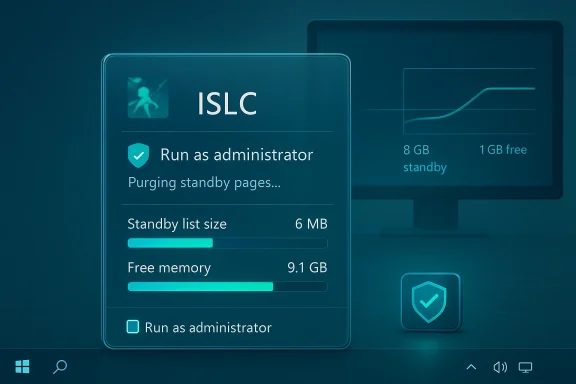 How ISLC works — the mechanics in plain English
ISLC is deliberately simple: it reads two kernel metrics and runs a purge routine when both conditions are met.- Standby list size — how many megabytes are currently cached in standby pages.
- Free memory — the actual free RAM available without reclaiming cached pages.
What ISLC is not
- ISLC is not a kernel patch or permanent kernel tweak.
- It does not cure memory leaks in the application code — it treats a symptom (cached memory pressure) rather than fixing a bug in the game engine.
- It is not a universal fix for crashes caused by bad GPU drivers, overheating, failing RAM, or anti‑cheat/syscalls blocked by security software.
Configuring ISLC: practical settings and why they matter
ISLC’s UI exposes a handful of options; a sensible configuration balances letting useful cache stay in RAM while purging only when pressure becomes real.- Run ISLC as Administrator (right‑click → Run as administrator) so it can call the necessary system APIs.
- Keep it portable: extract to a folder like C:\Tools\ISLC\ and avoid running from a temporary zip so you can exclude it from antivirus scans if needed.
- Create a System Restore point before heavy tweaking — ISLC is safe, but being cautious is good practice.
Common starting thresholds (community tested)
The values below are practical starting points, drawn from real‑world usage and community guidance rather than formal engineering specs. Treat them as experiments to be validated on your rig.- For 16 GB RAM:
- Set “List 8192 MB (8 GB).
- Set “Free memory is lower than” to 1024 MB (1 GB).
- For 32 GB RAM:
- Try “List size is at least” 8192–12288 MB (8–12 GB) and “Free memory is lower than” 2048–4096 MB (2–4 GB).
Optional: custom timer resolution
ISLC offers an optional “custom timer resolution” feature that calls the multimedia timer APIs to request a finer system timer (commonly 0.5 ms). This can reduce input latency and may smooth micro‑stutter in some games, but it has operational trade‑offs:- Higher timer resolution increases system interrupts and can raise power consumption and reduce battery life on laptops. Microsoft documents this behavior: the default platform timer is ~15.6 ms and requesting sub‑default resolutions prevents some CPU low‑powerosoft.
- Some users report odd mouse or audio behavior when locking a very low timer resolution; test this option and disable it if you observe regressions. Community advice suggests trying 0.5–1.0 ms only when needed, and verifying results with tools like TimerResolution if you want to confirm behavior.
Who should try ISLC — and who shouldn’t tool for specific scenarios. Use it if:
- You see memory usage creeping up steadily during a play session and the game crashes after predictable time intervals or after many level/map loads.
- Other troubleshooting (driver clean installs, GPU driver rollbacks, thermal checks, memtests) has not produced results and event logs point to memory pressure rather than GPU faults.
- You prefer a low‑risk, reversible tweak before more invasive steps like reinstalling Windows, swapping hardware, or running Driver Verifier.
- Crash dumps, Event Viewer, or watchdogs point to GPU driver hangs (TDR), missing DLLs, or failing hardware — those require driver or hardware fixes, not standby purges.
- You are on battery‑sensitive hardware and plan to use the custom timer resolution continuously without understanding the power trade‑off.
How to test whether ISLC actually solved the problem
A single test run is not enough. Use a controlled, repeatable approach to validate ISLC’s effect.- Establish a baseline:
- Reproduce the crash without ISLC running (note crash time, FPS, and symptoms).
- Capture Event Viewer logs and make a dump if available.
- Install and configure ISLC with conservative thresholds (use the values above as a starting point).
- Run the same play session (same map, same match type, same background apps).
- Compare:
- Did the crash stop or defer? For how much longer?
- Any new micro‑stutters, mouse lag, or audio glitches after enabling timer resolution?
- Use Task Manager/Resource Monitor to watch Standby and Free memory before/after purges.
- Iterate thresholds upward or downward until you find the smallest intervention that prevents the crash.
Complementary fixes and mitigations (don’t treat ISLC as the only tool)
ISLC is a targeted mitigation; a responsible troubleshooting workflow still includes the usual steps:- Update GPU drivers — or do a clean install using Display Driver Uninstaller (DDU) when driver corruption is suspected. DDU is by the same author and widely used in the community for clean driver rollbacks.
- Run MemTest86 or Windows Memory Diagnostic to rule out faulty RAM. Hardware errors can mimic memory pressure symptoms and lead to crashes.
- Inspect Event Viewer aneports often point to the module or DLL that crashed, which is a more direct trace than chasing symptoms.
- Disable overlays (Discord, Steam, GeForce Experience, RivaTuner/RTSS) while testing; overlays frequently introduce hooks that increase instability.
- Create a driver and restore point policy: if a new driver or Windows update introduces instability, roll back to the last known good configuration and report the bug to the vendor.
Risks, trade‑offs and long‑term considerations
ISLC solves a practical problem quickly, but every workaround carries trade‑offs you must understand.- Symptom masking: If a game has a true memory leak, ISLC will only mask that problem. Relying on it indefinitely can delay necessary patches and leave you exposed to different failure modes later. Developers should still fix memory leaks.
- Performance vs. caching: Clearing standby pages too aggressively reduces the benefit of RAM caching and can increase disk IO when those pages are needed again. That’s why ISLC’s dual‑threshold design matters — it avoids flushing when free memory is ample.
- Timer resolution side effects: Locking a system timer to 0.5 ms increases interrupt rate, can reduce battery life and may reveal audio or mouse issues in some environments. Microsoft explicitly warns about power and platform behavior when the timer resolution is changed. Test carefully, especially on laptops.
- Antivirus false positives: Portable utilities sometimes trigger scanning engines. Exclude the ISLC folder from real‑time scans after verifying the binary’s integrity (the developer publishes SHA1/SHA‑256 hashes on the download page).
Community experience and credibility
ISLC’s author is known for DDU, a staple for driver cleanups, which gives the project immediate credibility among enthusiasts. Major download sites and community threads show widespread, if anecdotal, success stories: many users report eliminating mid‑session crrs in specific titles after using ISLC, especially in games that manifest slow memory pressure over long play sessions. Conversely, there are reports where ISLC either had no effect or introduced problems for some setups — reinforcing that the utility is a tool for targeted mitigation, not a universal fix. The WagnardSoft site and community posts also urge caution: make a restore point, test settings, and don’t assume the tool will help every failure mode. That practical stance aligns with experienced troubleshooting: measure first, change one variable at a time, and keep a rollback plan.Step‑by‑step: getting ISLC running safely
- Download ISLC from the developer’s page or a reputable mirror (verify the SHA‑256).
- Extract to a stable folder (e.g., C:\Tools\ISLC).
- Create a System Restore point.
- Right‑click ISLC.exe → Run as administrator.
- Configure thresholds:
- Example (16 GB RAM): List size at least = 8192 MB; Free memory lower than = 1024 MB. ustom timer resolution” off initially. Start ISLC and test the game.
- If crashes persist and memory pressure is implicated, try enabling a conservative timer resolution (1.0 ms) and test for regressions before trying 0.5 ms. Monitor battery and audio/mouse behavior.
Final veagmatic, but not magical
ISLC is an elegant and practical example of community engineering: a tiny utility that automates a safe Windows housekeeping task at the moments when it matters most. For users whose crashes or stutters are convincingly tied to memory pressure and a growing standby list, ISLC frequently produces immediate, measurable improvement. It’s especially valuable as a diagnostic and temporary mitigation while waiting for game patches or driver updates.However, ISLC does not replace good engineering practices, hardware diagnostics, or proper bug fixes. If crash dumps implicate drivers, hardware faults, or the game’s executable itself, those must be addressed at the source. Use ISLC as a surgical tool in a broader troubleshooting plan: measure, test, iterate, and always keep a rollback plan.
If your games have predictable, time‑based crashes or you see free memory steadily decline during play, ISLC is worth trying — carefully, with monitored settings — because it can convert an otherwise expensive and disruptive hunt for causes into a quick, reversible test that often yields immediate relief.
Conclusion
A modest, targeted tool like ISLC won’t cure all performance woes, but for memory‑pressure problems it can be the difference between frustrating, predictable crashes and uninterrupted gameplay. Use it judiciously, verify results with controlled testing, and keep pursuing fixes upstream (driver or game patches) when the underlying problem is confirmed.
Source: MakeUseOf My games stopped crashing after I ran this tiny Windows tool
