

Microsoft on June 12, 2026, began rolling out Insider updates for seven built-in Windows apps — Calculator, Camera, Clock, Media Player, Paint, Photos, and Sound Recorder — while also publishing dedicated inbox-app release notes on Microsoft Learn for the first time. The individual changes are modest, but the packaging is not. Microsoft is treating the stock Windows app layer less like bundled freeware and more like a serviced product surface. For users and administrators, that may matter more than any single eraser slider or caption setting.
For years, Windows’ built-in apps have occupied an awkward middle ground. They are not quite part of the operating system in the old monolithic sense, but they are also not ordinary Store apps that users feel free to ignore. Photos, Paint, Calculator, Camera, Clock, Media Player, and Sound Recorder are the things people reach for when they do not want to install anything else.
That makes them more important than their reputation suggests. A broken Photos update can feel like a Windows problem. A Camera quirk can derail a Teams call. A Calculator rounding edge case can become a punchline, but it is also a reminder that small utilities carry trust disproportionate to their size.
The June 2026 batch is rolling first to Windows Insider Experimental channels, including Experimental, Experimental 26H1, and Experimental Future Platforms. That channel targeting matters: these are previews, not necessarily finished general-availability changes. But Microsoft’s decision to give these apps their own release-note pages is a signal that the company knows Windows servicing is no longer only about kernels, drivers, and cumulative updates.
The Windows desktop now changes through several overlapping delivery pipes: OS builds, Store-delivered inbox apps, Copilot features, WebView-powered surfaces, and cloud-controlled experiments. The new documentation does not simplify that architecture, but it gives users a better map of it. In 2026, even finding out what changed has become a feature.
The sensible part is that visible watermarking is intrusive by design. Users who are touching up family photos, resizing graphics, or experimenting with an AI edit may not want every output branded. The revealing part is that Microsoft is threading a needle between AI provenance and user control, and it has chosen not to make the provenance marker mandatory.
That will disappoint anyone hoping for a strong authenticity regime inside Windows. A user-selectable visible watermark is not the same thing as cryptographic content credentials, nor does it prevent someone from cropping or editing the mark away. But as a consumer feature, it acknowledges the social reality of AI images: people increasingly want to know when an image has been synthesized or materially altered, even if the enforcement model remains soft.
Photos also improves small-image and pixel-art handling. Tiny images can zoom in further while staying crisp instead of being blurred into a mushy preview. That sounds niche until you remember how many icons, sprites, UI captures, favicon files, and low-resolution assets still move through everyday workflows.
The text-recognition improvements are similarly practical. Detected text in images can now be selected with the keyboard using arrow keys, Shift+Arrow, Home/End, and Ctrl+A. Microsoft also fixed a crash related to text recognition and cleaned up keyboard navigation through the app’s navigation bar.
Taken together, Photos is becoming less of a passive viewer and more of a lightweight document and image inspection tool. That is useful, but it also increases expectations. Once Photos can identify text, apply AI edits, watermark outputs, and handle pixel-level viewing, users will expect it to behave less like a decorative gallery and more like a dependable utility.
The new eraser-transparency control fits that evolution. It is not a professional feature in the Photoshop sense, but it gives casual editors more nuance. For quick markups, image cleanup, and annotation work, the difference between deleting pixels outright and partially fading them can be meaningful.
Microsoft also fixed color shifts and artifacts when using stamp-style brushes. That is the kind of issue that makes users distrust an editor immediately. If a brush changes colors unexpectedly or leaves visual garbage behind, the app stops feeling safe for even simple work.
One of the most welcome fixes concerns rotated JPEG files. Previously, opening a rotated JPEG and pressing Save could unexpectedly trigger a Save As flow. Paint now overwrites the original file as users would expect. That sounds small, but save behavior is one of those places where software either respects user intent or creates doubt at the worst possible moment.
Paint will also now show a clearer error message when opening damaged or invalid image files instead of closing unexpectedly. Microsoft has restored classic selection behavior as well, hiding the selection outline while a user moves, resizes, or rotates a selection. This is not glamorous engineering, but it is the stuff that determines whether an old app feels polished or merely preserved.
The zoom slider now works with more cameras, follows system zoom settings, and updates immediately when those settings change. Microsoft also fixed an issue where some devices showed only three zoom steps even when the hardware supported finer increments. For users with wide-angle laptop cameras or meeting-room devices, that distinction can be the difference between a usable frame and an awkward one.
The front camera should now work on more wide-angle devices. The app also exposes more video resolution options that were previously hidden, showing warnings where needed instead of simply removing those choices. This is a better model because it lets users make informed compromises rather than pretending the hardware has fewer capabilities than it does.
The QR code behavior has been improved too. If a scanned link points to something with no matching app, Camera now copies the link to the clipboard and shows a notification. That is exactly the sort of small recovery path Windows often lacks: instead of dead-ending the user, the app leaves them with something actionable.
These Camera changes also sit alongside broader Windows 11 camera work in the June 2026 update cycle, including multi-app camera support at the OS level. The distinction matters. The operating system may now be better at sharing camera streams, while the Camera app is getting better at surfacing what the hardware can actually do.
For hybrid workers, streamers, educators, and support technicians, webcam reliability is no longer peripheral. It is part of the operating system’s credibility. Microsoft seems to understand that the camera stack is now a core productivity surface, not a novelty accessory.
This is not evidence that Calculator was broadly unreliable. Floating-point representation has edge cases everywhere, and user-facing calculators often have to paper over the difference between binary arithmetic and decimal expectations. Still, the fix is symbolically useful because Calculator is the Windows app most closely associated with correctness.
The app should also launch more reliably after upgrades from older versions. That matters for organizations with long-lived Windows installations, roaming profiles, or devices that have crossed several app and OS generations. A built-in utility that fails to open after an upgrade is the kind of low-grade irritation that becomes a help desk ticket.
Microsoft has also improved readability in High Contrast themes and fixed layout issues for right-to-left languages such as Arabic and Hebrew. These are not ornamental changes. Accessibility and localization defects in basic apps send a message about who the platform has been tested for.
Calculator’s update is therefore a useful corrective to the idea that app releases need a headline feature to matter. Sometimes the most important thing a utility can do is stop being surprising. A calculator should launch, fit the language direction of the user, remain readable in accessibility modes, and make simple math look simple.
Focus Sessions now include an Off option for users who do not want to set a daily goal. That is a small concession to the fact that productivity software can become counterproductive when it insists on quantifying everything. Sometimes a focus timer is just a timer, not a lifestyle program.
Alarms gain a 15-minute snooze option. The Countdown Widget can now run up to three countdowns at the same time, up from two. Microsoft has also improved screen reader behavior, fixed timer notifications from the widget, and made World Clock comparisons smoother.
Clock is a good example of the difference between feature bloat and maturity. None of these changes turns the app into a heavyweight productivity suite. Instead, they make it better at the ordinary temporal tasks users already assign to it.
There is a lesson here for Windows design more broadly. Not every inbox app needs AI, feeds, accounts, or cloud sync to justify its existence. Some need better defaults, fewer arbitrary limits, and accessibility fixes that make them reliable for more people.
The app also adds an indexing banner in the play queue to explain why some items may not appear while the media library is still being scanned. That is the kind of transparency media-library apps badly need. Users are much more tolerant of waiting when the software explains what is happening.
Microsoft says Media Player should also see fewer playback failures because of improved file type detection. It will no longer allow playlists with blank names, improves the look of empty playlists, stabilizes play queue edits, and shows a clearer message when a missing codec is required. These are housekeeping changes, but media playback is full of edge cases where housekeeping is the product.
The missing-codec message is particularly important because Windows media support has always been a complicated mix of built-in capability, Store extensions, legacy codecs, app behavior, and licensing constraints. A clearer dialog does not solve format fragmentation, but it can keep users from blaming the wrong component.
Media Player is not trying to beat VLC at being the Swiss Army knife of playback. It is trying to be good enough for the default path. For many users, that means captions that look right, libraries that explain themselves, and files that fail less mysteriously.
A memory leak in a simple recorder is not a philosophical crisis, but it is a good example of why “small” apps still require maintenance. Recording audio is often done in moments that cannot be repeated: interviews, lectures, meetings, voice notes, troubleshooting evidence, accessibility workflows. A recorder that degrades over time or misrepresents input is not merely untidy.
The app also handles quick deletion more smoothly and no longer shows a broken horizontal scrollbar at the bottom of the waveform unless the user has zoomed in. Microsoft has disabled markers for WAV recordings because that format cannot store them. That last change is the right kind of honesty: do not present a feature the file format cannot preserve.
These fixes reflect a broader pattern across the seven app updates. Microsoft is not only adding features; it is removing ambiguity. Error messages are clearer, unsupported states are no longer hidden or faked, and UI behavior is being brought closer to what users expect.
In a world where Microsoft would rather talk about Copilot, NPUs, and agentic workflows, there is something reassuring about a Sound Recorder update that simply makes Bluetooth waveform display and memory handling better. The platform still needs that layer of care.
This documentation shift also helps separate OS changes from app changes. The June 2026 Windows 11 update includes broader system-level work — Shared Audio, Task Manager NPU metrics, multi-app camera support, Windows Hello improvements, USB fixes, and setup changes — but those are not the same thing as a Photos watermark toggle or a Paint save-behavior fix. Bundling all of it into one amorphous “Windows update” story obscures how modern Windows actually ships.
For enthusiasts, release notes provide a timeline. For admins, they provide evidence. For journalists and support communities, they provide a baseline against which to judge whether a behavior is new, expected, regressed, or merely misunderstood.
The obvious limitation is that these notes are currently tied to Insider flights. That means they tell us what Microsoft is testing, not necessarily what every stable Windows 11 user has today. Features may change, slip, or arrive unevenly depending on channel, region, app version, device capability, and Store rollout timing.
Still, official inbox-app notes are better than reverse engineering the platform through screenshots and forum threads. Windows has become too distributed for the old style of release communication. If Microsoft wants users to accept continuous change, it has to document that change where people can actually find it.
The old Windows release model trained people to look for major version numbers and marquee features. Windows 11’s current model is messier. Meaningful changes can arrive through cumulative updates, controlled feature rollouts, app package updates, Microsoft Store servicing, cloud flags, and Insider experiments that later graduate into broader availability.
That fragmentation creates real communication problems. A user may read about a feature and not see it. An admin may block Store updates and wonder why a documented app fix is missing. A tester may receive a feature in an Experimental channel that never appears on their production machine in the same form.
Microsoft’s answer, increasingly, is documentation plus gradual rollout. That is not as satisfying as a clean release day, but it is probably closer to the truth of Windows development now. The company is maintaining a living platform whose most visible edges are no longer limited to explorer.exe and Settings.
The risk is fatigue. If every app becomes a continuously changing surface, users may feel the floor moving under routine tasks. The opportunity is that Microsoft can fix small irritations without waiting for a giant OS milestone. This June batch leans toward the opportunity side because most changes refine existing behavior rather than hijack workflows.
The concrete points are straightforward:
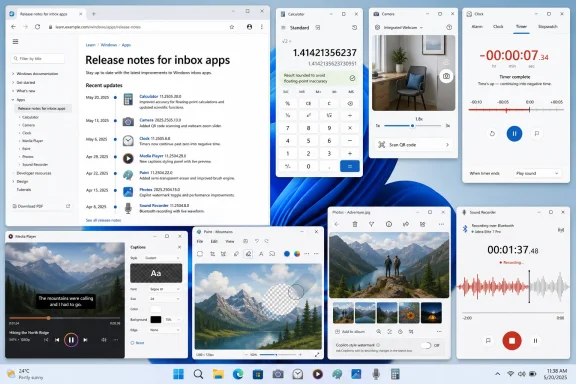 Microsoft Turns the Forgotten App Drawer Into a Serviced Platform
For years, Windows’ built-in apps have occupied an awkward middle ground. They are not quite part of the operating system in the old monolithic sense, but they are also not ordinary Store apps that users feel free to ignore. Photos, Paint, Calculator, Camera, Clock, Media Player, and Sound Recorder are the things people reach for when they do not want to install anything else.That makes them more important than their reputation suggests. A broken Photos update can feel like a Windows problem. A Camera quirk can derail a Teams call. A Calculator rounding edge case can become a punchline, but it is also a reminder that small utilities carry trust disproportionate to their size.
The June 2026 batch is rolling first to Windows Insider Experimental channels, including Experimental, Experimental 26H1, and Experimental Future Platforms. That channel targeting matters: these are previews, not necessarily finished general-availability changes. But Microsoft’s decision to give these apps their own release-note pages is a signal that the company knows Windows servicing is no longer only about kernels, drivers, and cumulative updates.
The Windows desktop now changes through several overlapping delivery pipes: OS builds, Store-delivered inbox apps, Copilot features, WebView-powered surfaces, and cloud-controlled experiments. The new documentation does not simplify that architecture, but it gives users a better map of it. In 2026, even finding out what changed has become a feature.
Photos Puts a Watermark Where Microsoft’s AI Anxiety Lives
The headline change in Photos is AI watermarking. Images generated or edited with AI can now carry a visible Copilot watermark, with settings for Never, Always, or Ask Every Time. Microsoft says the option is off by default, which is both sensible and revealing.The sensible part is that visible watermarking is intrusive by design. Users who are touching up family photos, resizing graphics, or experimenting with an AI edit may not want every output branded. The revealing part is that Microsoft is threading a needle between AI provenance and user control, and it has chosen not to make the provenance marker mandatory.
That will disappoint anyone hoping for a strong authenticity regime inside Windows. A user-selectable visible watermark is not the same thing as cryptographic content credentials, nor does it prevent someone from cropping or editing the mark away. But as a consumer feature, it acknowledges the social reality of AI images: people increasingly want to know when an image has been synthesized or materially altered, even if the enforcement model remains soft.
Photos also improves small-image and pixel-art handling. Tiny images can zoom in further while staying crisp instead of being blurred into a mushy preview. That sounds niche until you remember how many icons, sprites, UI captures, favicon files, and low-resolution assets still move through everyday workflows.
The text-recognition improvements are similarly practical. Detected text in images can now be selected with the keyboard using arrow keys, Shift+Arrow, Home/End, and Ctrl+A. Microsoft also fixed a crash related to text recognition and cleaned up keyboard navigation through the app’s navigation bar.
Taken together, Photos is becoming less of a passive viewer and more of a lightweight document and image inspection tool. That is useful, but it also increases expectations. Once Photos can identify text, apply AI edits, watermark outputs, and handle pixel-level viewing, users will expect it to behave less like a decorative gallery and more like a dependable utility.
Paint Keeps Becoming the App Microsoft Once Tried to Leave Behind
Paint’s June update is a reminder of one of Windows’ stranger product arcs. Microsoft once appeared ready to retire the classic app into nostalgia, only for Paint to become one of Windows 11’s liveliest built-in tools. Layers, AI features, and modern editing controls have changed the expectations around what this humble bitmap editor should do.The new eraser-transparency control fits that evolution. It is not a professional feature in the Photoshop sense, but it gives casual editors more nuance. For quick markups, image cleanup, and annotation work, the difference between deleting pixels outright and partially fading them can be meaningful.
Microsoft also fixed color shifts and artifacts when using stamp-style brushes. That is the kind of issue that makes users distrust an editor immediately. If a brush changes colors unexpectedly or leaves visual garbage behind, the app stops feeling safe for even simple work.
One of the most welcome fixes concerns rotated JPEG files. Previously, opening a rotated JPEG and pressing Save could unexpectedly trigger a Save As flow. Paint now overwrites the original file as users would expect. That sounds small, but save behavior is one of those places where software either respects user intent or creates doubt at the worst possible moment.
Paint will also now show a clearer error message when opening damaged or invalid image files instead of closing unexpectedly. Microsoft has restored classic selection behavior as well, hiding the selection outline while a user moves, resizes, or rotates a selection. This is not glamorous engineering, but it is the stuff that determines whether an old app feels polished or merely preserved.
Camera Fixes the Sort of Hardware Weirdness Windows Users Actually Notice
The Camera app’s improvements are not about filters, beauty modes, or social features. They are about making Windows behave correctly with the messy webcam hardware ecosystem attached to modern PCs.The zoom slider now works with more cameras, follows system zoom settings, and updates immediately when those settings change. Microsoft also fixed an issue where some devices showed only three zoom steps even when the hardware supported finer increments. For users with wide-angle laptop cameras or meeting-room devices, that distinction can be the difference between a usable frame and an awkward one.
The front camera should now work on more wide-angle devices. The app also exposes more video resolution options that were previously hidden, showing warnings where needed instead of simply removing those choices. This is a better model because it lets users make informed compromises rather than pretending the hardware has fewer capabilities than it does.
The QR code behavior has been improved too. If a scanned link points to something with no matching app, Camera now copies the link to the clipboard and shows a notification. That is exactly the sort of small recovery path Windows often lacks: instead of dead-ending the user, the app leaves them with something actionable.
These Camera changes also sit alongside broader Windows 11 camera work in the June 2026 update cycle, including multi-app camera support at the OS level. The distinction matters. The operating system may now be better at sharing camera streams, while the Camera app is getting better at surfacing what the hardware can actually do.
For hybrid workers, streamers, educators, and support technicians, webcam reliability is no longer peripheral. It is part of the operating system’s credibility. Microsoft seems to understand that the camera stack is now a core productivity surface, not a novelty accessory.
Calculator Gets the Least Flashy Fix and Maybe the Most Symbolic One
Calculator now produces more accurate square-root results in rare cases where a calculation that should equal zero instead returned a tiny leftover value. Microsoft’s example is the sort of thing that makes engineers wince and everyone else laugh: a mathematically simple expression producing a floating-point ghost.This is not evidence that Calculator was broadly unreliable. Floating-point representation has edge cases everywhere, and user-facing calculators often have to paper over the difference between binary arithmetic and decimal expectations. Still, the fix is symbolically useful because Calculator is the Windows app most closely associated with correctness.
The app should also launch more reliably after upgrades from older versions. That matters for organizations with long-lived Windows installations, roaming profiles, or devices that have crossed several app and OS generations. A built-in utility that fails to open after an upgrade is the kind of low-grade irritation that becomes a help desk ticket.
Microsoft has also improved readability in High Contrast themes and fixed layout issues for right-to-left languages such as Arabic and Hebrew. These are not ornamental changes. Accessibility and localization defects in basic apps send a message about who the platform has been tested for.
Calculator’s update is therefore a useful corrective to the idea that app releases need a headline feature to matter. Sometimes the most important thing a utility can do is stop being surprising. A calculator should launch, fit the language direction of the user, remain readable in accessibility modes, and make simple math look simple.
Clock Learns That Time Does Not Stop at Zero
The Clock app now keeps timers counting after they expire, showing negative time such as -00:27:31 to indicate how long ago the timer ended. This is a tiny feature with a surprisingly large practical footprint. Anyone who has cooked, presented, exercised, taught, run a lab procedure, or managed a meeting knows that the moment after a timer ends is often when the next question begins: how far over are we?Focus Sessions now include an Off option for users who do not want to set a daily goal. That is a small concession to the fact that productivity software can become counterproductive when it insists on quantifying everything. Sometimes a focus timer is just a timer, not a lifestyle program.
Alarms gain a 15-minute snooze option. The Countdown Widget can now run up to three countdowns at the same time, up from two. Microsoft has also improved screen reader behavior, fixed timer notifications from the widget, and made World Clock comparisons smoother.
Clock is a good example of the difference between feature bloat and maturity. None of these changes turns the app into a heavyweight productivity suite. Instead, they make it better at the ordinary temporal tasks users already assign to it.
There is a lesson here for Windows design more broadly. Not every inbox app needs AI, feeds, accounts, or cloud sync to justify its existence. Some need better defaults, fewer arbitrary limits, and accessibility fixes that make them reliable for more people.
Media Player Moves Toward a Real Accessibility Story
Media Player now supports custom captions, with closed-caption styling tied to Windows caption settings and a quick route into those settings. This is the right architectural instinct. Caption appearance should not be reinvented separately in every media app; it should respect the user’s system-level accessibility preferences.The app also adds an indexing banner in the play queue to explain why some items may not appear while the media library is still being scanned. That is the kind of transparency media-library apps badly need. Users are much more tolerant of waiting when the software explains what is happening.
Microsoft says Media Player should also see fewer playback failures because of improved file type detection. It will no longer allow playlists with blank names, improves the look of empty playlists, stabilizes play queue edits, and shows a clearer message when a missing codec is required. These are housekeeping changes, but media playback is full of edge cases where housekeeping is the product.
The missing-codec message is particularly important because Windows media support has always been a complicated mix of built-in capability, Store extensions, legacy codecs, app behavior, and licensing constraints. A clearer dialog does not solve format fragmentation, but it can keep users from blaming the wrong component.
Media Player is not trying to beat VLC at being the Swiss Army knife of playback. It is trying to be good enough for the default path. For many users, that means captions that look right, libraries that explain themselves, and files that fail less mysteriously.
Sound Recorder Shows Why Boring Apps Still Need Engineering
Sound Recorder’s changes are almost aggressively unglamorous, which is exactly why they matter. The app now shows the live waveform correctly when recording through Bluetooth audio devices. It also fixes a memory leak that occurred each time a recording started.A memory leak in a simple recorder is not a philosophical crisis, but it is a good example of why “small” apps still require maintenance. Recording audio is often done in moments that cannot be repeated: interviews, lectures, meetings, voice notes, troubleshooting evidence, accessibility workflows. A recorder that degrades over time or misrepresents input is not merely untidy.
The app also handles quick deletion more smoothly and no longer shows a broken horizontal scrollbar at the bottom of the waveform unless the user has zoomed in. Microsoft has disabled markers for WAV recordings because that format cannot store them. That last change is the right kind of honesty: do not present a feature the file format cannot preserve.
These fixes reflect a broader pattern across the seven app updates. Microsoft is not only adding features; it is removing ambiguity. Error messages are clearer, unsupported states are no longer hidden or faked, and UI behavior is being brought closer to what users expect.
In a world where Microsoft would rather talk about Copilot, NPUs, and agentic workflows, there is something reassuring about a Sound Recorder update that simply makes Bluetooth waveform display and memory handling better. The platform still needs that layer of care.
The Release Notes Are the Product Change Power Users Asked For
The most strategically important part of this rollout may not be inside any app. Microsoft has started publishing dedicated release notes for inbox Windows apps in its official documentation, with changes listed chronologically per app. That is a meaningful improvement for anyone who has tried to track Windows app behavior through scattered blog posts, Store updates, Insider build notes, and user reports.This documentation shift also helps separate OS changes from app changes. The June 2026 Windows 11 update includes broader system-level work — Shared Audio, Task Manager NPU metrics, multi-app camera support, Windows Hello improvements, USB fixes, and setup changes — but those are not the same thing as a Photos watermark toggle or a Paint save-behavior fix. Bundling all of it into one amorphous “Windows update” story obscures how modern Windows actually ships.
For enthusiasts, release notes provide a timeline. For admins, they provide evidence. For journalists and support communities, they provide a baseline against which to judge whether a behavior is new, expected, regressed, or merely misunderstood.
The obvious limitation is that these notes are currently tied to Insider flights. That means they tell us what Microsoft is testing, not necessarily what every stable Windows 11 user has today. Features may change, slip, or arrive unevenly depending on channel, region, app version, device capability, and Store rollout timing.
Still, official inbox-app notes are better than reverse engineering the platform through screenshots and forum threads. Windows has become too distributed for the old style of release communication. If Microsoft wants users to accept continuous change, it has to document that change where people can actually find it.
The Hidden Story Is Windows’ Shift From Big Releases to Constant Surface Area Maintenance
There is a temptation to treat this update as a grab bag: Photos gets watermarks, Paint gets eraser transparency, Camera gets zoom fixes, Calculator gets arithmetic cleanup, Clock gets better timers, Media Player gets captions, and Sound Recorder plugs leaks. That summary is accurate but incomplete. The more interesting story is that Microsoft is smoothing the small surfaces where users touch Windows every day.The old Windows release model trained people to look for major version numbers and marquee features. Windows 11’s current model is messier. Meaningful changes can arrive through cumulative updates, controlled feature rollouts, app package updates, Microsoft Store servicing, cloud flags, and Insider experiments that later graduate into broader availability.
That fragmentation creates real communication problems. A user may read about a feature and not see it. An admin may block Store updates and wonder why a documented app fix is missing. A tester may receive a feature in an Experimental channel that never appears on their production machine in the same form.
Microsoft’s answer, increasingly, is documentation plus gradual rollout. That is not as satisfying as a clean release day, but it is probably closer to the truth of Windows development now. The company is maintaining a living platform whose most visible edges are no longer limited to explorer.exe and Settings.
The risk is fatigue. If every app becomes a continuously changing surface, users may feel the floor moving under routine tasks. The opportunity is that Microsoft can fix small irritations without waiting for a giant OS milestone. This June batch leans toward the opportunity side because most changes refine existing behavior rather than hijack workflows.
The June App Wave Rewards the Users Who Notice Details
This release is not a reason to enroll production machines in a risky channel, and it is not proof that Microsoft has solved the broader discoverability problem around Windows changes. It is, however, a useful snapshot of where the Windows client is headed: more AI-adjacent features in everyday apps, more accessibility plumbing, more hardware-specific behavior, and more public tracking of the inbox layer.The concrete points are straightforward:
- Microsoft is testing June 2026 updates for Calculator, Camera, Clock, Media Player, Paint, Photos, and Sound Recorder across Experimental Insider channels.
- Photos adds optional visible Copilot watermarking for AI-generated or AI-edited images, with the setting off by default.
- Paint, Camera, Media Player, and Sound Recorder receive practical reliability fixes that address editing artifacts, webcam capability reporting, playback failures, and recording behavior.
- Calculator’s square-root precision fix is small but symbolically important for a utility whose entire job is trust.
- Clock’s negative-time timers, Focus Sessions Off option, 15-minute snooze, and expanded Countdown Widget make the app more flexible without turning it into a productivity platform.
- The new dedicated release-note pages for inbox apps may be the most important administrative change because they make Store-serviced Windows components easier to track.
References
- Primary source: ProPakistani
Published: 2026-06-15T14:10:08.225815
Microsoft Upgrades Seven Windows Apps — Here's What's New
Microsoft has released new updates for several built-in Windows apps, including Calculator, Camera, Clock, Media Player, Paint, Photos, and Soundpropakistani.pk - Official source: learn.microsoft.com
Media Player release notes - Windows Insider Program | Microsoft Learn
Release notes for Media Player updates in Windows Insider builds.learn.microsoft.com - Official source: blogs.windows.com
Announcing new builds for 12 June 2026
Hello Windows Insiders, We have a number of releases today with new builds across Beta, Experimental and Release Preview. Release notes for inbox Windows 11 apps Windows 11 inbox apps are now getting their own release notes sectioblogs.windows.com - Related coverage: windowscentral.com
Windows 11's built-in apps are about to get a boost — here's what's already in testing | Windows Central
Calculator, Camera, Clock, Media Player, Paint, Photos, and Sound Recorder all have new features and improvements on the way.www.windowscentral.com - Official source: support.microsoft.com
Changes in the new Photos app - Microsoft Support
Learn about the changes in the new Photos app for Windows, and understand how it differs from Photos Legacy app.support.microsoft.com - Related coverage: frandroid.com
Microsoft renforce Paint, Photos, Calculatrice et d’autres outils sous Windows 11 — Frandroid
Microsoft déploie une importante mise à jour de plusieurs applications intégrées de Windows 11 via le programme Insider, avec des améliorations surwww.frandroid.com
- Related coverage: xalabuda.com
Microsoft обновила стандартные приложения Windows 11 - Xalabuda
Microsoft вынесла заметки о версиях приложений Windows 11 в Microsoft Learn и обновила Paint, Photos, Clock, Camera и другие программы.xalabuda.com - Related coverage: deskmodder.de
Microsoft Insider Apps mit Release Notes jetzt unter learn.microsoft - Deskmodder.de
Für die Apps im Microsoft Store hat man vor langer Zeit schon die Möglichkeit angelegt, dass die Entwickler dort ihre Release Notes hinterlegen können. Wird aber leider kaum genutzt, selbst von Microsoft nicht. Dafür hat man für die Insider Apps…www.deskmodder.de - Related coverage: windowslatest.com
Microsoft: Windows 11 24H2 installs 36 inbox apps, now fully up-to-date
Windows 11 version 24H2 fresh downloads now install 36 inbox apps, which do not require an update to work. www.windowslatest.com
- Related coverage: techtimes.com
Windows 11's June 2026 Update Lands June 9 With Shared Audio And NPU Monitoring: The 6 Features Worth Knowing
Microsoft is set to begin rolling out the June 2026 update for Windows 11 on Tuesday, June 9, and unlike a routine security patch, this one carries a handful of consumer features worth turning on.www.techtimes.com - Related coverage: windowsforum.com
Windows 11 June 12 Insider Update: Unified Restart, Inbox App Notes, Better Search | Windows Forum
On June 12, 2026, Microsoft released a coordinated set of Windows 11 Insider builds across Beta, Experimental, Experimental Future Platforms, and Release...windowsforum.com - Official source: news.microsoft.com
- Official source: techcommunity.microsoft.com
- Official source: download.microsoft.com
- Related coverage: allthings.how
Windows 11 26H1 Insider builds add Screen Tint and faster app launches
The Beta flight brings a daytime Screen Tint overlay, while the Experimental build speeds up the Start menu, Search, and Action Center.allthings.how - Related coverage: pcworld.com
Windows 11 preview update adds new emojis and webcam features | PCWorld
That includes 7 new Unicode emojis as well as the ability to pan and tilt supported webcams.www.pcworld.com
