

Microsoft’s Small-App Week Says More Than a Copilot Demo Would
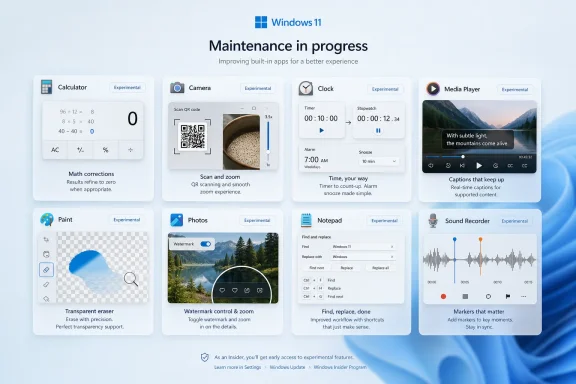
The most interesting thing about this batch is how unglamorous it is. Calculator gets numerical cleanup. Camera gets QR scanning. Clock gets saner timers and snoozing. Paint gets a transparency-aware eraser. Notepad gets less irritating search behavior.
That is exactly why the update matters. Windows users do not spend their day in the Start menu redesign or the Settings app’s latest rearrangement. They spend it trimming a screenshot, opening a text file, checking a time zone, playing a video, joining a call, scanning a code, or doing arithmetic they expect not to embarrass them.
For years, Microsoft’s in-box apps have lived in an awkward middle state. They are not quite system components, not quite Store apps, not quite consumer showcases, and not quite enterprise utilities. They ship with Windows, update outside Windows, and break user trust when they behave like prototypes.
This release does not solve that identity crisis, but it shows Microsoft treating it as a product problem rather than a branding problem. That is progress.
Calculator Reminds Us That “Good Enough” Math Is Not Good Enough
The Calculator fix sounds almost comically narrow: an expression such as sqrt(2.25)-1.5 should return zero, not a tiny floating-point leftover value that can trigger bad behavior. But the joke lands only if you ignore what Calculator represents. It is one of the few apps where the user’s tolerance for weirdness is effectively zero.
Floating-point artifacts are not new, and anyone who has written software knows why computers can produce surprising decimal remnants. The issue is not that a machine once produced an imprecise intermediate value. The issue is that the built-in Windows Calculator is expected to shield ordinary users from that class of mess.
Microsoft is also cleaning up high-contrast text behavior and right-to-left language layouts for Arabic and Hebrew. Those are not cosmetic footnotes. Accessibility and localization bugs in default apps tell users, bluntly, whether the platform was tested with them in mind.
The reliability note is just as telling. Microsoft says it is addressing old-code conditions that could cause Calculator to fail to resume operations. That is the sort of defect users rarely diagnose correctly; they simply conclude that the app is flaky. In the long run, boring reliability is the only feature Calculator really has.
Camera Finally Learns a Few Mobile-Era Habits
The Camera app update is the one most likely to be noticed outside the Insider crowd. Continuous zoom replaces the old stepped approach, front-facing camera support gets attention, higher-resolution options appear where hardware supports them, and native QR code scanning arrives without third-party add-ons.
That last item is late, but useful. On phones, QR scanning has been mundane for years. On Windows PCs, especially shared devices and workstations, the experience has often been needlessly indirect. A laptop camera should be able to read a code without turning a simple task into a Store search.
This matters beyond convenience. QR codes have become part of logistics, hospitality, health care, point-of-sale workflows, device enrollment, restaurant menus, and ticketing. Windows remains the operating system in many of those environments, yet its default camera app has often felt like a consumer afterthought.
There is also a security angle. Native support does not automatically make QR scanning safe, but it can make the experience more predictable. If users do not have to install random scanner apps, administrators have one fewer unknown to police.
Clock Becomes Less Clever and More Useful
Clock receives the broadest update in the batch, and the changes reveal how many rough edges can accumulate inside a supposedly simple utility. Timers can now count upward after reaching zero, Focus Sessions can turn off daily goals, completed tasks stop cluttering active sessions, and alarms gain a 15-minute snooze option.
The timer change is small but conceptually important. A countdown that becomes a count-up after zero matches how people actually use timers in kitchens, labs, classrooms, gyms, and meetings. The computer should not stop being useful at the exact moment the user most wants to know how late they are.
The Focus Sessions changes are similarly pragmatic. A daily goal that cannot be disabled is not motivation; it is nagging disguised as productivity software. Microsoft’s productivity stack has too often confused measurement with usefulness, and the Clock update quietly backs away from that impulse.
The World Clock fixes are the kind nobody applauds until they are wrong. Progressive loading, corrected polar-region daylight icons, refreshed place names, proper Newfoundland time zone handling, and saner back-button behavior all point to the same lesson: time software is deceptively hard, and global correctness is not optional.
Media Player Gets Accessibility Right Before It Gets Ambition Back
Media Player’s biggest change is caption customization tied into Windows caption settings, with an in-app path to reach those controls. That is not flashy, but it is exactly how accessibility settings should work. The user should not need to understand Microsoft’s internal boundary between an app preference and a system preference.
The update also blocks blank playlist names. That sounds patronizing until you consider how many little papercuts in media apps come from unnamed, duplicated, or half-created libraries. Enforcing a name is a small act of data hygiene.
More interesting is the new indexing banner in the play queue. Media libraries can feel broken when files are still being indexed and the app says nothing. A simple explanation changes the user’s interpretation from “this app lost my stuff” to “this app is still working.”
The fixes around file-type recognition, queue modification crashes, list layout, and codec error messaging are all part of the same repair job. Media Player is still fighting the ghost of Windows Media Player Legacy, VLC, Groove Music, Films & TV, and years of format confusion. Better error messages will not make it beloved, but they can make it less opaque.
Paint’s Modernization Works Best When It Respects Old Muscle Memory
Paint’s adjustable eraser transparency is the sort of feature that makes the modern app feel less like a toy. It gives users finer control without forcing them into a full creative suite. For quick edits, annotations, rough mockups, and lightweight image cleanup, that is the right level of ambition.
The JPEG rotation save fix is even more revealing. If a user rotates a JPEG and hits Save, they generally expect the original file to update. Forcing a Save As prompt turns a basic correction into a file-management exercise. Paint is at its best when it gets out of the way.
Microsoft is also restoring classic selection-outline behavior, hiding the outline while a selection is moved, resized, or rotated. That is not nostalgia for nostalgia’s sake. It is an example of old UI behavior that existed because it reduced visual noise during manipulation.
The damaged-file crash fix matters too. An app that opens arbitrary image files will encounter broken files. Showing an error instead of crashing is table stakes, but table stakes are exactly what in-box apps must consistently meet.
Notepad’s Problem Is No Longer Simplicity, But Restraint
Notepad is the strangest app in this group because it has changed so much over the last few years. Tabs, session restore, spell check, formatting experiments, and AI-adjacent features have pulled it away from the austere tool many Windows users kept around precisely because it did almost nothing.
This update leans in the healthier direction: faster launch, better Find and Replace behavior, less intrusive empty-result messaging, clearer wrap-around boundaries, and fixes for stuck spell-check underlines. Those changes improve the editor without trying to redefine it.
The Visual Studio paste crash fix is particularly important for developers and administrators. Notepad remains a scratchpad for logs, snippets, commands, config fragments, and copied output. If pasting from Microsoft’s own development environment can crash Microsoft’s own text editor, that is not a quirky edge case; it is an ecosystem failure.
The keyboard-layout fix for Spanish and Portuguese users is another reminder that shortcut assumptions can be parochial. Ctrl+A should mean Select All unless the user has explicitly entered a context where it does not. Breaking that expectation in a plain-text editor is the kind of bug that makes localization feel second-class.
Photos Shows the AI Era Creeping Into File Hygiene
Photos gets an AI watermarking option for images generated or edited with Copilot, with controls for never, always, or asking every time. This is the most politically loaded change in the batch, even if it arrives as a settings toggle rather than a policy statement.
The practical question is not whether watermarking solves synthetic media. It does not. The question is whether Windows begins to normalize provenance controls at the point where ordinary users save and share files. Photos is a logical place to start because it sits between creation, editing, viewing, and distribution.
The better pixel-art zoom is a lovely counterweight to the AI feature. Tiny images such as 16-by-16 icons can now zoom further without becoming a blur. That is an enthusiast-friendly fix, but it also helps developers, designers, modders, and anyone inspecting small assets.
Text navigation inside images also improves, with keyboard support for moving through recognized text. Alongside the crash fix for text recognition, Microsoft is treating Photos less like a passive viewer and more like a lightweight document surface. That is useful, but it will increase pressure on the app to remain fast.
Sound Recorder’s Tiny Fixes Matter Because Audio Bugs Waste Real Time
Sound Recorder receives the smallest update, but its fixes are not trivial if you rely on it. Bluetooth microphone waveform rendering now behaves correctly, the useless horizontal scrollbar disappears, the Mark button no longer starts life looking disabled, and markers are blocked for WAV recordings because WAV cannot store them.
That last change is a good example of honest software. Letting users create markers that are silently discarded is worse than refusing the action. The former makes the app look capable and then betrays the user later.
The rapid-delete error fix and recording-start memory leak fix are also welcome. Audio recording is one of those workflows where reliability failures often become unrecoverable. A bad recording cannot always be re-created.
Sound Recorder is not Audition, Audacity, or a DAW, and it should not pretend to be. Its job is to capture a voice note, a meeting snippet, a classroom explanation, or a quick test without drama. This update moves it closer to that narrow but important promise.
The Insider Channel Maze Is Now Part of the Story
The rollout path is not simple. Most of these app updates are tied to Experimental, Experimental 26H1, and Experimental Future Platforms channels. Notepad is broader, reaching Beta and Release Preview as well. The version numbers matter because the Windows version alone no longer tells the whole story.
That fragmentation is now a central Windows reality. Two users can both say they are on Windows 11 and still have different app versions, different Store update states, different feature flags, and different Insider enrollment histories. For support forums and IT desks, that complicates diagnosis.
Microsoft has partly embraced this model because it allows faster app iteration outside major OS releases. That is reasonable. It is also a tax on clarity.
For enterprises, the question is not whether QR scanning in Camera or better captions in Media Player are good. They are. The question is how quickly these features arrive, how predictably they can be documented, and whether administrators can account for the difference between an OS build and an app package version.
The In-Box App Is the New Control Panel
Microsoft used to hide much of Windows’ everyday complexity in Control Panel applets, shell dialogs, and legacy utilities. In modern Windows 11, the in-box Store app increasingly carries that burden. Photos is where image provenance shows up. Camera is where hardware capability becomes workflow. Clock is where productivity nudges surface. Notepad is where plain text collides with spell check, formatting, and AI.
That shift has advantages. Apps can update faster, crash independently, and expose richer interfaces than ancient system dialogs. It also has costs. Store-delivered components can feel less predictable than OS-bundled binaries, especially in managed or offline environments.
There is a philosophical tension here. Microsoft wants Windows to feel modern and serviceable, but Windows’ reputation was built on a certain kind of stable utility. Users may complain that old apps looked dated, but they also trusted them to launch quickly, behave consistently, and not demand interpretation.
The best updates in this batch are the ones that respect that bargain. They modernize behavior without adding ceremony. They make the app more capable without making the user think about the app.
Microsoft’s Most Convincing Windows Work Is Happening Below the Hype Line
This is not the kind of release that sells a new PC. It will not anchor a Surface presentation, and it will not be remembered as a turning point in Windows history. But it is the kind of work Windows needs more of.
The operating system’s public narrative is increasingly dominated by AI PCs, NPUs, Copilot hooks, recall-style memory systems, and cloud-connected assistance. Those projects may matter, but they also raise the stakes for trust. A platform asking users to accept deeper automation cannot afford to look careless in Calculator, Camera, Notepad, and Photos.
There is an old software truth here: users judge ambition by execution at the edges. If a timer fails to count up after zero, if a text editor mishandles search, if a camera app cannot scan a QR code, the user becomes less generous about everything else. The credibility of the future is built from the competence of the present.
That is why these app updates are more important than their release notes suggest. They are not a revolution. They are maintenance with a product manager’s fingerprints on it.
The Eight-App Patch Tells Windows Users Where to Look Next
This release is best read as a signal that Microsoft knows the default Windows experience still has too many avoidable irritants. The practical wins are scattered, but together they point to a more disciplined approach.
- Calculator should become more reliable for edge-case arithmetic, high-contrast themes, right-to-left layouts, and resume behavior.
- Camera is finally gaining native QR scanning, continuous zoom control, and better front-facing camera handling.
- Clock is becoming more useful in real workflows, especially with count-up timers, improved Focus Sessions, and a 15-minute snooze option.
- Media Player is improving captions, playlist hygiene, indexing transparency, file recognition, and codec guidance.
- Paint, Photos, Notepad, and Sound Recorder are receiving the kinds of fixes that reduce crashes, preserve user intent, and make everyday tasks feel less brittle.
The open question is whether Microsoft can turn this from a one-week cleanup into a durable habit. Windows does not need every in-box app to become a flagship product. It needs them to be dependable enough that users stop noticing the seams.
If Microsoft keeps treating these bundled apps as first-class pieces of the Windows experience rather than leftovers orbiting the real platform work, Windows 11 will feel better in the only place that ultimately matters: the ordinary moments between the big features.
References
- blogs.windows.com blogs.windows.com
- learn.microsoft.com learn.microsoft.com