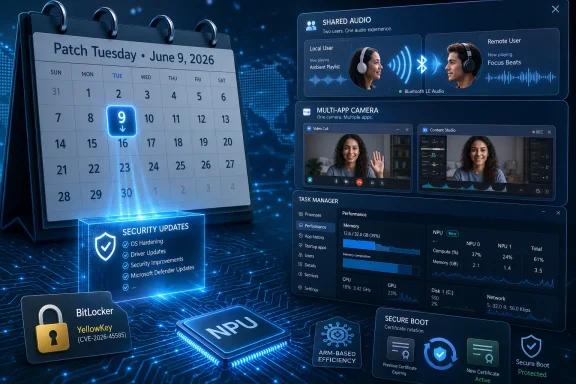
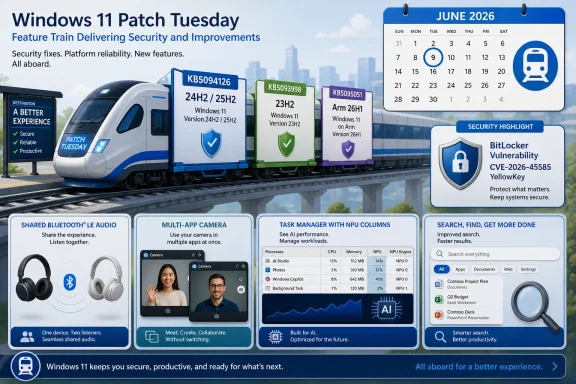
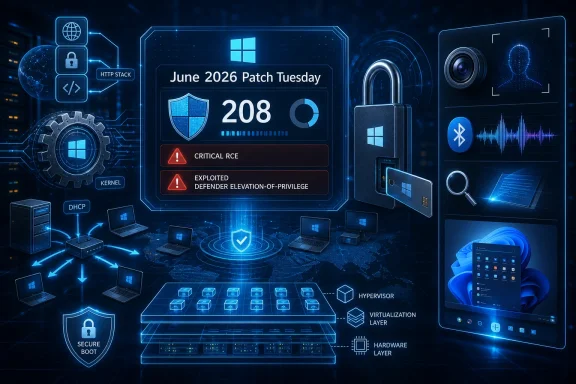
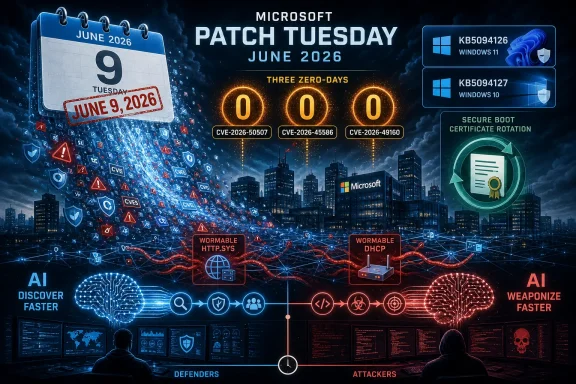
Microsoft’s June 2026 Patch Tuesday for Windows 11 is scheduled for June 9, bringing the usual security fixes alongside new user-facing features such as low-latency performance boosts, Shared Audio, richer NPU monitoring, setup-time user-folder naming, and Secure Boot certificate updates. The patch is not merely another servicing train passing through Windows Update. It is the kind of release that shows how Microsoft now uses monthly security plumbing as the delivery vehicle for meaningful operating-system change. For home users, the headline is convenience; for IT departments, the real story is trust at boot.
Patch Tuesday used to be the day Windows users associated with reboots, vague security bulletins, and the occasional printer regression. In the Windows 11 era, it has become something more strategic: a monthly checkpoint where Microsoft can mix security maintenance, controlled feature rollouts, performance tuning, and platform housekeeping into one package.
That matters because the June update is not being framed as a major Windows version upgrade. It is not Windows 12, not a marketing keynote, and not a clean break from the past. Yet the contents point to a bigger shift in how Windows is evolving: the operating system is being changed in smaller, faster, more cumulative increments, with users noticing the effects before they ever install a “new version” in the old sense.
The June 2026 release appears to follow from features tested or previewed in the optional May update channel. That pattern has become familiar. Microsoft floats changes through preview updates, then rolls them more broadly into the mandatory security update path, often with Controlled Feature Rollout deciding who sees what first.
This creates a strange bargain. Users get improvements faster, but also less predictably. Administrators get security fixes they cannot ignore, but those fixes may arrive with behavioral changes that need testing, communication, and sometimes new policy decisions.
For ordinary users, the practical advice is simple: do not spend June deferring updates because the Start menu looks fine today. A Windows PC that misses the certificate refresh is not expected to instantly become a brick, and alarmist readings of the deadline overstate the risk. But a device that fails to move to the newer certificate chain can enter a degraded security posture, especially around future boot-level protections, revocations, and compatibility with newer signed components.
For enterprise IT, the timing is less forgiving. Fleets that delay cumulative updates, hold back firmware packages, or depend on older images need to verify not only that Windows Update is flowing, but that the Secure Boot certificate state is actually changing where required. This is one of those infrastructure chores that looks abstract until the month after the deadline, when an edge case becomes a help-desk queue.
The uncomfortable lesson is that Secure Boot is not simply a checkbox in UEFI setup. It is a chain of certificates, firmware behavior, operating-system servicing, and vendor coordination. Microsoft can publish the update, but OEM firmware quality and enterprise deployment discipline decide how cleanly the transition lands.
That distinction is important. A laptop will not suddenly encode video 40 percent faster because a cumulative update arrived. The claim around faster start times is about responsiveness in specific interactive moments, the kind of delay users experience dozens of times a day without ever naming it as a performance problem.
This is a clever place for Microsoft to optimize because perception is part of performance. Users do not judge an operating system only by synthetic benchmarks; they judge it by whether the Start menu hesitates, whether right-click feels sticky, and whether opening a folder has that tiny half-second drag that accumulates into irritation. Windows 11 has spent much of its life fighting the suspicion that it is prettier but heavier than Windows 10, and low-latency scheduling is an attempt to fight that reputation at the level where users actually feel it.
There is a battery-life caveat, of course. Temporarily pushing a CPU toward higher frequencies is not free, even if the window is short. The win depends on Microsoft and silicon vendors threading the needle: enough burst to make the interface feel snappier, not enough to turn every click into a thermal event.
Older PCs may benefit most, but not because they are being magically modernized. They are more likely to expose latency in day-to-day interactions. If Microsoft has tuned this well, the improvement will feel less like a speed upgrade and more like Windows finally getting out of its own way.
That makes the PC behave more like the device people expect it to be in 2026. Two people watching a film on a laptop should not have to choose between a headphone splitter, one shared earbud each, or blasting audio into a room. The technical foundation, Bluetooth LE Audio, has been arriving gradually across hardware ecosystems, and Windows is now trying to expose more of that capability in a way normal users can understand.
The catch is hardware. Shared Audio will not transform every old Bluetooth adapter and every pair of wireless headphones into a modern broadcast setup. Users will need compatible devices, and the PC’s Bluetooth stack, drivers, and radio support all matter.
That means the feature will likely produce two reactions at once. On newer machines with the right accessories, it will feel overdue and obvious. On older machines, it may appear as another Windows feature that exists in screenshots but not in lived reality.
Still, this is the right direction. Windows has spent years being the platform that supports nearly everything, but sometimes makes the obvious thing harder than it should be. Shared Audio is Microsoft acknowledging that the everyday PC is not just a work terminal; it is also a screen people share on couches, flights, dorm rooms, and conference tables.
NPUs are moving from curiosity to baseline hardware in modern PCs, especially as Microsoft and chip vendors push the idea of the AI PC. The problem is that Windows users have decades of intuition around CPU, memory, disk, GPU, and network load, but almost none around NPU load. If a background feature is consuming AI acceleration resources, users need a way to see it.
Task Manager is the right venue because it is the one diagnostic surface power users actually open. Developers can use deeper tools, and enterprises can instrument fleets with management platforms, but Task Manager remains the first place people go when the machine feels wrong. Adding NPU visibility makes AI hardware less mystical and more accountable.
This is also a subtle governance move. If Microsoft wants more Windows features to run local inference, summarize content, enhance video calls, filter audio, or classify user data on-device, then users will eventually ask what is running, when, and at what cost. A visible NPU column will not answer every privacy question, but opacity would be worse.
The change also hints at a coming support problem. Help desks will soon receive tickets that sound like GPU-era complaints did fifteen years ago: “My AI feature is slow,” “This app is using the NPU,” or “Why is battery drain higher during video calls?” Windows needs the vocabulary and instrumentation before those complaints become mainstream.
The user folder is not just cosmetic. It appears in scripts, paths, screenshots, development environments, backup jobs, and enterprise support instructions. A bad folder name can become a permanent little embarrassment or administrative nuisance, especially because renaming it after setup has historically been riskier than users expect.
Microsoft’s old behavior reflected the company’s cloud-account priorities. If the Microsoft account was the identity anchor, Windows could infer the local profile folder and move on. That was convenient for setup automation, but it deprived users of control over a filesystem location that feels personal and operationally important.
Restoring that choice is not a revolution. It is a recognition that Windows still lives in paths, scripts, and local assumptions, even in a cloud-synced world. The more Microsoft pushes users toward account-based experiences, the more important these moments of local control become.
For IT pros, the setup change may be less dramatic than it appears because enterprises already have their own provisioning logic. But for enthusiasts, developers, and clean-install obsessives, it removes a needless reason to reach for workarounds before the first desktop session even begins.
A fast biometric system disappears. A slow one makes users wonder whether they should just type the PIN. On laptops in particular, resume-from-standby is a ritual repeated constantly: open lid, wait for camera or fingerprint sensor, unlock, return to work. Every second of delay feels longer because the user is already mentally past the lock screen.
Windows Hello has generally been one of Windows 11’s better modern experiences, especially on hardware with good infrared cameras or fingerprint readers. But reliability after sleep and standby varies across devices, drivers, and power states. Improvements at the service layer may help smooth that variance, though OEM implementation will still matter.
There is a security angle as well. The easier and faster biometric login is, the less likely users are to weaken their own security behavior. Good authentication is not just strong; it is friction-light enough that people keep using it.
The file search change is especially telling. Users with short filenames are not doing anything wrong; Windows failing to surface them reliably is the operating system imposing its own assumptions on their workflow. Search has been a sore point in Windows for a long time, partly because it is expected to serve local files, cloud content, settings, apps, and web suggestions without becoming a mess.
The storage-size adjustment is another example of Windows trying to speak more clearly to humans. Users should not need to mentally translate units when checking available space or comparing disks. Administrators and enthusiasts may prefer granular reporting, but normal users think in practical capacity: how many gigabytes are free, and whether that is enough.
The personalization improvements sit in a different category. They are about making Windows feel less arbitrary. If the operating system offers color extraction and background-aware theming, it needs to do that accurately enough that users do not immediately override it.
These changes are not individually dramatic, but they are collectively important. Modern Windows has suffered less from a lack of features than from unevenness: elegant surfaces next to legacy dialogs, slick cloud integrations next to stubborn local annoyances. Boring fixes are how an operating system earns back trust.
From a user standpoint, it is maddening. Two PCs can be fully updated, running the same Windows version, yet expose different features on different days. Support articles, screenshots, and forum advice become conditional, because the answer is no longer “install the update” but “install the update and wait for Microsoft to flip the server-side switch.”
This is the price of operating Windows at global scale. Microsoft cannot treat hundreds of millions of PCs like a lab of identical devices. The Windows ecosystem includes old drivers, unusual peripherals, corporate policies, regional configurations, and firmware assumptions that would make a clean one-day rollout reckless.
But Microsoft also benefits from the ambiguity. Gradual rollout gives the company room to market features before many users receive them. It can say a capability is shipping in June while the lived experience dribbles into July or later. That gap is where enthusiast frustration grows.
Administrators should assume that feature availability and patch compliance are now related but separate concepts. A device can be secure and still not have the new UI. A device can show a new feature and still require additional validation for firmware or certificate state. The update button is no longer the whole story.
That may sound grand for a cumulative update, but Windows has always been an operating system of boundaries. It mediates between firmware and applications, local identity and cloud accounts, hardware capability and user expectation. The June update is interesting because it touches all of those boundaries at once.
The Secure Boot work is the most urgent because it involves a clock Microsoft cannot pause indefinitely. Certificates expire. Firmware ages. Enterprises defer. Consumer machines miss updates. The deadline forces action in a way feature roadmaps rarely do.
The user-facing features, meanwhile, show Microsoft trying to make Windows 11 feel less inert. Performance bursts, audio sharing, faster biometric resume, and better setup control are not platform revolutions, but they address the everyday experience. A mature OS improves by making the common path feel less compromised.
For IT departments, the advice is more operational. The Secure Boot certificate transition should be treated as a deployment project, not a footnote in a monthly patch review. That means inventory, firmware awareness, update rings, fallback plans, and clear communication about what “updated” actually means.
The messiest systems are likely to be those outside neat categories: older but still supported hardware, dual-boot machines, specialized workstations, lab PCs, kiosks, and devices that have skipped firmware updates for years. Those are the machines where Secure Boot assumptions tend to become real-world surprises. They are also the machines most likely to be invisible until something fails.
Microsoft’s challenge is that Windows Update can solve many problems but not all of them. Firmware remains a fragmented world. OEM tooling varies wildly. Enterprises often have good reasons to slow updates, but deadlines like this expose the difference between controlled delay and unmanaged drift.
The opportunity is that these increments are finally aimed at things users can feel and administrators can justify. Faster interface response, clearer hardware monitoring, better setup control, and a cleaner Secure Boot future all move Windows in the right direction. If Microsoft can keep the rollout disciplined and the firmware ecosystem from turning certificate renewal into a scavenger hunt, June’s Patch Tuesday will be remembered less as a routine update than as a practical checkpoint in Windows 11’s long march from cosmetic redesign to operational maturity.
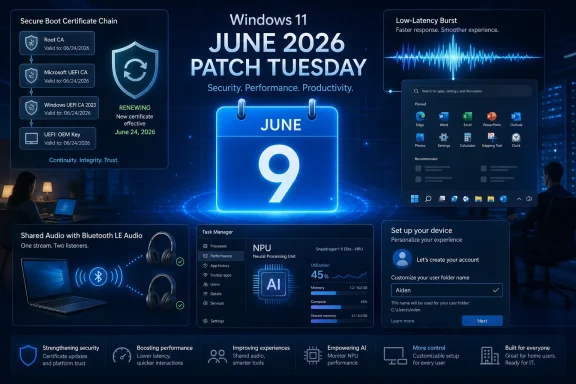 Microsoft Turns Patch Tuesday Into a Feature Delivery Machine
Patch Tuesday used to be the day Windows users associated with reboots, vague security bulletins, and the occasional printer regression. In the Windows 11 era, it has become something more strategic: a monthly checkpoint where Microsoft can mix security maintenance, controlled feature rollouts, performance tuning, and platform housekeeping into one package.That matters because the June update is not being framed as a major Windows version upgrade. It is not Windows 12, not a marketing keynote, and not a clean break from the past. Yet the contents point to a bigger shift in how Windows is evolving: the operating system is being changed in smaller, faster, more cumulative increments, with users noticing the effects before they ever install a “new version” in the old sense.
The June 2026 release appears to follow from features tested or previewed in the optional May update channel. That pattern has become familiar. Microsoft floats changes through preview updates, then rolls them more broadly into the mandatory security update path, often with Controlled Feature Rollout deciding who sees what first.
This creates a strange bargain. Users get improvements faster, but also less predictably. Administrators get security fixes they cannot ignore, but those fixes may arrive with behavioral changes that need testing, communication, and sometimes new policy decisions.
The Secure Boot Deadline Is the Part Nobody Should Treat as Routine
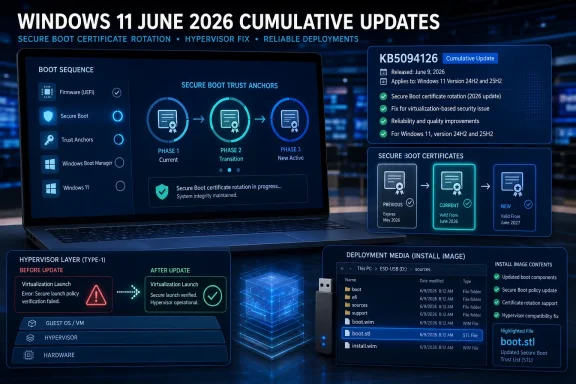
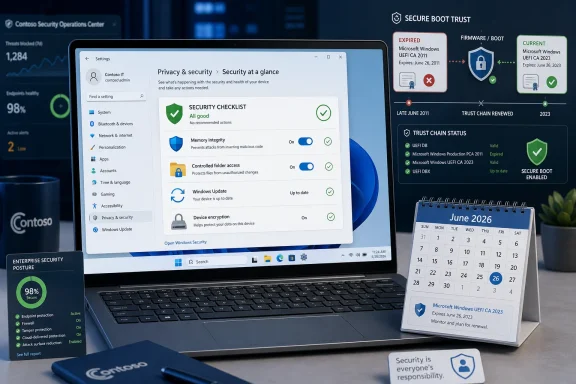
The most consequential part of the June update may be the least glamorous one. Microsoft’s original Secure Boot certificates, issued in the early 2010s, begin expiring in June 2026, with June 24 standing out as the date administrators have circled in red. Secure Boot is not the whole of Windows security, but it is one of the mechanisms that helps decide whether the software involved in starting a machine can be trusted.For ordinary users, the practical advice is simple: do not spend June deferring updates because the Start menu looks fine today. A Windows PC that misses the certificate refresh is not expected to instantly become a brick, and alarmist readings of the deadline overstate the risk. But a device that fails to move to the newer certificate chain can enter a degraded security posture, especially around future boot-level protections, revocations, and compatibility with newer signed components.
For enterprise IT, the timing is less forgiving. Fleets that delay cumulative updates, hold back firmware packages, or depend on older images need to verify not only that Windows Update is flowing, but that the Secure Boot certificate state is actually changing where required. This is one of those infrastructure chores that looks abstract until the month after the deadline, when an edge case becomes a help-desk queue.
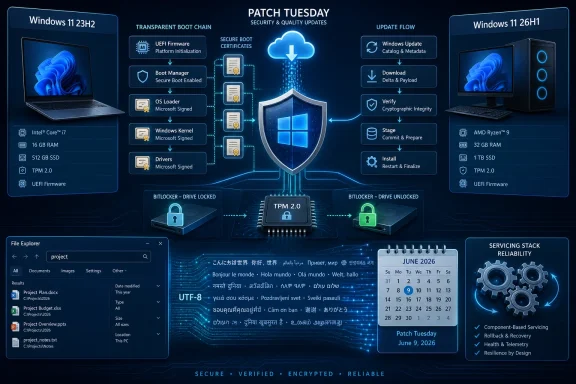
The uncomfortable lesson is that Secure Boot is not simply a checkbox in UEFI setup. It is a chain of certificates, firmware behavior, operating-system servicing, and vendor coordination. Microsoft can publish the update, but OEM firmware quality and enterprise deployment discipline decide how cleanly the transition lands.
Performance Gains Arrive as a Burst, Not a Benchmark War
The most visible consumer feature in the June update is the new low-latency profile. The idea is straightforward: Windows can temporarily raise CPU frequency for a short burst during interactive tasks, such as opening menus, launching interface elements, or bringing up File Explorer. Rather than chasing sustained performance, Microsoft is targeting the little pauses that make a PC feel older than it is.That distinction is important. A laptop will not suddenly encode video 40 percent faster because a cumulative update arrived. The claim around faster start times is about responsiveness in specific interactive moments, the kind of delay users experience dozens of times a day without ever naming it as a performance problem.
This is a clever place for Microsoft to optimize because perception is part of performance. Users do not judge an operating system only by synthetic benchmarks; they judge it by whether the Start menu hesitates, whether right-click feels sticky, and whether opening a folder has that tiny half-second drag that accumulates into irritation. Windows 11 has spent much of its life fighting the suspicion that it is prettier but heavier than Windows 10, and low-latency scheduling is an attempt to fight that reputation at the level where users actually feel it.
There is a battery-life caveat, of course. Temporarily pushing a CPU toward higher frequencies is not free, even if the window is short. The win depends on Microsoft and silicon vendors threading the needle: enough burst to make the interface feel snappier, not enough to turn every click into a thermal event.
Older PCs may benefit most, but not because they are being magically modernized. They are more likely to expose latency in day-to-day interactions. If Microsoft has tuned this well, the improvement will feel less like a speed upgrade and more like Windows finally getting out of its own way.
Shared Audio Makes the PC Behave More Like a Modern Device
Shared Audio is one of those features that sounds minor until you remember how awkward Windows can still be at basic consumer-device scenarios. The promise is simple: using Bluetooth LE Audio, a Windows 11 PC can send the same audio stream to multiple compatible headphones or speakers at once. A taskbar indicator will show when the broadcast is active.That makes the PC behave more like the device people expect it to be in 2026. Two people watching a film on a laptop should not have to choose between a headphone splitter, one shared earbud each, or blasting audio into a room. The technical foundation, Bluetooth LE Audio, has been arriving gradually across hardware ecosystems, and Windows is now trying to expose more of that capability in a way normal users can understand.
The catch is hardware. Shared Audio will not transform every old Bluetooth adapter and every pair of wireless headphones into a modern broadcast setup. Users will need compatible devices, and the PC’s Bluetooth stack, drivers, and radio support all matter.
That means the feature will likely produce two reactions at once. On newer machines with the right accessories, it will feel overdue and obvious. On older machines, it may appear as another Windows feature that exists in screenshots but not in lived reality.
Still, this is the right direction. Windows has spent years being the platform that supports nearly everything, but sometimes makes the obvious thing harder than it should be. Shared Audio is Microsoft acknowledging that the everyday PC is not just a work terminal; it is also a screen people share on couches, flights, dorm rooms, and conference tables.
Task Manager Becomes a Window Into the AI Hardware Era
The June update’s Task Manager changes are aimed at a smaller but increasingly important audience: users and administrators trying to understand what local AI hardware is doing. New NPU metrics expose utilization, active engines, and memory behavior for systems with Neural Processing Units. This is not a flashy Copilot feature, but it may be more useful in the long run.NPUs are moving from curiosity to baseline hardware in modern PCs, especially as Microsoft and chip vendors push the idea of the AI PC. The problem is that Windows users have decades of intuition around CPU, memory, disk, GPU, and network load, but almost none around NPU load. If a background feature is consuming AI acceleration resources, users need a way to see it.
Task Manager is the right venue because it is the one diagnostic surface power users actually open. Developers can use deeper tools, and enterprises can instrument fleets with management platforms, but Task Manager remains the first place people go when the machine feels wrong. Adding NPU visibility makes AI hardware less mystical and more accountable.
This is also a subtle governance move. If Microsoft wants more Windows features to run local inference, summarize content, enhance video calls, filter audio, or classify user data on-device, then users will eventually ask what is running, when, and at what cost. A visible NPU column will not answer every privacy question, but opacity would be worse.
The change also hints at a coming support problem. Help desks will soon receive tickets that sound like GPU-era complaints did fifteen years ago: “My AI feature is slow,” “This app is using the NPU,” or “Why is battery drain higher during video calls?” Windows needs the vocabulary and instrumentation before those complaints become mainstream.
Naming the User Folder Is a Small Fix With a Long Memory
The ability to choose the user profile folder name during setup will sound trivial to anyone who has never been annoyed byC:\Users\ followed by an unwanted truncation, nickname, or Microsoft account-derived label. For everyone else, it is one of those Windows paper cuts that has lasted far too long.The user folder is not just cosmetic. It appears in scripts, paths, screenshots, development environments, backup jobs, and enterprise support instructions. A bad folder name can become a permanent little embarrassment or administrative nuisance, especially because renaming it after setup has historically been riskier than users expect.
Microsoft’s old behavior reflected the company’s cloud-account priorities. If the Microsoft account was the identity anchor, Windows could infer the local profile folder and move on. That was convenient for setup automation, but it deprived users of control over a filesystem location that feels personal and operationally important.
Restoring that choice is not a revolution. It is a recognition that Windows still lives in paths, scripts, and local assumptions, even in a cloud-synced world. The more Microsoft pushes users toward account-based experiences, the more important these moments of local control become.
For IT pros, the setup change may be less dramatic than it appears because enterprises already have their own provisioning logic. But for enthusiasts, developers, and clean-install obsessives, it removes a needless reason to reach for workarounds before the first desktop session even begins.
Windows Hello Gets Faster Where Speed Actually Counts
The update also improves the Windows Biometric service, with Microsoft aiming to make Windows Hello sign-ins faster after standby. This is not the kind of feature that wins a launch event, but it is exactly the kind of refinement that determines whether users trust biometric login as their default.A fast biometric system disappears. A slow one makes users wonder whether they should just type the PIN. On laptops in particular, resume-from-standby is a ritual repeated constantly: open lid, wait for camera or fingerprint sensor, unlock, return to work. Every second of delay feels longer because the user is already mentally past the lock screen.
Windows Hello has generally been one of Windows 11’s better modern experiences, especially on hardware with good infrared cameras or fingerprint readers. But reliability after sleep and standby varies across devices, drivers, and power states. Improvements at the service layer may help smooth that variance, though OEM implementation will still matter.
There is a security angle as well. The easier and faster biometric login is, the less likely users are to weaken their own security behavior. Good authentication is not just strong; it is friction-light enough that people keep using it.
Search, Storage, and Personalization Show the Value of Boring Fixes
Not every June feature belongs in the headline, but several smaller changes point to Microsoft’s ongoing effort to sand down Windows 11’s rough edges. Search will be better at finding files with very short names, drive sizes can be shown in gigabytes, and desktop background color adjustments are being refined. None of these will sell a PC, but each reflects a category of irritation that accumulates over years.The file search change is especially telling. Users with short filenames are not doing anything wrong; Windows failing to surface them reliably is the operating system imposing its own assumptions on their workflow. Search has been a sore point in Windows for a long time, partly because it is expected to serve local files, cloud content, settings, apps, and web suggestions without becoming a mess.
The storage-size adjustment is another example of Windows trying to speak more clearly to humans. Users should not need to mentally translate units when checking available space or comparing disks. Administrators and enthusiasts may prefer granular reporting, but normal users think in practical capacity: how many gigabytes are free, and whether that is enough.
The personalization improvements sit in a different category. They are about making Windows feel less arbitrary. If the operating system offers color extraction and background-aware theming, it needs to do that accurately enough that users do not immediately override it.
These changes are not individually dramatic, but they are collectively important. Modern Windows has suffered less from a lack of features than from unevenness: elegant surfaces next to legacy dialogs, slick cloud integrations next to stubborn local annoyances. Boring fixes are how an operating system earns back trust.
Controlled Rollout Is Both Microsoft’s Safety Net and Its Excuse
Microsoft’s staggered rollout strategy means not every Windows 11 user will see every new feature immediately after installing the June update. Controlled Feature Rollout lets the company enable changes gradually, watch telemetry, and pause if something breaks. From an engineering standpoint, that is sensible.From a user standpoint, it is maddening. Two PCs can be fully updated, running the same Windows version, yet expose different features on different days. Support articles, screenshots, and forum advice become conditional, because the answer is no longer “install the update” but “install the update and wait for Microsoft to flip the server-side switch.”
This is the price of operating Windows at global scale. Microsoft cannot treat hundreds of millions of PCs like a lab of identical devices. The Windows ecosystem includes old drivers, unusual peripherals, corporate policies, regional configurations, and firmware assumptions that would make a clean one-day rollout reckless.
But Microsoft also benefits from the ambiguity. Gradual rollout gives the company room to market features before many users receive them. It can say a capability is shipping in June while the lived experience dribbles into July or later. That gap is where enthusiast frustration grows.
Administrators should assume that feature availability and patch compliance are now related but separate concepts. A device can be secure and still not have the new UI. A device can show a new feature and still require additional validation for firmware or certificate state. The update button is no longer the whole story.
The June Patch Is Really About Trust Boundaries
The common thread across the June release is trust. Secure Boot asks whether the machine can trust its earliest code. Windows Hello asks whether the user can trust fast authentication. Task Manager’s NPU metrics ask whether users can trust local AI hardware enough to observe it. Shared Audio and setup-folder naming ask whether Windows can be trusted to behave like a personal device instead of a corporate default image.That may sound grand for a cumulative update, but Windows has always been an operating system of boundaries. It mediates between firmware and applications, local identity and cloud accounts, hardware capability and user expectation. The June update is interesting because it touches all of those boundaries at once.
The Secure Boot work is the most urgent because it involves a clock Microsoft cannot pause indefinitely. Certificates expire. Firmware ages. Enterprises defer. Consumer machines miss updates. The deadline forces action in a way feature roadmaps rarely do.
The user-facing features, meanwhile, show Microsoft trying to make Windows 11 feel less inert. Performance bursts, audio sharing, faster biometric resume, and better setup control are not platform revolutions, but they address the everyday experience. A mature OS improves by making the common path feel less compromised.
June’s Update Rewards Users Who Patch and Punishes Fleets That Drift
For home users, the June advice is boring but correct: install the update, reboot when asked, and do not panic if every advertised feature is not visible on day one. The security value of being current outweighs the annoyance of waiting for Shared Audio or a new Task Manager column to appear. If the PC is managed by an employer or school, the decision may be out of the user’s hands anyway.For IT departments, the advice is more operational. The Secure Boot certificate transition should be treated as a deployment project, not a footnote in a monthly patch review. That means inventory, firmware awareness, update rings, fallback plans, and clear communication about what “updated” actually means.
The messiest systems are likely to be those outside neat categories: older but still supported hardware, dual-boot machines, specialized workstations, lab PCs, kiosks, and devices that have skipped firmware updates for years. Those are the machines where Secure Boot assumptions tend to become real-world surprises. They are also the machines most likely to be invisible until something fails.
Microsoft’s challenge is that Windows Update can solve many problems but not all of them. Firmware remains a fragmented world. OEM tooling varies wildly. Enterprises often have good reasons to slow updates, but deadlines like this expose the difference between controlled delay and unmanaged drift.
The June Build Gives Windows 11 a More Practical Kind of Momentum
The most concrete reading of the June update is that Microsoft is bundling several useful improvements with a security transition users cannot ignore.- The June 9 Patch Tuesday update is expected to deliver security fixes while also beginning broader rollout of features previewed through the May optional update channel.
- Secure Boot certificate renewal is the highest-priority operational issue because older 2011-era certificates begin expiring in June 2026.
- The low-latency profile targets perceived responsiveness by briefly increasing CPU performance during interactive actions rather than improving long-running workloads.
- Shared Audio depends on Bluetooth LE Audio support, so its usefulness will vary sharply by PC, adapter, driver, and peripheral compatibility.
- Task Manager’s new NPU metrics make AI acceleration more visible at the exact moment Microsoft and chipmakers want users to take local AI seriously.
- Setup-time user-folder naming fixes a long-standing annoyance that mattered precisely because Windows paths remain part of real user and administrator workflows.
The opportunity is that these increments are finally aimed at things users can feel and administrators can justify. Faster interface response, clearer hardware monitoring, better setup control, and a cleaner Secure Boot future all move Windows in the right direction. If Microsoft can keep the rollout disciplined and the firmware ecosystem from turning certificate renewal into a scavenger hunt, June’s Patch Tuesday will be remembered less as a routine update than as a practical checkpoint in Windows 11’s long march from cosmetic redesign to operational maturity.
References
- Primary source: Research Snipers
Published: 2026-06-06T07:56:14.030543
Windows 11: Users can expect these big innovations in June – Research Snipers
The upcoming Windows Patch Day not only brings important security updates, but also practical new...researchsnipers.com - Related coverage: windowscentral.com
Here are the 6 biggest features and improvements coming to Windows 11 in the June 2026 update on Tuesday | Windows Central
Microsoft's June 2026 Windows 11 update boosts responsiveness, adds Shared Audio, expands NPU metrics, and improves OOBE.www.windowscentral.com - Related coverage: notebookcheck.net
Windows Secure Boot certificates start expiring June 24 - Notebookcheck News
Windows Secure Boot certificates from 2011 expire June 24. Devices without the update will lose boot-level security protections, with no fix for some older PCs. www.notebookcheck.net
- Official source: learn.microsoft.com
Update Secure Boot Certificates for Windows Devices - Windows Client | Microsoft Learn
Update your Windows devices to maintain Secure Boot protection with 2023 certificates before they expire in June 2026.learn.microsoft.com - Related coverage: techspot.com
Windows Secure Boot certificates set to expire in June – here's what it means for your PC | TechSpot
In an Ask Microsoft Anything livestream on YouTube, Microsoft Principal Security Engineer Arden White, Principal Software Architect Scott Shell, and Group Engineering Manager Richard Powell answered a...www.techspot.com - Related coverage: windowslatest.com
Microsoft confirms the new Secure Boot folder in Windows 11 isn't a bug, you don't need to delete it
New “SecureBoot” folder created by Windows 11 KB5089549 is expected behavior for Secure Boot certificates update and not a known issue. www.windowslatest.com
- Official source: techcommunity.microsoft.com
Act now: Secure Boot certificates expire in June 2026 - Windows IT Pro Blog
Get tips to prepare for the rollout of updated certificates across your organization. techcommunity.microsoft.com
- Related coverage: pcworld.com
Windows 11 now shows if your Secure Boot certificates are ready for June | PCWorld
Windows 11's April update made it easy to check your Secure Boot certificate status ahead of the June 2026 expiration deadline.www.pcworld.com - Related coverage: spirhed.com
Secure Boot certificates expire in June 2026 | Spirhed
Microsoft’s Windows UEFI CA 2011 and Microsoft Corporation KEK CA 2011 expire in June 2026. Every Windows device with Secure Boot enabled needs the 2023 replacement certificates installed in firmware before that, or it will eventually stop receiving boot-level security updates. The...spirhed.com - Related coverage: pureinfotech.com
Microsoft replaces expiring Secure Boot certificates on Windows 11 – All details and how to update yours - Pureinfotech
Windows 11 Secure Boot certificates expire in June 2026. Learn how to check, update, and secure your PC to avoid boot or security issues. pureinfotech.com
- Related coverage: tomshardware.com
Microsoft is refreshing Secure Boot certificates to plug security holes before they happen — if you bought a PC last year, you should be set | Tom's Hardware
Be sure to keep Windows 11 systems updated to get refreshed security certificates.www.tomshardware.com - Related coverage: pcgamer.com
Secure Boot certificates used by anti-cheat software are set to expire in June but new ones are already in the mail | PC Gamer
You shouldn't have to worry about expired certificates if you keep your PC up-to-date.www.pcgamer.com - Related coverage: tomsguide.com
Windows 10 users warned to upgrade now or risk a ‘degraded security state’ as Microsoft ends Secure Boot support | Tom's Guide
Support for Windows 10 officially ended in October 2025, and Microsoft says devices that don’t upgrade could enter a degraded security state — leaving them vulnerable to threats. Here’s what it means for your PC and how to protect it.www.tomsguide.com