Windows 11 June 2026 Patch Tuesday (June 9): Secure Boot & Key New Features

Microsoft’s June 2026 Patch Tuesday for Windows 11 is scheduled for June 9, bringing the usual security fixes alongside new user-facing features such as low-latency performance boosts, Shared Audio, richer NPU monitoring, setup-time user-folder naming, and Secure Boot certificate updates. The patch is not merely another servicing train passing through Windows Update. It is the kind of release that shows how Microsoft now uses monthly security plumbing as the delivery vehicle for meaningful operating-system change. For home users, the headline is convenience; for IT departments, the real story is trust at boot.

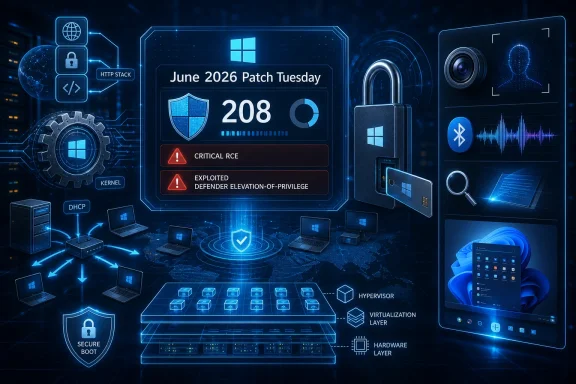
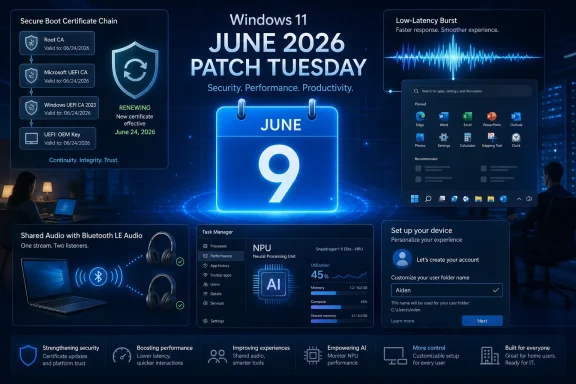
Windows 11 June 2026 Patch Tuesday security update graphic with secure boot, AI, and device setup panels.Microsoft Turns Patch Tuesday Into a Feature Delivery Machine​

Patch Tuesday used to be the day Windows users associated with reboots, vague security bulletins, and the occasional printer regression. In the Windows 11 era, it has become something more strategic: a monthly checkpoint where Microsoft can mix security maintenance, controlled feature rollouts, performance tuning, and platform housekeeping into one package.
That matters because the June update is not being framed as a major Windows version upgrade. It is not Windows 12, not a marketing keynote, and not a clean break from the past. Yet the contents point to a bigger shift in how Windows is evolving: the operating system is being changed in smaller, faster, more cumulative increments, with users noticing the effects before they ever install a “new version” in the old sense.
The June 2026 release appears to follow from features tested or previewed in the optional May update channel. That pattern has become familiar. Microsoft floats changes through preview updates, then rolls them more broadly into the mandatory security update path, often with Controlled Feature Rollout deciding who sees what first.
This creates a strange bargain. Users get improvements faster, but also less predictably. Administrators get security fixes they cannot ignore, but those fixes may arrive with behavioral changes that need testing, communication, and sometimes new policy decisions.

The Secure Boot Deadline Is the Part Nobody Should Treat as Routine​

The most consequential part of the June update may be the least glamorous one. Microsoft’s original Secure Boot certificates, issued in the early 2010s, begin expiring in June 2026, with June 24 standing out as the date administrators have circled in red. Secure Boot is not the whole of Windows security, but it is one of the mechanisms that helps decide whether the software involved in starting a machine can be trusted.
For ordinary users, the practical advice is simple: do not spend June deferring updates because the Start menu looks fine today. A Windows PC that misses the certificate refresh is not expected to instantly become a brick, and alarmist readings of the deadline overstate the risk. But a device that fails to move to the newer certificate chain can enter a degraded security posture, especially around future boot-level protections, revocations, and compatibility with newer signed components.
For enterprise IT, the timing is less forgiving. Fleets that delay cumulative updates, hold back firmware packages, or depend on older images need to verify not only that Windows Update is flowing, but that the Secure Boot certificate state is actually changing where required. This is one of those infrastructure chores that looks abstract until the month after the deadline, when an edge case becomes a help-desk queue.
The uncomfortable lesson is that Secure Boot is not simply a checkbox in UEFI setup. It is a chain of certificates, firmware behavior, operating-system servicing, and vendor coordination. Microsoft can publish the update, but OEM firmware quality and enterprise deployment discipline decide how cleanly the transition lands.

Performance Gains Arrive as a Burst, Not a Benchmark War​

The most visible consumer feature in the June update is the new low-latency profile. The idea is straightforward: Windows can temporarily raise CPU frequency for a short burst during interactive tasks, such as opening menus, launching interface elements, or bringing up File Explorer. Rather than chasing sustained performance, Microsoft is targeting the little pauses that make a PC feel older than it is.
That distinction is important. A laptop will not suddenly encode video 40 percent faster because a cumulative update arrived. The claim around faster start times is about responsiveness in specific interactive moments, the kind of delay users experience dozens of times a day without ever naming it as a performance problem.
This is a clever place for Microsoft to optimize because perception is part of performance. Users do not judge an operating system only by synthetic benchmarks; they judge it by whether the Start menu hesitates, whether right-click feels sticky, and whether opening a folder has that tiny half-second drag that accumulates into irritation. Windows 11 has spent much of its life fighting the suspicion that it is prettier but heavier than Windows 10, and low-latency scheduling is an attempt to fight that reputation at the level where users actually feel it.
There is a battery-life caveat, of course. Temporarily pushing a CPU toward higher frequencies is not free, even if the window is short. The win depends on Microsoft and silicon vendors threading the needle: enough burst to make the interface feel snappier, not enough to turn every click into a thermal event.
Older PCs may benefit most, but not because they are being magically modernized. They are more likely to expose latency in day-to-day interactions. If Microsoft has tuned this well, the improvement will feel less like a speed upgrade and more like Windows finally getting out of its own way.

Shared Audio Makes the PC Behave More Like a Modern Device​

Shared Audio is one of those features that sounds minor until you remember how awkward Windows can still be at basic consumer-device scenarios. The promise is simple: using Bluetooth LE Audio, a Windows 11 PC can send the same audio stream to multiple compatible headphones or speakers at once. A taskbar indicator will show when the broadcast is active.
That makes the PC behave more like the device people expect it to be in 2026. Two people watching a film on a laptop should not have to choose between a headphone splitter, one shared earbud each, or blasting audio into a room. The technical foundation, Bluetooth LE Audio, has been arriving gradually across hardware ecosystems, and Windows is now trying to expose more of that capability in a way normal users can understand.
The catch is hardware. Shared Audio will not transform every old Bluetooth adapter and every pair of wireless headphones into a modern broadcast setup. Users will need compatible devices, and the PC’s Bluetooth stack, drivers, and radio support all matter.
That means the feature will likely produce two reactions at once. On newer machines with the right accessories, it will feel overdue and obvious. On older machines, it may appear as another Windows feature that exists in screenshots but not in lived reality.
Still, this is the right direction. Windows has spent years being the platform that supports nearly everything, but sometimes makes the obvious thing harder than it should be. Shared Audio is Microsoft acknowledging that the everyday PC is not just a work terminal; it is also a screen people share on couches, flights, dorm rooms, and conference tables.

Task Manager Becomes a Window Into the AI Hardware Era​

The June update’s Task Manager changes are aimed at a smaller but increasingly important audience: users and administrators trying to understand what local AI hardware is doing. New NPU metrics expose utilization, active engines, and memory behavior for systems with Neural Processing Units. This is not a flashy Copilot feature, but it may be more useful in the long run.
NPUs are moving from curiosity to baseline hardware in modern PCs, especially as Microsoft and chip vendors push the idea of the AI PC. The problem is that Windows users have decades of intuition around CPU, memory, disk, GPU, and network load, but almost none around NPU load. If a background feature is consuming AI acceleration resources, users need a way to see it.
Task Manager is the right venue because it is the one diagnostic surface power users actually open. Developers can use deeper tools, and enterprises can instrument fleets with management platforms, but Task Manager remains the first place people go when the machine feels wrong. Adding NPU visibility makes AI hardware less mystical and more accountable.
This is also a subtle governance move. If Microsoft wants more Windows features to run local inference, summarize content, enhance video calls, filter audio, or classify user data on-device, then users will eventually ask what is running, when, and at what cost. A visible NPU column will not answer every privacy question, but opacity would be worse.
The change also hints at a coming support problem. Help desks will soon receive tickets that sound like GPU-era complaints did fifteen years ago: “My AI feature is slow,” “This app is using the NPU,” or “Why is battery drain higher during video calls?” Windows needs the vocabulary and instrumentation before those complaints become mainstream.

Naming the User Folder Is a Small Fix With a Long Memory​

The ability to choose the user profile folder name during setup will sound trivial to anyone who has never been annoyed by C:\Users\ followed by an unwanted truncation, nickname, or Microsoft account-derived label. For everyone else, it is one of those Windows paper cuts that has lasted far too long.
The user folder is not just cosmetic. It appears in scripts, paths, screenshots, development environments, backup jobs, and enterprise support instructions. A bad folder name can become a permanent little embarrassment or administrative nuisance, especially because renaming it after setup has historically been riskier than users expect.
Microsoft’s old behavior reflected the company’s cloud-account priorities. If the Microsoft account was the identity anchor, Windows could infer the local profile folder and move on. That was convenient for setup automation, but it deprived users of control over a filesystem location that feels personal and operationally important.
Restoring that choice is not a revolution. It is a recognition that Windows still lives in paths, scripts, and local assumptions, even in a cloud-synced world. The more Microsoft pushes users toward account-based experiences, the more important these moments of local control become.
For IT pros, the setup change may be less dramatic than it appears because enterprises already have their own provisioning logic. But for enthusiasts, developers, and clean-install obsessives, it removes a needless reason to reach for workarounds before the first desktop session even begins.

Windows Hello Gets Faster Where Speed Actually Counts​

The update also improves the Windows Biometric service, with Microsoft aiming to make Windows Hello sign-ins faster after standby. This is not the kind of feature that wins a launch event, but it is exactly the kind of refinement that determines whether users trust biometric login as their default.
A fast biometric system disappears. A slow one makes users wonder whether they should just type the PIN. On laptops in particular, resume-from-standby is a ritual repeated constantly: open lid, wait for camera or fingerprint sensor, unlock, return to work. Every second of delay feels longer because the user is already mentally past the lock screen.
Windows Hello has generally been one of Windows 11’s better modern experiences, especially on hardware with good infrared cameras or fingerprint readers. But reliability after sleep and standby varies across devices, drivers, and power states. Improvements at the service layer may help smooth that variance, though OEM implementation will still matter.
There is a security angle as well. The easier and faster biometric login is, the less likely users are to weaken their own security behavior. Good authentication is not just strong; it is friction-light enough that people keep using it.

Search, Storage, and Personalization Show the Value of Boring Fixes​

Not every June feature belongs in the headline, but several smaller changes point to Microsoft’s ongoing effort to sand down Windows 11’s rough edges. Search will be better at finding files with very short names, drive sizes can be shown in gigabytes, and desktop background color adjustments are being refined. None of these will sell a PC, but each reflects a category of irritation that accumulates over years.
The file search change is especially telling. Users with short filenames are not doing anything wrong; Windows failing to surface them reliably is the operating system imposing its own assumptions on their workflow. Search has been a sore point in Windows for a long time, partly because it is expected to serve local files, cloud content, settings, apps, and web suggestions without becoming a mess.
The storage-size adjustment is another example of Windows trying to speak more clearly to humans. Users should not need to mentally translate units when checking available space or comparing disks. Administrators and enthusiasts may prefer granular reporting, but normal users think in practical capacity: how many gigabytes are free, and whether that is enough.
The personalization improvements sit in a different category. They are about making Windows feel less arbitrary. If the operating system offers color extraction and background-aware theming, it needs to do that accurately enough that users do not immediately override it.
These changes are not individually dramatic, but they are collectively important. Modern Windows has suffered less from a lack of features than from unevenness: elegant surfaces next to legacy dialogs, slick cloud integrations next to stubborn local annoyances. Boring fixes are how an operating system earns back trust.

Controlled Rollout Is Both Microsoft’s Safety Net and Its Excuse​

Microsoft’s staggered rollout strategy means not every Windows 11 user will see every new feature immediately after installing the June update. Controlled Feature Rollout lets the company enable changes gradually, watch telemetry, and pause if something breaks. From an engineering standpoint, that is sensible.
From a user standpoint, it is maddening. Two PCs can be fully updated, running the same Windows version, yet expose different features on different days. Support articles, screenshots, and forum advice become conditional, because the answer is no longer “install the update” but “install the update and wait for Microsoft to flip the server-side switch.”
This is the price of operating Windows at global scale. Microsoft cannot treat hundreds of millions of PCs like a lab of identical devices. The Windows ecosystem includes old drivers, unusual peripherals, corporate policies, regional configurations, and firmware assumptions that would make a clean one-day rollout reckless.
But Microsoft also benefits from the ambiguity. Gradual rollout gives the company room to market features before many users receive them. It can say a capability is shipping in June while the lived experience dribbles into July or later. That gap is where enthusiast frustration grows.
Administrators should assume that feature availability and patch compliance are now related but separate concepts. A device can be secure and still not have the new UI. A device can show a new feature and still require additional validation for firmware or certificate state. The update button is no longer the whole story.

The June Patch Is Really About Trust Boundaries​

The common thread across the June release is trust. Secure Boot asks whether the machine can trust its earliest code. Windows Hello asks whether the user can trust fast authentication. Task Manager’s NPU metrics ask whether users can trust local AI hardware enough to observe it. Shared Audio and setup-folder naming ask whether Windows can be trusted to behave like a personal device instead of a corporate default image.
That may sound grand for a cumulative update, but Windows has always been an operating system of boundaries. It mediates between firmware and applications, local identity and cloud accounts, hardware capability and user expectation. The June update is interesting because it touches all of those boundaries at once.
The Secure Boot work is the most urgent because it involves a clock Microsoft cannot pause indefinitely. Certificates expire. Firmware ages. Enterprises defer. Consumer machines miss updates. The deadline forces action in a way feature roadmaps rarely do.
The user-facing features, meanwhile, show Microsoft trying to make Windows 11 feel less inert. Performance bursts, audio sharing, faster biometric resume, and better setup control are not platform revolutions, but they address the everyday experience. A mature OS improves by making the common path feel less compromised.

June’s Update Rewards Users Who Patch and Punishes Fleets That Drift​

For home users, the June advice is boring but correct: install the update, reboot when asked, and do not panic if every advertised feature is not visible on day one. The security value of being current outweighs the annoyance of waiting for Shared Audio or a new Task Manager column to appear. If the PC is managed by an employer or school, the decision may be out of the user’s hands anyway.
For IT departments, the advice is more operational. The Secure Boot certificate transition should be treated as a deployment project, not a footnote in a monthly patch review. That means inventory, firmware awareness, update rings, fallback plans, and clear communication about what “updated” actually means.
The messiest systems are likely to be those outside neat categories: older but still supported hardware, dual-boot machines, specialized workstations, lab PCs, kiosks, and devices that have skipped firmware updates for years. Those are the machines where Secure Boot assumptions tend to become real-world surprises. They are also the machines most likely to be invisible until something fails.
Microsoft’s challenge is that Windows Update can solve many problems but not all of them. Firmware remains a fragmented world. OEM tooling varies wildly. Enterprises often have good reasons to slow updates, but deadlines like this expose the difference between controlled delay and unmanaged drift.

The June Build Gives Windows 11 a More Practical Kind of Momentum​

The most concrete reading of the June update is that Microsoft is bundling several useful improvements with a security transition users cannot ignore.
  • The June 9 Patch Tuesday update is expected to deliver security fixes while also beginning broader rollout of features previewed through the May optional update channel.
  • Secure Boot certificate renewal is the highest-priority operational issue because older 2011-era certificates begin expiring in June 2026.
  • The low-latency profile targets perceived responsiveness by briefly increasing CPU performance during interactive actions rather than improving long-running workloads.
  • Shared Audio depends on Bluetooth LE Audio support, so its usefulness will vary sharply by PC, adapter, driver, and peripheral compatibility.
  • Task Manager’s new NPU metrics make AI acceleration more visible at the exact moment Microsoft and chipmakers want users to take local AI seriously.
  • Setup-time user-folder naming fixes a long-standing annoyance that mattered precisely because Windows paths remain part of real user and administrator workflows.
The danger for Microsoft is overpromising cohesion. Windows 11 in June 2026 is not suddenly a different operating system. It is a platform being incrementally tightened, accelerated, and prepared for a hardware-security transition that was always coming.
The opportunity is that these increments are finally aimed at things users can feel and administrators can justify. Faster interface response, clearer hardware monitoring, better setup control, and a cleaner Secure Boot future all move Windows in the right direction. If Microsoft can keep the rollout disciplined and the firmware ecosystem from turning certificate renewal into a scavenger hunt, June’s Patch Tuesday will be remembered less as a routine update than as a practical checkpoint in Windows 11’s long march from cosmetic redesign to operational maturity.
References​

  1. Primary source: Research Snipers
    Published: 2026-06-06T07:56:14.030543
  2. Related coverage: windowscentral.com
  3. Related coverage: notebookcheck.net
  4. Official source: learn.microsoft.com
  5. Related coverage: techspot.com
  6. Related coverage: windowslatest.com
  1. Official source: techcommunity.microsoft.com
  2. Related coverage: pcworld.com
  3. Related coverage: spirhed.com
  4. Related coverage: pureinfotech.com
  5. Related coverage: tomshardware.com
  6. Related coverage: pcgamer.com
  7. Related coverage: tomsguide.com
 

Microsoft released Windows 11 cumulative update KB5094126 on June 9, 2026, for Windows 11 versions 24H2 and 25H2, raising them to OS builds 26100.8655 and 26200.8655, while Windows 11 version 23H2 received KB5093998 and build 22631.7219. On paper, this is another Patch Tuesday bundle: security fixes, servicing stack updates, and a short list of quality improvements. In practice, June’s release is less about flashy features than about Microsoft preparing Windows PCs for a security deadline that has been hiding in firmware for more than a decade. The headline is not the build number; it is the slow, cautious replacement of Secure Boot trust anchors before they become tomorrow’s support crisis.

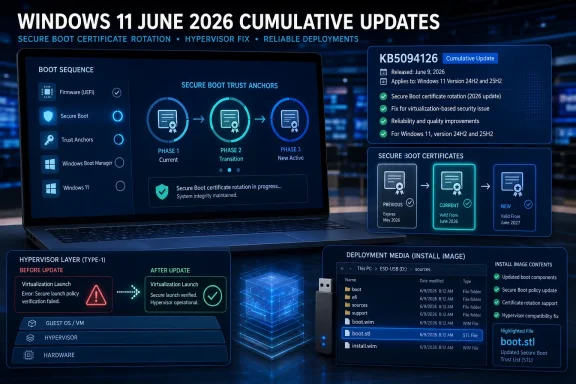
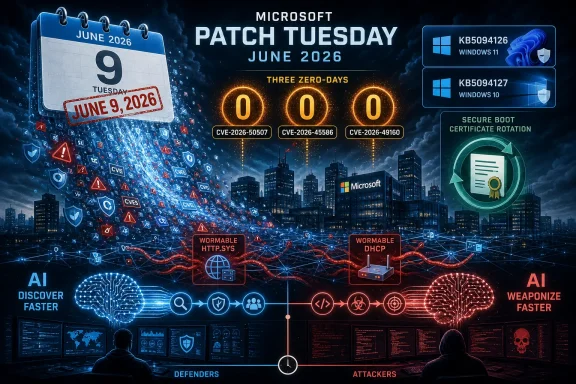
Windows 11 June 2026 cumulative update KB5094126 secure boot certificate rotation and hypervisor fix dashboard.Microsoft Turns Patch Tuesday Into a Certificate Migration Vehicle​

The most important line in KB5094126 is not the virtualization fix, and it is not the build jump. It is Microsoft’s note that Windows quality updates now include additional “high confidence device targeting data” to expand the pool of machines eligible to receive new Secure Boot certificates automatically.
That sounds like the sort of phrase only a servicing engineer could love, but it matters. Secure Boot is one of the foundations Windows relies on to verify that the boot chain has not been tampered with before the operating system starts. The certificates behind that chain were never meant to last forever, and the older 2011-era certificates begin expiring in June 2026.
Microsoft has been moving replacement certificates through Windows Update for months, but it has been doing so carefully. The company is not simply blasting new Secure Boot material to every PC at once. It is using telemetry and update-success signals to decide which devices are ready, then widening the rollout as confidence grows.
That caution is the real story. Secure Boot lives in the uneasy borderland between Windows, firmware, recovery environments, BitLocker, OEM implementation choices, and enterprise imaging practices. A bad app update can be annoying; a bad boot trust update can strand a fleet.

The June Patch Is a Security Update With Firmware Consequences​

For ordinary users, KB5094126 should behave like a normal cumulative update. It downloads through Windows Update, arrives through Windows Update for Business according to policy, syncs to WSUS when the product and classification are configured, and can be installed manually from the Microsoft Update Catalog.
But under the hood, this is the sort of update that reminds administrators why Windows servicing is no longer just about files in System32. The patch carries the monthly security payload, rolls in prior preview changes, updates the servicing stack, and participates in the larger Secure Boot certificate transition. The operating system update is also a vehicle for firmware-adjacent trust maintenance.
Microsoft’s own language is careful: devices that have not yet received the newer certificates should continue to start and operate normally, and standard Windows updates should continue to install. That reassurance is important because certificate expiration naturally invites panic. The deadline is real, but the June update is part of a phased transition rather than a cliff-edge shutdown.
Still, admins should not confuse “continues to boot” with “nothing to do.” The safe posture is to make sure devices are current, monitor rollout status, and pay special attention to machines that sit outside normal update flows: offline images, lab systems, golden images, kiosk devices, and machines managed through atypical network restrictions.

The Virtualization Fix Repairs a May Regression Before It Becomes Folklore​

KB5094126 also fixes a virtualization-related issue introduced after KB5089573. Microsoft says the problem could trigger HYPERVISOR_ERROR stop errors or KMODE_EXCEPTION_NOT_HANDLED crashes on some devices during restarts, virtual machine operations, or while running some gaming applications.
That combination is telling. Hyper-V is no longer only a server administrator’s concern. Virtualization-based security, Windows Sandbox, WSL, Android or Linux development workflows, anti-cheat systems, credential protections, and certain gaming stacks all rub against the hypervisor layer in different ways.
A bug in that layer can therefore surface in places that look unrelated. One user sees a crash during VM work. Another sees a gaming failure. A third sees a reboot-time blue screen and assumes hardware instability. Patch Tuesday’s role, in that context, is not merely to close security holes but to clean up the side effects of the servicing train itself.
This is also why optional preview updates remain a double-edged sword. They give administrators and enthusiasts an early look at quality fixes, but they can also expose regressions before the broader security release. June’s cumulative update folds in the repair, which is exactly how the model is supposed to work — though that is cold comfort to anyone who spent late May chasing hypervisor crashes.

Windows 11 23H2 Gets a Different Patch and a Different Warning​

Windows 11 version 23H2 is not covered by KB5094126. It receives KB5093998 instead, moving supported 23H2 systems to build 22631.7219. The distinction matters because Microsoft’s Windows 11 estate is now split across multiple servicing baselines with different support deadlines and slightly different change sets.
KB5093998 includes the same broad Secure Boot certificate messaging, but it also contains several 23H2-specific quality improvements. Microsoft says the update fixes a known issue in which some devices could enter BitLocker Recovery after boot files were updated on systems with certain TPM validation settings, including invalid PCR7 configurations. That issue was associated with the April 2026 security update.
That is exactly the kind of fix enterprises should notice. BitLocker Recovery events are not theoretical nuisances in a managed environment; they become help desk tickets, downtime, user distrust, and emergency recovery-key workflows. A security update that unexpectedly pushes devices into recovery can quickly become more visible than the vulnerability it patched.
The 23H2 update also adds policy surface around Secure Boot service data, including a Group Policy and MDM setting to limit the Secure Boot service data sent to Microsoft. That detail will matter most in restricted-traffic environments, where administrators must balance privacy, compliance, and the practical need for enough service data to keep certificate migration safe.

The Support Calendar Is Now Part of the Patch​

Microsoft’s June notes also remind users that Windows 11 version 24H2 Home and Pro editions reach end of updates on October 13, 2026. Enterprise and Education editions of 24H2 remain supported until October 12, 2027. Windows 11 version 23H2 Enterprise and Education reach end of updates on November 10, 2026.
Those dates are not decorative. Windows servicing has become a calendar discipline, and the further Microsoft pushes Windows toward continuous delivery, the more the support lifecycle becomes part of operational security. Being “on Windows 11” is no longer precise enough.
For home users, this usually means accepting the next feature update when Microsoft offers it. For businesses, it means sequencing application testing, hardware validation, driver certification, management policy changes, and user communications before the support window closes.
The awkwardness is that June’s Secure Boot certificate work intersects with version migration planning. Admins already thinking about moving machines to a newer Windows 11 release must also ensure that installation media, offline images, and deployment workflows are not carrying stale boot components into the future.

Installation Media Is Where the Quiet Footnote Can Bite​

One of the more practical warnings in the June documentation concerns boot.stl, a file used during Secure Boot validation. Microsoft says that if administrators deploy dynamic updates to an existing Windows image, they must ensure the file is included as part of the installation media. If it is missing, devices may fail to start from the installation media and return error code 0xc0430001.
That warning deserves more attention than it will probably get. Many Windows problems are created not on the endpoint but upstream, inside the image, task sequence, USB installer, recovery environment, or deployment share that everyone assumes is “known good.” A stale image can quietly preserve an old assumption long after monthly updates have moved on.
Microsoft recommends using its Update WinPE script to update an existing Windows image, or manually copying the correct boot.stl file from the device’s Windows boot folder to the corresponding folder on the installation media. That is not the sort of task most home users will ever encounter. It is very much the sort of detail that can ruin an enterprise refresh, a repair bench workflow, or a field deployment.
The broader lesson is that Secure Boot certificate migration is not only an endpoint update problem. It is a media hygiene problem. If your recovery and deployment tooling cannot boot reliably, your patched fleet is only half protected.

Copilot+ PCs Get AI Component Updates, But That Is Not the Main Event​

KB5094126 also includes updates for AI components, with Microsoft listing component versions for areas such as image search, content extraction, semantic analysis, and settings models. The company notes that these AI component updates apply only to Windows Copilot+ PCs and will not install on standard Windows PCs or Windows Server.
That caveat is worth spelling out because Windows update notes now routinely mix conventional operating system servicing with components that apply only to a subset of hardware. A user on a non-Copilot+ PC may see the KB article mention AI and assume their system is receiving those features. It is not.
For Copilot+ owners, these component updates are part of the continuing normalization of local AI features as serviced Windows components rather than one-off app drops. For everyone else, they are mostly noise in the release notes.
The more significant operational issue remains security servicing. Microsoft may want the Windows 11 story to be about AI PCs, NPUs, and new local experiences, but June’s patch is a reminder that the platform still depends on the unglamorous machinery of boot validation, servicing stacks, and recovery-safe deployment.

The Catalog Is a Tool, Not a Strategy​

Both reports point users toward the Microsoft Update Catalog if the update does not arrive automatically. That is sound advice in the narrow sense. The Catalog remains the place to retrieve standalone packages, especially for manual installs, offline servicing, or controlled deployment scenarios.
But manual download should not become the default plan for a managed fleet. If Windows Update for Business, WSUS, Intune, Configuration Manager, or a third-party patch platform is not delivering expected updates, the root cause matters. A one-off Catalog install may fix a machine; it does not fix the policy, detection, synchronization, targeting, or deferral problem that caused the machine to fall behind.
The June update is especially ill-suited to ad hoc patching because the Secure Boot certificate rollout is explicitly phased and signal-driven. Administrators should be cautious about assuming that installing the cumulative update guarantees a device has received every related Secure Boot certificate change. Microsoft’s own wording suggests eligibility and delivery are being controlled.
That does not mean avoid the update. It means treat Windows Update’s state, device health signals, and management reporting as part of the patch, not as paperwork after the fact.

Microsoft’s “No Known Issues” Line Should Be Read, Not Worshipped​

Microsoft says it is not currently aware of any known issues with KB5094126 or KB5093998. That is welcome, but seasoned Windows admins know how to read the phrase. It means no confirmed issues are listed at publication time, not that every hardware combination, security product, VPN client, hypervisor configuration, deployment image, and BitLocker policy has been proven immune to trouble.
The virtualization fix itself is a reminder that regressions often become known only after updates meet real-world diversity. Windows runs on an ecosystem that no single test lab can fully replicate. Even when Microsoft’s telemetry is vast, the edge cases are stubborn.
For most users, the correct action remains to install the security update. For administrators, the correct action is to deploy it through the usual rings, watch for boot, BitLocker, virtualization, VPN, and performance anomalies, and move quickly once pilot groups look healthy.
Patch Tuesday has always been a trade-off between exposure and change risk. June’s update does not alter that equation; it simply makes the boot layer more prominent in the calculation.

The June Build Numbers Tell Only Half the Story​

The easy version of this news is simple: KB5094126 brings Windows 11 24H2 to build 26100.8655 and Windows 11 25H2 to build 26200.8655. KB5093998 brings Windows 11 23H2 to build 22631.7219. Install them through Windows Update, business update channels, WSUS, or the Catalog.
The more useful version is that June 2026 is a checkpoint in a longer Windows trust transition. Microsoft is using cumulative updates to expand eligibility for new Secure Boot certificates, while also repairing a virtualization regression and nudging users toward supported Windows 11 versions before lifecycle deadlines arrive.
That makes the update less dramatic than a feature release but more consequential than a routine quality patch. The visible changes are modest. The invisible trust plumbing is where the risk lives.
This is where Microsoft’s servicing philosophy becomes both powerful and uncomfortable. A single cumulative update can carry security fixes, prior preview changes, servicing stack improvements, AI component updates, certificate targeting data, and deployment caveats. That consolidation simplifies patch inventory, but it also means admins must read beyond the first paragraph.

The Practical Read for WindowsForum Readers​

For Windows enthusiasts, the safest interpretation is that KB5094126 is worth installing unless you have a specific reason to hold back briefly and monitor reports. The virtualization fix alone may be meaningful for users who rely on Hyper-V, WSL, virtual machines, or games that interact badly with hypervisor features.
For IT pros, June’s release should trigger a broader check than “did the cumulative update install?” The Secure Boot certificate transition touches update reliability, device targeting, telemetry restrictions, BitLocker posture, and installation media. Those are not separate chores; they are parts of the same maintenance story.
For organizations that restrict outbound Windows service traffic, KB5093998’s policy note is especially relevant. Limiting service data may be necessary in some environments, but administrators should understand how those choices intersect with Microsoft’s confidence-based targeting model for Secure Boot certificate delivery.
For anyone maintaining Windows images, the boot.stl warning should be treated as a concrete action item. Patch the endpoint, yes — but also update the media that will be used when that endpoint breaks.

June’s Patch Tuesday Is Really a Boot-Time Trust Drill​

The concrete takeaways are less glamorous than a new Start menu feature, but they are more important for keeping Windows machines boring in the best possible way.
  • KB5094126 applies to Windows 11 versions 24H2 and 25H2 and moves them to builds 26100.8655 and 26200.8655.
  • KB5093998 applies to Windows 11 version 23H2 and moves it to build 22631.7219.
  • Microsoft is widening the phased rollout of new Secure Boot certificates using additional device targeting data and update-success signals.
  • KB5094126 fixes virtualization-related stop errors that could appear after KB5089573 during restarts, virtual machine operations, or some gaming workloads.
  • Administrators who update Windows installation media need to ensure the correct boot.stl file is present to avoid Secure Boot validation failures.
  • The absence of listed known issues at release time should not replace staged deployment, monitoring, and recovery planning.
The best Patch Tuesday updates are the ones users never think about again, and June 2026 could still be one of those if Microsoft’s certificate migration continues smoothly. But KB5094126 is a reminder that the Windows security model depends on machinery most people never see until it fails: firmware trust, boot validation, servicing stacks, and deployment media. Microsoft is trying to rotate a core piece of that machinery while the ecosystem keeps moving, and the next few months will show whether Windows Update can make a decade-old certificate deadline feel like just another reboot.

References​

  1. Primary source: Neowin
    Published: Tue, 09 Jun 2026 17:06:22 GMT
  2. Independent coverage: Windows Report
    Published: 2026-06-09T17:41:45.145458
  3. Official source: learn.microsoft.com
  4. Related coverage: windowsforum.com
  5. Official source: support.microsoft.com
  6. Related coverage: pureinfotech.com
  1. Related coverage: tweakhound.com
  2. Related coverage: bleepingcomputer.com
  3. Official source: techcommunity.microsoft.com
  4. Related coverage: sra.io
 

Microsoft released the June 2026 Patch Tuesday updates on June 9 for Windows 11 versions 25H2, 24H2, and 26H1, bringing security fixes alongside a staggered rollout of Shared Audio, camera sharing, Task Manager NPU telemetry, search improvements, and performance changes. The headline is not that Windows 11 gained one flashy feature; it is that Microsoft is using the monthly security train to normalize hardware-aware, AI-era operating system plumbing. For home users, this looks like convenience. For IT departments, it looks like another reminder that “Patch Tuesday” is now both a security deadline and a feature-delivery mechanism.

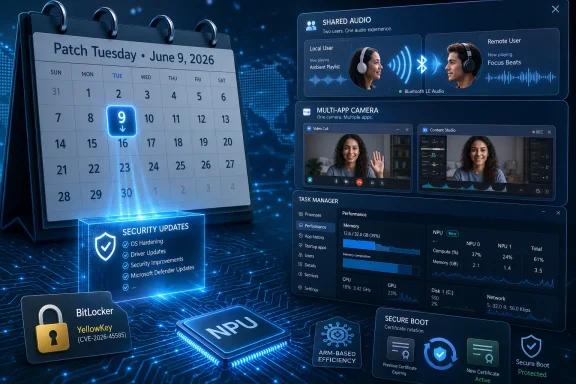
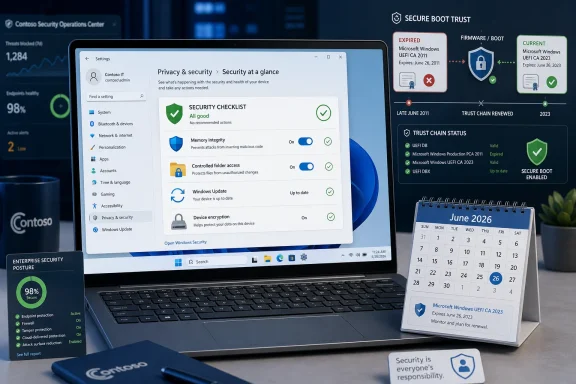
Digital Patch Tuesday security dashboard with calendar, shared audio, camera feed, and NPU/secure boot indicators.Patch Tuesday Is No Longer Just a Patch Day​

There was a time when Patch Tuesday could be summarized as a grim but tidy ritual: install the fixes, watch for broken printers, and move on. That version of Windows servicing has been dead for years, but the June 2026 updates make the point unusually clear. KB5094126 for Windows 11 versions 25H2 and 24H2 is not merely a bundle of vulnerability repairs; it is also a feature switchboard.
The update brings the expected monthly security payload, including a fix for the publicly disclosed BitLocker security bypass tracked as CVE-2026-45585 and commonly referred to as YellowKey. But surrounding that fix is a collection of usability and platform changes that would once have been reserved for a larger feature update. Shared Audio, Multi-App Camera, NPU columns in Task Manager, setup changes, and faster shell behavior are not footnotes. They are part of the operating system’s public direction.
That direction is increasingly clear: Microsoft is trying to make Windows 11 feel more adaptable without waiting for annual version upgrades to carry the whole burden. The cumulative update has become the delivery vehicle for features that touch Bluetooth, camera access, search indexing, accessibility, performance policy, and AI hardware reporting. For users, that means useful changes arrive sooner. For administrators, it means the monthly update ring now carries more behavioral risk than the word “quality update” used to imply.
This is the central tension of modern Windows servicing. Microsoft wants Windows to evolve continuously because the hardware ecosystem, especially Copilot+ PCs and ARM devices, is evolving continuously. Enterprises, meanwhile, still want predictability, documentation, rollback planning, and time to validate line-of-business applications. June’s release is not a crisis. It is a case study in how the operating system is being remade one Patch Tuesday at a time.

Shared Audio Is a Consumer Feature With Enterprise Baggage​

The most approachable new feature is Shared Audio, which allows two people to listen to the same audio from one Windows 11 PC using supported Bluetooth LE Audio broadcast technology. It is easy to understand why Microsoft is leading with it. The feature solves a real-world annoyance: two people watching a film on a laptop, sharing a training video, or working together in a quiet space without resorting to a headphone splitter from another era.
The catch is in the word supported. Shared Audio depends on Bluetooth LE Audio broadcast capability, which means the PC, radio stack, drivers, and audio accessories all need to line up. This is not a universal “two headphones on any laptop” button. Many users will discover the feature only to find that their current earbuds, Bluetooth adapter, or firmware combination does not qualify.
That hardware dependency makes Shared Audio a classic Windows feature: simple in concept, complicated in deployment. On a modern premium laptop with the right wireless stack, it may feel like magic. On an older machine, it may not appear at all or may be hidden behind driver updates and accessory compatibility. Microsoft can put the switch in Quick Settings, but it cannot instantly upgrade the installed base of Bluetooth hardware.
For consumers, this will be mildly frustrating. For IT departments, it is more interesting. Shared Audio is not likely to be a top enterprise requirement, but it belongs to a broader class of Windows features that assume a more sensor-rich, radio-rich, accessory-rich endpoint. The PC is becoming less like a fixed workstation and more like a personal hub for audio, camera, AI acceleration, and presence-aware experiences. That may be good product strategy, but it also means fleet variance matters more.
Microsoft is selling a future where Windows 11 can take better advantage of modern silicon. June’s update shows the other side of that bargain: the same build of Windows can behave differently depending on the hardware underneath it. That is not new, but AI PCs and LE Audio make it more visible.

Task Manager Finally Learns the Language of AI Hardware​

The new NPU visibility in Task Manager is more consequential than it may look. On Windows 11 PCs with neural processing units, Task Manager can now show optional NPU and NPU Engine columns on the Processes, Users, and Details pages. It can also expose NPU Dedicated Memory and NPU Shared Memory columns on the Details page, giving users and administrators a better view of how AI-related workloads are using local acceleration.
This matters because Microsoft and its hardware partners have spent the past two years talking about NPUs as if they were self-evidently transformative. The pitch is familiar: local AI features should be faster, more private, more power-efficient, and less dependent on the cloud. But until users can see what is actually using that hardware, the NPU remains a marketing spec printed on a laptop box.
Task Manager is where Windows abstractions become visible. CPU spikes, memory leaks, GPU-heavy browser tabs, and runaway background tasks all become easier to reason about because Task Manager gives users a shared vocabulary. Adding NPU telemetry gives AI workloads the same kind of legitimacy and scrutiny. It says, in effect, that AI acceleration is no longer a black box.
For administrators, this is especially important. If Microsoft wants enterprises to accept local AI features as part of standard endpoint computing, IT needs observability. A help desk cannot troubleshoot “the AI thing feels slow” without counters, process attribution, and repeatable diagnostics. Security teams also need to know which applications are invoking AI hardware and whether those activities align with policy.
There is still a long distance between NPU columns and full enterprise-grade AI workload governance. Task Manager is a window, not a management plane. But it is a necessary first step. Microsoft cannot keep positioning the NPU as central to Windows while leaving it invisible to the people responsible for supporting Windows.

Multi-App Camera Turns a Workaround Into a Platform Feature​

The Multi-App Camera addition is another practical change disguised as a small one. Windows 11 can now allow multiple applications to access a camera stream at the same time. That sounds ordinary until you remember how often webcam exclusivity creates friction: a video call in one app, a recording tool in another, a virtual camera utility, a proctoring system, a support session, or an accessibility application that also needs the feed.
The pandemic-era explosion of video workarounds made this problem obvious. Users installed virtual camera tools, vendor utilities, meeting plugins, and capture software to route camera feeds across apps. Some of those setups worked; some broke spectacularly after driver updates; some introduced privacy and security concerns. Multi-App Camera is Microsoft acknowledging that the old one-app-at-a-time model no longer matches how people use their PCs.
There is also a Basic Camera mode intended to simplify camera functionality when troubleshooting or stability matters more than advanced features. That is a smart inclusion because camera stacks are notoriously messy. Between firmware, OEM tuning, Windows Studio Effects, privacy controls, third-party filters, and meeting-app enhancements, webcam problems can be maddeningly difficult to isolate.
The enterprise angle is obvious. Microsoft has added policy controls for these camera modes, which means organizations can decide whether simultaneous camera access is acceptable in managed environments. That matters because camera sharing is both useful and sensitive. A feature that helps a trainer record a session while joining a meeting could also raise compliance concerns in regulated environments.
The broader point is that Windows is absorbing patterns that used to be left to third-party utilities. Audio sharing, camera multiplexing, AI telemetry, and archive support are all examples of Microsoft pulling common edge-case workflows into the platform. That reduces the need for hacks, but it also expands the number of built-in behaviors administrators must understand.

YellowKey Is the Security Fix That Gives the Update Its Urgency​

The most important reason to install June’s update is not Shared Audio. It is the BitLocker security bypass vulnerability, CVE-2026-45585, known publicly as YellowKey. Microsoft says the vulnerability had been publicly disclosed but was not known to be actively exploited at release time. That distinction matters, but it should not lull anyone into treating the fix as optional.
BitLocker is one of those Windows technologies whose value is greatest when nobody is thinking about it. Full-device encryption protects lost laptops, stolen tablets, decommissioned drives, and systems that fall briefly outside organizational control. A bypass involving the Windows Recovery Environment cuts close to the trust boundary that enterprises rely on when they tell users and auditors that data remains protected even if hardware goes missing.
The practical risk depends on circumstances. Security feature bypass vulnerabilities often require specific preconditions, and BitLocker attacks are frequently more relevant when an attacker has physical access or can manipulate recovery flows. But for laptops in the real world — airports, hotels, taxis, repair depots, shared offices, schools, and field deployments — physical-access assumptions are not academic.
YellowKey also arrives in a year when Microsoft is already asking administrators to pay attention to boot-chain trust because of Secure Boot certificate work. The June update is part of a broader security maintenance story in which encryption, recovery, firmware trust, and boot policy are all in motion. That is not a comfortable place for organizations that prefer endpoint security to be stable infrastructure rather than an active project.
The right lesson is not panic. It is prioritization. If a device relies on BitLocker to protect sensitive data, June’s update belongs near the front of the queue after appropriate testing. If a fleet includes mobile systems, executive laptops, developer workstations, healthcare devices, legal machines, or field equipment, the security fix is more important than the feature list.

26H1 Shows Windows Becoming a Silicon-Specific Product​

The June update also includes KB5095051 for Windows 11 version 26H1, a release currently aimed at new PCs powered by ARM chips from Qualcomm and, soon, Nvidia. That detail may be easy to skim past, but it points to one of the biggest shifts in Windows strategy. Windows is still a broad platform, but its newest experiences are increasingly shaped around specific silicon capabilities.
Version 26H1 is not simply “the next Windows version” in the old sense. It is part of Microsoft’s push to align Windows with a new generation of ARM-based PCs, neural accelerators, power-efficiency targets, and Copilot+ hardware requirements. The update brings Shared Audio support and folds in features that were already appearing for 25H2 and 24H2, including Xbox mode, Drop tray features, AI agents on the taskbar, and expanded archive support in File Explorer.
This staggered feature inheritance is now a defining part of Windows. Features appear in Insider builds, preview updates, enablement packages, cumulative updates, and hardware-specific releases before they feel broadly “real” to most users. The result is a Windows ecosystem where two fully updated Windows 11 PCs may not expose the same capabilities on the same day.
That is not necessarily bad. Hardware-specific optimization is how Microsoft competes with Apple’s tight integration and how it gives Qualcomm and future ARM partners a credible platform story. But it complicates the mental model of Windows for everyone else. Users ask whether they have “Windows 11.” Administrators must ask which version, which enablement state, which update ring, which hardware class, which policy set, and which staged rollout bucket.
The move toward 26H1 also tells us that ARM Windows is no longer treated as a curiosity. Microsoft is building release mechanics around it. Qualcomm has been the first major beneficiary, but the mention of Nvidia-powered PCs indicates a broader ecosystem bet. If that bet pays off, Windows versioning will become less like a single highway and more like a set of managed lanes.

The Low Latency Profile Is Microsoft’s Quiet Admission About Windows Responsiveness​

Among the more interesting changes in KB5094126 is a performance improvement tied to a new Low Latency Profile that briefly boosts CPU speeds to accelerate app launches and core shell experiences such as Start, Search, and Action Center. This is the kind of change that rarely gets mainstream attention because it lacks a shiny icon. It may also be one of the changes users actually feel.
Windows performance complaints are often not about sustained benchmark throughput. They are about hesitation. The Start menu opens a beat too slowly. Search takes just long enough to feel uncertain. The Action Center animation stutters. An app launch feels inconsistent from one session to the next. These micro-delays accumulate into the perception that Windows is heavy.
A temporary boost policy aimed at common shell paths is Microsoft treating responsiveness as a first-class experience problem. It also reflects the reality of modern processors, where perceived speed often depends less on peak performance and more on how quickly the system wakes the right cores, raises clocks, schedules background work, and gets out of the user’s way. The operating system’s power policy is now part of the user interface.
There is a risk, of course. Any policy that briefly boosts CPU behavior must balance responsiveness against thermals, battery life, fan noise, and OEM tuning. A gaming laptop plugged into the wall and an ultrathin ARM notebook on battery are not the same target. Microsoft will need cooperation from silicon vendors and OEMs to make this feel like smoothness rather than another source of unpredictable behavior.
Still, the direction is welcome. Windows has spent years accumulating visual polish, AI panels, widgets, Teams integrations, and background services. If Microsoft wants users to accept that richer platform, it has to make the shell feel immediate. The June update suggests the company understands that performance is not just about benchmarks; it is about trust.

Setup Finally Gives Users a Say in Their Folder Name​

One of the more human changes in the update is the ability to choose a custom name for the user folder during Windows setup. This sounds minor, almost comically so, until you remember how many Windows users have been annoyed for years by truncated, awkward, or account-derived folder names under C:\Users.
The user profile path has a way of becoming permanent infrastructure. Scripts reference it. Applications store configuration under it. Backup tools capture it. Developers see it constantly in terminals. Once it is wrong, ugly, or misleading, changing it later is possible but risky enough that most people simply live with it.
Giving users the choice during setup is the correct place to solve the problem. Microsoft’s account-first setup flow has often optimized for cloud identity at the expense of local clarity. Letting people define the local folder name restores a small but meaningful bit of control at the moment when it is safest to make the decision.
For enterprises, this is less revolutionary because managed provisioning often handles naming conventions through deployment tooling. But even there, it signals that Microsoft recognizes setup experience as more than a funnel into Microsoft account services. Device identity, user identity, and local filesystem identity are related, but they are not the same thing.
This is the kind of change Windows veterans appreciate because it addresses an old irritation instead of inventing a new surface. It will not sell a single Copilot+ PC. It will make many installations feel less sloppy.

Search Gets Faster by Getting Less Demanding​

Windows Search will now find and prioritize local files when the user enters as few as two characters. That may seem like a small threshold change, but search behavior is one of the most sensitive parts of a desktop operating system. Users do not judge search by architecture; they judge it by whether the thing they know exists appears quickly enough to reinforce confidence.
Microsoft has spent years trying to make Windows Search do more than local file discovery. It has absorbed web results, settings, apps, cloud content, semantic indexing, and Microsoft 365 integration. Some of that has been useful. Some of it has made users feel that Windows Search is trying too hard to be a portal when they simply want a file.
The two-character improvement is a nod back toward immediacy. If Windows can surface local files earlier in the query, the search box becomes more useful for quick muscle-memory interactions. That matters because search is now central to the Windows shell. Many users no longer browse the Start menu; they type.
The risk is noise. Shorter queries can produce more results, and prioritization becomes crucial. If two-character search simply dumps a wider pool of matches in front of the user, it will feel worse, not better. Microsoft’s challenge is to make early search feel predictive without feeling presumptuous.
For administrators, search changes can affect support documentation and user training in small ways. More importantly, they reflect Microsoft’s ongoing attempt to make Windows feel less like a hierarchy of menus and more like a command surface. That is the same philosophical arc behind AI agents on the taskbar and semantic search components, even when the immediate change is just a shorter local query.

Accessibility Changes Deserve More Than a Footnote​

Magnifier improvements in the June update include clearer and more consistent announcements when working with a screen reader, smoother behavior in lens mode, and support for magnification of permitted protected content. These are not the most marketable items in the release, but they are the kind of changes that determine whether Windows is usable for people who rely on assistive technology all day.
Accessibility work is often treated as a compliance checkbox, but in operating systems it is core engineering. Screen readers, magnification, protected content, focus changes, and visual transitions all intersect with security boundaries and application compatibility. Making Magnifier more predictable while preserving content protection is not trivial.
The phrase “permitted protected content” is doing important work. Windows must respect digital rights and security restrictions while still enabling legitimate accessibility scenarios. The update suggests Microsoft is continuing to refine that balance rather than leaving users to choose between access and compatibility.
For IT departments, accessibility improvements are also workforce improvements. Hybrid work, aging users, temporary impairments, and specialized roles all increase the importance of built-in tools that work reliably without third-party licensing or complex deployment. A more dependable Magnifier may not be exciting, but it reduces friction for people who cannot simply opt out.
It is worth noting that these improvements sit in the same update as AI telemetry and Shared Audio. That mixture is modern Windows in miniature: consumer convenience, enterprise policy, accessibility, security, and silicon enablement all bundled together. The operating system is no longer updated in neat thematic compartments.

The Secure Boot Calendar Still Hangs Over Every Update​

The June Patch Tuesday release lands against the backdrop of Secure Boot certificate expiration work that began surfacing more prominently earlier this year. Microsoft has been updating certificates on consumer and non-managed business devices, and it has warned that some systems may see an additional restart as part of the process. The June update continues that broader maintenance effort.
Secure Boot certificate rotation is exactly the kind of infrastructure project users do not want to think about and administrators cannot afford to ignore. It touches firmware trust, update reliability, OEM behavior, recovery environments, and deployment timing. Most devices should continue to boot and receive updates normally, but “most” is not a word that lets enterprise IT sleep comfortably.
The challenge is not just technical. It is communicative. Users experience an extra restart or a firmware-adjacent change as suspicious because operating systems have trained them to associate unexpected reboot behavior with trouble. Administrators need clear messaging, inventory visibility, and a way to distinguish normal certificate rollout from a failing device.
June’s update also includes additional device targeting data for Secure Boot certificate delivery. That is a reminder that Microsoft is trying to phase the rollout intelligently rather than blast every machine at once. The upside is reduced risk. The downside is uneven fleet state, where some devices have received updated trust material and others are still waiting.
This is why Patch Tuesday has become a governance problem. It is not enough to ask whether a patch installed. Organizations need to know what state a device entered after installation. In 2026, that may include security fixes, feature enablement, AI components, certificate changes, and policy additions.

The Best Windows Features Are Becoming the Hardest to Explain​

There is a pattern in the June release: the best changes are useful precisely because they are conditional. Shared Audio is great if the hardware supports Bluetooth LE Audio broadcast. NPU columns are useful if the PC has an NPU and workloads that use it. Multi-App Camera is helpful if policy permits it and the camera stack behaves. Low Latency Profile improves responsiveness if power and thermal behavior cooperate.
That conditionality is not a failure. It is what happens when Windows tries to span cheap laptops, premium ultrabooks, gaming desktops, ARM devices, enterprise fleets, accessibility setups, virtual machines, and AI PCs. The same operating system has to scale from a school laptop to a developer workstation with multiple accelerators. A universal feature set is no longer realistic.
But Microsoft’s messaging often struggles with this nuance. Windows announcements tend to present features as arriving, while users experience them as appearing, disappearing, gradually rolling out, or depending on hardware they did not know mattered. The result is a familiar Windows support loop: “I installed the update, but I do not see the feature.”
Gradual rollout makes engineering sense. It lets Microsoft monitor reliability, stage exposure, and reduce blast radius. It also makes the product feel slippery. Two users with the same KB installed may not have the same experience, and IT pros must explain that this is expected behavior rather than a botched update.
The answer is not to stop gradual rollouts. The answer is better state reporting. Windows needs clearer built-in explanations for why a feature is unavailable: unsupported Bluetooth stack, policy disabled, staged rollout pending, missing NPU, driver update required, enterprise feature control, or regional limitation. If the operating system is going to be dynamic, it must become more transparent about its own dynamism.

The June Build Rewards Testing, Not Delay​

For managed environments, the June updates argue for disciplined rings rather than reflexive deferral. The security content, especially the BitLocker bypass fix, gives organizations a reason not to sit on the update indefinitely. The feature content gives them a reason not to deploy blindly.
That balance is familiar, but the stakes are changing. A cumulative update can now alter user-visible camera behavior, expose new hardware telemetry, adjust setup experiences, modify shell performance policy, and participate in Secure Boot certificate maintenance. None of those changes are inherently reckless. Together, they widen the validation surface.
The sensible enterprise posture is targeted testing. Pilot devices should include the hardware classes the organization actually uses: ARM systems, Copilot+ PCs, Intel and AMD laptops with different camera modules, devices with Bluetooth LE Audio accessories, BitLocker-managed mobile systems, and machines with accessibility tooling. Testing only a generic virtual machine misses much of what June’s update is about.
Help desks should also be prepared for user questions that sound like contradictions. One employee may see Shared Audio while another does not. A camera may now work in two apps where it previously failed. Task Manager may show NPU columns on one laptop but not another. A setup flow may allow folder naming on freshly provisioned devices while existing users see no change.
For home users, the advice is simpler but not careless. Install the update, especially on portable systems using BitLocker, but understand that some features are staged and hardware-dependent. If Shared Audio does not appear, the likely explanation is not that the update failed. It is that the ecosystem around the feature is not yet in place.

June’s Patch Turns Small Switches Into a Big Windows Signal​

The June 2026 Patch Tuesday update is easy to underestimate because its individual changes are modest. The combined message is not modest at all: Windows 11 is becoming more hardware-aware, more continuously serviced, and more dependent on staged feature delivery.
  • The June 9 updates bring KB5094126 to Windows 11 versions 25H2 and 24H2, while Windows 11 version 26H1 receives KB5095051 on supported new ARM-based PCs.
  • Shared Audio is rolling out gradually and requires compatible Bluetooth LE Audio broadcast hardware and accessories.
  • Task Manager’s new NPU metrics give users and administrators a clearer view of local AI acceleration on supported PCs.
  • Multi-App Camera can reduce webcam conflicts, but enterprises should review policy controls before enabling it broadly.
  • The YellowKey BitLocker bypass fix is the security reason to prioritize this release, especially on mobile and sensitive systems.
  • Secure Boot certificate work remains part of the 2026 Windows maintenance story, and some devices may experience additional restart behavior as Microsoft continues the phased rollout.
The larger lesson is that Windows servicing has crossed a threshold. Patch Tuesday still fixes vulnerabilities, but it now also advances Microsoft’s bets on AI PCs, ARM silicon, modern Bluetooth, camera flexibility, accessibility, and shell responsiveness. That makes June’s update worth installing, but it also makes it worth understanding: the future of Windows is arriving not as a single grand upgrade, but as a sequence of monthly decisions that quietly change what a PC is expected to do.

References​

  1. Primary source: thurrott.com
    Published: Tue, 09 Jun 2026 18:24:32 GMT
  2. Related coverage: windowscentral.com
  3. Related coverage: threat-modeling.com
  4. Related coverage: thewincentral.com
  5. Related coverage: techtimes.com
  6. Related coverage: notebookcheck.net
  1. Related coverage: techspot.com
  2. Related coverage: threataft.com
  3. Official source: learn.microsoft.com
  4. Related coverage: sra.io
  5. Related coverage: hologic.com
 

Microsoft released the June 2026 Patch Tuesday updates for Windows 11 on June 9, shipping KB5094126 for versions 25H2 and 24H2, KB5093998 for version 23H2, and KB5095051 for Arm-only version 26H1 PCs, with security fixes and several gradually rolling features. The headline is not that Patch Tuesday suddenly became exciting. It is that Microsoft is using the monthly security train as the delivery vehicle for Windows 11’s next wave of everyday behavioral changes.
This is the modern Windows bargain in miniature. Users get a safer operating system, plus a trickle of new features that may or may not appear immediately after installation. Administrators get the same cumulative servicing model they have learned to script around, but with more consumer-facing change riding inside what still looks, from a maintenance-calendar view, like a security obligation.

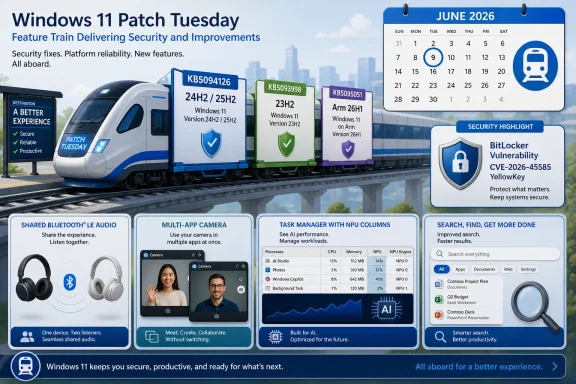
Promotional image for Windows 11 Patch Tuesday with a train-themed security highlights for June 2026.Patch Tuesday Has Become the Feature Train​

For years, Patch Tuesday had a tidy psychological shape. The second Tuesday of the month meant security fixes, regression risk, and a familiar round of testing rituals. Windows 11 has made that boundary blurrier, and the June 2026 update is a particularly clean example of the shift.
The new bits include shared audio over Bluetooth LE, multi-app camera support, Task Manager NPU visibility, Windows Search improvements, Magnifier refinements, a setup-time option for naming the user folder, and claimed performance improvements tied to a low-latency profile. Those are not just background fixes. They are changes to how users interact with audio, video, accessibility tools, search, setup, and the shell.
Microsoft’s explanation is usually that many of these features roll out gradually. That phrase does a lot of work. It lets the company ship code broadly while enabling functionality in stages, reducing blast radius and giving Microsoft a lever if telemetry turns ugly.
But gradual rollout also makes Windows harder to explain. Two fully patched PCs can sit side by side, both apparently current, while only one exposes the newest Quick Settings control or Task Manager column. For enthusiasts, that is an annoyance. For help desks, documentation teams, and endpoint managers, it is a support variable.

Shared Audio Is a Small Feature with a Big Hardware Asterisk​

The most consumer-friendly addition is shared audio, which lets two people listen to the same PC audio at the same time using compatible Bluetooth LE audio accessories. In human terms, this is easy to understand: two people on a plane, two students watching a lecture, two coworkers reviewing media from one laptop.
The catch is that it depends on Bluetooth LE Audio broadcast support, which means the feature is only as useful as the PC, radio stack, driver, firmware, and earbuds in the chain. Windows can expose the button, but it cannot make older Bluetooth gear behave like new hardware. That is the classic Windows ecosystem problem in one feature.
Still, the direction matters. Microsoft is trying to make Windows 11 feel less like a legacy desktop that happens to support modern peripherals and more like a contemporary personal device platform. Apple has made shared listening feel ordinary in its ecosystem; Windows has to do the same job across a far messier hardware universe.
That messiness is not a reason to dismiss the feature. It is a reason to set expectations carefully. Users will hear “shared audio” and assume it works with any two Bluetooth headsets. IT pros will hear the same words and immediately ask which chipsets, drivers, policies, and devices are actually supported.

Multi-App Camera Access Fixes a Very 2026 Problem​

Multi-app camera support may be less flashy, but it is arguably more practical. The old assumption that one app owns the camera at a time never matched how people now use PCs. A video call, a recording tool, a virtual camera pipeline, a proctoring app, a sign-language interpretation workflow, or an accessibility utility can all collide over the same camera stream.
Letting multiple apps access the camera simultaneously acknowledges that the webcam is now a shared system resource. It also reflects how much of modern work happens through layers of capture, processing, and communication. The camera is no longer just a peripheral; it is part of the operating environment.
The obvious question is privacy. Microsoft will need to ensure that camera access indicators, permissions, and user expectations remain clear when more than one process is touching the stream. A feature that solves friction for creators and remote workers can become a trust problem if users cannot tell who is looking.
For managed environments, this also means policy review. Organizations that have tightly controlled camera behavior may need to revisit assumptions about app concurrency, virtual camera tools, and monitoring software. The feature is useful, but usefulness is exactly why it deserves scrutiny.

Task Manager Learns the NPU Vocabulary​

The new Task Manager columns for NPU usage and NPU memory are another sign that Microsoft expects neural processors to become normal PC resources rather than marketing badges. On systems with NPUs, Task Manager can now expose NPU and NPU Engine columns across relevant pages, along with dedicated and shared NPU memory columns in Details.
That matters because the NPU story has been oddly invisible for many users. Copilot+ PCs and AI-capable laptops ship with silicon that is supposed to matter, but normal Windows telemetry has not always made it easy to see what is actually using it. If the processor is part of the sales pitch, it needs to be part of the system’s observable state.
Task Manager is not just a troubleshooting utility. It is also Windows’ public confession booth. When CPU spikes, memory leaks, GPU load, or disk churn misbehave, Task Manager gives users a way to point at the culprit. Adding NPU visibility says the AI accelerator has graduated into that same accountability model.
The timing is important. As more Windows features and third-party applications begin to lean on local AI acceleration, administrators will need to know whether workloads are using NPUs efficiently or falling back to CPU and GPU paths. Visibility does not solve performance problems by itself, but without it, the entire AI PC pitch remains too abstract.

The Low-Latency Profile Is Microsoft Admitting the Shell Still Matters​

The June update also brings a performance story: faster app launches and quicker core shell experiences such as Start, Search, and Action Center, helped by a low-latency profile that briefly boosts CPU behavior to accelerate background processes. That may sound like implementation trivia, but it gets at a sore spot in Windows 11 criticism.
Users rarely complain about benchmark numbers in isolation. They complain when Start feels sticky, Search hesitates, Settings stalls, or the shell takes a beat too long to respond. These are small moments, but they accumulate into the emotional impression of an operating system.
A temporary performance profile is an interesting answer because it accepts that responsiveness is not only about raw hardware. Modern CPUs are tuned around power, thermals, and background scheduling. If Windows wants a task to feel instant, it may need to explicitly say so.
There is a battery-life tradeoff hiding behind every boost mechanism, but Microsoft is presumably betting that short bursts are worth it. On desktops, the concern is negligible. On thin laptops, especially Arm systems and ultramobiles, the calculus is more delicate. Users want responsiveness and endurance, and Windows is still learning how to make both feel effortless.

Search Improvements Continue the Slow Crawl Back to Usability​

Windows Search gets a practical tweak: the ability to find local files when users enter as few as two characters. This sounds minor until you remember how often Windows Search has been criticized for failing at simple local retrieval while being eager to show web or cloud-adjacent content.
The Windows 11 search experience has carried too much strategic baggage. Microsoft wants search to be a gateway to apps, files, settings, web answers, and increasingly AI-adjacent experiences. Users often want the file they know is on the machine.
Improving short-query local matching is a small but welcome correction. It suggests Microsoft understands that speed and relevance at the local layer are prerequisites for any larger search ambition. If the OS cannot quickly find a file by a short name fragment, no amount of cloud intelligence makes the experience feel trustworthy.
The challenge is consistency. Search improvements tend to arrive in pieces, sometimes gated by indexing state, account configuration, cloud integration, regional behavior, or gradual rollout. Windows Search does not need one more clever panel. It needs predictability.

Setup Finally Gives Users a Name That Makes Sense​

The ability to choose a custom name for the user folder during Windows setup is the sort of change that sounds absurdly overdue. Windows has long generated user folder names from account information in ways that can feel arbitrary, truncated, or simply ugly. Once created, that path becomes part of a user’s daily reality and, for some software, a long-lived assumption.
This matters most to power users and professionals who care about clean paths, reproducible setups, scripts, development environments, and backup structures. A weird user folder name is not catastrophic, but it is irritating precisely because it is foundational. It appears in terminals, logs, shortcuts, and project paths.
Microsoft’s account-first setup flow has often privileged cloud identity convenience over local clarity. Letting users choose the folder name gives back a small but meaningful piece of ownership. It is not a revolution. It is a repair.
The practical warning is that this appears during setup, not as a casual post-install rename button. Anyone hoping to fix an existing profile path should still treat that as a migration task rather than a cosmetic setting. Windows profiles are too deeply wired into registry entries, permissions, and application assumptions for casual surgery.

Accessibility Gains Are Quiet, Necessary, and Still Undersold​

Magnifier improvements in this update include clearer and more consistent screen reader announcements and support for magnification of permitted protected content. Accessibility changes rarely dominate Patch Tuesday coverage, but they are among the most important measures of whether Windows remains a general-purpose platform.
Microsoft has made accessibility a visible part of its product identity, but the real work is not in campaign language. It is in small, unglamorous changes that reduce friction for people who rely on assistive technology every day. Better screen reader announcements mean fewer surprises. More consistent behavior means less cognitive load.
The protected-content change is also notable because accessibility often runs into rights-management and content-protection boundaries. The phrase “permitted protected content” is doing careful work, but the direction is positive. Accessibility tools should not break just because content pipelines were designed around visual assumptions.
For administrators in education, government, healthcare, and regulated industries, these improvements are not optional niceties. They are part of compliance, procurement, and workforce inclusion. Windows still has to serve everyone from gamers to lawyers to blind users navigating enterprise apps under deadline.

The BitLocker Fix Is the Update’s Real Security Spine​

The most consequential security item in the June release is the fix for CVE-2026-45585, a BitLocker security bypass vulnerability associated with the Windows Recovery Environment and publicly discussed as “YellowKey.” Microsoft says the vulnerability was publicly disclosed but not known to be actively exploited at release time.
That distinction matters, but it should not breed complacency. Public disclosure changes the risk equation because defenders and attackers start from the same bulletin. Even without evidence of active exploitation, a bypass affecting BitLocker and recovery paths belongs high on any patch-prioritization list.
This also explains why the June update is not merely another cumulative package with nice extras. Microsoft’s hotpatch cadence for some eligible Windows 11 Enterprise scenarios was interrupted by a baseline-style security update so devices could be protected quickly after the public disclosure. In plain English, the servicing model bent around the vulnerability.
BitLocker is one of those technologies users assume is simply there, silently protecting lost laptops, stolen drives, and corporate data at rest. A bypass risk in that chain is therefore more than a CVE number. It touches incident response, compliance attestations, device lifecycle management, and the basic promise that encryption protects data when the device leaves your control.

Hotpatching Meets the Real World​

Hotpatching is supposed to be one of the more appealing modern servicing improvements: fewer reboots, less disruption, and a smoother security cadence for eligible enterprise devices. June 2026 shows the boundary of that promise. When the threat model changes, the elegant cadence can give way to a baseline update.
That is not a failure of hotpatching. It is a reminder that hotpatching is a tool, not a suspension of reality. Some fixes require a broader baseline because the system state has to be reset in a way that small in-memory or incremental changes cannot safely cover.
For IT departments, the lesson is to treat hotpatching as operational relief, not as an excuse to stop planning conventional update windows. The existence of a hotpatch channel does not eliminate the need for reboot strategy, pilot rings, rollback procedures, and user communications. June’s update is a case study in why.
The more Microsoft markets servicing improvements, the more important it becomes to explain exceptions clearly. Admins can tolerate complexity when the reason is concrete. They are less forgiving when a change appears to violate the model without enough plain-language explanation.

Version 26H1 Is Still a Different Windows Story​

The June update also reaches Windows 11 version 26H1 through KB5095051, but that release remains a special case. It is currently tied to new Arm-based PCs, including systems built around Qualcomm chips and the broader Windows on Arm hardware roadmap. That means the update story is both Windows 11 and not quite the same Windows 11 most users are running.
For 26H1, June brings shared audio support and catches up with features that versions 25H2 and 24H2 received earlier, including items such as Xbox mode, Drop tray behavior, AI agents on the taskbar, and expanded archive-format support in File Explorer. That staggered feature alignment is typical of a platform in transition.
The bigger picture is that Windows on Arm is no longer just an engineering curiosity. Microsoft is treating Arm PCs as a first-class delivery target, but the release naming and feature timing still make the ecosystem feel segmented. Enthusiasts can track the distinctions. Ordinary buyers may simply wonder why one “Windows 11” PC behaves differently from another.
This is where Microsoft’s messaging has to improve. If 26H1 is a hardware-specific branch for new Arm systems, say so plainly and often. If features arrive on a different timetable, document that without assuming users understand the release train. Windows’ greatest strength is ecosystem breadth; its greatest communication weakness is also ecosystem breadth.

Enterprise IT Should Read This as a Servicing Signal​

For enterprise administrators, the June update is less about shared audio and more about accumulated change management. The same package can contain a BitLocker-relevant security fix, NPU telemetry, camera behavior changes, search behavior changes, and shell performance tuning. That is a lot to validate under a single monthly banner.
The cumulative model reduces fragmentation, but it also bundles risk. You cannot accept the security fix while declining the camera change forever. You can delay, stage, and test, but the direction of travel is set by the update train.
This is why ring-based deployment remains essential. A small pilot group should include hardware with NPUs, Bluetooth LE audio support, accessibility tools, BitLocker-managed devices, conferencing-heavy users, and the weird line-of-business apps that always find edge cases. The average office laptop is no longer enough as a test representative.
The June release also argues for better internal user communications. Telling employees “Windows updates are installing tonight” is not enough when they may see new audio controls, camera behavior, or search results the next morning. Feature education does not need to be elaborate, but surprise is the enemy of trust.

Consumers Get Convenience, But Not Always Clarity​

For home users, this update is likely to feel benign or even pleasant. Faster Start and Search behavior, better local file discovery, shared audio for compatible devices, and a cleaner setup option are all easy wins. None of them demands a new mental model for Windows.
But the rollout pattern complicates the story. Some users will install the update and see nothing obvious. Others will get a new toggle. Still others will read about a feature, fail to find it, and assume something is broken. This is the cost of controlled feature rollout when the public narrative says the feature has “arrived.”
Microsoft has trained users to treat Windows Update as both a security mechanism and a feature lottery. That is not entirely bad; it keeps Windows evolving without forcing annual cliff-edge upgrades. But it does make Windows feel less deterministic than it used to.
The best consumer advice remains boring: install the security update, check Windows Update again after rebooting, and do not assume every feature appears immediately. If a feature depends on hardware, especially Bluetooth LE Audio or an NPU, the update alone is not enough.

The June Patch Shows Where Windows Is Headed​

This release is not a grand redesign. It is more revealing than that. It shows Microsoft steadily moving Windows 11 toward a hardware-aware, AI-visible, accessibility-improved, media-friendlier operating system while continuing to use the monthly security channel as the delivery spine.
That strategy has advantages. It avoids the old boom-and-bust cycle where Windows features waited for giant releases. It also lets Microsoft iterate across its huge installed base with a level of precision that older Windows servicing models could not support.
The downside is narrative clutter. Windows 11 now changes in layers: optional previews, Patch Tuesday releases, controlled feature rollouts, Store app updates, Copilot-era components, OEM driver packages, and hardware-specific branches. The operating system is no longer a single artifact so much as a constantly negotiated state.
That may be technically rational, but it puts pressure on Microsoft to communicate with more discipline. Users need to know what is available, what is rolling out, what is hardware-gated, and what is security-critical. Admins need to know what changed beneath the same cumulative update number. Enthusiasts need fewer mysteries and more release-note precision.

The Practical Read for This Month’s Windows Update​

June’s Patch Tuesday deserves attention because it mixes a meaningful security fix with visible platform movement. The safest interpretation is not “rush blindly” or “wait indefinitely,” but “prioritize intelligently and test with the right hardware.”
  • The June 2026 Windows 11 update is security-relevant, especially because of the BitLocker recovery-environment bypass fix tied to CVE-2026-45585.
  • Windows 11 versions 25H2 and 24H2 receive KB5094126, while version 26H1 receives KB5095051 on eligible Arm PCs.
  • Shared audio depends on Bluetooth LE Audio support, so many users will not see the full benefit without compatible hardware and accessories.
  • Multi-app camera support may improve real-world conferencing and creator workflows, but organizations should review camera privacy and app-permission expectations.
  • Task Manager’s new NPU visibility is a useful step toward making AI PC hardware observable rather than merely advertised.
  • The performance, Search, Magnifier, and setup changes are individually modest, but together they show Microsoft using Patch Tuesday to refine the daily Windows experience.
The June 2026 Patch Tuesday update is therefore best understood as a security release wearing the clothes of a feature update, and that is increasingly what Windows servicing is now. Microsoft is not waiting for a yearly Windows moment to reshape the OS; it is doing the work month by month, behind KB numbers and gradual rollouts. For users, the result is a Windows 11 that keeps changing even when it claims only to be getting patched. For IT, the mandate is clear: treat every monthly update as both a defensive necessity and a product change, because in modern Windows, it is usually both.

References​

  1. Primary source: thurrott.com
    Published: Tue, 09 Jun 2026 20:41:52 GMT
 

Back
Top