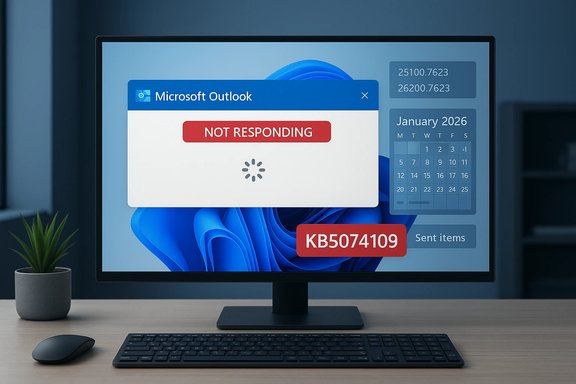
Microsoft has published the January 13, 2026 cumulative security update for Windows 11 (KB5074109), and it’s available now via Windows Update and the Microsoft Update Catalog as a set of MSU packages that must be installed in a specific order for offline deployments and image servicing.
Microsoft’s January 2026 cumulative (KB5074109) updates both Windows 11 release branches covered by the package and are labeled for the OS builds 26200.7623 and 26100.7623. The package follows Microsoft’s modern cumulative + servicing-stack pattern where the update may include checkpoint differentials and servicing stack components; when applied manually from the Microsoft Update Catalog it can appear as two or more MSU files that must be staged and applied in sequence or installed together with DISM so prerequisites are resolved automatically. This article summarizes the KB’s delivery model and installation mechanics, analyzes the practical impact for home users, administrators, and image builders, and offers clear, actionable deployment guidance and mitigations for known pitfalls. Key recommendations and technical steps are provided to help you install the update reliably and verify successful application.
Conclusion
The January 2026 update (KB5074109) follows Microsoft’s modern cumulative and servicing-pattern approach: the content is delivered as checkpoint-style MSUs that require proper sequencing, the recommended DISM-based method simplifies offline and image servicing, and standard pilot/testing discipline remains the single most effective mitigation against deployment regressions. Treat servicing-stack implications, third‑party driver compatibility, and WinRE image hygiene as first-class concerns in your deployment plan to ensure a smooth, secure rollout.
Source: Microsoft - Message Center January 13, 2026—KB5074109 (OS Builds 26200.7623 and 26100.7623) - Microsoft Support
 Background / Overview
Microsoft’s January 2026 cumulative (KB5074109) updates both Windows 11 release branches covered by the package and are labeled for the OS builds 26200.7623 and 26100.7623. The package follows Microsoft’s modern cumulative + servicing-stack pattern where the update may include checkpoint differentials and servicing stack components; when applied manually from the Microsoft Update Catalog it can appear as two or more MSU files that must be staged and applied in sequence or installed together with DISM so prerequisites are resolved automatically. This article summarizes the KB’s delivery model and installation mechanics, analyzes the practical impact for home users, administrators, and image builders, and offers clear, actionable deployment guidance and mitigations for known pitfalls. Key recommendations and technical steps are provided to help you install the update reliably and verify successful application.What’s inside KB5074109 — the short summary
- The update is a monthly cumulative security and quality rollup for Windows 11 (January 13, 2026). It targets the two relevant servicing branches referenced by the KB (Windows 11 OS builds 26200.7623 and 26100.7623).
- Microsoft delivers the package as one or more MSU files in the Microsoft Update Catalog; the KB notes that the MSU files may include prerequisite checkpoint packages that must be applied in order if installed individually. The vendor recommends placing all MSU files in a single folder and using DISM to install the update so the service will discover and sequence prerequisites automatically.
- The KB includes the usual mix of security fixes and quality improvements (the KB’s detail section lists the resolved issues and the affected components). Administrators should assume the update contains both the latest LCU content and the required servicing updates that ensure reliable installation.
Why the installation order and method matter
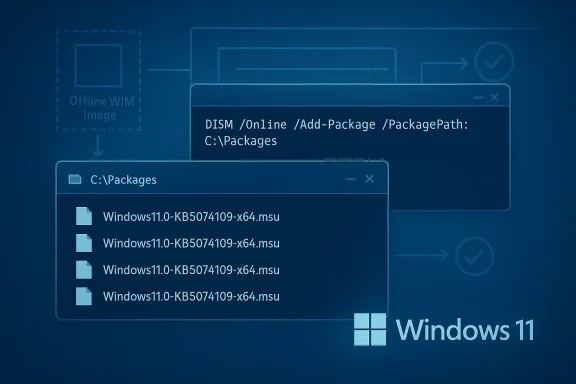
Microsoft’s Update Catalog and KB pages emphasize two installation models:- Install all MSU files together (recommended for offline image servicing): place every MSU file for KB5074109 in a single folder and run DISM (or use the Windows Update Standalone Installer). DISM will use the folder you point at to discover and apply prerequisite MSU files in the correct order automatically. This is the simplest approach for image servicing and bulk offline installs.
- Install each MSU file individually and in order: some catalog packages are delivered as a chain of checkpoint MSUs (a small checkpoint followed by the full cumulative). If you choose to install files individually you must follow Microsoft’s specified sequence; installing them out of order can fail or leave the system in a partially serviced state. The KB explicitly lists the MSU filenames and the recommended sequencing.
How to install KB5074109 — step-by-step (recommended)
This section provides the precise commands and recommended workflow for both running PCs and offline images. These steps match Microsoft’s guidance for catalog packages and DISM sequencing.For a running Windows PC (elevated prompt)
- Download all MSU files for KB5074109 from the Microsoft Update Catalog and save them into a single folder, for example C:\Packages.
- Open an elevated Command Prompt and run DISM to apply the package set (DISM will discover prerequisites in the folder automatically):
DISM /Online /Add-Package /PackagePath:C:\Packages\Windows11.0-KB5074109-x64.msu - Alternatively, from an elevated PowerShell session you can run:
Add-WindowsPackage -Online -PackagePath "C:\Packages\Windows11.0-KB5074109-x64.msu" - You can also use the Windows Update Standalone Installer (wusa.exe) against each MSU or the combined one, but when SSUs are bundled the /uninstall switch will not remove the SSU; treat SSUs as effectively permanent once included in a combined package.
For Windows installation media or an offline WIM image
- Mount the target install.wim (or the offline image directory).
- Copy the MSU files into a folder accessible on the servicing host.
- Use DISM against the mounted image:
DISM /Image:mountdir /Add-Package /PackagePath:Windows11.0-KB5074109-x64.msu - Or from PowerShell:
Add-WindowsPackage -Path "C:\offline" -PackagePath "Windows11.0-KB5074109-x64.msu" -PreventPending - After adding packages, run component cleanup and unmount per standard image servicing best practices (for example, DISM /Cleanup-Image /StartComponentCleanup and DISM /Export-Image to optimize size). Remember SafeOS/Dynamic Update guidance if you update WinRE/WinPE images.
If you prefer to install each MSU individually
The KB lists the MSU filenames and the required order. Install them strictly in that order using DISM or wusa. Example (the KB’s order is authoritative — follow it exactly):- windows11.0-kb5043080-x64_...msu
- windows11.0-kb5074109-x64_...msu
Verification and post-install checks
After installation, verify success and build numbers:- Run winver or check Settings → System → About to confirm the OS build is the one listed in the KB (e.g., 26200.7623 or 26100.7623).
- Use DISM to list installed packages:
DISM /Online /Get-Packages | findstr /i 5074109 - Check Windows Update history in Settings for the KB entry and confirm any required reboot completed.
- Inspect the System and Application event logs for servicing and Component-Based Servicing (CBS) events (use Event Viewer or the Get-WinEvent PowerShell cmdlet).
- If you applied the update to WinRE images or installation media, verify the WinREAgent servicing events (Event ID 4501) and use reagentc /info and DISM /Get-ImageInfo against the mounted winre.wim. Recent KBs and community guidance remind admins that SafeOS DU changes to WinRE are non-reversible on images — keep golden images backed up.
Known issues, risks, and past patterns to watch for
Microsoft’s KBs and community reporting through the past year have established a few recurring themes that administrators should consider when applying monthly cumulatives:- Servicing Stack and SSU behavior: Microsoft increasingly bundles the SSU with LCUs. When SSUs are included in a combined package they are not removable; manually installed combined packages can complicate rollbacks. If you need the ability to uninstall an LCU, be aware that the SSU component will remain. This is an operational reality that influences rollback planning.
- Checkpoint cumulative sequencing and DISM prerequisites: Offline image servicing with multiple checkpoint MSUs requires correct sequencing; DISM’s package discovery behavior simplifies this when all files are placed in one folder, but manual individual installs must follow the precise order. Failing to do so is a common source of installation errors.
- Known product conflicts (historical examples): Several previous monthly updates have produced compatibility issues with specific third‑party components (for example, certain Citrix Session Recording Agent versions caused reboots and rollbacks during update application, and OpenSSH permission regressions after October 2024 updates required ACL remediation). While KB5074109 doesn’t necessarily reproduce those exact problems, admins should review the KB’s “Known issues” section and validate critical third‑party agents and drivers in a pilot ring before broad deployment. Historical community reporting reflects the same mitigations recommended by Microsoft and vendors.
- WinRE / SafeOS updates: When the KB includes a Safe OS Dynamic Update and you inject it into WinRE, note that changes to a WinRE image are effectively permanent for that image; rollback requires restoring from backup. Test recovery flows (Reset, cloud reinstall, Automatic Repair) after WinRE servicing.
- WSUS / Hotpatch implications: Recent out‑of‑band scenarios involving WSUS and Hotpatch demonstrated that certain server-side updates required specific sequencing and produced temporary Hotpatch gaps for affected systems. If you manage WSUS servers or Hotpatch-enrolled hosts, validate the KB’s guidance for server components and follow vendor remediation steps if your management infrastructure is in scope.
Deployment guidance: safe rollout plan for IT organizations
- Pilot ring first: Stage KB5074109 in a small, representative pilot group that includes various OEM hardware models, virtual machine images, and endpoints with critical third‑party software (security agents, Citrix, device-management hooks). Validate boot/recovery, BitLocker, and any enterprise drivers.
- Image servicing: If you service offline images, obtain every MSU associated with KB5074109 from the Microsoft Update Catalog and inject them into your golden image using DISM with all files in the same directory so DISM can sequence prerequisites correctly. Back up your golden WIMs before modifying them.
- WSUS/Intune strategies: For managed environments use Windows Update for Business or WSUS/Intune phased deployments with ringed approvals. Avoid broad, immediate forced reboots during business hours—schedule maintenance windows.
- Driver and agent compatibility: Confirm AV, EDR, virtualization agents (Citrix, VMware tools), backup clients, and kernel-mode drivers are supported against the new OS build. Where possible, stage updated agents first or use vendor guidance documented for prior monthly rollups. Community reporting and vendor collaboration have repeatedly shown that early coordination reduces rollout regressions.
- Verification and telemetry: Confirm build numbers (winver), review event logs, and ensure monitoring scripts validate critical services and remote access paths (RDP, SSH) after the update. If you have a configuration management tool, create a compliance query to verify KB5074109’s presence across the estate.
Troubleshooting common failures
- Installation fails with CBS or DISM errors: Collect %windir%\Logs\CBS\CBS.log and DISM logs, run DISM /Online /Cleanup-Image /RestoreHealth, and ensure the servicing stack is current. Then retry the package.
- Reboots roll back the install: Check for incompatible drivers or a pending reboot from previous operations; uninstall or update conflicting third‑party components before reattempting. Vendor advisories (Citrix, storage drivers) often publish a specific workaround if a pattern emerges.
- OpenSSH or service start issues post-update: Historically, permission regressions on C:\ProgramData\ssh required admin PowerShell ACL fixes; if SSH fails to start validate ACLs and review Microsoft’s workaround guidance for similar symptoms. If you rely on OpenSSH for remote management, test this in the pilot ring.
Rollback and recovery considerations
- Uninstalling the LCU: You can remove the LCU with DISM /Online /Remove-Package but not the SSU if it was bundled. Use DISM /Online /Get-Packages to identify the package names for removal. Running wusa.exe /uninstall against a combined SSU+LCU will not remove the SSU component. Plan accordingly before attempting rollbacks.
- Image rollbacks: For images, keep an unmodified golden image offline so you can redeploy if the updated image produces an unforeseen regression. SafeOS updates and WinRE servicing are effectively one-way changes on images — you must restore from a preserved golden image to undo them.
Critical analysis — strengths, practical value, and remaining risks
Strengths
- Microsoft’s packaging model (combined SSU+LCU and checkpoint cumulatives) reduces the risk of update‑time failures for the majority of online devices and simplifies Windows Update delivery. This improves reliability for most end users and reduces the “failed installs” noise that previously forced manual interventions.
- DISM’s package discovery when all MSU files live in one folder is a pragmatic improvement for image servicing and reduces human sequencing errors when applying multiple checkpoint MSUs to WIMs.
Remaining risks and operational trade-offs
- Bundled SSUs are effectively permanent on an updated host; this reduces uninstall flexibility for environments that need to revert an LCU quickly. The operational cost of an irreversible SSU must be reflected in change control and rollback strategy.
- Third‑party compatibility remains the most frequent cause of problematic rollouts. While Microsoft and vendors often collaborate quickly, real-world estates with complex agent stacks or legacy drivers should expect careful pilot-testing and potential vendor-coordinated mitigations. Community incident patterns over past cycles validate this concern.
- SafeOS/WinRE image changes are non-reversible on a serviced image — an important consideration for recovery image hygiene and disaster recovery planning. Always retain golden media before WinRE servicing.
Quick reference: commands and checks
- Apply MSU via DISM on a running PC:
DISM /Online /Add-Package /PackagePath:C:\Packages\Windows11.0-KB5074109-x64.msu - Apply to a mounted image:
DISM /Image:mountdir /Add-Package /PackagePath:Windows11.0-KB5074109-x64.msu - Verify installed packages:
DISM /Online /Get-Packages | findstr /i 5074109 - Confirm OS build:
winver - Check WinRE (if you updated WinRE):
reagentc /info
Final recommendations
- Home users: Install KB5074109 via Windows Update as offered. If you manually install updates from the Microsoft Update Catalog, download all MSU files for the KB and use the recommended DISM method or the Windows Update Standalone Installer rather than applying MSUs out of order.
- IT admins and image builders: Stage KB5074109 in a pilot ring, validate third‑party agents and recovery scenarios, and use DISM with all MSUs in a single folder to let DISM handle sequencing. Back up golden images and WinRE images before injecting SafeOS updates.
- If you encounter problems during installation: collect CBS and DISM logs, check for known vendor incompatibilities, and consult vendor advisories for security/agent products that interact with kernel or update flows. Community reporting has repeatedly shown that collecting these artifacts speeds resolution.
Conclusion
The January 2026 update (KB5074109) follows Microsoft’s modern cumulative and servicing-pattern approach: the content is delivered as checkpoint-style MSUs that require proper sequencing, the recommended DISM-based method simplifies offline and image servicing, and standard pilot/testing discipline remains the single most effective mitigation against deployment regressions. Treat servicing-stack implications, third‑party driver compatibility, and WinRE image hygiene as first-class concerns in your deployment plan to ensure a smooth, secure rollout.
Source: Microsoft - Message Center January 13, 2026—KB5074109 (OS Builds 26200.7623 and 26100.7623) - Microsoft Support