

KB5079473 makes Windows 11’s native “This PC” search worth testing again, but not blindly trusting across an entire estate. Microsoft has fixed a specific reliability problem affecting searches across multiple drives; whether File Explorer is now fast enough depends on indexing coverage, storage layout, query type, and the workload your users expect it to replace.
Released on March 10, 2026, KB5079473 applies to Windows 11 24H2 and 25H2, advancing them to OS builds 26100.8037 and 26200.8037 respectively. Microsoft’s release notes explicitly say the update improves File Explorer search reliability across multiple drives and “This PC,” but they do not promise a particular speed increase or publish benchmark results.
That distinction matters. Reports of dramatic acceleration may reflect genuine observed improvements, but the official fix is framed around reliability, not a guaranteed reduction in search time on every PC.
The most useful response to KB5079473 is not immediately enabling Enhanced indexing or removing an existing search utility. IT teams should first test File Explorer under the indexing configuration they already deploy.
Use this sequence on a representative Windows 11 device:
Avoid changing Classic to Enhanced halfway through the first comparison. KB5079473 and indexing scope solve related but different problems, and changing both simultaneously makes it impossible to determine which one affected the result.
A useful evaluation has three outcomes: the correct files are returned, the results arrive within an acceptable period, and the behavior remains consistent across repeated searches. “Feels faster” is encouraging, but it is not enough to justify an estate-wide tooling change.
Windows 11 offers two main built-in choices under “Find my files.” Classic mode balances search responsiveness and system-resource use by limiting the locations indexed by default. Enhanced mode expands indexing across the PC, making it the relevant built-in option when users expect broad searches to return quickly from many local locations.
That makes the decision less binary than “File Explorer works” or “File Explorer is slow.” There are at least three practical configurations:
For managed fleets, the sensible order is therefore patch, measure, and only then expand indexing. If KB5079473 makes “This PC” searches accurate and acceptably responsive under Classic mode, increasing indexing scope may add overhead without solving a current business problem.
If searches are now reliable but remain too slow in non-indexed locations, Enhanced mode becomes a targeted next test rather than a reflexive recommendation. Record the old setting so it can be restored if broader indexing produces an unacceptable operational tradeoff.
That may be sufficient for ordinary office devices with a system drive, a secondary local drive, and a manageable collection of documents. Users who know roughly where a file belongs can search the relevant folder or drive, while “This PC” serves as the wider fallback.
The calculation changes for engineering workstations, media libraries, support repositories, and other systems where file discovery is a primary workflow rather than an occasional convenience. A person searching thousands of times per week values predictable latency differently from someone looking for a misplaced spreadsheet once a month.
Third-party search tools can therefore remain necessary even if Microsoft’s fix works exactly as intended. The question is no longer whether File Explorer is objectively “fast,” but whether it meets the operational threshold for a particular user group.
Do not remove an existing tool merely because KB5079473 improves one Explorer path. Run the same representative queries in both products and compare:
WindowsForum has already followed the wider pattern of Windows 11 Explorer responsiveness work, including complaints that basic Explorer and context-menu interactions can still feel slower than Windows 10. That broader history is relevant, but KB5079473 should be judged narrowly: it targets search reliability across drives, not every source of File Explorer lag.
Run the same query directly from the folder containing the file. If the folder-level search works but “This PC” does not, the remaining issue is specifically associated with search scope or multi-drive behavior. If neither search works, investigate indexing coverage and the type of information being queried.
If changing to Enhanced mode resolves the problem, that is useful evidence—but it also changes the diagnosis. The update may have repaired multi-drive reliability while the previous Classic configuration simply did not provide the search coverage or responsiveness the workload required.
Storage differences also make sweeping performance claims risky. A test on a lightly used machine does not establish expected behavior on a workstation with multiple busy drives and a far larger file collection. Microsoft has not attached a percentage improvement, search-time target, or hardware profile to the KB5079473 note.
Administrators should document the conditions of each test:
KB5079473 is a meaningful reason to reevaluate “This PC,” not a reason to declare Windows 11 search solved. Keep native search when it now returns complete multi-drive results within the tolerance of the affected users; test Enhanced indexing when coverage is the limiting factor; and retain specialist tools wherever File Explorer still cannot meet the estate’s real file-discovery workload.
Released on March 10, 2026, KB5079473 applies to Windows 11 24H2 and 25H2, advancing them to OS builds 26100.8037 and 26200.8037 respectively. Microsoft’s release notes explicitly say the update improves File Explorer search reliability across multiple drives and “This PC,” but they do not promise a particular speed increase or publish benchmark results.
That distinction matters. Reports of dramatic acceleration may reflect genuine observed improvements, but the official fix is framed around reliability, not a guaranteed reduction in search time on every PC.
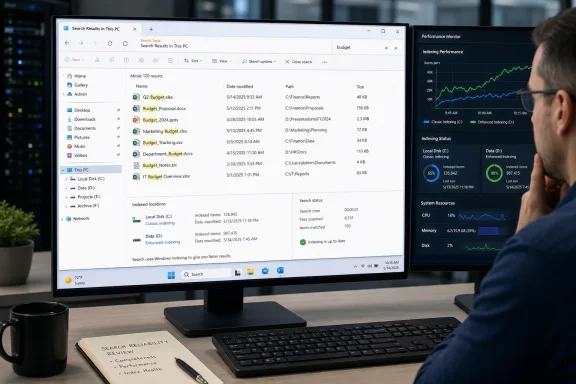 Test the Fix Before Changing the Index
The most useful response to KB5079473 is not immediately enabling Enhanced indexing or removing an existing search utility. IT teams should first test File Explorer under the indexing configuration they already deploy.Use this sequence on a representative Windows 11 device:
- Open Settings, select System, and then open About to confirm that the device runs Windows 11 24H2 or 25H2.
- Press
Win + R, enterwinver, and verify OS build 26100.8037 for Windows 11 24H2 or 26200.8037 for Windows 11 25H2. - Open Settings, go to Privacy & security, and select Searching Windows.
- Record whether “Find my files” is set to Classic or Enhanced before changing anything.
- Open File Explorer, select This PC, and run searches that previously produced slow, incomplete, or inconsistent results.
- Repeat the same searches from an individual drive and from a known folder to separate multi-drive behavior from general indexing problems.
- Confirm the result set, not merely how quickly the first item appears. A faster incomplete search is not a successful fix.
- Repeat the test after a restart so that the result does not depend entirely on recently accessed files or an already warmed search session.
Avoid changing Classic to Enhanced halfway through the first comparison. KB5079473 and indexing scope solve related but different problems, and changing both simultaneously makes it impossible to determine which one affected the result.
A useful evaluation has three outcomes: the correct files are returned, the results arrive within an acceptable period, and the behavior remains consistent across repeated searches. “Feels faster” is encouraging, but it is not enough to justify an estate-wide tooling change.
Reliability Is Not the Same as Full-PC Indexing
File Explorer can search outside indexed locations, but indexing determines how much information Windows Search can retrieve quickly. KB5079473 improves the multi-drive search path; it does not mean every file on every attached drive has suddenly entered the Windows Search index.Windows 11 offers two main built-in choices under “Find my files.” Classic mode balances search responsiveness and system-resource use by limiting the locations indexed by default. Enhanced mode expands indexing across the PC, making it the relevant built-in option when users expect broad searches to return quickly from many local locations.
That makes the decision less binary than “File Explorer works” or “File Explorer is slow.” There are at least three practical configurations:
- Classic indexing can remain the right choice when users store active files in predictable locations and only occasionally search an entire drive.
- Enhanced indexing is the stronger candidate when users regularly search across several local drives and require fast discovery outside standard folders.
- A third-party tool remains defensible when the workflow demands near-instant file-name lookup across large or frequently changing storage sets.
For managed fleets, the sensible order is therefore patch, measure, and only then expand indexing. If KB5079473 makes “This PC” searches accurate and acceptably responsive under Classic mode, increasing indexing scope may add overhead without solving a current business problem.
If searches are now reliable but remain too slow in non-indexed locations, Enhanced mode becomes a targeted next test rather than a reflexive recommendation. Record the old setting so it can be restored if broader indexing produces an unacceptable operational tradeoff.
Native Search Has to Win on the Workload That Matters
The strongest case for returning to File Explorer is integration. It is already present, requires no separate deployment, and allows users to search from the folder structure they are browsing. KB5079473 directly addresses one of the more frustrating failures in that experience: searching from “This PC” across multiple drives.That may be sufficient for ordinary office devices with a system drive, a secondary local drive, and a manageable collection of documents. Users who know roughly where a file belongs can search the relevant folder or drive, while “This PC” serves as the wider fallback.
The calculation changes for engineering workstations, media libraries, support repositories, and other systems where file discovery is a primary workflow rather than an occasional convenience. A person searching thousands of times per week values predictable latency differently from someone looking for a misplaced spreadsheet once a month.
Third-party search tools can therefore remain necessary even if Microsoft’s fix works exactly as intended. The question is no longer whether File Explorer is objectively “fast,” but whether it meets the operational threshold for a particular user group.
Do not remove an existing tool merely because KB5079473 improves one Explorer path. Run the same representative queries in both products and compare:
- Both products must find the same known files across the intended drives.
- Results should remain dependable after files are created, renamed, moved, or deleted.
- The acceptable waiting time should be defined by the team using the machine, not by an arbitrary desktop standard.
- Administrative overhead, licensing, security review, and user training should be included in the decision.
WindowsForum has already followed the wider pattern of Windows 11 Explorer responsiveness work, including complaints that basic Explorer and context-menu interactions can still feel slower than Windows 10. That broader history is relevant, but KB5079473 should be judged narrowly: it targets search reliability across drives, not every source of File Explorer lag.
Where a Failed Retest Points Next
If “This PC” search still misses known files after installing KB5079473, confirm indexing scope before concluding that the update failed. A file outside the expected indexed locations may behave differently from one inside them, especially when the search depends on content rather than the name or basic properties.Run the same query directly from the folder containing the file. If the folder-level search works but “This PC” does not, the remaining issue is specifically associated with search scope or multi-drive behavior. If neither search works, investigate indexing coverage and the type of information being queried.
If changing to Enhanced mode resolves the problem, that is useful evidence—but it also changes the diagnosis. The update may have repaired multi-drive reliability while the previous Classic configuration simply did not provide the search coverage or responsiveness the workload required.
Storage differences also make sweeping performance claims risky. A test on a lightly used machine does not establish expected behavior on a workstation with multiple busy drives and a far larger file collection. Microsoft has not attached a percentage improvement, search-time target, or hardware profile to the KB5079473 note.
Administrators should document the conditions of each test:
- Record the Windows 11 version, OS build, and indexing mode.
- Identify which drives and folders were included in the queries.
- Separate file-name searches from searches that depend on file contents.
- Note whether the correct complete result set appeared.
- Retest after normal use rather than relying on one freshly patched session.
KB5079473 is a meaningful reason to reevaluate “This PC,” not a reason to declare Windows 11 search solved. Keep native search when it now returns complete multi-drive results within the tolerance of the affected users; test Enhanced indexing when coverage is the limiting factor; and retain specialist tools wherever File Explorer still cannot meet the estate’s real file-discovery workload.
References
- Primary source: learn.microsoft.com
How to improve Windows 11 file explorer searches - Microsoft Q&A
I work with a large library of documents on my hard drive that I need to locate quickly. I never had any issues with file explorer, and have usually always gotten the results I want. Yesterday, I installed 2024-10 Cumulative Update for Windows 11…learn.microsoft.com - Independent coverage: windowscentral.com
Microsoft announces major Windows 11 search overhaul that prioritizes clearer, local results, and removes ads: Huge effort to fix search on Windows is finally happening | Windows Central
Windows 11's search user experience is getting a big update, with Microsoft moving to prioritize local results, remove promotional content, and much more.www.windowscentral.com - Independent coverage: techradar.com
'We love this... except gradual rollouts': Windows 11 search is being improved in a big way, with users impatient to get these changes — and I don't blame them | TechRadar
Less clutter, more relevance — and an option to ditch web resultswww.techradar.com - Independent coverage: pcgamer.com
New changes to Windows 11 Start menu and search look genuinely exciting and thank the heavens that we'll be able to disable web results | PC Gamer
Keep going in this direction, please, Microsoft.www.pcgamer.com - Independent coverage: support.microsoft.com
Search indexing in Windows | Microsoft Support
Learn more about how indexing affects searches in Windows.support.microsoft.com - Independent coverage: pcworld.com
Microsoft quietly sped up File Explorer in June's optional update | PCWorld
Microsoft's optional KB5095093 update speeds up File Explorer, fixes the address bar, and improves disk image performance.www.pcworld.com