

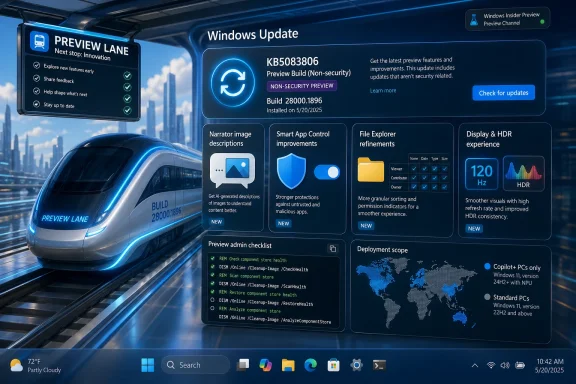
Microsoft released KB5083806, a non-security preview update for Windows 11 version 26H1, on April 30, 2026, moving the operating system to Build 28000.1896 and delivering a mix of Copilot-era accessibility features, Smart App Control changes, display fixes, File Explorer refinements, and servicing-stack updates. The headline is not any single fix. It is that Windows 11’s “preview” lane has become the place where Microsoft rehearses the operating system’s next identity: more AI-aware, more cloud-adjacent, and more complicated for administrators who still want clean boundaries between feature change and maintenance.
KB5083806 is formally an optional preview update, which means it is not a Patch Tuesday security release and it is not something every managed fleet should rush to install. That distinction matters. Microsoft’s preview updates have become a public staging lane for the next month’s quality payload, giving enthusiasts and admins a look at what is likely to arrive more broadly later.
But this particular update is more revealing than its label suggests. Windows 11 version 26H1 is already an unusual release in Microsoft’s modern cadence because it is positioned less as a conventional feature update and more as a platform release tied to specific silicon support. That means many users will not experience 26H1 as “the next Windows” in the traditional sense, yet Microsoft is still using its servicing channel to move visible pieces of the experience forward.
The result is a slightly odd split-screen moment. On one side, KB5083806 looks like a routine accumulation of fixes: File Explorer polish, display reliability, Remote Desktop cleanup, Windows Hello fingerprint improvements, and a servicing stack update. On the other side, it carries the unmistakable shape of Microsoft’s current Windows strategy: Copilot hooks deeper into system experiences, AI components travel inside cumulative updates, and Settings continues its long migration from control panel replacement to product surface.
That is the real story. The Windows update train is no longer just transporting fixes. It is transporting posture.
That makes KB5083806 interesting because it sits at the intersection of two Microsoft habits that increasingly define Windows. The company is separating underlying platform readiness from visible feature rollout, while also using cumulative updates to deliver feature-adjacent changes in smaller increments. A build number can say “platform,” while the payload still says “experience.”
For IT departments, that distinction is more than semantic. If 26H1 devices are associated with particular hardware paths, especially Copilot+ PCs and newer silicon targets, then updates like KB5083806 become a window into how Microsoft intends to service differentiated Windows experiences. The operating system may have one brand on the box, but not every device is receiving the same practical Windows.
That fragmentation is not necessarily bad. Hardware-specific optimization has always existed, and Windows has supported different processor generations, driver models, and feature baselines for decades. What is changing is the user-facing nature of the split. AI features, local models, Copilot integrations, and component packages now make the gap more visible.
This is the kind of Windows release that rewards careful reading. The most important words in the KB are not just “Preview” or “OS Build 28000.1896.” They are the caveats about gradual rollout, device and market availability, Copilot+ applicability, and AI components that install only where supported.
This is exactly where AI in Windows makes the most sense. Accessibility is not a novelty demo, and image description is not a gimmick when the user actually needs visual context translated into text. For blind and low-vision users, the quality, speed, and privacy model of this experience matter far more than whether an AI button looks good in a keynote.
Microsoft is also drawing a meaningful line between Copilot+ PCs and other Windows 11 machines. On Copilot+ PCs, the richer descriptions can be generated instantly on device, while other systems can use Copilot as part of the workflow. That distinction captures the whole Copilot+ pitch in miniature: local AI is not only about speed, but about changing which interactions can happen without first making the cloud the center of gravity.
Still, the update’s wording deserves scrutiny. The image is shared only after the user chooses to describe it, which is the kind of consent framing Microsoft needs to be explicit about. Windows users have grown wary of features that appear to blur the boundary between local context and cloud processing, and accessibility tools have especially high trust requirements.
If Microsoft wants AI in Windows to be accepted as infrastructure rather than decoration, Narrator is one of its strongest arguments. It is practical, human, and easy to justify. It also places a burden on Microsoft to keep the privacy story boring, predictable, and verifiable.
Smart App Control is designed to block untrusted or potentially harmful applications. The problem has been that its clean-install requirement made it feel less like a normal security control and more like a decision users had to make at provisioning time. If you missed the window, or inherited a machine in the wrong state, changing course was not straightforward.
Letting users toggle SAC from Windows Security lowers the friction dramatically. It also makes the feature easier to discuss in real-world deployment terms. Security features are more likely to be used when they can be tested, reversed, piloted, and documented without reimaging hardware.
That does not mean every enthusiast should immediately enable it on a main workstation. Application control can be disruptive, especially on machines that run unsigned tools, niche utilities, older installers, portable applications, scripts, and developer workflows. The very users most likely to read a KB article are also among the users most likely to trip over reputation-based blocking.
For managed organizations, the broader question is whether SAC becomes a more practical middle ground between consumer antivirus defaults and heavier enterprise application control. Microsoft has been trying to make Windows more resilient by default, but administrators will want telemetry, policy clarity, and predictable exception handling before treating SAC as a fleet-wide control.
This is the tension that now defines Settings. It is both the place where users configure the operating system and the place where Microsoft increasingly presents account, subscription, device, backup, and cloud prompts. That dual role is not inherently illegitimate; modern operating systems are tied to services. But Windows users are especially sensitive to the difference between useful account management and upsell surface area.
The About page changes are welcome because Windows has long made users work too hard to find basic device information. Clearer hardware specs, storage access, and a more coherent path from the Settings home card to System > About are small improvements, but they reduce friction. For support technicians, family troubleshooters, and forum regulars, anything that helps a user accurately report the device they are using is a net win.
The Microsoft 365 upgrade prompt is more complicated. Microsoft does provide a way to remove the upgrade option by disabling suggested content in Settings. That is better than no control at all, but it also reinforces the sense that Windows setup and configuration pages are increasingly treated as inventory for Microsoft’s services business.
The line Microsoft has to walk is narrow. If Settings becomes more helpful, users will accept it as the modern control center. If it becomes too promotional, users will begin treating it as another surface to be sanitized after installation.
The downloaded-file behavior is especially relevant because Windows’ attachment and zone marking system is a frequent source of confusion. Users download a file, try to preview or open it, and discover that security metadata is silently shaping the experience. Improving the reliability of unblocking does not remove the underlying security model, but it can make the model feel less arbitrary.
Voice Typing during file renaming sounds minor until you consider how many parts of Windows still behave inconsistently when accessibility and input tools enter older shell workflows. File Explorer is one of the most heavily used components in Windows, and small gaps there become daily annoyances. Making dictation work in a rename field is the kind of fit-and-finish fix that rarely earns applause but prevents frustration.
Sorting permissions by principal in Advanced Security Settings is a classic admin convenience. Anyone who has dealt with messy NTFS permissions on long-lived folders knows the pain of scanning entries that are technically complete but operationally unpleasant. This is not a redesign of Windows security, but it makes a difficult pane slightly less hostile.
The larger point is that File Explorer still matters. Microsoft can spend years modernizing Settings, integrating Copilot, and refining AI components, but if Explorer feels brittle, Windows feels brittle. KB5083806 suggests Microsoft still understands that the shell is not legacy scenery; it is where the operating system proves itself.
A refresh-rate ceiling above 1000 Hz sounds absurd until you remember that gaming monitors have spent years pushing numbers that once looked theoretical. Windows does not need every user to own such a panel for the operating system to support it correctly. Platform work has to arrive before the hardware becomes mainstream enough for failures to become embarrassing.
The USB4 monitor sleep improvement may have more practical near-term value. Modern laptops increasingly rely on USB-C and USB4 docks, displays, and hubs, and sleep behavior remains one of the least glamorous but most consequential parts of the PC experience. If a USB controller can enter its lowest power state while a native USB4 monitor is connected, battery life and standby reliability both benefit.
HDR and DisplayID fixes also speak to the messy reality of the PC ecosystem. Standards compliance varies, firmware quality varies, and Windows has to deal with monitors that do not behave exactly as the specification imagines. Improving reliability for displays with non-compliant DisplayID 2.0 blocks is a polite way of saying that the operating system must often be more forgiving than the hardware deserves.
These are not headline features, but they are platform maturity work. A modern Windows release has to understand strange monitors, docks, panels, sensors, and sleep states. If it does not, the blame lands on Windows even when the root cause sits somewhere in a display’s firmware.
The Remote Desktop fix sounds cosmetic until you put it in context. Security warning dialogs are supposed to be legible, trustworthy, and boring. If a dialog renders incorrectly across mixed-DPI monitors, users may misread it, ignore it, or assume something is broken. In remote access workflows, ambiguity is the enemy.
The Active Directory fix is the more serious enterprise note. NTDS.dit is not just another database file; it is the directory database at the heart of Active Directory Domain Services. Anything that can make it unmountable belongs in the “read twice before touching production” category.
This is one reason optional preview updates occupy an awkward place in enterprise administration. They may contain fixes that an organization urgently wants, but they also arrive outside the standard security update rhythm and can include user-experience changes still in gradual rollout. The update is production-quality in Microsoft’s terminology, but that does not make it a no-brainer for every environment.
For IT pros, the sensible posture is familiar: test where the fixed issue matters, wait where it does not, and assume that the same payload or a refined version of it will appear in the next cumulative security update path. Optional preview updates are valuable precisely because they give organizations a chance to see what is coming before it becomes the default.
That caveat is important. It prevents admins from assuming that every machine receiving the cumulative update is also receiving the same AI payload. It also confirms that Microsoft is treating AI capability as a componentized layer inside Windows servicing, not merely as an app update delivered through the Store.
Componentization is useful because it lets Microsoft update models and supporting pieces without pretending they are the same thing as kernel fixes or shell reliability improvements. But it also creates a new inventory problem. Admins now have to think not only about OS build numbers, app versions, drivers, and firmware, but also AI component versions that may vary by hardware class.
The names are revealing. Image Search, Content Extraction, and Semantic Analysis point to a Windows that increasingly indexes, interprets, and retrieves local context in richer ways. Settings Model suggests that even system configuration may be supported by model-driven experiences. Whether users find that helpful or invasive will depend on implementation, transparency, and control.
This is where Microsoft’s messaging must be exact. “Included in the update” and “installed on this device” are not the same thing. KB5083806 makes that distinction, but the broader Windows ecosystem will need better tools to show users and administrators which AI components are present, active, disabled, removable, or governed by policy.
That is not the sort of sentence that inspires confidence in casual users. Microsoft offers two methods: place all MSU files in a folder and let DISM discover prerequisites, or install each MSU file individually in order. For a running PC, the DISM and PowerShell examples point to package paths under a local folder; for installation media, the instructions refer to adding the update to a mounted image.
For IT professionals, none of this is exotic. DISM, offline servicing, mounted images, Dynamic Update packages, SafeOS updates, Setup Dynamic Updates, and package ordering are all part of the Windows deployment vocabulary. But the presence of these details in a consumer-facing support article highlights how complex Windows servicing remains beneath the glossy Settings page.
The advice about Dynamic Update packages is also operationally important. Microsoft tells admins to match other Dynamic Update packages to the same month as the KB where possible, and to use the most recently published SafeOS or Setup Dynamic Update if a same-month package is unavailable. That kind of instruction is aimed squarely at people building or maintaining installation media, not someone clicking “Download and install.”
This is the split personality of Windows Update in 2026. For consumers, it is a button. For administrators, it is still a supply chain.
The servicing stack is the machinery that lets Windows receive, stage, commit, and recover from updates. When it works, users never think about it. When it fails, the entire update model becomes suspect: downloads loop, installs roll back, cumulative updates refuse to apply, and administrators lose hours to log files and error codes.
Microsoft now combines the latest servicing stack update with the latest cumulative update for the operating system. That approach reduces some of the historical ordering pain, but it does not make the servicing stack disposable. In fact, it makes the SSU part of the same operational package admins must understand when they consider uninstall behavior.
The uninstall note is the sharp edge. Microsoft says that using Windows Update Standalone Installer with the uninstall switch on the combined package will not work because the package contains the SSU, and the SSU cannot be removed after installation. If removal is needed, admins must use DISM with the LCU package name, but the servicing stack remains.
That is a reasonable engineering constraint, but it matters for rollback planning. Preview updates may be optional, but they are not always cleanly reversible in the intuitive way users expect. The deeper Windows servicing becomes, the more rollback requires preparation rather than hope.
This matters especially for preview updates. The whole point of an optional preview release is to expose fixes and changes to a wider audience before they ride into the mainstream security update cycle. That makes the absence of known issues helpful, but the update’s risk profile still depends on the machine.
A Copilot+ laptop used for accessibility testing is a very different target from a developer workstation loaded with unsigned tools. A domain-joined machine with Remote Desktop workflows is different from a gaming desktop with experimental display hardware. A deployment image maintained by an IT department is different from a personal PC that simply sees an optional update tile.
The smartest reading of KB5083806 is therefore selective. If you need the fixes, test it. If you are tracking 26H1 behavior, document it. If you are simply curious, understand that optional preview updates are still part of the production servicing train, not a toy channel.
Microsoft’s gradual rollout language adds another wrinkle. Some features may not appear immediately on every eligible system. That means two PCs on the same build can still feel different, depending on rollout state, region, hardware, and feature availability.
Copilot+ PCs get on-device Narrator image descriptions and AI components. All Windows 11 devices can participate in some Copilot-assisted accessibility workflows. Servers do not receive those AI components. Standard PCs may install the cumulative update without receiving the hardware-specific AI payload.
That is a more nuanced model than the old idea of a Windows feature simply being present or absent. It also raises the documentation burden. Microsoft has to explain not only what a feature does, but where it runs, when it appears, what hardware it requires, what policy controls it obeys, and whether it sends anything to the cloud.
For enthusiasts, this is a fascinating era because Windows is becoming more modular and more dependent on hardware capabilities. For admins, it is exhausting because modularity can look like inconsistency when it reaches the help desk. “Why does this machine have that setting and this one does not?” is not a philosophical question when a ticket is aging in the queue.
KB5083806 is a preview update, but it previews more than May’s likely fixes. It previews the support model Windows is moving toward.
The update’s most concrete lessons are these:
Source: Microsoft Support April 30, 2026—KB5083806 (OS Build 28000.1896) Preview - Microsoft Support
 Microsoft Turns the Optional Patch Into a Product Signal
KB5083806 is formally an optional preview update, which means it is not a Patch Tuesday security release and it is not something every managed fleet should rush to install. That distinction matters. Microsoft’s preview updates have become a public staging lane for the next month’s quality payload, giving enthusiasts and admins a look at what is likely to arrive more broadly later.But this particular update is more revealing than its label suggests. Windows 11 version 26H1 is already an unusual release in Microsoft’s modern cadence because it is positioned less as a conventional feature update and more as a platform release tied to specific silicon support. That means many users will not experience 26H1 as “the next Windows” in the traditional sense, yet Microsoft is still using its servicing channel to move visible pieces of the experience forward.
The result is a slightly odd split-screen moment. On one side, KB5083806 looks like a routine accumulation of fixes: File Explorer polish, display reliability, Remote Desktop cleanup, Windows Hello fingerprint improvements, and a servicing stack update. On the other side, it carries the unmistakable shape of Microsoft’s current Windows strategy: Copilot hooks deeper into system experiences, AI components travel inside cumulative updates, and Settings continues its long migration from control panel replacement to product surface.
That is the real story. The Windows update train is no longer just transporting fixes. It is transporting posture.
26H1 Is Not a Normal Feature Update, and That Changes the Stakes
The version number is easy to misread. Windows 11 version 26H1 sounds like a broad successor to 25H2, but Microsoft has described 26H1 as a platform-focused release rather than a feature update for the general installed base. In plainer terms, this is not the sort of update most users should expect to seek out because they want a redesigned desktop or a new Start menu.That makes KB5083806 interesting because it sits at the intersection of two Microsoft habits that increasingly define Windows. The company is separating underlying platform readiness from visible feature rollout, while also using cumulative updates to deliver feature-adjacent changes in smaller increments. A build number can say “platform,” while the payload still says “experience.”
For IT departments, that distinction is more than semantic. If 26H1 devices are associated with particular hardware paths, especially Copilot+ PCs and newer silicon targets, then updates like KB5083806 become a window into how Microsoft intends to service differentiated Windows experiences. The operating system may have one brand on the box, but not every device is receiving the same practical Windows.
That fragmentation is not necessarily bad. Hardware-specific optimization has always existed, and Windows has supported different processor generations, driver models, and feature baselines for decades. What is changing is the user-facing nature of the split. AI features, local models, Copilot integrations, and component packages now make the gap more visible.
This is the kind of Windows release that rewards careful reading. The most important words in the KB are not just “Preview” or “OS Build 28000.1896.” They are the caveats about gradual rollout, device and market availability, Copilot+ applicability, and AI components that install only where supported.
Narrator Becomes Microsoft’s Most Defensible AI Showcase
The most compelling user-facing change in KB5083806 is the Narrator enhancement. Microsoft says Narrator can now provide richer image descriptions on Copilot+ PCs and can work with Copilot on all Windows 11 devices. Keyboard shortcuts allow users to describe a focused image or the full screen, with Copilot opening around the image so the user can ask for a more customized description.This is exactly where AI in Windows makes the most sense. Accessibility is not a novelty demo, and image description is not a gimmick when the user actually needs visual context translated into text. For blind and low-vision users, the quality, speed, and privacy model of this experience matter far more than whether an AI button looks good in a keynote.
Microsoft is also drawing a meaningful line between Copilot+ PCs and other Windows 11 machines. On Copilot+ PCs, the richer descriptions can be generated instantly on device, while other systems can use Copilot as part of the workflow. That distinction captures the whole Copilot+ pitch in miniature: local AI is not only about speed, but about changing which interactions can happen without first making the cloud the center of gravity.
Still, the update’s wording deserves scrutiny. The image is shared only after the user chooses to describe it, which is the kind of consent framing Microsoft needs to be explicit about. Windows users have grown wary of features that appear to blur the boundary between local context and cloud processing, and accessibility tools have especially high trust requirements.
If Microsoft wants AI in Windows to be accepted as infrastructure rather than decoration, Narrator is one of its strongest arguments. It is practical, human, and easy to justify. It also places a burden on Microsoft to keep the privacy story boring, predictable, and verifiable.
Smart App Control Finally Escapes Its Clean-Install Trap
The Smart App Control change may matter more to power users and admins than the Copilot branding. KB5083806 begins rolling out the ability to turn Smart App Control on or off without requiring a clean install. That is a significant policy and usability shift for a feature that has long been constrained by its all-or-nothing deployment model.Smart App Control is designed to block untrusted or potentially harmful applications. The problem has been that its clean-install requirement made it feel less like a normal security control and more like a decision users had to make at provisioning time. If you missed the window, or inherited a machine in the wrong state, changing course was not straightforward.
Letting users toggle SAC from Windows Security lowers the friction dramatically. It also makes the feature easier to discuss in real-world deployment terms. Security features are more likely to be used when they can be tested, reversed, piloted, and documented without reimaging hardware.
That does not mean every enthusiast should immediately enable it on a main workstation. Application control can be disruptive, especially on machines that run unsigned tools, niche utilities, older installers, portable applications, scripts, and developer workflows. The very users most likely to read a KB article are also among the users most likely to trip over reputation-based blocking.
For managed organizations, the broader question is whether SAC becomes a more practical middle ground between consumer antivirus defaults and heavier enterprise application control. Microsoft has been trying to make Windows more resilient by default, but administrators will want telemetry, policy clarity, and predictable exception handling before treating SAC as a fleet-wide control.
Settings Keeps Becoming the New Front Door to Windows Commerce
Several KB5083806 changes land in Settings, and they are not all of the same character. Some are straightforward usability improvements, such as a redesigned About page with clearer device specifications and better navigation to related components. Others tilt toward Microsoft’s subscription business, including an upgrade path for Microsoft 365 Family subscribers inside Settings > Accounts.This is the tension that now defines Settings. It is both the place where users configure the operating system and the place where Microsoft increasingly presents account, subscription, device, backup, and cloud prompts. That dual role is not inherently illegitimate; modern operating systems are tied to services. But Windows users are especially sensitive to the difference between useful account management and upsell surface area.
The About page changes are welcome because Windows has long made users work too hard to find basic device information. Clearer hardware specs, storage access, and a more coherent path from the Settings home card to System > About are small improvements, but they reduce friction. For support technicians, family troubleshooters, and forum regulars, anything that helps a user accurately report the device they are using is a net win.
The Microsoft 365 upgrade prompt is more complicated. Microsoft does provide a way to remove the upgrade option by disabling suggested content in Settings. That is better than no control at all, but it also reinforces the sense that Windows setup and configuration pages are increasingly treated as inventory for Microsoft’s services business.
The line Microsoft has to walk is narrow. If Settings becomes more helpful, users will accept it as the modern control center. If it becomes too promotional, users will begin treating it as another surface to be sanitized after installation.
File Explorer Gets the Kind of Fixes Users Actually Notice
File Explorer’s changes in KB5083806 are not flashy, but they are exactly the sort of quality-of-life improvements that shape whether Windows feels cared for. Microsoft says the update improves the File Explorer experience, including more reliable unblocking of files downloaded from the internet so they can be previewed, support for Voice Typing while renaming files, and sortable permission entries in Advanced Security Settings.The downloaded-file behavior is especially relevant because Windows’ attachment and zone marking system is a frequent source of confusion. Users download a file, try to preview or open it, and discover that security metadata is silently shaping the experience. Improving the reliability of unblocking does not remove the underlying security model, but it can make the model feel less arbitrary.
Voice Typing during file renaming sounds minor until you consider how many parts of Windows still behave inconsistently when accessibility and input tools enter older shell workflows. File Explorer is one of the most heavily used components in Windows, and small gaps there become daily annoyances. Making dictation work in a rename field is the kind of fit-and-finish fix that rarely earns applause but prevents frustration.
Sorting permissions by principal in Advanced Security Settings is a classic admin convenience. Anyone who has dealt with messy NTFS permissions on long-lived folders knows the pain of scanning entries that are technically complete but operationally unpleasant. This is not a redesign of Windows security, but it makes a difficult pane slightly less hostile.
The larger point is that File Explorer still matters. Microsoft can spend years modernizing Settings, integrating Copilot, and refining AI components, but if Explorer feels brittle, Windows feels brittle. KB5083806 suggests Microsoft still understands that the shell is not legacy scenery; it is where the operating system proves itself.
Display Fixes Hint at the Hardware Windows Is Preparing For
The display changes in KB5083806 are a reminder that Windows is being pulled forward by hardware faster than most users replace their PCs. The update allows monitors to report refresh rates higher than 1000 Hz, improves USB4 monitor power behavior during sleep, improves auto-rotation reliability after resume, and addresses HDR reliability with non-compliant DisplayID 2.0 blocks.A refresh-rate ceiling above 1000 Hz sounds absurd until you remember that gaming monitors have spent years pushing numbers that once looked theoretical. Windows does not need every user to own such a panel for the operating system to support it correctly. Platform work has to arrive before the hardware becomes mainstream enough for failures to become embarrassing.
The USB4 monitor sleep improvement may have more practical near-term value. Modern laptops increasingly rely on USB-C and USB4 docks, displays, and hubs, and sleep behavior remains one of the least glamorous but most consequential parts of the PC experience. If a USB controller can enter its lowest power state while a native USB4 monitor is connected, battery life and standby reliability both benefit.
HDR and DisplayID fixes also speak to the messy reality of the PC ecosystem. Standards compliance varies, firmware quality varies, and Windows has to deal with monitors that do not behave exactly as the specification imagines. Improving reliability for displays with non-compliant DisplayID 2.0 blocks is a polite way of saying that the operating system must often be more forgiving than the hardware deserves.
These are not headline features, but they are platform maturity work. A modern Windows release has to understand strange monitors, docks, panels, sensors, and sleep states. If it does not, the blame lands on Windows even when the root cause sits somewhere in a display’s firmware.
Remote Desktop and Active Directory Fixes Make This More Than a Consumer Patch
KB5083806 also includes fixes that matter squarely to administrators. Microsoft says it addresses a Remote Desktop Connection security warning dialog issue that could render incorrectly in multi-monitor scenarios when displays used different scaling settings. It also fixes an Active Directory scenario involving ntdsutil.exe and 8KB database pages that could upgrade the NTDS.dit database in a way that made it unmountable.The Remote Desktop fix sounds cosmetic until you put it in context. Security warning dialogs are supposed to be legible, trustworthy, and boring. If a dialog renders incorrectly across mixed-DPI monitors, users may misread it, ignore it, or assume something is broken. In remote access workflows, ambiguity is the enemy.
The Active Directory fix is the more serious enterprise note. NTDS.dit is not just another database file; it is the directory database at the heart of Active Directory Domain Services. Anything that can make it unmountable belongs in the “read twice before touching production” category.
This is one reason optional preview updates occupy an awkward place in enterprise administration. They may contain fixes that an organization urgently wants, but they also arrive outside the standard security update rhythm and can include user-experience changes still in gradual rollout. The update is production-quality in Microsoft’s terminology, but that does not make it a no-brainer for every environment.
For IT pros, the sensible posture is familiar: test where the fixed issue matters, wait where it does not, and assume that the same payload or a refined version of it will appear in the next cumulative security update path. Optional preview updates are valuable precisely because they give organizations a chance to see what is coming before it becomes the default.
The AI Components Are Small Packages With Big Implications
KB5083806 updates four AI components: Image Search, Content Extraction, Semantic Analysis, and the Settings Model, all to version 1.2603.377.0. Microsoft notes that while the cumulative update includes these AI component updates, they apply only to Windows Copilot+ PCs and do not install on ordinary Windows PCs or Windows Server.That caveat is important. It prevents admins from assuming that every machine receiving the cumulative update is also receiving the same AI payload. It also confirms that Microsoft is treating AI capability as a componentized layer inside Windows servicing, not merely as an app update delivered through the Store.
Componentization is useful because it lets Microsoft update models and supporting pieces without pretending they are the same thing as kernel fixes or shell reliability improvements. But it also creates a new inventory problem. Admins now have to think not only about OS build numbers, app versions, drivers, and firmware, but also AI component versions that may vary by hardware class.
The names are revealing. Image Search, Content Extraction, and Semantic Analysis point to a Windows that increasingly indexes, interprets, and retrieves local context in richer ways. Settings Model suggests that even system configuration may be supported by model-driven experiences. Whether users find that helpful or invasive will depend on implementation, transparency, and control.
This is where Microsoft’s messaging must be exact. “Included in the update” and “installed on this device” are not the same thing. KB5083806 makes that distinction, but the broader Windows ecosystem will need better tools to show users and administrators which AI components are present, active, disabled, removable, or governed by policy.
The Catalog Instructions Expose the Mess Beneath Modern Servicing
The installation notes for KB5083806 are unusually easy to stumble over because the Microsoft Support article says the standalone package is available from the Microsoft Update Catalog, while the command examples include placeholder text indicating the download link will be available soon. The page also says the KB may contain one or more MSU files that must be installed in a specific order.That is not the sort of sentence that inspires confidence in casual users. Microsoft offers two methods: place all MSU files in a folder and let DISM discover prerequisites, or install each MSU file individually in order. For a running PC, the DISM and PowerShell examples point to package paths under a local folder; for installation media, the instructions refer to adding the update to a mounted image.
For IT professionals, none of this is exotic. DISM, offline servicing, mounted images, Dynamic Update packages, SafeOS updates, Setup Dynamic Updates, and package ordering are all part of the Windows deployment vocabulary. But the presence of these details in a consumer-facing support article highlights how complex Windows servicing remains beneath the glossy Settings page.
The advice about Dynamic Update packages is also operationally important. Microsoft tells admins to match other Dynamic Update packages to the same month as the KB where possible, and to use the most recently published SafeOS or Setup Dynamic Update if a same-month package is unavailable. That kind of instruction is aimed squarely at people building or maintaining installation media, not someone clicking “Download and install.”
This is the split personality of Windows Update in 2026. For consumers, it is a button. For administrators, it is still a supply chain.
The Servicing Stack Is the Part Nobody Sees Until It Breaks
KB5083806 includes Windows 11 servicing stack update KB5088834, version 28000.1837. Servicing stack updates improve the component that installs Windows updates. That sounds circular, but it is one of the most important moving parts in the platform.The servicing stack is the machinery that lets Windows receive, stage, commit, and recover from updates. When it works, users never think about it. When it fails, the entire update model becomes suspect: downloads loop, installs roll back, cumulative updates refuse to apply, and administrators lose hours to log files and error codes.
Microsoft now combines the latest servicing stack update with the latest cumulative update for the operating system. That approach reduces some of the historical ordering pain, but it does not make the servicing stack disposable. In fact, it makes the SSU part of the same operational package admins must understand when they consider uninstall behavior.
The uninstall note is the sharp edge. Microsoft says that using Windows Update Standalone Installer with the uninstall switch on the combined package will not work because the package contains the SSU, and the SSU cannot be removed after installation. If removal is needed, admins must use DISM with the LCU package name, but the servicing stack remains.
That is a reasonable engineering constraint, but it matters for rollback planning. Preview updates may be optional, but they are not always cleanly reversible in the intuitive way users expect. The deeper Windows servicing becomes, the more rollback requires preparation rather than hope.
“No Known Issues” Is Useful, Not Magical
Microsoft says it is not currently aware of any issues with KB5083806. That is good news, but it should not be confused with a guarantee. Every experienced Windows admin knows that “no known issues” means no issues Microsoft is currently documenting for that update, not that every hardware, driver, application, language pack, policy, and deployment scenario has been exhausted.This matters especially for preview updates. The whole point of an optional preview release is to expose fixes and changes to a wider audience before they ride into the mainstream security update cycle. That makes the absence of known issues helpful, but the update’s risk profile still depends on the machine.
A Copilot+ laptop used for accessibility testing is a very different target from a developer workstation loaded with unsigned tools. A domain-joined machine with Remote Desktop workflows is different from a gaming desktop with experimental display hardware. A deployment image maintained by an IT department is different from a personal PC that simply sees an optional update tile.
The smartest reading of KB5083806 is therefore selective. If you need the fixes, test it. If you are tracking 26H1 behavior, document it. If you are simply curious, understand that optional preview updates are still part of the production servicing train, not a toy channel.
Microsoft’s gradual rollout language adds another wrinkle. Some features may not appear immediately on every eligible system. That means two PCs on the same build can still feel different, depending on rollout state, region, hardware, and feature availability.
The April Preview Draws a Map of Windows’ Next Divide
The most important divide in Windows is no longer just Home versus Pro, consumer versus enterprise, or current versus unsupported. Increasingly, it is AI-capable versus not, managed versus nudged, local versus cloud-assisted, and platform-supported versus broadly eligible. KB5083806 shows all of those lines at once.Copilot+ PCs get on-device Narrator image descriptions and AI components. All Windows 11 devices can participate in some Copilot-assisted accessibility workflows. Servers do not receive those AI components. Standard PCs may install the cumulative update without receiving the hardware-specific AI payload.
That is a more nuanced model than the old idea of a Windows feature simply being present or absent. It also raises the documentation burden. Microsoft has to explain not only what a feature does, but where it runs, when it appears, what hardware it requires, what policy controls it obeys, and whether it sends anything to the cloud.
For enthusiasts, this is a fascinating era because Windows is becoming more modular and more dependent on hardware capabilities. For admins, it is exhausting because modularity can look like inconsistency when it reaches the help desk. “Why does this machine have that setting and this one does not?” is not a philosophical question when a ticket is aging in the queue.
KB5083806 is a preview update, but it previews more than May’s likely fixes. It previews the support model Windows is moving toward.
The Build 28000.1896 Ledger Favors Testers Over Thrill-Seekers
For WindowsForum readers, the practical read is straightforward: KB5083806 is worth studying, worth testing, and worth installing only when its fixes or features matter to your machine or your lab. It is not a security release, and it is not a universal must-have for every Windows 11 user on April 30.The update’s most concrete lessons are these:
- KB5083806 moves Windows 11 version 26H1 to OS Build 28000.1896 and should be treated as an optional non-security preview update rather than a mandatory fleet-wide patch.
- The Narrator improvements are the strongest user-facing AI feature in the release because they connect Copilot and on-device Copilot+ capability to a real accessibility need.
- Smart App Control becoming switchable without a clean install is a meaningful security usability change, but it still deserves testing on systems that run unsigned, older, or niche software.
- The AI component updates apply to Copilot+ PCs and do not install on ordinary Windows PCs or Windows Server, which makes hardware class central to understanding the payload.
- The Remote Desktop, Active Directory, File Explorer, display, Windows Hello, and servicing-stack fixes make the update relevant to IT pros even though the flashier story is AI.
- The Microsoft Update Catalog and DISM installation guidance shows that offline servicing and package ordering remain complicated, especially for admins maintaining installation media.
Source: Microsoft Support April 30, 2026—KB5083806 (OS Build 28000.1896) Preview - Microsoft Support
