

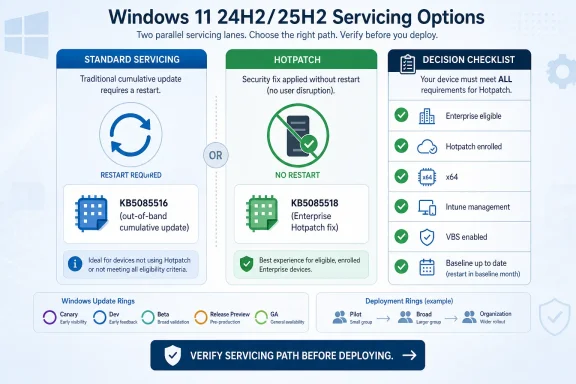
KB5085516 is the Windows 11 out-of-band cumulative update for Windows 11 25H2 and 24H2 devices on the standard servicing path. KB5085518 is the hotpatch route for eligible, enrolled Enterprise devices that can receive the same sign-in fix without a restart. The choice is about the device’s servicing lane, not which KB number looks newer.
For administrators, the first question is simple: which servicing model does this endpoint belong to?
For most Windows 11 devices, the answer is KB5085516. Microsoft identifies KB5085516 as the standard out-of-band cumulative update for Windows 11 25H2 and 24H2. It also states that KB5085516 includes the protections and improvements from the March 10, 2026 security update. In admin terms, this is the standard cumulative update lane.
For a single unmanaged or standard-serviced Windows 11 PC, the practical direction remains familiar: use Windows Update or the organization’s normal update tooling, install KB5085516 when offered or approved, and complete the restart when required. If normal delivery fails for a standard-serviced device, administrators may use the Microsoft Update Catalog for KB5085516 where the catalog package matches the device’s Windows release and architecture.
For managed fleets, the operational question is whether deployment rings, quality update policies, pause states, approval rules, and restart expectations are aligned with the urgency of the sign-in issue KB5085516 is meant to address. If the affected device is standard-serviced, KB5085516 is the patch path administrators should validate and deploy.
Hotpatch-enabled Enterprise devices sit in a different lane. Microsoft says that for devices enrolled in Hotpatch, the sign-in issue is addressed through KB5085518, and those devices can receive that fix without a restart. That does not make KB5085518 a universal replacement for KB5085516. It makes KB5085518 the correct route for devices that are eligible and already enrolled in Microsoft’s hotpatch servicing model.
Administrators should not flatten the decision into “install KB5085516 everywhere.” If a device is eligible and enrolled for Hotpatch, KB5085518 is the route Microsoft identifies for the sign-in issue without a restart. Avoiding a restart is operationally meaningful in environments where endpoints support clinical workflows, shared workstations, call centers, front desks, production floors, or other settings where reboot timing is a real constraint.
The rule is short enough to put in the runbook: KB5085516 for standard servicing; KB5085518 for enrolled, eligible hotpatch devices.
Microsoft’s hotpatch model depends on a baseline cumulative update in the first month of each quarter. That baseline requires a restart. In the following hotpatch months, eligible devices can receive selected updates without a restart, assuming they remain current and eligible. The value is fewer disruptive restarts across the year, not an escape from servicing discipline.
That quarterly rhythm changes how urgent fixes should be triaged. A standard cumulative update like KB5085516 is the right repair for standard-serviced devices. For hotpatch fleets, the question is whether Microsoft provides the fix through the hotpatch stream. In this case, Microsoft says the sign-in issue is addressed for Hotpatch-enrolled devices through KB5085518 without a restart.
If a patch dashboard cannot tell administrators which endpoints should receive the standard cumulative update and which should receive the hotpatch fix, the fleet is not ready for clean routing. The immediate remediation may be one KB or the other, but the longer-term fix is better device classification.
The VBS requirement is important because it prevents hotpatch from being reduced to an update-policy checkbox. It is part of the eligibility model. The same is true of Intune management: hotpatch is an enterprise operations feature, not a consumer convenience and not a generic manual-install shortcut.
WindowsForum’s own user reports show why this matters. Members have described updates stuck during “preparing to install,” preview quality updates failing with error 0x800f081f, Windows 10 feature updates failing with error 800705b4, and systems becoming unstable after an update until the update was removed. Those reports are not evidence about KB5085516 or KB5085518 specifically. They are examples of the support reality around Windows servicing: users often see a KB number, an error code, or a stuck percentage and collapse several different problems into one request for help.
Administrators should keep those problems separate:
The baseline update is still part of the model. In the first month of each quarter, hotpatch devices receive a baseline cumulative update that requires a restart. In the next two months, eligible devices can receive hotpatches without a restart. Hotpatch success therefore depends on devices staying current on the required baseline and remaining compliant with the eligibility requirements.
For organizations already using Intune-driven update management, that may be manageable. For organizations that still treat Windows Update as a loosely governed background process, hotpatching will expose weak reporting and weak targeting. The no-restart fix is available only to devices that have already been prepared for it.
This is why KB5085518 should not be described as a convenience patch. It is the hotpatch route for enrolled, eligible Enterprise devices. The operational benefit is reduced disruption, but the prerequisite is disciplined management.
If the device is on the standard Windows 11 servicing path, KB5085516 is the path. If the device is an eligible Enterprise endpoint enrolled in Hotpatch, KB5085518 is the path Microsoft identifies for addressing the sign-in issue without a restart. The presence of two KB numbers does not mean administrators should choose whichever one appears first in a search result, ticket, or user screenshot.
Help desk scripts should be explicit. “Install the out-of-band update” is too vague when two servicing models exist. A better script starts by identifying the device’s Windows release, servicing path, management state, hotpatch enrollment, baseline status, and restart expectation.
For smaller organizations without hotpatch, the answer remains simpler: treat KB5085516 as the corrective out-of-band cumulative update for Windows 11 25H2 and 24H2 standard-serviced systems, deploy it through the normal update path, and plan for restart completion. For larger organizations, the answer branches before deployment begins.
Those reports should not be misread as proof that every cumulative update is risky. They are a reminder that update support is rarely just “install the KB.” A useful runbook must distinguish between applicability, delivery, installation health, restart behavior, and post-install symptoms.
For KB5085516 and KB5085518, that means support teams should avoid one-size-fits-all instructions. A standard-serviced user should be told to expect KB5085516 and a restart. A hotpatch-enrolled Enterprise user should be told that the relevant fix is KB5085518 without a restart, assuming the device remains eligible. A user whose device does not fit either cleanly should be placed in an exception workflow until the servicing state is confirmed.
WindowsForum’s hotpatch-related discussions point in the same direction. Forum posts about earlier Windows 11 Enterprise hotpatch releases focused on build targeting, eligibility, and the operational value of compact no-restart updates. Those are the same questions administrators need to ask here: not just “which KB exists,” but “which devices are entitled to receive it through this servicing model?”
The first group is standard-serviced Windows 11 25H2 and 24H2 devices. These should receive KB5085516.
The second group is hotpatch-enrolled, eligible Enterprise devices. These should receive KB5085518 for the sign-in issue without a restart.
The third group is everything ambiguous: devices with unknown enrollment state, missing eligibility data, unsupported licensing, stale baseline status, incomplete management reporting, or unclear restart history. This group deserves attention before broad deployment, because ambiguous devices are where patching mistakes happen. They get counted as covered when they are not, or they receive a disruptive update when a less disruptive path was available.
For Intune-managed environments, administrators should verify hotpatch policy assignment, enrollment, baseline status, and device eligibility through the management data available to them. For standard-serviced devices, the confirmation is simpler but still important: verify the Windows 11 release, verify that KB5085516 is offered or deployable through the approved servicing path, and verify restart completion.
A cumulative update that downloads but never completes the reboot is not remediated. It is staged. That distinction matters in compliance reporting, help desk closure, and incident review.
A hotpatch user should hear something different: the fix is expected through KB5085518 without a restart, assuming the device is enrolled and eligible. That message reinforces why two Windows 11 users may see different update behavior even when they are affected by the same sign-in issue.
This matters in mixed environments. A developer workstation, a finance laptop, and a shared front-desk PC may all be Windows 11, but they may not be in the same servicing lane. When users compare screenshots, KB numbers, and restart prompts, the help desk needs a simple explanation ready.
The answer is that Microsoft is servicing different device classes differently. The help desk should explain the lane, not apologize for the existence of two KB numbers.
For administrators, that affects testing and deployment confidence. A cumulative update that includes the March protections and improvements needs to be evaluated as part of the broader monthly patch state, not only as a sign-in fix. If a device missed the March 10 security update, KB5085516’s cumulative nature changes the effect of installing it.
It also means reporting should not stop at “sign-in fixed.” Administrators should verify that the device’s update compliance state reflects the intended servicing outcome. The fix users notice may be sign-in related, but the servicing result is broader.
Hotpatch does not erase the broader cadence. It depends on baseline status and eligibility. The no-restart KB5085518 route is valuable because the device is already in the right servicing posture to receive it.
The runbook should stay inside those facts:
If the endpoint is Windows 11 25H2 or 24H2 on standard servicing, deploy KB5085516 through Windows Update, approved management tooling, or the Microsoft Update Catalog if the normal delivery path fails and the catalog package matches the device. Plan for a restart and verify that the restart completed.
If the endpoint is an eligible Hotpatch-enrolled Enterprise device, use KB5085518 through the hotpatch servicing route to address the sign-in issue without a restart. Verify that the device remains eligible and current on the required baseline.
If the endpoint’s servicing state is unknown, put it in the exception group, verify management data, and then route it to the correct lane.
Incident notes should preserve the distinction. If the help desk is tracking sign-in problems after the March 2026 security update, the remediation field should not simply say “patched.” It should say whether the device received KB5085516 through standard servicing or KB5085518 through Hotpatch.
For reporting, separate completion from compliance. A standard device is complete only after KB5085516 is installed and the required restart has occurred. A hotpatch device is complete when KB5085518 has been received through the intended hotpatch route and the device remains in the expected servicing state.
For exception handling, avoid forcing the wrong path just to make dashboards look tidy. A hotpatch-ineligible device belongs on the standard cumulative update path. A hotpatch-eligible device should not be pushed into a restart-based route unless operational circumstances require it.
What to do next
- Standard servicing: If the device is Windows 11 25H2 or 24H2 and is not using Hotpatch, route it to KB5085516.
- Hotpatch: If the device is an eligible Windows 11 Enterprise device already enrolled in Hotpatch and current on the required baseline, route it to KB5085518.
- Unknown state: If enrollment, baseline status, Intune management, VBS, architecture, or licensing are unclear, verify those first. Do not guess based on the KB number alone.
That distinction matters because Microsoft is giving administrators two operational answers to the same sign-in problem. One answer is the familiar out-of-band cumulative update that moves through the standard Windows Update servicing model and normally requires a restart. The other answer is the hotpatch model, where eligible Enterprise devices can receive selected fixes in hotpatch months without forcing another reboot.Decision box for admins
- Use KB5085516 for Windows 11 25H2 and 24H2 devices on the standard servicing path.
- Use KB5085518 for eligible Enterprise devices that are enrolled in Hotpatch.
- Before deployment, verify the device’s Windows release, servicing path, hotpatch enrollment, current baseline status, Enterprise eligibility, x64 hardware, Intune management, Virtualization-based Security requirement, and restart expectations.
- Use the Microsoft Update Catalog only where it is supported for the standard cumulative update path. Treat it as a fallback for standard-serviced devices when KB5085516 is not offered or normal update delivery fails. Do not assume the same catalog fallback exists for hotpatch-managed endpoints unless your Microsoft servicing documentation explicitly supports that workflow.
For administrators, the first question is simple: which servicing model does this endpoint belong to?
 The Right Fix Is Determined Before the User Opens Settings
For most Windows 11 devices, the answer is KB5085516. Microsoft identifies KB5085516 as the standard out-of-band cumulative update for Windows 11 25H2 and 24H2. It also states that KB5085516 includes the protections and improvements from the March 10, 2026 security update. In admin terms, this is the standard cumulative update lane.For a single unmanaged or standard-serviced Windows 11 PC, the practical direction remains familiar: use Windows Update or the organization’s normal update tooling, install KB5085516 when offered or approved, and complete the restart when required. If normal delivery fails for a standard-serviced device, administrators may use the Microsoft Update Catalog for KB5085516 where the catalog package matches the device’s Windows release and architecture.
For managed fleets, the operational question is whether deployment rings, quality update policies, pause states, approval rules, and restart expectations are aligned with the urgency of the sign-in issue KB5085516 is meant to address. If the affected device is standard-serviced, KB5085516 is the patch path administrators should validate and deploy.
Hotpatch-enabled Enterprise devices sit in a different lane. Microsoft says that for devices enrolled in Hotpatch, the sign-in issue is addressed through KB5085518, and those devices can receive that fix without a restart. That does not make KB5085518 a universal replacement for KB5085516. It makes KB5085518 the correct route for devices that are eligible and already enrolled in Microsoft’s hotpatch servicing model.
KB5085516 Is the Standard Lane
If a device is not enrolled in Hotpatch, KB5085516 is the appropriate fix path where the device is running Windows 11 25H2 or 24H2 on standard servicing. That includes ordinary unmanaged Windows 11 systems, many business devices, and Enterprise devices that are not configured for or eligible for hotpatching.Administrators should not flatten the decision into “install KB5085516 everywhere.” If a device is eligible and enrolled for Hotpatch, KB5085518 is the route Microsoft identifies for the sign-in issue without a restart. Avoiding a restart is operationally meaningful in environments where endpoints support clinical workflows, shared workstations, call centers, front desks, production floors, or other settings where reboot timing is a real constraint.
The rule is short enough to put in the runbook: KB5085516 for standard servicing; KB5085518 for enrolled, eligible hotpatch devices.
Hotpatch Makes Inventory Accuracy the Deciding Factor
The difficult part of this decision is that the answer lives in inventory, not in the KB number. Administrators need to know which devices are standard-serviced and which are hotpatch-enrolled before they can route the fix correctly.Microsoft’s hotpatch model depends on a baseline cumulative update in the first month of each quarter. That baseline requires a restart. In the following hotpatch months, eligible devices can receive selected updates without a restart, assuming they remain current and eligible. The value is fewer disruptive restarts across the year, not an escape from servicing discipline.
That quarterly rhythm changes how urgent fixes should be triaged. A standard cumulative update like KB5085516 is the right repair for standard-serviced devices. For hotpatch fleets, the question is whether Microsoft provides the fix through the hotpatch stream. In this case, Microsoft says the sign-in issue is addressed for Hotpatch-enrolled devices through KB5085518 without a restart.
If a patch dashboard cannot tell administrators which endpoints should receive the standard cumulative update and which should receive the hotpatch fix, the fleet is not ready for clean routing. The immediate remediation may be one KB or the other, but the longer-term fix is better device classification.
Eligibility Is the Gatekeeper
Hotpatch is not a general Windows Update setting that works on every Windows 11 PC. Administrators should separate documented prerequisites from operational checks.Documented hotpatch prerequisites
Before treating KB5085518 as the right route, confirm that the device meets the stated eligibility model:- Enterprise eligibility.
- Windows 11 24H2 build 26100.2033 or later.
- Current required baseline status.
- x64 hardware.
- Intune management.
- Virtualization-based Security.
The VBS requirement is important because it prevents hotpatch from being reduced to an update-policy checkbox. It is part of the eligibility model. The same is true of Intune management: hotpatch is an enterprise operations feature, not a consumer convenience and not a generic manual-install shortcut.
Admin verification steps
In addition to the hard prerequisites, administrators should verify:- Whether the device is actually enrolled in Hotpatch.
- Whether the device is assigned to the correct update policy.
- Whether the device has received the required baseline.
- Whether the device is reporting accurately in management tools.
- Whether the user or business unit can tolerate a restart if the standard path is required.
- Whether the device is part of an exception group, pilot group, or paused deployment ring.
Standard-Serviced Devices Still Need Standard Hygiene
For devices taking KB5085516, apply the same discipline used for any out-of-band cumulative update:- Confirm the device is Windows 11 25H2 or 24H2.
- Confirm the device is on the standard servicing path.
- Deploy first to a representative pilot group where possible.
- Monitor installation success and restart completion.
- Confirm that the sign-in issue is resolved after the update is installed.
- Use the Microsoft Update Catalog only as a fallback for standard-serviced devices when KB5085516 is not offered or normal update delivery is not working as expected.
WindowsForum’s own user reports show why this matters. Members have described updates stuck during “preparing to install,” preview quality updates failing with error 0x800f081f, Windows 10 feature updates failing with error 800705b4, and systems becoming unstable after an update until the update was removed. Those reports are not evidence about KB5085516 or KB5085518 specifically. They are examples of the support reality around Windows servicing: users often see a KB number, an error code, or a stuck percentage and collapse several different problems into one request for help.
Administrators should keep those problems separate:
- Is the update applicable?
- Is the device in the correct servicing lane?
- Is Windows Update healthy?
- Is the update being delivered through the intended management path?
- Has the required restart completed?
- Are post-install symptoms actually caused by the update?
The No-Restart Route Is Real, but It Has Conditions
KB5085518 is attractive because “without a restart” is one of the few phrases in endpoint management that users and administrators can both appreciate. But hotpatching does not remove planning. It shifts some of the work from the user’s screen to the administrator’s architecture.The baseline update is still part of the model. In the first month of each quarter, hotpatch devices receive a baseline cumulative update that requires a restart. In the next two months, eligible devices can receive hotpatches without a restart. Hotpatch success therefore depends on devices staying current on the required baseline and remaining compliant with the eligibility requirements.
For organizations already using Intune-driven update management, that may be manageable. For organizations that still treat Windows Update as a loosely governed background process, hotpatching will expose weak reporting and weak targeting. The no-restart fix is available only to devices that have already been prepared for it.
This is why KB5085518 should not be described as a convenience patch. It is the hotpatch route for enrolled, eligible Enterprise devices. The operational benefit is reduced disruption, but the prerequisite is disciplined management.
This Is a Servicing-Channel Decision
Administrators often rank patches by urgency, and that instinct is useful. But KB5085516 versus KB5085518 is a routing decision.If the device is on the standard Windows 11 servicing path, KB5085516 is the path. If the device is an eligible Enterprise endpoint enrolled in Hotpatch, KB5085518 is the path Microsoft identifies for addressing the sign-in issue without a restart. The presence of two KB numbers does not mean administrators should choose whichever one appears first in a search result, ticket, or user screenshot.
Help desk scripts should be explicit. “Install the out-of-band update” is too vague when two servicing models exist. A better script starts by identifying the device’s Windows release, servicing path, management state, hotpatch enrollment, baseline status, and restart expectation.
For smaller organizations without hotpatch, the answer remains simpler: treat KB5085516 as the corrective out-of-band cumulative update for Windows 11 25H2 and 24H2 standard-serviced systems, deploy it through the normal update path, and plan for restart completion. For larger organizations, the answer branches before deployment begins.
User Reports Show Why Runbooks Need More Than a KB Number
WindowsForum has years of update threads that show how quickly a KB discussion becomes a troubleshooting exercise. One user described an update stuck at 5% while preparing to install and then tried downloading the package manually. Another reported a preview quality update failing with error 0x800f081f on a Windows 10 Home system. A different member trying to upgrade from Windows 10 20H2 to 22H2 hit error 800705b4. Another user reported repeated restarts after installing an update, then removed it and hid it to prevent reinstallation.Those reports should not be misread as proof that every cumulative update is risky. They are a reminder that update support is rarely just “install the KB.” A useful runbook must distinguish between applicability, delivery, installation health, restart behavior, and post-install symptoms.
For KB5085516 and KB5085518, that means support teams should avoid one-size-fits-all instructions. A standard-serviced user should be told to expect KB5085516 and a restart. A hotpatch-enrolled Enterprise user should be told that the relevant fix is KB5085518 without a restart, assuming the device remains eligible. A user whose device does not fit either cleanly should be placed in an exception workflow until the servicing state is confirmed.
WindowsForum’s hotpatch-related discussions point in the same direction. Forum posts about earlier Windows 11 Enterprise hotpatch releases focused on build targeting, eligibility, and the operational value of compact no-restart updates. Those are the same questions administrators need to ask here: not just “which KB exists,” but “which devices are entitled to receive it through this servicing model?”
The Admin Playbook Starts With Sorting the Fleet
The immediate move is to divide devices into three groups.The first group is standard-serviced Windows 11 25H2 and 24H2 devices. These should receive KB5085516.
The second group is hotpatch-enrolled, eligible Enterprise devices. These should receive KB5085518 for the sign-in issue without a restart.
The third group is everything ambiguous: devices with unknown enrollment state, missing eligibility data, unsupported licensing, stale baseline status, incomplete management reporting, or unclear restart history. This group deserves attention before broad deployment, because ambiguous devices are where patching mistakes happen. They get counted as covered when they are not, or they receive a disruptive update when a less disruptive path was available.
For Intune-managed environments, administrators should verify hotpatch policy assignment, enrollment, baseline status, and device eligibility through the management data available to them. For standard-serviced devices, the confirmation is simpler but still important: verify the Windows 11 release, verify that KB5085516 is offered or deployable through the approved servicing path, and verify restart completion.
A cumulative update that downloads but never completes the reboot is not remediated. It is staged. That distinction matters in compliance reporting, help desk closure, and incident review.
The User-Facing Message Should Be Different for Each Lane
A standard-serviced user should hear: install KB5085516 and expect a restart. That is clear and operationally useful. Avoid vague language that suggests the restart may be optional if the standard servicing path requires completion through reboot.A hotpatch user should hear something different: the fix is expected through KB5085518 without a restart, assuming the device is enrolled and eligible. That message reinforces why two Windows 11 users may see different update behavior even when they are affected by the same sign-in issue.
This matters in mixed environments. A developer workstation, a finance laptop, and a shared front-desk PC may all be Windows 11, but they may not be in the same servicing lane. When users compare screenshots, KB numbers, and restart prompts, the help desk needs a simple explanation ready.
The answer is that Microsoft is servicing different device classes differently. The help desk should explain the lane, not apologize for the existence of two KB numbers.
The March Baseline Is Part of the Standard Update Story
Microsoft says KB5085516 includes the protections and improvements from the March 10, 2026 security update. That detail matters because out-of-band cumulative updates can create confusion around whether they are narrow fixes or broader packages. In the standard servicing lane, KB5085516 should be understood as cumulative, not as a tiny standalone repair detached from the March security baseline.For administrators, that affects testing and deployment confidence. A cumulative update that includes the March protections and improvements needs to be evaluated as part of the broader monthly patch state, not only as a sign-in fix. If a device missed the March 10 security update, KB5085516’s cumulative nature changes the effect of installing it.
It also means reporting should not stop at “sign-in fixed.” Administrators should verify that the device’s update compliance state reflects the intended servicing outcome. The fix users notice may be sign-in related, but the servicing result is broader.
Hotpatch does not erase the broader cadence. It depends on baseline status and eligibility. The no-restart KB5085518 route is valuable because the device is already in the right servicing posture to receive it.
Keep the Runbook Inside the Known Facts
The public facts available here are specific. KB5085516 is the standard out-of-band cumulative update for Windows 11 25H2 and 24H2. KB5085516 includes the protections and improvements from the March 10, 2026 security update. KB5085518 is the hotpatch route for Hotpatch-enrolled devices to address the sign-in issue without a restart. Hotpatch eligibility requires the stated prerequisites, including Enterprise eligibility, Windows 11 24H2 build 26100.2033 or later on the current baseline, x64 hardware, Intune management, and Virtualization-based Security.The runbook should stay inside those facts:
- Use KB5085516 where standard servicing applies.
- Use KB5085518 where hotpatch enrollment and eligibility apply.
- Treat unknown devices as unknown until management data proves otherwise.
- Keep installation failure, applicability, and servicing-channel selection as separate troubleshooting questions.
- Use the Microsoft Update Catalog only for the standard KB5085516 fallback scenario where that route is supported.
The Answer Windows Admins Should Put in the Runbook
The runbook should begin with the servicing channel, not the KB number.If the endpoint is Windows 11 25H2 or 24H2 on standard servicing, deploy KB5085516 through Windows Update, approved management tooling, or the Microsoft Update Catalog if the normal delivery path fails and the catalog package matches the device. Plan for a restart and verify that the restart completed.
If the endpoint is an eligible Hotpatch-enrolled Enterprise device, use KB5085518 through the hotpatch servicing route to address the sign-in issue without a restart. Verify that the device remains eligible and current on the required baseline.
If the endpoint’s servicing state is unknown, put it in the exception group, verify management data, and then route it to the correct lane.
Incident notes should preserve the distinction. If the help desk is tracking sign-in problems after the March 2026 security update, the remediation field should not simply say “patched.” It should say whether the device received KB5085516 through standard servicing or KB5085518 through Hotpatch.
For reporting, separate completion from compliance. A standard device is complete only after KB5085516 is installed and the required restart has occurred. A hotpatch device is complete when KB5085518 has been received through the intended hotpatch route and the device remains in the expected servicing state.
For exception handling, avoid forcing the wrong path just to make dashboards look tidy. A hotpatch-ineligible device belongs on the standard cumulative update path. A hotpatch-eligible device should not be pushed into a restart-based route unless operational circumstances require it.
Frequently Asked Questions
Should I install KB5085516 or KB5085518?
Use KB5085516 for Windows 11 25H2 and 24H2 devices on the standard servicing path. Use KB5085518 for eligible Enterprise devices that are enrolled in Hotpatch and can receive the sign-in fix without a restart.Is KB5085518 newer or better than KB5085516?
No. The two KBs belong to different servicing routes. KB5085516 is the standard out-of-band cumulative update. KB5085518 is the hotpatch route for enrolled, eligible Enterprise devices.Does KB5085516 require a restart?
For standard-serviced devices, administrators should plan for a restart and verify that it completes. A cumulative update that is downloaded or staged but not completed through restart should not be counted as remediated.Does KB5085518 avoid a restart?
Microsoft identifies KB5085518 as the hotpatch route for enrolled devices to address the sign-in issue without a restart. That no-restart benefit depends on the device being eligible, enrolled, and current on the required baseline.What should I verify before using the hotpatch route?
Verify Enterprise eligibility, Windows 11 24H2 build 26100.2033 or later on the current baseline, x64 hardware, Intune management, Virtualization-based Security, hotpatch enrollment, and baseline status. If those requirements are not met, do not assume KB5085518 applies.Can I use the Microsoft Update Catalog?
Use the Microsoft Update Catalog as a fallback for standard-serviced devices when KB5085516 is not offered or normal delivery fails, and only when the selected package matches the device’s release and architecture. Do not assume the catalog is an equivalent fallback path for hotpatch-managed endpoints unless your Microsoft servicing documentation explicitly supports that workflow.What if Windows Update fails while installing KB5085516?
Treat that as an installation or servicing-health problem, not as proof that the device should move to the hotpatch route. WindowsForum users have reported familiar update symptoms over the years, including stuck installation percentages, error 0x800f081f, error 800705b4, and post-update instability. Those cases show why administrators should troubleshoot applicability, update health, and servicing channel separately.Should every Windows 11 Enterprise device get KB5085518?
No. Enterprise licensing alone is not enough. The device must be eligible and enrolled in Hotpatch. Enterprise devices that are not eligible or not enrolled should be handled through the standard servicing path where applicable.Why do two Windows 11 devices see different KB numbers?
Because they may be in different servicing lanes. One device may be standard-serviced and receive KB5085516. Another may be an eligible Hotpatch-enrolled Enterprise device and receive KB5085518 without a restart. That difference can be expected behavior, not a Windows Update inconsistency.The Practical Answer Behind Two KB Numbers
The useful answer is short:- KB5085516 is for Windows 11 25H2 and 24H2 devices on the standard servicing path.
- KB5085518 is for eligible Enterprise devices enrolled in Hotpatch.
- Unknown devices should be verified for enrollment, baseline status, Intune management, VBS, architecture, and licensing before deployment.
References
- Primary source: learn.microsoft.com
how to fix 2026-03 update (KB5085516) (26200.8039) - Microsoft Q&A
how to fix 2026-03 update (KB5085516) (26200.8039)learn.microsoft.com - Independent coverage: support.microsoft.com
- Primary source: WindowsForum
kb4025339 stuck during installation? | Windows Forum
The thread discusses issues with updating Windows Server 2016 to install KB4025339, where the user experiences the update getting stuck during installat...windowsforum.com

