

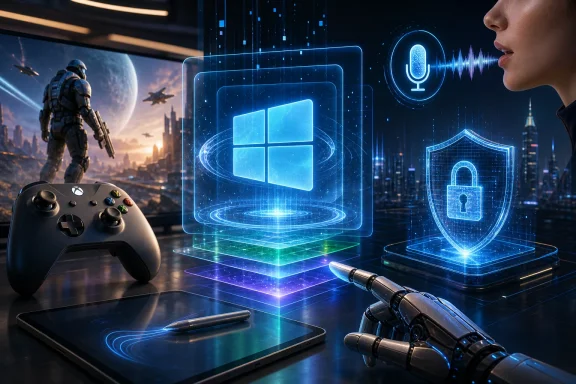
Microsoft released KB5089549 on May 12, 2026, for Windows 11 versions 24H2 and 25H2, moving systems to OS builds 26100.8457 and 26200.8457 while folding in security fixes, April’s optional preview improvements, and a controlled rollout of Xbox mode. The patch is being sold in consumer coverage as a gamer-friendly update, and that is not wrong. But the bigger story is that Microsoft is using an ordinary Patch Tuesday vehicle to reshape how Windows behaves under a controller, under a pen, under voice input, and under enterprise security policy. This is less a grab bag than a snapshot of where Windows 11 is headed: fewer modal jolts, more hardware-aware feedback, and more of the operating system quietly managing complexity on the user’s behalf.
For years, the safest way to understand Windows monthly updates was to separate the medicine from the candy. Security fixes arrived on Patch Tuesday; feature experiments arrived through previews, Insider builds, app updates, or the occasional annual release. KB5089549 blurs that line in a very modern Windows 11 way.
The May update includes the latest security fixes, but it also absorbs the non-security payload from the April 30 preview update. That means many of the headline features were already visible to users who opted into the optional release at the end of April. For everyone else on Windows 11 24H2 or 25H2, May’s cumulative update is the point at which those changes become part of the mainstream servicing flow.
That matters because Microsoft has spent the Windows 11 era moving away from the old model in which major features waited for a big annual reveal. The company now treats the OS as a living surface, with features arriving through cumulative updates, Microsoft Store app updates, controlled feature rollouts, and server-side switches. The result is powerful but messy: two users can install the same KB and still see different experiences on day one.
KB5089549 is a textbook example. It is both a security update and a feature delivery mechanism. It is both mandatory in the normal Patch Tuesday sense and staggered in the modern Windows sense. The update can be installed, verified, and deployed, while some visible changes may still appear only after Microsoft decides a given machine is eligible.
That tension is the real story beneath the “four key features” framing. Microsoft wants Windows to feel more responsive to new device categories, but it also wants the ability to slow-roll the most visible pieces. For consumers, that can look like magic or confusion. For administrators, it looks like yet another reason to test not just the patch but the feature flags around it.
The important admission here is not that gamers like full-screen launchers. Steam Big Picture, console dashboards, and handheld shells have proven that for years. The admission is that Windows itself has been the weak link on devices that are otherwise very capable gaming machines.
A handheld PC can have a fast Ryzen chip, a sharp display, decent controls, and access to a massive Windows game library. Then the user has to poke through desktop dialogs, system trays, launchers, taskbars, notifications, and tiny close buttons with a controller or a touchscreen. That mismatch is exactly the kind of friction that makes a technically superior device feel less polished than a console.
Xbox mode is Microsoft’s attempt to put a proper living-room layer over that complexity. It gives players a simplified full-screen environment that puts the game library first and reduces background distractions. It also reportedly reins in some resource usage, which is particularly relevant on battery-limited handhelds where every background process is competing with the game.
The controlled rollout caveat is crucial. Installing KB5089549 does not guarantee that Xbox mode will immediately appear on every eligible PC. Microsoft’s own rollout language and early user reporting point to a phased deployment, which means some users will install the update and wonder why the headline feature is absent.
That is not a bug in the narrow servicing sense. It is how Microsoft now ships high-profile Windows experiences. But it does create a communication problem: Patch Tuesday sounds like an event, while controlled feature rollout behaves like a weather system. You may be under the cloud, or you may not.
For PC gamers, the patience may be worth it. If Xbox mode matures into a low-friction shell for handhelds, it could make Windows gaming devices feel less like small laptops with controllers attached and more like a coherent category. That would be strategically important for Microsoft, because the PC handheld market has grown largely around Windows despite Windows, not because of its elegance on a seven-inch screen.
Windows is built to be everything at once: workstation, gaming rig, kiosk, tablet, developer box, managed endpoint, and family computer. That flexibility is its superpower. It is also why a pure console interface cannot simply replace Explorer, the taskbar, and the window manager for everyone.
Xbox mode is therefore less a replacement for Windows than a specialized cockpit. When you are working, the desktop stays. When you are gaming with a controller, the OS is supposed to recede. That is the right direction, and it is one Microsoft has often struggled to pursue cleanly.
The ghost of Windows 8 still hangs over any attempt to make Windows more full-screen and touch-friendly. The lesson from that era was not that alternative shells are bad. It was that forcing a new shell onto every user is disastrous. Xbox mode is more careful: it is contextual, optional, and aimed at a use case where the desktop is plainly not ideal.
The question is whether Microsoft can keep it from becoming another overlay in a stack of overlays. PC gamers already juggle the Xbox app, Game Bar, Steam, Epic, Nvidia or AMD tooling, Discord, hardware vendor utilities, anti-cheat systems, and performance overlays. A successful Xbox mode has to simplify that world, not merely add a Microsoft-branded front door to it.
That means the early experience matters. If Xbox mode launches reliably, wakes cleanly, respects controller input, and does not fight with third-party launchers, it will earn goodwill. If it becomes another place where users troubleshoot sign-ins, missing libraries, background services, and Store dependencies, the market will route around it.
For now, the direction is promising. Microsoft finally appears to be treating gaming on Windows not just as a matter of GPU drivers and DirectX APIs, but as an end-to-end interaction problem. That is overdue.
KB5089549 brings haptic feedback effects to compatible input devices for certain actions, including snapping or resizing windows and aligning objects in PowerPoint. The supported hardware list starts with devices such as Surface Slim Pen 2, ASUS Pen 3.0, and MSI Pen 2 with haptic feedback, with the possibility of more devices arriving as hardware partners update support. Microsoft also points to settings under Bluetooth and devices where users can turn haptic signals on or off for mouse, touchpad, or pen categories.
This is one of those features that will be invisible to many desktop users and quietly delightful to those with the right hardware. A conventional mechanical touchpad already has a kind of physical honesty: you press it, it clicks. A haptic touchpad is more programmable. It can simulate different kinds of feedback depending on context.
Apple has exploited that idea for years on its trackpads. Windows hardware has been more uneven, partly because the ecosystem is broader and partly because precision touchpad quality has varied across OEMs. Microsoft pushing haptic signals through Windows itself is a way to make the experience less dependent on each manufacturer inventing its own behavior from scratch.
The practical benefit is not merely pleasure. Tactile feedback can reduce uncertainty. If a window snaps into place and the touchpad gives a subtle confirmation, the user does not have to rely solely on a visual cue. If a pen alignment action in Office gives a physical nudge, the software feels more anchored.
The risk is gimmickry. Bad haptics are worse than none: too strong, too frequent, too inconsistent, or too divorced from the action on screen. Microsoft’s decision to expose settings is therefore important. Haptics should be a preference, not a personality test.
For laptop buyers, the feature also hints at a more interesting future. As premium Windows machines adopt better haptic touchpads and pens, the OS can start treating input hardware as expressive rather than generic. Windows has long supported many kinds of devices. The next step is making those devices feel integrated instead of merely recognized.
The May update improves voice typing in several ways. Users can rename files with voice typing, which sounds small until you remember how often file management breaks the flow of hands-free computing. The touch keyboard experience is also cleaner: instead of presenting a full-screen overlay, the updated design shows voice typing animations directly on the dictation key.
That is exactly the kind of interface refinement Windows needs more often. A full-screen overlay is not always a disaster, but it is often a tax. It interrupts the user’s sense of place. It turns a small action into a mode switch. Moving the animation to the keyboard’s dictation key is less theatrical and more useful.
Microsoft also says the update improves persistence for the Fluid Dictation setting. Fluid Dictation is meant to remove filler words and automatically improve grammar and punctuation, but a setting that does not reliably persist is not a feature so much as a recurring annoyance. Fixing that kind of bug rarely earns applause, yet it can determine whether people trust the tool enough to build habits around it.
This is where Windows 11’s incremental update model can shine. Voice typing does not need a keynote. It needs dozens of small corrections that make it less surprising, less intrusive, and more dependable. KB5089549 offers that kind of progress.
There is also a broader accessibility point. Microsoft often markets AI and natural input as futuristic, but the value is immediate when the system reduces friction for people who cannot or do not want to use a keyboard all day. The challenge is to keep these features local-feeling, predictable, and respectful of privacy expectations. Users will tolerate cloud magic less readily when dictation is part of their daily work.
Nobody buys a PC because File Explorer preserves a folder view correctly. But users absolutely notice when it does not. Explorer is one of the most frequently touched surfaces in Windows, and its rough edges carry disproportionate emotional weight because they appear during ordinary work.
The white flash bug is a perfect example. On paper, it is cosmetic. In practice, it makes a dark-mode system feel unfinished every time the file manager throws a bright rectangle at the user. These flashes and redraw artifacts are the kind of thing enthusiasts remember because they puncture the illusion that Windows 11 is a modern, coherent interface.
The process cleanup change is more than aesthetic. Explorer is both a file manager and a shell component, which has always made it a complicated beast. If related processes linger unnecessarily after windows close, that can contribute to resource waste or odd reliability issues. Fixing that does not create a new screenshot for Microsoft’s marketing team, but it improves the daily feel of the OS.
The update also expands archive format handling in File Explorer to include formats such as uu, cpio, xar, and NuGet packages. That will not matter to everyone, but it continues Microsoft’s slow effort to make Explorer less dependent on third-party tools for routine archive tasks. Developers and power users will appreciate the nupkg support in particular, even if they still keep 7-Zip or another utility nearby.
File Explorer is where Microsoft’s Windows 11 ambitions often collide with legacy reality. It must be modern but compatible, simplified but powerful, touch-aware but mouse-efficient, cloud-integrated but local-first when users demand it. KB5089549 does not solve that entire equation. It does, however, chip away at irritations that make Windows feel older than it is.
The Secure Boot certificate issue deserves particular attention because the timeline is not theoretical. Microsoft has warned that Secure Boot certificates used by most Windows devices are set to expire starting in June 2026. If devices are not prepared, some personal and business systems could face secure boot disruption. KB5089549 includes additional targeting data to expand coverage for devices eligible to automatically receive new Secure Boot certificates, while still using a controlled rollout based on update signals.
That phrasing is very Microsoft, but the operational meaning is straightforward: the company is trying to rotate a foundational trust component across a huge and messy hardware ecosystem without bricking machines or tripping BitLocker at scale. The staged approach is sensible. It is also exactly the kind of staged approach that gives administrators heartburn until they can verify what happened on their own fleet.
The update also improves startup reliability after boot file updates so devices start normally without entering BitLocker recovery. More specifically, it addresses an issue where some devices could enter BitLocker Recovery after boot file updates on systems with certain TPM validation settings, including invalid PCR7 configurations. That issue could occur after the April 2026 security update.
This is the unglamorous side of platform security. Stronger boot trust, certificate transitions, kernel driver policy changes, and BitLocker validation are all good things in the abstract. In the real world, they intersect with firmware quirks, old group policies, inherited imaging practices, and machines that have been upgraded through years of Windows releases.
The April preview also introduced a Windows Driver Policy change that removes default trust for cross-signed third-party drivers while preserving drivers from the Windows Hardware Compatibility Program and an allow list of trusted legacy drivers. Enforcement is preceded by auditing over time and reboots, but the direction is clear: Microsoft is tightening the driver trust model. That is good for security, and it may be painful for niche hardware, old peripherals, and specialized enterprise stacks.
For home users, the practical advice is simple: do not treat this as just an Xbox update. For IT departments, the advice is sharper: test the boot path, review BitLocker policy, pay attention to Secure Boot certificate readiness, and keep an eye on driver compatibility signals before assuming May’s update is routine.
Haptic feedback depends on compatible devices and partner updates. Xbox mode is in controlled rollout. AI component updates apply only to Copilot+ PCs and do not install on ordinary Windows PCs or Windows Server. Taskbar agent monitoring begins with Microsoft 365 Copilot’s Researcher agent as an early adopter. Even the Secure Boot certificate work uses targeting data and phased eligibility.
The result is an operating system that is no longer a single, easily described thing. Two Windows 11 24H2 machines on the same KB may differ meaningfully depending on hardware and rollout state. That is not new in computing, but Windows’ scale makes it particularly visible.
For enthusiasts, this creates a familiar ritual: install the update, reboot, check the build number, then hunt for the feature that the article promised. If it is missing, the answer may be that the feature is not available on that hardware, not rolled out to that device, not enabled in that region, tied to an app update, or waiting on a server-side flag. The old certainty of “I installed the patch, therefore I have the feature” is fading.
For administrators, conditional Windows is a governance challenge. Change management relies on knowing what changes when. If some changes are tied to cumulative updates and others to controlled feature rollouts, policies and documentation need to account for both. Microsoft has improved its release notes over time, but the lived experience is still more fragmented than many organizations would like.
This is not an argument that Microsoft should stop staged rollouts. The Windows ecosystem is too large for reckless big-bang deployments. But the company needs to keep improving visibility. Users should not have to infer feature eligibility from absence. Admins should not have to reverse-engineer rollout state from user complaints.
There are storage improvements too, including better performance when viewing storage information for large volumes in Settings. The command-line FAT32 formatting limit rises from 32GB to 2TB, a change that will make old-school Windows users do a double take. For decades, the practical Windows formatting experience nudged users away from large FAT32 volumes even when the file system itself could support them. Raising that limit is not glamorous, but it removes an artificial annoyance.
Delivery Optimization gets memory usage improvements, reducing the chance that it consumes unexpectedly large amounts of memory. Display and graphics changes improve persistence and availability of color profile options for supported monitors. Startup app launch performance after boot is also improved.
These are the kinds of changes that make a cumulative update feel bigger than its marketing bullet points. They do not all apply to every user. They do not all have the same risk profile. But together, they show Microsoft working through the backlog of friction that makes Windows 11 feel inconsistent.
The irony is that the flashiest feature, Xbox mode, may affect fewer users immediately than the quieter reliability fixes. A File Explorer dark-mode flash fix can improve the day of anyone who lives in dark mode. A Store installation error fix can spare a casual user a baffling failure. A Windows Hello reliability improvement can remove a daily login irritation.
That is the nature of operating system work in 2026. The future arrives as a full-screen gaming shell. The present gets better because Explorer stops flashing white.
The more reasonable consumer stance is caution without paralysis. If the PC is mission-critical for work, waiting a day or two to watch for early reports is sensible. If the machine is a general-purpose home PC, the security and reliability changes argue for taking the update on the normal schedule. Either way, users should understand that the most visible feature, Xbox mode, may not appear immediately.
Gamers should be especially clear-eyed. Xbox mode is exciting because it addresses a real weakness in Windows handheld and couch gaming. But it is not a magic performance patch, and it is not guaranteed to replace the ecosystem of launchers and overlays that PC gaming has accumulated. Its value will depend on how consistently it gets users from power-on to play.
For IT departments, the update belongs in a standard validation ring rather than an emergency panic. The Secure Boot and BitLocker context should be reviewed, especially in environments with explicit TPM platform validation policies or older imaging assumptions. Driver policy tightening also deserves attention in organizations with specialized peripherals, legacy drivers, or hardware that sits outside the mainstream WHCP path.
The key is to resist both extremes. This is not merely a gamer update with a few niceties. It is also not a terrifying platform upheaval that should be deferred indefinitely. It is a modern Windows cumulative update: security fixes, feature flags, hardware-specific improvements, legacy cleanup, and a few surprises all traveling in the same package.
Source: TechRadar https://www.techradar.com/computing...e-boasting-4-features-im-very-pleased-to-see/
 Microsoft Turns Patch Tuesday Into a Product Moment
For years, the safest way to understand Windows monthly updates was to separate the medicine from the candy. Security fixes arrived on Patch Tuesday; feature experiments arrived through previews, Insider builds, app updates, or the occasional annual release. KB5089549 blurs that line in a very modern Windows 11 way.The May update includes the latest security fixes, but it also absorbs the non-security payload from the April 30 preview update. That means many of the headline features were already visible to users who opted into the optional release at the end of April. For everyone else on Windows 11 24H2 or 25H2, May’s cumulative update is the point at which those changes become part of the mainstream servicing flow.
That matters because Microsoft has spent the Windows 11 era moving away from the old model in which major features waited for a big annual reveal. The company now treats the OS as a living surface, with features arriving through cumulative updates, Microsoft Store app updates, controlled feature rollouts, and server-side switches. The result is powerful but messy: two users can install the same KB and still see different experiences on day one.
KB5089549 is a textbook example. It is both a security update and a feature delivery mechanism. It is both mandatory in the normal Patch Tuesday sense and staggered in the modern Windows sense. The update can be installed, verified, and deployed, while some visible changes may still appear only after Microsoft decides a given machine is eligible.
That tension is the real story beneath the “four key features” framing. Microsoft wants Windows to feel more responsive to new device categories, but it also wants the ability to slow-roll the most visible pieces. For consumers, that can look like magic or confusion. For administrators, it looks like yet another reason to test not just the patch but the feature flags around it.
Xbox Mode Is Microsoft’s Handheld Confession
The most eye-catching feature in KB5089549 is Xbox mode, Microsoft’s full-screen, controller-friendly experience for Windows 11 PCs. It is designed for laptops, desktops, tablets, and especially handheld gaming PCs, where the standard Windows desktop remains the least console-like part of the entire experience. The new mode can be entered from the Xbox app, Game Bar settings, or with the Windows key plus F11 shortcut.The important admission here is not that gamers like full-screen launchers. Steam Big Picture, console dashboards, and handheld shells have proven that for years. The admission is that Windows itself has been the weak link on devices that are otherwise very capable gaming machines.
A handheld PC can have a fast Ryzen chip, a sharp display, decent controls, and access to a massive Windows game library. Then the user has to poke through desktop dialogs, system trays, launchers, taskbars, notifications, and tiny close buttons with a controller or a touchscreen. That mismatch is exactly the kind of friction that makes a technically superior device feel less polished than a console.
Xbox mode is Microsoft’s attempt to put a proper living-room layer over that complexity. It gives players a simplified full-screen environment that puts the game library first and reduces background distractions. It also reportedly reins in some resource usage, which is particularly relevant on battery-limited handhelds where every background process is competing with the game.
The controlled rollout caveat is crucial. Installing KB5089549 does not guarantee that Xbox mode will immediately appear on every eligible PC. Microsoft’s own rollout language and early user reporting point to a phased deployment, which means some users will install the update and wonder why the headline feature is absent.
That is not a bug in the narrow servicing sense. It is how Microsoft now ships high-profile Windows experiences. But it does create a communication problem: Patch Tuesday sounds like an event, while controlled feature rollout behaves like a weather system. You may be under the cloud, or you may not.
For PC gamers, the patience may be worth it. If Xbox mode matures into a low-friction shell for handhelds, it could make Windows gaming devices feel less like small laptops with controllers attached and more like a coherent category. That would be strategically important for Microsoft, because the PC handheld market has grown largely around Windows despite Windows, not because of its elegance on a seven-inch screen.
The Desktop Is Learning to Get Out of the Way
The most telling thing about Xbox mode is that it does not try to make the Windows desktop better for gaming. It sidesteps it. That distinction says a lot about the limits of the general-purpose PC interface.Windows is built to be everything at once: workstation, gaming rig, kiosk, tablet, developer box, managed endpoint, and family computer. That flexibility is its superpower. It is also why a pure console interface cannot simply replace Explorer, the taskbar, and the window manager for everyone.
Xbox mode is therefore less a replacement for Windows than a specialized cockpit. When you are working, the desktop stays. When you are gaming with a controller, the OS is supposed to recede. That is the right direction, and it is one Microsoft has often struggled to pursue cleanly.
The ghost of Windows 8 still hangs over any attempt to make Windows more full-screen and touch-friendly. The lesson from that era was not that alternative shells are bad. It was that forcing a new shell onto every user is disastrous. Xbox mode is more careful: it is contextual, optional, and aimed at a use case where the desktop is plainly not ideal.
The question is whether Microsoft can keep it from becoming another overlay in a stack of overlays. PC gamers already juggle the Xbox app, Game Bar, Steam, Epic, Nvidia or AMD tooling, Discord, hardware vendor utilities, anti-cheat systems, and performance overlays. A successful Xbox mode has to simplify that world, not merely add a Microsoft-branded front door to it.
That means the early experience matters. If Xbox mode launches reliably, wakes cleanly, respects controller input, and does not fight with third-party launchers, it will earn goodwill. If it becomes another place where users troubleshoot sign-ins, missing libraries, background services, and Store dependencies, the market will route around it.
For now, the direction is promising. Microsoft finally appears to be treating gaming on Windows not just as a matter of GPU drivers and DirectX APIs, but as an end-to-end interaction problem. That is overdue.
Haptics Make Windows Feel Less Like Glass
The May update’s haptic feedback changes sound minor until you think about how much of modern computing has become visually overloaded. Windows has spent decades telling users what happened by changing pixels. Haptics add a second channel: a small physical confirmation when something snaps, aligns, resizes, or lands where it should.KB5089549 brings haptic feedback effects to compatible input devices for certain actions, including snapping or resizing windows and aligning objects in PowerPoint. The supported hardware list starts with devices such as Surface Slim Pen 2, ASUS Pen 3.0, and MSI Pen 2 with haptic feedback, with the possibility of more devices arriving as hardware partners update support. Microsoft also points to settings under Bluetooth and devices where users can turn haptic signals on or off for mouse, touchpad, or pen categories.
This is one of those features that will be invisible to many desktop users and quietly delightful to those with the right hardware. A conventional mechanical touchpad already has a kind of physical honesty: you press it, it clicks. A haptic touchpad is more programmable. It can simulate different kinds of feedback depending on context.
Apple has exploited that idea for years on its trackpads. Windows hardware has been more uneven, partly because the ecosystem is broader and partly because precision touchpad quality has varied across OEMs. Microsoft pushing haptic signals through Windows itself is a way to make the experience less dependent on each manufacturer inventing its own behavior from scratch.
The practical benefit is not merely pleasure. Tactile feedback can reduce uncertainty. If a window snaps into place and the touchpad gives a subtle confirmation, the user does not have to rely solely on a visual cue. If a pen alignment action in Office gives a physical nudge, the software feels more anchored.
The risk is gimmickry. Bad haptics are worse than none: too strong, too frequent, too inconsistent, or too divorced from the action on screen. Microsoft’s decision to expose settings is therefore important. Haptics should be a preference, not a personality test.
For laptop buyers, the feature also hints at a more interesting future. As premium Windows machines adopt better haptic touchpads and pens, the OS can start treating input hardware as expressive rather than generic. Windows has long supported many kinds of devices. The next step is making those devices feel integrated instead of merely recognized.
Voice Typing Gets the Kind of Fix That Users Actually Notice
Voice typing is rarely the feature that sells a Windows update, but it is one of the features that can meaningfully change how a person uses a PC. For users dealing with repetitive strain injury, mobility limits, temporary injuries, or simply long stretches of text entry, dictation is not a novelty. It is an accessibility tool, a productivity tool, and sometimes the difference between working comfortably and not working at all.The May update improves voice typing in several ways. Users can rename files with voice typing, which sounds small until you remember how often file management breaks the flow of hands-free computing. The touch keyboard experience is also cleaner: instead of presenting a full-screen overlay, the updated design shows voice typing animations directly on the dictation key.
That is exactly the kind of interface refinement Windows needs more often. A full-screen overlay is not always a disaster, but it is often a tax. It interrupts the user’s sense of place. It turns a small action into a mode switch. Moving the animation to the keyboard’s dictation key is less theatrical and more useful.
Microsoft also says the update improves persistence for the Fluid Dictation setting. Fluid Dictation is meant to remove filler words and automatically improve grammar and punctuation, but a setting that does not reliably persist is not a feature so much as a recurring annoyance. Fixing that kind of bug rarely earns applause, yet it can determine whether people trust the tool enough to build habits around it.
This is where Windows 11’s incremental update model can shine. Voice typing does not need a keynote. It needs dozens of small corrections that make it less surprising, less intrusive, and more dependable. KB5089549 offers that kind of progress.
There is also a broader accessibility point. Microsoft often markets AI and natural input as futuristic, but the value is immediate when the system reduces friction for people who cannot or do not want to use a keyboard all day. The challenge is to keep these features local-feeling, predictable, and respectful of privacy expectations. Users will tolerate cloud magic less readily when dictation is part of their daily work.
File Explorer’s Fixes Are Boring Because They Are Necessary
File Explorer gets some of the least glamorous but most welcome changes in the update. View and sort preferences are now meant to be preserved more consistently in folders such as Downloads and Documents when apps launch File Explorer directly to those locations. The infamous white flash in dark mode, including when opening This PC or resizing the Details pane, is addressed. Relevant Explorer processes should also stop more reliably after File Explorer windows are closed.Nobody buys a PC because File Explorer preserves a folder view correctly. But users absolutely notice when it does not. Explorer is one of the most frequently touched surfaces in Windows, and its rough edges carry disproportionate emotional weight because they appear during ordinary work.
The white flash bug is a perfect example. On paper, it is cosmetic. In practice, it makes a dark-mode system feel unfinished every time the file manager throws a bright rectangle at the user. These flashes and redraw artifacts are the kind of thing enthusiasts remember because they puncture the illusion that Windows 11 is a modern, coherent interface.
The process cleanup change is more than aesthetic. Explorer is both a file manager and a shell component, which has always made it a complicated beast. If related processes linger unnecessarily after windows close, that can contribute to resource waste or odd reliability issues. Fixing that does not create a new screenshot for Microsoft’s marketing team, but it improves the daily feel of the OS.
The update also expands archive format handling in File Explorer to include formats such as uu, cpio, xar, and NuGet packages. That will not matter to everyone, but it continues Microsoft’s slow effort to make Explorer less dependent on third-party tools for routine archive tasks. Developers and power users will appreciate the nupkg support in particular, even if they still keep 7-Zip or another utility nearby.
File Explorer is where Microsoft’s Windows 11 ambitions often collide with legacy reality. It must be modern but compatible, simplified but powerful, touch-aware but mouse-efficient, cloud-integrated but local-first when users demand it. KB5089549 does not solve that entire equation. It does, however, chip away at irritations that make Windows feel older than it is.
The Security Payload Is Bigger Than the Gamer Headline
The gamer-friendly framing around KB5089549 should not obscure the security and servicing changes underneath. Microsoft’s official notes emphasize that this is a cumulative security update and that it includes fixes documented in the May 2026 security release. The patch also carries Secure Boot-related changes, a boot manager servicing update, and a fix for a BitLocker recovery scenario tied to certain TPM validation configurations.The Secure Boot certificate issue deserves particular attention because the timeline is not theoretical. Microsoft has warned that Secure Boot certificates used by most Windows devices are set to expire starting in June 2026. If devices are not prepared, some personal and business systems could face secure boot disruption. KB5089549 includes additional targeting data to expand coverage for devices eligible to automatically receive new Secure Boot certificates, while still using a controlled rollout based on update signals.
That phrasing is very Microsoft, but the operational meaning is straightforward: the company is trying to rotate a foundational trust component across a huge and messy hardware ecosystem without bricking machines or tripping BitLocker at scale. The staged approach is sensible. It is also exactly the kind of staged approach that gives administrators heartburn until they can verify what happened on their own fleet.
The update also improves startup reliability after boot file updates so devices start normally without entering BitLocker recovery. More specifically, it addresses an issue where some devices could enter BitLocker Recovery after boot file updates on systems with certain TPM validation settings, including invalid PCR7 configurations. That issue could occur after the April 2026 security update.
This is the unglamorous side of platform security. Stronger boot trust, certificate transitions, kernel driver policy changes, and BitLocker validation are all good things in the abstract. In the real world, they intersect with firmware quirks, old group policies, inherited imaging practices, and machines that have been upgraded through years of Windows releases.
The April preview also introduced a Windows Driver Policy change that removes default trust for cross-signed third-party drivers while preserving drivers from the Windows Hardware Compatibility Program and an allow list of trusted legacy drivers. Enforcement is preceded by auditing over time and reboots, but the direction is clear: Microsoft is tightening the driver trust model. That is good for security, and it may be painful for niche hardware, old peripherals, and specialized enterprise stacks.
For home users, the practical advice is simple: do not treat this as just an Xbox update. For IT departments, the advice is sharper: test the boot path, review BitLocker policy, pay attention to Secure Boot certificate readiness, and keep an eye on driver compatibility signals before assuming May’s update is routine.
Windows 11’s Interface Is Becoming More Conditional
One of the subtler themes in KB5089549 is that Windows is becoming more conditional. The OS increasingly changes behavior based on hardware, account state, rollout eligibility, device class, and whether a feature is enabled locally or remotely. That can make Windows feel smarter. It can also make it harder to explain.Haptic feedback depends on compatible devices and partner updates. Xbox mode is in controlled rollout. AI component updates apply only to Copilot+ PCs and do not install on ordinary Windows PCs or Windows Server. Taskbar agent monitoring begins with Microsoft 365 Copilot’s Researcher agent as an early adopter. Even the Secure Boot certificate work uses targeting data and phased eligibility.
The result is an operating system that is no longer a single, easily described thing. Two Windows 11 24H2 machines on the same KB may differ meaningfully depending on hardware and rollout state. That is not new in computing, but Windows’ scale makes it particularly visible.
For enthusiasts, this creates a familiar ritual: install the update, reboot, check the build number, then hunt for the feature that the article promised. If it is missing, the answer may be that the feature is not available on that hardware, not rolled out to that device, not enabled in that region, tied to an app update, or waiting on a server-side flag. The old certainty of “I installed the patch, therefore I have the feature” is fading.
For administrators, conditional Windows is a governance challenge. Change management relies on knowing what changes when. If some changes are tied to cumulative updates and others to controlled feature rollouts, policies and documentation need to account for both. Microsoft has improved its release notes over time, but the lived experience is still more fragmented than many organizations would like.
This is not an argument that Microsoft should stop staged rollouts. The Windows ecosystem is too large for reckless big-bang deployments. But the company needs to keep improving visibility. Users should not have to infer feature eligibility from absence. Admins should not have to reverse-engineer rollout state from user complaints.
The Small Fixes Show Microsoft Still Knows Where Windows Hurts
Beyond the headline four, the May payload includes a set of fixes that reveal Microsoft’s understanding of everyday Windows pain points. Microsoft Store installation errors are reduced, including several specific error codes. Windows Hello Face reliability improves, as does persistence for Windows Hello Fingerprint across upgrades. The system tray area of the taskbar should load more reliably.There are storage improvements too, including better performance when viewing storage information for large volumes in Settings. The command-line FAT32 formatting limit rises from 32GB to 2TB, a change that will make old-school Windows users do a double take. For decades, the practical Windows formatting experience nudged users away from large FAT32 volumes even when the file system itself could support them. Raising that limit is not glamorous, but it removes an artificial annoyance.
Delivery Optimization gets memory usage improvements, reducing the chance that it consumes unexpectedly large amounts of memory. Display and graphics changes improve persistence and availability of color profile options for supported monitors. Startup app launch performance after boot is also improved.
These are the kinds of changes that make a cumulative update feel bigger than its marketing bullet points. They do not all apply to every user. They do not all have the same risk profile. But together, they show Microsoft working through the backlog of friction that makes Windows 11 feel inconsistent.
The irony is that the flashiest feature, Xbox mode, may affect fewer users immediately than the quieter reliability fixes. A File Explorer dark-mode flash fix can improve the day of anyone who lives in dark mode. A Store installation error fix can spare a casual user a baffling failure. A Windows Hello reliability improvement can remove a daily login irritation.
That is the nature of operating system work in 2026. The future arrives as a full-screen gaming shell. The present gets better because Explorer stops flashing white.
The Patch Is Worth Installing, But Not Worth Romanticizing
For most home users on Windows 11 24H2 or 25H2, KB5089549 is likely worth installing through the normal Windows Update path, especially because it is a security update. Microsoft says it is not currently aware of known issues in the May release, and it resolves at least one boot-related problem associated with the previous month’s update. That does not mean every machine will have a flawless experience, but it does make the usual “wait forever” posture harder to justify.The more reasonable consumer stance is caution without paralysis. If the PC is mission-critical for work, waiting a day or two to watch for early reports is sensible. If the machine is a general-purpose home PC, the security and reliability changes argue for taking the update on the normal schedule. Either way, users should understand that the most visible feature, Xbox mode, may not appear immediately.
Gamers should be especially clear-eyed. Xbox mode is exciting because it addresses a real weakness in Windows handheld and couch gaming. But it is not a magic performance patch, and it is not guaranteed to replace the ecosystem of launchers and overlays that PC gaming has accumulated. Its value will depend on how consistently it gets users from power-on to play.
For IT departments, the update belongs in a standard validation ring rather than an emergency panic. The Secure Boot and BitLocker context should be reviewed, especially in environments with explicit TPM platform validation policies or older imaging assumptions. Driver policy tightening also deserves attention in organizations with specialized peripherals, legacy drivers, or hardware that sits outside the mainstream WHCP path.
The key is to resist both extremes. This is not merely a gamer update with a few niceties. It is also not a terrifying platform upheaval that should be deferred indefinitely. It is a modern Windows cumulative update: security fixes, feature flags, hardware-specific improvements, legacy cleanup, and a few surprises all traveling in the same package.
KB5089549 Draws the Map for Windows 11’s Next Year
The concrete lessons from the May update are less about any single feature than about Microsoft’s direction of travel. Windows 11 is becoming more adaptive, more staged, more hardware-aware, and more willing to hide the traditional desktop when the task demands it. That is progress, but it comes with new expectations for clarity and control.- KB5089549 was released on May 12, 2026, for Windows 11 versions 24H2 and 25H2, bringing systems to OS builds 26100.8457 and 26200.8457.
- Xbox mode is the headline consumer feature, but its controlled rollout means installing the update does not guarantee immediate access on every eligible PC.
- Haptic feedback support is a meaningful step for premium touchpads, pens, and future mice, but its value depends heavily on compatible hardware and tasteful implementation.
- Voice typing and File Explorer receive practical refinements that may matter more in daily use than the splashier gaming shell.
- Secure Boot, BitLocker, boot manager servicing, and driver trust changes make this an update that administrators should test with real fleet policies rather than treat as a cosmetic release.
- Microsoft’s “continuous innovation” model is now the default Windows experience, which means users and IT teams must track both installed builds and phased feature availability.
Source: TechRadar https://www.techradar.com/computing...e-boasting-4-features-im-very-pleased-to-see/
Last edited:
