That makes KB5089570 less of a routine “preview” and more of a snapshot of where Windows is headed. Microsoft is treating the operating system as a continuously tuned platform, not a thing that changes meaningfully once or twice a year. For administrators, enthusiasts, and anyone maintaining installation media, the update is also a reminder that the boring details — MSU order, DISM behavior, servicing stack versions, and deployment channels — are where the real operational risk lives.
Microsoft’s Preview Channel Is Now the First Draft of Mainstream Windows
The word preview can make an update sound experimental, but that is not quite how Windows preview cumulative updates function anymore. KB5089570 is a non-security release, which means it is not the monthly Patch Tuesday security payload, but it is still a production-quality package intended to become part of the next broader security update cycle. In practical terms, Microsoft is letting willing users and IT departments see the next month’s Windows behavior before it becomes unavoidable.
That distinction matters because the May 26 update is not just a bug-fix rollup. It includes new user-visible capabilities, platform behavior changes, servicing-stack improvements, and policy additions. A preview cumulative update has become a place where Microsoft stages the Windows experience itself.
The phased rollout language is also doing a lot of work. Microsoft says features may arrive through gradual rollout or normal rollout, meaning two machines on the same build number may not behave identically at the same moment. That is not a bug in Microsoft’s release model; it is the model.
For enthusiasts, that can be mildly annoying. For administrators, it can be a compliance and support wrinkle. When users report that one Windows 11 PC has Shared Audio or Xbox mode and another does not, “same KB installed” is no longer enough evidence that the same feature set is active.
The Consumer Features Are Flashier Than the Enterprise Story
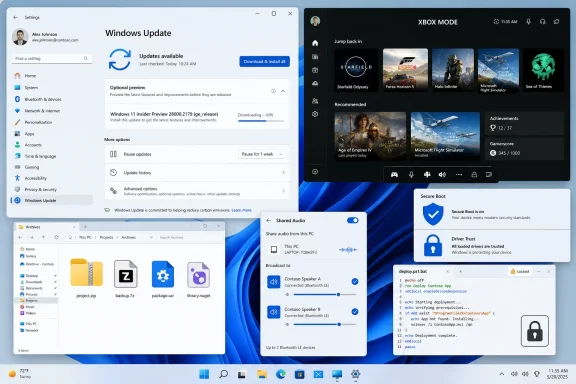
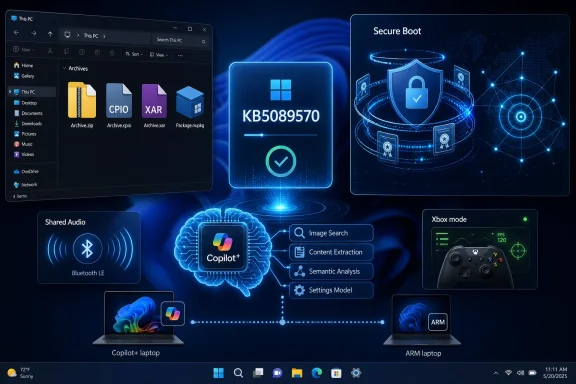
The headline additions in KB5089570 are easy to understand. Shared Audio lets two people listen from the same Windows 11 PC using Bluetooth LE Audio broadcast technology, assuming the right paired and connected devices are present. Xbox mode brings a full-screen, controller-friendly gaming interface to Windows 11 PCs, including laptops, desktops, and tablets.
Those are not trivial additions. Shared Audio makes Windows behave a little more like a modern mobile device in shared-use situations, while Xbox mode continues Microsoft’s long campaign to make the PC feel less like a deskbound productivity box when the user is gaming from a couch, handheld, or docked setup. Both are signs that Windows is being shaped around scenarios rather than old device categories.
But the consumer story should not distract from the more consequential administrative pattern. File Explorer gains support for more archive formats, including uu, cpio, xar, and NuGet packages. View and Sort preferences are preserved more reliably in common folders when apps open File Explorer directly. Dark mode gets another visual rough edge sanded down.
None of those changes will dominate social media. Yet they are exactly the kind of cumulative friction reduction that determines whether Windows feels coherent after years of layered modernization. Microsoft has spent much of the Windows 11 era rebuilding visible surfaces while older subsystems remain underneath; KB5089570 shows the company still working through the seams.
File Explorer Remains Windows’ Most Important Compatibility Layer
File Explorer is not just a file manager. It is the user-facing edge of shell integration, archive handling, app workflows, cloud storage, developer packages, and decades of muscle memory. That is why even small changes in File Explorer carry more weight than their release-note wording suggests.
The expanded archive support is especially telling. Windows has slowly been absorbing functions that once required third-party utilities, and the addition of formats such as cpio, xar, and nupkg pushes File Explorer further into developer and cross-platform territory. NuGet package visibility is not a mainstream consumer demand, but it matters in the world where Windows is both an end-user OS and a development workstation.
The persistence of View and Sort preferences is another example of a small fix aimed at a large annoyance. Users do not think in terms of shell state management; they think Windows “forgot” how they wanted a folder to appear. When those preferences fail after another application launches File Explorer, it makes the OS feel arbitrary.
Microsoft is also continuing to tackle Explorer reliability, including processes that should stop after File Explorer windows close and broader explorer.exe behavior around sign-in, taskbar menus, Task View, and Quick Access. That may sound mundane, but explorer.exe is one of the load-bearing processes of the Windows desktop. When it misbehaves, the whole OS feels unstable even if the kernel, drivers, and applications are technically fine.
The Secure Boot Work Is the Update’s Quiet Center of Gravity
The most consequential part of KB5089570 may be the Secure Boot change, not the new PC features. Microsoft says Windows quality updates will include additional high-confidence device targeting data to increase coverage for devices eligible to automatically receive new Secure Boot certificates. The phrasing is dry, but the implication is clear: certificate rotation and Secure Boot modernization are becoming part of routine Windows servicing.
That is a delicate operation. Secure Boot exists to protect the earliest stages of the boot chain, and changes in that area are inherently sensitive. Move too slowly, and old trust material lingers longer than it should. Move too aggressively, and machines can fail in ways that are difficult for ordinary users to diagnose and unpleasant for administrators to remediate.
Microsoft’s language about “successful update signals” and controlled rollout suggests the company is trying to avoid precisely that kind of failure mode. Rather than blasting new certificates indiscriminately, Windows appears to be using device targeting and update-health telemetry to decide where automatic certificate delivery is appropriate. In other words, the servicing system is becoming a risk engine.
The new LimitSecureBootRequiredServiceData policy is equally important for managed environments. It gives administrators a way to limit certain Secure Boot service data sent to Microsoft by suppressing a normal event. That will matter most in privacy-sensitive or restricted-traffic environments, where telemetry minimization is not a preference but a baseline requirement.
This is the double bind of modern Windows administration. The OS increasingly depends on cloud-informed rollout intelligence to safely update security-critical components, yet some organizations are required to reduce outbound service data wherever possible. KB5089570 does not resolve that tension, but it acknowledges it by adding policy surface area instead of pretending one model fits everyone.
Copilot+ PCs Are Getting Their Own Servicing Lane
KB5089570 includes updates for AI components: Image Search, Content Extraction, Semantic Analysis, and Settings Model, all listed at version 1.2604.515.0. Microsoft also notes that these AI component updates apply only to Windows Copilot+ PCs and will not install on ordinary Windows PCs or Windows Server. That caveat is more than housekeeping.
Windows is now servicing capabilities that are hardware-contingent, model-dependent, and not necessarily visible to every user on the same OS build. The build number tells part of the story, but not the whole story. A Copilot+ PC and a non-Copilot+ PC can both sit under the Windows 11 umbrella while receiving different functional payloads from the same cumulative update.
That is a major shift in how people should think about Windows uniformity. Historically, administrators worried about edition, architecture, language pack, driver set, and patch level. Now they also have to consider whether the device belongs to an AI-capable class that receives extra components through the Windows servicing pipeline.
The names of the updated components are also revealing. Image Search, Content Extraction, Semantic Analysis, and Settings Model are not flashy application names; they are substrate. Microsoft is updating the machinery that lets Windows interpret local content, expose AI-assisted search, and potentially make settings more context-aware.
That does not mean every Copilot+ feature is suddenly enabled everywhere. It does mean the AI layer is no longer an app bolted onto Windows. It is becoming part of the serviced operating system, with its own versions, deployment rules, and applicability boundaries.
Optional Does Not Mean Irrelevant for IT
KB5089570 is available through Windows Update as an optional preview update, while its changes are expected to flow into a future security update for broader deployment. That is the familiar rhythm: optional now, mainstream later. The trap is assuming that optional means ignorable.
For IT departments, preview updates are early-warning systems. They reveal what Microsoft is about to normalize. If an organization waits until the security update arrives to discover that File Explorer behavior changed, Secure Boot targeting evolved, or a kiosk configuration path shifted, it has traded short-term caution for late-stage surprise.
This is especially true because KB5089570 includes fixes across areas that often matter in enterprise images and managed endpoints. Microsoft Store download errors are reduced. Delivery Optimization memory use is improved. Kiosk mode configuration is simplified when Microsoft Edge is an allowed app. Startup app launch performance is improved.
Those are not headline features, but they map directly to help-desk tickets. Store installation failures, runaway memory usage, kiosk configuration oddities, and sluggish startup behavior are the kind of problems that drain administrative time precisely because they are intermittent, environment-specific, and hard to explain to users.
Preview updates give IT a chance to test those fixes against real fleet conditions before the same code rides in on a security deadline. The organizations that benefit most are not the ones that install previews everywhere. They are the ones that maintain a representative ring of test devices and treat preview releases as operational intelligence.
The MSU Instructions Are a Warning Hidden in Plain Sight
The installation section of KB5089570 is unusually important because Microsoft emphasizes that the standalone package is available through the Microsoft Update Catalog and that one or more MSU files may require installation in a specific order. In the case shown for this update, the listed ARM64 package is the target MSU, but the general instruction is broader: download all MSU files for the KB, place them in the same folder, and let DISM discover and install prerequisites as needed.
That is the sensible route. DISM understands the package context better than a human double-clicking files in a hurry. If Microsoft says a KB may contain multiple MSUs with ordering requirements, the administrative response should be to automate the correct path, not to rely on memory.
The documentation also distinguishes between updating a running Windows PC and updating Windows installation media. For a live system, DISM with /Online /Add-Package or PowerShell’s Add-WindowsPackage -Online can apply the package. For offline images, the package can be injected into a mounted image, with the additional note that Dynamic Update packages should match the same month where available.
That last detail matters for anyone building deployment media. Mixing cumulative updates, SafeOS Dynamic Updates, and Setup Dynamic Updates from mismatched months can produce confusing results. Microsoft’s advice to use same-month packages when available, or the most recently published SafeOS or Setup Dynamic Update otherwise, reflects the reality that Windows setup is its own servicing environment.
The uninstall note is another administrative footgun. Because Microsoft combines the servicing stack update and the cumulative update, using wusa.exe with /uninstall on the combined package will not work. The SSU cannot be removed after installation, and removal must be handled through DISM against the LCU package name. Anyone still treating MSU packages as simple reversible installers is living in an older Windows servicing era.
ARM64 Is No Longer a Side Note
The package example in the Microsoft instructions is for ARM64, and that is worth pausing over. Windows on Arm is no longer merely a curiosity for developers and early adopters. With Copilot+ PCs, Qualcomm-powered laptops, and Microsoft’s AI PC push, ARM64 has moved closer to the center of the Windows client story.
That does not mean x64 is fading away tomorrow. It does mean update documentation, deployment tooling, driver validation, and application compatibility testing must treat ARM64 as a first-class path. A Windows 11 fleet that includes Copilot+ systems will often include Arm systems, AI-capable systems, or both.
The combination creates new support matrices. An issue may reproduce only on ARM64. Or only on Copilot+ hardware. Or only where a particular AI component version is present. Or only on a device that received a gradual rollout feature. That is a very different world from “which Windows build are you on?”
For Windows enthusiasts, this fragmentation can be interesting. For support teams, it can be exhausting. The only sustainable response is better inventory: architecture, build number, feature availability, driver versions, AI component applicability, and update channel all need to be visible when troubleshooting.
Microsoft Store, Fonts, MIDI, and Monitors Tell the Same Story
Some of KB5089570’s smaller fixes read like unrelated housekeeping, but together they show Microsoft chasing roughness across the breadth of the platform. Store installation reliability gets attention, including specific errors such as 0x80070057, 0x80240008, and 0x80073d28. That matters because the Store is no longer just a consumer app marketplace; it is also part of how inbox apps, dependencies, and commercial software flows onto managed systems.
Font improvements to Leelawadee UI for Thai, Lao, Khmer, and Lontara scripts are similarly easy to overlook if one works only in English-language environments. But typography is not cosmetic when it affects glyph sequencing, positioning, and rendering. For global Windows users, text rendering quality is core OS quality.
The audio fix for third-party driver compatibility with midisrv.exe is another niche item that will matter intensely to the users it affects. MIDI support sits at the intersection of legacy workflows, music production, hardware peripherals, and driver stacks. Windows compatibility is often judged not by whether the newest demo works, but whether the old workflow still does.
Display and graphics improvements around color profile persistence also fit the pattern. Color management remains one of those areas where Windows users can lose hours to settings that appear correct until they do not stick. A fix that makes supported monitor profiles more available and persistent is not glamorous, but it is exactly the kind of thing professionals notice.
The Kiosk and Startup Fixes Are Aimed at Managed Reality
Kiosk mode rarely gets the attention it deserves because it is not a consumer feature, but it is one of Windows’ most visible enterprise roles. Retail terminals, check-in stations, classroom devices, factory dashboards, and public-use PCs all depend on Windows behaving predictably under tight constraints. KB5089570 simplifies allowed packaged-app configuration when Microsoft Edge is one of the permitted apps.
That sounds narrow, but Edge is frequently the whole point of a modern kiosk. A locked-down browser is how many organizations deliver a single web app without giving users a general-purpose desktop. Anything that reduces configuration friction there has practical value.
Startup app performance is another managed-environment concern masquerading as a consumer improvement. Users judge device health by the first minute after sign-in. If startup apps stall, the machine feels slow even if CPU, memory, and disk performance are otherwise fine.
Microsoft’s broader reliability work around explorer.exe also lands here. Taskbar menus, Task View, sign-in behavior, and Quick Access are not exotic features. They are the everyday surfaces that generate support calls when they hang, flicker, fail to refresh, or crash.
“No Known Issues” Should Be Read Carefully, Not Celebrated
Microsoft says it is not currently aware of any issues with KB5089570. That is good news, but it should not be mistaken for proof that the update is risk-free. “No known issues” means no acknowledged issues at publication time, not no issues in the wild.
Preview updates are particularly prone to this gap because their audience is self-selecting. The first wave of installations may not reflect the hardware, policy, localization, peripheral, and application diversity of the broader Windows population. Problems often emerge only after an update reaches enough machines with enough weird combinations.
That does not make KB5089570 suspicious. It makes it normal. Windows is too large a platform for any single support article to be the final word on update quality.
The right approach is calibrated skepticism. Install on test rings, watch for known-issue updates, compare behavior across device classes, and avoid treating absence of evidence as evidence of absence. For home enthusiasts, that may mean waiting a few days unless a specific fix matters. For IT, it means testing deliberately rather than guessing.
The May Preview Reveals the New Windows Contract
The practical reading of KB5089570 is straightforward, but the strategic reading is more interesting. Microsoft is using Windows Update to deliver not just patches, but a continuously shifting blend of shell refinements, AI substrate, hardware-specific capability, and security-trust maintenance. That is the new Windows contract.
Users get features sooner, but not always at the same time. Administrators get more policy controls, but also more variables to track. Copilot+ PC owners get specialized AI component updates, while other Windows PCs install the same KB without those components applying. Security improvements become more dependent on device targeting and successful update telemetry.
This is not necessarily bad. In fact, it may be the only realistic way to maintain Windows across conventional desktops, Arm laptops, AI PCs, gaming handhelds, kiosks, and enterprise fleets. The old model of monolithic Windows releases could not keep pace with that hardware and usage diversity.
But Microsoft’s documentation has to be read with that complexity in mind. A KB article is no longer merely a changelog. It is a deployment map, a feature flag hint, a policy notice, and sometimes a warning label.
The Build Number Is Only the Beginning This Time
KB5089570 is worth testing not because every feature is urgent, but because it previews the assumptions Microsoft is carrying into the next Windows servicing wave. The update’s individual changes are useful; its combined direction is the point.
- KB5089570 moves Windows 11 version 26H1 systems to OS Build 28000.2179 as a non-security preview cumulative update.
- The update includes consumer-facing additions such as Shared Audio and Xbox mode, but availability may depend on phased rollout behavior and device eligibility.
- File Explorer receives expanded archive support, preference-preservation fixes, dark-mode polish, and reliability improvements.
- Secure Boot servicing gains additional targeting data and a new policy for limiting specific Secure Boot service data in restricted environments.
- Copilot+ PCs receive AI component updates for Image Search, Content Extraction, Semantic Analysis, and Settings Model, while non-Copilot+ Windows PCs and Windows Server do not install those components.
- Administrators using Microsoft Update Catalog packages should pay close attention to DISM, MSU ordering, offline image servicing, and the limits of uninstalling combined SSU-and-LCU packages.
KB5089570 is the kind of update that looks ordinary only if one reads it as a list of fixes. Read as a signal, it shows Windows 11 becoming more conditional, more hardware-aware, more cloud-informed, and more deeply serviced below the visible desktop. The next challenge for Microsoft is not merely shipping this model; it is making the model legible enough that users and administrators can trust what changed, why it changed, and which machines actually received it.
References
- May 26, 2026—KB5089570 (OS Build 28000.2179) Preview - Microsoft Support Microsoft Support · Tue, 26 May 2026 21:32:32 Z