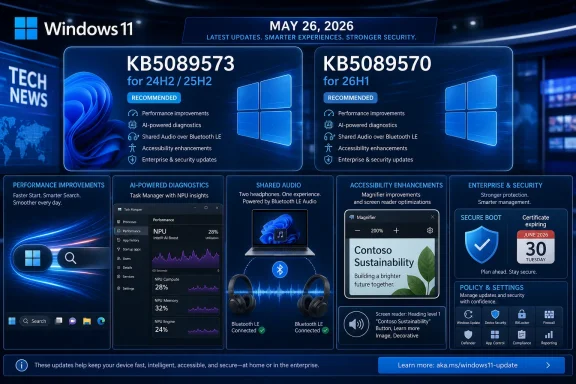
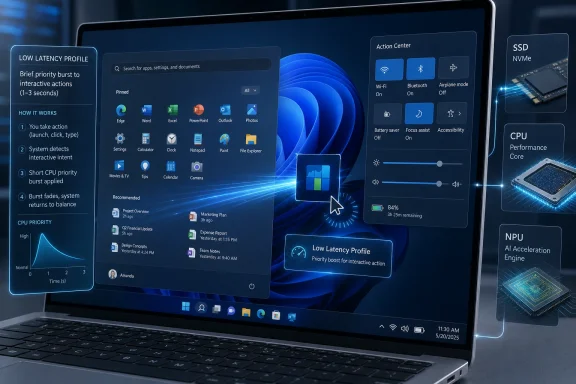
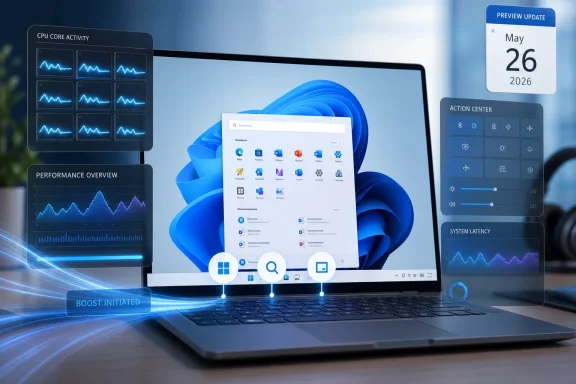
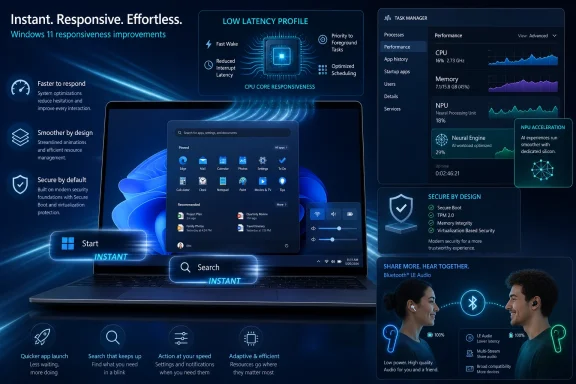
Microsoft released KB5089573 on May 26, 2026, as the optional non-security preview update for Windows 11 version 25H2 and 24H2, moving supported systems to OS builds 26200.8524 and 26100.8524 while also documenting a lingering installation failure tied to May’s earlier KB5089549 update. The preview is not just another late-month bundle of polish; it is a revealing snapshot of where Windows servicing is now heading. Microsoft is using optional updates to stage AI-era features, prepare Secure Boot plumbing, and test reliability fixes before they become mandatory in the next Patch Tuesday cycle.
That makes KB5089573 more interesting than its “Preview” label suggests. It is both a feature delivery vehicle and a warning flare: Windows 11’s monthly update train now touches boot certificates, AI components, Bluetooth audio, camera policy, storage behavior, and the hidden EFI System Partition that most users never knew existed until an update failed at 36 percent.
The late-month Windows preview update has always occupied an awkward space. It is optional for consumers, useful for administrators, and ignored by most people until one of its fixes becomes urgent. KB5089573 shows why that category matters: Microsoft is effectively publishing the next month’s non-security payload early, giving enthusiasts and IT teams a chance to see what will soon arrive more broadly.
For Windows 11 24H2 and 25H2, this release includes what Microsoft calls production-quality improvements. That phrase is doing a lot of work. It means the update is not a beta in the Insider sense, but it also is not the compulsory security release most organizations treat as baseline. It is the liminal zone where Microsoft now previews the operating system’s next behavioral changes.
The most visible items are user-facing: Shared Audio, improved Magnifier behavior, better Task Manager visibility for neural processing hardware, camera changes, and a new Windows Setup option for naming the user folder. But the deeper story is administrative. Microsoft is also using this release to prepare Secure Boot certificate updates and refine the servicing stack, two areas where mistakes do not produce cosmetic bugs — they produce boot failures, recovery prompts, and help desk spikes.
That is the uncomfortable bargain of modern Windows. The same cumulative package that improves clipboard history performance and fixes USB reliability can also alter update targeting for Secure Boot certificates. The operating system has become too interconnected for “quality update” to mean “minor update.”
The Magnifier changes are more consequential for accessibility. Microsoft says the tool now provides clearer announcements when used with a screen reader, supports magnification of permitted protected content, and behaves more smoothly in lens mode. That is incremental work, but accessibility improvements often matter most when they are boringly reliable rather than theatrically new.
Task Manager’s new NPU columns are the more strategic change. Microsoft is making neural processing usage visible in the Processes, Users, Details, and Performance pages, including NPU engine, dedicated memory, shared memory, and related activity. That is a quiet admission that AI hardware cannot remain a marketing abstraction. If Copilot+ PCs and AI-enabled applications are going to matter, users and admins need a way to see what is consuming the silicon.
This is the same pattern Microsoft followed with CPUs, GPUs, disks, networks, and power usage. First the capability is sold as a platform feature; then it becomes something users have to troubleshoot. Task Manager is where marketing claims go to become operational data.
The important detail is not merely that these modes exist. It is that enterprise administrators can manage them through Group Policy under the Windows Components camera settings. Microsoft is turning what could have been a consumer convenience into a managed capability, and that matters in workplaces where camera access is governed by compliance, privacy rules, and support expectations.
The Windows Setup change is smaller but overdue. Users can now choose a custom name for the user folder during setup on the Device Name page. Windows has long made this awkward, often deriving folder names from Microsoft account data or truncating names in ways that irritate power users and complicate scripted environments. Giving users a supported path during setup is not glamorous, but it is the sort of fix that prevents years of forum threads.
Taken together, these changes show Microsoft trying to close the gap between consumer ergonomics and enterprise manageability. Windows 11 is being asked to behave like a polished personal OS and a policy-driven corporate endpoint at the same time. KB5089573 is one more example of that dual mandate.
Secure Boot is designed to ensure that trusted code starts the system before Windows loads. The certificate chain behind that trust is infrastructure most users never see, but it has a shelf life. If the ecosystem does not move to updated certificates in time, some personal and business devices could eventually lose the ability to boot securely or could require intervention that is messy at scale.
KB5089573 includes additional “high confidence” targeting data to increase coverage of devices eligible to automatically receive new Secure Boot certificates. In plain English, Microsoft is trying to determine which systems are safe candidates for certificate updates, then roll those updates out cautiously. That caution is understandable. Boot trust is not an area where a vendor wants to discover edge cases after a billion endpoints have already been modified.
Microsoft is also adding a policy and MDM setting named LimitSecureBootRequiredServiceData, which lets organizations suppress a Secure Boot service event normally sent to Microsoft. That is a nod to privacy-conscious and restricted-traffic environments. It also underscores the tension in this migration: Microsoft needs telemetry-like confidence signals to avoid breaking devices, while some enterprises need to limit what endpoints send back.
This is the kind of tradeoff administrators should start discussing now, not during a June outage. Certificate transitions are not like app updates. They involve firmware behavior, bootloaders, recovery environments, OEM decisions, and update history. The worst time to discover a fleet has unusual boot partitions or blocked service data is after the mandatory phase begins.
This is a perfect Windows failure mode because it looks like one problem and is actually another. A user may have hundreds of gigabytes free on C:, yet the update fails because the small hidden EFI System Partition is cramped. That partition stores boot-related files and is not something most users monitor, resize, or even know how to inspect.
The CBS log entries Microsoft describes are more revealing than the user-facing error code. Messages such as insufficient free space, failed boot file servicing, and third-party or OEM files outside Microsoft boot directories point to a servicing operation that needs room in a partition that was often sized years ago under different assumptions. OEM utilities, recovery tooling, boot managers, and security products can all leave their fingerprints in this space.
The registry workaround Microsoft offers changes an ESP servicing setting called EspPaddingPercent under the Bfsvc control key. The goal is to allow installation by changing how much padding Windows requires while servicing boot files. That is a pragmatic escape hatch, but it is also a reminder that registry edits around boot servicing are not casual tweaks. Microsoft correctly warns that incorrect registry editing can cause serious system problems.
For consumers and unmanaged business devices, Microsoft says a Known Issue Rollback mitigation has already propagated automatically, with a restart helping it apply more quickly. Enterprise-managed devices need the matching special Group Policy for Windows 11 24H2 and 25H2, followed by a restart. In other words, the fix path depends not just on the bug, but on whether Microsoft or an IT department controls the update policy plane.
But KIR has limits. It works best when the problematic change can be cleanly toggled off and when the device can receive the rollback policy. Consumer PCs often get the mitigation automatically, while managed enterprise machines may require administrators to import and configure a special Group Policy. That split is sensible from a management standpoint, but it creates a communication problem: two machines with the same error can require different remediation paths.
The KB5089549 installation issue also illustrates why “rollback” can be a misleadingly comforting word. If a machine cannot complete the update because its boot partition is too full, rolling back the offending change may allow progress, but it does not necessarily resolve the underlying partition hygiene problem. A cramped ESP remains a future risk, especially as Secure Boot certificate work accelerates.
For IT teams, the lesson is not simply to deploy the KIR and move on. The lesson is to identify which devices are close to the edge. Systems upgraded across multiple Windows generations, devices with OEM recovery additions, dual-boot histories, third-party encryption residue, or unusual firmware tooling deserve closer inspection.
Microsoft says a permanent resolution is in progress and will arrive in a future Windows update. That is welcome, but “future update” is not a fleet management plan. Administrators still need to know which endpoints are fragile before the next boot-related servicing change arrives.
The reason is simple: Microsoft is now shipping AI-era infrastructure through the same cumulative channel that delivers reliability fixes and setup improvements. Users who do not own Copilot+ hardware may still see the update documentation mention AI components. Enterprises that are trying to separate productivity features from endpoint risk now have to parse whether a component is present, applicable, enabled, or merely staged.
Task Manager’s new NPU reporting belongs in this same category. Microsoft is building the observability layer for AI workloads at the same time it is shipping the components that enable them. That is technically sensible. It also shows how quickly Windows is being reshaped around hardware acceleration that many current PCs either lack or barely expose.
The risk for Microsoft is not that every AI component is harmful. The risk is that the update channel becomes harder to explain. A quality update that improves sign-in reliability, adds AI component versions, adjusts Secure Boot targeting, and documents an EFI partition failure is difficult to summarize honestly in one Windows Update line.
That opacity is why enthusiasts and administrators still read KB pages. The operating system’s own update UI rarely communicates the operational significance of what is being installed.
There are also fixes for USB4 displays attached through docks and hubs, added USB3 resiliency, battery improvements related to sensors and HID behavior, touch keyboard reliability on the sign-in screen, explorer.exe reliability when closing the input switcher, and clipboard history performance. This is classic Windows quality-update territory: small irritations reduced across enough systems to matter.
The Microsoft Store changes are similarly practical. The update includes underlying work to improve download performance and bandwidth usage, plus clearer error reporting when downloads fail because Windows Update group policy settings are enabled. That latter fix is aimed squarely at managed environments where Store behavior is often constrained by policy and users are left staring at unhelpful failures.
Even the Times New Roman update is more important than it sounds. Microsoft says it improves rendering of combining diacritical marks across Greek and Cyrillic scripts. Typography bugs do not usually make headlines, but for users working in affected languages, bad mark positioning is not cosmetic. It is readability, professionalism, and sometimes meaning.
This is why optional previews remain valuable. They are not just feature drops. They are monthly maintenance windows for the thousand paper cuts that determine whether Windows feels polished or merely tolerated.
The standalone installation instructions are more complicated. Microsoft’s documentation describes MSU packages that may require installation in a specific order and offers DISM or PowerShell approaches for online systems and offline images. It also reminds administrators to match Dynamic Update packages by month where possible. This is not unusual, but it highlights how servicing has become a specialized discipline.
The inclusion of a servicing stack update, KB5092734, is part of that picture. Servicing stack updates improve the component that installs Windows updates. Microsoft now combines the latest servicing stack update with the latest cumulative update for supported systems, reducing some historical complexity, but not eliminating it.
For home users, the practical advice is conservative. If the machine is stable and the preview does not contain a fix you need, waiting for the next security update is reasonable. If you are hitting one of the specific issues addressed by this release, or if you want the new features early, the optional update is available — but the known issue around the May security update should make anyone with repeated 0x800f0922 failures pause before hammering “retry” indefinitely.
For administrators, the calculus is different. Preview updates are intelligence-gathering tools. Deploying them to a pilot ring can reveal whether the next mandatory cumulative update will collide with hardware, firmware, policies, or partition layouts in your environment.
Secure Boot certificate expiration begins in June 2026. Microsoft is already staging targeting data and policy controls. The May security update has already exposed systems where the EFI System Partition is too cramped to service boot files reliably. Those two facts are not the same issue, but they rhyme.
Windows has spent years abstracting away firmware and boot mechanics from ordinary users. That abstraction is breaking down because security now depends on keeping that layer updated. The more Microsoft has to service boot trust, the more old partition decisions, OEM residue, and enterprise restrictions matter.
This is also where Windows 11’s hardware baseline becomes more than a compatibility argument. Newer systems are more likely to have modern firmware assumptions, cleaner layouts, and recent OEM support. Older upgraded systems may work perfectly day to day while still carrying disk layouts and boot partitions sized for another era.
The operating system can hide that complexity until it cannot. An update rollback at 36 percent is the moment the abstraction fails.
They should also review whether Known Issue Rollback policies are flowing correctly to managed machines. Consumer devices may receive KIR mitigations automatically, but enterprise devices often need deliberate policy deployment. That distinction matters in hybrid environments where some systems are Intune-managed, some are domain-joined, and some are effectively unmanaged despite being business-owned.
Secure Boot certificate readiness deserves its own attention. Microsoft’s phased approach is designed to reduce risk, but phased rollouts can be blocked by restrictive policies, network controls, or unusual device states. The new policy to limit Secure Boot service data may be necessary in some environments, but administrators should understand what signal they are suppressing and why.
The registry workaround for EspPaddingPercent should be treated as targeted remediation, not a blanket ritual. If a device is failing because the ESP is nearly full, the better long-term answer may involve understanding what is occupying that partition and whether the layout itself needs correction. Blindly changing servicing behavior can get an update installed while leaving the next failure waiting.
This is where enthusiasts can help themselves, too. If a PC repeatedly fails May’s update at the reboot stage with 0x800f0922, the problem may not be Windows Update cache corruption or a bad download. It may be a hidden boot partition running out of room.
That makes KB5089573 more interesting than its “Preview” label suggests. It is both a feature delivery vehicle and a warning flare: Windows 11’s monthly update train now touches boot certificates, AI components, Bluetooth audio, camera policy, storage behavior, and the hidden EFI System Partition that most users never knew existed until an update failed at 36 percent.
 Microsoft Turns the Optional Preview Into the Real Testing Ground
The late-month Windows preview update has always occupied an awkward space. It is optional for consumers, useful for administrators, and ignored by most people until one of its fixes becomes urgent. KB5089573 shows why that category matters: Microsoft is effectively publishing the next month’s non-security payload early, giving enthusiasts and IT teams a chance to see what will soon arrive more broadly.For Windows 11 24H2 and 25H2, this release includes what Microsoft calls production-quality improvements. That phrase is doing a lot of work. It means the update is not a beta in the Insider sense, but it also is not the compulsory security release most organizations treat as baseline. It is the liminal zone where Microsoft now previews the operating system’s next behavioral changes.
The most visible items are user-facing: Shared Audio, improved Magnifier behavior, better Task Manager visibility for neural processing hardware, camera changes, and a new Windows Setup option for naming the user folder. But the deeper story is administrative. Microsoft is also using this release to prepare Secure Boot certificate updates and refine the servicing stack, two areas where mistakes do not produce cosmetic bugs — they produce boot failures, recovery prompts, and help desk spikes.
That is the uncomfortable bargain of modern Windows. The same cumulative package that improves clipboard history performance and fixes USB reliability can also alter update targeting for Secure Boot certificates. The operating system has become too interconnected for “quality update” to mean “minor update.”
The Headline Features Are Small, but They Point to a Bigger Windows Strategy
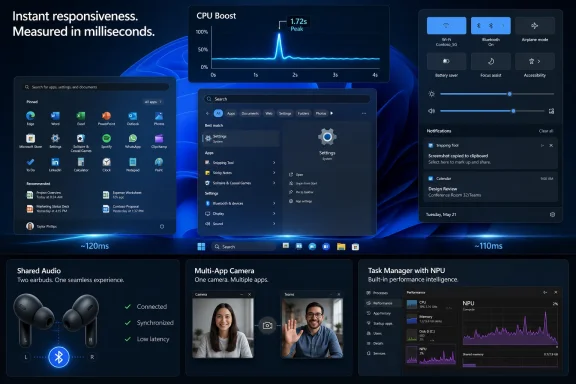
Shared Audio is the kind of feature that sounds mundane until you remember how long Windows has lagged mobile operating systems in casual device-to-device convenience. The feature allows two people to listen to the same audio stream from one Windows 11 PC using Bluetooth LE Audio broadcast technology, assuming the hardware and paired devices support it. It is not revolutionary, but it is exactly the kind of everyday polish Windows has historically ceded to phones and tablets.The Magnifier changes are more consequential for accessibility. Microsoft says the tool now provides clearer announcements when used with a screen reader, supports magnification of permitted protected content, and behaves more smoothly in lens mode. That is incremental work, but accessibility improvements often matter most when they are boringly reliable rather than theatrically new.
Task Manager’s new NPU columns are the more strategic change. Microsoft is making neural processing usage visible in the Processes, Users, Details, and Performance pages, including NPU engine, dedicated memory, shared memory, and related activity. That is a quiet admission that AI hardware cannot remain a marketing abstraction. If Copilot+ PCs and AI-enabled applications are going to matter, users and admins need a way to see what is consuming the silicon.
This is the same pattern Microsoft followed with CPUs, GPUs, disks, networks, and power usage. First the capability is sold as a platform feature; then it becomes something users have to troubleshoot. Task Manager is where marketing claims go to become operational data.
The Camera and Setup Changes Are Really About Control
The new Multi-App Camera support is easy to explain: Windows 11 can now allow multiple applications to access the camera stream at the same time. That is useful for workflows where a conferencing app, recording tool, accessibility layer, or monitoring utility needs simultaneous camera access. Microsoft is also adding a Basic Camera mode meant for stability and troubleshooting.The important detail is not merely that these modes exist. It is that enterprise administrators can manage them through Group Policy under the Windows Components camera settings. Microsoft is turning what could have been a consumer convenience into a managed capability, and that matters in workplaces where camera access is governed by compliance, privacy rules, and support expectations.
The Windows Setup change is smaller but overdue. Users can now choose a custom name for the user folder during setup on the Device Name page. Windows has long made this awkward, often deriving folder names from Microsoft account data or truncating names in ways that irritate power users and complicate scripted environments. Giving users a supported path during setup is not glamorous, but it is the sort of fix that prevents years of forum threads.
Taken together, these changes show Microsoft trying to close the gap between consumer ergonomics and enterprise manageability. Windows 11 is being asked to behave like a polished personal OS and a policy-driven corporate endpoint at the same time. KB5089573 is one more example of that dual mandate.
Secure Boot Is the Update’s Real Center of Gravity
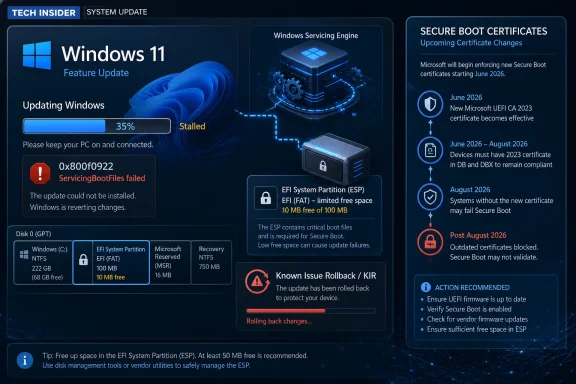
The most important part of KB5089573 may be the least visible one. Microsoft again warns that Secure Boot certificates used by most Windows devices are set to expire starting in June 2026. That date is no longer comfortably distant. It is now the next big servicing cliff.Secure Boot is designed to ensure that trusted code starts the system before Windows loads. The certificate chain behind that trust is infrastructure most users never see, but it has a shelf life. If the ecosystem does not move to updated certificates in time, some personal and business devices could eventually lose the ability to boot securely or could require intervention that is messy at scale.
KB5089573 includes additional “high confidence” targeting data to increase coverage of devices eligible to automatically receive new Secure Boot certificates. In plain English, Microsoft is trying to determine which systems are safe candidates for certificate updates, then roll those updates out cautiously. That caution is understandable. Boot trust is not an area where a vendor wants to discover edge cases after a billion endpoints have already been modified.
Microsoft is also adding a policy and MDM setting named LimitSecureBootRequiredServiceData, which lets organizations suppress a Secure Boot service event normally sent to Microsoft. That is a nod to privacy-conscious and restricted-traffic environments. It also underscores the tension in this migration: Microsoft needs telemetry-like confidence signals to avoid breaking devices, while some enterprises need to limit what endpoints send back.
This is the kind of tradeoff administrators should start discussing now, not during a June outage. Certificate transitions are not like app updates. They involve firmware behavior, bootloaders, recovery environments, OEM decisions, and update history. The worst time to discover a fleet has unusual boot partitions or blocked service data is after the mandatory phase begins.
The 0x800f0922 Failure Shows How Small Partitions Become Big Incidents
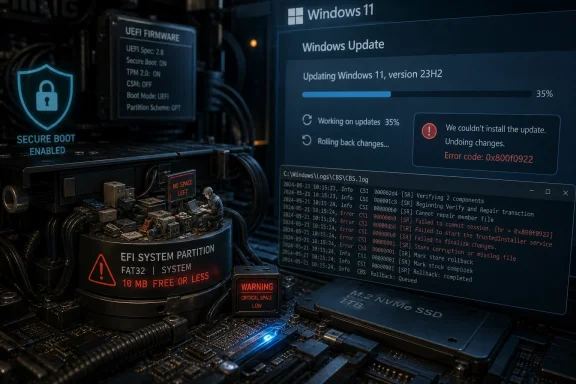
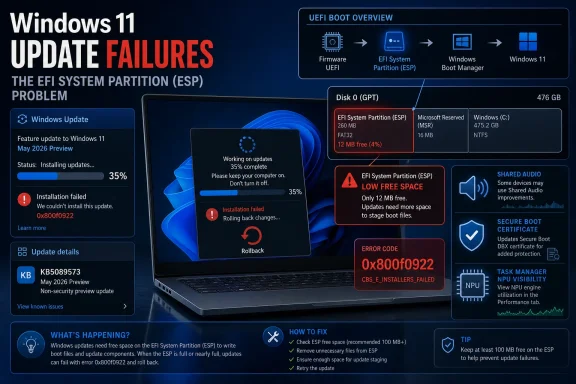
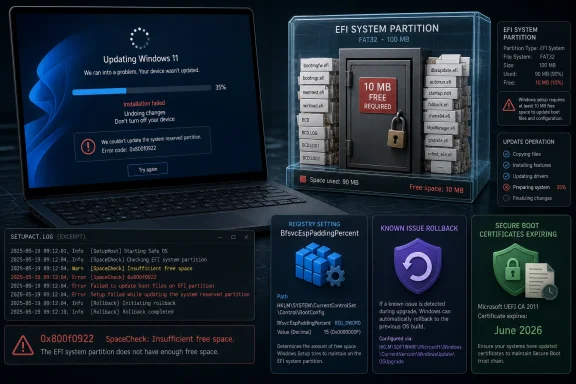
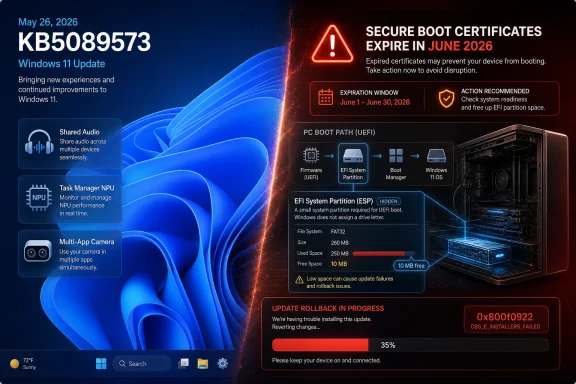
The known issue attached to this release is technically about KB5089549, the May 12 security update, but its presence in the KB5089573 documentation is impossible to ignore. Microsoft says some devices fail to complete installation with error 0x800f0922 when the EFI System Partition has limited free space, especially 10 MB or less available. The failure pattern is familiar: the update appears to install, the machine restarts, progress reaches roughly 35 or 36 percent, Windows rolls back, and the user sees the dreaded “Something didn’t go as planned. Undoing changes.”This is a perfect Windows failure mode because it looks like one problem and is actually another. A user may have hundreds of gigabytes free on C:, yet the update fails because the small hidden EFI System Partition is cramped. That partition stores boot-related files and is not something most users monitor, resize, or even know how to inspect.
The CBS log entries Microsoft describes are more revealing than the user-facing error code. Messages such as insufficient free space, failed boot file servicing, and third-party or OEM files outside Microsoft boot directories point to a servicing operation that needs room in a partition that was often sized years ago under different assumptions. OEM utilities, recovery tooling, boot managers, and security products can all leave their fingerprints in this space.
The registry workaround Microsoft offers changes an ESP servicing setting called EspPaddingPercent under the Bfsvc control key. The goal is to allow installation by changing how much padding Windows requires while servicing boot files. That is a pragmatic escape hatch, but it is also a reminder that registry edits around boot servicing are not casual tweaks. Microsoft correctly warns that incorrect registry editing can cause serious system problems.
For consumers and unmanaged business devices, Microsoft says a Known Issue Rollback mitigation has already propagated automatically, with a restart helping it apply more quickly. Enterprise-managed devices need the matching special Group Policy for Windows 11 24H2 and 25H2, followed by a restart. In other words, the fix path depends not just on the bug, but on whether Microsoft or an IT department controls the update policy plane.
Known Issue Rollback Is a Safety Net, Not a Substitute for Trust
Known Issue Rollback has become one of Microsoft’s most important servicing technologies because it lets the company disable problematic non-security changes without asking every user to uninstall an entire cumulative update. That is a major improvement over the old model, where one bad component could poison the whole monthly release.But KIR has limits. It works best when the problematic change can be cleanly toggled off and when the device can receive the rollback policy. Consumer PCs often get the mitigation automatically, while managed enterprise machines may require administrators to import and configure a special Group Policy. That split is sensible from a management standpoint, but it creates a communication problem: two machines with the same error can require different remediation paths.
The KB5089549 installation issue also illustrates why “rollback” can be a misleadingly comforting word. If a machine cannot complete the update because its boot partition is too full, rolling back the offending change may allow progress, but it does not necessarily resolve the underlying partition hygiene problem. A cramped ESP remains a future risk, especially as Secure Boot certificate work accelerates.
For IT teams, the lesson is not simply to deploy the KIR and move on. The lesson is to identify which devices are close to the edge. Systems upgraded across multiple Windows generations, devices with OEM recovery additions, dual-boot histories, third-party encryption residue, or unusual firmware tooling deserve closer inspection.
Microsoft says a permanent resolution is in progress and will arrive in a future Windows update. That is welcome, but “future update” is not a fleet management plan. Administrators still need to know which endpoints are fragile before the next boot-related servicing change arrives.
Copilot+ Plumbing Keeps Arriving Even When the User Never Asked for AI
KB5089573 updates several AI components, including Image Search, Content Extraction, Semantic Analysis, and the Settings Model, all to version 1.2605.856.0. Microsoft notes that although these AI component updates are included in the cumulative update, they apply only to Windows Copilot+ PCs and do not install on ordinary Windows PCs or Windows Server. That caveat is important, but it will not end the suspicion around AI payloads in Windows Update.The reason is simple: Microsoft is now shipping AI-era infrastructure through the same cumulative channel that delivers reliability fixes and setup improvements. Users who do not own Copilot+ hardware may still see the update documentation mention AI components. Enterprises that are trying to separate productivity features from endpoint risk now have to parse whether a component is present, applicable, enabled, or merely staged.
Task Manager’s new NPU reporting belongs in this same category. Microsoft is building the observability layer for AI workloads at the same time it is shipping the components that enable them. That is technically sensible. It also shows how quickly Windows is being reshaped around hardware acceleration that many current PCs either lack or barely expose.
The risk for Microsoft is not that every AI component is harmful. The risk is that the update channel becomes harder to explain. A quality update that improves sign-in reliability, adds AI component versions, adjusts Secure Boot targeting, and documents an EFI partition failure is difficult to summarize honestly in one Windows Update line.
That opacity is why enthusiasts and administrators still read KB pages. The operating system’s own update UI rarely communicates the operational significance of what is being installed.
The Reliability Fixes Are the Ones Users Will Actually Feel
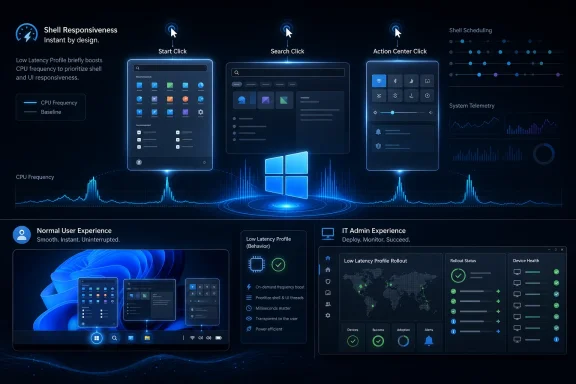
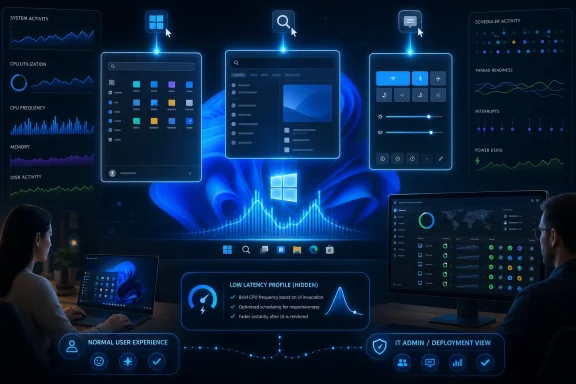
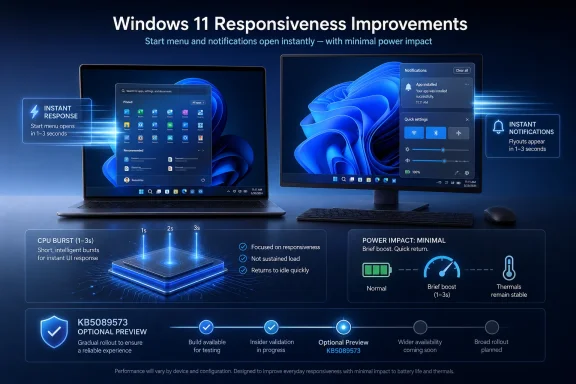
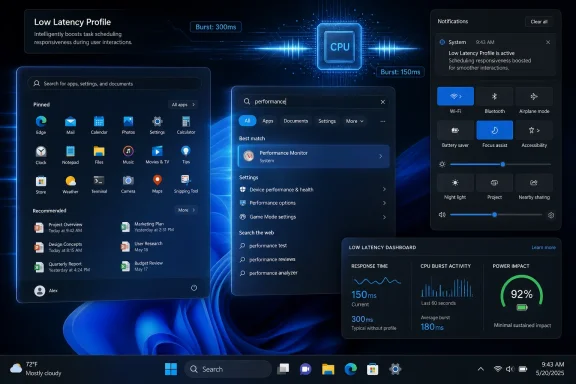
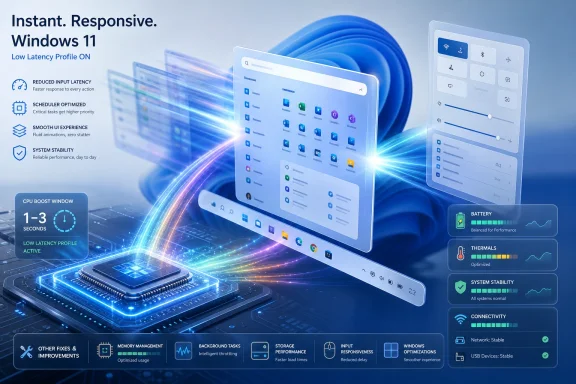
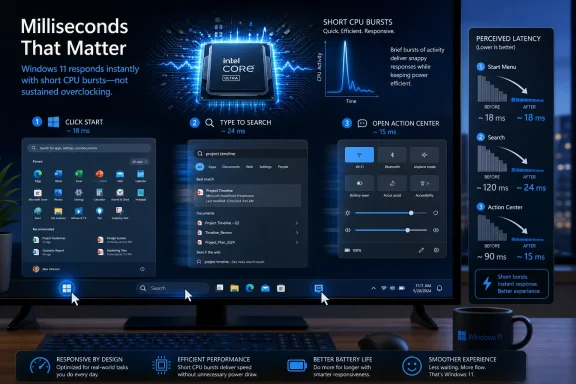
For many users, the best parts of KB5089573 will be the least marketable ones. Microsoft says the update accelerates app launch and core shell experiences such as Start, Search, and Action Center. It improves Windows Hello behavior, including biometric service performance after Modern Standby and sign-in method consistency on the lock screen.There are also fixes for USB4 displays attached through docks and hubs, added USB3 resiliency, battery improvements related to sensors and HID behavior, touch keyboard reliability on the sign-in screen, explorer.exe reliability when closing the input switcher, and clipboard history performance. This is classic Windows quality-update territory: small irritations reduced across enough systems to matter.
The Microsoft Store changes are similarly practical. The update includes underlying work to improve download performance and bandwidth usage, plus clearer error reporting when downloads fail because Windows Update group policy settings are enabled. That latter fix is aimed squarely at managed environments where Store behavior is often constrained by policy and users are left staring at unhelpful failures.
Even the Times New Roman update is more important than it sounds. Microsoft says it improves rendering of combining diacritical marks across Greek and Cyrillic scripts. Typography bugs do not usually make headlines, but for users working in affected languages, bad mark positioning is not cosmetic. It is readability, professionalism, and sometimes meaning.
This is why optional previews remain valuable. They are not just feature drops. They are monthly maintenance windows for the thousand paper cuts that determine whether Windows feels polished or merely tolerated.
The Deployment Story Still Has Too Many Footnotes
KB5089573 is available through Windows Update, Windows Update for Business, the Microsoft Update Catalog, and Windows Server Update Services. For consumers, the path is straightforward: Settings, Windows Update, Advanced options, Optional updates. For businesses, Microsoft says the changes will appear in the next security update to Windows Update for Business, which means many organizations will see this payload when it rolls into the next Patch Tuesday release rather than through optional preview adoption.The standalone installation instructions are more complicated. Microsoft’s documentation describes MSU packages that may require installation in a specific order and offers DISM or PowerShell approaches for online systems and offline images. It also reminds administrators to match Dynamic Update packages by month where possible. This is not unusual, but it highlights how servicing has become a specialized discipline.
The inclusion of a servicing stack update, KB5092734, is part of that picture. Servicing stack updates improve the component that installs Windows updates. Microsoft now combines the latest servicing stack update with the latest cumulative update for supported systems, reducing some historical complexity, but not eliminating it.
For home users, the practical advice is conservative. If the machine is stable and the preview does not contain a fix you need, waiting for the next security update is reasonable. If you are hitting one of the specific issues addressed by this release, or if you want the new features early, the optional update is available — but the known issue around the May security update should make anyone with repeated 0x800f0922 failures pause before hammering “retry” indefinitely.
For administrators, the calculus is different. Preview updates are intelligence-gathering tools. Deploying them to a pilot ring can reveal whether the next mandatory cumulative update will collide with hardware, firmware, policies, or partition layouts in your environment.
The May Preview’s Real Message Is Hidden in the Boot Path
KB5089573 should be read as a warning about Windows 11’s next operational frontier. The visible features are nice, the reliability fixes are welcome, and the AI plumbing is predictable. But the boot path is where the stakes are rising.Secure Boot certificate expiration begins in June 2026. Microsoft is already staging targeting data and policy controls. The May security update has already exposed systems where the EFI System Partition is too cramped to service boot files reliably. Those two facts are not the same issue, but they rhyme.
Windows has spent years abstracting away firmware and boot mechanics from ordinary users. That abstraction is breaking down because security now depends on keeping that layer updated. The more Microsoft has to service boot trust, the more old partition decisions, OEM residue, and enterprise restrictions matter.
This is also where Windows 11’s hardware baseline becomes more than a compatibility argument. Newer systems are more likely to have modern firmware assumptions, cleaner layouts, and recent OEM support. Older upgraded systems may work perfectly day to day while still carrying disk layouts and boot partitions sized for another era.
The operating system can hide that complexity until it cannot. An update rollback at 36 percent is the moment the abstraction fails.
The Work for IT Starts Before the Mandatory Update Lands
The most useful response to KB5089573 is not panic. It is inventory. Organizations should be looking at which devices run Windows 11 24H2 or 25H2, which machines failed KB5089549, which endpoints show 0x800f0922, and which CBS logs point specifically to EFI System Partition space.They should also review whether Known Issue Rollback policies are flowing correctly to managed machines. Consumer devices may receive KIR mitigations automatically, but enterprise devices often need deliberate policy deployment. That distinction matters in hybrid environments where some systems are Intune-managed, some are domain-joined, and some are effectively unmanaged despite being business-owned.
Secure Boot certificate readiness deserves its own attention. Microsoft’s phased approach is designed to reduce risk, but phased rollouts can be blocked by restrictive policies, network controls, or unusual device states. The new policy to limit Secure Boot service data may be necessary in some environments, but administrators should understand what signal they are suppressing and why.
The registry workaround for EspPaddingPercent should be treated as targeted remediation, not a blanket ritual. If a device is failing because the ESP is nearly full, the better long-term answer may involve understanding what is occupying that partition and whether the layout itself needs correction. Blindly changing servicing behavior can get an update installed while leaving the next failure waiting.
This is where enthusiasts can help themselves, too. If a PC repeatedly fails May’s update at the reboot stage with 0x800f0922, the problem may not be Windows Update cache corruption or a bad download. It may be a hidden boot partition running out of room.
What This Particular Preview Tells Us Before June Arrives
KB5089573 is one of those updates whose importance is easier to see when you stop treating the changelog as a shopping list. The features, fixes, and warnings form a pattern: Microsoft is modernizing Windows around AI hardware, shared device experiences, managed peripherals, and boot-chain security, while old assumptions about partitions and firmware keep pushing back.- KB5089573 is an optional May 26, 2026 preview update for Windows 11 25H2 and 24H2, raising systems to builds 26200.8524 and 26100.8524.
- The update adds visible features such as Shared Audio, NPU reporting in Task Manager, Multi-App Camera controls, and a supported way to choose a custom user folder name during setup.
- Microsoft is using this release to prepare for Secure Boot certificate expiration beginning in June 2026, including broader targeting data and a new policy for limiting Secure Boot service data.
- The documented 0x800f0922 failure is tied to the May 12 KB5089549 security update and affects devices with very low free space on the EFI System Partition, especially 10 MB or less.
- Consumer and unmanaged business devices should receive the Known Issue Rollback mitigation automatically, while enterprise-managed devices need the matching Group Policy and a restart.
- IT teams should treat the preview as an early warning system for the next mandatory cumulative update, especially on devices with unusual boot layouts, restrictive policies, or prior update rollback failures.
References
- Primary source: Microsoft - Message Center
Published: 2026-05-26 10:00 PT

May 26, 2026—KB5089573 (OS Builds 26200.8524 and 26100.8524) Preview - Microsoft Support
support.microsoft.com
- Related coverage: windowscentral.com
Microsoft confirms Windows 11’s May 2026 update is failing to install with error 0x800f0922 and outlines a mitigation for affected PCs | Windows Central
Windows 11 May 2026 update fails on some PCs, but Microsoft has already shipped a workaround, and it's working on a permanent fix.www.windowscentral.com - Related coverage: windowslatest.com
Microsoft confirms Windows 11 KB5089549 issues due to low storage, says it's rolling out an emergency patch to fix install errors
Microsoft confirmed that it's aware of an issue where Windows 11 KB5089549 fails to install due to errors such as 0x800f0922. www.windowslatest.com
- Related coverage: techrepublic.com
Microsoft Confirms Windows Update Bug Blocking Security Fixes
Microsoft confirmed that KB5089549 can fail with error 0x800f0922 on Windows 11 devices with low EFI partition space, and shared workarounds are available.www.techrepublic.com
- Related coverage: windowsnews.ai
KB5089549 stuck at 35% install on Windows 11 due to EFI partition under 10MB free - Windows News
KB5089549, the May 2026 Windows 11 update, fails at 35% if your EFI partition has less than 10MB free. Microsoft confirmed the bug and offers a Known Issue...windowsnews.ai - Related coverage: securityonline.info
Boot Partition Bottleneck: Microsoft Confirms Windows 11 Update KB5089549 Fails with Error 0x800f0922 • Daily CyberSecurity
Microsoft confirms Windows 11 update KB5089549 fails and rolls back at 35% with error 0x800f0922 on systems with low EFI partition storage. Learn the fix.securityonline.info
- Related coverage: windows.gadgethacks.com
Windows 11 May 2026 Update Fails for Some PCs: What the EFI Partition Error Means << Windows Tips :: Gadget Hacks
The May 2026 Patch Tuesday update is failing to install on a subset of Windows 11 machines, stalling mid-reboot at roughly 35–36% completion and rolling... windows.gadgethacks.com
- Related coverage: windowsforum.com
Windows 11 KB5089549 Update Fails at Reboot (0x800f0922) Due to Tiny EFI Space | Windows Forum
Microsoft confirmed that Windows 11 security update KB5089549, released May 12, 2026, can fail during reboot on Windows 11 version 24H2 and 25H2 devices...windowsforum.com - Related coverage: thewincentral.com
Windows 11 update KB5089549 Fails to Install, Microsoft Confirms Error & Fix - WinCentral
Microsoft confirms a Windows 11 KB5089549 installation bug causing error 0x800f0922 during restart. Here’s the workaround and official fix details. - Read in Windows Issues on WinCentral thewincentral.com
- Related coverage: bd.com
whitelisted microsoft and third party patches bd alaris products november 2025
PDF documentwww.bd.com