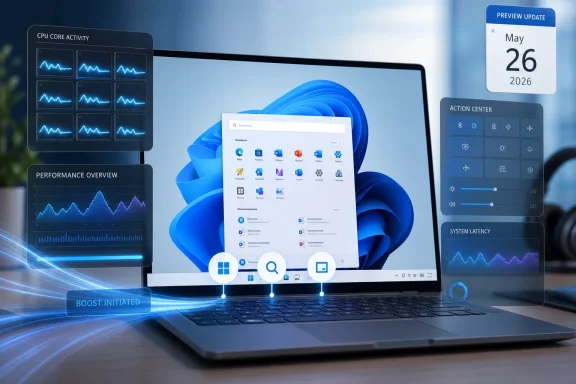
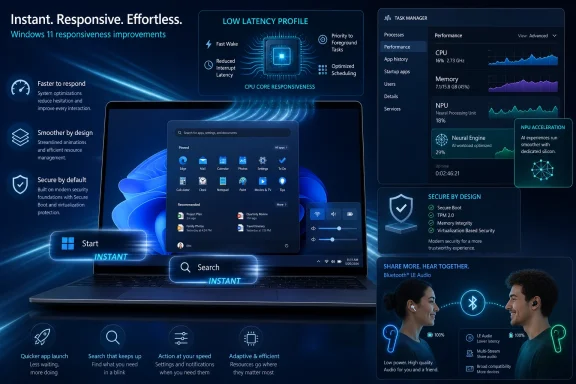
Microsoft released KB5089573 on May 26, 2026, as the optional non-security preview update for Windows 11 version 25H2 and 24H2, moving supported systems to OS builds 26200.8524 and 26100.8524 while also documenting a lingering installation failure tied to May’s earlier KB5089549 update. The preview is not just another late-month bundle of polish; it is a revealing snapshot of where Windows servicing is now heading. Microsoft is using optional updates to stage AI-era features, prepare Secure Boot plumbing, and test reliability fixes before they become mandatory in the next Patch Tuesday cycle.
That makes KB5089573 more interesting than its “Preview” label suggests. It is both a feature delivery vehicle and a warning flare: Windows 11’s monthly update train now touches boot certificates, AI components, Bluetooth audio, camera policy, storage behavior, and the hidden EFI System Partition that most users never knew existed until an update failed at 36 percent.
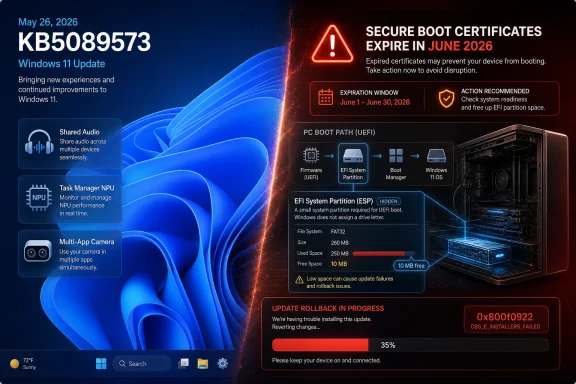
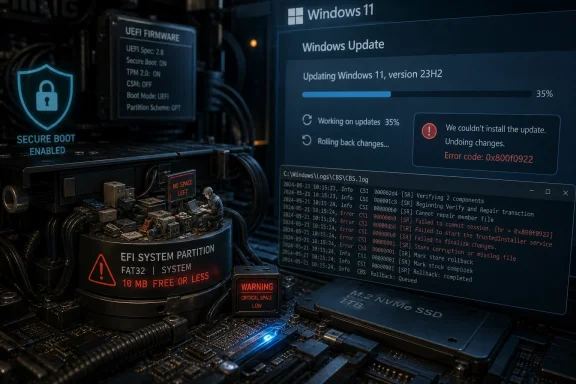
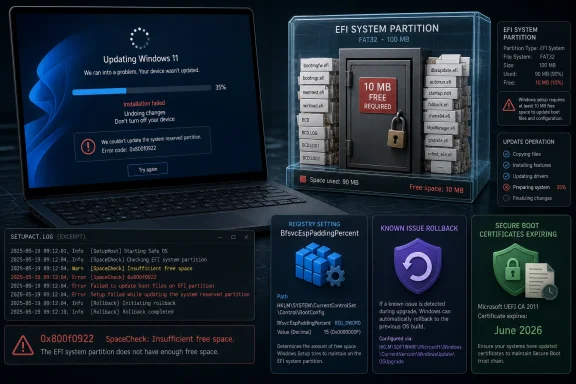
Windows 11 update KB5089573 warns of expiring secure boot certificates and shows an update rollback error.Microsoft Turns the Optional Preview Into the Real Testing Ground​

The late-month Windows preview update has always occupied an awkward space. It is optional for consumers, useful for administrators, and ignored by most people until one of its fixes becomes urgent. KB5089573 shows why that category matters: Microsoft is effectively publishing the next month’s non-security payload early, giving enthusiasts and IT teams a chance to see what will soon arrive more broadly.
For Windows 11 24H2 and 25H2, this release includes what Microsoft calls production-quality improvements. That phrase is doing a lot of work. It means the update is not a beta in the Insider sense, but it also is not the compulsory security release most organizations treat as baseline. It is the liminal zone where Microsoft now previews the operating system’s next behavioral changes.
The most visible items are user-facing: Shared Audio, improved Magnifier behavior, better Task Manager visibility for neural processing hardware, camera changes, and a new Windows Setup option for naming the user folder. But the deeper story is administrative. Microsoft is also using this release to prepare Secure Boot certificate updates and refine the servicing stack, two areas where mistakes do not produce cosmetic bugs — they produce boot failures, recovery prompts, and help desk spikes.
That is the uncomfortable bargain of modern Windows. The same cumulative package that improves clipboard history performance and fixes USB reliability can also alter update targeting for Secure Boot certificates. The operating system has become too interconnected for “quality update” to mean “minor update.”

The Headline Features Are Small, but They Point to a Bigger Windows Strategy​

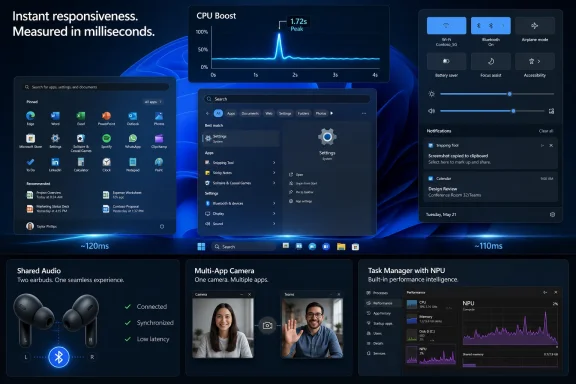
Shared Audio is the kind of feature that sounds mundane until you remember how long Windows has lagged mobile operating systems in casual device-to-device convenience. The feature allows two people to listen to the same audio stream from one Windows 11 PC using Bluetooth LE Audio broadcast technology, assuming the hardware and paired devices support it. It is not revolutionary, but it is exactly the kind of everyday polish Windows has historically ceded to phones and tablets.
The Magnifier changes are more consequential for accessibility. Microsoft says the tool now provides clearer announcements when used with a screen reader, supports magnification of permitted protected content, and behaves more smoothly in lens mode. That is incremental work, but accessibility improvements often matter most when they are boringly reliable rather than theatrically new.
Task Manager’s new NPU columns are the more strategic change. Microsoft is making neural processing usage visible in the Processes, Users, Details, and Performance pages, including NPU engine, dedicated memory, shared memory, and related activity. That is a quiet admission that AI hardware cannot remain a marketing abstraction. If Copilot+ PCs and AI-enabled applications are going to matter, users and admins need a way to see what is consuming the silicon.
This is the same pattern Microsoft followed with CPUs, GPUs, disks, networks, and power usage. First the capability is sold as a platform feature; then it becomes something users have to troubleshoot. Task Manager is where marketing claims go to become operational data.

The Camera and Setup Changes Are Really About Control​

The new Multi-App Camera support is easy to explain: Windows 11 can now allow multiple applications to access the camera stream at the same time. That is useful for workflows where a conferencing app, recording tool, accessibility layer, or monitoring utility needs simultaneous camera access. Microsoft is also adding a Basic Camera mode meant for stability and troubleshooting.
The important detail is not merely that these modes exist. It is that enterprise administrators can manage them through Group Policy under the Windows Components camera settings. Microsoft is turning what could have been a consumer convenience into a managed capability, and that matters in workplaces where camera access is governed by compliance, privacy rules, and support expectations.
The Windows Setup change is smaller but overdue. Users can now choose a custom name for the user folder during setup on the Device Name page. Windows has long made this awkward, often deriving folder names from Microsoft account data or truncating names in ways that irritate power users and complicate scripted environments. Giving users a supported path during setup is not glamorous, but it is the sort of fix that prevents years of forum threads.
Taken together, these changes show Microsoft trying to close the gap between consumer ergonomics and enterprise manageability. Windows 11 is being asked to behave like a polished personal OS and a policy-driven corporate endpoint at the same time. KB5089573 is one more example of that dual mandate.

Secure Boot Is the Update’s Real Center of Gravity​

The most important part of KB5089573 may be the least visible one. Microsoft again warns that Secure Boot certificates used by most Windows devices are set to expire starting in June 2026. That date is no longer comfortably distant. It is now the next big servicing cliff.
Secure Boot is designed to ensure that trusted code starts the system before Windows loads. The certificate chain behind that trust is infrastructure most users never see, but it has a shelf life. If the ecosystem does not move to updated certificates in time, some personal and business devices could eventually lose the ability to boot securely or could require intervention that is messy at scale.
KB5089573 includes additional “high confidence” targeting data to increase coverage of devices eligible to automatically receive new Secure Boot certificates. In plain English, Microsoft is trying to determine which systems are safe candidates for certificate updates, then roll those updates out cautiously. That caution is understandable. Boot trust is not an area where a vendor wants to discover edge cases after a billion endpoints have already been modified.
Microsoft is also adding a policy and MDM setting named LimitSecureBootRequiredServiceData, which lets organizations suppress a Secure Boot service event normally sent to Microsoft. That is a nod to privacy-conscious and restricted-traffic environments. It also underscores the tension in this migration: Microsoft needs telemetry-like confidence signals to avoid breaking devices, while some enterprises need to limit what endpoints send back.
This is the kind of tradeoff administrators should start discussing now, not during a June outage. Certificate transitions are not like app updates. They involve firmware behavior, bootloaders, recovery environments, OEM decisions, and update history. The worst time to discover a fleet has unusual boot partitions or blocked service data is after the mandatory phase begins.

The 0x800f0922 Failure Shows How Small Partitions Become Big Incidents​

The known issue attached to this release is technically about KB5089549, the May 12 security update, but its presence in the KB5089573 documentation is impossible to ignore. Microsoft says some devices fail to complete installation with error 0x800f0922 when the EFI System Partition has limited free space, especially 10 MB or less available. The failure pattern is familiar: the update appears to install, the machine restarts, progress reaches roughly 35 or 36 percent, Windows rolls back, and the user sees the dreaded “Something didn’t go as planned. Undoing changes.”
This is a perfect Windows failure mode because it looks like one problem and is actually another. A user may have hundreds of gigabytes free on C:, yet the update fails because the small hidden EFI System Partition is cramped. That partition stores boot-related files and is not something most users monitor, resize, or even know how to inspect.
The CBS log entries Microsoft describes are more revealing than the user-facing error code. Messages such as insufficient free space, failed boot file servicing, and third-party or OEM files outside Microsoft boot directories point to a servicing operation that needs room in a partition that was often sized years ago under different assumptions. OEM utilities, recovery tooling, boot managers, and security products can all leave their fingerprints in this space.
The registry workaround Microsoft offers changes an ESP servicing setting called EspPaddingPercent under the Bfsvc control key. The goal is to allow installation by changing how much padding Windows requires while servicing boot files. That is a pragmatic escape hatch, but it is also a reminder that registry edits around boot servicing are not casual tweaks. Microsoft correctly warns that incorrect registry editing can cause serious system problems.
For consumers and unmanaged business devices, Microsoft says a Known Issue Rollback mitigation has already propagated automatically, with a restart helping it apply more quickly. Enterprise-managed devices need the matching special Group Policy for Windows 11 24H2 and 25H2, followed by a restart. In other words, the fix path depends not just on the bug, but on whether Microsoft or an IT department controls the update policy plane.

Known Issue Rollback Is a Safety Net, Not a Substitute for Trust​

Known Issue Rollback has become one of Microsoft’s most important servicing technologies because it lets the company disable problematic non-security changes without asking every user to uninstall an entire cumulative update. That is a major improvement over the old model, where one bad component could poison the whole monthly release.
But KIR has limits. It works best when the problematic change can be cleanly toggled off and when the device can receive the rollback policy. Consumer PCs often get the mitigation automatically, while managed enterprise machines may require administrators to import and configure a special Group Policy. That split is sensible from a management standpoint, but it creates a communication problem: two machines with the same error can require different remediation paths.
The KB5089549 installation issue also illustrates why “rollback” can be a misleadingly comforting word. If a machine cannot complete the update because its boot partition is too full, rolling back the offending change may allow progress, but it does not necessarily resolve the underlying partition hygiene problem. A cramped ESP remains a future risk, especially as Secure Boot certificate work accelerates.
For IT teams, the lesson is not simply to deploy the KIR and move on. The lesson is to identify which devices are close to the edge. Systems upgraded across multiple Windows generations, devices with OEM recovery additions, dual-boot histories, third-party encryption residue, or unusual firmware tooling deserve closer inspection.
Microsoft says a permanent resolution is in progress and will arrive in a future Windows update. That is welcome, but “future update” is not a fleet management plan. Administrators still need to know which endpoints are fragile before the next boot-related servicing change arrives.

Copilot+ Plumbing Keeps Arriving Even When the User Never Asked for AI​

KB5089573 updates several AI components, including Image Search, Content Extraction, Semantic Analysis, and the Settings Model, all to version 1.2605.856.0. Microsoft notes that although these AI component updates are included in the cumulative update, they apply only to Windows Copilot+ PCs and do not install on ordinary Windows PCs or Windows Server. That caveat is important, but it will not end the suspicion around AI payloads in Windows Update.
The reason is simple: Microsoft is now shipping AI-era infrastructure through the same cumulative channel that delivers reliability fixes and setup improvements. Users who do not own Copilot+ hardware may still see the update documentation mention AI components. Enterprises that are trying to separate productivity features from endpoint risk now have to parse whether a component is present, applicable, enabled, or merely staged.
Task Manager’s new NPU reporting belongs in this same category. Microsoft is building the observability layer for AI workloads at the same time it is shipping the components that enable them. That is technically sensible. It also shows how quickly Windows is being reshaped around hardware acceleration that many current PCs either lack or barely expose.
The risk for Microsoft is not that every AI component is harmful. The risk is that the update channel becomes harder to explain. A quality update that improves sign-in reliability, adds AI component versions, adjusts Secure Boot targeting, and documents an EFI partition failure is difficult to summarize honestly in one Windows Update line.
That opacity is why enthusiasts and administrators still read KB pages. The operating system’s own update UI rarely communicates the operational significance of what is being installed.

The Reliability Fixes Are the Ones Users Will Actually Feel​

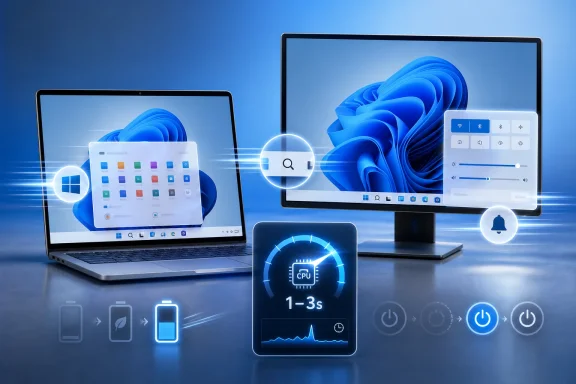
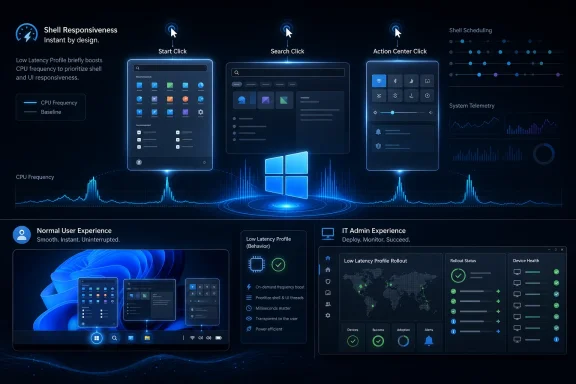
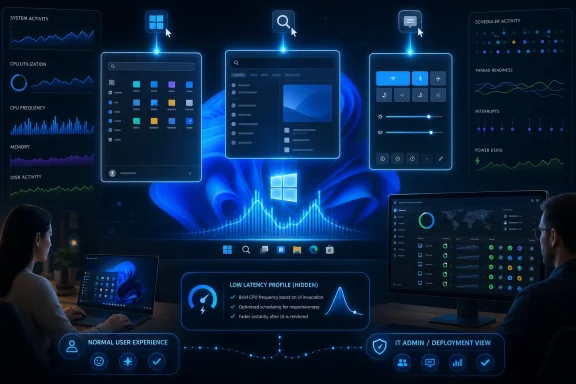
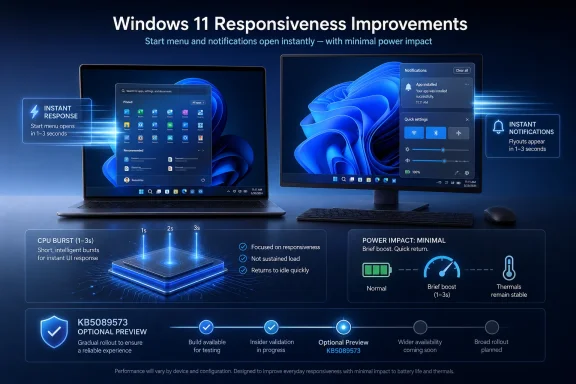
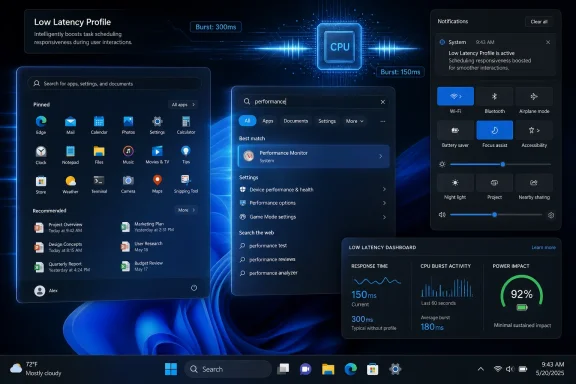
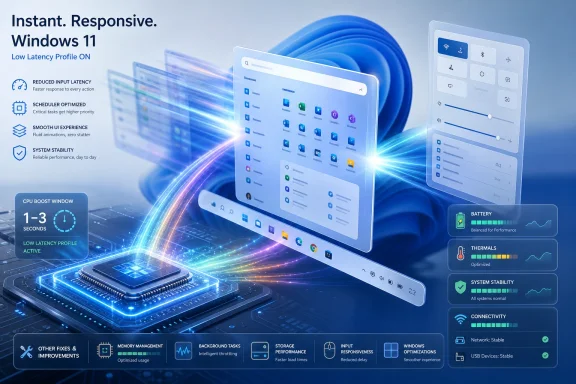
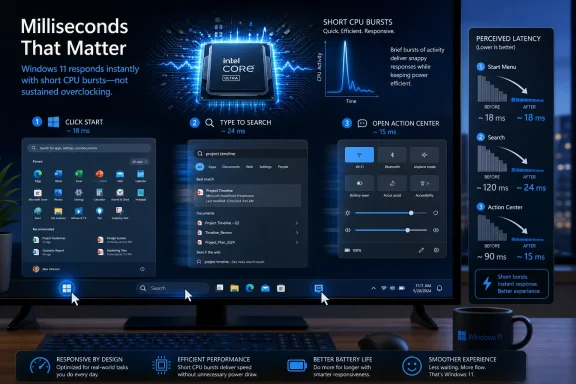
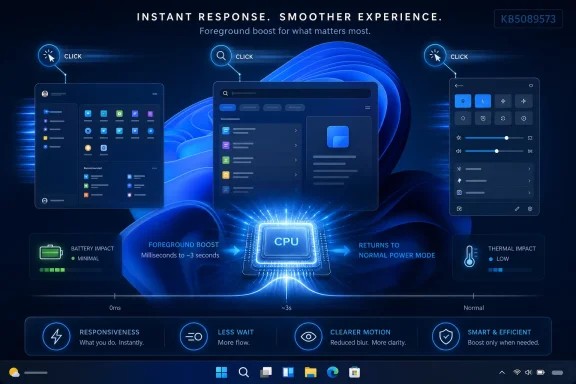
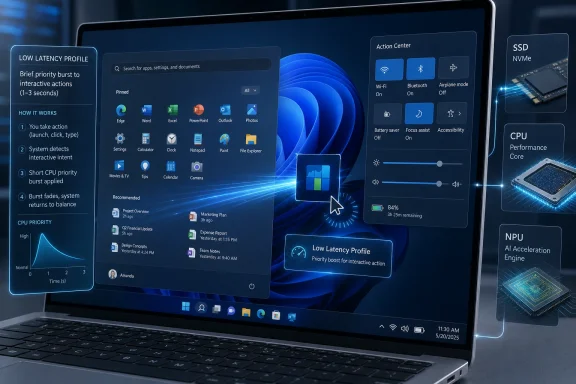
For many users, the best parts of KB5089573 will be the least marketable ones. Microsoft says the update accelerates app launch and core shell experiences such as Start, Search, and Action Center. It improves Windows Hello behavior, including biometric service performance after Modern Standby and sign-in method consistency on the lock screen.
There are also fixes for USB4 displays attached through docks and hubs, added USB3 resiliency, battery improvements related to sensors and HID behavior, touch keyboard reliability on the sign-in screen, explorer.exe reliability when closing the input switcher, and clipboard history performance. This is classic Windows quality-update territory: small irritations reduced across enough systems to matter.
The Microsoft Store changes are similarly practical. The update includes underlying work to improve download performance and bandwidth usage, plus clearer error reporting when downloads fail because Windows Update group policy settings are enabled. That latter fix is aimed squarely at managed environments where Store behavior is often constrained by policy and users are left staring at unhelpful failures.
Even the Times New Roman update is more important than it sounds. Microsoft says it improves rendering of combining diacritical marks across Greek and Cyrillic scripts. Typography bugs do not usually make headlines, but for users working in affected languages, bad mark positioning is not cosmetic. It is readability, professionalism, and sometimes meaning.
This is why optional previews remain valuable. They are not just feature drops. They are monthly maintenance windows for the thousand paper cuts that determine whether Windows feels polished or merely tolerated.

The Deployment Story Still Has Too Many Footnotes​

KB5089573 is available through Windows Update, Windows Update for Business, the Microsoft Update Catalog, and Windows Server Update Services. For consumers, the path is straightforward: Settings, Windows Update, Advanced options, Optional updates. For businesses, Microsoft says the changes will appear in the next security update to Windows Update for Business, which means many organizations will see this payload when it rolls into the next Patch Tuesday release rather than through optional preview adoption.
The standalone installation instructions are more complicated. Microsoft’s documentation describes MSU packages that may require installation in a specific order and offers DISM or PowerShell approaches for online systems and offline images. It also reminds administrators to match Dynamic Update packages by month where possible. This is not unusual, but it highlights how servicing has become a specialized discipline.
The inclusion of a servicing stack update, KB5092734, is part of that picture. Servicing stack updates improve the component that installs Windows updates. Microsoft now combines the latest servicing stack update with the latest cumulative update for supported systems, reducing some historical complexity, but not eliminating it.
For home users, the practical advice is conservative. If the machine is stable and the preview does not contain a fix you need, waiting for the next security update is reasonable. If you are hitting one of the specific issues addressed by this release, or if you want the new features early, the optional update is available — but the known issue around the May security update should make anyone with repeated 0x800f0922 failures pause before hammering “retry” indefinitely.
For administrators, the calculus is different. Preview updates are intelligence-gathering tools. Deploying them to a pilot ring can reveal whether the next mandatory cumulative update will collide with hardware, firmware, policies, or partition layouts in your environment.

The May Preview’s Real Message Is Hidden in the Boot Path​

KB5089573 should be read as a warning about Windows 11’s next operational frontier. The visible features are nice, the reliability fixes are welcome, and the AI plumbing is predictable. But the boot path is where the stakes are rising.
Secure Boot certificate expiration begins in June 2026. Microsoft is already staging targeting data and policy controls. The May security update has already exposed systems where the EFI System Partition is too cramped to service boot files reliably. Those two facts are not the same issue, but they rhyme.
Windows has spent years abstracting away firmware and boot mechanics from ordinary users. That abstraction is breaking down because security now depends on keeping that layer updated. The more Microsoft has to service boot trust, the more old partition decisions, OEM residue, and enterprise restrictions matter.
This is also where Windows 11’s hardware baseline becomes more than a compatibility argument. Newer systems are more likely to have modern firmware assumptions, cleaner layouts, and recent OEM support. Older upgraded systems may work perfectly day to day while still carrying disk layouts and boot partitions sized for another era.
The operating system can hide that complexity until it cannot. An update rollback at 36 percent is the moment the abstraction fails.

The Work for IT Starts Before the Mandatory Update Lands​

The most useful response to KB5089573 is not panic. It is inventory. Organizations should be looking at which devices run Windows 11 24H2 or 25H2, which machines failed KB5089549, which endpoints show 0x800f0922, and which CBS logs point specifically to EFI System Partition space.
They should also review whether Known Issue Rollback policies are flowing correctly to managed machines. Consumer devices may receive KIR mitigations automatically, but enterprise devices often need deliberate policy deployment. That distinction matters in hybrid environments where some systems are Intune-managed, some are domain-joined, and some are effectively unmanaged despite being business-owned.
Secure Boot certificate readiness deserves its own attention. Microsoft’s phased approach is designed to reduce risk, but phased rollouts can be blocked by restrictive policies, network controls, or unusual device states. The new policy to limit Secure Boot service data may be necessary in some environments, but administrators should understand what signal they are suppressing and why.
The registry workaround for EspPaddingPercent should be treated as targeted remediation, not a blanket ritual. If a device is failing because the ESP is nearly full, the better long-term answer may involve understanding what is occupying that partition and whether the layout itself needs correction. Blindly changing servicing behavior can get an update installed while leaving the next failure waiting.
This is where enthusiasts can help themselves, too. If a PC repeatedly fails May’s update at the reboot stage with 0x800f0922, the problem may not be Windows Update cache corruption or a bad download. It may be a hidden boot partition running out of room.

What This Particular Preview Tells Us Before June Arrives​

KB5089573 is one of those updates whose importance is easier to see when you stop treating the changelog as a shopping list. The features, fixes, and warnings form a pattern: Microsoft is modernizing Windows around AI hardware, shared device experiences, managed peripherals, and boot-chain security, while old assumptions about partitions and firmware keep pushing back.
  • KB5089573 is an optional May 26, 2026 preview update for Windows 11 25H2 and 24H2, raising systems to builds 26200.8524 and 26100.8524.
  • The update adds visible features such as Shared Audio, NPU reporting in Task Manager, Multi-App Camera controls, and a supported way to choose a custom user folder name during setup.
  • Microsoft is using this release to prepare for Secure Boot certificate expiration beginning in June 2026, including broader targeting data and a new policy for limiting Secure Boot service data.
  • The documented 0x800f0922 failure is tied to the May 12 KB5089549 security update and affects devices with very low free space on the EFI System Partition, especially 10 MB or less.
  • Consumer and unmanaged business devices should receive the Known Issue Rollback mitigation automatically, while enterprise-managed devices need the matching Group Policy and a restart.
  • IT teams should treat the preview as an early warning system for the next mandatory cumulative update, especially on devices with unusual boot layouts, restrictive policies, or prior update rollback failures.
Microsoft’s May 2026 preview update is not a crisis release, but it is a consequential one. It shows Windows 11 becoming more capable and more tightly managed, while also exposing how fragile the hidden layers of PC servicing can be when security, firmware, AI components, and cumulative updates all ride the same monthly train. The next few months will test whether Microsoft can make that train feel routine — especially as Secure Boot certificate work moves from documentation warning to operational reality.

References​

  1. Primary source: Microsoft - Message Center
    Published: 2026-05-26 10:00 PT
  2. Related coverage: windowscentral.com
  3. Related coverage: windowslatest.com
  4. Related coverage: techrepublic.com
  5. Related coverage: windowsnews.ai
  6. Related coverage: securityonline.info
 

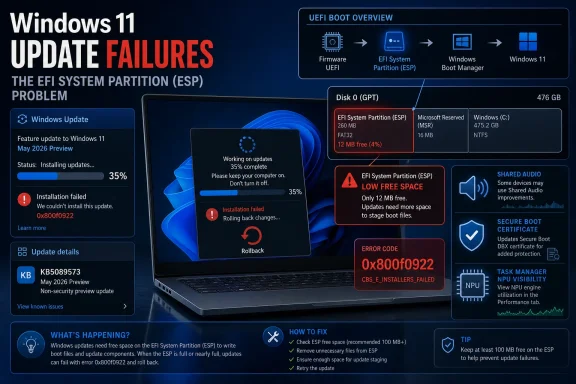
Microsoft’s May 26, 2026 Windows 11 preview update KB5089573, for versions 25H2 and 24H2, advances builds 26200.8524 and 26100.8524 while documenting a May security-update installation failure tied to cramped EFI System Partitions. The headline is not that a preview update contains another known issue note; it is that Windows servicing is again colliding with the messy physical reality of PC boot partitions. For enthusiasts, this is a reminder that the most fragile part of a modern Windows update may be a tiny partition most users never see. For IT teams, it is another case where Microsoft’s cloud-era rollback machinery helps, but does not erase the need to understand what is happening on disk.

Windows 11 update fails at 35% with error 0x800f0922 shown beside a low EFI system partition space warning.Microsoft Ships a Routine Preview With a Very Non-Routine Footnote​

KB5089573 is, on paper, exactly the sort of late-month Windows 11 preview update Microsoft has trained administrators to expect. It is a non-security cumulative preview for Windows 11 version 25H2 and Windows 11 version 24H2, carrying the familiar mix of reliability fixes, gradual-rollout features, servicing-stack changes, and platform housekeeping. The builds move to 26200.8524 for 25H2 and 26100.8524 for 24H2.
That would usually make this update optional reading for most home users and scheduled reading for administrators who track what will likely be folded into the next Patch Tuesday payload. Preview updates are where Microsoft lets production-quality but non-security changes breathe before the broader mandatory release cadence picks them up. They matter because they show the next month’s direction, not because every device must install them immediately.
But the KB page’s known-issue section is where this release becomes more interesting. Microsoft says some devices may fail to complete installation of the May 2026 security update, KB5089549, with error 0x800f0922 when the EFI System Partition has very little free space, especially 10 MB or less. The affected installation pattern is painfully familiar: Windows appears to install the update, reboots, stalls around 35 to 36 percent, rolls back, and tells the user that something did not go as planned.
That is the Windows Update version of a check-engine light. The visible error is terse, the rollback is noisy, and the true cause is buried in servicing logs. The important detail is not only the 0x800f0922 code, but Microsoft’s explicit identification of the EFI System Partition, or ESP, as the pressure point.

The EFI Partition Has Become Windows’ Hidden Chokepoint​

The ESP is not where users store documents, games, Teams recordings, or browser caches. It is a small FAT-formatted boot partition used by UEFI firmware and operating systems to store boot loaders and related files. In an ideal world, it is quiet infrastructure: created during setup, rarely touched by humans, and large enough to survive years of servicing.
Real PCs are not ideal. OEM images vary, dual-boot setups add clutter, firmware tools drop files, and security software or recovery environments may leave their own traces. Microsoft’s own diagnostic text points to third-party or OEM files outside Microsoft boot directories as a contributor in at least some cases. That is a polite way of saying that Windows servicing sometimes arrives at a partition that has been treated as shared storage by every actor in the boot chain.
The threshold Microsoft highlights — 10 MB or less available — is tiny by modern storage standards and enormous by boot-partition standards. A Windows user with terabytes free on C: can still fail an update because the small system partition at the front of the disk is nearly full. That mismatch is why this class of failure feels so irrational to normal users.
The failure point also matters. Microsoft says the update can succeed in its initial phases and then fail during restart at roughly 35 to 36 percent. That suggests a machine that is not obviously broken before the reboot and may not be obviously diagnosable afterward unless someone knows to inspect the CBS log. The log strings Microsoft calls out — including “SpaceCheck: Insufficient free space” and “ServicingBootFiles failed. Error = 0x70” — are the real breadcrumb trail.
For administrators, this is the part worth operationalizing. If help desks see 0x800f0922 after the May security update, the next move should not be a generic Windows Update reset script. It should be an ESP free-space check and a look at CBS.log for boot-file servicing failures.

The Registry Workaround Is a Scalpel, Not a Hammer​

Microsoft’s first workaround is to modify an ESP-related registry setting by adding an EspPaddingPercent DWORD under the Bfsvc control key and setting it to zero. In plain English, Microsoft is telling affected systems to relax the padding requirement used while servicing boot files so the update can proceed on devices with very limited ESP headroom.
That is useful, but it is not a casual tweak. The corrected shape of the command is the familiar administrative-registry pattern: add the Bfsvc key path, set the EspPaddingPercent value, restart, and try the update again. The command should be run from an elevated Command Prompt, and the machine should be backed up before registry changes are made.
The bigger point is that this workaround does not magically create space. It changes the rule Windows applies while trying to use the available space. That may be perfectly reasonable for affected systems, but it should not be mistaken for long-term partition hygiene.
For enthusiasts, the temptation will be to treat this as a one-line fix and move on. For fleet administrators, the more durable question is whether their deployed images have ESPs that are too small or polluted by vendor files. If a fleet repeatedly depends on reducing padding to install boot-related updates, the registry change is masking an architectural problem.
There is also a subtle risk in how this workaround will circulate. Forum posts, social media replies, and help-desk snippets tend to strip away context. A registry command that is appropriate for a very specific ESP-space failure can quickly become a universal incantation for 0x800f0922, even though that error code has appeared in other Windows Update contexts over the years.

Known Issue Rollback Shows Its Strength and Its Boundary​

Microsoft’s second mitigation is Known Issue Rollback, or KIR. For consumer devices and non-managed business devices, Microsoft says the rollback has already propagated automatically, and a restart may help the mitigation apply faster. That is the modern Windows servicing safety net doing what it was designed to do: disable a problematic non-security change without forcing every user through a full uninstall.
KIR is one of the more underappreciated parts of Windows Update. It gives Microsoft a way to retreat from a bad change while keeping the rest of an update in place. In a world of cumulative updates, where one package contains many fixes, that matters.
But KIR also exposes the split between unmanaged and managed Windows. Consumer devices can often receive the mitigation automatically, while enterprise-managed machines may need administrators to download and configure a special Group Policy matching Windows 11 version 25H2 or 24H2. Microsoft says affected enterprise devices must install and configure the policy, then restart, to temporarily disable the change that causes the issue.
That split is not a flaw so much as a consequence of enterprise control. Managed environments often deliberately limit what Microsoft can change remotely. The price of that control is that administrators own the last mile when a rollback policy is needed.
This is where the KB’s language deserves close reading. Microsoft says a resolution is in progress and will be included in a future Windows update. In other words, the current state is mitigation, not final repair. KIR can stop the bleeding, but the underlying servicing behavior still needs a proper update-side fix.

Secure Boot Timing Makes the ESP Problem Harder to Ignore​

KB5089573 also lands against a larger Secure Boot backdrop. Microsoft’s note warns that Secure Boot certificates used by most Windows devices are set to expire starting in June 2026 and that devices may need updated certificates to avoid disruption. That makes boot infrastructure a live operational subject, not an obscure footnote.
The preview update itself includes Secure Boot-related servicing changes, including broader targeting data for devices eligible to receive new Secure Boot certificates and a policy to limit some Secure Boot service data sent to Microsoft. That is classic Microsoft balancing: increase coverage for a security-critical transition while offering managed environments more knobs over telemetry and policy behavior.
This matters because the ESP is where many of these boot-chain concerns become physical. Secure Boot certificate transitions, boot manager updates, recovery components, OEM additions, and servicing metadata all intersect with the same small region of disk. A free-space failure there is not merely a storage bug; it is a symptom of Windows’ boot security and servicing models becoming more active over the life of the machine.
Admins have spent years learning to watch disk encryption status, TPM readiness, firmware mode, and Secure Boot state. ESP capacity deserves to join that checklist. A device can be compliant on paper and still fail a boot-servicing update because the partition created years ago no longer fits the job being asked of it.
This is especially true for older upgraded machines. A PC that began life under one Windows generation, passed through multiple feature updates, collected OEM utilities, and then moved into Windows 11 24H2 or 25H2 may not look like a clean 2026 reference device. Its boot partition carries history, and Windows Update is now grading that history during servicing.

The Preview Payload Still Signals Where Windows 11 Is Going​

The known issue will understandably dominate admin attention, but KB5089573 is not just a failure advisory. The preview includes a set of Windows 11 changes that show Microsoft continuing to tune the operating system around AI hardware, accessibility, low-power behavior, and everyday shell performance.
Task Manager gains better visibility into NPU usage on PCs with neural processing units, including optional NPU and NPU engine columns. Neural engines that are part of GPUs also appear on the Performance page, giving users and developers a clearer view of AI-related activity. That is not a cosmetic detail; it is Microsoft turning AI hardware from marketing copy into something observable.
Shared Audio is another consumer-facing addition, using Bluetooth LE Audio broadcast technology so two people can listen from one Windows 11 PC at the same time on supported devices. This is the kind of feature that will be invisible until it is suddenly useful on a flight, in a dorm room, or at a desk where two people are reviewing the same media. It also depends on the messy hardware reality of Bluetooth support, device compatibility, and driver maturity.
Accessibility improvements continue as well. Magnifier gains clearer screen-reader announcements and support for magnifying permitted protected content, while touch keyboard reliability and sign-in behavior receive attention. These are not the changes that dominate keynote slides, but they are the changes that decide whether Windows feels polished to users who rely on those paths daily.
The update also promises faster app launch and core shell experiences, better Windows Search behavior for very short file queries, improved USB reliability with docks and hubs, and power-related fixes in sensor and HID paths. That collection reads like a Windows 11 maturity pass: less about one flagship feature, more about shaving latency, preventing battery drain, and reducing the number of small failures that make modern PCs feel unreliable.

The 35 Percent Rollback Is a Trust Problem​

For a user, the most damaging part of this bug is not the technical cause. It is the experience. Windows says it is installing, reboots into an update phase, reaches the mid-30s, fails, rolls back, and returns with a vague apology.
That sequence burns trust because it consumes time without giving the user a useful next action. The phrase “Something didn’t go as planned” is deliberately plain, but it is also operationally empty. It does not say that the boot partition is short on space. It does not say to check CBS.log. It does not say that the system drive’s visible free space may be irrelevant.
Microsoft has improved Windows Update recovery considerably over the last decade, and rollback is better than a bricked boot path. But successful rollback is still a failed maintenance event. In business environments, it means lost time, repeated reboots, possible compliance drift, and support tickets that start with a screenshot rather than a root cause.
This is where Windows’ consumer simplicity and enterprise complexity collide. The consumer message must be understandable. The enterprise diagnostics must be precise. Too often, the user sees the simple message, and the administrator has to reconstruct the precise one after the fact.
A better Windows Update experience would surface boot-partition space as a first-class preflight failure, at least in logs and management reporting. If Windows can determine during servicing that the ESP is too tight, administrators should be able to know that before rebooting hundreds or thousands of devices into a predictable rollback.

OEMs and Image Builders Own Part of This Mess​

It is tempting to blame Microsoft for every Windows Update failure because Microsoft owns the servicing pipeline. That is only partly fair here. The ESP is a shared dependency shaped by Windows setup, OEM factory imaging, firmware tooling, recovery products, encryption workflows, and years of updates.
OEMs have historically shipped systems with partitions sized for the assumptions of their moment. Those assumptions age. What looked adequate for one Windows release can become marginal after years of boot-chain updates and security transitions.
Enterprise image builders can make the same mistake. A reference image that optimizes partition layout too aggressively may pass deployment tests and then become fragile during later servicing. The cost is not paid at imaging time; it is paid two years later when an update fails on restart and the only visible clue is 0x800f0922.
The practical lesson is not that every administrator should start resizing ESPs tomorrow. Resizing boot partitions at scale is not a casual maintenance task, and doing it badly can create the outage this workaround is meant to avoid. The lesson is that ESP sizing and contents should be measured, reported, and treated as part of lifecycle management.
This is also an area where Microsoft could push the ecosystem harder. If Secure Boot certificate renewal and boot servicing are going to become more active over time, Windows hardware guidance should leave less room for marginal boot partitions. The operating system cannot keep treating the ESP as both invisible and critical.

Microsoft’s Cumulative Model Keeps Raising the Stakes​

The cumulative update model has obvious benefits. It reduces patch fragmentation, simplifies compliance logic, and ensures that systems converge on a known baseline. But it also means an update that contains dozens of improvements can be blocked by one low-level servicing problem.
KB5089573 illustrates that tension neatly. The package’s feature and quality changes are broad: AI component updates, Task Manager visibility, shell performance, USB reliability, storage UI improvements, font rendering fixes, and Secure Boot servicing refinements. Yet the operational story becomes the May security update’s failure mode on devices with cramped ESPs.
This is the bargain Windows administrators live with. Cumulative updates are easier to reason about in inventory systems, but harder to partially accept when something goes wrong. Known Issue Rollback softens that problem for certain classes of changes, but it does not make the update model modular in the way old-school patch selection once was.
The security angle makes this even harder. Microsoft warns against uninstalling security updates for good reason. If a security update fails to install, administrators cannot simply shrug and wait indefinitely. They need either a safe mitigation, a corrected update, or a device-level repair path that brings the machine back into compliance.
That is why the ESP issue deserves more attention than a normal preview-update bug. It touches the boot chain, it affects installation of a security update, and it arrives just before a Secure Boot certificate deadline that already demands administrator attention.

The Fix Is Operational Discipline, Not Panic​

The right response is measured. There is no evidence in Microsoft’s note that every Windows 11 24H2 or 25H2 device is affected, and the specific risk condition is limited free space on the EFI System Partition, especially 10 MB or less. Many systems will never encounter the failure.
But affected machines should be handled deliberately. If a device fails KB5089549 with 0x800f0922 and rolls back around 35 to 36 percent, the ESP should become the prime suspect. CBS.log entries about insufficient free space or ServicingBootFiles failing with error 0x70 are strong confirmation.
For unmanaged systems, restarting may help Microsoft’s Known Issue Rollback mitigation apply. For enterprise-managed devices, administrators should use the version-matched KIR Group Policy provided for Windows 11 25H2 and 24H2, then restart affected machines. Where the registry workaround is used, it should be documented, controlled, and ideally followed by a review of ESP health rather than forgotten.
The most disciplined shops will turn this into a detection exercise. They will inventory ESP free space, correlate failures by device model and image lineage, and identify whether particular OEM builds or older deployment templates are overrepresented. That is slower than telling users to run a command, but it produces a fleet-level answer instead of a ticket-level patch.

The May Preview’s Real Message Is Written in the Boot Partition​

KB5089573 is not a reason to avoid all preview updates, nor is it proof that Windows 11 24H2 or 25H2 is uniquely unstable. It is a reminder that servicing reliability depends on old assumptions that may no longer hold, especially on machines that have accumulated years of firmware, OEM, and operating-system history.
The concrete readout is straightforward:
  • KB5089573 is a May 26, 2026 preview cumulative update for Windows 11 versions 25H2 and 24H2, moving systems to builds 26200.8524 and 26100.8524.
  • Microsoft documents a related May 2026 security-update failure in KB5089549 where affected devices may fail with 0x800f0922 during restart at roughly 35 to 36 percent.
  • The failure is tied to limited free space on the EFI System Partition, especially when 10 MB or less is available.
  • Microsoft offers a registry-based workaround for affected devices and a Known Issue Rollback mitigation, with enterprise-managed systems requiring a matching Group Policy and restart.
  • The update also advances Windows 11 features and fixes around Shared Audio, Task Manager NPU visibility, Magnifier, USB reliability, Windows Search, storage settings, and Secure Boot servicing.
  • Administrators should treat ESP capacity as a real servicing prerequisite, not an obscure partitioning detail.
The forward-looking lesson is that Windows’ next reliability frontier is not only in cloud delivery, AI features, or faster rollback systems; it is in making the oldest parts of the PC platform visible before they fail. As Secure Boot certificate updates and more active boot-chain servicing move from background maintenance to deadline-driven operations, Microsoft, OEMs, and enterprise IT will all have to stop pretending the EFI System Partition is someone else’s problem.

References​

  1. Primary source: Microsoft Support
    Published: Tue, 26 May 2026 21:02:23 Z
 

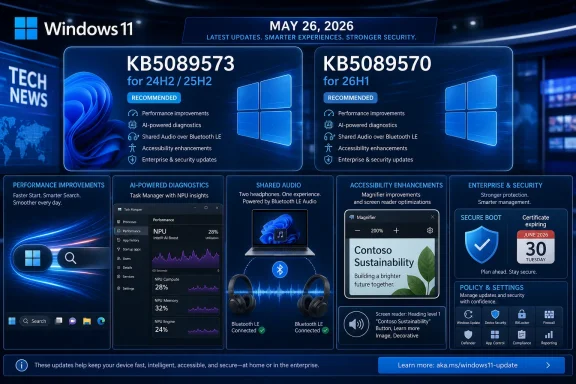
Microsoft released optional Week D preview updates on May 26, 2026, for Windows 11 versions 24H2, 25H2, and 26H1, with KB5089573 moving 24H2 and 25H2 to builds 26100.8524 and 26200.8524 while KB5089570 moves 26H1 to build 28000.2179. The updates are nominally previews for June’s Patch Tuesday, but they read more like a public rehearsal for Microsoft’s next Windows servicing strategy. The headline is not one feature; it is Microsoft’s attempt to use cumulative updates as a rolling delivery vehicle for performance, AI plumbing, hardware policy, accessibility, and enterprise controls all at once.

Windows 11 update panel showing KB5089573/KB5089570 features and May 26, 2026 security enhancements.Microsoft Turns the Optional Update Into a Product Launch Vehicle​

The old mental model for Week D updates was simple: optional, non-security, mostly bug fixes, wait if you are cautious. That model is now badly out of date. KB5089573 and KB5089570 still sit in the preview lane, but their payload includes user-facing features, administrator policy changes, Secure Boot preparation, AI component updates, and the kind of performance work Microsoft usually wants measured by perception rather than release-note prose.
For Windows 11 24H2 and 25H2, Microsoft is again treating the two versions as closely paired servicing targets. One KB serves both, differing by build number rather than by the broad feature story. That matters because 25H2 increasingly looks less like a disruptive OS generation and more like an enablement-and-policy layer riding the same servicing foundation as 24H2.
The more interesting shift is 26H1. Thurrott correctly notes that the 26H1 train is no longer visibly lagging a month behind in this preview cycle. That does not mean 26H1 is suddenly mainstream in the same way 24H2 and 25H2 are, but it does suggest Microsoft wants its next Windows branch to participate in the same servicing rhythm before the broader audience is forced to care.
This is the Windows-as-a-service promise in its most compressed form. One Tuesday, three branches, two KBs, and a grab bag of changes that range from “my Start menu opens faster” to “my organization needs to understand a new driver trust posture.”

The Performance Claim Is the Most Important Feature Because Everyone Can Feel It​

Microsoft says KB5089573 accelerates app launch and core shell experiences including Start, Search, and Action Center. That sentence is easy to glide past because Windows release notes have trained readers to distrust vague “performance and reliability” claims. But the shell is where Windows 11’s reputation lives: not in benchmark charts, but in whether the Start menu hesitates, whether Search feels awake, and whether opening common UI surfaces makes a premium PC feel strangely bureaucratic.
If Microsoft has actually improved those paths, this preview matters more than yet another Copilot entry point. Windows 11 has spent years carrying the perception that it is attractive, modern, and sometimes heavier than it ought to be. Performance work in the shell is not glamorous engineering, but it is exactly the kind of work that changes whether users describe an update as “finally better” or “more Microsoft stuff.”
There is a catch: Microsoft is using gradual rollout language. Installing the KB does not necessarily mean every feature or improvement lights up immediately. That makes the update harder to evaluate, especially for enthusiasts who install previews, reboot, and then expect to compare before-and-after behavior within minutes.
For IT, that staged rollout is both a safety valve and a source of annoyance. It reduces blast radius, but it also means two machines with the same build number may not behave identically on day one. In a fleet, build number no longer tells the whole truth.

Shared Audio Shows Windows Chasing the Everyday Hardware Gap​

Shared Audio is the kind of feature Windows should have had before users had to think about it. It allows two people to listen to the same PC audio stream using Bluetooth LE Audio broadcast technology, assuming supported paired devices are available. In consumer terms, it is simple: two headphones, one laptop, one movie or playlist.
The technical dependency matters. This is not a magic switch for every old Bluetooth headset in the drawer. It depends on modern Bluetooth LE Audio support across the PC, drivers, firmware, and listening devices, which means the feature will initially feel uneven in the real world.
Still, its inclusion is strategically useful. Windows laptops now compete not only with other PCs but with ecosystems where audio handoff, pairing, and sharing are part of the perceived polish. Microsoft cannot fix the entire Bluetooth hardware landscape with one preview update, but it can make Windows better at exploiting the newer one.

Task Manager Becomes an AI Accountability Surface​

The new Task Manager columns for NPU usage are more than nerd candy. They are Microsoft acknowledging that AI hardware needs observability if it is going to become part of everyday computing. CPU, GPU, memory, disk, and network usage became ordinary because users and admins could see them; NPU usage cannot remain hidden behind marketing slides.
On PCs with neural processing units, Task Manager can now expose NPU, NPU Engine, and NPU memory-related columns. It also shows neural engines that are part of a GPU on the Performance page. That is the sort of change that will matter to developers, reviewers, power users, and administrators trying to understand whether a local AI feature is using the hardware Microsoft and OEMs keep selling.
There is a second signal here: Windows is preparing for AI workloads to be mundane enough to troubleshoot. If an app drains battery, spikes latency, or performs badly, “what is the NPU doing?” becomes a normal diagnostic question. Task Manager is where Microsoft turns a platform bet into something measurable.
The 26H1 update goes further into the AI-adjacent interface layer with taskbar monitoring for agents, starting with Researcher in the Microsoft 365 Copilot app. That feature is not just a progress indicator. It is an early attempt to make long-running agentic work feel like a first-class Windows activity rather than a web app spinning somewhere in the background.

Accessibility and Input Improvements Carry More Weight Than the AI Branding​

Magnifier improvements in the 24H2 and 25H2 update are easy to underestimate. Clearer announcements when used with a screen reader, better behavior when zooming or switching views, support for magnifying permitted protected content, and smoother lens movement are practical accessibility changes. They do not sell a new PC, but they affect whether Windows remains usable in high-friction moments.
Input also gets attention across the updates. KB5089573 improves touch keyboard reliability at sign-in, explorer.exe behavior around the input switcher, and clipboard history performance. KB5089570 adds a cleaner voice typing experience on the touch keyboard and brings back the Arabic 101 Legacy keyboard layout for users who prefer the earlier design.
The 26H1 branch adds haptic feedback support for compatible pens and potentially future mice. That is a small but telling move toward richer input semantics on Windows PCs. Microsoft has spent years trying to make Windows feel natural across keyboard, mouse, touch, pen, and voice; the difficulty has always been consistency across hardware that Microsoft does not fully control.
These changes are not all equal, and not all users will see them. But collectively they show Microsoft still understands that an OS is not only a launcher for cloud services. It is a negotiation between hardware, muscle memory, accessibility, and the stubborn habits of people who use their machines all day.

Setup Finally Gives Power Users a Small Piece of Control​

The ability to choose a custom user folder name during Windows setup is one of those tiny changes that will make enthusiasts disproportionately happy. For years, Windows has often derived profile folder names in ways users dislike, especially when Microsoft account setup flows shorten, truncate, or otherwise infer names. Fixing it after the fact is possible but messy enough that most people simply live with the annoyance.
Putting the choice on the Device Name page is not revolutionary. It is, however, a welcome admission that setup decisions have long tails. A profile path can affect scripts, backups, developer tools, and personal sanity.
This is also where Microsoft’s consumer and professional priorities intersect. A home user may just want a clean folder name. A developer may want predictable paths. An admin may care because the fewer weird profile artifacts a machine carries from first boot, the fewer support oddities appear later.

Enterprise IT Gets the Real Payload in 26H1​

KB5089570 for Windows 11 26H1 carries several changes that look modest in release notes but are consequential for managed environments. The new support for policy-based removal of additional preinstalled Microsoft Store packages gives Enterprise and Education admins more control over the default app footprint, though Microsoft notes the dynamic list is not currently available in the Intune Settings Catalog. That caveat is classic Windows management: the capability exists, but the management surface you actually want may lag behind.
The update also adds Windows Backup for Organizations policy management around Enterprise State Roaming. That is part of a broader effort to make device replacement and setup less painful without surrendering all state management to unmanaged consumer sync patterns. In hybrid organizations, anything that reduces profile and settings friction without creating compliance headaches will get attention.
The new Windows driver policy change is more serious. Microsoft says default trust for cross-signed drivers is being removed, while WHCP drivers and an allow list of trusted legacy drivers remain permitted. Windows is supposed to audit compatibility for at least 100 hours and three reboots before enforcement, but the implication is clear: the kernel driver trust model is tightening.
That is good security policy and likely unpleasant edge-case policy at the same time. Old peripherals, niche industrial hardware, abandoned vendor drivers, and internal tools often survive in enterprises long after their signing story looks modern. Microsoft is trying to close a class of kernel risk without detonating compatibility all at once; administrators should still assume some forgotten driver will be the first thing to complain.

Secure Boot Is the Clock Ticking Under the Release Notes​

The most sobering note in KB5089573 is not a new feature. Microsoft warns that Secure Boot certificates used by most Windows devices are set to expire starting in June 2026, and that some personal and business devices could be affected if they are not updated in time. In this preview, Windows quality updates include more targeting data to increase coverage for devices eligible to automatically receive new Secure Boot certificates.
That language is careful because Secure Boot certificate rotation is exactly the kind of operation that must be both broad and cautious. Push too slowly, and systems remain exposed to a looming expiration problem. Push too aggressively, and boot trust changes can create the sort of failures that make IT departments remember an update for years.
Microsoft is also adding a policy and MDM setting to limit the Secure Boot service data sent to Microsoft by suppressing an event normally used in that process. That is the privacy-versus-servicing tradeoff in miniature. Enterprises want restricted traffic baselines, but the update system increasingly wants telemetry-like signals to decide what a device can safely receive.
This is where the preview label does real work. Microsoft is not merely previewing cosmetic features; it is testing the machinery for a certificate transition that has hard calendar pressure. The calendar, not the marketing department, is driving this part of the release.

The Known Issue Is a Reminder That Optional Still Means Optional​

For 24H2 and 25H2, Microsoft lists a known issue tied to the May 2026 security update failing with error 0x800f0922 on some devices with very limited free space on the EFI System Partition, especially at 10 MB or less available. The failure pattern is familiar and ugly: installation begins, restart reaches the mid-30 percent range, Windows rolls back, and the user sees the generic “something didn’t go as planned” experience.
Microsoft has a mitigation involving a registry change to alter ESP padding behavior, and it also points to Known Issue Rollback for consumer and unmanaged business systems. For enterprise-managed devices, administrators may need to deploy the appropriate Group Policy rollback. None of that is conceptually shocking, but it is exactly the kind of servicing footnote that separates a safe lab rollout from a careless production push.
The 26H1 KB says Microsoft is not currently aware of issues with that update. That is useful, but not a guarantee. Preview updates are still previews, and the absence of a known issue on day one is not the same thing as a clean bill of health across all hardware, drivers, firmware, and management configurations.
For enthusiasts, the decision is simple: install if you like early access and can tolerate rollback risk. For businesses, the decision should be narrower: test the bits, observe the staged features, validate drivers and boot behavior, and let the June security update carry the payload to broader rings unless a specific fix is urgently needed.

Windows Update Is Becoming Less About Versions and More About Entitlement​

The interesting thing about this release is how much is hidden behind eligibility. Shared Audio needs supported Bluetooth LE Audio hardware. NPU visibility needs an NPU or compatible neural engine. AI component updates apply only to Copilot+ PCs where relevant. Secure Boot certificate delivery depends on device targeting and successful update signals. Gradual rollout means even eligible devices may wait.
This is the modern Windows paradox. The OS version matters, but the actual experience depends on hardware class, region, policy, rollout wave, account state, and Microsoft’s server-side decisions. Windows 11 has become a platform where the same KB can mean different practical things on different machines.
That is not inherently bad. It lets Microsoft reduce risk and ship capabilities to the devices that can actually use them. But it does complicate support, documentation, and user expectations. When someone says, “I installed the update and do not see the feature,” the answer may be that nothing is broken.
For WindowsForum readers, that means build numbers are necessary but insufficient. The better diagnostic question is now: what branch, what KB, what hardware, what policy, what rollout state, and what feature gate?

The June Patch Tuesday Preview Is Also a Trust Test​

Microsoft is trying to make these previews feel more attractive. Better app launches, faster shell surfaces, improved Store downloads, more reliable USB behavior, better Windows Hello behavior, and File Explorer fixes are the sorts of changes users actually want. If the update improves daily friction, the preview channel becomes more than a waiting room for Patch Tuesday.
But trust is accumulated slowly and lost quickly. Recent Windows servicing history has included paused previews, out-of-band fixes, installation failures, and enough strange regressions to make many administrators instinctively conservative. Microsoft can say “production-quality improvements,” but customers judge production quality by failed installs, driver regressions, broken docks, and whether the help desk lights up after reboot night.
The company’s challenge is therefore not only technical. It must make optional previews useful enough for testers to install, stable enough that testers keep volunteering, and transparent enough that enterprises can explain what changed. That is a difficult balance when one cumulative package includes consumer conveniences, AI substrate, Secure Boot targeting, and management policy changes.
If there is a thesis hiding in this Week D release, it is this: Microsoft wants Windows updates to become the normal delivery path for continuous OS evolution, but users still experience updates as risk events. KB5089573 and KB5089570 are strong examples of both realities.

The Practical Read Before June’s Mandatory Train Arrives​

This release is worth watching because it previews not just code, but Microsoft’s operating posture for the next Windows cycle. The concrete lessons are less flashy than the feature list, but more useful.
  • Windows 11 24H2 and 25H2 are being serviced closely together, with KB5089573 delivering the same preview build level across both release families.
  • Windows 11 26H1 is now receiving a more current Week D preview in KB5089570, suggesting Microsoft wants the branch aligned with the broader monthly servicing cadence.
  • The most broadly relevant user improvement is likely the claimed performance work around app launch, Start, Search, Action Center, startup apps, and explorer.exe reliability.
  • The most important enterprise items are Secure Boot certificate preparation, tighter driver trust policy in 26H1, policy-based app removal expansion, and new controls around batch file handling.
  • The known 0x800f0922 installation issue on some 24H2 and 25H2 systems with cramped EFI System Partitions is a reason to test carefully rather than blindly deploy.
  • Gradual rollout means installing the KB may not immediately expose every feature, even when the machine is otherwise eligible.
Microsoft’s May 26 preview updates make Windows 11 feel less like a product waiting for annual milestones and more like an operating system being refitted while people are still sitting in the plane. That can produce real gains: faster shell behavior, better hardware support, stronger security defaults, and more useful management controls. It also means administrators and enthusiasts need to treat “optional preview” as both an opportunity and an early warning system, because June’s Patch Tuesday will bring much of this work to a much wider audience whether the Windows ecosystem is fully ready or not.

References​

  1. Primary source: thurrott.com
    Published: Tue, 26 May 2026 23:59:55 GMT
  2. Official source: support.microsoft.com
  3. Related coverage: windowscentral.com
  4. Official source: blogs.windows.com
  5. Related coverage: windowsreport.com
  6. Related coverage: notebookcheck.net
 

Microsoft’s May 26, 2026 preview update for Windows 11 versions 25H2 and 24H2, KB5089573, advances systems to OS builds 26200.8524 and 26100.8524 while documenting a separate May security update failure tied to cramped EFI System Partitions. The headline is not just another cumulative preview; it is a reminder that Windows servicing still depends on small, easily ignored boot partitions created years before today’s update model. Microsoft can patch around the problem with rollback policy and registry switches, but the episode exposes a messier truth for IT: firmware-era assumptions are now part of Windows update reliability.

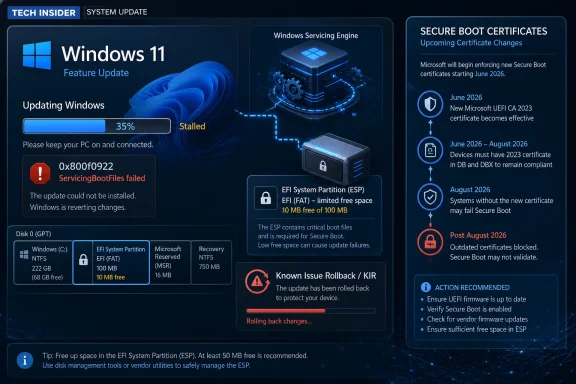
Windows 11 update infographic shows “0x800f0922 ServicingBootFiles failed” and upcoming Secure Boot certificate changes.A Preview Update Arrives With a Boot-Partition Warning Label​

KB5089573 is, formally, a non-security preview update. It belongs to the familiar late-month Windows cadence: optional quality fixes, feature refinements, and staging for changes that may later reach the broader Patch Tuesday audience. For Windows 11 25H2 and 24H2, Microsoft lists the release as applying to all editions, with OS builds moving to 26200.8524 and 26100.8524 respectively.
The interesting part is that the known issue attached to this preview update points backward to KB5089549, the May 2026 security update. Microsoft says some devices can fail to complete installation with error code 0x800f0922 when the EFI System Partition, or ESP, has very little free space. The danger zone is especially clear: devices with 10 MB or less available on the ESP are the ones Microsoft calls out.
That makes this less a conventional bug report than a servicing postmortem in public. The update may get through its early phases, only to collapse during restart at around 35 to 36 percent, roll back, and present the user with the grimly familiar “Something didn’t go as planned. Undoing changes.” For anyone who has spent a morning staring at a failed cumulative update, those words are less an error message than a ritual.
The twist is where the failure lives. Users tend to think of Windows Update as consuming space on C:, fighting with WinSxS, temporary files, drivers, and recovery partitions. Here the constraint is the ESP, a small FAT-formatted boot partition that ordinary users rarely see and many administrators do not inventory until something breaks.

The EFI System Partition Has Become a Servicing Dependency​

The ESP is not glamorous real estate. It contains boot managers, boot loaders, and related files used by UEFI firmware to start the operating system. On a clean, modern Windows install, it is usually created automatically, hidden from File Explorer, and left alone unless a boot repair, disk migration, dual-boot setup, or OEM tooling incident drags it into view.
That invisibility is precisely why this failure matters. Microsoft’s log examples point to insufficient ESP space, failed servicing of boot files, and space consumed by third-party or OEM files outside Microsoft boot directories. In plain English: Windows needs to place or update boot-related files, but the boot partition has been packed too tightly, sometimes by files Microsoft did not put there.
The result is a failure mode that feels disproportionate. A cumulative update can download, stage, and appear to install normally. Then, during the reboot phase, Windows discovers that the small boot partition cannot absorb what the servicing process requires, and the whole operation unwinds.
This is not a new class of pain for Windows administrators. ESP sizing has been a quiet land mine for years, especially on older devices, cloned images, vendor-customized deployments, and systems that have been through multiple feature upgrades. But KB5089573’s documentation is unusually direct about the trigger: 10 MB or less available space can be enough to derail the update.
The issue also illustrates how Windows servicing has sprawled beyond the files users can see. Updating Windows is no longer just about replacing binaries under the operating system directory. It can involve boot components, recovery behavior, Secure Boot state, servicing stack mechanics, and increasingly the choreography of staged updates across restart boundaries.

Microsoft’s Registry Workaround Is Useful, But It Is Not Comforting​

Microsoft’s first workaround is a registry change: add an EspPaddingPercent value under HKLM\SYSTEM\CurrentControlSet\Control\Bfsvc and set it to zero, then restart and retry the update. The name suggests the relevant boot file servicing component is reserving or enforcing a padding calculation for free space on the ESP. Reducing that padding requirement may let the update proceed on devices that are otherwise blocked.
As emergency guidance, it is practical. As a product signal, it is awkward. Telling customers to modify a low-level servicing behavior in the registry is the kind of advice that belongs in the “yes, but only if you know why” category. Microsoft includes the standard warning about registry edits causing serious system problems, and in this case the warning is not boilerplate.
The registry workaround may be attractive for individual machines, lab systems, or urgent break/fix work. It is much less attractive as a fleet-wide first move. A cramped ESP is not merely an update obstacle; it is a symptom of a device whose boot partition may have been undersized, polluted by vendor files, or altered by years of imaging and upgrade history.
Administrators should resist the temptation to treat EspPaddingPercent as a magic incantation. It may get KB5089549 across the line, but it does not necessarily answer why the ESP had so little space in the first place. If third-party or OEM files are consuming the partition, the long-term fix may involve cleanup, repartitioning, reimaging, or vendor-specific remediation rather than simply relaxing the servicing check.
That distinction matters because the ESP sits in the blast radius of boot reliability. A failed desktop app update is annoying. A damaged or overfilled boot partition is the sort of thing that turns a routine patch window into hands-on recovery.

Known Issue Rollback Shows Microsoft’s Real Update Strategy​

The second workaround is more revealing. Microsoft says the issue is mitigated using Known Issue Rollback, or KIR, and that the resolution has already propagated automatically to consumer devices and non-managed business devices. Restarting may help it apply faster.
KIR is one of Microsoft’s more important modern servicing mechanisms because it lets the company disable problematic non-security changes without requiring every affected user to install a new update immediately. For consumers and unmanaged machines, that mitigation can happen quietly. For enterprise-managed devices, administrators usually need a special Group Policy to apply the rollback.
That split is the real story for IT departments. Microsoft’s consumer-facing Windows increasingly assumes that the cloud can correct course after a bad change ships. Managed environments, by design, often block or mediate that cloud-assisted agility. The same controls that give enterprises predictability can also make them slower to receive mitigations unless administrators actively deploy them.
In this case, Microsoft provides a Group Policy package for Windows 11 25H2 and 24H2 associated with KB5089549. The policy temporarily disables the change that causes the issue, and affected devices must be restarted. That is a manageable process, but it is still a process: download, validate, import, scope, deploy, reboot, and confirm.
This is where Windows servicing becomes less about patches and more about governance. Organizations that treat monthly updates as a simple approve-and-forget exercise are increasingly out of step with the platform. Modern Windows servicing requires watching release health notes, understanding rollback channels, and knowing whether a given estate is consumer-like, cloud-managed, co-managed, WSUS-bound, or locked down behind change-control walls.
KIR is a safety net, but it is not a substitute for operational visibility. It can reverse a bad change, but it does not inventory your ESP free space, interpret CBS logs, or tell you which OEM images are carrying boot-partition clutter.

The Error Code Is Familiar Because It Means Too Many Things​

Error 0x800f0922 has a long history of showing up in Windows update failures, and that history is part of the problem. It has been associated with servicing failures, reserved partition problems, .NET installation issues, connectivity to update infrastructure, and other conditions depending on context. Users searching the code often find a swamp of half-relevant advice.
Microsoft’s documentation for this case gives administrators something more useful than the code alone: the phase of failure and the log signatures. The update fails around 35 to 36 percent during restart, rolls back, and may leave CBS.log entries mentioning insufficient free space, ServicingBootFiles failed, error 0x70, and third-party or OEM files outside Microsoft boot directories.
That specificity changes the troubleshooting flow. If a Windows 11 24H2 or 25H2 device fails KB5089549 with 0x800f0922 after apparently progressing into the reboot stage, the ESP should move up the suspect list. The next step should not be another blind retry, a generic Windows Update troubleshooter run, or a ritual clearing of SoftwareDistribution before checking the boot partition.
The hard part is that inspecting the ESP is not as user-friendly as checking free space on C:. Administrators can mount the partition with disk tools or scripts, but doing so at scale requires care. The partition is intentionally hidden because casual modification is dangerous. Yet hidden does not mean irrelevant, and this issue makes the case for including ESP health in fleet readiness checks.
The broader lesson is that Windows error codes are rarely enough. The failure phase, rollback behavior, CBS log entries, and device history matter. A code without context is a symptom; a code with the right logs becomes a diagnosis.

Secure Boot Timing Raises the Stakes​

KB5089573 also arrives with a separate warning that Secure Boot certificates used by most Windows devices are set to expire starting in June 2026, and Microsoft recommends reviewing guidance and taking action to update certificates in advance. That warning is not the same issue as the ESP failure, but the proximity is impossible to ignore.
Windows boot infrastructure is entering a more active maintenance period. Secure Boot certificate updates, boot file servicing, UEFI behavior, recovery partitions, and update reliability are not separate silos in practice. They all converge around whether a machine can start securely after servicing changes are applied.
Microsoft’s preview update also includes Secure Boot-related improvements, including additional targeting data to increase coverage of devices eligible to receive new Secure Boot certificates. The company says devices receive the new certificates only after demonstrating sufficient successful update signals, emphasizing a controlled and phased rollout.
That phrasing is classic modern Microsoft: cautious, telemetry-driven, and dependent on staged eligibility. It also means administrators should not assume every compatible device will receive boot-trust updates at the same time. The same fleet can contain machines at different states of readiness based on hardware, firmware, update history, and Microsoft’s rollout signals.
This makes the ESP issue more than a one-off annoyance. If a device cannot reliably service boot files because its ESP is too small or too full, it may be a poor candidate for the next wave of boot-chain maintenance. The June 2026 certificate horizon makes now a bad time to discover that old imaging decisions left no room in the partition that firmware depends on.

The Feature List Is Real, But the Servicing Story Overshadows It​

Like many Windows 11 preview updates, KB5089573 contains a broad collection of improvements. Microsoft lists Shared Audio using Bluetooth LE Audio broadcast technology, Magnifier enhancements, Task Manager visibility into NPU usage, Windows Hello refinements, Search improvements, Storage settings polish, USB reliability work, sensor and HID power improvements, font rendering changes, Task Scheduler persistence, desktop shortcut reliability, Store download improvements, and general reliability fixes.
That is a lot of work packed into a single optional update. Some changes are user-facing, such as Shared Audio and Magnifier behavior. Others are administrator-adjacent, such as Task Manager’s improved view of NPU activity or Store error reporting when downloads fail because Windows Update group policies are enabled.
The NPU additions are particularly telling. Microsoft is still building the instrumentation layer around AI PCs, not merely shipping AI-branded features. If Task Manager can expose NPU usage and memory more clearly, administrators and power users get a better chance of understanding what those chips are doing outside marketing slides.
Yet the known issue will dominate attention because update reliability is the foundation beneath every feature. A better Search box or smoother Magnifier experience does not matter to the machine that rolls back at 36 percent. The Windows servicing bargain is simple: users tolerate the churn of monthly updates because they expect the system to emerge healthier on the other side.
This is the tension Microsoft keeps facing with Windows 11’s continuous innovation model. The operating system is no longer waiting for old-style service packs or even major feature releases to evolve. It is constantly receiving small behavioral changes, feature toggles, and subsystem updates. That keeps Windows competitive, but it also means the update pipeline must absorb more complexity more often.

Enterprises Should Treat the ESP as Inventory, Not Trivia​

For enterprise IT, the practical response is not panic; it is inventory. The devices most likely to be affected are not random in the purest sense. They are systems with limited free ESP space, especially 10 MB or less, and possibly devices where OEM or third-party files have accumulated outside Microsoft boot directories.
That points to a sensible triage model. First, identify devices failing KB5089549 or subsequent servicing with 0x800f0922 at the reboot stage. Second, inspect CBS logs for the specific space and boot file servicing messages Microsoft describes. Third, check ESP capacity and free space on affected models, images, or hardware cohorts. Fourth, decide whether the registry workaround, KIR policy, ESP cleanup, or a more structural remediation is the right answer.
The temptation will be to deploy the KIR policy broadly and move on. In some environments, that may be the correct immediate mitigation, especially if patch compliance is slipping and the affected change is safe to defer. But KIR is deliberately temporary. Microsoft says a resolution is in progress and will be included in a future Windows update, which means the underlying servicing path will return in corrected form.
That future update may still require healthy boot partitions. If an ESP is functionally full, the administrator has not solved the device; they have deferred the confrontation. The right long-term question is whether the organization has a standard for ESP sizing and hygiene across Windows 11 hardware.
This is especially important for estates built from layered history: Windows 10-era images upgraded to Windows 11, devices migrated from BIOS to UEFI assumptions, vendor factory partitions preserved across redeployments, and machines that have collected recovery tools, encryption components, or boot managers over time. The boot partition remembers decisions the asset database often forgets.

Microsoft’s Documentation Is Better Than the Underlying Experience​

Credit where due: Microsoft’s published known issue is specific enough to be actionable. It identifies the affected update, the error code, the stage of failure, the approximate progress percentage, the user-facing rollback message, the log entries, the ESP free-space condition, and two mitigation paths. Compared with vague “some devices may fail to install” advisories, this is useful documentation.
But good documentation does not erase the user experience. A failed update that rolls back during reboot is still a high-friction event. It consumes time, may trigger help desk tickets, and can leave users distrustful of subsequent update prompts. In managed environments, it can distort compliance reporting and complicate maintenance windows.
The issue also reveals the uncomfortable asymmetry between Microsoft’s servicing machinery and the customer’s control plane. Microsoft can use telemetry to detect patterns, issue KIR mitigations, and adjust rollout behavior. Administrators, however, may need to discover old partition problems with scripts, logs, and hardware sampling after the failure has already appeared.
That asymmetry is not unique to Microsoft, but it is particularly visible in Windows because the ecosystem is so varied. A Windows 11 fleet can include premium Copilot+ PCs, five-year-old business laptops, OEM-customized desktops, virtual machines, and upgraded consumer devices. The same cumulative update has to traverse all of them.
The more Windows servicing touches firmware-adjacent components, the more those differences matter. Hardware uniformity is not merely a support convenience; it becomes a patch reliability factor.

Preview Updates Are No Longer Just for the Curious​

There was a time when optional preview updates could be dismissed as something only enthusiasts and impatient administrators installed. That is less true now. Preview releases are also early warning systems. They reveal known issues, document mitigations, and show the direction of the next cumulative update wave.
KB5089573 is a useful example. Even if an organization does not deploy this preview broadly, its release notes matter because they surface a May security update problem and Microsoft’s mitigation path. The preview page becomes part of the operational picture for devices that may already be failing KB5089549.
For Windows enthusiasts, the lesson is slightly different. If your PC fails with 0x800f0922 and rolls back around the mid-30 percent mark, do not assume the update is simply “bad” in the generic sense. The ESP may be the bottleneck. That does not mean everyone should immediately mount and prune the boot partition, but it does mean the usual advice to free space on C: may miss the point.
For administrators, optional preview updates deserve at least review, even when deployment policy says no. The notes can contain exactly the kind of known-issue guidance that prevents a small patch problem from becoming a support wave.
This is one of the paradoxes of Windows servicing in 2026. The updates are cumulative and increasingly automated, but understanding them still rewards close reading. The release note is not paperwork; it is part of the product.

The 10 MB Warning That Should Change Patch Readiness​

The useful takeaway from KB5089573 is not that every Windows 11 device is in danger. It is that a hidden partition with single-digit megabytes of free space can be the difference between a clean security update and a rollback. That should alter how serious administrators define update readiness.
  • Devices failing KB5089549 with 0x800f0922 during restart should be checked for EFI System Partition free space before generic Windows Update repair steps consume more time.
  • Microsoft’s registry workaround may help affected machines install the update, but it should be treated as a targeted mitigation rather than a substitute for understanding why the ESP is full.
  • Consumer and unmanaged business devices may receive the Known Issue Rollback automatically, while enterprise-managed devices need administrators to deploy the matching Group Policy and restart affected systems.
  • CBS.log entries mentioning insufficient space, ServicingBootFiles failed, error 0x70, or third-party and OEM files outside Microsoft boot directories are the strongest clues that this is the ESP issue.
  • The Secure Boot certificate timeline makes boot-partition health more urgent, because Windows servicing is entering a period where firmware-adjacent maintenance will matter more, not less.
  • Optional preview update notes should be monitored even by organizations that do not deploy previews, because they often contain the clearest public record of mitigations for current production problems.
Microsoft’s immediate answer is rollback machinery and a registry switch; the longer answer is that Windows update reliability now depends on parts of the disk most users never see and many organizations rarely measure. KB5089573 is therefore less a routine preview update than a warning flare from the boot chain. As Windows 11 moves deeper into AI PC instrumentation, Secure Boot certificate renewal, and constantly staged feature delivery, the winners in patch management will be the teams that treat hidden infrastructure as first-class inventory before the next reboot makes it visible.

References​

  1. Primary source: Microsoft Support
    Published: Tue, 26 May 2026 22:56:39 Z
 

Microsoft released the May 2026 non-security preview update KB5089573 for Windows 11 versions 25H2 and 24H2 on May 26, 2026, moving those systems to OS builds 26200.8524 and 26100.8524 while also documenting a serious installation failure tied to the earlier May security update. The preview is nominally about quality improvements, new PC features, and servicing-stack polish. But the more important story is that Windows servicing is again colliding with the smallest and least glamorous partition on the disk: the EFI System Partition.
The update lands in the familiar late-month preview slot, the place where Microsoft tests the next Patch Tuesday’s non-security payload with users and administrators willing to go first. That usually makes these releases useful but optional. This one is still optional in the ordinary Windows Update sense, but its known-issue section turns it into a warning flare for anyone managing Windows 11 fleets with old OEM layouts, cramped boot partitions, or aggressive endpoint tooling that has stuffed files into the wrong corner of the system disk.

Windows 11 update failed due to low ESP partition space, showing error 0x800f0922 on a PC screen.Microsoft Ships a Preview, but the Boot Partition Steals the Headline​

KB5089573 is the sort of Windows update that tries to be three things at once. It is a quality update for Windows 11 24H2 and 25H2. It is a staging vehicle for new user-facing behavior, including Shared Audio, camera policy controls, Task Manager visibility into AI hardware, and Windows Setup refinements. And it is a servicing update that sits uncomfortably close to a known failure path in KB5089549, the May 2026 security update.
That split personality matters. Microsoft’s preview updates are not security releases, but they often preview the changes that will roll into the next mandatory cumulative update. For enthusiasts, they are a way to see what is coming. For IT departments, they are a rehearsal — and sometimes a smoke test — for the update that will later arrive with more urgency.
The immediate risk is not that KB5089573 itself introduces a spectacular new desktop-breaking regression. The documented failure is tied to KB5089549, and Microsoft says mitigation is already flowing through Known Issue Rollback for consumer and unmanaged business devices. The risk is subtler: Windows servicing is making assumptions about available space in the EFI System Partition, and a meaningful number of real-world devices apparently do not meet those assumptions.
That is not a glamorous failure mode. It does not produce a blue screen with a meme-worthy stop code. It produces the more maddening ritual familiar to many Windows users: the update appears to install, the machine reboots, progress reaches roughly the mid-30s, and then the system announces that something did not go as planned before undoing the work.

The 35 Percent Rollback Is a Boot-Servicing Problem, Not a Mystery​

The reported symptom pattern is precise enough to be useful. Affected devices begin installing the May security update normally, fail during the restart phase at approximately 35–36 percent, roll back, and return error 0x800f0922. In CBS logs, Microsoft says administrators may see entries indicating insufficient free space on the EFI System Partition, including failures in servicing boot files and references to third-party or OEM files outside Microsoft boot directories.
That is the first practical lesson: this is not a generic “Windows Update is broken” event. Error 0x800f0922 has historically been one of those codes that can send administrators chasing VPNs, .NET components, reserved partitions, and update plumbing. Here, Microsoft is explicitly narrowing the blast radius to systems with limited ESP space, especially devices with 10 MB or less available.
The EFI System Partition is normally invisible to the user because it is supposed to be boring. It contains boot-related files used by UEFI firmware and operating systems. On a clean, modern Windows deployment, it should be sized and maintained with enough headroom for boot servicing work, firmware-related files, and recovery-adjacent changes.
But “should” is doing a lot of work. OEM factory images, years of feature upgrades, dual-boot experiments, old recovery tools, third-party security products, and firmware utilities can all leave traces in places ordinary users never inspect. A Windows update that needs to modify boot files can therefore discover, late in the process, that the partition it depends on has become a tiny attic filled with vendor leftovers.
Microsoft’s workaround points directly at that model. The registry setting named EspPaddingPercent appears to influence how much space Windows servicing expects to reserve or tolerate when working with the ESP. Setting it to zero is not an elegant fix; it is a servicing-side accommodation that lets the update proceed on machines where the default margin collides with reality.

Known Issue Rollback Is Now Part of the Update Contract​

Microsoft’s second mitigation is Known Issue Rollback, or KIR, and this is where the modern Windows servicing model shows both its strength and its opacity. KIR allows Microsoft to disable a problematic non-security change without requiring every affected system to uninstall the whole update. For unmanaged consumer and small-business devices, the mitigation is supposed to arrive automatically, with a restart helping the policy take effect sooner.
That is good engineering in the abstract. It reduces the need for emergency out-of-band updates and lets Microsoft reverse a bad change with less disruption than the old “remove the cumulative update” playbook. It also reflects an important shift in Windows: the operating system is no longer just patched by packages, but by cloud-distributed configuration and rollback signals.
For enterprise-managed devices, however, the story is less magical. Microsoft says administrators need to install and configure a special Group Policy matching Windows 11 24H2 and 25H2, then restart affected devices. That is reasonable in a domain-managed world, but it means the mitigation has to pass through the same governance, testing, change-control, and deployment machinery as any other emergency policy.
That divide has become one of the defining tensions in Windows maintenance. Consumer devices can often receive a quiet cloud mitigation before the user fully understands what happened. Managed devices, by design, may not. Enterprises asked Microsoft for control, and control means owning the timing of the fix.
The uncomfortable part is that KIR does not absolve administrators from root-cause work. If a fleet has many systems with almost no free ESP space, a rollback policy may get this month’s update past the immediate failure, but it does not turn a cramped boot partition into a healthy one. It buys time, not headroom.

The Optional Update Is Still a Preview of June’s Reality​

The temptation with any late-month Windows preview is to shrug and wait. Most users should not rush optional cumulative previews onto production machines unless they need a specific fix or are deliberately testing. That advice still holds.
But KB5089573 is not irrelevant just because it is optional. Microsoft’s preview releases are increasingly where the company exposes the next wave of Windows behavior before the security update cycle makes it mainstream. The features and fixes in this release are likely to matter again when the next cumulative security update arrives through Windows Update, Windows Update for Business, WSUS, and deployment rings.
That makes this week a window for administrators, not a deadline. If you manage Windows 11 24H2 or 25H2 devices, the right reaction is not to panic-install the preview. It is to identify whether your device population has a boot-partition problem before the next mandatory servicing event turns that problem into help-desk tickets.
The 10 MB figure is the key triage threshold Microsoft gives. It is not necessarily a promise that 11 MB is safe forever, but it tells admins where to start. Devices with ESPs that are nearly full deserve attention, particularly if they come from older images, heavily customized OEM builds, or environments where endpoint security and firmware management tools have been allowed to write into boot-related paths.
For home users, the advice is simpler. If Windows Update already failed with 0x800f0922 after the May 2026 update, restarting may help the KIR mitigation apply. If the failure persists, the registry workaround exists, but it is not something casual users should treat as a harmless tweak. Editing the registry to adjust boot-servicing behavior is the kind of fix that belongs behind a backup, a recovery plan, and preferably someone who knows how to reverse it.

The Feature List Shows Where Windows 11 Is Heading​

Away from the known issue, KB5089573 reads like a snapshot of Microsoft’s current Windows 11 priorities. Shared Audio brings Bluetooth LE Audio broadcast-style listening to supported Windows 11 PCs, allowing two people to listen from the same device at the same time. That is a small feature, but it is exactly the kind of modern laptop polish Windows has historically ceded to phones and tablets.
Task Manager’s new NPU visibility is more strategically revealing. Microsoft is still trying to make the AI PC feel like a real platform rather than a sticker on a box. Adding optional NPU and NPU Engine columns, memory details, and better reporting of neural engines folded into GPUs gives power users and administrators a way to see whether AI-related hardware is actually doing anything.
That matters because the Copilot+ PC era needs observability. If Microsoft and PC makers expect users to care about NPUs, Windows has to expose them as operational resources, not just marketing claims. Task Manager became a cultural object because it tells users what the machine is doing. Giving AI accelerators a clearer presence there is a quiet but necessary step.
The camera changes are similarly practical. Multi-App Camera allows more than one application to access the camera stream at once, while Basic Camera mode provides a simplified path for troubleshooting or stability. More importantly for business environments, Microsoft is adding Group Policy control for those camera modes, acknowledging that webcam behavior is now both a collaboration feature and an administrative surface.
Windows Setup also gets a small but overdue improvement: the ability to choose a custom user folder name during setup on the Device Name page. That sounds minor until you remember how many Windows users have fought with truncated Microsoft account-derived folder names, awkward local profile paths, and post-install rename procedures that can break assumptions. Giving users a supported moment to choose the folder name is not revolutionary, but it is humane.

Accessibility and Reliability Are Doing the Real Work​

The most interesting Windows updates are often not the ones with the splashiest feature names. KB5089573 includes improvements to Magnifier announcements when used with a screen reader, support for magnification of permitted protected content, and smoother lens-mode movement. These are not forum-flamebait features, but they affect whether Windows feels predictable and accessible to people who depend on assistive tools.
Windows Hello also receives several fixes and behavior changes. The update improves biometric service performance after Modern Standby, reduces unexpected authentication blocks in Enhanced Sign-in Security, and changes sign-in behavior so that face or fingerprint remains the default when available. If a user chooses PIN three times in a row, Windows will stick with PIN until the user changes methods again.
That is a classic Windows 11 pattern: Microsoft is tightening default behavior around security and convenience, then adding enough persistence logic to stop the system from feeling capricious. Authentication is one of those areas where tiny behavior changes can feel enormous because users encounter them at the moment they are trying to get into the machine. Reliability here is product design, not just bug fixing.
The USB changes also deserve attention. Microsoft says the update improves reliability for displays attached to USB4 docks and hubs, particularly after standby, and adds resiliency and recovery measures to the USB3 stack. Anyone who has used a modern laptop with a dock knows why this matters: the dream of one-cable computing is still too often undermined by black displays, sleeping peripherals, and the occasional ritual of unplugging and replugging everything like it is 2006.
Battery-life fixes around sensors, HID, and input are also part of that same story. Windows laptops increasingly live or die by standby behavior. If a sensor hub remains powered because of an app, or a failed HID device causes unnecessary activity, the user does not see the root cause; they see a hot bag and a dead battery. Microsoft’s servicing notes are dry, but the practical impact is the difference between a device that sleeps and one that merely pretends to.

Secure Boot Certificate Renewal Turns Into a Servicing Theme​

KB5089573 also carries a reminder about Secure Boot certificates used by most Windows devices, which Microsoft says are set to expire starting in June 2026. That is not just a calendar notice. It is one of the reasons boot servicing is going to be a recurring topic over the next year.
Secure Boot depends on trust anchors and signed components. When certificates age out, the ecosystem has to move carefully: too fast, and devices risk boot problems; too slowly, and the security posture decays. Microsoft’s update notes say Windows quality updates now include additional high-confidence device targeting data to increase coverage of devices eligible to automatically receive new Secure Boot certificates, with controlled rollout based on successful update signals.
That language is bureaucratic, but the logic is clear. Microsoft does not want to spray boot-trust changes indiscriminately across every Windows device on the planet. It wants telemetry and targeting to determine which machines are likely to survive the change. In a world of endless OEM firmware variations, that caution is rational.
It also makes the ESP failure more concerning. The same class of device that has a cramped, messy boot partition may also be the class of device least suited to smooth Secure Boot certificate maintenance. If Windows needs to place or update boot-related material and the ESP is effectively full, then future boot-trust work could run into similar operational constraints.
The new LimitSecureBootRequiredServiceData policy adds another wrinkle. Microsoft is giving privacy- and compliance-conscious organizations a way to limit Secure Boot service data sent to Microsoft by suppressing a normally transmitted event. That satisfies a real enterprise requirement, especially in restricted-traffic baselines. But it also underscores the trade-off: less service data can mean less targeting intelligence for delicate rollout decisions.

The ESP Is Becoming Windows’ Hidden Maintenance Debt​

The EFI System Partition used to be a thing most Windows users never needed to name. That era is ending. Between Secure Boot renewals, recovery environment servicing, OEM boot files, BitLocker-adjacent workflows, and cumulative updates that need to touch boot components, the ESP has become a small partition with a large operational role.
The problem is that partition layouts are not easy to modernize at scale. Expanding an ESP can involve moving partitions, touching disk geometry, and accepting the risk that a failed operation could make a device unbootable. Consumer tools may make this look simple, but enterprise administrators rightly treat partition surgery as a last resort.
That leaves Microsoft trying to work within layouts that were created years ago under assumptions that may no longer hold. Some devices shipped with small ESPs. Others accumulated non-Microsoft files over time. Still others were imaged by organizations that optimized for consistency rather than generous boot-partition headroom.
The CBS log phrase about third-party or OEM files outside Microsoft boot directories is especially telling. Microsoft is effectively saying: we found stuff in the boot partition that is not ours, and it is contributing to the space problem. That may be technically true, but from the customer’s perspective it is all part of the Windows PC supply chain. Users do not care whether the wasted space belongs to an OEM, firmware updater, security product, or Microsoft. They care that the update failed.
This is where Microsoft’s platform responsibility becomes complicated. Windows runs on an enormous hardware ecosystem precisely because Microsoft does not control every firmware image, driver package, and OEM utility. But when servicing fails, the Windows brand takes the hit. The openness of the PC ecosystem becomes Microsoft’s support burden.

The Registry Workaround Is a Scalpel, Not a Strategy​

Microsoft’s first workaround asks affected customers to add a registry value under the Bfsvc control path, setting EspPaddingPercent to zero, then restart and retry the update. That is a specific and useful mitigation. It is also the sort of workaround that should make administrators pause.
The registry command modifies how Windows handles padding around the EFI System Partition during boot-file servicing. The intent is to allow installation where the default space check blocks progress. But padding exists for a reason: servicing systems often reserve margin to avoid leaving machines in a fragile state.
That does not mean the workaround is unsafe when used as Microsoft describes. It does mean it should be scoped to affected systems, documented, and revisited. A registry setting added during a deployment fire drill has a way of becoming permanent infrastructure folklore. Six months later, nobody remembers why it exists, and two years later it is baked into a remediation script.
A better enterprise response is layered. Use KIR where appropriate to stop the immediate bleeding. Use the registry workaround only where required to get a stuck system moving. Then inventory ESP free space, identify models or images with recurring issues, and decide whether the long-term answer is cleanup, reimaging, partition resizing during refresh, or vendor escalation.
For individual enthusiasts, the same principle applies in miniature. If you are comfortable inspecting partitions and logs, this is a solvable problem. If you are not, do not start deleting random files from the EFI partition because a forum post told you an OEM folder looked suspicious. The ESP is not a downloads folder with a firmware accent; it is part of the boot chain.

Enterprise Rings Should Treat This as a Pre-Patch Tuesday Drill​

The practical importance of KB5089573 is that it gives administrators a chance to rehearse before the next security update hardens the timeline. Late-month preview updates exist partly so organizations can validate changes against representative devices. This month, the validation target is obvious: boot partition health.
A good deployment ring for this release should include devices from different OEMs, different model years, different provisioning eras, and different security baselines. It should include laptops that have been upgraded in place across multiple Windows releases, not just pristine reference machines. The machines most likely to fail are often the least represented in a lab.
Administrators should also make sure update failure telemetry is being correlated with disk layout data. If the help desk sees 0x800f0922, the next step should not be a generic reset of Windows Update components. It should be an ESP free-space check and a review of CBS logs for the specific servicing-boot-files signatures Microsoft described.
The Known Issue Rollback policy is another test case. Enterprises that have not practiced deploying KIR policies should treat this as a reminder to document the process before a worse regression arrives. KIR is only as useful as an organization’s ability to distribute and verify it quickly.
There is also a communications lesson. Users who see “Something didn’t go as planned. Undoing changes.” often assume the system is broken or that they did something wrong. IT teams can reduce unnecessary tickets by explaining that some devices may fail at a specific stage, that the update rolls back rather than leaving Windows half-installed, and that remediation is available.

The AI PC Keeps Arriving Through Plumbing​

Microsoft’s AI story in KB5089573 is not a grand unveiling. It is a set of component version bumps and Task Manager improvements. That is exactly why it matters.
The Windows AI PC transition is going to be less like a single product launch and more like a long sequence of plumbing changes. Models, indexing, image search, content extraction, semantic analysis, NPUs, privacy controls, and telemetry settings will all evolve through cumulative updates. Users may notice one or two features, but administrators will have to manage the substrate.
This release updates AI components such as Image Search, Content Extraction, Semantic Analysis, and the Settings Model to version 1.2605.856.0. Microsoft notes that AI component updates are applicable to Copilot+ PCs and will not install on ordinary Windows PCs or Windows Server. That distinction is increasingly important because Windows 11 is now a family of experiences split by hardware capability.
Task Manager’s new NPU reporting helps make that split visible. A Copilot+ PC that never uses its NPU for anything observable is difficult to defend as a distinct category. Conversely, a system that can show AI accelerator usage in the same utility that shows CPU, memory, disk, network, and GPU activity gives users a way to connect silicon claims to system behavior.
The broader enterprise question is whether AI components become another servicing domain with their own testing burden. If content extraction and semantic indexing features change through cumulative updates, organizations will need to understand not just whether Windows boots, but whether search behavior, data handling, and local AI features still align with policy. That is the quiet administrative cost of making the OS more intelligent.

The User-Facing Fixes Are Small, but They Add Up​

It is easy to dismiss the rest of KB5089573 as housekeeping. Search can now find and prioritize files with as few as two characters. Dev Drive creation and volume resizing can specify gigabytes instead of only megabytes. Storage settings delay the UAC prompt until a user chooses to view temporary files. Task Scheduler remembers column widths.
None of those changes will sell a PC. But they are the sort of friction removals that make an operating system feel less like a pile of legacy panels stitched together by committee. Windows has accumulated decades of small annoyances. Fixing them is not glamorous, but refusing to fix them is how a platform starts to feel old.
The Microsoft Store changes are also worth noting. Microsoft says the update includes underlying changes to improve download performance and bandwidth usage, along with better error reporting when downloads fail because Windows Update group policy settings are enabled. That second point is aimed squarely at managed environments, where Store behavior often intersects awkwardly with update controls.
Fonts get a global-language fix, too, with Times New Roman updated to improve rendering of combining diacritical marks across Greek and Cyrillic scripts. For most English-language users, that will be invisible. For users and organizations working in those scripts, it is the difference between professional text rendering and subtle typographic failure.
Reliability fixes for sign-in screens, lock screens, File Explorer, touch gestures, and Settings theme changes round out the release. These are the places where Windows has to be boring. A flashy feature can be optional; a broken lock screen or unreliable Explorer session is a daily tax.

The Real Test Is Whether Microsoft Can Make Boot Servicing Boring Again​

The best version of Windows Update is uneventful. It downloads, stages, restarts, completes, and disappears from the user’s mind. The May 2026 ESP issue is a reminder that achieving that boring outcome requires an enormous amount of coordination among firmware, partitions, certificates, OEM files, servicing-stack logic, rollback systems, and administrative policy.
Microsoft has built more sophisticated safety valves than it had a decade ago. Known Issue Rollback is real progress. Gradual rollout is real progress. Better targeting for Secure Boot certificate updates is real progress. But each of those systems also makes Windows servicing feel more conditional, more cloud-mediated, and harder for administrators to reason about from first principles.
The company’s challenge is to avoid turning every update into a detective story. When a known issue says the failure may happen on devices with 10 MB or less free on the ESP, that is refreshingly concrete. The next step should be equally concrete guidance for auditing, cleaning, and preventing ESP exhaustion across common Windows deployment patterns.
PC makers also have a role here. If OEM utilities and firmware tools are leaving unnecessary files in the ESP, Microsoft can document the symptom, but vendors need to stop creating the condition. The Windows ecosystem cannot treat the boot partition as free real estate and then act surprised when the update engine needs room to work.
For Windows enthusiasts, this is another reason to pay attention to disk layout when building, imaging, or repairing systems. For sysadmins, it is a reason to include hidden partitions in health baselines. For Microsoft, it is a reminder that the most consequential part of a Windows update may not be the feature users can see, but the boot infrastructure they never should have to think about.

The May Preview’s Practical Message Fits in the Boot Margin​

KB5089573 is worth testing, but not because Shared Audio or Task Manager’s NPU columns are suddenly mission-critical. Its real value is that it exposes where Windows 11 servicing is headed and where some devices are not ready for it.
  • Windows 11 24H2 and 25H2 systems receiving KB5089573 move to OS builds 26100.8524 and 26200.8524, respectively.
  • The documented 0x800f0922 failure is tied to the May 2026 security update KB5089549 and is associated with EFI System Partitions that have very little free space, especially 10 MB or less.
  • Consumer and unmanaged business devices should receive the mitigation automatically through Known Issue Rollback, while enterprise-managed devices require a matching Group Policy and a restart.
  • Microsoft’s registry workaround can help affected devices install the update, but it should be treated as a targeted remediation rather than a fleet-wide habit.
  • The preview also advances Microsoft’s Secure Boot certificate renewal work, AI PC observability, camera controls, accessibility behavior, USB reliability, and everyday Windows polish.
  • Administrators should use this preview cycle to inventory ESP health and validate KIR deployment processes before the next mandatory cumulative update arrives.
The May 2026 preview is therefore less a routine optional patch than a diagnostic postcard from the future of Windows servicing: more AI-aware, more policy-driven, more dependent on controlled rollout intelligence, and still vulnerable to the old physical fact that a boot partition can run out of room. If Microsoft can make that hidden maintenance layer predictable before Secure Boot certificate work becomes urgent, Windows users may never notice the work. If it cannot, the next wave of update failures will again arrive as a vague rollback message at reboot, hiding a very specific problem in the smallest partition on the disk.

References​

  1. Primary source: Microsoft - Message Center
    Published: 2026-05-26 10:00 PT
 

Microsoft released the May 26, 2026 Windows 11 non-security preview update, KB5089573, for Windows 11 versions 24H2 and 25H2, bringing OS builds 26100.8524 and 26200.8524 while documenting a rollback-prone installation failure tied to cramped EFI System Partitions. That pairing is the real story: Microsoft is shipping useful quality improvements while also reminding administrators that Windows servicing still depends on old, small, often-ignored boot partitions. The update is optional, but the issue it exposes is not exotic. It is the sort of low-level maintenance debt that only becomes visible when an update gets far enough into reboot-time servicing to fail loudly.

Futuristic cyber battle scene with glowing cubes, neon UI lines, and a large red “X” portal.Microsoft’s Optional Update Carries a Mandatory Lesson​

KB5089573 is a preview update, which means it is not the monthly Patch Tuesday security payload that administrators are conditioned to treat as urgent. Preview updates are where Microsoft places non-security fixes, feature refinements, and early access to changes that will usually become part of a later cumulative update. For enthusiasts, they are a glimpse into what Windows 11 is becoming; for enterprise IT, they are a staging lane.
This month’s preview fits that pattern. It includes production-quality improvements for Windows 11 24H2 and 25H2, arrives through Microsoft’s usual staged rollout machinery, and can be obtained through Windows Update, the Microsoft Update Catalog, and enterprise servicing channels. On paper, it is a routine late-month Windows update.
But the known issue attached to it is anything but routine for the people who hit it. Microsoft says some devices may fail to complete installation with error code 0x800f0922 after installing KB5089549, the May 2026 security update, particularly when the EFI System Partition has very little free space. The failure appears during the restart phase around 35–36 percent, after Windows has already done enough work to make the user think the update is nearly committed.
That is why this bug matters beyond the specific KB number. Windows Update failures are often described as if they are generic gremlins, but this one has a clear physical constraint behind it: the boot partition may simply not have enough room for what servicing wants to do. In a modern Windows estate, that turns a hidden partition into a fleet reliability variable.

The EFI Partition Is the Tiny Room Windows Keeps Reusing​

The EFI System Partition, or ESP, is not where most users look when they think about disk space. Windows users check the C: drive, clean temporary files, remove downloads, or uninstall games. The ESP sits out of sight, holding boot-related files that firmware needs before Windows itself is running.
That invisibility is part of the problem. OEMs, deployment tools, recovery environments, disk cloning utilities, Linux dual-boot setups, and third-party security products can all leave their fingerprints around the boot path. Microsoft’s own known-issue text points to CBS log entries showing space used by third-party or OEM files outside Microsoft boot directories, which is a polite way of saying the ESP can become a shared junk drawer.
Microsoft specifically calls out devices with 10 MB or less available on the ESP as especially vulnerable. That is a tiny number, but it is also exactly the kind of number that can exist unnoticed for years. The main Windows volume may have hundreds of gigabytes free while the boot partition has been quietly packed to the rafters.
The failure pattern is also revealing. The update can appear to install successfully in the initial phases, then fail during restart and roll back with the familiar “Something didn’t go as planned. Undoing changes.” This is the servicing equivalent of discovering the bridge is out only after the convoy has already started crossing.

Error 0x800f0922 Gets a More Concrete Culprit​

Error code 0x800f0922 has long been one of those Windows Update messages that sends users into search-engine purgatory. It has been associated with servicing failures, reserved partition problems, .NET components, VPN interference, and other causes depending on the update and machine. In this case, Microsoft is being unusually specific: the ESP does not have enough free space for the servicing operation.
That specificity is useful. Administrators can stop treating the failure as a vague Windows Update tantrum and start looking at partition health, CBS logs, and boot file servicing. The log entries Microsoft highlights — “SpaceCheck: Insufficient free space” and “ServicingBootFiles failed. Error = 0x70” — give support teams something more actionable than a screenshot of a rollback screen.
The 35–36 percent failure point will also be familiar to anyone who has watched cumulative updates crawl through reboot phases. Percentages in Windows servicing are not precise diagnostic milestones, but repeated failures at the same stage can tell an experienced admin where to look. Here, Microsoft has drawn the map: the servicing stack is getting to boot-file work and finding the ESP too tight.
For home users, the practical message is more modest. If the May 2026 update rolls back with 0x800f0922, retrying indefinitely is unlikely to be the winning strategy. The failure may not be because Windows Update downloaded a corrupt package or because Microsoft’s servers had a bad afternoon. The problem may be local, persistent, and sitting in a partition File Explorer does not show.

The Registry Workaround Is a Scalpel, Not a Household Tool​

Microsoft’s first workaround is to add a registry value under HKLM\SYSTEM\CurrentControlSet\Control\Bfsvc, setting EspPaddingPercent to 0, then restart and retry the update. In plain English, Microsoft is telling affected systems to relax the padding requirement used during ESP space checks so the update can proceed.
That is a legitimate workaround, but it is not one casual users should treat as magic paste from a forum thread. Microsoft warns that incorrect registry editing can cause serious system problems, and that warning is not boilerplate when the affected component is tied to boot servicing. A typo in the wrong place can turn a failed update into a harder recovery exercise.
The wording also matters. This workaround allows the update to install by modifying an ESP registry setting; it does not enlarge the partition or clean up whatever filled it. If the ESP is crowded because of stale OEM files, redundant bootloaders, abandoned recovery tools, or third-party additions, the underlying housekeeping problem remains.
For enthusiasts and technicians, the registry workaround will be tempting because it is quick. Open an elevated Command Prompt, add the value, reboot, and try again. But in managed environments, speed is not the only variable. A workaround that changes boot-servicing behavior may be acceptable for a small number of known devices and less appealing as a blanket policy across thousands of endpoints.

Known Issue Rollback Shows Microsoft’s New Update Philosophy​

The second mitigation is Known Issue Rollback, or KIR, Microsoft’s mechanism for disabling problematic non-security changes after release without requiring a full new update package for every affected machine. Microsoft says the mitigation has already propagated automatically to consumer devices and non-managed business devices, with a restart potentially helping it apply faster. That is the modern Windows servicing bargain: cloud-delivered rollback logic can quiet a bug before many users ever learn its name.
For enterprise-managed devices, the story is more manual. Administrators need the special Group Policy for Windows 11 24H2 and 25H2, install and configure it, then restart affected devices. Microsoft says the policy temporarily disables the change that causes the issue.
This difference between consumer and managed devices is deliberate. Microsoft can move quickly for unmanaged machines because it controls more of the update path. Enterprises, by contrast, often block, defer, stage, approve, and audit changes. That control is the whole point of enterprise servicing, but it also means mitigations need administrative deployment rather than silent arrival.
KIR is one of the more important Windows servicing technologies of the last several years because it acknowledges a reality Microsoft once seemed reluctant to say out loud: cumulative updates can break things even when the code passed testing. Rolling back a narrow change is better than telling everyone to uninstall a cumulative update or wait a month. But KIR also means administrators must understand which failures are caused by newly introduced update behavior and which are symptoms of older local configuration debt.

The Preview Update Still Brings Real Windows 11 Changes​

It would be easy to let the ESP failure swallow the whole update, but KB5089573 also contains the sort of incremental Windows 11 work Microsoft now ships continuously. The highlights include Shared Audio, changes to Magnifier, improved Task Manager visibility for neural processing unit usage, camera policy controls, Windows Setup refinements, and general performance improvements for app launch and core shell experiences.
Shared Audio is the consumer-friendly feature in the bunch. It uses Bluetooth LE Audio broadcast technology so two people can listen to audio from the same Windows 11 PC at the same time, provided the hardware supports the necessary stack. That is not going to transform enterprise computing, but it is the kind of quality-of-life feature that makes laptops feel less rigid and more appliance-like.
Task Manager’s NPU visibility is more strategically interesting. Microsoft has spent the last two years pushing the idea of the AI PC, but administrators and power users need instrumentation, not slogans. If Windows is going to schedule AI workloads across CPUs, GPUs, and NPUs, then Task Manager needs to show where those workloads actually run.
The camera changes are similarly practical. Multi-App Camera mode allows multiple applications to access the camera stream at the same time, while Basic Camera mode offers a simplified path for troubleshooting or stability. The fact that enterprise admins can configure these modes through Group Policy suggests Microsoft expects camera behavior to be more than a consumer convenience; in hybrid work, classroom deployments, kiosks, and secure environments, camera access is policy.
The Windows Setup change is smaller but overdue: users can choose a custom name for the user folder on the Device Name page during setup. Anyone who has watched Windows derive a profile folder name from a Microsoft account identity will understand the appeal. It is a minor control, but minor controls matter when they remove a longstanding annoyance.

Secure Boot Looms Over the Same Terrain​

KB5089573 also carries a warning about Secure Boot certificates used by most Windows devices expiring starting in June 2026. That is a separate issue from the ESP installation failure, but the two belong in the same mental folder. Both involve the pre-Windows trust and boot environment that most users never inspect and many organizations only touch during deployment or crisis.
Secure Boot certificate maintenance is not glamorous. It is firmware-facing, timing-sensitive, and easy to postpone because nothing looks broken until the wrong day arrives. Microsoft’s warning is therefore less a footnote than a calendar flare: the boot chain is becoming a more active servicing surface.
That matters because Windows security increasingly relies on hardware-rooted trust. Secure Boot, measured boot, BitLocker, virtualization-based security, Windows Hello Enhanced Sign-in Security, and other features all assume that the system’s earliest startup stages are healthy and predictable. A neglected ESP or stale boot trust configuration can become an operational problem even when Windows itself appears well maintained.
Administrators should resist treating the ESP bug and Secure Boot certificate warning as unrelated trivia. They point toward the same operational truth: endpoint management cannot stop at the visible OS volume. The boot environment is now part of the patch management story.

Enterprise IT Should Read This as a Deployment Smell​

The most vulnerable organizations are not necessarily the ones with the oldest machines. They are the ones with the least visibility into how their endpoints were partitioned, imaged, repaired, and modified over time. A fleet built from multiple OEM images, upgraded through several Windows versions, touched by different recovery tools, and joined to different management regimes may have wildly inconsistent ESP layouts.
That inconsistency is hard to see from the center. Endpoint management dashboards usually report OS version, update compliance, disk encryption state, and security posture. They do not always make it obvious that one model line has a tiny ESP with OEM leftovers while another has plenty of room.
This is where the May 2026 issue becomes a useful diagnostic event. If a subset of devices fails with 0x800f0922 and CBS logs show ESP space problems, that is not just an update incident. It is evidence that the organization’s deployment baseline has drifted.
The temptation will be to apply the KIR policy, get compliance numbers green again, and move on. That may be rational in the short term, especially if business operations are blocked. But IT teams should also inventory affected hardware, determine ESP sizes and free space, and identify whether specific OEM images or deployment eras are overrepresented.
A good Windows estate is not merely patched. It is patchable. This incident draws a bright line between those two states.

Home Users Get the Softer Landing, but Not a Free Pass​

Microsoft says consumer devices and non-managed business devices should receive the KIR mitigation automatically. That is good news for the average Windows 11 user, who should not be expected to understand ESP padding, CBS logs, or Group Policy packages. A restart may be enough to help the mitigation apply.
Still, automatic mitigation does not mean the device is pristine. If the ESP has 10 MB or less free, the machine is living with a narrow margin. Another future update, bootloader change, firmware-related operation, or security transition could run into the same constraint in a different form.
For technically comfortable users, the right next step is not necessarily to start deleting files from the ESP. That partition is sensitive, and casual cleanup can make a system unbootable. The safer path is to confirm the failure pattern, check whether the KIR has applied after a restart, and use Microsoft’s documented workaround only if appropriate.
For everyone else, the most practical advice is boring but sound: back up important data before repeated update attempts, avoid random registry files or partition scripts from untrusted sources, and be cautious about “one-click” repair utilities that promise to fix boot partitions. The cure for an update rollback should not be a boot failure.

Microsoft’s Update Cadence Keeps Moving the Risk Forward​

The broader tension is that Microsoft is shipping Windows as a continuously changing platform, while many PCs still carry partition decisions made years ago. That mismatch will keep producing odd failures. A small boot partition created by an OEM image in one era can become a constraint in another.
Preview updates are supposed to help with this. They expose non-security changes before the next security release, giving Microsoft telemetry and giving administrators a test window. But that model only works if organizations actually test against representative devices, including messy real-world endpoints rather than pristine lab images.
KB5089573 also illustrates how Microsoft’s release notes have become part product brochure, part support bulletin, and part operational warning system. In the same document, users get Shared Audio, NPU Task Manager columns, Secure Boot certificate warnings, servicing stack details, and a known issue about failed update installation. That is a lot of responsibility for one support page.
The practical effect is that Windows admins must read preview-update notes less like changelogs and more like risk briefings. The feature list tells you what Microsoft wants to advance. The known issues tell you where the operating system’s assumptions are colliding with the installed base.

The 35 Percent Rollback Is Telling Admins Where to Look​

The concrete lesson from KB5089573 is not that everyone should panic about the May preview update. It is that a Windows Update failure during reboot can be a storage problem in a partition many tools hide by default. The rollback message is generic, but the underlying condition is measurable.
Microsoft’s mitigations split cleanly by audience. Consumers and unmanaged business users should benefit from automatic KIR propagation, while enterprise administrators must use the matching Group Policy for Windows 11 24H2 and 25H2 if their update management setup blocks automatic rollback behavior. The registry workaround exists, but it deserves change-control discipline.
The update itself remains optional. Users who do not need the preview fixes can wait for the next security update cycle, when Microsoft says a future resolution is expected. But waiting does not make a cramped ESP roomier, and that is the uncomfortable part.

The May Preview’s Message Is Written in Boot Files​

KB5089573 is best read as a normal Windows 11 preview update with an abnormal amount of operational signal attached.
  • The May 26, 2026 preview update applies to Windows 11 versions 24H2 and 25H2 and advances systems to builds 26100.8524 and 26200.8524.
  • The documented installation failure is tied to the May 2026 security update KB5089549 and is most likely on devices with 10 MB or less free on the EFI System Partition.
  • Affected systems may fail around 35–36 percent during restart, roll back the update, and report error code 0x800f0922.
  • Microsoft’s consumer-side mitigation uses Known Issue Rollback, while enterprise-managed devices need a specific Group Policy package and a restart.
  • The registry workaround can allow installation by changing ESP padding behavior, but it should be treated as a controlled administrative fix rather than casual troubleshooting.
  • The same release also advances Windows 11 features such as Shared Audio, NPU reporting in Task Manager, camera policy controls, setup refinements, and performance improvements.
The forward-looking lesson is that Windows servicing is becoming more dependent on the health of components users rarely see: the ESP, Secure Boot trust material, recovery plumbing, and firmware-adjacent policy. Microsoft can soften some failures with cloud rollback and Group Policy, but it cannot make every old partition layout future-proof from Redmond. For Windows users and administrators, the next phase of update reliability will be won less by clicking “Check for updates” and more by knowing whether the machine underneath is still built to accept them.

References​

  1. Primary source: Microsoft - Message Center
    Published: 2026-05-26 10:00 PT
 

Attachments

  • windowsforum-kb5089573-windows-11-preview-fails-with-0x800f0922-efi-partition-space-fix.webp
    windowsforum-kb5089573-windows-11-preview-fails-with-0x800f0922-efi-partition-space-fix.webp
    236.5 KB · Views: 0
Microsoft released the optional Windows 11 preview update KB5089573 on May 26, 2026, for Windows 11 versions 24H2 and 25H2, moving systems to builds 26100.8524 and 26200.8524 while beginning a gradual rollout of performance changes that make core shell interactions feel faster. The headline is not that Windows suddenly discovered more CPU power. It is that Microsoft is now willing to spend short bursts of that power more aggressively to hide the rough edges users feel every day. That makes the so-called Low Latency Profile less a benchmark story than a trust story: Windows 11 is trying to feel immediate again.

Dual monitors and laptop with cloud app UI, CPU performance tablet, and connected smart icons on a blue tech background.Microsoft Is Finally Optimizing for the Moment You Notice​

For years, Windows performance arguments have orbited around the wrong numbers. Boot time, synthetic scores, memory footprint, background services, game frame rates, and storage throughput all matter, but they are not the moments that define whether a PC feels fast. The moments users remember are smaller and more irritating: clicking Start and waiting, invoking Search and watching it hesitate, opening a context menu and feeling the shell collect itself before responding.
KB5089573 takes aim at exactly those moments. Microsoft’s public changelog frames the change under general performance, saying the update accelerates app launches and core shell experiences such as Start, Search, and Action Center. The company does not prominently market “Low Latency Profile” as a consumer-facing brand in the official notes, but reporting from Windows-focused outlets and testing builds points to the same mechanism that has been discussed in recent Insider releases.
That mechanism is simple in concept and politically complicated in practice. When Windows detects common interactive actions, it can briefly push the CPU into a higher-performance state so the operation completes sooner. Instead of waiting for normal power management and scheduling behavior to catch up, the OS gives the foreground interaction a short shove.
This is not the same as making the operating system lighter, and that distinction matters. Windows 11 is not being rewritten into a leaner desktop overnight. Microsoft is adding a performance intervention that says, in effect, if the user is waiting on the shell, spend a little more energy now and return to normal afterward.

The CPU Boost Is a Latency Trick, Not a Miracle Cure​

The reported Low Latency Profile works by briefly raising CPU clocks during interactive tasks, often for roughly one to three seconds. The obvious targets are app launches, the Start menu, system flyouts, right-click menus, Search, and notification surfaces. Those are not exotic workloads; they are the everyday seams where Windows 11’s polish either holds or splits.
There is nothing inherently scandalous about this. Modern operating systems already make constant tradeoffs among power, heat, responsiveness, and background efficiency. Mobile platforms have long treated touch input as a priority event deserving immediate resources, and desktop operating systems have their own layers of scheduling, boosting, and foreground prioritization.
The difference here is perception. Windows 11 has spent much of its life being accused of taking more than it gives: more visual chrome, more account nudges, more web-connected surfaces, more requirements, more background behavior. A CPU burst that makes the Start menu open faster can be technically sensible and still invite skepticism from users who wonder why the menu needed help in the first place.
That skepticism is not irrational. If the shell is slow because it is doing too much, boosting the CPU can look like treating the symptom rather than the disease. But if the shell is slow because modern hardware is often parked in power-saving states until a foreground action demands work, then a short boost is exactly the kind of operating-system-level nudge that users should want.
The truth is probably both. Windows 11’s user interface still carries design and architectural baggage that cannot be solved by frequency alone. But latency is experienced at the boundary between software design and hardware behavior, and Microsoft is right to attack that boundary directly.

Optional Preview Updates Are Where Windows Features Go to Be Half-Present​

KB5089573 is an optional preview update, which means it is production-quality in Microsoft’s servicing language but not the same as a mandatory Patch Tuesday security release. Users on Windows 11 24H2 and 25H2 can find it through Windows Update, but it does not automatically land on every system in the same way as a regular cumulative security update. It is the familiar Windows staging area: real enough to matter, cautious enough to be confusing.
That distinction is important because many users who install the update may not immediately see the advertised behavior. Microsoft’s controlled feature rollout system can gate features after the bits arrive, so two machines on the same build number may not behave identically on day one. That is not a bug in the narrow servicing sense, but it is an experience problem.
For enthusiasts, this has created the predictable ViveTool subplot. Reports indicate that the Low Latency Profile can be force-enabled with a hidden feature ID, but that is not an official setting and should not be treated as one. It is one thing for testers and forum regulars to experiment with staged features; it is another for ordinary users or managed fleets to start flipping undocumented switches because a performance headline made the rounds.
The preview-update model gives Microsoft a safer runway, but it also muddies accountability. If a user installs KB5089573 and sees nothing, was the update overhyped, was the feature gated, was the workload unaffected, or was the machine already fast enough that the benefit is hard to notice? The answer may differ from PC to PC, which is precisely why feature rollouts can feel less like engineering caution and more like a shell game.

Faster Shell Surfaces Matter More Than Microsoft Usually Admits​

Windows enthusiasts sometimes underestimate how much the shell defines the operating system. Kernel improvements, driver models, security mitigations, and scheduler refinements all matter deeply, but users do not emotionally experience them unless something breaks. They experience the shell hundreds of times a day.
The Start menu is not merely a launcher. It is a referendum on whether the machine is ready for the user. Search is not merely an index front end. It is the moment a user decides whether Windows is helping them find something or making them negotiate with a cloud-connected suggestion panel.
Action Center, notification flyouts, right-click menus, File Explorer surfaces, and taskbar interactions occupy the same psychological space. A delay of 150 milliseconds can be tolerable in isolation but corrosive in repetition. A delay of half a second can make a high-end PC feel strangely cheap.
That is why this update is more significant than its plain changelog wording suggests. Microsoft is not just chasing benchmark deltas; it is trying to shave the delays that make Windows 11 feel less responsive than its hardware should allow. If a Core Ultra, Ryzen, or Snapdragon X-class machine hesitates on a menu, users do not blame an idle-state transition. They blame Windows.

The Controversy Says More About Windows Than About CPU Frequency​

The online backlash to Low Latency Profile has centered on the idea that Microsoft is “cheating” by boosting clocks instead of optimizing code. That criticism is emotionally satisfying, but technically incomplete. Operating systems have always shaped performance by deciding which work matters now and which work can wait.
The more interesting question is why Windows users are so primed to read a responsiveness feature cynically. Part of the answer is history. Windows 11 has delivered real improvements, but it has also trained users to expect tradeoffs they did not ask for: a redesigned context menu that hid familiar commands, Start menu layouts that felt less flexible than Windows 10, more prominent Microsoft account pressure, and a growing sense that the desktop is a delivery channel for services as much as a workspace.
Against that backdrop, “we will boost your CPU so the shell feels faster” lands differently than it would from a vendor with more accumulated goodwill. It sounds like clever engineering to some users and an admission of bloat to others. Both reactions are understandable.
Microsoft’s defenders have pointed out that short foreground boosts are normal in modern systems. They are right. But users are not grading Microsoft against an abstract operating-systems textbook; they are grading it against the lived experience of clicking things in Windows 11 for the past several years. A technically valid feature can still be a reputational repair job.

Battery Life and Thermals Are the Fine Print​

A one-to-three-second CPU boost sounds harmless, and on most desktop systems it probably will be. A burst that completes a task sooner can even be more efficient than letting the same operation drag out at lower clocks, depending on the hardware and workload. The old “race to idle” idea is not marketing nonsense; finishing quickly and returning to a low-power state is often a reasonable strategy.
Laptops complicate the story. Thin-and-light machines live inside narrow thermal and acoustic envelopes, and user interactions happen constantly. If Windows boosts too often, too aggressively, or at the wrong times, the effect could show up as fan noise, surface warmth, or battery drain rather than delight.
That does not mean the feature is dangerous. It means Microsoft’s tuning matters more than the concept. The OS has to know when a boost is worth it, how long it should last, which cores should take the work, and how to behave differently on battery, plugged-in power, performance mode, efficiency mode, and vendor-tuned firmware profiles.
Hybrid CPU designs add another layer. On Intel systems with performance and efficiency cores, the question is not just how fast the CPU runs but where the foreground task lands. On AMD systems, boosting behavior interacts with firmware, chipset drivers, and power plans. On Arm-based Windows PCs, especially Copilot+ systems, the calculus changes again because responsiveness, battery life, and instant-on behavior are central to the product promise.
The best version of Low Latency Profile will be invisible. Users should not see oscillating clocks and think about scheduler policy. They should click Start, get Start, and move on.

App Launches Are the Bigger Promise and the Harder One​

The shell improvements appear to be the first visible piece of the rollout, while broader app launch gains may arrive or become active more gradually. That sequencing matters. Making Microsoft’s own shell surfaces faster is difficult but bounded. Making arbitrary Win32, UWP, packaged, unpackaged, Electron, .NET, and web-backed applications launch faster is a messier problem.
App launches are where Windows exposes decades of compatibility and ecosystem diversity. A modern desktop app may touch storage, networking, registry entries, GPU initialization, font caches, security products, update checkers, plug-ins, shell extensions, and cloud sign-in components before it becomes useful. A CPU burst can help with some of that, but it cannot erase poor app design or slow I/O.
Still, app launch latency is one of the most valuable places for Microsoft to intervene. Many PCs today have fast NVMe storage and powerful CPUs, yet applications can still feel oddly sticky at launch because the path from click to usable window is full of small waits. If Windows can identify the foreground launch path and prioritize it without starving the rest of the system, the perceived improvement could be larger than the raw milliseconds suggest.
That is also where Microsoft must be careful with claims. Reports of large percentage improvements can be real and still misleading if the baseline is narrow, the test system is specific, or the workload favors the new behavior. A flyout that opens 70 percent faster sounds dramatic, but users ultimately care whether the difference is visible, consistent, and achieved without new side effects.

Enterprises Will Treat This as a Servicing Signal, Not a Speed Hack​

For managed environments, the most important part of KB5089573 may not be the Low Latency Profile itself. It is the reminder that Microsoft continues to use optional preview updates as the proving ground for changes that later enter broader deployment. IT administrators already understand this rhythm, but performance features create a different kind of evaluation problem than security fixes.
A security update can be assessed against known vulnerabilities, compliance requirements, and regression risk. A responsiveness update is slipperier. It may improve the experience for users, but the benefit is harder to measure across a fleet, and the downside may only appear on certain hardware models, battery profiles, or line-of-business applications.
That does not mean enterprises should ignore it. In fact, shell and launch latency have real productivity implications at scale. A slow Start menu is not merely an annoyance when multiplied across thousands of employees and millions of daily interactions. But enterprise IT will want telemetry, pilot rings, and vendor validation before treating the optional preview as a must-have.
There is also a support angle. If users read headlines about a faster Windows 11 update and then ask why their corporate laptop does not have it, help desks may need to explain controlled rollouts, update deferrals, and optional content policies. Microsoft’s feature delivery model creates flexibility for administrators, but it can also create expectation gaps among users who assume “released” means “available to me now.”
For admins, the sane path is boring: test KB5089573 on representative hardware, watch for thermal and battery behavior, validate critical apps, and wait for the same improvements to mature into the regular cumulative update stream if no urgent need exists.

Gamers Should Not Confuse Shell Latency With Frame Latency​

Because this story involves CPU boosting and the phrase “low latency,” it is easy for gaming communities to read too much into it. The current evidence points primarily to desktop responsiveness: app launches, flyouts, menus, and shell experiences. That is not the same as reducing game input latency, improving frame pacing, or raising frame rates.
There may be indirect benefits for gaming-adjacent workflows. Launchers, overlays, capture tools, driver control panels, and game libraries are still desktop applications. A snappier shell can make a gaming PC feel better outside the game itself, especially on systems with aggressive power-saving behavior.
But users should not expect KB5089573 to turn a midrange GPU into a high-end one, fix shader compilation stutter, or bypass CPU bottlenecks inside actual games. If anything, gamers should be more alert than most to the distinction between latency domains. Menu responsiveness, application startup, input-to-photon latency, network latency, and memory latency are different problems with overlapping terminology.
That distinction is worth making because Windows performance headlines often collapse into wishful thinking. Low Latency Profile may be useful and legitimate without being a gaming revolution. The better claim is narrower and more credible: Windows is trying to reduce the little pauses that make the desktop feel slower than the hardware underneath it.

The Hidden Toggle Is a Symptom of Enthusiast Impatience​

The ViveTool angle is almost inevitable in modern Windows coverage. Microsoft ships code behind feature flags, testers discover IDs, enthusiasts force-enable unfinished or staged behavior, and then screenshots and videos outrun the official rollout. This has become part of the Windows news ecosystem, but it is not always healthy.
In this case, the temptation is obvious. If the update contains a performance improvement and Microsoft is rolling it out gradually, why not flip the hidden bit and get the faster shell today? On a spare test machine, that is a reasonable enthusiast experiment. On a daily driver, it is a calculated risk. On a managed or mission-critical machine, it is hard to justify.
Undocumented feature IDs are not product settings. They may expose code paths Microsoft is still gating for compatibility, telemetry, sequencing, or regional reasons. They may also change, disappear, or interact strangely with future cumulative updates. The fact that a command works does not make it an endorsed configuration.
The better pressure to put on Microsoft is not “give us the hidden ID.” It is “give us clearer rollout visibility.” Users should be able to tell whether a feature is present, enabled, staged, or unavailable on their device without spelunking through third-party tools. That would reduce frustration while preserving Microsoft’s ability to roll out carefully.

Windows 11 Needs More of This, and Less of the Theater Around It​

The encouraging part of KB5089573 is that it targets something users actually feel. Not another promotional surface. Not another inbox app experiment. Not another settings migration that moves a control without improving it. A faster Start menu and quicker shell response are the kind of improvements Windows 11 should have been accumulating steadily since launch.
The less encouraging part is that Microsoft still struggles to communicate these changes cleanly. The official changelog is restrained, the reporting ecosystem uses a more memorable internal-sounding name, the feature rollout is gradual, and the enthusiast workaround is unofficial. The result is a familiar fog in which everyone is technically looking at the same update but not necessarily the same experience.
This is a recurring Windows problem. Microsoft wants the safety of staged deployment, the marketing benefit of visible improvement, and the flexibility of hidden feature plumbing. Users want to know whether their PCs are faster after installing the update. Those desires are not mutually exclusive, but Microsoft often behaves as if clarity is an optional feature.
The company deserves credit for working on latency rather than merely talking about “AI experiences” and new surfaces. But credibility will come from consistency. If the shell keeps getting faster, if app launches improve across real workloads, and if battery life does not suffer, users will notice without needing a brand name.

The May Preview Draws a Line Between Faster Windows and Better Windows​

The practical read on KB5089573 is straightforward: it is a promising optional update, not a magic patch. The most important thing is not whether every user can force the feature today. It is whether Microsoft keeps treating responsiveness as a first-class Windows quality.
  • KB5089573 is an optional preview update for Windows 11 24H2 and 25H2, released on May 26, 2026, with builds 26100.8524 and 26200.8524.
  • The update begins rolling out performance improvements for app launches and core shell experiences, though availability can vary because Microsoft is using gradual feature rollout.
  • The reported Low Latency Profile briefly raises CPU performance during common foreground actions such as opening Start, Search, Action Center, context menus, and apps.
  • Users should not assume the feature is active immediately after installing the update, and forcing it with undocumented tools is best left to test machines.
  • The likely benefit is improved perceived responsiveness, not a broad gaming performance uplift or a cure for every Windows 11 shell complaint.
  • Administrators should evaluate the update through normal pilot rings, especially on laptops where battery life, thermals, and fan behavior matter.
The real test begins after the novelty fades. If Low Latency Profile becomes another hidden Windows tweak that appears unevenly and disappears into servicing folklore, it will be remembered as a clever trick. If it becomes the start of a sustained campaign to make Windows 11 respond as quickly as modern hardware allows, KB5089573 may mark the moment Microsoft remembered that the fastest PC is the one that answers the instant you ask.

References​

  1. Primary source: videocardz.com
    Published: Thu, 28 May 2026 08:09:41 GMT
  2. Related coverage: windowscentral.com
  3. Related coverage: windowslatest.com
  4. Official source: support.microsoft.com
  5. Related coverage: windowsreport.com
  6. Related coverage: xenospectrum.com
 

Microsoft’s May 26, 2026 Windows 11 preview update KB5089573 began rolling out a background performance change that briefly raises CPU responsiveness during Start menu, Search, Action Center, and some launch interactions on supported Windows 11 24H2 and 25H2 systems. The feature is being discussed under the name Low Latency Profile, but Microsoft’s public changelog buries it under the plainer promise of “general performance” improvements. That mismatch is the story: Windows 11 is not suddenly getting a turbo button so much as Microsoft is admitting that the shell needs one. For users, the effect may be real; for administrators, the rollout model may be more interesting than the speedup itself.

Futuristic dashboard shows low-latency “Shell” responsiveness, scheduling, telemetry, and admin rollout status.Microsoft’s New Performance Fix Is Small, Fast, and Deliberately Invisible​

The first thing to understand about Low Latency Profile is that it is not a new app, not a Settings page, and not a gaming mode. It is an operating-system behavior that attempts to make brief, interactive work feel less sluggish by pushing CPU frequency and scheduling responsiveness at the moment the user asks Windows to do something visible. Click Start, invoke Search, open Action Center, and the system tries to be ready before the animation or content load turns into a perceived delay.
That makes the feature easy to misunderstand. A CPU “boost” sounds like overclocking, battery abuse, or a desperate workaround for bloated interface code. In practice, modern processors already spend their lives moving between low-power and high-performance states, and operating systems already influence when those transitions happen. Low Latency Profile appears to tune that dance for Windows 11’s most reputation-damaging moments: the half-second hesitations that make a premium machine feel oddly cheap.
Microsoft’s public language is careful. The KB5089573 notes say the update accelerates app launch and core shell experiences such as Start menu, Search, and Action Center. That is true as far as it goes, but it avoids the more provocative explanation: Windows is briefly asking the CPU to wake up harder and faster when the shell needs to respond.
The invisibility is probably intentional. A user-facing toggle would invite ritualized tweaking, benchmark theater, and support cases from people who turned it off because a forum post told them to. Microsoft is instead treating the feature as plumbing. If it works, the best outcome is that users stop thinking about it.

The CPU Spike Is the Evidence, Not the Product​

The Windows Latest testing captures the feature’s most useful diagnostic clue: when Low Latency Profile is active, monitoring tools can show sharp, short-lived CPU frequency jumps during specific shell interactions. Open Start, click Search, pull down Action Center, and active cores may briefly surge. That is not an accident or a bug; it is the mechanism showing through the floorboards.
Task Manager is often the wrong instrument for this job. Its update cadence can miss the very spikes users are trying to observe, especially if the boost is measured in fractions of a second. A hardware monitor with faster polling, such as HWiNFO, is better suited to catching the behavior because it can display per-core clocks and transient frequency changes that Task Manager smooths away.
This matters because the perceived improvement and the measurable improvement do not always appear together. On a low-powered virtual machine or older laptop, the boost may look dramatic: visible CPU jumps, snappier flyouts, and fewer moments where the shell appears to think before it paints. On a high-end desktop or a recent premium laptop, the difference may be more subtle. The system was already fast enough that the improvement presents less as speed and more as the absence of tiny irritations.
That distinction is important for anyone trying to judge whether the feature “works.” If your Start menu already opens quickly, Low Latency Profile may not make it look twice as fast. It may instead make repeated shell interactions feel more consistent, smoothing the animation and reducing the small rendering stutters that Windows 11 users have learned to tolerate.

Controlled Rollout Turns Testing Into Guesswork​

KB5089573 is an optional preview update, and the Low Latency Profile behavior is also subject to Microsoft’s usual gradual rollout machinery. That means two people can install the same update, reboot into the same OS build family, and still see different results. One machine may receive the new behavior; another may carry the bits but not have the feature enabled.
This is one of Microsoft’s least satisfying but most defensible habits. Controlled Feature Rollout lets the company stage new Windows behaviors, watch telemetry, and halt or slow distribution if something goes wrong. For a background performance change that touches power behavior and user interaction timing across a vast hardware ecosystem, that caution is not irrational.
But it also makes user-facing communication worse. The changelog says performance has improved. The update is installed. The machine reboots. Then the user opens Start and feels nothing obvious. Is the feature absent, disabled, hardware-limited, blocked by policy, or simply too subtle to notice? The answer may be “yes” to several of those at once.
That is why this update has generated a predictable cottage industry of verification guides. If Microsoft will not expose the state, enthusiasts will infer it from clocks, flyout latency, and feature IDs. That is fine for WindowsForum readers and Insider-channel hobbyists. It is less fine for ordinary users who are told an update makes their PC faster but are given no trustworthy way to know whether the relevant component is actually active.

Optional Preview Today, Patch Tuesday Tomorrow​

The timing also matters. Optional Windows preview updates are not the same thing as Patch Tuesday security updates. They are effectively Microsoft’s late-month staging lane for non-security fixes and feature improvements that will generally ride into broader release later. Enthusiasts install them early; many enterprises avoid them unless they are chasing a specific fix.
That puts Low Latency Profile in an awkward position. Microsoft wants to improve the feel of Windows 11, and the users most likely to complain about Windows 11 sluggishness are also the users most likely to notice optional update behavior. But the broader population will mostly encounter the change later, when it is bundled into a mandatory cumulative update cycle.
For IT departments, the preview status is a warning label. Even a benign performance change can alter thermals, battery behavior, fan curves, or perceived responsiveness in ways that matter across fleets of laptops. A short boost during shell interactions is not the same as running Cinebench all day, but it is still a change in system behavior. On tightly managed devices, especially those with custom power policies, administrators will want to test rather than assume.
The good news is that this is not a new driver stack, a UI redesign, or a security boundary change. The risk profile is likely lower than many Windows updates. The bad news is that performance features are notoriously difficult to validate at scale because their success depends on subjective feel, hardware variance, background load, and the particular irritations of each user’s workflow.

ViveTool Is a Flashlight, Not a Deployment Plan​

The enthusiast workaround is already familiar: use ViveTool to enable the feature ID associated with Low Latency Profile, reboot, and test again. In the Windows Latest report, forcing the feature on made the difference clearer, especially when combined with HWiNFO monitoring. The Start menu, Search, and Action Center became smoother, and CPU frequency behavior lined up with those interactions.
That is useful investigative work, but it is not a recommendation for production machines. ViveTool is a powerful community utility because it exposes Windows feature flags that Microsoft may be staging, hiding, or testing. It is also exactly the kind of tool that can turn a managed Windows environment into a support mystery if used casually.
On a personal test machine, flipping a feature ID can answer a narrow question: are the bits present, and does this behavior change the shell? On a work laptop, lab fleet, classroom image, or executive device, that same experiment bypasses the rollout system Microsoft uses to limit blast radius. If the feature is delayed on a given device because of telemetry, compatibility, or a staged policy decision, forcing it on may remove a guardrail you cannot see.
There is also a larger editorial point here. Microsoft’s rollout opacity creates the demand for tools like ViveTool. Users do not like being told an update includes a feature while their machine behaves as if it does not. If Microsoft wants fewer people forcing feature flags, it could expose more reliable status information for staged Windows features, at least in Insider and Pro contexts.

The Performance Win Is Real Enough to Matter and Small Enough to Misread​

The most credible way to describe Low Latency Profile is as a latency optimization, not a raw performance revolution. It does not make a slow SSD fast. It does not make a weak CPU strong. It does not rewrite the Start menu, remove web-dependent interface layers, or undo every design decision that made Windows 11 feel heavier than Windows 10 or Windows 7 in certain interactions.
What it can do is shorten the delay between intent and response. That is the part of performance users actually feel. A benchmark may tell you that a machine is powerful, but the user judges it by whether the interface reacts immediately when clicked. A system that hesitates during simple shell actions violates the expectation created by modern hardware.
This is why the backlash is both understandable and incomplete. Critics are right that boosting CPU clocks is not a substitute for lean code. If the Start menu or shell flyouts are slow because they are burdened by too much abstraction, network-aware content, advertising surfaces, or framework overhead, then the purest fix is to simplify the software. Windows 11 still has work to do there.
But critics are wrong if they frame CPU boosting as inherently illegitimate. Interactive boost behavior is a normal part of modern computing. Phones do it. Laptops do it. Desktop operating systems do it. The scandal is not that Windows is using the CPU to make interactions feel faster; the scandal is that Windows 11 has sometimes needed such obvious help for interactions as basic as opening Start.

The Start Menu Has Become the Symbol of Windows 11’s Heaviness​

No part of Windows carries more emotional load than the Start menu. It is the front door to the operating system, the gesture users repeat thousands of times, and the place where Microsoft’s product priorities become visible. If Start feels slow, the whole OS feels slow, even if games, compilers, browsers, and productivity apps perform well.
Windows 11’s Start experience has been controversial from the beginning because it changed behavior users had internalized for years. Centered taskbar icons, a simplified Start layout, recommendations, search integration, and evolving web-backed experiences have all contributed to the sense that the shell is less direct than it used to be. Some of that is preference. Some of it is measurable latency.
Low Latency Profile attacks the symptom users notice first. It does not need to make the whole system faster to improve the first impression. If Start opens more cleanly, if Search appears without a hitch, if Action Center feels less gummy, Windows 11 benefits disproportionately because those interactions frame the OS.
That is also why Microsoft should be careful not to oversell the feature. A smoother Start menu is welcome, but it will not silence criticism of account prompts, promotional surfaces, inconsistent settings migration, or the fractured mix of legacy and modern UI. Performance is one pillar of trust. It is not the whole building.

Power Users Will Watch the Clocks, Everyone Else Will Watch the Fans​

For enthusiasts, the diagnostic path is straightforward. Install the update, wait for background tasks to settle, open a monitoring tool, and repeatedly trigger Start, Search, and Action Center. If Low Latency Profile is active, the tell is a quick clock response aligned with the interaction, ideally paired with a smoother shell.
For normal users, that is too much work. They will notice only three things: whether Windows feels faster, whether the laptop gets noisier, and whether battery life changes. The first is what Microsoft wants. The second and third are the risks.
Short boosts should not automatically imply major battery damage. A system that completes interactive work faster can sometimes return to idle sooner. But laptops vary widely in firmware tuning, cooling capacity, silicon efficiency, and vendor power profiles. A premium ultraportable may handle brief boosts quietly; a thin budget notebook may spin up its fan more often. A desktop user may never care.
This is where Microsoft’s gradual rollout is doing more than hiding a feature. It is gathering evidence across messy reality. The company needs to know whether the smoother Start menu is worth any increase in thermal noise, power draw, or edge-case instability. If the tradeoff is invisible to most users, the feature wins. If users begin hearing their fans every time they open Search, the story changes quickly.

Enterprise IT Sees a Different Performance Problem​

For sysadmins, Low Latency Profile is less about whether one Start menu opens faster and more about how Windows changes under management. The feature is currently presented as a general performance improvement rather than a clearly named administrative control. That may be fine for consumer PCs, but it is not ideal for organizations that document baselines, validate updates, and tune power behavior for battery life or acoustics.
There are legitimate reasons an enterprise might want this feature. Help desks receive plenty of vague complaints that “the laptop is slow,” and shell latency contributes to that perception. If a background OS change makes frontline devices feel more responsive without new hardware, that is a win. It may extend the useful life of machines that are technically adequate but feel unimpressive under Windows 11.
There are also reasons to test carefully. Call centers, classrooms, healthcare carts, and field laptops often run under strict power and thermal expectations. Fleet managers may prefer consistent battery behavior over marginally faster flyouts. Kiosk-like devices may not care about Start menu responsiveness at all.
Microsoft does not need to give every user a shiny toggle, but it should give administrators clarity. A documented policy state, performance counter, or release-health note would go a long way. Windows is no longer a boxed product installed on a handful of beige towers; it is a managed service running across fleets whose owners need to understand what changed.

The Backlash Is Really About Trust​

The argument around Low Latency Profile has become larger than the feature because it touches a sore spot in the Windows community. Many users believe Windows 11’s interface performance problems are self-inflicted. They see web content in system surfaces, promotional panels in places that used to be utilitarian, and modern replacements that still fail to match the speed of old Win32 components. Then Microsoft arrives with a CPU boost and asks for applause.
That reaction is not irrational. Users remember older Windows releases feeling instant on weaker hardware. They remember context menus that did not need a second pass, control panels that opened plainly, and shell components that seemed less interested in serving a product strategy. Nostalgia exaggerates some of this, but not all of it.
At the same time, the purity argument can become self-defeating. Windows runs on a brutal range of hardware, driver stacks, firmware implementations, background utilities, security products, and enterprise agents. Even perfectly written code benefits from scheduling and power policies that favor interactive responsiveness. The correct answer is not “optimize code or boost CPU.” It is both.
The trust problem comes from Microsoft’s tendency to hide the levers while exposing the consequences. Users see the ads, the prompts, the new UI layers, and the update surprises. They do not see the engineering tradeoffs, the staged rollouts, or the telemetry thresholds. Low Latency Profile is another invisible system that may improve Windows while also reminding users how little of Windows they are allowed to understand.

The Hidden Boost Says More About Windows 11 Than the Changelog Does​

There is a charitable reading of KB5089573: Microsoft identified a real responsiveness problem, adopted a standard operating-system technique, and is rolling it out cautiously. That is the reading Microsoft would prefer. It is also partly true.
There is a harsher reading: Windows 11’s shell has accumulated enough latency that Microsoft now needs processor-level urgency to make basic interactions feel modern. That is also partly true. The fact that both readings can coexist is what makes this update interesting.
Performance work is often unglamorous. Rewriting shell components, removing unnecessary dependencies, reducing content load paths, and simplifying animations will not generate the same quick headline as “menus open 70 percent faster.” A CPU boost, by contrast, is tangible. It produces a visible spike and a perceptible result.
But the deeper win would be for Microsoft to make Low Latency Profile less necessary over time. The best shell is the one that feels immediate because it is lean, not because the CPU was told to sprint every time the user clicked a system flyout. Until then, the boost is a practical patch over an architectural bruise.

What Windows Users Should Actually Watch After KB5089573​

The most useful way to evaluate this update is not to chase a single benchmark or assume every machine will behave the same way. Treat it as a responsiveness change whose value depends on hardware, rollout state, and the interactions you repeat all day. If Microsoft’s staged deployment is doing its job, the feature should expand quietly as confidence grows.
  • KB5089573 is an optional preview update for Windows 11 24H2 and 25H2, so many users will not receive the same behavior until a broader cumulative update rollout.
  • Low Latency Profile is not exposed as a normal Settings toggle, and its activation may vary because Microsoft is using staged rollout controls.
  • Task Manager may miss the short CPU frequency bursts that reveal the feature, while faster hardware-monitoring tools are more likely to catch them.
  • The most obvious improvements should appear in shell interactions such as Start, Search, and Action Center, with app-launch gains depending on how broadly Microsoft enables the behavior.
  • Powerful desktops and premium laptops may show less dramatic speed gains but can still feel smoother if the feature reduces small animation and rendering stalls.
  • For managed environments, the sensible path is to validate thermals, battery behavior, and user-perceived responsiveness before treating the update as a fleet-wide performance cure.
Microsoft’s Low Latency Profile is not a miracle fix and not a scandal; it is a revealing compromise. Windows 11 is being taught to react faster at the exact moments users judge it most harshly, and that is a welcome improvement if the power and thermal costs stay modest. But the long-term test is whether Microsoft uses this boost as a bridge to a leaner shell or as permission to keep layering weight onto Windows and asking the CPU to hide it.

References​

  1. Primary source: Windows Latest
    Published: Thu, 28 May 2026 09:59:12 GMT
  2. Related coverage: windowscentral.com
  3. Related coverage: technobezz.com
  4. Related coverage: ebisuda.net
  5. Related coverage: games.gg
  6. Related coverage: computerbase.de
 

Attachments

  • windowsforum-windows-11-kb5089573-low-latency-profile-faster-start-search-action-center.webp
    windowsforum-windows-11-kb5089573-low-latency-profile-faster-start-search-action-center.webp
    152.6 KB · Views: 0
Microsoft began rolling out Windows 11’s Low Latency Profile in the May 26, 2026 optional preview update KB5089573 for Windows 11 version 24H2 and 25H2, using short CPU boost bursts to make Start, flyouts, and other shell interactions feel faster. The change is small in code-path terms but large in symbolism: Microsoft is admitting that Windows’ problem is not only benchmark throughput, but the tiny moments where the operating system hesitates. For users on slower laptops, older desktops, and thermally constrained mini-PCs, those moments are the difference between “modern” and “muddy.” For administrators, the more important question is whether this is a durable performance fix or another Windows feature arriving through a staggered rollout with uneven visibility.

Promotional graphic for Windows 11 responsiveness improvements, showing instant menu, notifications, and minimal power impact.Microsoft Finally Targets the Lag Users Actually Notice​

Windows performance complaints rarely begin with Cinebench scores. They begin when the Start menu pauses, when a notification flyout feels late, when Settings takes half a beat too long to appear, or when a right-click menu behaves as if it is asking permission from three committees before drawing itself on screen.
That is why Low Latency Profile matters. It is not primarily a feature for people exporting video, compiling code, or gaming at high frame rates. It is aimed at perceived responsiveness, the discipline of making an operating system feel awake at the exact moment the user asks it to do something.
The reported mechanism is blunt but familiar: when Windows detects certain high-priority interactions, it briefly pushes the CPU into a higher performance state. The burst reportedly lasts only around one to three seconds, long enough to accelerate a shell animation or app launch path but short enough that it should not behave like a permanent high-performance power plan.
That distinction is important because Windows has spent years accumulating performance arguments that miss each other. Microsoft can point to scheduler work, efficiency improvements, and hardware acceleration; users can still point to a Start menu that feels slower than it should on hardware that is objectively powerful. Low Latency Profile is Microsoft conceding that the second complaint is real.

The Optional Preview Update Is the Delivery Vehicle, Not the Guarantee​

KB5089573 is an optional cumulative update preview, not a Patch Tuesday security release. It applies to Windows 11 24H2 and 25H2, bringing OS builds 26100.8524 and 26200.8524 respectively. Microsoft’s own release notes describe the update as a mix of gradual-rollout features, normal-rollout changes, and fixes, which means installation alone does not guarantee that every advertised behavior appears immediately on every machine.
That caveat is not bureaucratic trivia. It is now central to understanding Windows updates. Microsoft increasingly ships code in cumulative updates and then controls feature exposure separately through enablement flags, controlled feature rollouts, and server-side staging.
For enthusiasts, this creates a familiar ritual: install the preview build, reboot, look for the new behavior, then wonder whether the machine is actually receiving it. Tools such as ViveTool exist because Microsoft’s rollout model leaves a gap between “the bits are present” and “the feature is enabled.” That gap is useful for Microsoft’s risk management and maddening for anyone trying to test or explain the update cleanly.
The practical answer for most users is simple: if the feature is not visible or measurable immediately, that does not necessarily mean the update failed. It may mean the rollout flag has not reached the device yet. For IT departments, the answer is less comforting, because staggered feature enablement complicates validation and change control.

The CPU Boost Is Less Scandalous Than It Sounds​

The backlash to Low Latency Profile was predictable because “CPU boost mode” sounds like a trick. It invites the suspicion that Microsoft is papering over bloated UI code by telling processors to work harder. That suspicion is not entirely unfair, but it is incomplete.
Modern operating systems already manipulate performance states aggressively. Phones ramp processors for touch input. Laptops move between idle and boost constantly. Desktop operating systems have long used scheduler hints, power policies, timer behavior, and foreground prioritization to shape how fast the system feels. The idea that an OS should stay neutral and let the CPU calmly decide everything on its own is not how contemporary computing works.
The real question is not whether boosting is cheating. The real question is whether the boost is targeted, brief, and justified by the user interaction it accelerates. A one-to-three-second burst when opening Start is a very different tradeoff from running a laptop in a sustained high-performance mode all afternoon.
That does not make the criticism irrelevant. If Microsoft uses Low Latency Profile as an excuse to avoid reducing UI overhead, users will be right to call it a workaround. But if the boost sits alongside deeper shell cleanup, faster WinUI paths, and fewer heavyweight interface components, it becomes part of a broader modernization effort rather than a cosmetic patch.

Battery Anxiety Is Real, but the Math Favors Short Bursts​

Laptop users are right to be suspicious of anything that raises CPU frequency. Windows power behavior has not always inspired trust, and many people have watched battery estimates collapse under background indexing, sync clients, browsers, or mystery system processes.
Low Latency Profile should be judged differently from those workloads. A short foreground boost is intermittent by design. It fires when the user performs a visible action, then lets the processor fall back. If implemented properly, it trades a tiny amount of extra energy for a disproportionately noticeable improvement in responsiveness.
That kind of trade is often worthwhile. A system that completes an interaction faster can return to idle sooner. The danger is not the burst itself; it is misclassification. If Windows begins treating too many events as latency-sensitive, or if third-party apps gain access to similar behavior without guardrails, the power story could change quickly.
Thermals matter too. On a well-cooled desktop, a brief boost is barely news. On a fanless tablet, thin ultrabook, or aging business laptop with dried thermal paste, even short boosts can contribute to warmth and fan noise if they happen frequently. Microsoft’s challenge is not proving that one burst is harmless, but ensuring that thousands of ordinary daily interactions do not create a new texture of irritation.

Low-End PCs Stand to Gain the Most Because Windows Has Hurt Them the Most​

The most interesting part of Low Latency Profile is that its benefits may be most visible on machines that Windows 11 has treated least kindly. A high-end desktop with a modern Ryzen or Core processor already has enough headroom to mask much of the shell’s inefficiency. A budget laptop with low-power cores, modest cooling, and limited memory does not.
That is where perceived latency becomes punishing. The Start menu is not a luxury feature. Notifications are not an advanced workflow. Quick Settings, context menus, File Explorer, and Settings are the plumbing of the operating system. When those areas feel sluggish, the whole PC feels cheap, even if the underlying hardware is technically adequate.
This is also where Microsoft’s hardware story gets awkward. Windows 11 raised the floor with TPM, Secure Boot, and CPU generation requirements, yet many supported machines still deliver a UI experience that feels heavier than users expect. The company cannot indefinitely argue that Windows 11 is a modern OS while its most common interactions feel less immediate than a midrange phone.
Low Latency Profile is therefore a defensive move as much as a performance feature. Microsoft needs Windows to feel good on mainstream hardware, not just on showcase Copilot+ PCs and premium ultrabooks. If the company wants users to accept AI features, new app frameworks, and ongoing interface churn, the shell itself must stop feeling like the slowest app on the machine.

Windows K2 Is the Bigger Story Behind the Toggle​

Low Latency Profile appears to be part of Microsoft’s broader Windows “K2” effort, a reported internal push to address persistent complaints about Windows 11 performance, reliability, and interface weight. That context matters because a CPU boost alone cannot rescue an operating system from architectural sprawl.
Windows 11 has often felt like a product caught between eras. It carries Win32, UWP, XAML, WebView, WinUI, legacy Control Panel surfaces, modern Settings pages, and cloud-connected shell experiences. Some of that compatibility is Windows’ greatest strength. Some of it is the reason a simple interaction can feel surprisingly expensive.
The reported K2 direction suggests Microsoft understands that responsiveness is a systems problem. Moving more UI to WinUI 3, reducing bloat, improving app launch paths, and tuning foreground interactions are related efforts. Low Latency Profile is the part users can feel immediately, but the long-term win depends on reducing the need for rescue boosts in the first place.
That is the tension at the heart of this update. Microsoft is doing something users may appreciate while also exposing why they were frustrated. If a brief CPU shove can make the Start menu feel dramatically better, the natural follow-up is uncomfortable: why did it need that shove?

The Shell Is Where Trust Is Won or Lost​

Windows enthusiasts tend to focus on big features, but ordinary trust in an OS is built through repetition. The Start menu opens hundreds of times. Notifications are checked without thinking. A user right-clicks, searches, launches, drags, snaps, and switches all day long. Every delay becomes a tiny tax.
Windows 11’s reputation has suffered because too many of those taxes arrived in places users considered solved. The centered taskbar was debatable. The simplified context menu was controversial. The Settings migration was incomplete. But sluggishness is harder to defend because it feels like regression without compensation.
Low Latency Profile attacks the problem at the moment of perception. If the shell appears when expected, the user forgives more. If menus draw immediately, the system feels more coherent. If app launches begin with less hesitation, even unchanged total load times can feel better because the machine acknowledges the command sooner.
That last point is critical. Responsiveness is not only about finishing faster. It is about showing the user that the system has heard them. A delay before any visible response is psychologically worse than a longer operation with immediate feedback. Microsoft’s boost mechanism is aimed squarely at that first moment.

Admins Will Care Less About Snappiness Than Predictability​

For home users, KB5089573 is a tempting optional update because the promised payoff is easy to understand. For administrators, optional preview updates are rarely that simple. Preview releases are useful for early validation, but they are also a place where Microsoft exposes changes before they become part of the next security update cycle.
The official update notes include more than Low Latency Profile-adjacent performance work. They also cover features such as Shared Audio, Task Manager improvements for NPU visibility, Camera policy changes, Magnifier behavior, and fixes across Windows components. They also document an installation issue that can hit some systems during restart, with rollback behavior and error code 0x800f0922 tied to insufficient free space on the EFI System Partition.
That makes this update a classic Windows servicing decision. The headline says “faster,” but the package is a cumulative bundle with many moving parts. An IT shop cannot deploy only the appealing responsiveness change while ignoring the rest of the payload.
The gradual rollout model adds another layer. If Microsoft enables features over time, two machines on the same build may not behave identically on the same day. That is acceptable for consumer experimentation. It is less comfortable in fleets where help desks, documentation, and baseline testing depend on consistent behavior.

The ViveTool Temptation Is Understandable and Risky​

Enthusiasts will force-enable Low Latency Profile because enthusiasts force-enable everything. That is part of the Windows community’s charm and part of its problem. ViveTool has become the unofficial switchboard for features Microsoft ships but does not yet fully expose.
There is nothing inherently wrong with experimentation on a personal machine. If a user understands the risk, has backups, and wants to test a hidden feature, Windows has always had a culture of registry edits, Insider builds, and unsupported toggles. Low Latency Profile is exactly the sort of feature that invites hands-on comparison.
But the advice changes in managed environments. Force-enabling staged features can put a machine outside the behavior Microsoft is currently willing to support broadly. It may also make troubleshooting harder if a later update changes the flag, removes it, or enables a different implementation.
The better enterprise posture is boring: test KB5089573 on representative hardware, monitor install behavior, watch for thermal or battery complaints, and wait for the normal security release if the preview does not solve a pressing problem. Enthusiasts can chase immediacy. Administrators have to defend repeatability.

The Performance Debate Is Really About Windows’ Direction​

Low Latency Profile has landed at a moment when Microsoft is asking users to accept more intelligence, more cloud connection, and more background activity inside Windows. Copilot, Recall-class experiences on supported hardware, AI components, NPU reporting, widgets, search integration, and account-driven services all expand the sense that Windows is becoming more ambient and more opinionated.
That strategy only works if the base operating system feels light enough to carry it. Users will tolerate ambition when the fundamentals are fast. They become hostile when the fundamentals feel neglected.
This is why the LLP debate became emotional so quickly. The concern was not merely that Microsoft would burn battery for a faster Start menu. It was that Microsoft would optimize around the symptom while continuing to add complexity elsewhere. A boost mode can make Windows feel better, but it cannot by itself answer whether Windows is becoming simpler or just better at hiding its weight.
Microsoft’s defenders have a point too. Users often demand faster interfaces while rejecting the techniques that make interfaces faster. There is no pure, morally superior path where every interaction is instant, every component is abstracted, every app framework is modern, every battery lasts forever, and no CPU ever boosts. Engineering is tradeoffs all the way down.

The Right Standard Is Not Purity, but Honesty​

The fair test for Low Latency Profile is practical. Does the machine feel more responsive? Does battery life remain within normal variance? Does fan behavior stay reasonable? Does the feature avoid privileging Microsoft’s own shell and apps while leaving third-party software behind? Does it coexist with deeper work to reduce overhead?
If the answers are mostly yes, users should welcome it. Windows has needed this kind of attention for years. A faster Start menu is not a punchline when millions of people touch it every day.
If the answers are mixed, Microsoft should be transparent about the limits. It should document where the profile applies, how it interacts with power modes, whether OEMs can tune it, and how enterprises can control or audit it. Performance features that operate below the visible UI should not feel like folklore.
The worst outcome would be a half-hidden optimization that enthusiasts can feel, reviewers can benchmark, administrators cannot configure, and Microsoft barely explains. Windows has already spent too much time in that state, with important behavior scattered across release notes, Insider posts, support pages, registry keys, and community discoveries.

The Patch Notes Hide a Broader Windows Moment​

KB5089573 is not just the “LLP update.” It is also another example of Windows becoming a rolling platform where features, fixes, AI components, hardware capability reporting, and policy changes arrive in one stream. That is efficient for Microsoft and often useful for users, but it raises the cost of understanding what changed.
Shared Audio, for example, is a consumer-friendly addition built around Bluetooth LE Audio broadcast technology. Task Manager’s improved NPU visibility reflects the growing importance of local AI hardware. Camera policy controls matter for enterprises and troubleshooting. The EFI System Partition installation issue matters for anyone maintaining machines with OEM-customized boot partitions.
These are not small details. They show Windows being pulled in several directions at once: consumer convenience, AI-era telemetry and hardware visibility, enterprise manageability, accessibility, and old-fashioned servicing reliability. Low Latency Profile is the most emotionally resonant change because speed is universal, but it is packaged inside a much larger modernization churn.
That churn is now Windows’ default condition. The operating system no longer changes mainly at major version boundaries. It changes monthly, sometimes visibly, sometimes invisibly, and often gradually. The new Windows skill is not only knowing which version you run, but knowing which features Microsoft has actually lit up on your machine.

The Snappier Start Menu Comes With Strings Attached​

The lesson from KB5089573 is not that every Windows user should rush to install an optional preview update. It is that Microsoft is finally attacking one of Windows 11’s most damaging everyday weaknesses with a technique that is both technically ordinary and politically revealing.
  • Windows 11’s Low Latency Profile is rolling out through KB5089573, the May 26, 2026 optional preview update for versions 24H2 and 25H2.
  • The feature uses short CPU performance bursts to improve responsiveness in latency-sensitive actions such as opening Start, notifications, and other shell surfaces.
  • The rollout is staged, so installing the update does not guarantee that every device will receive the behavior immediately.
  • The battery-life risk appears limited if the boosts remain brief and targeted, but thermally constrained laptops deserve real-world testing.
  • Administrators should treat KB5089573 as a cumulative preview package with broader servicing implications, not as a single-purpose performance hotfix.
  • The long-term importance of LLP depends on whether Microsoft pairs it with deeper Windows K2 work to reduce shell overhead rather than merely masking it.
The generous reading is that Microsoft has learned the right lesson: Windows does not just need more features, more AI, or more settings pages; it needs to feel instant in the small interactions that define daily use. The skeptical reading is that a CPU boost is a clever patch over years of accumulated UI weight. The truth will become clear over the next few Windows releases, because a snappier Start menu is a welcome beginning — but only a beginning if Microsoft wants Windows 11 to feel modern rather than merely accelerated.

References​

  1. Primary source: OC3D
    Published: Thu, 28 May 2026 10:43:26 GMT
  2. Related coverage: windowslatest.com
  3. Related coverage: windowscentral.com
  4. Related coverage: xenospectrum.com
  5. Official source: support.microsoft.com
  6. Related coverage: notebookcheck.net
 

Microsoft’s May 26, 2026 preview update KB5089573 for Windows 11 versions 24H2 and 25H2 introduces a general performance improvement that accelerates app launches and core shell surfaces including Start, Search, and Action Center, with reports tying it to a short-burst CPU “Low Latency Profile.” That is the plain story, but not the whole story. Microsoft is not suddenly turning Windows into a lightweight operating system; it is teaching Windows to be more aggressive at the exact moments users notice delay. The result could make Windows 11 feel faster on ordinary PCs, while also exposing how much of modern desktop performance is about perception, scheduling, and milliseconds rather than benchmark theater.

A futuristic Windows desktop shows a “Low Latency Profile” CPU boost and settings dashboard with burst/response metrics.Microsoft Is Finally Optimizing the Wait You Actually Feel​

For years, Windows performance complaints have had a peculiar shape. Users rarely say their CPU cannot finish a long encode, compile a large project, or run a game at the advertised frame rate; they say the Start menu hesitates, File Explorer lags, Search wakes up slowly, and a brand-new PC sometimes feels less immediate than an older machine running a leaner setup.
That distinction matters. The desktop is judged less by throughput than by latency. A half-second pause before Search becomes responsive can feel worse than a background task that takes ten seconds longer, because the former happens while the user is staring directly at the machine waiting for it to acknowledge intent.
KB5089573 appears to attack that problem directly. Microsoft’s own wording is restrained: the update “accelerates app launch and core shell experiences such as Start menu, Search, and Action Center.” Reporting from Windows-focused outlets has connected that line item to an internal feature called Low Latency Profile, which briefly increases CPU frequency when the user triggers high-priority interactions.
That framing is important because it separates the feature from classic “performance mode” thinking. This is not a global decision to run hotter all day. It is a tactical decision to spend a small amount of power at the moment the user is most likely to notice sluggishness, then return the system to idle.

The CPU Boost Is Less a Turbo Button Than a Scheduling Confession​

The temptation is to describe this as a processor boost, because that is how users understand it. Open Start, launch an app, right-click for a context menu, and Windows briefly gives the CPU more room to sprint. But the more interesting story is what the feature implies about Windows itself.
Modern processors already boost opportunistically. Intel, AMD, and Arm chips have spent years improving the speed with which they climb and descend frequency states, and Windows has long had power plans, scheduler hints, foreground priorities, and heterogeneous-core logic. If Microsoft is adding a named, user-interaction-aware low-latency behavior, it suggests the default path has not been aggressive enough for the tiny bursts that define desktop feel.
That is not necessarily an indictment. Battery-powered computing has trained operating systems to conserve energy ruthlessly. The hard problem is not “make the CPU faster”; the hard problem is “make the system faster at the moment that matters without wasting power the rest of the time.”
Microsoft’s answer appears to be a narrower performance envelope. Rather than keep everything awake, Windows can bias the active shell path for a second or two. The user sees less lag; the battery meter, in theory, sees little sustained cost.
The company’s defenders have a point when they say other modern platforms do similar things. macOS, Linux desktops, Android, and iOS all rely on scheduler heuristics, quality-of-service classes, input responsiveness tricks, and bursty performance behavior. The difference is that Windows is now having this conversation in public because users have grown suspicious of an operating system that often feels heavier than its hardware should allow.

KB5089573 Turns an Optional Preview Into a Performance Test Bed​

The update itself is not a mystery build pulled from a leaked lab. KB5089573 is a Microsoft-published preview cumulative update for Windows 11 version 24H2 and version 25H2, moving systems to OS builds 26100.8524 and 26200.8524 respectively. It is a non-security preview, which means Microsoft is putting production-quality changes in front of willing users before those changes roll into a broader security update cadence.
That preview status is easy to overlook, but administrators should not. Optional cumulative previews are where Microsoft increasingly stages the next month’s mainstream Windows behavior. Enthusiasts install them because they want the new bits; enterprises usually evaluate them because they want fewer surprises when Patch Tuesday turns optional into ordinary.
KB5089573 is also not just “the CPU boost update.” It includes other Windows 11 changes, including Shared Audio support for compatible Bluetooth LE Audio hardware, Windows Hello improvements, Search refinements, Dev Drive dialog changes, Secure Boot certificate preparation, and servicing-stack updates. That bundling is the Windows servicing model in miniature: a single cumulative package becomes the vehicle for features, fixes, policy plumbing, hardware enablement, and looming infrastructure deadlines.
For power users, the headline is responsiveness. For IT, the question is whether that responsiveness arrives with any operational surprises. A feature that changes CPU boosting behavior is unlikely to break line-of-business software by itself, but any shift in power behavior, thermals, fan curves, or battery drain deserves testing across hardware classes.

The ViveTool Workaround Is a Symptom of Microsoft’s Controlled Rollout Culture​

Reports say some users can enable the feature using ViveTool and feature ID 58989092 after installing KB5089573. That detail will delight the Windows enthusiast crowd and make many administrators wince.
ViveTool is not magic; it toggles hidden Windows feature flags already present in the operating system. It is popular because Microsoft ships features before enabling them broadly, often using Controlled Feature Rollout to light them up for some users before others. For testers and hobbyists, this is part of the fun. For managed environments, it is a reminder that installed code and enabled behavior are no longer the same thing.
Microsoft’s rollout strategy is defensible. A staggered release lets the company watch telemetry, catch regressions, and stop a bad feature before it hits the entire installed base. But it also creates confusion. Two PCs can have the same KB installed and behave differently. A user can read that an update contains a performance improvement, install it, and see nothing obvious because the relevant feature flag has not yet been enabled on that device.
That ambiguity fuels the Windows rumor economy. Feature IDs circulate before documentation catches up. Screenshots become proof. Registry keys, PowerShell snippets, and command-line toggles spread through forums faster than Microsoft’s own release notes explain the practical effect.
The safest interpretation is simple: KB5089573 contains Microsoft’s officially acknowledged general performance work, but the exact Low Latency Profile behavior may still be controlled by staged rollout. If you force it on with third-party tooling, you are stepping outside the normal support path, even if the code came from Microsoft.

The Biggest Win May Be on Machines That Should Already Feel Fast​

The irony of Low Latency Profile is that its best audience may not be underpowered PCs. A modern eight-core laptop with a fast NVMe SSD and plenty of memory can still feel oddly hesitant when the shell path is delayed by background work, power-state transitions, framework overhead, or UI plumbing. Those machines have performance headroom; Windows just needs to use it at the right instant.
That is why reported gains around Start, Search, context menus, and app launch matter more than a synthetic benchmark score. Users experience the operating system as a series of short interactions. If the first 300 milliseconds improve, the machine feels better even if its peak compute score is unchanged.
This is also where Windows 11 has faced its most persistent criticism. Microsoft has modernized the shell visually, moved more surfaces to newer UI stacks, expanded cloud-connected search and account integration, and layered more intelligence into the desktop. Each individual decision may be justifiable. Together, they have sometimes made Windows feel less immediate than users expect.
A burst CPU profile does not erase that history. It does, however, acknowledge the correct battlefield. Microsoft does not need to convince users that Windows is fast in theory. It needs the Start menu to open now, the right-click menu to appear now, and the app launch animation to stop feeling like a negotiation.

This Is Not a Free Lunch, but It May Be a Cheap One​

The central technical bet is that short boosts can improve responsiveness without meaningfully increasing power consumption. That is plausible. A processor that completes foreground work quickly can return to idle sooner, and idle remains the most efficient state for a modern system.
Still, “no meaningful power impact” is a claim that depends on hardware, firmware, workload, and usage pattern. A plugged-in desktop will not care. A thin laptop with aggressive fan tuning might. A handheld gaming PC, passively cooled tablet, or enterprise fleet with strict thermal expectations could reveal edge cases.
The most likely downside is not dramatic battery collapse. It is variability. Some users may see a snappier shell with no tradeoff. Others may hear fans ramp more often during bursty desktop use. Older or poorly cooled systems may already be thermally constrained, limiting the benefit. Machines with custom power policies, disabled turbo behavior, or vendor utilities may not respond the way Microsoft expects.
There is also the philosophical concern: should Windows need to spike CPU frequency to make a context menu feel fast? Critics will argue that Microsoft is masking inefficiency rather than removing it. They are not entirely wrong. A boost strategy can compensate for overhead, but it cannot replace disciplined shell engineering.
The counterargument is that operating systems have always blended optimization and prioritization. The user does not care whether responsiveness came from cleaner code, better prefetching, faster frequency ramping, or smarter scheduling. The user cares that the machine reacts.

Windows K2 Is About Trust, Not Just Speed​

The broader context is Microsoft’s Windows performance push, often discussed under the Windows K2 banner. The company has been trying to make Windows 11 feel more reliable, more responsive, and more coherent after years in which the OS became a delivery vehicle for AI features, Microsoft account nudges, Store surfaces, Teams remnants, Widgets, Copilot experiments, and shifting shell designs.
Performance work is politically useful inside Microsoft because it cuts across nearly every user faction. Gamers want less overhead. Developers want faster launch and file operations. Enterprise users want fewer complaints and smoother sign-ins. Casual users want the PC they bought to feel as premium as the spec sheet promised.
But the credibility problem is real. Windows users have seen too many “quality improvements” that did not translate into felt quality. They have seen features arrive half-finished, regressions linger, and settings migrate across generations of UI without fully replacing the old control surfaces. A low-latency CPU burst is useful only if it is part of a larger discipline.
That larger discipline would include reducing shell overhead, fixing Explorer delays, continuing to improve Search indexing behavior, limiting unnecessary background activity, and making feature rollout more transparent. Otherwise, Low Latency Profile risks becoming another layer of cleverness compensating for bloat.

Enterprise IT Will Care About the Toggle Less Than the Rollout​

For managed environments, the practical question is not whether enthusiasts can run a ViveTool command. It is when the behavior becomes default, how it is documented, whether it is policy-controllable, and how predictable it is across hardware.
Microsoft’s release notes say the update accelerates app launch and core shell experiences. They do not present a consumer-facing switch for Low Latency Profile. That suggests Microsoft sees the behavior as an operating-system-level optimization, not a user preference. In many ways, that is the right call; most users should not have to understand CPU boost windows to get a responsive Start menu.
Administrators, however, often need knobs precisely because invisible optimizations can complicate troubleshooting. If a fleet of laptops starts showing different thermal behavior after a cumulative update, IT needs to know whether the change is firmware, drivers, Windows power policy, endpoint security, or a new shell-triggered CPU profile.
The feature also intersects with procurement. Windows 11 responsiveness has become a real factor in hardware refresh conversations, especially as 24H2, 25H2, Copilot+ PCs, NPU requirements, and AI-branded experiences complicate the story. If Microsoft can make ordinary interactions faster on existing systems, it reduces pressure on users to blame aging hardware for every pause. If it cannot, the upgrade treadmill narrative gets stronger.
The right enterprise approach is boring but effective: test KB5089573 on representative hardware, compare shell responsiveness and battery behavior, watch thermals, and avoid forcing hidden feature flags outside pilot groups. Enthusiasts can chase the early win; IT should chase reproducibility.

Gamers Should Not Confuse Desktop Snap With Frame Rates​

Because the source story comes through a gaming-oriented outlet, it is worth drawing a boundary. This feature is about Windows responsiveness during common shell and launch actions. It is not a magic gaming performance patch, and users should not expect higher average frame rates simply because the Start menu opens faster.
That does not make it irrelevant to gamers. PC gaming quality is shaped by the whole system, not just the rendering path. Launchers, overlays, anti-cheat services, driver panels, capture tools, storefronts, shader compilation windows, and background update clients all live inside Windows. A more responsive shell can make the gaming PC feel less encumbered even if the in-game benchmark is unchanged.
The more interesting gaming implication is indirect. Microsoft has been under pressure to reduce Windows overhead as handheld PCs, compact gaming devices, and console-like launchers expose how clumsy the desktop can feel outside a keyboard-and-mouse workstation. A low-latency profile is not a handheld mode, but it belongs to the same family of work: making Windows feel less like a general-purpose OS dragging its feet before the user gets to the thing they actually opened the device to do.
For desktop gamers, the advice is simple. Install the preview only if you are comfortable with optional updates, do not assume feature flags are supportable, and measure what matters to you. If your complaint is Start lag, this update may help. If your complaint is shader stutter in a particular game, look elsewhere.

The Feature Also Reveals How Hard It Is to Explain Windows Performance​

Microsoft’s biggest communication problem is that performance is both measurable and subjective. App launch time can be timed. Start menu latency can be traced. CPU frequency behavior can be graphed. Yet the final judgment is emotional: does the PC feel instant, or does it feel like it is making excuses?
That gap is why a modest release-note entry can turn into a much larger story. “General Performance” sounds dull until users learn that Windows may briefly push CPU clocks higher for the interactions they perform hundreds of times a week. Suddenly the update sounds concrete, almost mechanical.
The danger is overselling it. A system with a corrupt profile, overloaded startup list, bloated shell extensions, slow storage, insufficient memory, broken drivers, or aggressive security scanning will not be transformed by a burst profile. Responsiveness is cumulative. Microsoft can improve one layer, but Windows remains an ecosystem of OEM utilities, silicon firmware, third-party software, and user habits.
Still, the focus is welcome. For too long, Windows performance discussions have been dominated by heavyweight scenarios while the everyday shell experience quietly accumulated friction. If Microsoft is now prioritizing the user’s first click, that is a healthier target.

The Real Test Is Whether Users Stop Noticing Windows​

The best operating-system performance improvement is the one users stop talking about because the delay disappears. Nobody wants to admire a Start menu opening quickly. They want to forget the Start menu exists as a performance object.
That is the standard Microsoft has to meet. Low Latency Profile can be a meaningful step if it makes Windows 11 feel less hesitant across a wide range of PCs. But it will be judged harshly if it becomes another enthusiast-only tweak, another hidden rollout lottery, or another release-note promise that depends on hardware and feature flags users cannot see.
The preview timing gives Microsoft room to adjust. If KB5089573 exposes regressions, telemetry should catch them before wider release. If the feature works as intended, it may become one of those quiet Windows changes that users benefit from without ever learning its internal name.
That would be the ideal outcome. Windows does not need another brand. It needs fewer moments where the user clicks and waits.

The Milliseconds Microsoft Can No Longer Afford to Waste​

The concrete lesson from KB5089573 is not that every Windows user should rush to force-enable a hidden feature. It is that Microsoft is finally treating shell responsiveness as a first-class product problem rather than a vague quality metric. That matters because the desktop experience is built out of small delays, and small delays compound into a reputation.
  • KB5089573 is a May 26, 2026 optional preview cumulative update for Windows 11 versions 24H2 and 25H2, moving systems to builds 26100.8524 and 26200.8524.
  • Microsoft’s official release notes say the update accelerates app launch and core shell experiences including Start, Search, and Action Center.
  • Reporting connects the improvement to a Low Latency Profile that briefly boosts CPU behavior during high-priority user interactions.
  • Some users may need Microsoft’s staged rollout to reach their device before the feature is active, even after the update is installed.
  • ViveTool feature-flag commands may work for enthusiasts, but they are not the same thing as a documented enterprise deployment method.
  • The likely benefit is a snappier Windows 11 desktop, not a broad increase in gaming frame rates or sustained compute performance.
If Microsoft is serious, KB5089573 should be the beginning rather than the victory lap: a small, practical optimization that admits Windows 11 has to win back trust one interaction at a time. The future of Windows performance will not be decided only by AI PCs, NPUs, or headline benchmarks; it will be decided in the brief, repeated moments when a user opens Start, launches an app, searches for a file, and decides whether the machine in front of them feels like it is ready.

References​

  1. Primary source: GameGPU
    Published: Thu, 28 May 2026 11:01:24 GMT
  2. Related coverage: windowslatest.com
  3. Related coverage: windowscentral.com
  4. Official source: blogs.windows.com
  5. Related coverage: xenospectrum.com
  6. Related coverage: computerbase.de
 

Microsoft began rolling out KB5089573 on May 26, 2026, as an optional Windows 11 24H2 and 25H2 preview update that introduces performance work tied to Low Latency Profile, a scheduler behavior meant to make launches, flyouts, Search, Start, and Action Center feel faster. The headline promise is simple: Windows will briefly let the CPU sprint when a user action is most likely to be noticed. The harder truth is more interesting: Microsoft is not making Windows 11 lighter so much as teaching it to hide latency more aggressively. That may be the right fix for today’s hardware, but it also says plenty about how heavy the Windows shell has become.

Hand points at glowing blue UI panels over a computer chip and network wave graph background.Microsoft Chooses the Stopwatch Over the Scale​

For years, Windows 11 criticism has had a strangely tactile quality. Users complain less about benchmark scores than about the half-second hesitations: Start taking a beat to open, context menus arriving in layers, Search feeling as if it has to negotiate with half the operating system before showing a box.
KB5089573 is Microsoft’s first broad sign that it is treating those complaints as product defects rather than forum grumbling. In the official language, the update “accelerates app launch and core shell experiences” including Start, Search, and Action Center. In the reporting around the feature, the mechanism has a name: Low Latency Profile, or LLP.
The premise is not exotic. When Windows detects a foreground interaction that should feel immediate, it can push the processor toward higher clocks for a brief burst, reportedly one to three seconds, then allow it to settle back. Instead of waiting for normal power-management ramp behavior to catch up, Windows borrows responsiveness at the moment the user is watching.
That matters because modern PC performance is not just about raw throughput. A laptop that can compile code, transcode video, or run a game well can still feel oddly sluggish if the shell misses the first few hundred milliseconds after a click. Microsoft is aiming at that perception gap.

Low Latency Profile Is a Small Trick With a Big Psychological Target​

The reported gains are eye-catching: up to 70 percent faster flyouts and up to 40 percent faster app launches in some scenarios. Those numbers should be read carefully, because “up to” figures usually describe best cases rather than the machine under your desk. Still, the target is real.
Windows 11’s latency problem lives in the visible seams of the operating system. Start, Search, Quick Settings, Action Center, context menus, File Explorer surfaces, and bundled apps all sit at the intersection of UI frameworks, background services, indexing, cloud hooks, policy checks, and visual effects. A delay there feels worse than a delay in a background task because it happens immediately after the user asks for something.
LLP is Microsoft’s way of saying that the first moments after an interaction deserve special treatment. This is not the same thing as permanently running the CPU hotter. It is a short scheduling and frequency-management nudge, designed to spend a little more power at precisely the moment a user is most likely to judge the system.
That distinction explains why Microsoft has pushed back against the idea that this is a “cheat.” Smartphones have long used bursty responsiveness tricks. macOS and Linux also make decisions that favor foreground interactivity. The controversy is not that Windows is doing something unprecedented; it is that Windows 11 has taken long enough to need such a visible correction.

K2 Is Microsoft’s Admission That Polish Became a Platform Issue​

The Low Latency Profile work is being associated with Windows K2, a broader internal effort to address Windows 11’s reputation for rough edges, sluggishness, and reliability misses. That framing matters. Microsoft is not shipping a single magic patch; it is trying to create the impression of an operating system being tuned back into shape.
K2 appears to be less a product name than a program of repairs. KB5089573 includes the performance work, but it also brings smaller changes around Windows Hello latency, NPU visibility in Task Manager, Search behavior, File Explorer reliability, USB device handling, sign-in screens, and other pieces of plumbing. That is the real story: Microsoft is trying to improve the parts of Windows that users touch constantly and administrators hear about when they break.
The company has been here before. Windows releases often go through an arc in which the first version makes architectural or design bets, then later updates claw back performance and reliability. Windows 11’s problem is that it arrived in an era when users compare every interface pause not just with Windows 10, but with phones, tablets, Chromebooks, and Apple Silicon Macs.
That comparison is not always fair, but it is unavoidable. A Windows PC may be vastly more flexible than a locked-down device, yet flexibility does not excuse a slow Start menu. K2 is Microsoft acknowledging that “powerful” and “responsive” are not synonyms.

The Optional Update Is Also a Controlled Experiment​

KB5089573 is available through Windows Update as an optional preview release, which means it is not yet the default Patch Tuesday experience for everyone. Users looking for it can check Settings, Windows Update, Advanced options, and Optional updates. Once installed, Windows 11 24H2 should move to build 26100.8524, while 25H2 should move to build 26200.8524.
But installing the update does not guarantee the performance feature lights up immediately. Microsoft is using a controlled rollout, the same staggered feature-delivery model that has become a defining part of modern Windows servicing. Two PCs can have the same cumulative update installed and still differ in which features are active.
That split reality is maddening for enthusiasts and useful for Microsoft. It lets the company watch telemetry, pause rollout if something misbehaves, and avoid flipping every switch across the entire Windows installed base at once. It also makes Windows feel less like a product with versions and more like a service with hidden eligibility rules.
For IT pros, that is both familiar and uncomfortable. Controlled rollout reduces blast radius, but it complicates validation. A help desk cannot simply ask whether KB5089573 is installed and assume LLP is active. In the Windows-as-a-service era, the patch number is increasingly only part of the truth.

ViveTool Turns the Rollout Into an Enthusiast Decision​

As usual, the community has found the switch before Microsoft has exposed a friendly one. Reports indicate that users who have installed KB5089573 can force-enable the Low Latency Profile feature with ViveTool using feature ID 58989092, followed by a restart. That is not an official consumer path, and it should be treated accordingly.
The practical steps are straightforward for an enthusiast: download ViveTool from its project page, extract it to a known folder such as C:\ViveTool, open an elevated Command Prompt, change to that directory, run the enable command, and reboot. The more important step is understanding the bargain. You are opting into a hidden rollout state Microsoft may still be measuring, adjusting, or withholding from some systems for a reason.
That does not mean the method is reckless for everyone. Windows enthusiasts have used ViveTool for years to test staged Windows features, and the command can usually be reversed. But it is not the same as clicking a supported Settings toggle. If this is your production workstation, a domain-joined laptop, or a machine with strict battery and thermal constraints, patience may be the more professional choice.
The absence of a visible LLP toggle is revealing. Microsoft apparently wants this to become an invisible part of Windows behavior, not a mode users manage. That may be sensible; most people should not need to understand CPU burst policy to open Start faster. But it also means power users will keep reaching for unofficial tools whenever the official rollout feels opaque.

Faster Menus Do Not Make Windows Lean​

The obvious critique is that Microsoft should not need to boost CPU clocks to make a menu open quickly. That complaint has a point. Windows 11’s shell is more visually modern than its predecessors, but it has often felt as if modernity arrived with extra layers, not less work.
Start is no longer just a launcher. Search is not just local search. Context menus have compatibility paths. Widgets, cloud suggestions, recommendations, account services, indexing, security checks, and UI composition all compete for attention. When any of those pieces hesitates, the whole experience feels heavier than the hardware deserves.
Low Latency Profile does not erase that complexity. It masks some of its most visible consequences. A faster ramp to peak frequency can make Windows feel more responsive, but it does not prove the underlying shell has been simplified.
That said, masking latency is not inherently bad engineering. Operating systems are full of carefully managed illusions: prefetching, caching, speculative loading, animation timing, thread priority boosts, and power-state heuristics. The best platforms feel instant because they spend resources before the user notices they are spending them. LLP belongs to that tradition.
The question is whether Microsoft uses this as a bridge or a crutch. If K2 continues with deeper shell cleanup, reduced background contention, and better reliability, LLP will look like one useful layer in a larger repair effort. If not, it will look like a turbo button bolted onto bloat.

Battery Life and Thermals Are the Tests Microsoft Cannot Hand-Wave​

A short CPU burst is not the same as sustained high-power operation, but laptop users are right to ask what the trade-off is. Every boost costs something: heat, battery, fan noise, or power budget that might otherwise be used elsewhere. The promise is that finishing the task faster can return the processor to lower power sooner, making the net cost small or even favorable in some cases.
That is plausible, but it is workload-dependent. A plugged-in desktop with a capable cooler will experience LLP differently from a thin fanless tablet, a corporate ultraportable on battery saver, or a handheld gaming PC already juggling thermal limits. The same policy that makes Start feel instant on one machine could be barely noticeable on another.
The interesting detail is that Microsoft is also making changes around sensors, HID input, USB reliability, and standby behavior in the same update family. That suggests the company knows responsiveness and power hygiene cannot be separated. A system that wakes quickly but drains in a bag is not polished; it is merely fast in the wrong direction.
Administrators should watch for measurable side effects rather than assume doom or salvation. Battery reports, thermal behavior, fan curves, and user-perceived responsiveness all matter here. The feature’s success will depend less on one synthetic benchmark than on whether employees stop complaining that new Windows laptops feel slower than their specs.

Enterprise IT Will Care Less About the Trick Than the Rollout Model​

For managed environments, the Low Latency Profile itself may be less concerning than the delivery machinery around it. Optional preview updates are not where most enterprises want to discover behavior changes. Controlled Feature Rollout adds another variable, especially when a feature affects perceived performance and user support tickets.
A fleet manager wants predictability. If half the pilot group receives the active behavior and half merely receives the code, comparison becomes messy. If a user hears that Windows 11 has become faster but their machine does not feel different after installing the same KB, the distinction between “installed” and “enabled” becomes an internal communications problem.
There is also the supportability angle. ViveTool may be fine in a lab, but it has no place as a standard enterprise enablement method unless an organization has knowingly accepted the risk. Production rollout should wait for Microsoft’s normal channels, policy documentation, and telemetry-backed confidence.
Still, enterprises should not ignore the update. User-perceived performance is a real business issue. Slow shell interactions create frustration, reduce trust in IT-managed devices, and become part of the argument against OS migrations. If Microsoft can make Windows 11 feel meaningfully snappier without destabilizing power behavior, that is not cosmetic; it is operational.

Windows 11 25H2 Makes This More Than a Patch Story​

The timing matters because Windows 11 25H2 is now part of the rollout conversation alongside 24H2. Microsoft appears to be aligning performance work across both versions rather than treating it as a far-off next-generation promise. That gives K2 a practical shape: improvements arriving through monthly servicing, not only through annual marketing.
This is how Windows is likely to evolve from here. The old model of waiting for a named version to fix a major pain point is giving way to a system where features, reliability changes, and UI behavior arrive in waves. That is more agile, but it also makes the operating system harder to narrate. Users want to know whether they have the fast version of Windows; Microsoft increasingly answers with “it depends.”
The upside is that meaningful fixes can reach users sooner. If LLP works, Microsoft does not need to hold it for a grand 25H2 launch moment. It can ship the bits, stage the enablement, and broaden the audience as confidence grows.
The downside is that Windows becomes harder to audit casually. Build numbers, KBs, rollout flags, Insider channels, enablement packages, and hidden feature IDs all blur together. For enthusiasts, that is a hobby. For administrators, it is friction.

The Numbers Are Promising, but the Feeling Will Decide​

The reported 70 percent and 40 percent figures are useful because they show Microsoft is aiming at human-scale delays, not obscure benchmark wins. A 70 percent improvement to a flyout that was already fast may be invisible. A 70 percent improvement to one that routinely felt sticky could change how the entire OS is perceived.
That is the strange power of latency work. Users rarely praise a system for opening a menu correctly; they only notice when it fails. The best outcome for LLP is that people stop thinking about it at all. Start opens, Search appears, apps launch, and the PC feels less like it is waking up after every click.
There will be edge cases. Some users will report no change because the feature is not enabled yet, their hardware was already responsive, or their bottleneck lies elsewhere. Others may notice improvements in shell surfaces before app launches, depending on which portions of the rollout are active. Still others will focus on the symbolism: Windows 11 needed a CPU kick to do what older Windows versions seemed to do effortlessly.
That symbolism is not fair in every technical detail, but it is fair as a product critique. Microsoft chose to make Windows 11 richer, cloudier, and more visually layered. Now it has to make that choice feel free.

The KB5089573 Lesson Is That Responsiveness Is a Feature​

The immediate advice is simple, but it comes with the usual Windows caveats.
  • KB5089573 is an optional preview update for Windows 11 24H2 and 25H2, not a mandatory security update for every machine today.
  • The update contains performance work associated with Low Latency Profile, but Microsoft’s controlled rollout means the feature may not activate immediately on every eligible PC.
  • Enthusiasts can reportedly force-enable the relevant feature with ViveTool and feature ID 58989092 after installing the update, but that remains an unofficial path.
  • The most visible improvements should appear in app launches and shell surfaces such as Start, Search, Action Center, flyouts, and context menus.
  • Businesses should test the update in pilot rings and watch battery, thermals, and support feedback before treating the feature as a fleet-wide cure.
  • The larger K2 effort matters more than any single CPU burst, because Windows 11 needs sustained polish rather than one dramatic performance headline.
Microsoft’s CPU-boosting update is not a confession that Windows 11 is broken, but it is an admission that responsiveness has become one of the operating system’s central battlegrounds. If K2 turns into a steady campaign of latency cuts, reliability fixes, and power-aware polish, KB5089573 may be remembered as the moment Microsoft stopped arguing with the complaints and started optimizing for the click. If it becomes only a clever way to sprint past a bloated shell, users will notice that too — just a little faster than before.

References​

  1. Primary source: TechSpot
    Published: Thu, 28 May 2026 11:15:00 GMT
  2. Related coverage: windowscentral.com
  3. Related coverage: windowslatest.com
  4. Related coverage: games.gg
  5. Related coverage: notebookcheck.net
  6. Related coverage: technobezz.com
 

Microsoft’s May 2026 optional Windows 11 update, KB5089573, brings builds 26100.8524 and 26200.8524 to Windows 11 24H2 and 25H2 with a new performance push commonly described as Low Latency Profile. The change is narrow, technical, and easy to oversell. It is also the clearest sign yet that Microsoft understands the complaint behind years of Windows 11 grumbling: users do not merely want more features, they want the operating system to feel immediate. If this update matters, it is because Microsoft is finally treating perceived speed as a first-class Windows feature rather than an accidental byproduct of faster hardware.

Promotional graphic showing Windows 11 low-latency performance on blue tech screens and a CPU chip.Microsoft Finally Chases the Milliseconds Users Actually Feel​

Low Latency Profile is not a new visual shell, a gaming mode, or a magical “make my PC faster” button. The feature reportedly prompts the CPU to jump to its maximum boost frequency for a very short burst — roughly one to three seconds — when the user triggers certain high-priority Windows interactions. Opening Start, Search, Action Center, and some native shell surfaces should feel snappier because the processor is not allowed to lazily ramp up after the user has already noticed the delay.
That sounds almost embarrassingly simple, which is why the early backlash was predictable. If Windows needs to goose the CPU just to open the Start menu, critics argue, then Microsoft is compensating for bloat rather than fixing it. There is truth in that critique, but it misses the more practical point: modern operating systems already play games with power states, scheduling, and frequency curves to make interactive work feel instant while preserving idle efficiency.
The real indictment is not that Microsoft is doing this now. It is that Windows 11 has spent years feeling oddly casual about the tiny pauses that shape a user’s opinion of the entire system. Nobody writes an enterprise migration plan around a 200-millisecond flyout delay, but everyone notices when the machine feels a beat behind their hand.
That is the difference between benchmark performance and felt performance. Windows can win a synthetic test and still feel sluggish if the shell hesitates when you click the thing you click a hundred times a day.

The Optional Update Is a Preview of Microsoft’s New Windows Pitch​

KB5089573 is an optional preview update, not a security baseline that every sane admin must install immediately. That matters. Optional previews are where Microsoft stages non-security fixes and feature work ahead of broader Patch Tuesday distribution, and the company’s own notes describe a gradual rollout in which features reach devices over time rather than appearing everywhere at once.
In other words, installing the update may not mean every new capability is active on your system on day one. Microsoft’s controlled feature rollout machinery has become a defining part of Windows servicing, for better and worse. It lets the company limit blast radius, but it also makes Windows feel less like a product version and more like a cloud service with regional weather.
The builds involved are notable because they straddle Windows 11’s current production branch and the next enablement path. Build 26100 belongs to Windows 11 version 24H2, while build 26200 is associated with version 25H2. Microsoft is using the same servicing train to move much of the practical Windows 11 experience forward, even as version labels remain important for support calendars, deployment rings, and compatibility tracking.
For home users, this means the update is tempting but not mandatory. For IT departments, it means the usual caution applies: test, measure, and wait for the security cumulative if the change is not urgently needed. Performance improvements are welcome, but optional previews have historically been the place where Microsoft discovers which fixes behave differently outside the lab.

A CPU Burst Is Not a Substitute for a Lean Shell​

The most interesting thing about Low Latency Profile is the tension it exposes. Microsoft wants to say it is making Windows faster. Skeptics hear an admission that Windows needs special tricks to mask shell overhead.
Both readings can be true. A short CPU burst can be a legitimate scheduling optimization and still be evidence that the Windows shell has grown too comfortable with expensive abstractions. Windows 11’s Start menu, search experience, widgets, notification surfaces, settings pages, and app frameworks have all been criticized for feeling heavier than their jobs should require.
A good operating system is not merely one that uses little CPU. It is one that spends CPU at the right time. The user clicking Start is exactly the right time to spend a little power, because the alternative is a machine that saves energy while irritating the person in front of it.
Still, Microsoft cannot boost its way out of every design decision. If a native menu is delayed by unnecessary web-rendered surfaces, background service chatter, search indexing weirdness, or layered UI frameworks, frequency boosting treats the symptom. The better long-term answer is to make the path from click to pixels shorter.
That is why Low Latency Profile should be judged as one piece of a larger repair job. Microsoft has reportedly been moving some Windows experiences back toward native code and away from heavier web-based components. If the company pairs scheduling tricks with genuine shell simplification, the result could be meaningful. If it uses CPU bursts as camouflage for more complexity, users will notice.

The Performance Numbers Sound Big Because the Baseline Was Small​

Early reports around Low Latency Profile have cited gains as high as 40 percent for app launch and 70 percent for shell flyouts in some testing. Those figures are attention-grabbing, but they deserve careful interpretation. A 70 percent improvement in a tiny interaction does not mean your PC is 70 percent faster; it means a short, visible delay may have become much shorter.
That distinction matters because Windows performance discourse is often poisoned by mismatched expectations. Gamers hear “latency” and think frame pacing or input lag. Office workers hear “faster app launch” and imagine Chrome, Teams, Photoshop, or a line-of-business app opening dramatically sooner. Laptop users hear “CPU boost” and worry about battery life or fan noise.
The current implementation appears focused primarily on Windows shell experiences and native Microsoft surfaces. Microsoft has also indicated that broader third-party app benefits are expected later, which means the immediate update is more about making Windows itself feel less reluctant than about transforming every workload on the machine.
That is still worthwhile. The Start menu is not a benchmark app, but it is psychologically central to Windows. Search and Action Center are not heavy workloads, but they are trust signals. If those surfaces hitch, users infer that the whole OS is tired.
The best case for Low Latency Profile is not that it turns an old laptop into a workstation. It is that it reduces the frequency of tiny betrayals — the click that does not immediately respond, the menu that arrives after your attention has already moved, the native tool that feels less native than it should.

Battery Life Is the Obvious Fear, but Not Necessarily the Biggest One​

The phrase “maximum boost frequency” sounds like a battery warning label. On laptops, particularly thin-and-light systems with aggressive thermal limits, users reasonably wonder whether Windows is about to trade responsiveness for heat, fan noise, and shorter runtime. That concern should not be dismissed, especially on machines already tuned to the edge by OEM power profiles.
But the mechanism itself is not automatically reckless. A short, targeted burst can sometimes be more efficient than allowing a task to crawl through lower frequency states for longer. The CPU wakes hard, finishes the interactive task, and returns to idle. This is the same basic philosophy that underpins much of modern mobile and desktop power management.
The risk is implementation detail. If the profile is too eager, it could promote unnecessary boost events. If OEM firmware reacts poorly, it could produce audible fan ramps. If background tasks get misclassified as interactive, Microsoft could burn power on work the user never sees.
That is why rollout control matters. Microsoft needs telemetry not just on speed, but on thermals, battery drain, fan behavior, and regressions across the chaotic zoo of Windows hardware. Windows is not macOS, where the OS vendor controls the whole stack. It is a negotiation among Microsoft, silicon vendors, firmware teams, driver authors, OEM power utilities, and whatever “performance optimizer” the user installed three years ago and forgot about.
Admins should pay particular attention to laptops in shared fleets, virtualized environments, and devices with custom OEM power management. A feature that feels great on a plugged-in desktop may be less compelling on a field laptop expected to survive a full workday.

Microsoft’s Real Problem Is Trust, Not Turbo​

The strongest argument against Low Latency Profile is emotional, not technical. Windows users have been asked to tolerate a lot: aggressive account nudges, Edge prompts, AI entry points, Start menu promotions, Settings migrations, and inconsistent control surfaces. When Microsoft now says it has a new way to make Windows feel faster, many users hear another layer of engineering applied to a problem Microsoft helped create.
That is the context PCMag’s framing captures well. After a year in which Microsoft’s AI push often felt louder than its work on the operating system’s fundamentals, a performance-focused update lands differently. Users do not reject innovation; they reject priorities that appear detached from daily annoyance.
A faster Start menu is not glamorous. It will not headline a developer keynote like a new Copilot capability. It does, however, answer a complaint that has followed Windows 11 since launch: why does an operating system running on modern NVMe storage, high-core-count CPUs, and powerful GPUs sometimes feel less immediate than older versions did on weaker machines?
Microsoft’s challenge is that trust lost through nagging cannot be fully restored through milliseconds. The company has to show, repeatedly, that it is willing to improve the everyday substrate of Windows without using every improvement as an excuse to add another engagement funnel.
Low Latency Profile is therefore a small technical feature carrying a larger symbolic burden. It says Microsoft knows responsiveness matters. The question is whether Microsoft can keep acting like it knows.

Shared Audio Is the Friendlier Feature Hiding in the Same Update​

KB5089573 is not only about performance. Shared Audio is one of the more obviously consumer-friendly additions in the update, allowing two people to listen to audio from the same Windows 11 PC through two supported Bluetooth LE Audio devices. The use cases are delightfully ordinary: watching a movie on a plane, sharing a game session on a couch, or listening together without passing one earbud back and forth like it is 2012.
This is the kind of feature Windows has often been oddly late to polish. Bluetooth audio on PCs has improved, but the experience still carries the scars of codec confusion, unreliable pairing, headset profile weirdness, and OEM-specific behavior. Shared Audio will depend on compatible hardware, which means many users will not see the full benefit immediately.
Still, the feature points in the right direction. PCs are no longer only solitary productivity boxes. They are entertainment hubs, travel screens, gaming stations, and shared household devices. Windows needs these human-scale conveniences as much as it needs enterprise policy controls.
The same update also improves Task Manager’s visibility into NPU usage, adding optional columns for NPU and NPU engine activity along with memory-related columns on supported hardware. That is a quiet but important move in the Copilot+ PC era. If Microsoft and its partners are going to sell users on neural processors, Windows needs to make those processors observable rather than mystical.
Task Manager has long been the place where Windows users go to confirm suspicion. CPU pegged? Memory leaking? Disk thrashing? Something behaving badly? If NPUs are becoming part of the performance and battery story, they belong in that same diagnostic vocabulary.

Camera, USB, Search, and Setup Changes Show a More Practical Microsoft​

The update’s other improvements are less flashy, but they may matter more in aggregate. Multi-App Camera support allows multiple applications to access a camera stream at the same time, while a Basic Camera mode provides a fallback for troubleshooting or stability. Enterprise administrators can manage these camera modes through Group Policy, which is exactly where such a feature belongs if it is going to survive real deployment.
That change reflects the reality of modern work. A webcam is no longer an accessory used occasionally by one app. It may be touched by Teams, Zoom, browser tabs, Windows Hello, screen recorders, remote support tools, security software, and virtual camera utilities. Exclusive access models made more sense when video calls were occasional; they are less defensible now.
The setup improvement allowing users to customize the user folder name during Windows setup is another small but overdue fix. Anyone who has ended up with a truncated, awkward, or Microsoft-account-derived profile folder knows the irritation. It is the sort of decision that becomes permanent before the user understands it has been made.
Search improvements for recognizing files and folders from just two characters also target a daily annoyance. Windows Search has been the butt of jokes for years because it can feel both overambitious and undercompetent: eager to search the web, less reliable at finding the thing on your disk. Any step toward making local intent more accurate is welcome.
USB4 and USB3 stability improvements are similarly unglamorous. They will not sell a PC, but they may prevent the dock display that fails to wake, the device that disappears after standby, or the peripheral chain that behaves like a superstition. In professional environments, those are the bugs that generate tickets and erode confidence far more than missing headline features.

For IT Pros, the Sensible Move Is Curiosity Without Haste​

Enterprise administrators should treat KB5089573 as a preview, not a commandment. The performance improvements are interesting enough to test, especially on Windows 11 fleets where users complain about responsiveness. But optional updates should still flow through rings, pilot groups, and hardware diversity before broad deployment.
The first test group should include machines that represent the messiness of the estate: older supported laptops, newer NPU-equipped systems, docking-heavy setups, hybrid workers’ machines, and devices with OEM power utilities. Low Latency Profile may look straightforward, but the Windows hardware ecosystem has a way of turning straightforward changes into edge cases.
Admins should also avoid measuring only app launch timing. Watch battery runtime, resume behavior, thermals, fan curves, event logs, help desk noise, camera compatibility, Bluetooth audio support, and docking reliability. The update is a bundle, and the bundle’s operational value depends on more than the feature getting headlines.
There is also a policy question. If Low Latency Profile becomes more widely controllable in the future, enterprises may want separate defaults for desktops, plugged-in workstations, mobile laptops, VDI-like environments, and specialized devices. A single “faster is better” posture rarely survives contact with procurement diversity.
For now, the practical advice is boring because boring is safe: test the optional update, document the before-and-after experience, and wait for broader release if there is no urgent need. Microsoft may have accelerated the rollout, but that does not mean every admin must accelerate deployment.

The Windows 11 Repair Job Is Becoming Visible​

The larger story is that Microsoft seems to be recalibrating Windows 11 around fundamentals. Performance, reliability, observability, setup polish, camera behavior, USB resilience, and local search are not revolutionary. They are the maintenance work users notice only when it is absent.
That may sound like faint praise, but it is exactly where Windows needs attention. The operating system’s biggest problem is not that it lacks ambition. It is that ambition has too often arrived as surface area before the foundation felt settled. Copilot buttons and AI hooks land poorly when the Start menu stutters or a docked monitor refuses to wake.
Low Latency Profile is therefore less important as a feature than as a signal. Microsoft is willing to optimize for the moment of interaction, not just the architecture diagram. It is also willing to ship improvements that are measurable in user patience rather than subscription attach rates.
Of course, Windows veterans have seen promising turns before. A few solid updates do not erase years of inconsistent UX, update anxiety, and feature clutter. But the direction matters, and this update’s center of gravity is refreshingly practical.
The irony is that Microsoft may get less credit for fixing the boring stuff than for launching the shiny stuff. That is the burden of platform stewardship. If Microsoft does the job well, Windows simply feels less annoying, and users move on with their day.

The Millisecond Update Leaves a Clear Trail​

KB5089573 is worth watching because it packages a performance philosophy with a set of practical repairs. It does not reinvent Windows 11, and it should not be installed blindly across managed fleets. But it does suggest Microsoft is paying attention to the parts of the OS that shape daily trust.
  • Low Latency Profile is designed to make Windows shell interactions and some native experiences feel faster by briefly boosting CPU frequency during high-priority user actions.
  • The update is optional and subject to gradual rollout, so availability and feature activation may differ by device, region, and servicing state.
  • The immediate performance gains appear focused on Windows experiences such as Start, Search, Action Center, and native surfaces rather than every third-party application.
  • Shared Audio, Multi-App Camera, NPU visibility in Task Manager, improved setup naming, better short-query search, and USB reliability fixes make the update broader than its headline CPU feature.
  • Home users can reasonably wait for the cumulative release unless they enjoy testing previews, while IT teams should validate the update across representative hardware before wider deployment.
  • The feature’s success will depend less on peak benchmark claims than on whether Windows 11 feels consistently more responsive without hurting battery life, thermals, or reliability.
Microsoft’s best Windows updates are often the ones that disappear into muscle memory: the menu opens when clicked, the dock wakes, the camera works, the user folder has the right name, and Task Manager shows what is actually happening. Low Latency Profile will not end the argument over Windows 11’s weight, but it may mark a healthier phase of that argument — one where Microsoft spends less time insisting users want the future and more time making the present feel fast.

References​

  1. Primary source: PCMag UK
    Published: Thu, 28 May 2026 14:39:16 GMT
  2. Related coverage: windowscentral.com
  3. Related coverage: windowslatest.com
  4. Related coverage: windowsreport.com
  5. Related coverage: notebookcheck.net
  6. Official source: learn.microsoft.com
 

Microsoft released Windows 11 preview update KB5089573 on May 26, 2026, for Windows 11 versions 24H2 and 25H2, bringing systems to builds 26100.8524 and 26200.8524 with a performance change widely described as the new Low Latency Profile. The short version is that Windows is learning to sprint for the tiny moments users actually feel. That is a bigger admission than it first appears, because Microsoft is no longer pretending that faster silicon, Copilot branding, or another Settings redesign can hide sluggish shell behavior. The company is now attacking latency where it lives: in the half-second between a click and a response.

Hand uses a computer with blue holographic UI, network icons, and fast data timing effect (~0.5s).Microsoft Finally Treats Responsiveness as a Feature, Not a Side Effect​

For years, Windows performance has been discussed in the language of boot times, frame rates, memory footprints, and benchmark charts. Those numbers matter, but they often miss the thing ordinary users complain about: the Start menu that hesitates, Search that feels like it is waking from a nap, File Explorer that opens as if it has paperwork to finish first. A system can be objectively powerful and still feel indecisive.
Low Latency Profile is Microsoft’s most direct answer yet to that perception problem. The mechanism, as reported from testing and rollout notes, is straightforward: Windows briefly pushes the CPU toward its maximum boost behavior when the user triggers certain foreground shell actions. The burst reportedly lasts only a few seconds, but that is exactly the window in which the user forms an opinion about whether the PC feels quick.
That matters because Windows 11 has rarely lacked raw capability. It has lacked confidence. The shell too often gives the impression that each click is being negotiated among services, animations, web-backed surfaces, security boundaries, and telemetry-era complexity before the user gets a result.
The clever part of Low Latency Profile is not that it discovers new performance; it reallocates attention. Microsoft is betting that a short-lived power and scheduling nudge at the right moment is more valuable than a broad promise that “performance has improved.” In practical terms, this is a user-experience patch disguised as a power-management feature.

The CPU Sprint Is a Small Trick With a Large Symbolic Weight​

Modern CPUs already boost aggressively, but operating systems still shape when that boost happens and what workloads deserve it. The reported behavior of Low Latency Profile is not magic acceleration. It is priority, timing, and willingness to spend a tiny amount of energy to reduce visible delay.
That distinction is important. Windows is not making your processor fundamentally faster, and it is not turning a budget laptop into a workstation. It is instead trying to avoid the dead zone where the user has clicked and the system has not yet visibly committed to doing anything.
Those moments are psychologically expensive. A 300-millisecond delay in a benchmark table is trivia; a 300-millisecond delay after pressing the Start button is irritation. Windows lives or dies by thousands of these small interactions, and Microsoft has spent too long optimizing the wrong story.
The early performance claims attached to this work — faster system flyouts and quicker app launches in some tests — should be treated as scenario-specific rather than universal. Hardware, background load, power mode, OEM firmware, antivirus hooks, and the state of the Windows installation will all shape the outcome. Still, even the direction of the change is notable: Microsoft is optimizing the feel of Windows, not just the measurable throughput of Windows.
That is why this update has drawn attention beyond its build numbers. A temporary CPU boost for Start, Search, Action Center, and app launch paths sounds minor until you remember that these are the front doors of the operating system. If the front doors feel heavy, the whole house feels old.

Optional Preview Updates Are Where Microsoft Rehearses the Future​

KB5089573 is an optional preview update, which means it sits in the familiar gray zone between “available now” and “probably safer to wait.” Enthusiasts can install it manually through Windows Update, while more conservative users and administrators may prefer to let the changes arrive through the next cumulative security update cycle after more telemetry has landed.
That preview status is not a footnote. It is the operating model. Microsoft increasingly uses optional cumulative previews as the proving ground for user-facing Windows changes that are not security emergencies. This gives the company a broader test population than the Insider rings, but it also means early adopters become part of the last-mile quality filter.
For home users, the risk calculation is simple enough. If the machine is noncritical and sluggish shell behavior is a daily annoyance, KB5089573 is tempting. If the PC is used for work, production audio, gaming tournaments, device testing, or anything that depends on predictable behavior, waiting is the boring but sensible choice.
For IT departments, the answer is even less romantic. Optional previews should be piloted, not sprayed across fleets. A performance optimization that changes burst behavior, foreground responsiveness, or shell scheduling is exactly the kind of thing that can be wonderful on one device class and noisy on another.
The irony is that Microsoft’s most interesting Windows improvement in months arrives in the channel administrators are trained to distrust. That is not a contradiction; it is the Windows servicing bargain in miniature. The good stuff arrives early if you are willing to be part of the experiment.

The AI Backlash Set the Stage for a Performance Pivot​

The timing of this update is hard to separate from Microsoft’s broader Windows mood shift. After a long stretch in which Windows 11 seemed to absorb every available AI initiative — Copilot surfaces, recall-adjacent controversy, cloud-connected suggestions, and NPU marketing — the company now appears eager to show that it still remembers the fundamentals.
That does not mean Microsoft has abandoned AI. Task Manager’s new NPU visibility in this same update says the opposite. But KB5089573 is notable because its most interesting promise is not another assistant, agent, or generative shortcut. It is the old-fashioned claim that the PC should respond faster when you touch it.
That is a healthy correction. Windows users are not opposed to new features in the abstract; they are opposed to the feeling that new features are being layered onto a platform whose basic surfaces still stutter. A smarter operating system that feels slower is not a smarter operating system in any meaningful user-facing sense.
Low Latency Profile therefore operates as a reputational patch as much as a technical one. Microsoft is telling users, especially power users, that performance complaints have made it through the product-planning membrane. The company may still want Windows to be the front end for AI PCs, but it cannot sell that future if the Start menu feels like a web app running in a coat.
This is also why the feature’s modest scope matters. It is not trying to transform Windows all at once. It targets interactions people repeat constantly and judge instantly. After years of grand platform language, Microsoft has rediscovered the persuasive power of the small fix.

Native Windows Gets the First-Class Treatment, and That Is the Catch​

At launch, the performance boost is focused on Windows’ own shell experiences and native system tools. That includes the obvious visible surfaces — Start, Search, Action Center, and related first-party interactions. Third-party apps are reportedly not the full beneficiaries yet, although broader app-launch improvements are expected to evolve over time.
This creates a predictable tension. On one hand, Microsoft is right to start with the shell. The operating system controls these paths, can test them at scale, and can make changes without asking every developer to rewrite code. If Start and Search feel faster, the entire machine feels faster before the user has opened a single third-party program.
On the other hand, Windows is valuable precisely because of the ecosystem beyond Microsoft. Users do not spend their day admiring the Start menu. They open browsers, terminals, design tools, games, video editors, IDEs, line-of-business applications, and gloriously ugly Win32 utilities that keep entire companies alive.
If Low Latency Profile remains mostly a shell accelerator, it will be useful but limited. If Microsoft can safely extend the model to broader foreground app launches without punishing battery life or creating weird scheduling side effects, it becomes more consequential. The difference between those outcomes is the difference between a nice Windows polish pass and a genuine platform performance strategy.
There is also a trust issue. Windows users have learned to be suspicious when Microsoft says a feature is coming later. The company’s history is full of phased rollouts, A/B gates, region locks, feature IDs, and hardware dependencies that turn “available” into a conditional word. Low Latency Profile may be in the update, but whether a given PC actually sees it enabled immediately is another matter.
That ambiguity is now part of the Windows experience. Installing the build does not always mean receiving the behavior. Increasingly, Windows features arrive as much through server-side rollout decisions as through the update package itself.

ViVeTool Culture Exists Because Windows Rollouts Are Opaque​

The fact that some users are already discussing ViVeTool activation tells its own story. Microsoft ships features in staged waves; enthusiasts pry open feature flags to see what is hidden behind the curtain. This dance has become a routine part of Windows culture.
There are good reasons for staged rollout. Microsoft has to support an absurd range of hardware, drivers, firmware, peripherals, regional configurations, accessibility setups, and enterprise controls. Turning on a performance feature for everyone at once is easy only if you do not have to answer for the edge cases.
But there is also a cost to opacity. When a feature is announced, included, but not obviously enabled, users start hunting for proof. They watch CPU clocks, compare launch times, run scripts, install third-party togglers, and argue over whether Microsoft has shipped a feature or merely staged the furniture for it.
That is not a great user experience. If Low Latency Profile is meaningful enough to headline, Windows should eventually expose enough information for users and administrators to know whether it is active, policy-managed, unsupported, or simply waiting for rollout. A hidden optimization can still improve the product, but it cannot improve trust if nobody knows what is happening.
The enthusiast instinct to force-enable features is understandable, but it is not the same as a supportable deployment strategy. On a spare laptop, experimenting with feature IDs is a hobby. On a work machine, it is how you create a troubleshooting session nobody asked for.

Shared Audio Is the Human Feature Hiding Beside the Performance Story​

KB5089573 is not only about latency. Shared Audio support is one of the more immediately understandable additions: two people can listen to the same audio stream from a single Windows 11 PC using compatible Bluetooth audio hardware. It is the kind of feature that sounds trivial until you need it.
For a platform that wants to be relevant on laptops, tablets, handheld PCs, and living-room-adjacent devices, shared listening makes sense. Watching a film on a train, playing a co-op game without speakers, or sharing a video call in a public space are ordinary scenarios that Windows has historically handled less elegantly than mobile platforms.
The catch, as usual, is hardware support. Bluetooth audio features depend on adapters, headsets, drivers, codec support, and sometimes the fine print of Bluetooth LE Audio capability. Many users will discover that the feature exists before discovering that their current accessories do not fully participate.
Still, this is the kind of practical Windows feature that deserves more of Microsoft’s energy. It does not require a new user identity model. It does not ask anyone to trust a cloud assistant with their documents. It solves an obvious, physical-world problem.
That makes Shared Audio philosophically aligned with Low Latency Profile. Both features improve Windows not by redefining computing, but by removing small daily annoyances. After years of Windows being treated as a launchpad for Microsoft’s larger ambitions, that restraint is refreshing.

Task Manager’s NPU Columns Turn AI Hardware Into Something Administrators Can Actually See​

The update also improves Task Manager’s visibility into NPU usage, adding optional NPU and NPU Engine columns across process views and memory-related NPU columns in details views. This is less flashy than a new AI feature, but it is far more useful for the people who have to understand what a machine is doing.
Microsoft and its hardware partners have spent the last two years telling buyers that neural processing units matter. The problem is that users have had limited everyday tooling to verify when those NPUs are being used, by what, and to what effect. If “AI PC” is going to mean anything operationally, utilization has to become visible.
Task Manager is the right place to start. It is the common language of Windows troubleshooting. When a fan spins up, a laptop slows down, or a process misbehaves, Task Manager is where users and admins go before they open heavier diagnostic tools.
NPU visibility also matters for enterprise procurement. Organizations are being asked to buy AI-capable hardware before every workload has a clear local AI requirement. Better monitoring gives IT teams evidence rather than brochures. If NPU columns remain empty on a fleet, that says something about application readiness. If they light up during specific workflows, that says something else.
This is the quieter half of Microsoft’s AI strategy: not Copilot as a personality, but Windows as an operating system that can schedule, expose, and account for heterogeneous compute. CPUs, GPUs, and NPUs are now part of the same resource-management story. Task Manager is finally beginning to reflect that.

Setup Finally Lets Users Name the Folder They Have to Live With​

One of the update’s smaller changes may produce an outsized sigh of relief: Windows setup can now allow more control over the user folder name. Anyone who has installed Windows with a Microsoft account and then discovered a truncated, awkward, or unexpected profile folder knows why this matters.
The user folder is not just cosmetic. It appears in paths, scripts, development environments, backup rules, command-line sessions, and years of muscle memory. A weird folder name becomes a tiny permanent insult every time it surfaces in a terminal window.
This is exactly the sort of papercut Microsoft should have fixed long ago. The company pushed users toward Microsoft-account-based setup while reducing the predictability of local profile naming. That may have served identity integration, but it created avoidable friction for people who care about clean paths and reproducible environments.
Restoring user choice here is not revolutionary. It is basic respect for the owner of the machine. But Windows has reached the point where basic respect can feel like a feature.
The same theme appears in the update’s Search improvements, including better recognition of files and folders from very short inputs. Search is one of those Windows components that users judge harshly because it has been inconsistent for so long. If two-character queries become more reliable, that is not a demo-stage breakthrough; it is a daily-use improvement.

USB Reliability Fixes Are the Kind of Boring That Keeps Windows Alive​

The update also includes stability and resilience improvements around USB4 and USB3 behavior, particularly in the face of unexpected hardware faults. That line will not trend on social media, but it may be one of the more important entries for anyone who docks a laptop, moves large files, uses external capture devices, or depends on USB storage.
USB has become the universal mess at the edge of the PC. It carries displays, storage, charging, audio interfaces, hubs, Ethernet adapters, cameras, docks, and devices that interpret standards with varying degrees of enthusiasm. When it works, nobody thinks about it. When it fails, the whole PC feels untrustworthy.
Windows is often blamed for problems caused by the collision of firmware, cables, hubs, power delivery, and peripheral behavior. Sometimes that blame is fair; sometimes Windows is simply where the failure becomes visible. Either way, the operating system has to become more resilient because the hardware ecosystem is not going to become simpler.
This is where Microsoft’s renewed focus on “core” Windows capabilities could pay off. The platform does not need every update to contain a new panel, feed, or assistant. It needs the boring substrate to get better: device recovery, sleep and resume, dock transitions, Bluetooth stability, camera sharing, file indexing, and shell latency.
That is not glamorous work. It is also the work that determines whether Windows feels like a professional tool or a collection of services negotiating custody of the user’s attention.

Camera Multi-App Support Acknowledges the Reality of Modern Work​

Windows Camera improvements in this update include support for streaming a camera feed to multiple apps at once, a change that may sound niche until you consider how video has become woven into troubleshooting, meetings, streaming, security, and support workflows. The old assumption that one app owns the camera at a time increasingly feels outdated.
A user may want a camera active in a meeting while also testing it in Settings. A support technician may need to validate a feed while another app is using it. A streamer may want more flexible routing without resorting to virtual camera utilities. The operating system should not make these scenarios feel like a device-contention bug.
This is another case where Windows is catching up to how people actually use PCs now. Cameras are no longer occasional peripherals. They are daily infrastructure, and their behavior needs to be observable and shareable in controlled ways.
For administrators, the enterprise implications will matter. More flexible camera access needs clear management, privacy boundaries, and predictable app behavior. Convenience that creates ambiguity around device access would be a bad trade. But if Microsoft implements this cleanly, it removes another class of support tickets that should not exist in 2026.
The pattern across KB5089573 is becoming clearer. Microsoft is not shipping one grand feature; it is sanding down several rough edges at once. That is less marketable than an AI keynote, but it is more likely to improve the average Windows session.

The Battery Question Will Decide Whether This Feels Smart or Wasteful​

A feature that pushes CPU frequency upward, even briefly, naturally raises questions about power use, heat, fan noise, and laptop battery life. Microsoft’s bet is that very short boosts during visible interactions are worth the cost because they finish quickly and improve perceived responsiveness. That is plausible, but it is not automatically true for every machine.
On a desktop, the tradeoff is easy. On a thin-and-light laptop already juggling Modern Standby behavior, thermal limits, background sync, browser tabs, and battery anxiety, the equation is more delicate. A burst that feels invisible on a high-end processor may trigger fan noise or thermal constraints on cheaper hardware.
The right comparison, though, is not “boost versus no boost” in isolation. A sluggish operation may also waste energy by keeping the system active longer, delaying idle, or causing the user to repeat actions. Responsiveness can be power-efficient if the task completes sooner and the machine returns to a lower state quickly.
Still, Microsoft should be transparent about the policy. Users deserve to know whether Low Latency Profile behaves differently on battery, under Battery Saver, in efficiency mode, on ARM systems, under virtualization, or with OEM performance profiles. Administrators deserve policy controls if the feature affects fleet thermals or battery expectations.
The ideal version of this feature is context-aware. It should sprint when the user is waiting, coast when the system is constrained, and never create the impression that Windows is burning battery to make an animation feel expensive. Performance is welcome; performative performance is not.

Enterprises Will Like the Direction and Fear the Variables​

For enterprise IT, KB5089573 is both encouraging and familiar. Encouraging because Microsoft is addressing the exact categories that generate tickets: reliability, setup behavior, device handling, search, shell responsiveness, and observability. Familiar because any Windows change that touches performance, device behavior, and rollout gating arrives wrapped in operational uncertainty.
A new responsiveness profile may be harmless across most fleets, but “most” is not a deployment plan. Organizations will want to know how the feature behaves across laptop models, power policies, VDI environments, remote sessions, security agents, and accessibility tooling. They will also want to know whether it can be disabled or managed if it causes regressions.
The NPU Task Manager work will be welcomed by teams trying to make sense of AI PC procurement. Shared Audio may be irrelevant to many businesses, but camera improvements and USB reliability are not. The profile-name setup change could matter in managed provisioning scenarios, depending on how Microsoft exposes it and how it interacts with Autopilot, Microsoft accounts, Entra-joined devices, and local policy.
The bigger enterprise lesson is that Microsoft’s renewed focus on fundamentals needs administrative surface area. Hidden improvements are fine for consumers; managed environments need documentation, controls, and predictable rings. A performance feature that cannot be audited is a troubleshooting variable.
This is where Microsoft often undermines its own best work. The engineering may be sound, the user effect may be positive, and the rollout may still frustrate professionals because the behavior is not explicit enough. Windows does not only need to be faster. It needs to be legible.

The Real Windows Comeback Is Measured in Milliseconds​

The most concrete lesson of KB5089573 is that Microsoft’s Windows problem is not only strategic; it is tactile. Users feel the operating system through delays, freezes, fan ramps, failed device handoffs, clumsy setup defaults, and search misses. The Low Latency Profile is a sign that Microsoft is finally spending engineering effort in that sensory layer.
That does not make the update risk-free, and it does not mean every PC will suddenly feel new. Optional preview updates should still be treated as previews. Staged rollouts mean some users may install the build and not immediately see the headline behavior. Hardware differences will produce different results.
But the direction is right because it is grounded in the way people actually judge computers. Nobody opens a laptop and thinks first about Microsoft’s platform narrative. They click, wait, and decide.
  • KB5089573 is an optional Windows 11 preview update released on May 26, 2026, for versions 24H2 and 25H2, moving systems to builds 26100.8524 and 26200.8524.
  • The Low Latency Profile is designed to make core Windows interactions feel faster by briefly boosting CPU responsiveness during app launches and shell actions such as Start, Search, and Action Center.
  • The feature’s rollout may be gradual, so installing the update does not guarantee that every eligible PC will immediately show the same responsiveness gains.
  • Shared Audio, improved NPU visibility in Task Manager, camera sharing improvements, Search refinements, setup folder-name control, and USB reliability fixes make this update broader than a single performance tweak.
  • Enthusiasts may be tempted to force-enable hidden feature flags, but production PCs and managed fleets should treat this as a pilot candidate rather than a guaranteed win.
  • The update is most important as a signal that Microsoft is again prioritizing the low-level polish that determines whether Windows feels fast, stable, and respectful of the user’s time.
The lesson for Microsoft is that Windows loyalty is rebuilt in small increments: a Start menu that opens without hesitation, a search box that finds the file, a dock that does not flake out, a camera that behaves, a setup screen that lets the owner name the machine properly. Low Latency Profile will not settle every argument about Windows 11, and it will not erase the company’s habit of pushing grand strategies before fixing daily irritations. But if this update marks the beginning of a sustained campaign to make Windows feel immediate again, then the most important feature Microsoft ships in 2026 may not be an AI agent at all; it may be the return of the operating system that gets out of the way quickly enough for users to notice.

References​

  1. Primary source: PCMag
    Published: Thu, 28 May 2026 14:40:12 GMT
  2. Related coverage: windowscentral.com
  3. Related coverage: windowslatest.com
  4. Official source: support.microsoft.com
  5. Official source: learn.microsoft.com
  6. Related coverage: windowsreport.com
 

Microsoft released the optional Windows 11 preview update KB5089573 on May 26, 2026, for Windows 11 versions 24H2 and 25H2, moving systems to builds 26100.8524 and 26200.8524 while beginning a gradual rollout of performance changes associated with its new Low Latency Profile. The practical pitch is simple: Windows will briefly push the CPU harder when the user does something that benefits from immediate responsiveness. The more complicated truth is that Microsoft is trying to fix a perception problem as much as a performance problem. Windows 11 has often felt heavier than it should, and this update is an admission that polish now matters as much as features.

Futuristic laptop with app icons and a “Low Latency Profile 1–3 seconds” health dashboard display.Microsoft Is Finally Treating Latency as a First-Class Windows Bug​

For years, Windows performance debates have been trapped between benchmark charts and vibes. One user says Windows 11 is fine because Cinebench scores are normal; another says the Start menu feels sticky, File Explorer hesitates, and context menus animate like they are asking permission from a committee. Both can be right, because raw throughput and perceived latency are different animals.
Low Latency Profile is aimed at the second problem. It is not designed to make a 20-minute video encode finish dramatically faster or turn a low-end laptop into a workstation. It is designed to make the operating system feel less reluctant when the user opens an app, invokes a flyout, calls up the Start menu, or interacts with pieces of the shell that should respond immediately.
That distinction matters. Windows 11’s reputation has not been damaged only by catastrophic failures. It has been worn down by small delays repeated thousands of times: the extra beat before Search feels ready, the momentary wait for a modern context menu, the inconsistent rhythm of bundled apps opening on hardware that should have no trouble launching them.
Microsoft’s bet is that shaving those moments can change the emotional temperature of Windows 11. The company is not just chasing speed. It is chasing trust.

The Optional Preview Is the Delivery Vehicle, Not the Finish Line​

KB5089573 is a preview cumulative update, which means it sits in the familiar gray zone between testing and mainstream deployment. It is available to Windows 11 24H2 and 25H2 users who go looking for it, but it is not the same as a mandatory Patch Tuesday security release. That distinction should guide how enthusiasts and administrators approach it.
The update appears in Windows Update as a May 2026 preview package and is installed manually through optional updates. Microsoft’s servicing model uses these late-month previews to stage non-security fixes and feature work before wider distribution. In normal terms, what arrives here is likely to be folded into the next scheduled cumulative update unless Microsoft finds a reason to hold something back.
That is especially relevant here because reports around Low Latency Profile have not been perfectly uniform. Microsoft’s official changelog discusses general performance improvements but does not necessarily present the feature with the same branding used in reporting and testing. Some testers say the behavior is present or can be enabled; others have found that the headline CPU-boost behavior is still gated, staged, or dependent on rollout flags.
This is modern Windows in miniature. The update package can be installed, the build number can change, the changelog can be accurate, and the actual user-visible feature can still arrive later through controlled feature rollout. That may be rational engineering at Windows scale, but it is also maddening for anyone trying to answer the simple question, “Do I have the new thing yet?”

The CPU Burst Is a Blunt Instrument With a Surprisingly Subtle Job​

The central mechanism behind Low Latency Profile is reportedly straightforward: when Windows detects a high-priority interactive action, it briefly allows or requests a jump toward maximum CPU frequency for a short burst, commonly described as one to three seconds. The intent is not sustained performance. It is immediacy.
That makes it easy to mock. “Microsoft made Windows faster by flooring the accelerator” is the kind of line that writes itself. Critics argue that the company should optimize shell code, reduce framework overhead, and fix the causes of sluggishness rather than spending more power to bulldoze through them.
There is truth in that criticism, but it is incomplete. Modern operating systems have long used scheduling, boosting, priority hints, and power-state tricks to make interactive workloads feel responsive. The line between “optimization” and “power management policy” is blurrier than forum arguments suggest.
A desktop OS is not a moral essay about elegant code. It is a messy negotiation between silicon, firmware, drivers, background tasks, animation systems, app frameworks, battery life, thermals, and user impatience. If a short CPU burst makes the Start menu appear more quickly without meaningfully damaging battery life or fan noise, most users will not care whether the fix is philosophically pure.
The real question is not whether boosting is cheating. The real question is whether Microsoft can make it predictable, restrained, and broadly beneficial without creating new weirdness for users who already distrust Windows feature rollouts.

Windows 11’s Shell Has Earned This Scrutiny​

The reason this update is getting attention is not that CPU boosting is exotic. It is that Windows 11’s shell has spent years feeling like a premium interface layered over an operating system still negotiating with itself.
The redesigned Start menu, centered taskbar, modern context menus, Settings migration, notification surfaces, widgets, search integration, and web-backed experiences have all created moments where Windows looks cleaner but does not always feel lighter. The most frustrating delays are not necessarily long. They are inconsistent. A menu that opens instantly nine times and hesitates the tenth teaches users to expect hesitation.
That is why the reported targets for Low Latency Profile are so revealing. Edge, Outlook, Start, Notification Center, right-click menus, and other shell areas are not obscure components. They are the places where Windows 11 either convinces users that the OS is modern or reminds them that “modern” can mean “wrapped in another layer.”
The reported gains are attention-grabbing: up to around 40 percent faster launches for some Microsoft in-box apps and up to around 70 percent faster shell flyouts in certain scenarios. Those numbers should be treated as scenario-dependent rather than universal promises. Still, they explain why Microsoft would prioritize the feature. Even modest improvements in those surfaces compound across a normal workday.
The irony is that enthusiasts often judge Windows by the very areas Microsoft has spent the last decade redesigning. A fast kernel and mature driver model do not save the experience if the daily shell feels overbuilt. Low Latency Profile is not just a performance tweak; it is a reputational repair attempt aimed at the parts of Windows users touch constantly.

The K2 Framing Raises Expectations Microsoft May Regret​

Reports have tied Low Latency Profile to Microsoft’s broader Windows K2 effort, described as an internal push to improve Windows 11 performance, reliability, and overall responsiveness through 2027. If that framing holds, KB5089573 is less interesting as a standalone update than as the first visible proof that Microsoft is trying to change the trajectory of Windows 11.
That is a dangerous kind of promise. Windows users have heard many versions of “we are focusing on quality now.” The company has made similar pivots before after rocky releases, servicing problems, driver drama, Start menu controversies, and enterprise complaints. The hard part is not announcing renewed discipline. The hard part is sustaining it after the marketing cycle moves on.
K2 also creates a measurement problem. If Microsoft says Windows 11 is getting faster, users will expect obvious improvements. But performance work often lands unevenly: one machine feels transformed, another sees no change, and a third picks up a new bug because of a vendor driver or a device-specific power plan. The moment a user installs the update and still sees a sluggish right-click menu, the narrative becomes “Microsoft overpromised again.”
That does not mean Microsoft should avoid ambitious performance work. It means the company needs to be clearer about what is universal, what is staged, what is experimental, and what depends on hardware or workload. Windows is too large for mystery-meat rollout language to satisfy power users or IT departments.
The best version of K2 would not be a parade of flashy benchmark claims. It would be a steady reduction in the small annoyances that make Windows feel less composed than its competitors.

The Gradual Rollout Is Sensible Engineering and Terrible Messaging​

Controlled feature rollout is one of Microsoft’s favorite modern Windows mechanisms, and it exists for good reasons. The Windows install base is a museum of CPUs, firmware revisions, drivers, peripherals, corporate policies, accessibility setups, gaming overlays, VPN clients, endpoint security tools, and aging utilities. Flipping every switch globally at once is a great way to discover the one combination that breaks millions of machines.
So Microsoft stages features. It enables them for some users, studies telemetry, expands availability, pauses if something looks wrong, and sometimes ships the bits long before the feature is broadly visible. Engineers like this because it reduces blast radius. Users hate it because it makes Windows feel arbitrary.
Low Latency Profile is especially vulnerable to this tension. If a user installs KB5089573 expecting the new CPU boost and sees no difference, they may conclude the update is fake, broken, or overhyped. If another user force-enables hidden flags and gets the feature early, forum threads fill with commands, screenshots, and half-supported advice.
ViVeTool culture exists because Microsoft created a world where enthusiasts can see features buried in their systems but cannot always access them. That is fun for hobbyists and risky for everyone else. Force-enabling staged Windows features can bypass the exact compatibility checks Microsoft is using to avoid trouble.
For most users, waiting is the right answer. For IT departments, waiting is not caution; it is process. Optional previews belong in test rings, not on production fleets, especially when the headline change modifies CPU behavior in response to interactive workloads.

Battery Life, Thermals, and Fans Are the Real Trial​

A short CPU frequency burst sounds harmless until it meets the reality of thin laptops, aggressive fan curves, aging thermal paste, and users who already believe Windows wakes machines too often. The success of Low Latency Profile will depend less on peak speed than on whether it stays invisible when it should.
On a desktop with generous cooling, a one-to-three-second boost may be a non-event. On a fanless tablet, compact ultrabook, or corporate laptop running endpoint protection and video conferencing software, the tradeoff could be more noticeable. A feature that makes menus snappier but nudges fans into audible bursts will divide users quickly.
Battery impact is similarly complicated. Short bursts can be efficient if they let the CPU finish work quickly and return to lower-power states. They can also be wasteful if triggered too often, stacked with background activity, or poorly tuned for specific hardware. The difference between “race to idle” and “death by a thousand boosts” is implementation.
Microsoft will likely argue that the policy is targeted and brief. That may be true. But Windows users have learned to judge power features by lived behavior, not architectural intent. If Low Latency Profile makes a laptop feel faster without obvious heat or noise, it wins. If it becomes another setting people try to disable after hearing fans ramp up during ordinary browsing, it becomes a meme.
This is where telemetry can help Microsoft but cannot fully substitute for trust. The company can measure latency, power, and failures at scale. It still needs to respect the user’s sense that their machine belongs to them.

Enterprise IT Will Read “Faster” as “Test First”​

For consumers, KB5089573 is a tempting optional update. For administrators, it is another reminder that Windows performance improvements arrive through the same channels as regressions. A preview update that changes responsiveness may be welcome, but it still needs to pass through rings, policy, application compatibility testing, and help desk awareness.
The third-party app angle is particularly important. Current reporting suggests the initial optimization focus is on Microsoft’s own apps and core shell experiences, with third-party support expected later. That makes sense technically, because Microsoft can target known surfaces first. But it also means the first wave may make Windows itself feel faster while leaving line-of-business apps unchanged.
In an enterprise, that distinction matters. Users do not experience “the shell” and “the app” as separate trust domains. If Outlook launches faster but an internal ERP client still hangs on startup, the perceived improvement may be modest. If a shell flyout improves but a security agent reacts badly to the update, the help desk sees only the regression.
There is also a governance question. If Microsoft extends Low Latency Profile to third-party apps, how will applications qualify? Will developers need to mark workloads? Will Windows infer behavior? Will admins get policy controls? Performance hints can be useful, but they can also become a new battleground where every app insists its work is urgent.
Microsoft should be careful here. A low-latency mechanism that begins as a disciplined shell optimization could become less elegant if opened too broadly. The OS needs to privilege user-perceived responsiveness, not reward every process that wants to sprint.

The Backlash Says More About Windows Fatigue Than CPU Policy​

The criticism of Low Latency Profile has been sharp because it fits a larger narrative: Microsoft, users argue, keeps adding layers, services, ads, recommendations, AI hooks, web content, and account nudges, then uses hardware to compensate for the drag. That complaint is not entirely fair to this specific feature, but it is fair to the mood around Windows 11.
When people say Microsoft should “just optimize the code,” they are often saying something broader. They want Windows to feel less like a platform for Microsoft’s strategic priorities and more like a fast, local, respectful operating system. They want fewer delays, fewer surprises, fewer experiments, and fewer moments where the OS seems to be doing something other than the task the user requested.
Low Latency Profile cannot answer all of that. It does not remove unwanted recommendations. It does not simplify the Settings app. It does not restore every Windows 10 taskbar behavior. It does not solve the philosophical discomfort around cloud integration or AI surfaces. It just makes some interactions faster.
But speed has symbolic power. A snappier shell buys goodwill. It makes other annoyances feel less insulting. Conversely, a sluggish shell makes every unwanted prompt feel worse, because the user experiences both friction and delay.
That is why Microsoft’s performance push is strategically smart. The company may not be able to satisfy every constituency in the Windows community, but it can reduce the everyday irritation that amplifies every other complaint.

Enthusiasts Should Resist Turning This Into Another Flag-Hunting Contest​

The existence of hidden feature IDs and third-party enablement tools creates a familiar temptation. Someone finds the switch, someone posts the command, and suddenly the story becomes less about Microsoft’s rollout and more about whether adventurous users can get the good stuff early. That culture is part of what makes Windows enthusiast communities useful, but it can also distort the risk.
Force-enabling Low Latency Profile is not the same as changing a wallpaper or enabling a cosmetic Start menu variant. The feature touches scheduling, power behavior, and workload responsiveness. Even if the risk is low, it is not zero, especially on systems used for work, production audio, competitive gaming, or battery-sensitive travel.
There is also a basic attribution problem. If a user enables staged performance behavior through unsupported means and later sees crashes, stutter, driver timeouts, or battery oddities, it becomes difficult to know whether the feature is at fault, the update is at fault, or the machine was already unstable. That kind of ambiguity is poison for troubleshooting.
Enthusiast experimentation has value. It surfaces bugs early and pressures Microsoft to explain itself. But the average user should not be told that hidden flags are a normal path to stable Windows features. They are not. They are a shortcut through a construction site.
For WindowsForum readers, the sane advice is boring: install KB5089573 only on machines where preview updates make sense, document what changed, avoid force-enabling the feature on production systems, and wait for the June Patch Tuesday rollout if reliability matters more than curiosity.

Microsoft’s Own Apps Going First Is Both Logical and Politically Awkward​

Starting with Microsoft in-box applications and shell components is the obvious engineering move. Microsoft controls the code, understands the launch paths, can instrument the experience, and can tune behavior around known workloads. Edge, Outlook, Start, Search, Notification Center, and context menus are high-visibility targets with measurable user impact.
It is also politically awkward. Windows users are already sensitive to the idea that Microsoft gives its own apps privileged treatment. If Edge and Outlook get special responsiveness benefits before third-party apps, critics will argue that Microsoft is once again using Windows to favor its ecosystem.
The answer depends on implementation. If Low Latency Profile is merely being validated first against Microsoft-controlled surfaces before becoming a general facility, the concern is manageable. If it remains a privileged internal optimization with limited access for outsiders, the concern becomes more serious.
Third-party support will be the test of Microsoft’s platform instincts. Developers should not need private relationships or undocumented behavior to benefit from OS-level responsiveness improvements. If there is a hinting model, it should be documented. If there are eligibility rules, they should be transparent. If admins need controls, they should exist before the feature becomes widespread enough to create support questions.
Windows succeeds when it is a platform, not just a delivery mechanism for Microsoft experiences. Low Latency Profile should be judged partly by whether it helps the broader ecosystem feel faster, not merely whether Microsoft’s own surfaces look better in demos.

The May Preview Turns a Performance Rumor Into a Servicing Reality​

The important shift this week is that Low Latency Profile has moved from “interesting thing reported in testing” to “part of the Windows servicing conversation.” Even with rollout caveats, even with naming ambiguity, even with staged availability, KB5089573 puts Microsoft’s responsiveness work into the hands of more users.
That changes the burden of proof. Early claims can be exciting, but broad deployment exposes edge cases. Users will test the feature on old Ryzen desktops, new Intel ultrabooks, Arm devices, gaming rigs, corporate laptops, heavily managed endpoints, and machines carrying years of cruft. Some will report improvements. Some will report nothing. A few will report problems.
Microsoft should welcome that mess if it is serious about K2. Performance work that survives only in controlled demonstrations is not enough. Windows needs improvements that hold up across the chaotic installed base that makes the platform valuable in the first place.
The June Patch Tuesday expectation also matters. If the full rollout arrives in June 2026 as anticipated, the next few weeks become a live proving ground. Microsoft can tune rollout gates, respond to telemetry, clarify documentation, and decide how aggressively to expand availability.
This is the rhythm of Windows now: preview, controlled rollout, Patch Tuesday integration, and gradual broadening. It is not always satisfying, but it is the system Microsoft has built. The question is whether that system can deliver visible quality improvements quickly enough to change user sentiment.

The Snappier Windows Promise Now Has Receipts to Produce​

For all the skepticism, Low Latency Profile is aimed at the right layer of the experience. Windows 11 does not need only higher benchmark scores. It needs fewer tiny hesitations. It needs core interactions that feel immediate on hardware that is already powerful enough. It needs to stop making users wonder why a modern PC pauses before showing a menu.
The concrete points are now clear enough for users and admins to act on:
  • KB5089573 is an optional May 2026 preview update for Windows 11 24H2 and 25H2, not a mandatory security update.
  • The update moves supported systems to builds 26100.8524 or 26200.8524, depending on the Windows 11 version installed.
  • Low Latency Profile is designed to improve perceived responsiveness by briefly boosting CPU frequency during high-priority interactive actions.
  • The first visible benefits are expected around Microsoft-controlled apps and shell surfaces, with broader third-party support expected later.
  • Availability may be staged even after the update is installed, so the presence of KB5089573 does not guarantee every user immediately sees the same behavior.
  • Production systems should wait for normal rollout channels unless there is a specific testing reason to install the preview early.
That last point is not anti-enthusiast. It is pro-sanity. Windows optional previews are useful precisely because they give testers and curious users an early look before the rest of the install base becomes the proving ground.
Microsoft’s Low Latency Profile will not settle the argument over whether Windows 11 is too heavy, too webby, too inconsistent, or too eager to serve Microsoft’s priorities. But it does show the company understands that responsiveness is not cosmetic; it is central to whether an operating system feels trustworthy. If K2 becomes a sustained campaign rather than a one-update talking point, Windows 11 may finally start to feel less like a modern interface waiting on itself and more like the fast, confident desktop Microsoft has been promising all along.

References​

  1. Primary source: TweakTown
    Published: Thu, 28 May 2026 16:46:06 GMT
  2. Related coverage: windowslatest.com
  3. Related coverage: windowscentral.com
  4. Related coverage: techspot.com
  5. Related coverage: games.gg
  6. Related coverage: windowsforum.com
 

Attachments

  • windowsforum-windows-11-kb5089573-preview-low-latency-profile-boost-for-snappier-shell.webp
    windowsforum-windows-11-kb5089573-preview-low-latency-profile-boost-for-snappier-shell.webp
    120.9 KB · Views: 0
Microsoft’s May 26, 2026 optional Windows 11 preview update, KB5089573, brings builds 26100.8524 and 26200.8524 to Windows 11 24H2 and 25H2 with a performance change that accelerates app launch and core shell experiences such as Start, Search, and Action Center. The interesting part is not that Windows has another cumulative update; it is that Microsoft is finally treating perceived latency as a first-class product problem. The company is not promising a new desktop model or a radical Start menu rewrite. It is doing something more pragmatic, and more revealing: briefly pushing the CPU harder when the user is about to notice Windows being slow.

Promotional graphic for Intel Core on Windows 11, highlighting millisecond CPU burst response and lower latency.Microsoft Has Found the Milliseconds That Matter​

For years, Windows performance complaints have lived in an awkward gap between benchmarks and lived experience. A modern PC can compile code, stream video, run a browser with dozens of tabs, and still make the Start menu feel as if it needed a moment to collect itself. That kind of delay rarely ruins a synthetic benchmark, but it corrodes trust every time the shell hesitates after a click.
KB5089573’s “General Performance” note is therefore more important than its modest wording suggests. Microsoft says the update accelerates app launch and “core shell experiences,” naming Start, Search, and Action Center. That is not a random grab bag; it is the set of places where Windows tells users whether the machine feels awake.
The feature now being described by multiple reports as Low Latency Profile appears to work by temporarily raising CPU activity during latency-sensitive moments. In plain English, Windows detects a high-priority interaction and gives the processor a short burst of urgency. The goal is not to make your CPU permanently faster, but to make the OS stop stumbling at the precise moments when users are watching.
That distinction matters. Windows does not have to win a Cinebench run to feel better. It has to open the Start menu without drama, summon Search without a beat of doubt, and make system flyouts feel like part of the machine rather than a web service arriving late.

The Optional Preview Is the Real Public Beta​

KB5089573 is an optional non-security preview update, which means Microsoft is placing this change in the familiar gray zone between Insider testing and broad Patch Tuesday deployment. Users on Windows 11 version 24H2 move to build 26100.8524, while those on version 25H2 move to build 26200.8524. The update is available through Windows Update’s optional update path rather than arriving as a mandatory security patch.
That delivery channel is worth watching. Optional preview updates are where Microsoft often exposes next month’s Windows changes to willing users, administrators, and the unlucky souls who click “download and install” because they assume optional means harmless. In practice, these releases are both a preview and a pressure test.
This is also why the feature’s current rollout looks a little messy from the outside. The public changelog describes the effect but does not brand it prominently as “Low Latency Profile.” Some users may receive the update without immediately seeing the behavior, while others can reportedly force-enable related feature IDs using tools such as ViVeTool. That is classic modern Windows servicing: a single KB number, multiple enablement states, and an invisible cloud-controlled rollout layered on top.
The lack of a conventional toggle is the most Microsoft part of the story. If the feature behaves as intended, most users should not have to know it exists. If it misbehaves, power users will immediately wish Microsoft had exposed a simple switch.

This Is Not Overclocking in the Enthusiast Sense​

The phrase “short overclocking bursts” is catchy, but it can mislead. Overclocking traditionally means running hardware beyond its specified operating parameters, often with manual voltage, thermal, and stability trade-offs. What Microsoft appears to be doing here is closer to requesting aggressive boost behavior inside the CPU’s normal power-management envelope.
Modern processors already change frequencies constantly. Intel and AMD chips boost opportunistically depending on workload, temperature, power limits, firmware behavior, and operating system hints. Windows has long had power plans, scheduler policies, processor performance states, and responsiveness heuristics. Low Latency Profile appears to be another lever in that same machinery, not a secret Windows-side attempt to void your warranty.
Still, the effect can look dramatic in monitoring tools. Reports showing CPU utilization spiking when opening Start or Action Center are exactly the kind of screenshot that will travel farther than the explanation. A brief jump to high utilization is not automatically a problem; it may be the intended price of eliminating a visible hitch.
The important technical question is not whether the CPU wakes up hard. It is whether Windows does so briefly, predictably, and only when the user-facing benefit outweighs the cost. A laptop that burns extra power to shave milliseconds from every shell animation would be foolish. A laptop that spends a tiny burst of power to prevent the Start menu from stuttering may feel meaningfully better.

Windows 11’s Performance Problem Was Always Political​

Windows 11 has never been merely slow or fast. It has been inconsistent. That inconsistency is why performance complaints have stuck even as hardware has improved.
Microsoft’s problem is partly architectural and partly reputational. Windows 11 moved more surfaces into modern frameworks, layered more cloud-connected experiences into the shell, and continued the long transition away from older Win32-era assumptions. At the same time, users watched basic UI surfaces occasionally behave as if they were heavier than the applications they launched.
That created an emotional imbalance. Enthusiasts could accept that AI features, widgets, Copilot hooks, Store plumbing, account prompts, and security hardening might have costs. What they struggled to accept was the sense that the operating system had become less immediate at the exact points where an OS should disappear.
Low Latency Profile is therefore a tactical fix for a strategic wound. It says, in effect, that Microsoft has heard the complaint that Windows 11 does not always feel as quick as the hardware underneath it. But it also says Microsoft may be more inclined to mask latency with smarter scheduling than to simplify the shell itself.
That is not necessarily bad. Operating systems have always used tricks to feel faster. Prefetching, caching, compositing, animation timing, speculative loading, and priority boosts are all part of the illusion that a computer is responding instantly. The question is whether this trick becomes a bridge to deeper cleanup or a substitute for it.

The Start Menu Is Now a Performance Benchmark​

It is fitting that Start is one of the headline beneficiaries. The Start menu is not just a launcher; it is the emotional center of Windows. If it hesitates, the whole OS feels heavier.
For administrators and enthusiasts, this is a useful reminder that performance measurement has moved beyond throughput. The old question was how much work a PC could complete. The newer question is how quickly the system acknowledges intent. App launch time, menu latency, search readiness, and flyout responsiveness are all part of that perceived speed layer.
Microsoft’s own wording names “core shell experiences,” and that phrase deserves attention. The shell is the part of Windows most users touch constantly but rarely think about until it annoys them. If Low Latency Profile makes that layer feel more immediate, it could improve Windows 11’s reputation more than a dozen bigger features that users barely notice.
There is also a reason the reported gains sound largest on visible UI surfaces. A menu or flyout does not need minutes of sustained performance. It needs the first second to be clean. If the CPU boost happens inside that narrow window, the user perceives the whole experience as faster even if the total energy spent is small.
That is a clever optimization target. It is also an admission that Microsoft’s shell has become complex enough that it now needs special handling to meet expectations that older versions of Windows sometimes met with less ceremony.

The Battery Question Will Decide Whether This Feels Smart or Wasteful​

On desktops, the trade-off is easy to defend. A short CPU burst that makes Windows feel more responsive is unlikely to bother users with adequate cooling and wall power. On laptops, handheld PCs, and thin fanless devices, the calculus is less forgiving.
Every responsiveness feature competes with battery life, thermals, fan noise, and background workload fairness. If Windows raises CPU frequency every time a user opens a system surface, the feature must be disciplined. The difference between a delightful performance fix and an irritating thermal policy is often just a few seconds of overenthusiasm repeated dozens of times per hour.
This is where Microsoft’s gradual rollout makes sense. The company needs telemetry across wildly different machines: premium ultrabooks, budget laptops, gaming desktops, Mini PCs, enterprise fleets, and devices with aging batteries. A policy that feels invisible on a Ryzen desktop may be more noticeable on a compact Intel laptop already juggling Teams, Defender, browser tabs, and device management agents.
The feature also lands in a Windows ecosystem where OEM firmware matters enormously. Two systems with the same CPU can behave differently because of power limits, thermal tables, drivers, BIOS settings, and vendor utilities. Microsoft can request urgency; the platform ultimately decides how gracefully that request becomes frequency, voltage, heat, and fan response.
That complexity is why no one should treat early anecdotes as universal. A user seeing smoother Start behavior is useful evidence, not a complete verdict. A user seeing a CPU spike is expected behavior, not necessarily a bug. The question is how these moments aggregate over real days on real hardware.

Enterprise IT Will Care Less About Speed Than Control​

For managed environments, the story is not simply “Windows got faster.” It is “Windows changed power and responsiveness behavior in a cumulative update.” That is a different category of concern.
Administrators are trained to be suspicious of invisible behavioral changes, especially when they affect performance, battery life, and user experience. A help desk does not want to diagnose a wave of “my fan is louder after the update” reports only to discover that a shell latency policy was quietly enabled. Nor does an endpoint team want a workaround involving third-party feature toggling tools to become the unofficial control plane.
The optional update status gives enterprises breathing room. Many organizations already defer preview updates and wait for security releases or validated deployment rings. That is the correct posture here. Low Latency Profile may be a good thing, but it should be observed in pilot groups before it reaches thousands of machines with different workloads and hardware profiles.
There is also a documentation gap. Microsoft’s changelog language is user-friendly, but IT departments need more precise operational detail. They need to know whether the behavior is governed by feature rollout, policy, power mode, device class, processor family, or cloud-side configuration. They need to know whether it interacts with existing power plans, Energy Saver, modern standby behavior, or OEM management utilities.
If Microsoft wants this to be trusted in business environments, it should not rely on enthusiasts reverse-engineering feature flags. The company does not need to expose every scheduler detail, but it should explain the administrative model. A hidden performance profile may be fine for consumers; it is less fine for fleets.

ViVeTool Is a Symptom, Not a Strategy​

The reports that users can force-enable Low Latency Profile with ViVeTool are unsurprising. Windows enthusiasts have spent years using feature-control tools to light up staged functionality before Microsoft flips the public switch. That has become part of the Windows Insider-adjacent culture.
But it is worth saying plainly: forcing hidden feature IDs is not a normal-user deployment strategy. It can be useful for experimentation, screenshots, and controlled testing. It is not a substitute for Microsoft shipping a stable, documented behavior.
The temptation is understandable because Windows feature rollouts can be maddening. Two PCs on the same build may not expose the same experience. One user sees the new behavior, another does not, and a third discovers a command-line incantation that appears to bypass the queue. That gap between “installed” and “enabled” is where confusion thrives.
Microsoft has reasons for staged rollout. It can stop a bad enablement before it hits everyone. It can compare telemetry across cohorts. It can reduce support blast radius. But users experience that prudence as opacity, especially when the feature in question is a performance improvement they have been told will make Windows feel better.
The healthiest outcome is simple: Microsoft rolls this out broadly once telemetry supports it, documents the behavior enough for administrators, and avoids making enthusiasts keep a feature-flag spreadsheet just to understand why Start feels different from one machine to the next.

The Shell Speed-Up Fits a Bigger Windows Repair Campaign​

Low Latency Profile should be read as part of a larger Microsoft attempt to rehabilitate Windows 11’s everyday experience. The company has spent years adding headline features, but the credibility gap has increasingly centered on polish: menus, updates, defaults, settings migration, taskbar behavior, account prompts, and performance consistency.
A faster Start menu will not erase complaints about ads, recommendations, forced account flows, or fragmented settings. It will not resolve the long-running debate over whether Windows 11’s shell is too webby, too cloud-tethered, or too eager to promote Microsoft services. But performance is the layer underneath every other argument. If the OS feels sluggish, every annoyance feels more insulting.
That is why this update has drawn disproportionate attention. A small latency feature can become symbolic because it addresses something users feel dozens of times a day. Microsoft does not need to convince people that Windows has more features. It needs to convince them that Windows is still paying attention to the basics.
There is also a competitive undertone. macOS has long benefited from a reputation for smoothness, even when individual operations are not objectively faster. Linux desktops vary widely, but many enthusiast setups feel lean because they avoid some of Windows’ accumulated services and shell layers. Windows, as the mass-market compatibility platform, carries more baggage. That makes smart latency work more important, not less.
If Microsoft can make Windows 11 feel snappier without compromising battery life or stability, it buys goodwill. If it uses clever CPU boosting to compensate for avoidable shell bloat, users will eventually notice that too.

The Practical Advice Is Boring, Which Is Usually Correct​

For most Windows users, the best move is not to chase the feature flag today. Optional preview updates are useful, but they are still preview updates. If your PC is stable and you do not enjoy troubleshooting, waiting for the broader June rollout is the conservative path.
Enthusiasts with test machines can reasonably install KB5089573 and observe the behavior. They should watch not just whether Start opens faster, but whether thermals, fan noise, idle behavior, gaming stability, sleep reliability, and battery life remain normal. The performance improvement is only a win if it does not move the annoyance somewhere else.
Administrators should treat this as a candidate for ring-based validation. The feature targets user experience, which means it is exactly the sort of change that can generate subjective but real tickets. Put it on mixed hardware, include laptops on battery, and compare before-and-after behavior in the places users actually touch.
Gamers and creators should be more cautious about early conclusions. Short CPU boosts for shell interactions should not meaningfully affect sustained workloads when implemented correctly, but driver stacks, overlays, tuning utilities, and vendor power software can make edge cases weird. The Windows ecosystem is too varied to assume that one good demo proves universal safety.

The New Windows Performance Contract Is Written in Bursts​

The most concrete reading of KB5089573 is also the most useful one: Microsoft is targeting perceived latency directly, not merely chasing aggregate performance numbers. That is a good sign, provided the implementation remains disciplined and transparent enough for people who manage PCs at scale.
  • KB5089573 is a May 2026 optional preview update for Windows 11 24H2 and 25H2, moving systems to builds 26100.8524 and 26200.8524.
  • Microsoft’s official changelog describes the improvement as faster app launch and core shell experiences, including Start, Search, and Action Center.
  • The Low Latency Profile behavior is reported to use very short CPU performance bursts rather than sustained overclocking in the enthusiast sense.
  • The feature is not presented as a normal user-facing toggle, and staged rollout behavior means installation and activation may not look identical on every PC.
  • Consumers who value stability should wait for the broader rollout, while enthusiasts and IT teams should test on representative hardware before drawing fleet-wide conclusions.
  • The biggest open questions are battery impact, thermal behavior, administrative control, and whether Microsoft will document the mechanism more clearly as it becomes widely available.
The bigger lesson is that Windows performance is now being fought in moments small enough to miss on a spec sheet but large enough to shape a user’s mood. If Microsoft can keep these bursts short, safe, and well-targeted, Windows 11 may finally feel less like an operating system asking powerful hardware for permission and more like one that knows when to get out of the way.

References​

  1. Primary source: Wccftech
    Published: Thu, 28 May 2026 17:34:00 GMT
  2. Related coverage: windowslatest.com
  3. Related coverage: windowscentral.com
  4. Related coverage: technobezz.com
  5. Related coverage: techspot.com
  6. Related coverage: windowsforum.com
 

Microsoft released the May 26, 2026 preview update KB5089573 for Windows 11 versions 24H2 and 25H2, moving PCs to builds 26100.8524 and 26200.8524 while beginning a staged rollout of performance, audio, camera, Task Manager, setup, search, USB, and reliability changes. The headline feature is not Copilot, Recall, or another AI surface grafted onto the shell. It is a low-level responsiveness change meant to make Windows feel faster in the moments users notice most. That tells us something important about Microsoft’s 2026 Windows strategy: after years of selling intelligence, the company is rediscovering the politics of latency.

Windows UI dashboard with CPU Boost, settings, notifications, and audio/camera/performance panels.Microsoft Finally Aims at the Milliseconds Users Actually Feel​

The Low Latency Profile is a small idea with a large reputational payload. When Windows opens apps or invokes core shell experiences such as Start, Search, and Action Center, the system can briefly push the CPU toward maximum boost frequency for a short burst, reportedly on the order of one to three seconds. The goal is not higher benchmark scores, longer render bars, or gaming-frame bragging rights. The goal is to shave the pause between intent and response.
That distinction matters because Windows 11’s performance complaints have rarely been about raw horsepower. Modern PCs have absurd amounts of compute available for opening a menu, launching Notepad, or showing a search panel. The frustration is that the machine sometimes feels as if it must convene a committee before doing something obvious.
Microsoft’s own release notes describe the update more conservatively as accelerating app launches and core shell experiences. The outside reporting has supplied the more colorful explanation: momentary CPU ramping when the user triggers important interface paths. Taken together, the story is clear enough. Windows is borrowing from the playbook of modern phones and laptops, where short, aggressive performance bursts are used to make interaction feel immediate while the system later returns to a more efficient state.
The company did not invent this trick in 2026. What is notable is that Windows needs it badly enough for the feature to become a visible news item. That is less an indictment of the technique than of the years in which Microsoft treated responsiveness as something users would tolerate being uneven, provided enough new experiences were stacked on top.

The AI Hangover Has Made Performance Fashionable Again​

The timing is impossible to ignore. Microsoft spent much of the Windows 11 era trying to define the PC around AI, Copilot branding, cloud-connected assistance, and specialized silicon. Some of that work is real infrastructure. Some of it has been useful. But a lot of it landed with the thud of a company asking users to care about a roadmap before fixing the furniture.
In 2025, the complaint from many Windows users was not that Microsoft lacked ambition. It was that the ambition seemed pointed past them. The operating system kept accumulating panels, prompts, account nudges, cloud tie-ins, and future-facing features while long-running irritants in the shell, search, settings, update behavior, and first-run experience remained stubbornly familiar.
That is why KB5089573 reads like a different kind of release. Shared Audio, better NPU visibility, multi-app camera access, user-folder naming during setup, improved two-character search, and USB reliability work are not one grand reinvention. They are practical, observable changes that touch the daily experience of using a PC.
The Low Latency Profile is the symbolic center because it attacks Windows’ most damaging modern sin: not slowness in the laboratory, but hesitation. When an expensive laptop pauses before opening Start, users do not think about scheduler policy, telemetry, app frameworks, or power-state management. They think the operating system is bloated.

A CPU Boost Is Not a Confession, but It Is an Admission​

Critics have already described the feature as a brute-force workaround. There is some truth in that. If the shell were perfectly lean, if every native surface loaded instantly, and if Windows’ modern UI layers carried no accumulated tax, there would be less need to spike the CPU every time the user asks the OS to do something basic.
But the “lazy fix” argument is too simple. Modern operating systems constantly balance responsiveness against battery life, thermals, fan noise, background work, and the fact that users interact in bursts. A short boost for foreground interaction is not cheating. It is one of the ways a contemporary system translates silicon capability into perceived speed.
The more serious critique is not that Microsoft is boosting the CPU. It is that Windows users are understandably suspicious when a company with Microsoft’s resources announces a clever latency mechanism instead of explaining why the path to open basic shell UI grew costly in the first place. A performance profile can hide architectural debt if it becomes the substitute for simplification.
That is the line Microsoft now has to walk. Used well, Low Latency Profile is a pragmatic systems feature that makes PCs feel better without asking users to buy anything new. Used cynically, it becomes a turbo button taped over complexity.

Optional Preview Means Enthusiasts Go First, Enterprises Wait​

KB5089573 is an optional preview update, which means it sits in the familiar liminal zone between Insider experimentation and Patch Tuesday inevitability. Consumers can fetch it through Windows Update’s optional update flow, and administrators can evaluate it through the Microsoft Update Catalog or enterprise servicing channels. But this is not yet the kind of update most managed fleets should blast across production on day one.
The preview status matters more than usual because several of the changes affect hardware-adjacent behavior. CPU boost behavior, Bluetooth LE Audio sharing, multi-app camera access, NPU reporting, USB4 dock reliability, and USB3 resiliency all intersect with drivers, firmware, OEM utilities, and power policy. Those are precisely the places where Windows improvements can produce wildly different outcomes across machines that look similar on a spec sheet.
For home users, the calculation is simpler. If you like trying the newest Windows fixes and you have a recent backup, this is the sort of optional update that may be worth installing. The improvements are practical, and the performance work is aimed at things users touch constantly.
For IT departments, the right answer is patience with instrumentation. Test on a representative hardware pool: thin-and-light laptops, dock-heavy workstations, Copilot+ PCs, older supported devices, machines with aggressive OEM power profiles, and systems with Bluetooth audio workflows. The question is not merely whether KB5089573 installs. It is whether the new behavior improves the estate without introducing support noise.

Shared Audio Is the Kind of Consumer Feature Windows Usually Undersells​

The update’s Shared Audio support is easy to dismiss as a lifestyle feature, but it is a useful one. It allows two people to listen to the same audio from one Windows 11 PC using compatible Bluetooth LE Audio devices. That is the sort of capability users understand instantly because the scenario is obvious: watching a movie on a plane, playing a game on the couch, or sharing audio in a dorm room without physically sharing earbuds.
Windows has historically lagged phones and tablets in making these small, human conveniences feel polished. The PC can run a corporation, compile a kernel, drive four monitors, and host a virtual lab, but pairing audio devices has too often felt like negotiating with a moody peripheral stack. Shared Audio does not solve Bluetooth weirdness by itself, but it is a sign that Microsoft is paying attention to everyday device rituals.
There is also a standards story underneath. Bluetooth LE Audio has been creeping into modern hardware, but platform support determines whether users experience it as a feature or as a spec-sheet footnote. By bringing Shared Audio into Windows 11, Microsoft gives OEMs and accessory makers another reason to treat LE Audio as a practical baseline rather than a premium afterthought.
The caveat is compatibility. Users will need supported devices, and the rollout is staged. That means the feature may exist in release notes before it exists on a particular desk. This is the modern Windows paradox: a global OS with increasingly local availability, where the answer to “Do I have it?” depends on build, region, hardware, drivers, and controlled feature rollout.

Task Manager Becomes the AI PC’s Truth Serum​

Task Manager’s improved NPU visibility may sound like inside baseball, but it is one of the more important administrative changes in the update. Windows PCs now ship with neural processing units, GPUs with neural engines, and a growing pile of software that may claim to be AI-enhanced. Without transparent resource reporting, users and admins are left guessing which workloads are actually using specialized hardware.
The new optional NPU and NPU Engine columns, plus NPU memory visibility in the Details view, begin to close that gap. They make the AI PC less of a marketing category and more of an observable system. If an application claims to be accelerating a local model, Task Manager should help prove whether that is happening.
This is especially relevant for businesses evaluating Copilot+ PCs and other AI-capable systems. Procurement teams have been asked to care about TOPS, NPUs, local inference, and battery-friendly AI acceleration. But support teams need something more mundane: a way to see what is consuming resources when a user says the machine is slow, hot, or behaving oddly.
There is a deeper point here. Microsoft spent years teaching users to open Task Manager when they wanted the truth about Windows. If AI workloads are going to become part of normal PC behavior, Task Manager has to keep up. Otherwise, “AI PC” becomes a fog machine, not an operational category.

Multi-App Camera Access Fixes a Very Modern Irritation​

The new multi-app camera capability is another practical change hiding behind a dull name. Windows 11 can now allow multiple applications to access the camera stream at the same time, and Microsoft is also adding a basic camera mode intended for troubleshooting and stability. Enterprise administrators can manage these modes through Group Policy.
Anyone who has juggled Teams, Zoom, a browser-based meeting, a camera utility, and a diagnostic tool understands the problem. The old model often treated the camera as a resource one application could monopolize, creating failure modes that looked arbitrary to users. The app that grabbed the camera first won; everyone else produced black video, cryptic errors, or a support ticket.
Multi-app camera support reflects the way PCs are actually used now. Video is not a special event. It is the default interface for meetings, classrooms, remote support, telehealth, training, streaming, and identity workflows. A camera stack that assumes one foreground consumer is a relic of an earlier PC era.
The basic camera mode is equally important because troubleshooting AV problems is still one of the great drains on help desks. Anything that gives administrators a simpler, more stable path to isolate driver or app conflicts is welcome. The camera has become infrastructure, and infrastructure needs boring, reliable controls.

Setup Finally Lets Users Name Their Own Home​

One of the strangest Windows irritations has been the user profile folder name. Sign in with a Microsoft account during setup, and Windows may create a local folder based on a truncated or unexpected version of the account name. For most users it is merely ugly. For some developers, admins, and power users, it becomes a permanent annoyance embedded in paths, scripts, configuration files, and muscle memory.
KB5089573 adds the ability to choose a custom user folder name during Windows setup. This is not glamorous, but it is exactly the kind of friction removal Windows needs. It acknowledges that local identity still matters, even in a cloud-account world.
The implementation detail matters: this choice happens during setup. Microsoft is not promising a casual rename button for existing profile folders, which would be far messier given how deeply profile paths can be wired into applications and settings. Instead, it gives users a clean chance to get it right at the beginning.
This is a small win for respect. The PC is supposed to be a personal machine, yet Windows has sometimes acted as if the local filesystem were an implementation detail users should not care about. Power users do care. Developers care. Admins care. And once a bad profile path exists, it can outlive the laptop.

Search, USB, and Reliability Carry the Real Servicing Story​

The rest of KB5089573 reads like the kind of cumulative update that rarely gets a headline but often determines whether Windows feels trustworthy. Search can now find and prioritize files with as few as two characters. USB4 display reliability is improved for docks and hubs, particularly around wake scenarios. USB3 gains additional resiliency against certain hardware faults and unexpected conditions.
These are not isolated niceties. They map directly to the modern Windows pain points of hybrid work. People wake laptops connected to docks, expect external displays to light up, search for files with abbreviated names, plug in peripherals, join video calls, and assume the system will remain boringly competent. When those flows fail, the PC feels broken even if the kernel is technically fine.
The update also includes improvements around Windows Hello behavior, biometric performance after Modern Standby, touch keyboard reliability at sign-in, clipboard history performance, desktop shortcut loading, input switcher stability, and Store download behavior. This is the texture of operating-system maintenance: dozens of small fixes that only become visible when they are absent.
There is also a known issue to watch. Microsoft documents an installation failure tied to limited free space on the EFI System Partition, especially on some devices with very small remaining ESP capacity. That is not a theoretical edge case for administrators managing older OEM images. Preview update or not, servicing still depends on the health of the boot and recovery plumbing beneath Windows.

The Performance Win Still Has to Survive the Power Budget​

The open question for Low Latency Profile is not whether burst boosting can improve perceived speed. It can. The question is how well Microsoft tunes it across the messy reality of Windows hardware.
On a desktop with ample cooling, a one-to-three-second boost is unlikely to matter much beyond snappier launches. On a thin laptop already juggling thermals, fan curves, battery saver, OEM performance modes, and background sync, the user experience could be more variable. The system might feel faster, but users may notice more fan activity or different battery behavior if the profile triggers often enough.
Microsoft’s challenge is to make the boost feel surgical, not twitchy. A good implementation disappears: Start opens faster, Search appears sooner, apps feel less sticky, and the machine settles back down. A bad implementation calls attention to itself with fan bursts, inconsistent timing, or gains that only appear on systems that were already fast.
The staged rollout is therefore sensible. Microsoft can observe telemetry, gate availability, and adjust behavior before the feature reaches everyone. But staged rollout also means the user conversation will be messy. Some PCs will have it, some will not, and some will have the update without the most discussed feature being fully enabled yet.
That is the price of shipping Windows at planetary scale. The operating system cannot assume one SoC, one thermal envelope, one firmware stack, or one vendor power model. Every performance feature becomes a negotiation with the ecosystem.

The Shell Is the Battleground Microsoft Cannot Afford to Lose​

Windows lives or dies emotionally in the shell. Users may spend most of their time in browsers, games, IDEs, Office apps, terminals, or creative suites, but their judgment of the OS is formed in the connective tissue: Start, search, taskbar, settings, notifications, file picking, windowing, login, sleep, wake, and update.
That is why the Low Latency Profile matters beyond its technical mechanism. Microsoft is acknowledging that the shell must feel immediate. Not feature-rich. Not AI-assisted. Immediate.
This is especially important because Windows 11’s shell redesign has been polarizing since launch. Centered taskbar icons, the rebuilt Start menu, the simplified context menu, the new Settings app, Widgets, and web-backed experiences all arrived with a sense that Microsoft was rebuilding the house while people were still living in it. Performance complaints became entangled with design complaints, and both became shorthand for “Windows 10 felt more direct.”
A faster shell will not settle every design argument. It will not make everyone love the Start menu, forgive removed customization options, or embrace Microsoft account nudges. But speed buys goodwill. Responsiveness makes users more tolerant of change because the system feels like it is serving them instead of making them wait.

The ViVeTool Temptation Is Real, but So Is the Risk​

Because Windows feature rollout is often controlled by hidden flags, enthusiasts have already gravitated toward tools that can enable Low Latency Profile before Microsoft flips the switch broadly. That is understandable. Windows power users do not like being told a feature is in the build but not yet available to them.
Still, this is one of those moments where restraint is reasonable. Enabling staged features early can work, but it can also produce behavior Microsoft has not yet decided to expose to a given hardware class, region, or configuration. For a spare machine, that is part of the fun. For a daily driver or work laptop, it is a self-inflicted support variable.
The more interesting story is that users feel compelled to do this at all. Microsoft’s controlled feature rollout model is technically rational and emotionally unsatisfying. It lets the company reduce blast radius, but it also makes Windows feel opaque. Two users can install the same update and see different capabilities, which is a recipe for forum threads, registry spelunking, and suspicion.
If Microsoft wants performance features to rebuild trust, it should explain their availability with more precision. “Gradual rollout” is accurate, but it is not satisfying. Users understand that hardware and telemetry matter; they just want to know whether they are waiting days, weeks, or forever.

For Once, the Most Interesting Windows Feature Is Not Trying to Be a Platform​

The most refreshing thing about KB5089573 is that its best ideas are not trying to become ecosystems. Shared Audio does not demand a subscription. Multi-app camera support does not require users to believe in a new assistant. Task Manager NPU columns do not ask anyone to adopt a new brand. Custom user-folder naming does not need a keynote.
Even Low Latency Profile, for all the debate around it, is refreshingly non-theatrical. It is a systems feature. It says: when the user asks the machine to respond, respond faster.
That humility is valuable. Windows does not need fewer big ideas, but it needs more features that prove Microsoft still cares about the unglamorous contract between user and machine. The operating system should wake cleanly, launch quickly, search accurately, connect reliably, show what is consuming resources, and let the owner make basic choices without ceremony.
The danger for Microsoft is that it treats this update as a narrative pivot without following through. Performance is not a feature wave. It is a discipline. If the company improves launch latency in June but continues to add shell surfaces that feel heavy by November, users will notice.

The Update’s Real Message Is Written in Small Delays​

This release is best understood as a correction, not a revolution. Microsoft appears to be shifting attention from what Windows can advertise to what Windows can feel like in the first half-second after a click. That is where user trust is won or lost.
  • KB5089573 is a May 26, 2026 optional preview update for Windows 11 24H2 and 25H2, moving systems to builds 26100.8524 and 26200.8524.
  • Low Latency Profile is intended to improve app launch and core shell responsiveness, with availability controlled through Microsoft’s staged rollout process.
  • Shared Audio brings dual-listener Bluetooth LE Audio scenarios to compatible Windows 11 PCs and accessories.
  • Task Manager’s new NPU visibility makes AI workloads easier to inspect instead of merely market.
  • Multi-app camera support and basic camera mode address real video-call and troubleshooting pain points for users and administrators.
  • Enterprises should test the update across representative hardware before broad deployment, especially where docks, cameras, Bluetooth audio, OEM power tools, or constrained EFI partitions are common.
The best version of Windows 11’s 2026 story is not that Microsoft found a magic CPU switch. It is that the company has remembered the PC is judged in tiny intervals: the pause before Start opens, the dock display that wakes correctly, the camera that works in the next meeting, the search that finds the file, the folder name that does not annoy you for four years. If Microsoft keeps spending engineering capital on those moments rather than merely decorating Windows with the next strategic obsession, the operating system may not just become faster; it may become easier to trust again.

References​

  1. Primary source: PCMag Australia
    Published: Thu, 28 May 2026 14:39:16 GMT
  2. Official source: learn.microsoft.com
  3. Related coverage: pureinfotech.com
  4. Related coverage: windowsforum.com
  5. Related coverage: notebookcheck.net
  6. Related coverage: windowscentral.com
 

Windows 11’s Low Latency Profile is an under-the-hood performance feature now tied to the May 26, 2026 KB5089573 preview update for Windows 11 versions 24H2 and 25H2, designed to speed app launches and shell interactions by briefly boosting CPU frequency during foreground actions. The short version is not that Microsoft invented a magic “fast mode,” but that Windows is becoming more aggressive about spending a little power at the moment users are most likely to notice delay. That is both more mundane and more important than the online argument suggests. The controversy says as much about trust in Windows 11 as it does about CPU clocks.

Futuristic blue UI diagram showing “Instant Responses” with CPU boost timeline and smooth performance effects.Microsoft Is Selling Responsiveness, Not Raw Speed​

The confusion around Low Latency Profile starts with the word performance. For decades, PC users have been trained to think of performance as throughput: higher frame rates, faster renders, shorter compile times, better benchmark scores, more work completed per unit of time. Low Latency Profile is aimed at a different problem, which is the half-second of dead air between a click and a response.
That distinction matters because Windows 11’s reputation problem has rarely been that a well-equipped desktop cannot run a heavy workload. The complaint is that the operating system can feel oddly hesitant while doing ordinary things: opening Start, invoking Search, launching File Explorer, displaying a context menu, or switching attention between apps. These are small actions, but they define whether a system feels immediate or slightly upholstered.
Microsoft’s public wording for KB5089573 is deliberately broad. The company says the update accelerates app launch and core shell experiences such as Start menu, Search, and Action Center. Reporting around the feature connects that line item to Low Latency Profile, a mechanism that reportedly pushes the processor toward maximum frequency for a very short burst when Windows detects certain interactive actions.
That is why the feature is easy to misunderstand. It is not a new app, not a visible power plan, not a gaming latency switch, and not a traditional “high performance” mode. It is closer to a scheduler-and-power-management hint: when the user does something that should feel instant, Windows temporarily stops being coy about clock speed.

The Trick Is Old; The Admission Is New​

The backlash to Low Latency Profile has leaned heavily on the idea that Microsoft is papering over Windows 11 bloat by throwing CPU frequency at the problem. There is some emotional truth in that complaint, even if the technical version is too simplistic. Users have spent years watching Windows accumulate layers of shell code, web-backed surfaces, background services, account prompts, widgets, telemetry, sync clients, and AI entry points. When Microsoft says a faster Start menu may involve briefly maxing out the CPU, many people hear an admission that the Start menu should not have needed rescuing in the first place.
But burst boosting is not exotic. Modern operating systems and processors already live in a world of dynamic voltage and frequency scaling, preferred cores, heterogeneous scheduling, idle-state tradeoffs, boost windows, thermal budgets, and workload classification. Phones do this constantly. Laptops do it constantly. Linux, macOS, Android, iOS, and Windows all participate in versions of the same bargain: conserve energy when nothing urgent is happening, then spend energy quickly when the user is waiting.
What appears to be new here is not the concept of boosting, but the packaging of a more deliberate responsiveness policy inside Windows 11’s shell experience. If a processor can complete a tiny foreground task faster by waking hard for a second, the user may perceive a smoother system even if the total amount of work has barely changed. That kind of improvement will not impress someone staring at Cinebench, but it may matter every time a laptop user taps Start and does not have time to wonder whether the click registered.
The uncomfortable part for Microsoft is that users do not evaluate these features in a vacuum. They evaluate them against years of Start menu rewrites, Explorer regressions, search weirdness, Settings migrations, and taskbar compromises. Low Latency Profile may be a legitimate operating-system optimization, but it arrives in a climate where many Windows enthusiasts assume the company is fixing symptoms because it lacks the discipline to fix causes.

The One-to-Three-Second Burst Explains Most of the Feature​

The clearest explanation of Low Latency Profile is also the least dramatic one: Windows detects a short, user-facing action and briefly allows the CPU to run at or near peak frequency so the task finishes sooner. Reports describe the boost window as lasting from milliseconds up to roughly three seconds. That duration is the key to understanding why Microsoft can plausibly argue the battery and thermal impact should be limited.
A three-second boost is not the same thing as locking a laptop into a high-performance power plan. It is not supposed to keep fans spinning through an afternoon of email. It is supposed to compress the time between cause and effect: click, launch, show, respond, return to normal. If the work is truly brief, the CPU may spend more power for a moment but less time keeping the user waiting.
This is the same logic behind many “race to idle” designs. A system can sometimes be more efficient, or at least more tolerable, by completing urgent work quickly and then returning to a lower-power state. The danger is that the real world is messy. If Windows misclassifies too much activity as latency-sensitive, or if apps learn to trigger the behavior too often, the feature could become another invisible source of battery drain on thin-and-light machines.
For now, the important boundary is that Low Latency Profile appears aimed at foreground interactivity rather than sustained compute. It is about the Start menu, Search, Action Center, app launches, flyouts, and similar actions. A long export, game session, video encode, or background indexing run is a different category of workload.

Task Manager Will Show Clues, Not Proof​

One reason the feature is generating so many forum arguments is that users want a way to see it, measure it, and decide whether it is doing anything. Microsoft has not provided a dedicated Low Latency Profile indicator in Settings, Task Manager, Event Viewer, or Control Panel. That means the most visible symptom is also the least conclusive one: a brief CPU frequency spike while opening shell surfaces or apps.
Task Manager’s Performance tab may show the processor jumping toward boost clocks when the user opens Start, launches File Explorer, or triggers Search. That can be a hint that the new behavior is active. It is not proof, because processors have boosted for short bursts long before this feature existed, and any number of background services can cause similar movement.
This is where casual testing can mislead. Open Start five times, watch the graph twitch, and it is tempting to declare victory or fraud. But Windows already uses prefetching, caching, memory compression, app startup optimizations, and shell process reuse. The first launch of an app is not the same as the third. A clean boot is not the same as a warmed-up session. A laptop on battery is not the same as one on AC power.
The better way to think about Low Latency Profile is probabilistic. It may make a class of short interactions faster across many machines and many sessions. It will not make every click measurably faster on every device, and it will be difficult for end users to isolate from the rest of Windows’ performance machinery without controlled testing.

The Missing Toggle Is a Philosophy, Not an Oversight​

The absence of a user-facing switch has annoyed the exact audience most likely to understand what Low Latency Profile is. Power users want knobs. Administrators want policy. Enthusiasts want before-and-after tests. Gamers want guarantees. Battery hawks want a way to disable anything that smells like automatic boosting.
Microsoft appears to be treating Low Latency Profile as a background system behavior rather than a user preference. That is consistent with the company’s broader direction in Windows 11: fewer exposed internals, more adaptive defaults, more cloud-informed rollout logic, and more silent tuning. In consumer terms, that makes sense. Most people do not want to decide whether the Start menu deserves a one-second CPU burst.
In enterprise terms, the answer is less satisfying. Managed environments often care less about a snappier Start menu than about predictability, auditability, and repeatability. If a feature changes power behavior, thermal behavior, app launch timing, or user-session responsiveness, administrators will reasonably ask how to test it, stage it, disable it, or explain it to a help desk.
Microsoft may eventually document Group Policy, MDM, registry, or power policy controls if the feature becomes significant enough. But at launch, the message is clear: this is not being presented as a mode users manage. It is being presented as part of how Windows behaves.

Older PCs May Feel the Benefit First​

Low Latency Profile is likely to be most noticeable on systems with just enough hardware headroom to be annoying. That means older laptops, low-power processors, machines with modest memory, and systems where the shell already feels slightly late. On a high-end desktop with a modern CPU, fast NVMe storage, and plenty of RAM, Start and Search may already appear quickly enough that shaving milliseconds becomes hard to feel.
This does not mean the feature is only for weak PCs. Even fast machines can suffer from poor responsiveness when background tasks, power states, graphics delays, or shell overhead converge at the wrong moment. But the perceived gain is always relative to the irritation it removes. If the irritation was barely visible, the fix will be barely visible too.
There is also a hardware nuance that Microsoft will need to handle well. Modern x86 laptops increasingly rely on hybrid CPU designs with performance cores, efficiency cores, and firmware-specific power behavior. A short boost on one machine may look very different from a short boost on another, depending on silicon generation, cooling, OEM tuning, power mode, battery charge, and whether the device is plugged in.
That variability is why sweeping claims about “up to 40 percent faster app launches” and “up to 70 percent faster shell interactions” should be read carefully. They may be real in the tested cases and still not describe the average user’s daily experience. “Up to” numbers are ceilings, not promises.

Battery Anxiety Is Rational, Even If Panic Is Not​

Laptop users are right to ask whether Low Latency Profile costs battery life. Any feature that raises CPU frequency more aggressively can consume extra power in the moment. Physics does not care whether the intent is good.
The more useful question is whether the cost is large enough to matter. If the burst is genuinely short and tied to a narrow set of interactions, the effect may be hard to notice across a workday. A few milliseconds or seconds of higher frequency while opening menus is not the same as a browser tab running hot for hours or a background sync client misbehaving on battery.
Still, Microsoft has work to do here. Windows power behavior is already opaque to most users, and battery drain investigations are among the most frustrating tasks on a PC. When an update adds invisible boosting, even for defensible reasons, it becomes one more variable in a system that users already struggle to explain.
The best outcome would be for Microsoft to provide better observability without turning the feature into another checkbox maze. A simple performance diagnostics event, power report detail, or administrative note would go a long way. Users do not necessarily need a consumer-facing toggle, but IT pros need evidence.

Gamers Are Probably Looking in the Wrong Place​

The gaming concern is understandable but probably overstated. Competitive players are trained to be suspicious of anything that touches scheduling, CPU frequency, latency, overlays, background tasks, or the shell. Windows has earned some of that suspicion through years of game-bar quirks, driver interactions, hybrid-core scheduling drama, and update timing.
Low Latency Profile, as currently described, is not a gaming performance feature. It is aimed at shell and foreground interaction responsiveness. If a game is running full-screen and the user is not invoking Windows shell surfaces, the trigger conditions should be mostly irrelevant. It should not be a hidden FPS booster, and it should not be a hidden FPS tax in normal play.
The caveat is that PC gaming rarely happens in a pure environment. Players alt-tab, open overlays, summon Start, adjust audio, launch chat apps, and interact with notification surfaces. In those edge moments, a short boost might occur. Whether that helps, hurts, or disappears into the noise will depend on the game, the CPU, the scheduler, the graphics driver, and the rest of the system.
For most gamers, the practical advice is boring: do not treat Low Latency Profile as a magic competitive setting, and do not blame it for stutter without evidence. Frame pacing problems are usually more complicated than one new Windows shell optimization.

The Real Risk Is Not the CPU Spike, But the Black Box​

The strongest criticism of Low Latency Profile is not that it boosts the CPU. The strongest criticism is that Microsoft is asking users to trust another invisible subsystem in an operating system that already contains too many invisible subsystems. Windows 11 is full of features that appear gradually, behave differently by region or account type, and change across cumulative updates.
That rollout model is useful for Microsoft because it reduces blast radius. It is maddening for administrators because two machines with the same KB number may not behave the same way on the same day. Gradual enablement can be good engineering practice and bad operational communication at the same time.
Low Latency Profile sits directly in that tension. If it improves responsiveness, Microsoft will be tempted to fold it quietly into the platform and move on. But if users cannot tell whether they have it, cannot measure whether it is active, and cannot disable it for troubleshooting, then every unexplained frequency spike becomes a rumor factory.
That is especially true because “performance” is subjective. One user’s snappy Start menu is another user’s fan ramp. One laptop’s successful race to idle is another laptop’s warm palm rest. Microsoft does not need to expose every internal knob, but it does need to respect the audience that keeps Windows fleets running.

K2 Has to Be More Than a Turbo Button​

Low Latency Profile is being discussed as part of Windows K2, Microsoft’s broader effort to improve Windows 11 performance, reliability, and responsiveness. That context matters because a short CPU boost cannot carry the weight of the whole operating system’s reputation. If K2 becomes synonymous with “make the CPU run faster when the shell feels slow,” Microsoft will lose the argument even if the feature works.
The real work is less glamorous. Explorer reliability, Start menu responsiveness, Settings performance, update quality, driver compatibility, touch latency, resume behavior, app framework overhead, and background service discipline all matter more than a single profile. Windows 11’s rough edges are not caused by one missing boost policy, and they will not be solved by one.
But dismissing Low Latency Profile as merely lazy also misses the point. Perceived responsiveness is a legitimate engineering target. Users do not live inside architectural diagrams; they live inside clicks, transitions, launches, and pauses. A system that responds immediately feels better, even if the underlying cleanup continues.
The right standard is not whether Low Latency Profile is philosophically pure. The right standard is whether Microsoft pairs it with structural improvements and honest documentation. A burst boost can be part of a serious performance program. It cannot be the performance program.

The Update That Makes Windows Feel Faster Also Tests Microsoft’s Trust Deficit​

For users and administrators trying to translate the noise into action, the picture is clearer than the debate makes it sound. Low Latency Profile is a small but meaningful change in how Windows spends CPU power during moments of interaction, and its value will depend heavily on hardware, workload, and Microsoft’s rollout discipline.
  • Low Latency Profile is not a visible mode or Settings toggle; it is an automatic background optimization tied to short foreground interactions.
  • The feature reportedly boosts CPU frequency for very brief windows, often described as milliseconds to roughly three seconds, to reduce perceived delay.
  • Microsoft’s KB5089573 preview update for Windows 11 24H2 and 25H2 includes the public “general performance” change associated with faster app launches and shell surfaces.
  • The biggest improvements are likely to be felt on machines where Start, Search, File Explorer, or app launches already feel sluggish.
  • Battery and thermal impact should be limited if the trigger logic remains narrow, but Microsoft still owes administrators better visibility and control.
  • The feature should not be treated as a gaming latency setting, because its apparent target is the Windows shell rather than sustained full-screen workloads.
Low Latency Profile is best understood as a bet that Windows 11 can win back some goodwill one click at a time. The feature will not settle the larger argument over bloat, shell design, or Microsoft’s habit of hiding complexity behind staged rollouts, but it may make the daily experience feel less sticky on the machines that need help most. If Microsoft follows this with deeper K2 work and clearer administrative controls, the CPU burst will look like a sensible layer in a broader repair job; if not, it will be remembered as another clever workaround for problems Windows should have stopped creating.

References​

  1. Primary source: Windows Central
    Published: 2026-05-28T18:37:13.183692
  2. Related coverage: games.gg
  3. Related coverage: techradar.com
  4. Related coverage: winbuzzer.com
  5. Related coverage: techgear-guide.com
  6. Related coverage: techspot.com
 

Microsoft’s May 2026 optional Windows 11 preview update, KB5089573, is rolling out for Windows 11 versions 24H2 and 25H2 with build numbers in the 26100 and 26200 lines, promising faster app launches and smoother Start, Search, and Action Center behavior. That is the plain news, but the more interesting story is Microsoft’s renewed attempt to make Windows 11 feel less heavy without asking users to buy new hardware. The company is not selling this as a grand redesign; it is tuning the everyday friction points that make an operating system feel slow even when benchmarks say otherwise. For Windows users and administrators, the question is not whether the patch is optional, but whether Microsoft has finally decided that perceived latency is a first-class Windows bug.

Laptop screen shows Windows 11-style action center and low-latency CPU profile with glowing system tiles.Microsoft Finally Attacks the Milliseconds Users Actually Notice​

For years, Windows performance debates have been split between two worlds. Reviewers and enthusiasts measure boot times, frame rates, CPU scheduler behavior, SSD throughput, and synthetic scores. Ordinary users measure something much simpler: how long it takes before the Start menu obeys them.
KB5089573 lands squarely in that second world. Microsoft’s own release notes describe the update as accelerating app launch and core shell experiences, including Start, Search, and Action Center. That phrasing matters because it targets the visible seams of Windows 11, not just the plumbing beneath it.
A Windows PC can be technically fast and still feel sluggish if the first click after resume stalls, if Search takes a breath before rendering results, or if File Explorer acts as though it is negotiating with the storage stack before opening a folder. Microsoft appears to be acknowledging that user trust is won in those small intervals. A 300-millisecond pause repeated dozens of times a day becomes a personality trait.
That is why the reported Low Latency Profile work is so important. The idea, as described in coverage around the update, is to give short CPU priority bursts to interactive actions for a few seconds at a time. In theory, that means the operating system briefly favors the thing the user is waiting on instead of treating it like one more background task in the queue.
The risk is that “faster app launches” becomes another fuzzy Windows promise that feels true on Microsoft’s test devices and ambiguous everywhere else. But the direction is right. Windows 11 does not need another animation layer as badly as it needs the existing interface to stop hesitating.

The Optional Preview Is a Test Flight in Retail Clothing​

KB5089573 is not a mandatory Patch Tuesday security release. It is an optional preview update, the kind Microsoft uses to stage non-security fixes and feature refinements before folding them into a broader cumulative update. That makes it both more interesting and less urgent.
Optional previews occupy a strange place in the Windows servicing model. They are public enough for enthusiasts and IT shops to test, but not universal enough to define the baseline experience for every Windows 11 machine. Microsoft calls these production-quality improvements, yet they still arrive in a channel where measured caution is sensible.
That distinction matters because the update’s most marketable promise may not appear consistently on day one. Microsoft’s release process now separates installation from activation more often than casual users realize. A PC can have the package installed while still waiting on a gradual feature rollout, a configuration flag, or device-specific eligibility.
This is the controlled feature rollout era of Windows, and it has made the phrase “I installed the update” less definitive than it used to be. Two machines can show the same cumulative update history and behave differently because Microsoft is pacing features behind the scenes. For home users, that is merely annoying; for administrators, it complicates support scripts, help desk expectations, and pilot-ring validation.
The practical advice is familiar but worth repeating: if the machine is stable, there is little reason to rush an optional preview onto a production system just to chase a performance claim. If a fleet is experiencing sign-in issues, device reliability problems, or launch delays that align with the fixes, KB5089573 becomes more tempting. But it should still move through rings, not vibes.

Low Latency Profile Is a Philosophy, Not Just a Scheduler Trick​

The reported Low Latency Profile at the center of the performance story sounds like a technical mechanism, but it is really a design admission. Microsoft is recognizing that interactive responsiveness deserves preferential treatment, even if the system is already doing many things at once. That is a subtle but important shift.
Modern Windows PCs are rarely idle. They sync files, index content, check policy, scan for threats, update Store apps, maintain widgets, broker notifications, and run collaboration tools that behave like small operating systems of their own. The shell has to compete with all of that, and the user usually blames Windows when the visible part loses.
A short CPU burst for app launches and shell interactions is not magic. It will not turn a low-end laptop with weak storage into a workstation, nor will it fix every third-party startup item that hooks itself into the login path. What it can do is reduce the sense that Windows is indifferent to user intent.
This is where the update’s promise should be judged. The best operating systems feel like they anticipate the active task. The worst ones make users feel as if they are filing a request with a bureaucracy.
There is also a power-management tension here. Prioritizing interactive work can improve perceived speed, but Microsoft has to avoid burning battery or disrupting background workloads in ways that create new complaints. The reported one-to-three-second burst model is an attempt to thread that needle: brief enough to avoid becoming a new performance mode, targeted enough to matter when the user clicks.
For desktop users, that tradeoff is easy. For laptop users, especially on thin-and-light machines already tuned aggressively for standby and battery life, it is more complicated. Microsoft’s challenge is to make Windows feel awake without making the battery graph look like it fell down stairs.

The Shell Is Where Windows 11’s Reputation Keeps Getting Written​

Windows 11’s performance reputation has never been just about raw speed. It has been about polish, consistency, and whether the new shell architecture feels like progress or a tax. Start, Search, File Explorer, Quick Settings, context menus, and notification surfaces are the operating system’s storefront.
That storefront has been uneven. Windows 11 has improved significantly since its original release, but the perception lingers that Microsoft traded some of Windows 10’s snappiness for a cleaner aesthetic and a more modern UI stack. Some of that complaint is nostalgia. Some of it is deserved.
When a context menu takes too long to populate, users do not care whether the delay comes from extension handling, cloud integration, UI framework overhead, or a misbehaving driver. They experience a pause. The same is true for Search, which carries the additional burden of web integration, indexing expectations, and years of trust issues around relevance.
KB5089573’s shell-speed focus is therefore not cosmetic. It is reputational maintenance. Microsoft can ship AI features, NPU columns, Store improvements, and Bluetooth sharing, but if the Start menu stutters, the whole system feels suspect.
This is especially important as Microsoft positions Windows 11 as the platform for Copilot+ PCs and local AI experiences. Nothing undercuts an “AI PC” pitch faster than a basic desktop interaction feeling delayed. Before users care about semantic search or on-device models, they need the operating system to open the app they clicked.

The Update Is Bigger Than Performance, Which Is Both Useful and Messy​

Although faster launches dominate the headline, KB5089573 is not a single-purpose patch. Microsoft’s notes include changes touching Shared Audio, Magnifier, Task Manager, Camera, Windows Hello, Storage, Personalization, USB, Sensors, HID devices, Input, Fonts, Task Scheduler, desktop icons, Microsoft Store behavior, and general reliability. That is a lot of surface area for an update many users will understand as “the faster app launch patch.”
Some of those changes are genuinely practical. Task Manager’s improved NPU visibility matters as Microsoft and OEMs continue pushing neural processors into mainstream Windows hardware. If local AI workloads are going to become normal, administrators and power users need a way to see what is actually using that silicon.
Multi-App Camera support also has real enterprise value. Video workflows have become tangled, with conferencing apps, browser sessions, capture tools, security utilities, and virtual camera layers all competing for access. Allowing multiple applications to use the camera stream, with policy controls for administrators, is the kind of unglamorous feature that solves real support tickets.
Shared Audio over Bluetooth LE Audio is more consumer-facing, but it points in the same direction. Microsoft is trying to modernize Windows around hardware capabilities that have existed unevenly across the PC ecosystem. The catch, as always, is that the experience depends on supported devices, drivers, firmware, and rollout eligibility.
Windows Hello fixes may matter more than any of the flashy pieces. Authentication delays and fallback weirdness are the kind of small failures that make a PC feel unreliable before the desktop even appears. Microsoft says the update improves WinBio latency after Modern Standby and addresses unexpected Enhanced Sign-in Security blocks tied to missing secure enrollment metadata.
That kind of fix will not trend on social media, but it is exactly what IT teams notice. If a user’s laptop wakes, looks for a face or fingerprint, stumbles, and then makes the PIN path feel inconsistent, the whole device feels fragile. Login reliability is performance, even when nobody labels it that way.

Gradual Rollout Makes Windows More Reliable and Harder to Explain​

Microsoft’s gradual rollout model is rational from an engineering standpoint. Windows runs across an enormous hardware and software matrix, and pushing every new behavior to every eligible machine at once is an invitation to discover edge cases in public. Staging features lets Microsoft slow or stop deployment when telemetry suggests trouble.
But the user-facing experience is increasingly opaque. One person reads that KB5089573 enables faster launches, installs it, and sees no obvious change. Another sees snappier Start behavior but no app-launch miracle. A third gets the same update later through a cumulative release and never knows which component changed.
This ambiguity is not new, but it is becoming more central to Windows. The operating system is less a fixed product than a serviced substrate with features arriving through packages, flags, Store updates, app updates, driver updates, Experience Packs, and cloud-controlled switches. That may be technically sound, but it erodes the old mental model of “update installed, feature delivered.”
For enthusiasts, tools like ViveTool have become a way to peek behind the curtain and enable staged features early. That is useful for testing and discovery, but it is not a supportable path for normal users. Forcing hidden feature IDs can create a machine that differs from Microsoft’s intended rollout path, which is precisely what administrators try to avoid.
The bigger issue is communication. Microsoft’s release notes have improved over the years, but the gap between “included in this update” and “active on your device” remains too wide. If performance improvements are gradual, Microsoft should say so plainly and give users a better way to know what state their device is actually in.
Until then, Windows update reporting will continue to sound inconsistent because Windows itself is inconsistent by design. The strategy may reduce catastrophic rollouts, but it also makes everyday troubleshooting feel like detective work.

Enterprise IT Will Test the Fixes, Not the Marketing​

For managed environments, KB5089573 is less about whether Start opens faster and more about whether the update reduces support load without introducing regressions. Optional previews are useful precisely because they let IT teams test non-security fixes before the next mandatory wave. They are also dangerous when business users start installing them opportunistically.
The sensible enterprise posture is to treat KB5089573 as a candidate build for pilot rings. Devices with Windows Hello complaints, USB dock issues, standby weirdness, camera conflicts, or File Explorer reliability reports should be first in line. The performance claims should be observed, but not treated as the sole reason to accelerate deployment.
Administrators will also care about the Group Policy hooks around camera behavior. Multi-App Camera and Basic Camera modes are not just features; they are governable behavior in environments where privacy, compliance, and video reliability matter. That places the update in the category of operational change, not merely user-experience polish.
The NPU visibility changes have a different administrative value. Today, many organizations are still asking whether NPUs matter in managed Windows fleets. Better Task Manager reporting will not answer the procurement question by itself, but it gives support teams and power users a common diagnostic surface as AI workloads become more common.
The risk is regression sprawl. An update that touches USB, input, authentication, camera, sensors, shell responsiveness, Store downloads, and accessibility has many chances to improve life and many chances to surprise someone. That is why optional previews belong in controlled testing, even when the headline sounds harmless.
Microsoft’s servicing stack improvements also matter here. The company says the servicing stack update is bundled with the cumulative update, which is now the expected model for improving update reliability. Failed installs remain one of the most corrosive Windows experiences, and any servicing reliability gain is welcome. But administrators will believe it after deployment telemetry, not before.

The PC Industry Needs Windows to Feel Fast Again​

There is a broader industry backdrop to this update. Microsoft and its hardware partners are trying to convince users that the next PC refresh cycle is about AI acceleration, better battery life, neural processing, and premium experiences. That pitch struggles if the daily Windows shell feels no faster than it did on the last machine.
Performance perception drives upgrade emotion. Users rarely buy a new laptop because a benchmark says their old one is 17 percent behind. They buy because the old one feels slow, unreliable, or annoying. If Windows itself contributes to that feeling on relatively modern hardware, Microsoft is sabotaging its own ecosystem.
This is why shell latency matters more in 2026 than it might have five years ago. The PC market is trying to make a qualitative argument again. Copilot+ PCs, NPUs, local AI, improved cameras, better audio, and modern standby all depend on the operating system feeling cohesive. If Windows cannot make ordinary actions feel instantaneous, premium hardware will feel like expensive decoration.
The flip side is that Microsoft has enormous leverage. A meaningful responsiveness improvement delivered through Windows Update can make millions of existing machines feel better without a hardware purchase. That is good for users, but it also raises the bar for OEMs: if software tuning narrows the perceived gap, new PCs must justify themselves with more than marginal launch-time improvements.
There is also a trust component. Users have been conditioned to fear updates as much as they welcome them. An update that makes Windows visibly better — not just more secure, not just more compliant, but better in the hand — can repair some of that relationship. Optional preview or not, KB5089573 is playing in that emotional space.

The Real Test Is Whether the Gains Survive Normal Windows Life​

The cleanest performance improvements happen in controlled environments. The hardest ones survive real Windows life: multiple browsers, Teams, OneDrive, security agents, OEM utilities, VPN clients, printer software, game launchers, RGB control panels, cloud backup tools, and the archaeology of years-old shell extensions.
That is where KB5089573 will earn or lose its reputation. If the responsiveness gains only show up on fresh installs or lightly loaded test systems, the update will become another pleasant line in a changelog. If users with ordinary, messy PCs notice that Start, Search, and app launches hesitate less often, Microsoft will have done something meaningful.
It is also worth separating app launch from app readiness. Windows can prioritize the launch path and still leave users waiting on the application’s own startup logic, cloud sync, plugin load, account check, or update mechanism. A faster shell handoff does not guarantee that Outlook, Photoshop, Slack, or a line-of-business app becomes instantly usable.
That distinction matters for expectations. Microsoft can improve the operating system’s contribution to launch latency; it cannot fully control what third-party software does after the process starts. The best-case outcome is not that every app opens like Notepad. It is that Windows stops being the avoidable bottleneck.
For power users, the advice is to test with repeatable habits. Note cold launches versus warm launches. Compare behavior after reboot, after Modern Standby, and during background update activity. Watch whether Search and Start feel consistently faster or merely different immediately after installation.
For administrators, telemetry matters more than anecdotes. Help desk tickets, sign-in failures, dock-resume complaints, update install success rates, and application launch timing in managed test groups will tell the story better than one enthusiastic laptop in the IT office. Windows performance is a fleet property as much as a personal impression.

KB5089573 Turns the Boring Parts of Windows Into the Main Event​

The most concrete lesson from KB5089573 is that Microsoft is spending engineering effort on the unglamorous moments that shape the Windows experience. This update is not just a feature bundle; it is a signal that responsiveness, sign-in reliability, device behavior, and diagnostic visibility are now part of the same competitive story.
  • KB5089573 is an optional Windows 11 preview update for versions 24H2 and 25H2, not a mandatory security patch that every user must install immediately.
  • Microsoft says the update accelerates app launches and core shell experiences such as Start, Search, and Action Center, but rollout timing may vary by device.
  • The update also includes practical fixes and additions for Windows Hello, USB reliability, camera sharing, Task Manager NPU reporting, Magnifier, input, storage, and personalization.
  • Home users can usually wait for the next cumulative release unless they are affected by a listed issue or enjoy testing optional previews.
  • IT administrators should evaluate the update in pilot rings, especially on devices with sign-in, dock, camera, standby, or shell reliability complaints.
  • The update’s lasting importance will depend on whether users notice consistent responsiveness improvements on real, cluttered Windows PCs rather than clean test systems.
KB5089573 will not settle every argument about Windows 11 performance, and it should not be mistaken for a universal speed switch. But it points to the right battlefield: the tiny delays, authentication stumbles, device quirks, and shell hesitations that make a modern PC feel older than its specifications. If Microsoft keeps treating those moments as core product work rather than polish to be deferred, Windows 11’s next improvement cycle may be judged less by what new features appear and more by how quickly the old ones finally get out of the way.

References​

  1. Primary source: WinBuzzer
    Published: Thu, 28 May 2026 19:52:17 GMT
  2. Independent coverage: TechRepublic
    Published: Thu, 28 May 2026 19:04:00 GMT
 

Microsoft’s May 26, 2026 optional Windows 11 preview update KB5089573 began rolling out a new performance mechanism, widely identified as Low Latency Profile, for Windows 11 version 24H2 and 25H2 systems on builds 26100.8524 and 26200.8524. The feature is simple in concept and politically revealing in practice: Windows briefly asks the CPU for more urgency when the shell needs to feel immediate. That makes Start, Search, Action Center, and related UI surfaces less likely to stumble at the exact moment users are paying attention. It also says something uncomfortable about Windows 11 in 2026: Microsoft is still trying to earn back the basic sensation of responsiveness.

Futuristic laptop dashboard shows CPU activity, performance charts, and May 26, 2026 preview update.Microsoft Finally Treats Stutter as a First-Class Bug​

For years, Windows performance complaints have lived in an awkward space between benchmark reality and user irritation. A modern Windows 11 PC can compile code, render video, run a game, and keep dozens of browser tabs alive, yet still make the Start menu feel like it had to think before appearing. That disconnect is precisely where Low Latency Profile matters.
Microsoft’s own release language for KB5089573 is restrained, describing a general performance improvement that accelerates app launch and core shell experiences such as Start, Search, and Action Center. The broader reporting around the update fills in the mechanism: short bursts of higher CPU frequency when Windows detects latency-sensitive user actions. In plainer English, Windows is trying to get the processor out of its comfortable idle state before the user notices the wait.
That may sound like a hack, and in one sense it is. But it is not necessarily a bad hack. Operating systems have long used scheduling, boosting, prefetching, and power-state nudges to hide latency from humans, because the human eye and hand do not care whether a delay came from a scheduler, a UI framework, a storage queue, or a processor taking too long to ramp up.
The meaningful change is that Microsoft appears to be acknowledging a specific category of Windows 11 pain: not absolute throughput, but interaction latency. A system can be fast and still feel bad. Low Latency Profile is aimed squarely at that gap.

The Optional Update Is Also a Public Test​

KB5089573 is not a normal Patch Tuesday security update. It is a preview update, which means it is optional, arrives late in the month, and typically serves as a proving ground for fixes and feature work that may become broadly available in the following cumulative update cycle. That matters for admins and cautious users, because optional preview updates are where Microsoft often exposes the future before it becomes the default.
The update applies to Windows 11 version 24H2 and 25H2, moving systems to OS builds 26100.8524 and 26200.8524 respectively. The eTeknix report focuses on build 26200.8524, but the Microsoft support page lists both builds under the same May 26 preview package. In other words, this is not merely a Canary-channel curiosity or a hidden Insider-only experiment; it has crossed into the preview lane for mainstream Windows 11 servicing.
The rollout is still staged. Even after installation, some users may not see the behavior immediately, because Microsoft uses controlled feature rollout machinery to enable new capabilities in waves. That staged model is now familiar to anyone who tracks Windows 11: the bits arrive, the switch may not flip, and users are left comparing notes about whether their supposedly identical builds behave identically.
That ambiguity is bad for communication but useful for risk management. Microsoft can slow or stop an enablement wave if telemetry shows regressions. The downside is that the Windows enthusiast community inevitably fills the silence with ViveTool IDs, screenshots, Task Manager graphs, and a cottage industry of “is it enabled yet?” diagnostics.

A CPU Spike Is Not the Scandal Some Think It Is​

The most visible behavior reported by testers is a brief CPU utilization spike when opening shell elements such as Start or Action Center. On some systems, that spike can hit 100 percent on performance cores for a second or two before dropping back down. To a casual observer, that looks alarming; to a scheduler engineer, it is closer to a normal bargain.
Modern processors are designed to sprint. They move between idle, low-power, and high-frequency states constantly, and a short burst can be more efficient than letting a task crawl along at a lower frequency. The industry phrase often used for this is race to sleep: finish the work quickly, then return to an efficient state.
That does not mean every implementation is wise. A CPU boost tied to the wrong signals could waste power, generate heat, or create contention with foreground workloads. But the basic idea of using brief frequency boosts for interaction-sensitive work is not exotic. Smartphones, laptops, macOS, Linux, and game consoles all live by variations of the same principle.
The controversy is less about the technique than the trust deficit. Windows 11 users have spent years watching Microsoft add web-backed surfaces, cloud hooks, AI entry points, and animated shell layers while also promising refinement. When the company then says it will make the OS feel faster by boosting the CPU, some users hear an admission that the software itself remains too heavy.
They are not entirely wrong. But they are not entirely right, either.

The Real Fix Is Not One Fix​

Low Latency Profile should not be mistaken for a deep rewrite of Windows 11’s shell. It does not magically turn slow code into good code. It does not remove every framework boundary, eliminate every background service, or make every third-party application launch instantly.
What it can do is reduce the penalty of waiting for hardware to ramp up when the shell needs an immediate response. That is valuable because many visible Windows delays are short enough to be infuriating but not long enough to show up in the way users usually discuss “performance.” A 150-millisecond hesitation can make a UI feel broken even if the system is technically under no sustained load.
The better way to understand this update is as one layer in a broader performance campaign. Microsoft has reportedly been pursuing Windows 11 responsiveness improvements under a larger internal push, with attention on shell reliability, app launch behavior, and the cost of modern UI surfaces. Low Latency Profile is the part users can feel quickly because it changes the timing of interaction.
The deeper work still has to happen elsewhere. If Start is too expensive to render, make it cheaper. If a shell flyout depends on too many services or delayed resources, reduce the dependency chain. If inbox apps carry too much overhead, slim them down. Frequency boosting can make Windows feel more eager, but it cannot be the only answer.

The Start Menu Is the Perfect Test Case Because Everyone Notices It​

The Start menu is not the most computationally demanding thing most PCs do in a day. That is precisely why stutter there is so damaging. Users are remarkably tolerant of delay when they asked for something obviously hard; they are far less forgiving when the operating system hesitates while opening its own front door.
Windows 11’s Start menu has carried this burden since launch. Its centered layout, recommendation area, search integration, account surfaces, and cloud-adjacent behavior have all made it feel more like a live service endpoint than a small local launcher. Some of that criticism is aesthetic, but some of it is tactile: the menu has not always felt instant.
Low Latency Profile attacks the tactile problem. If Windows can anticipate that opening Start, Search, Action Center, or a context menu is a latency-sensitive operation, it can temporarily bias the system toward responsiveness. The user does not see the mechanism. The user sees a menu that appears with fewer dropped frames.
That is why early hands-on reports matter even if they are not laboratory-grade benchmarks. A smoother Start menu is not a synthetic score. It is the operating system interrupting the user less often. For Windows 11, which has spent much of its life defending design decisions users did not ask for, that kind of perceived improvement is unusually important.

Battery Life Is the Unanswered Enterprise Question​

The first wave of enthusiast testing has generally described the CPU boost as brief, visible, and not obviously catastrophic for thermals or battery life. That is encouraging, but it is not the same thing as fleet evidence. Enterprise IT will care less about whether one laptop feels smoother and more about whether thousands of laptops behave predictably across power plans, silicon vendors, docking states, and management policies.
The key variable is frequency. A short CPU burst when a user opens Start a few times an hour is trivial. A short CPU burst attached to many shell and app-launch events throughout a workday could be more noticeable, especially on thin-and-light machines already tuned aggressively for battery. The difference between “imperceptible” and “users complain by 3 p.m.” can be surprisingly narrow in corporate laptop fleets.
There is also the question of workload interference. If a developer is compiling, a call-center worker is running a softphone, or an analyst is driving a heavy spreadsheet, admins will want confidence that shell responsiveness boosts do not steal priority at the wrong time. Windows scheduling is mature, but every new heuristic is another path for edge cases.
Microsoft’s staged rollout is therefore more than theatrics. It gives the company time to see whether the feature behaves well across the messy diversity of Windows hardware. For IT departments, the practical advice is not to panic, but also not to treat optional preview updates as invisible. Test them on representative devices, especially battery-constrained laptops and systems with aggressive OEM power management.

ViveTool Remains the Symptom of Microsoft’s Rollout Problem​

The eTeknix piece notes that users can force activation with third-party tools such as ViveTool. That is true in the enthusiast sense, but it is also a reminder of how strange Windows feature delivery has become. Users install an update, read that a feature is included, and then may need an unofficial configuration utility to discover whether the feature is actually switched on.
ViveTool is useful because Microsoft’s controlled rollout model is opaque. It exposes feature IDs that are otherwise hidden behind staged enablement. For testers and forum regulars, that is part of the fun. For ordinary users, it is not a sane product story.
Microsoft has reasons for doing it this way. Feature flags reduce blast radius, allow A/B measurement, and let the company decouple code delivery from activation. Cloud services have operated this way for years. Windows is increasingly serviced like a cloud product even though it still runs on local hardware with local expectations.
The friction comes from the mismatch. A user thinks in terms of “I installed KB5089573.” Microsoft thinks in terms of “this device has the bits, but the flighting service may not have assigned the enablement state yet.” Those are both technically coherent statements, but only one of them makes sense to someone trying to understand why their Start menu still stutters.

Gamers Should Temper the Victory Lap​

The phrase “Low Latency Profile” is almost guaranteed to attract gaming attention. Latency is a sacred word in PC gaming, and any update promising less of it will be read as potentially relevant to frame pacing, input delay, and background interference. For now, that interpretation needs restraint.
The available evidence points mainly to shell and app-launch responsiveness, not a new gaming scheduler mode. Opening Start faster is not the same thing as reducing end-to-end input latency in a game. A CPU boost around shell flyouts does not automatically improve GPU-bound frame times, shader compilation, or driver overhead.
That said, gamers are not wrong to care. Windows shell behavior matters on gaming PCs because launchers, overlays, Game Bar, notification surfaces, anti-cheat services, and background tasks all live alongside games. A more responsive OS can make the desktop experience around gaming feel cleaner, even if it does not increase average FPS.
The risk is expectation inflation. If Microsoft or the press lets Low Latency Profile become a miracle cure narrative, disappointment will follow. The better claim is narrower and more credible: Windows 11 is beginning to prioritize the moments where small delays are most visible, and those moments include launching things and interacting with the shell.

The Name Says More Than Microsoft Probably Wanted​

Microsoft did not appear to lead the public KB page with the “Low Latency Profile” branding. Instead, the official language sits under general performance improvements. That is probably deliberate. “Low Latency Profile” sounds like a switchable mode, maybe something users could toggle, tune, benchmark, or blame.
There is no normal Settings toggle for it today. Once it is enabled for a system through rollout, it behaves as part of Windows. Enthusiasts can poke at it while the rollout is in progress, but Microsoft’s intended end state appears to be invisibility.
That is the right product instinct. The best version of this feature is not a checkbox called “Make Windows less annoying.” It is Windows simply responding faster. Users should not need to understand processor boost behavior to get a Start menu that opens smoothly.
Still, the lack of transparency has a cost. Power users want to know what changed, admins want documentation, and laptop owners want confidence that battery life is not being traded away in silence. Microsoft can keep the feature automatic while still explaining the policy, scope, and limits more clearly.

Windows 11 Needed This Because “Fast Enough” Stopped Being Enough​

The PC industry spent years selling users on raw performance: more cores, faster SSDs, better GPUs, more RAM. Windows 11 exposed the limits of that pitch. Many people moved to machines that were objectively powerful and still encountered UI roughness that made the system feel less polished than its specifications promised.
Part of the problem is that user expectations changed. Phones and tablets trained people to expect fluid animation and immediate touch response. High-refresh monitors made desktop stutter more visible. Even budget laptops now ship with SSDs, so the old excuses about spinning disks and low memory carry less weight.
Windows, meanwhile, has become a heavier environment. It is an operating system, a cloud account surface, a search front-end, a notification broker, a gaming platform, an AI host, a security boundary, and a compatibility museum. That breadth is Windows’ strength, but it also makes smoothness harder.
Low Latency Profile is therefore not merely a performance tweak. It is Microsoft conceding that responsiveness is a product feature in its own right. The OS cannot hide behind capability if the interaction layer feels hesitant.

The Best Outcome Is That Nobody Talks About It Again​

If Low Latency Profile works properly, the long-term result should be boring. Users should stop noticing stutter in common shell actions. Reviewers should stop having to qualify Windows 11 performance with “fast, but.” Admins should not need a new mitigation playbook. The feature should disappear into the baseline expectation of what Windows does.
That is a high bar. Windows runs on everything from premium workstations to bargain laptops with thin thermal envelopes and OEM-tuned firmware. A responsiveness heuristic that behaves beautifully on a Core Ultra machine may be less graceful on an older Ryzen laptop or a low-power education device. Microsoft’s telemetry will see more variation in a week than any reviewer can reproduce in a lab.
The other challenge is that smoother shell behavior may raise expectations faster than Microsoft can satisfy them. If Start improves but File Explorer still hangs on network paths, users will complain about Explorer. If Search appears faster but returns poor results, speed will not save it. If app launch bursts arrive but the apps themselves remain bloated, the first impression improves while the second impression still disappoints.
That is not an argument against the update. It is an argument for treating it as the beginning of a performance discipline, not the end of one.

The May Preview Update Turns Smoothness Into a Servicing Issue​

The most concrete facts around KB5089573 are straightforward, but their implications are larger than the changelog suggests. Microsoft is using the ordinary Windows servicing pipeline to ship a perceptual performance change, and that means the Windows “feel” is now something the company can tune month by month.
  • KB5089573 was released as a May 26, 2026 optional preview update for Windows 11 versions 24H2 and 25H2.
  • The update moves Windows 11 24H2 systems to build 26100.8524 and Windows 11 25H2 systems to build 26200.8524.
  • The Low Latency Profile behavior is designed to improve responsiveness for app launches and core shell surfaces such as Start, Search, and Action Center.
  • Early reports describe brief CPU frequency or utilization spikes during latency-sensitive interactions, followed by a quick return to normal activity.
  • The rollout is gradual, so installing the update does not guarantee every device will show the new behavior immediately.
  • There is currently no ordinary Windows Settings toggle for users to enable or disable the feature.
The practical read is simple: enthusiasts can test now, cautious users can wait for the June cumulative path, and administrators should validate the preview on real hardware before treating it as harmless. This is not a security emergency or a must-click update. It is a signpost for where Windows performance work is heading.
Microsoft’s Low Latency Profile will not settle the long argument over whether Windows 11 is too heavy, too cloud-shaped, or too willing to solve design problems with scheduling tricks. But it does attack a real annoyance at the exact layer where users feel it, and that makes it more consequential than its modest changelog phrasing suggests. If Microsoft follows the same logic deeper into the shell — less waiting, less opacity, fewer excuses — Windows 11 may finally start to feel like an operating system tuned for the machines it already runs on, rather than one still asking for a little patience every time the user clicks Start.

References​

  1. Primary source: eTeknix
    Published: Fri, 29 May 2026 10:49:23 GMT
  2. Related coverage: windowslatest.com
  3. Related coverage: windowscentral.com
  4. Official source: support.microsoft.com
  5. Related coverage: notebookcheck.net
  6. Related coverage: windowsforum.com
 

Microsoft released KB5089573 on May 26, 2026, as an optional preview update for Windows 11 versions 24H2 and 25H2, moving PCs to builds 26100.8524 and 26200.8524 while adding a visible responsiveness boost to Start, Search, Action Center, and app launches. That sounds like the sort of small servicing note most users ignore. It is not. KB5089573 is Microsoft admitting, in update form, that Windows 11’s problem has never only been speed — it has been hesitation.

Promotional Windows 11 UI graphic showing instant responsiveness, low latency, CPU/NPU performance, and secure features.Microsoft Finally Treats Responsiveness as a Feature, Not a Side Effect​

For years, Windows performance conversations have been trapped between two unsatisfying poles. Benchmarks told one story, while the daily experience of opening Start, searching for an app, invoking Quick Settings, or waiting for a shell flyout told another. Windows 11 could be fast in synthetic tests and still feel oddly reluctant when a user asked it to do something simple.
KB5089573 goes after that gap. Microsoft’s official wording is restrained: the update “accelerates app launch and core shell experiences such as Start menu, Search, and Action Center.” The more interesting reporting around the update identifies the mechanism as a Low Latency Profile, a scheduler-level behavior that briefly asks the CPU to wake up and run harder during moments when the shell needs to respond immediately.
That distinction matters. Microsoft is not claiming that KB5089573 turns a low-end laptop into a workstation, nor that it fixes every source of Windows 11 sluggishness. The claim is narrower and more useful: Windows can feel faster if it spends more urgency on the first second of interaction.
This is the right target. Most users do not experience operating-system performance as an average frame time or a benchmark score. They experience it as the delay between pressing the Windows key and seeing Start, the lag between typing a query and getting a result, or the awkward pause before a flyout becomes usable.

The Three-Second Sprint Is a Bigger Deal Than It Sounds​

The Low Latency Profile is conceptually simple. When the user triggers certain common shell actions, Windows briefly boosts CPU responsiveness, reportedly for up to a few seconds, so the system can bring interface elements forward without the familiar half-beat delay. It is not a permanent performance mode and not a blanket “high performance” power plan.
That is important because the obvious criticism writes itself: why should a modern operating system need to goose the CPU just to open the Start menu? It is a fair jab. Windows 11’s shell is heavier than many users would like, and Microsoft has spent years layering web-connected search, recommendations, richer UI surfaces, Copilot hooks, and account-driven experiences into places that used to be more direct.
But the more practical view is that modern Windows is what it is: composited, service-connected, telemetry-aware, security-hardened, and increasingly AI-adjacent. If Microsoft cannot make every layer disappear, it can at least make the most common moments feel less lazy. KB5089573 is not an architectural confession, but it is an engineering concession.
The trade-off is also more subtle than “speed versus battery.” A short boost at the right moment may be less wasteful than leaving users to poke, retry, and wait through a sluggish interface. Responsiveness is not just about raw compute; it is about delivering power precisely when delay is most visible.

Windows 11’s Reputation Was Damaged by the Small Pauses​

Windows 11’s performance reputation has always been complicated. Many users moved from Windows 10 onto newer processors and faster SSDs, only to find that the desktop did not always feel more immediate. The issue was rarely catastrophic. It was death by small pauses.
That is why this update has drawn attention disproportionate to its changelog entry. A Start menu that opens immediately is not a feature in the marketing sense. It is the baseline expectation of a desktop operating system.
The frustration is sharper because Windows users have long memories. Windows 7, for all its age, is still remembered by many enthusiasts as direct and predictable. Windows 10 had its own problems, but its interface often felt less performative. Windows 11, by contrast, has sometimes made simple actions feel like they are passing through a committee.
KB5089573 does not erase that history. It does, however, suggest Microsoft has decided that perceived latency is now worth treating as a primary defect. That is overdue, but welcome.

The Update Is Optional, but the Direction Is Not​

KB5089573 is an optional preview update, which means cautious users and administrators are not required to install it immediately. It is available through Windows Update’s optional update flow and through the Microsoft Update Catalog. Its changes are expected to roll into the next monthly security update cycle, which is the route most managed environments will prefer.
That distinction matters for IT departments. Optional preview updates are useful for early validation, but they are not usually where enterprises want to discover regressions at scale. The right move for most admins is to test KB5089573 on representative hardware, especially laptops with aggressive power management, devices with USB-C docks, Copilot+ PCs, and systems with older EFI layouts.
Microsoft also says features in this release use both gradual and normal rollout models. In practice, that means two machines with the same build number may not expose every behavior at the same time. This is now standard Windows servicing reality, but it remains irritating for administrators trying to confirm whether a fix is present.
For enthusiasts, the temptation is obvious: install now, see if the desktop feels better, and enjoy the improvement before Patch Tuesday. For businesses, the more boring answer is still the better one: validate first, then let the cumulative security update carry the change into production.

Shared Audio Shows Windows Still Wants the Consumer Living Room​

The other user-facing feature in KB5089573 is Shared Audio, which lets two people listen to audio from one Windows 11 PC using Bluetooth LE Audio broadcast technology. The use case is easy to understand: two people watching a movie on a plane, studying together, or sharing music from a single laptop without passing around earbuds or using a splitter from another decade.
The catch is hardware. Shared Audio requires supported Bluetooth LE Audio devices, both on the PC side and the headset side. Newer Copilot+ PCs and recent laptops are more likely to qualify, but this is not a universal Bluetooth feature that magically appears on every Windows 11 machine.
Still, the arrival of Shared Audio is a useful reminder that Microsoft is trying to make Windows feel less like a purely corporate endpoint and more like a modern personal device platform. Phones have normalized this kind of audio sharing. Windows is late, but late is better than absent.
The feature also fits a broader pattern. Microsoft is leaning on newer hardware capabilities — NPUs, LE Audio, better standby behavior, presence sensors, and modern camera pipelines — to make Windows 11 feel more contemporary. The risk is that the experience becomes fragmented: excellent on new machines, uneven on everything else.

Task Manager Becomes an AI Dashboard by Stealth​

Task Manager’s new NPU visibility may not excite everyone today, but it is one of the more strategically important changes in KB5089573. The update adds optional NPU and NPU Engine columns in Task Manager, along with memory-related NPU columns on the Details page. It also surfaces GPU neural engines on the Performance page.
That sounds like plumbing, and in a way it is. But Task Manager has always been where Windows turns invisible platform bets into visible user reality. CPU, memory, disk, GPU, and now NPU: if it appears there, Microsoft is telling users and developers that the component matters.
The timing is not accidental. Windows 11 is absorbing more AI-adjacent features, from local image and semantic components to Copilot+ experiences. Some of those features require specific hardware. Some run locally. Some lean on cloud services. Users and administrators need a way to see what is actually consuming resources.
NPU monitoring will not settle every AI privacy or performance argument, but it gives the platform a necessary layer of accountability. If Windows is going to sell users dedicated AI silicon, Task Manager should show whether that silicon is doing useful work, sitting idle, or becoming another opaque background drain.

The Isolation Column Is Quietly More Important Than It Looks​

KB5089573 also adds an optional Isolation column in Task Manager, showing which apps are running inside an AppContainer sandbox. This is not as flashy as a faster Start menu, but security-minded users should pay attention.
AppContainer isolation is part of Windows’ modern application security model. It limits what an app can touch and helps wall off processes from the broader system. The problem is that isolation has often been invisible to normal users, buried in documentation and developer tooling rather than surfaced in everyday diagnostics.
Putting isolation status in Task Manager makes the security boundary more legible. An administrator troubleshooting an app can more quickly see whether it is running with a more constrained model. A power user can distinguish between traditional Win32 processes and more tightly contained modern app behavior.
This is the kind of change Windows needs more of. Security features are strongest when they are not only present, but observable. If Microsoft wants users to trust the platform, it should keep making the invisible mechanics of containment, identity, and hardware-backed protection easier to inspect.

Camera Sharing Moves From Workaround to Platform Feature​

The new Multi-App Camera support is another feature that sounds minor until you remember how many modern workflows involve a webcam. A user may be on a Teams call while also recording, streaming, using a virtual camera tool, running transcription software, or testing a second communications app. Historically, camera access on Windows has too often been a one-app-at-a-time fight.
KB5089573 starts to treat shared camera access as a platform capability rather than an accident to be handled by third-party utilities. Microsoft is also adding Basic Camera Mode, a simplified operating mode intended for troubleshooting and stability when a camera misbehaves.
The enterprise angle is notable. Microsoft says administrators can configure Multi-App Camera mode and Basic Camera mode through Group Policy. That matters in schools, call centers, healthcare environments, and locked-down corporate fleets where camera behavior is not just a convenience issue.
This is the kind of unglamorous work that makes Windows better in the real world. The PC is no longer just a keyboard, mouse, and monitor. It is a camera endpoint, audio hub, authentication device, AI client, and remote-work appliance. The operating system needs to arbitrate those devices cleanly.

Windows Hello and Modern Standby Get Another Round of Damage Control​

Windows Hello improvements in KB5089573 focus on reducing unexpected sign-in blocks and improving behavior after Modern Standby. That may sound like routine polish, but anyone who has opened a laptop expecting instant authentication and instead met a stubborn lock screen knows why it matters.
Modern Standby remains one of Windows’ most contentious “modern PC” technologies. In theory, it gives laptops phone-like connected sleep behavior. In practice, users have complained for years about battery drain, heat in bags, unreliable wake behavior, and inconsistent hardware implementation.
KB5089573 does not solve Modern Standby as a whole. But the update’s Windows Hello and sensor-hub changes show Microsoft is still shaving down the rough edges. The sensor fix is particularly relevant for battery life, because apps that keep sensor hardware awake can quietly erode standby endurance.
There is also an HID and input-stack battery improvement aimed at failed Human Interface Device peripherals and standby transfers. That is deeply unsexy, which is often where the most useful battery fixes live. A laptop does not need a dramatic bug to disappoint users; it only needs one misbehaving device path that refuses to sleep properly.

The EFI Partition Issue Is a Warning From Windows’ Past​

One of the more practical deployment notes around this release involves the EFI System Partition. Microsoft says KB5089573 addresses an issue where some devices could fail to complete installation with error 0x800f0922 when the EFI System Partition had very limited free space, especially 10 MB or less. That issue was associated with the May 2026 security update and could cause installs to fail and roll back.
This is classic Windows servicing archaeology. Modern cumulative updates increasingly assume that older partition layouts, OEM decisions, and years of upgrade history have left enough room for new boot-related material. Sometimes they have not.
For home users, the visible symptom is simple: an update gets partway through, fails, and rolls back. For administrators, the issue is more annoying because it can affect older fleets unevenly. Two machines with the same OS version may have different recovery partitions, EFI partition sizes, OEM tooling, and upgrade histories.
KB5089573’s fix reduces the immediate pain, but it does not eliminate the broader lesson. Windows’ servicing model is only as clean as the disk layouts it inherits. As Secure Boot certificate updates become more urgent in 2026, administrators should treat boot partitions as part of update readiness, not as forgotten installation debris.

Secure Boot Turns This From Convenience Update Into Risk Management​

The Secure Boot certificate note in KB5089573 deserves more attention than the average user will give it. Microsoft warns that Secure Boot certificates used by most Windows devices are set to expire starting in June 2026, and that some personal and business devices could be affected if they are not updated in time.
That places KB5089573 in a different category. The faster Start menu is the headline users will feel, but the Secure Boot work is the sort of background maintenance that keeps fleets from falling into avoidable boot and trust-chain problems.
Microsoft says this update adds more device-targeting data to help eligible devices automatically receive new Secure Boot certificates, with controlled rollout based on successful update signals. It also adds a policy to limit certain Secure Boot service data sent to Microsoft, relevant for organizations using restricted traffic baselines.
In other words, this is both a consumer polish update and a platform hygiene update. That combination is very Windows: the same cumulative package can contain a user-visible animation improvement, a Bluetooth feature, an AI telemetry surface, a camera pipeline change, and boot-chain preparation for certificate expiration.

The Preview Label Still Carries Real Risk​

Optional preview updates are not beta builds, but they are also not the conservative default path. They contain production-quality improvements, but they arrive before the next security update bundles them for broad deployment. That timing makes them useful for testing and risky for impatience.
Early user reports around any Windows preview update should be read carefully. Some users report obvious responsiveness gains. Others report regressions, gaming instability, install failures, or device-specific weirdness. The noisy middle is normal for Windows, because the installed base is effectively a hardware museum with Wi-Fi.
The most important thing is not to confuse anecdote with absence of risk. If a gaming PC, workstation, or business laptop is currently stable and mission-critical, waiting for the next security update is the sensible choice. If a user is comfortable uninstalling updates, reading build numbers, and tolerating preview friction, KB5089573 is a tempting install.
There is also the staged rollout issue. Installing the KB does not necessarily mean every highlighted feature appears instantly. That can make troubleshooting maddening, especially when online discussions assume the update behaves identically everywhere.

The Real Story Is Microsoft Optimizing for Feeling​

KB5089573 is interesting because it shifts the Windows performance conversation from throughput to feel. For decades, PC performance was easy to narrate: faster CPU, more RAM, better GPU, quicker SSD. But modern operating systems can squander those gains with layers of indirection, cloud-connected UI, background indexing, security checks, and inefficient shell code.
The Low Latency Profile acknowledges that users judge performance at the edges. They judge the moment they press a key. They judge the animation that stutters. They judge the search box that waits just long enough to make them wonder whether they clicked the wrong thing.
That is why a brief CPU boost can be more meaningful than a larger benchmark improvement hidden elsewhere. It aligns system behavior with human attention. Windows does not need to be at maximum speed all the time; it needs to stop looking asleep when summoned.
This is also where Microsoft’s AI-era ambitions meet desktop reality. Users may tolerate Copilot experiments, NPU marketing, and cloud-connected features if the basics feel sharp. They will be far less forgiving if the Start menu hesitates while the company talks about agents.

The K2 Question Hanging Over Windows 11​

Reporting around KB5089573 connects the performance work to Microsoft’s broader internal Windows K2 initiative, described as an effort to address major Windows 11 user criticisms through foundational improvements. Microsoft has not turned K2 into a consumer brand, and that is probably wise. Users do not need another slogan. They need the OS to behave.
If K2 is real in the way it matters, KB5089573 should be the beginning, not the victory lap. Start and Search responsiveness are obvious targets, but Windows 11 still has other rough edges: context menu latency, File Explorer reliability, Settings sprawl, inconsistent dark-mode surfaces, upgrade friction, notification clutter, and the eternal mystery of why some shell experiences feel web-heavy on powerful local machines.
The optimistic reading is that Microsoft has found a productive framework: identify the moments users complain about most, instrument them, and fix the underlying latency path rather than merely changing the animation. The cynical reading is that Windows has become heavy enough that Microsoft now needs special profiles to make basic interactions feel normal.
Both readings can be true. Engineering progress often arrives wrapped in tacit admission. KB5089573 makes Windows 11 better while also reminding everyone why that improvement was necessary.

The May Preview Gives Windows 11 a Sharper Edge​

For users and administrators deciding what to do next, KB5089573 is not a mystery so much as a timing decision. The update is meaningful, but it is still a preview. The fastest path is to install it manually; the safer path is to test or wait for the next security update cycle.
  • KB5089573 applies to Windows 11 versions 24H2 and 25H2 and moves systems to builds 26100.8524 and 26200.8524.
  • The most visible performance change is improved responsiveness for Start, Search, Action Center, and app launches, widely associated with the Low Latency Profile.
  • Shared Audio requires Bluetooth LE Audio support on both the PC and the paired listening devices, so older headphones and laptops may not qualify.
  • Task Manager now exposes more NPU and neural-engine activity, which makes AI workloads easier to observe on supported hardware.
  • Administrators should pay attention to Secure Boot certificate preparation, EFI System Partition history, and staged rollout behavior before broad deployment.
  • Users who value stability over early access can wait for the next security update rather than installing the optional preview manually.
KB5089573 will not end the Windows 11 performance debate, and it certainly will not persuade every Windows 10 holdout that the upgrade is now painless. But it is the rare cumulative update that changes something users can feel almost immediately, while also advancing the less visible machinery of AI monitoring, camera sharing, Secure Boot maintenance, and power reliability. If Microsoft keeps treating responsiveness as a first-class product promise instead of an accidental byproduct of faster chips, Windows 11 may finally start to feel less like an operating system asking for patience and more like one that understands the value of the next half-second.

References​

  1. Primary source: Memeburn
    Published: Sun, 31 May 2026 07:24:41 GMT
  2. Related coverage: windowslatest.com
  3. Related coverage: windowsreport.com
  4. Related coverage: windowsforum.com
  5. Official source: techcommunity.microsoft.com
  6. Related coverage: windowscentral.com
 

Back
Top