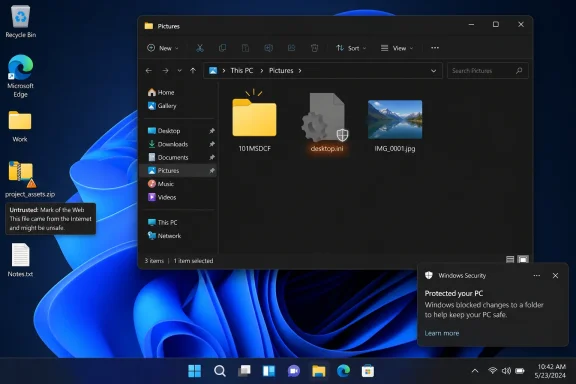
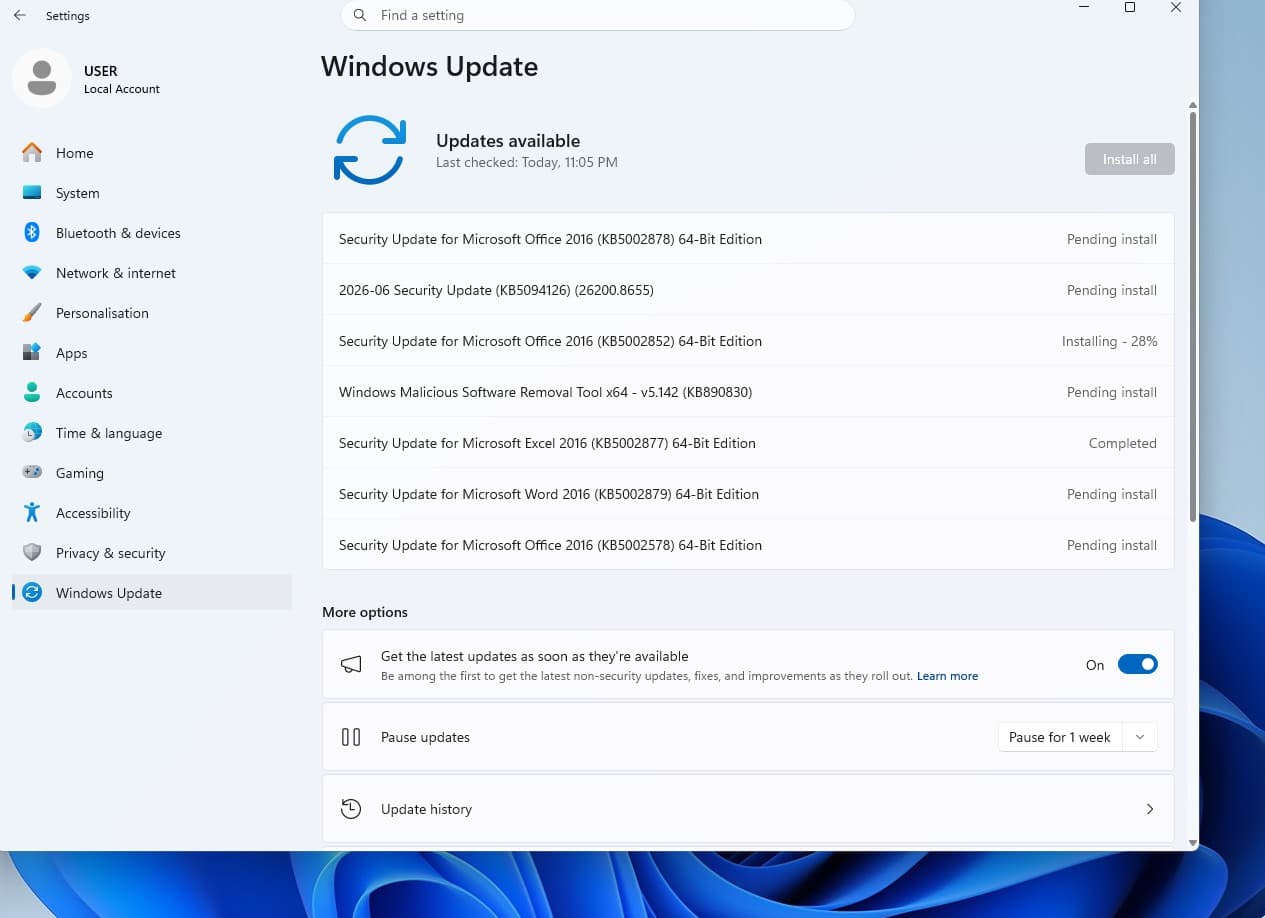
Microsoft says Windows security updates released on or after June 9, 2026, may stop some custom folder icons and localized folder display names from appearing because Windows now ignores desktop.ini files whose source it cannot verify as trusted. That is not a cosmetic bug in the usual Patch Tuesday sense. It is a security hardening change that deliberately breaks a familiar bit of Windows shell behavior when the file carrying the customization looks like it came from the wrong side of the trust boundary.
The affected list is broad enough to make this more than a niche annoyance. Microsoft’s advisory covers supported and extended-support Windows client and server lines ranging from Windows 10 Enterprise LTSB 2016 and LTSC releases through Windows 11 22H2, 23H2, 24H2, 25H2, and 26H1, as well as Windows Server 2012 ESU through Windows Server 2025. In plain terms, if an organization still has a modern Windows estate with shared folders, redirected content, packaged application trees, language-specific folder names, or carefully branded file repositories, this change can show up in places users actually notice.
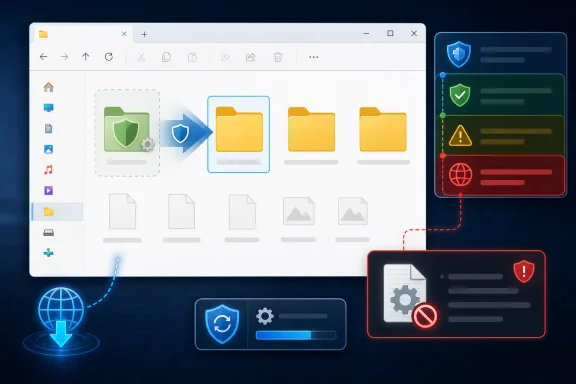
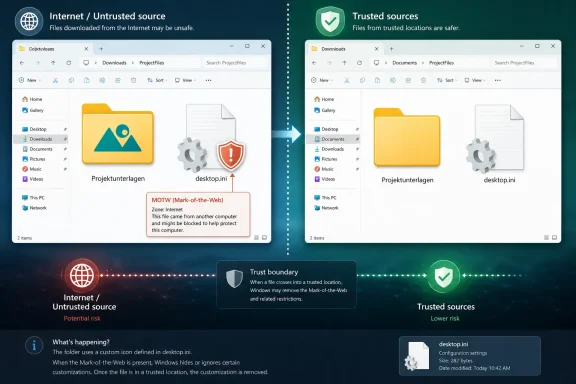
Diagram showing file transfer workflow between folders with security and error alerts in a UI.Microsoft Turns a Shell Convenience Into a Trust Decision​

The humble desktop.ini file is one of those Windows mechanisms that most users never asked to understand but have lived with for decades. It is the hidden configuration file that lets a folder present itself with a custom icon, localized display name, infotip, or other shell-facing personality. A real folder can therefore have one name on disk, another name in Explorer, and a visual identity that follows it across views and shortcuts.
That flexibility has always made desktop.ini feel slightly magical and slightly fragile. Anyone who has copied a customized folder tree only to watch icons revert to yellow defaults has already brushed against the underlying bargain: Windows Explorer honors the file only when the surrounding attributes, paths, and metadata line up in the way the shell expects. Microsoft’s June 2026 change adds a more explicit security test to that bargain.
Starting with the June 9, 2026 security updates, Windows no longer treats every syntactically valid desktop.ini file as eligible to influence folder presentation. If Windows cannot establish that the file’s source is trusted, the shell ignores it as if it were absent. The folder still opens, the files are still there, and permissions do not change; what disappears is the layer of presentation that desktop.ini supplied.
That distinction matters. This is not a data-loss advisory, and Microsoft is not saying that folders become inaccessible. It is saying that a file designed to alter how a folder appears in the shell now has to clear a trust hurdle before Windows will let it do so.

The Patch Does Not Delete the Decoration; It Refuses to Believe It​

The most important word in Microsoft’s note is “ignores.” Windows is not necessarily removing desktop.ini, rewriting it, clearing folder attributes, or deleting icon resources. It may simply decide that a particular desktop.ini file is not trustworthy enough to consume.
That creates a confusing user experience. An administrator may inspect the folder and see that the hidden file remains present. A deployment script may still show the expected IconFile, IconIndex, or localized resource name entries. A backup product may still have restored the configuration exactly as stored. Yet Explorer displays the default folder icon or the original folder name, because the decision is being made upstream of the old “is the file there?” troubleshooting checklist.
This is why the issue will likely be misdiagnosed at first as icon cache corruption, broken folder attributes, sync-tool damage, or a localization regression. Those things can still happen, but this advisory points to a new class of failure: the shell is behaving correctly under a new security model. The old recipe may be intact, but Windows no longer trusts the cookbook.
For consumer users, the visible symptom may be a folder that loses its custom artwork after being downloaded from a ZIP file, synchronized from a web-backed location, or copied from a network source. For enterprises, the symptom may be messier: shared departmental folders that used to carry localized names, training materials that relied on iconography, or application-created directories that suddenly look generic after a security baseline update.

Mark-of-the-Web Comes for the Folder Aesthetic​

Microsoft calls out Mark-of-the-Web, or MotW, as one of the main signals that can push a desktop.ini file into untrusted territory. MotW is the metadata Windows uses to remember that a file originated from the internet or another zone treated with caution. Users usually encounter it indirectly through SmartScreen warnings, Protected View behavior, macro blocking, or the familiar “unblock” checkbox on downloaded files.
The June 2026 change makes that same provenance logic relevant to folder presentation. A desktop.ini file downloaded from the internet may carry zone information that tells Windows it did not originate locally. If that file then attempts to define a folder icon or localized display name, the shell may decline to honor it.
On paper, that is sensible. A file that can influence how Explorer presents a folder can be abused to make hostile or misleading content look ordinary, official, or local. The risk is not that a custom icon alone runs code. The risk is that shell presentation is part of the user’s decision-making surface, and Windows has spent years slowly reducing the number of places where untrusted content can dress itself up as something safer.
The uncomfortable part is that MotW is sticky enough to surprise people. Files extracted from archives, pulled through collaboration platforms, copied from web-based storage, or handled by browsers and mail clients can inherit or retain provenance information in ways users do not see in Explorer’s default view. A folder customization that worked before June 2026 can therefore stop working without any visible change to the folder’s contents.

Network Paths Are Now Part of the Story​

The advisory does not stop at internet downloads. Microsoft also says Windows may treat desktop.ini files as untrusted when they are copied from certain remote locations, including some WebDAV or HTTP-based paths, or when they live on network paths not classified as intranet or trusted by zone policy. That is where the change moves from home-user oddity to enterprise maintenance problem.
Windows has long had a complicated relationship with zones, intranet detection, mapped drives, UNC paths, and browser-era trust classifications. Administrators who manage Internet Options zone assignments, site-to-zone policies, and hardened network baselines already know that “internal” does not always mean “trusted” to Windows. A file server, document portal, or WebDAV endpoint can sit inside the company’s perimeter and still fail the policy test that Windows uses for this shell behavior.
The result is a new reason to audit assumptions about internal content locations. If a folder tree sits on a traditional SMB share that Windows classifies as intranet, its desktop.ini files may continue to work. If a similar tree arrives through a web-backed document system, a cloud gateway, or a path that zone policy treats more cautiously, the same files may suddenly lose their visual behavior.
That inconsistency will irritate help desks because the user-facing report is simple: “the icons disappeared.” The diagnostic reality is not simple at all. It involves where the folder came from, how it was copied, whether zone metadata followed it, how the path is classified, and whether Group Policy has been used to alter the default.

The Localized Name Breakage Is the Quietly Serious Part​

Custom folder icons will get most of the attention because they are obvious. A carefully branded folder that turns into a plain yellow folder feels broken immediately. But localized display names may be the more consequential casualty in multinational and managed environments.
A localized folder name lets Windows show a user-friendly or language-specific name while preserving an underlying filesystem name. That matters in OS special folders, packaged content, educational labs, application templates, and environments where scripts expect stable paths but users expect names in their own language. If desktop.ini is ignored, the shell can fall back to the original folder name instead.
In a single-language home setup, that may be a small nuisance. In an enterprise image distributed across regions, it can look like a localization defect. In a training environment, it can make documentation mismatch what users see on screen. In support workflows, it can cause a technician and user to describe the same folder differently.
The change also exposes how much of the Windows user experience is still built on translation layers between filesystem reality and Explorer presentation. That layering is powerful, but it creates a dependency on small hidden files whose behavior is not obvious. When trust rules change, the illusion breaks in ways that feel disproportionate to the size of the file involved.

Microsoft’s Recommended Fix Is Narrow Trust, Not Blind Reversal​

Microsoft’s preferred workaround is to add the affected source to Trusted Sites when the content is stored on a known internal or managed location. That recommendation is revealing. The company is not telling administrators to turn the feature back on everywhere; it is telling them to make the trust boundary explicit.
This is the right instinct. If a company owns the file server, controls the WebDAV endpoint, or manages the content distribution path, classifying that source as trusted can restore the old Explorer behavior without reopening the door for arbitrary internet-sourced desktop.ini files. The security hardening remains in place for less trusted locations.
The catch is operational hygiene. “Trusted Sites” can become a junk drawer if administrators use it as a quick way to silence user complaints. A narrow entry for a controlled internal host is one thing. A broad wildcard, a loosely scoped zone assignment, or a hasty policy that blesses too much content is another.
This is where Microsoft’s wording should be read less as a support tip and more as a warning label. The company is giving organizations a compatibility path, but it clearly wants them to preserve the new protection wherever possible. That is a subtle but important shift from the old Windows tradition of offering a registry knob and hoping administrators know what they are doing.

The Broad Opt-Out Is There, and It Is a Trap for the Impatient​

Microsoft also identifies a policy path for organizations that need broader compatibility: enabling “Allow the use of remote paths in file shortcut icons.” According to the advisory, enabling that policy restores pre-June 2026 behavior for affected remote or untrusted scenarios. In other words, there is an escape hatch for shops that cannot quickly reclassify sources or remediate content.
That escape hatch should be treated as a last resort, not a standard operating procedure. It exists because Windows compatibility matters, and because some organizations have years of shell customizations embedded in network shares, shortcuts, templates, and internal portals. But broad opt-outs tend to age badly. They solve today’s ticket and become tomorrow’s forgotten exception.
The policy name is also narrower than the effect administrators may infer from this advisory. It evokes shortcut icons, but Microsoft is discussing it in the context of desktop.ini-driven folder presentation as well. That mismatch is exactly the kind of thing that leads to policy sprawl, where a setting enabled for one incident remains deployed long after the original rationale has been lost.
Security teams will reasonably ask why a user interface customization mechanism needs to reach across untrusted paths at all. Desktop administrators will reasonably answer that the business has built workflows around it for years. The hard part is not deciding who is technically correct; it is deciding how much legacy polish is worth preserving when the operating system is telling you the old behavior crossed a trust line.

Unblock-File Is a Scalpel With a Sharp Edge​

The third Microsoft-supported remediation path is to check whether the affected desktop.ini file has Mark-of-the-Web and, if appropriate, remove it. Microsoft’s examples use PowerShell’s Unblock-File, either against a single desktop.ini file or recursively against matching files in a folder tree. This can restore the expected icon or localized name because it removes the zone marker that made Windows suspicious.
That is useful, but it should make administrators uneasy in exactly the right way. Removing MotW is not a cosmetic repair. It is a security decision that says, “we have inspected or otherwise trust this file enough to discard the provenance warning.” Used carefully, that is perfectly legitimate. Used broadly, it can erase one of Windows’ most important clues about where content came from.
The recursive example is especially powerful. A command that walks a tree and unblocks every desktop.ini file can be the correct answer for a known-good internal content package that arrived through a channel that stamped it as internet-originated. The same command run casually across a downloads folder, collaboration cache, or mixed archive extraction area would be reckless.
This is the practical line administrators should draw: unblock known content, not unknown locations. A signed vendor package, an internally generated training library, or a migrated file share can be validated and remediated. A random folder downloaded from the internet should not gain trusted shell presentation just because a user misses a custom icon.

The Security Rationale Is Bigger Than Desktop.ini​

It is tempting to dismiss this as Microsoft being fussy about icons. That would miss the larger pattern. Over the last several years, Windows has been steadily tightening the way it handles content with internet provenance, remote resources, and user interface surfaces that can be manipulated by files rather than installed programs.
MotW has become a central part of that tightening. Office macro blocking, archive extraction behavior, SmartScreen reputation checks, and developer tooling warnings all orbit the same idea: where a file came from should affect what the platform lets it do without explicit trust. The June 2026 desktop.ini change brings the Windows shell’s folder presentation layer further into that model.
That makes sense because deception is not limited to executable code. A malicious or misleading folder can use names and icons to borrow trust from familiar system locations, corporate branding, or expected workflows. If Windows lets untrusted content alter its presentation too freely, it gives attackers another surface for social engineering.
The change is therefore less about stopping desktop.ini from being dangerous by itself and more about reducing the number of ways untrusted content can influence what users think they are seeing. That is a familiar tradeoff in platform security. The operating system removes ambiguity; users and administrators lose a little convenience.

The Compatibility Cost Lands on the People Who Kept Windows Tidy​

There is an irony here. The users most likely to notice this change are often the users and administrators who cared enough to organize Windows neatly. They used custom icons to distinguish project folders. They used localized names to make shared repositories less Anglo-centric. They used shell customization to make complicated storage structures approachable.
Now some of that work becomes conditional. If the customization originated locally or from a trusted source, it survives. If it arrived through a path Windows distrusts, it vanishes from the shell view. The content remains, but the intent encoded in its presentation is lost.
This will be especially annoying for communities that trade curated folder packs, icon sets, portable application bundles, game mod libraries, and localized resource collections. Many of those arrive through downloads or archives, exactly the channels that may carry MotW. The more polished the folder tree, the more visible the regression.
For IT departments, the pain is less sentimental and more procedural. Help desks will need a short script for distinguishing harmless presentation loss from actual access problems. Endpoint teams will need to decide whether to alter zone policy, unblock specific content, or accept the new defaults. Documentation teams may need to update screenshots and instructions if folder display names revert in managed environments.

The Right Response Starts With Inventory, Not Outrage​

The worst response to this change would be a reflexive estate-wide rollback of the new behavior. The second-worst response would be pretending the complaints are merely cosmetic and leaving users to rediscover broken visual cues one ticket at a time. The right response sits between those extremes.
Administrators should first identify where desktop.ini matters. That does not mean scanning every drive in panic, but it does mean paying attention to managed shares, redirected folders, packaged internal content, training labs, multilingual folder trees, and application deployments that intentionally rely on custom folder presentation. If those sources are controlled, they are candidates for narrow trust configuration or targeted unblocking.
They should also separate local presentation problems from network classification problems. If a folder copied from an internal WebDAV path loses its icon but the same folder works from a trusted SMB share, the issue is probably not the file syntax. If only downloaded archives are affected, MotW is the likely suspect. If all remote customizations fail after the update, policy may be involved.
Most importantly, organizations should resist the temptation to treat “make the icon come back” as the whole requirement. The real requirement is to restore expected presentation only where the source deserves that trust. That is a more tedious answer, but it is the answer Microsoft’s hardening is trying to force.

The June Patch Teaches Explorer a New Suspicion​

The concrete takeaways are straightforward, but the policy implications are not. Microsoft has made folder presentation part of Windows’ broader trust model, and that means administrators should treat broken icons as a signal to inspect provenance rather than merely rebuild caches.
  • Windows security updates released on or after June 9, 2026 can cause custom folder icons and localized folder names defined by desktop.ini to stop appearing.
  • The affected folder contents remain accessible, because the change targets shell presentation rather than file or folder permissions.
  • desktop.ini files downloaded from the internet, copied from certain remote locations, or stored on network paths outside trusted zone policy are the most likely to be ignored.
  • Microsoft’s preferred mitigation is to trust only controlled internal sources rather than broadly restoring old behavior everywhere.
  • PowerShell’s Unblock-File can restore behavior for known-good desktop.ini files, but it also removes provenance protection and should not be used indiscriminately.
  • The broad policy opt-out may help with compatibility, but it reduces the protection Microsoft added and should be documented as an exception.
The June 2026 change is a small patch note with a large Windows lesson inside it: presentation is part of security. Explorer has always been more than a file list; it is the place where users decide what looks familiar, official, local, or safe. By making desktop.ini answer to source trust, Microsoft is choosing a slightly less decorative Windows in exchange for a slightly less gullible one, and administrators now have to decide which old customizations deserve to cross that new line.

References​

  1. Primary source: Microsoft Support
    Published: Wed, 10 Jun 2026 16:43:02 Z
  2. Official source: learn.microsoft.com
  3. Official source: answers.microsoft.com
  4. Related coverage: howtogeek.com
  5. Related coverage: stackoverflow.com
  6. Related coverage: techbloat.com
  1. Related coverage: superuser.com
  2. Related coverage: rw-designer.com
  3. Related coverage: techyorker.com
  4. Related coverage: archive.decromancer.ca
 

Microsoft’s June 9, 2026 Patch Tuesday updates for Windows 11 and Windows 10 change how Windows handles untrusted desktop.ini folder customizations, blocking custom icons, localized names, thumbnails, and infotips from appearing when the folder’s source cannot be trusted. That is the plain version of a change that will look, to many users, like Windows has suddenly forgotten how their carefully organized folders are supposed to look. It has not forgotten. Microsoft has decided that a decorative folder is not worth an implicit trust decision.
The interesting part is not that Microsoft hardened an old Shell behavior. The interesting part is that it took this long for a feature built around automatic parsing of hidden metadata to be treated like the security boundary it always wanted to pretend it was not.

Windows file explorer shows trusted vs untrusted folders with security context alerts.Microsoft Finally Stops Treating Folder Decoration as Harmless​

The updates in question are KB5094126 for Windows 11 version 25H2 and 24H2, KB5093998 for Windows 11 version 23H2, and KB5094127 for Windows 10 version 22H2. They arrived as part of the June 2026 Patch Tuesday cycle, the monthly ritual in which Windows users receive security fixes, reliability changes, and the occasional behavioral surprise that sends administrators digging through support notes.
This one sits in that last category. After the update is installed, Windows may no longer display custom folder icons or localized folder names defined through desktop.ini when that file or its parent location is considered untrusted. Microsoft says this is expected behavior, not a regression.
That distinction matters. A bug invites a fix. Expected behavior invites a policy decision.
For decades, desktop.ini has been one of those Windows mechanisms most people never think about until it breaks. It is a hidden system file that lets a folder carry presentation instructions: use this icon, show this localized name, display this infotip, apply this visual identity. It is part of the machinery that lets Windows folders behave less like anonymous directories and more like shell objects.
The problem is that this convenience depends on Windows automatically reading metadata from places users may not control. When that metadata comes from a local, managed, trusted source, the risk is limited. When it comes from the internet, a remote path, or a network location sitting outside the organization’s trusted zone model, the old behavior starts to look less like convenience and more like ambient execution of someone else’s instructions.

The Shell Has Always Been a Bigger Attack Surface Than Users Think​

Windows users tend to think about risk in terms of files they deliberately open. Double-clicking an executable is risky. Running a script is risky. Opening a suspicious document is risky. Browsing into a folder, by contrast, feels passive.
The Windows Shell has never been that simple. File Explorer does not merely list names. It reads icons, thumbnails, metadata handlers, preview providers, property sheets, overlays, shortcuts, compressed folders, cloud sync states, and assorted bits of legacy customization glue. A directory view is not a neutral inventory; it is a rendering pipeline.
That is why desktop.ini deserves more attention than its humble name suggests. The file can influence how a folder presents itself before the user has made any meaningful trust decision about the contents. Historically, that meant a maliciously crafted desktop.ini placed on a share or delivered through a remote location could become part of the Shell’s processing path simply because a user browsed to a folder.
Microsoft’s new behavior does not mean every desktop.ini file is malware. It means Windows is no longer willing to assume that every desktop.ini file deserves to be interpreted merely because it exists. That is a subtle but important reversal of the old default.
Security hardening often feels petty at the user interface layer because the visible symptom is mundane. A custom icon disappears. A localized folder name falls back to the raw directory name. A tooltip no longer appears. But beneath that small aesthetic change is a broader rule: untrusted presentation data should not be processed as if it came from the local machine.

Mark-of-the-Web Moves From Browser Nuisance to Shell Boundary​

The most important phrase in Microsoft’s explanation is Mark-of-the-Web. MotW is the alternate data stream Windows uses to remember that a file came from the internet or another less-trusted zone. Users often meet it as a warning prompt, a blocked macro, or a file that must be “unblocked” before some older workflow behaves normally.
Here, MotW is being used as a Shell trust signal. If a desktop.ini file carries that mark, Windows may suppress its customization effects. The file is still there. The folder still exists. But Windows declines to let the untrusted metadata shape the interface.
That is exactly the kind of cross-component consistency Windows has needed for years. If Office macros, scripts, downloaded installers, and archives are treated differently because of origin, folder customization metadata should not be exempt simply because it is visual rather than obviously executable.
The same logic applies to remote sources. Microsoft identifies files copied from certain remote locations, including some WebDAV or HTTP-based locations, and files on network paths that are not classified as intranet or trusted by zone policy. In other words, this is not just an internet-download rule. It is a trust-zone rule.
That will make the change annoying in some environments. It may also make it correct.

The Compatibility Break Is Real, but It Is Narrower Than the Alarm Suggests​

There will be breakage. Some organizations use customized folder icons and localized names for shared resources, training libraries, departmental file stores, software depots, or branded document repositories. Some users use custom icons as a lightweight organization system. Some legacy applications may depend on folders presenting themselves in a particular way.
After the June updates, those customizations may appear to vanish when the content lives in a location Windows does not trust. The natural reaction will be to blame Patch Tuesday, because Patch Tuesday did in fact cause the visible change. But the underlying issue is not that Windows cannot read desktop.ini; it is that Windows now asks whether it should.
That means the fix is not necessarily to disable the hardening. Microsoft’s preferred remedy is to add known internal or managed sources to Trusted Sites so Windows can continue processing desktop.ini from those locations while keeping the new protection elsewhere. That is the right hierarchy of response: trust the source, not the whole old behavior.
There is also a policy escape hatch. Administrators can enable “Allow the use of remote paths in file shortcut icons,” which restores the previous behavior for affected remote or untrusted scenarios. Microsoft explicitly warns against using that as a broad opt-out, and it is not hard to see why. It converts a targeted trust decision back into the blanket assumption the update is trying to retire.
The third path is to remove MotW from affected desktop.ini files using PowerShell’s Unblock-File. That is useful when the file is genuinely trusted and merely inherited the mark through download, archive extraction, or migration. It is also the sort of command that should be used surgically, not as a broom across a file share.

Administrators Now Own the Trust Model They Used to Inherit​

The administrative burden here is not enormous, but it is real. Microsoft is moving one more Windows behavior out of the “it just works” bucket and into the “define your trust boundaries” bucket. That is healthier for security and more work for IT.
In a well-managed environment, the right response is to inventory where folder customizations actually matter. If the affected content sits on a managed intranet file server, the trust-zone configuration should say so. If it sits on a WebDAV endpoint, a third-party document store, or a loosely governed network share, the question is not how quickly to restore the icons. The question is why the Shell was trusted to process customization metadata from that source in the first place.
This is where consumer Windows and enterprise Windows diverge. A home user sees a folder icon disappear and wants it back. An enterprise administrator sees a new rule that exposes ambiguity in zone policy, intranet detection, and legacy share design. Both reactions are rational, but only one scales.
The policy name is also a reminder of Windows’ long tail. “Remote paths in file shortcut icons” sounds like a narrow shortcut setting, yet it sits adjacent to a broader class of Shell behaviors that resolve and display remote visual resources. Windows is full of these compatibility fossils: settings named for one historical use case that now carry security implications beyond their original label.
That is why broad opt-outs age poorly. They fix today’s help-desk tickets by recreating yesterday’s assumptions.

This Is a Small Patch Tuesday Change With a Very Windows-Shaped History​

The history matters because desktop.ini is not a modern cloud-era feature retrofitted with security labels. It belongs to the classic Windows Shell model, where the desktop, folders, Control Panel views, and file associations were part of a rich, extensible local environment. That model prized integration. It also created many places where display and execution sat closer together than users realized.
Windows XP-era design assumed a different threat landscape. Network shares were often internal. The browser was more separate from the file manager. The idea that a user might constantly shuttle files between cloud storage, web downloads, collaboration portals, remote workspaces, and unmanaged endpoints was not the baseline.
Modern Windows has been steadily revising those assumptions. MotW enforcement became more important as macro malware and downloaded payloads abused trust gaps. Smart App Control, reputation checks, archive handling changes, and stricter defaults all point in the same direction: origin matters.
This desktop.ini change belongs to that same family. It is not flashy. It will not get the attention of a kernel zero-day or a bootloader revocation. But it is a sign that Microsoft is still combing through the Shell for places where old convenience bypasses new trust logic.
And because it touches presentation rather than an obviously dangerous action, it also shows how hard this work is. Users notice when the UI changes. They rarely notice when a latent attack path quietly narrows.

The User Experience Cost Is the Price of Retiring Ambient Trust​

There is an easy cynical read of this update: Microsoft broke another customization feature and called it security. That will be true in some edge cases, especially where users have harmless downloaded folder packs, icon libraries, or localized content that now need manual unblocking. Windows has a talent for making security improvements look indistinguishable from arbitrary friction.
But the better read is that Microsoft is retiring ambient trust. A hidden file in a folder should not automatically shape the Shell experience when Windows has evidence that the file came from an untrusted source. That should be uncontroversial in principle, even if it is irritating in practice.
The challenge is that Windows’ power has always come from letting small files and registry entries customize big parts of the experience. That flexibility is beloved by enthusiasts and exploited by attackers for the same reason: the operating system listens. Hardening means teaching Windows to listen less often, or at least to ask who is speaking.
This is also why the change should not be judged by how many users complain about missing icons in the first week. The security value is not in the icon. It is in reducing automatic parsing from untrusted locations. The visible symptom is only the part regular users can see.
Microsoft could do better at surfacing the reason in File Explorer. A folder whose customization is blocked could show a subtle status explanation rather than leaving users to infer that Windows is broken. Security that manifests as mystery tends to invite bad workarounds.

The Right Fix Is Trusting Fewer Places More Deliberately​

For IT teams, the lesson is not to memorize another Patch Tuesday quirk. The lesson is to make trust explicit. If a file server is internal and governed, classify it accordingly. If a collaboration endpoint is managed, put it in the correct zone. If a folder customization came from the internet but is known-good, unblock that exact file rather than weakening the rule everywhere.
This is especially important for organizations that still rely on customized folders as informal workflow signage. A finance share with a custom icon, a localized folder name for regional users, or a training repository with branded thumbnails may seem operational rather than cosmetic. When that presentation disappears, users may lose context.
But context should not require trusting arbitrary remote metadata. If the customization matters enough to support a business process, it matters enough to host from a trusted source. If it does not, then perhaps the folder’s visual identity was never the right control surface.
The uncomfortable truth is that Windows administrators have often inherited trust settings rather than designed them. Intranet zone detection, Trusted Sites, mapped drives, legacy WebDAV endpoints, and cloud-synced paths can accumulate over years of migrations. A change like this exposes that sediment.
That is inconvenient. It is also useful.

The June Patch Is Really a Trust Audit in Disguise​

The concrete advice is straightforward, but the larger point is architectural. Microsoft is drawing a brighter line between local or trusted presentation metadata and remote or internet-marked customization. Anyone responsible for Windows fleets should treat the visible folder changes as a signal to review origin, not just appearance.
  • Windows 11 KB5094126, Windows 11 KB5093998, and Windows 10 KB5094127 introduce a security hardening change for desktop.ini processing after the June 2026 updates are installed.
  • Custom folder icons, thumbnails, localized names, and infotips may stop appearing when the relevant desktop.ini file comes from an untrusted source or carries Mark-of-the-Web.
  • Microsoft’s preferred mitigation is to trust known internal or managed sources rather than globally restoring the older behavior.
  • The available policy opt-out restores compatibility but weakens the protection Microsoft is trying to add.
  • Removing MotW with PowerShell can be appropriate for known-good files, but it should be treated as a targeted exception rather than a bulk cleanup habit.
  • The change is best understood as Shell hardening, not as a simple folder customization bug.
The long-term direction is clear: Windows is becoming less willing to interpret old metadata formats without an origin check, even when the user-facing result is merely cosmetic. That will frustrate enthusiasts who value customization and administrators who must unwind legacy assumptions under deadline pressure. But the safer Windows is not the one that renders every folder exactly as a remote file says it should; it is the one that knows when a pretty icon is really a trust decision.

References​

  1. Primary source: Neowin
    Published: Thu, 11 Jun 2026 04:14:01 GMT
  2. Related coverage: ahmandonk.com
  3. Related coverage: techgig.com
  4. Official source: learn.microsoft.com
  5. Official source: support.microsoft.com
  6. Related coverage: windowslatest.com
  1. Related coverage: bleepingcomputer.com
  2. Related coverage: anoopcnair.com
  3. Related coverage: tutos-informatique.com
  4. Related coverage: windowsforum.com
  5. Related coverage: askwoody.com
 

Microsoft’s June 9, 2026 Windows security updates changed how Windows 10, Windows 11, and supported Windows Server releases handle desktop.ini files, causing some custom folder icons and localized folder names to disappear when those files come from locations Windows does not trust. This is not, by Microsoft’s account, another case of File Explorer randomly breaking after Patch Tuesday. It is a deliberate hardening change aimed at an old customization mechanism that can make files and folders look more trustworthy than they are. The surprise is not that Microsoft tightened the rule; it is that so much of Windows still depends on tiny legacy behaviors most users never knew existed.

Diagram showing Windows “Mark-of-the-Web” blocked from untrusted internet sources and removed in trusted folders.The “broken icon” is really a trust decision​

The symptom is ordinary enough to look like a bug. A folder that had a custom icon suddenly becomes a plain yellow folder. A folder that displayed a localized name reverts to its underlying filesystem name. Nothing inside the folder disappears, permissions do not change, and the folder still opens normally.
That is why the first wave of confusion is predictable. Windows users have been conditioned, not unfairly, to treat visual regressions after cumulative updates as update fallout. File Explorer has had enough real bugs over the years that “my folders changed after Patch Tuesday” sounds like the beginning of a familiar support thread.
But Microsoft’s explanation is more specific. Beginning with the Windows security updates released on June 9, 2026, Windows ignores certain desktop.ini files when it cannot determine that the source is trusted. The result is that the folder still exists, but the presentation layer controlled by that file is discarded.
That distinction matters. Microsoft is not saying custom folder icons are dead. It is saying that folder customizations now have to clear a trust boundary that they previously did not.

A dusty Windows feature finally meets the modern threat model​

The desktop.ini file is one of those Windows mechanisms that feels almost invisible until it stops working. It is a hidden configuration file used by File Explorer to customize how a folder is displayed. It can define a custom icon, provide a localized display name, and influence folder presentation in ways that date back to an older model of the Windows shell.
For years, that flexibility was treated as benign. A folder icon was just decoration. A localized folder name was just a usability feature. A software package, shared folder, backup set, or translated Windows profile could use desktop.ini to present itself more neatly to the user.
The problem is that presentation is not neutral. An icon, a folder name, and a familiar-looking shell object can all shape user behavior. If attackers can make something look like a trusted location, a media folder, a system-adjacent object, or a harmless shortcut container, they do not always need a dramatic exploit chain to win a click.
That is the broader security logic behind this change. Microsoft is increasingly treating shell presentation as part of the attack surface. The question is no longer only “does this code execute?” It is also “does this object make untrusted content appear safer than it is?”

Mark-of-the-Web keeps spreading through the Windows shell​

The key phrase behind the change is Mark-of-the-Web, or MOTW. This is the Windows mechanism that tags files as having originated from the internet or another potentially untrusted zone. The tag has become one of Microsoft’s most important quiet defenses because it lets Windows, Office, SmartScreen, Defender, and other components make risk-based decisions before a user opens something.
The June 2026 desktop.ini hardening extends that logic into folder cosmetics. If a desktop.ini file carries MOTW, comes from certain internet-originated locations, is copied from some WebDAV or HTTP-based sources, or resides on a network path that Windows does not classify as intranet or trusted, Windows may treat it as untrusted. In that case, File Explorer behaves as if the desktop.ini file is not there.
This is a subtle but important shift. Windows is not merely warning users before opening a suspicious executable. It is refusing to let an untrusted metadata file influence how content is visually framed in the shell.
That will irritate people who have spent years curating folder icons. It will matter more in environments where line-of-business applications, shared content repositories, multilingual folder structures, or remote storage systems rely on desktop.ini to make content legible. But from Microsoft’s view, the old behavior assumed too much about the trustworthiness of presentation metadata.

Microsoft’s fix is targeted, but the blast radius is messy​

Microsoft’s published guidance draws a line between narrow trust and broad rollback. The recommended approach is to add known internal or managed sources to the Trusted Sites list so Windows can process desktop.ini files from those places while continuing to block untrusted ones elsewhere. That is the least risky path because it preserves the new default for internet-originated and ambiguous sources.
There is also a Group Policy option: “Allow the use of remote paths in file shortcut icons.” Enabling it can restore the previous behavior for broader compatibility scenarios. Microsoft’s warning is exactly what administrators would expect: doing so reduces protection against malicious remote folder customization content.
The third option is to remove MOTW from trusted desktop.ini files, typically with PowerShell’s Unblock-File. That can work for a known-good folder tree, but it is also the sort of workaround that should make security teams twitch. Removing MOTW is not a cosmetic action; it changes how Windows evaluates the file’s origin.
The uncomfortable part is that all three fixes require users or administrators to understand why the icon disappeared in the first place. Microsoft may be right on security and still face a communication problem. To the average user, a missing icon is not a trust boundary. It is Windows being Windows.

For home users, this is mostly visual noise​

Most consumer systems will barely notice the change. The average Windows 11 user does not manually maintain a library of customized folders driven by desktop.ini. If anything shows up, it will likely be in downloaded archives, copied folders, old backup sets, game mod collections, media libraries, or tools that package customized folders for convenience.
In those cases, the practical advice is boring but sound: do not rush to unblock anything just because an icon changed. If the folder came from the internet, an email attachment, a file-sharing service, or a random download, Windows is doing exactly what the update tells it to do. The files are still accessible, and the missing icon is not evidence of data loss.
Power users will be tempted to turn the old behavior back on because power users hate being second-guessed by the operating system. That instinct is understandable. Windows customization has always had a tinkerer culture around it, and folder icons are one of the safer-feeling forms of personalization.
But this is precisely where the new rule makes sense. The risk is not that your own custom icon pack is malicious. The risk is that a mechanism designed for personalization can also be used by content you did not create and should not implicitly trust.

For enterprise IT, this is another compatibility bill for old assumptions​

The heavier impact lands in managed environments. Enterprises are full of shared paths, document repositories, redirected folders, legacy applications, multilingual deployments, and vendor packages that quietly rely on decades-old shell behaviors. A security update that changes visual presentation can become a help desk incident if users suddenly cannot recognize the folders they use every day.
The policy decision is not simply whether to “fix the icons.” Administrators have to decide which sources deserve trust. An internal file server with controlled publishing and access policies is a different risk profile from a broadly writable share, a WebDAV endpoint, or a third-party remote repository.
The right enterprise response is likely inventory before rollback. If the breakage is concentrated in a known internal source, adding that source to the appropriate trusted zone is cleaner than disabling the protection everywhere. If a line-of-business workflow depends on remote desktop.ini behavior from a messy or user-writable location, the update has exposed a design debt rather than merely created a new problem.
This is also where Microsoft’s naming does not help. “Allow the use of remote paths in file shortcut icons” sounds narrower and more obscure than the user-visible behavior at stake. An administrator searching for “folder icons disappeared after June update” may not immediately connect that policy to desktop.ini trust handling.

The shell is becoming less forgiving by design​

The desktop.ini change fits a pattern. Microsoft has spent the last several years tightening old Windows affordances that were designed when local files, intranet shares, Office documents, shortcuts, scripts, and downloaded archives lived in a more trusting world. MOTW enforcement has become more important. Office macros from the internet have been constrained. Shortcut and remote content handling has faced more scrutiny. Even Remote Desktop files have been pulled into a more explicit warning model.
The shared theme is that Windows is no longer willing to treat familiar file types and shell metadata as harmless simply because they are old. That is a healthy development, even when the execution is clumsy. Attackers love old behaviors because defenders mentally file them under “legacy plumbing” rather than active risk.
There is also a product tension here. Windows sells itself as compatible. Compatibility means old workflows keep working, old applications still run, and old customization tricks survive longer than they would on a cleaner platform. Security hardening means some of those assumptions must eventually be revoked.
Microsoft rarely wins applause when it chooses security over continuity. If it breaks something visible, users call it a bug. If it leaves the behavior alone and attackers abuse it, users ask why Windows still trusted a 1990s-era shell trick in 2026. The company is trapped between two kinds of blame, and in this case it has chosen the one that is easier to defend.

The real lesson is not about yellow folders​

It would be easy to reduce this story to a small annoyance: custom icons broke, Microsoft says it is intentional, here are the workarounds. That undersells what is happening. The deeper story is that Windows is continuing its slow migration from a compatibility-first shell to a trust-aware shell.
That migration will be uneven. Some changes will be obvious, like a warning dialog before opening a risky file. Others will be quiet, like refusing to honor a hidden configuration file that changes how a folder appears. The quiet ones may actually be more disruptive because they do not announce themselves as security decisions.
There is a design problem here that Microsoft still needs to solve. If Windows is going to ignore a desktop.ini file for trust reasons, File Explorer could do more to explain that to users and administrators. A missing icon with no visible clue looks like breakage. A properties hint, event log entry, or Defender-style explanation would turn the same behavior into something people can diagnose.
Security hardening works best when users can tell the difference between “blocked because risky” and “broken because buggy.” Microsoft has the policy right, but the user experience remains too opaque.

The June patch turns folder polish into a security boundary​

The practical conclusions are narrow, but they are worth spelling out because this change will produce confusing reports across Windows 10, Windows 11, and Server estates over the next few weeks. A folder that loses its custom appearance after the June 2026 security update is not necessarily damaged. It may simply be carrying presentation metadata that Windows no longer trusts.
  • Custom folder icons and localized folder names can disappear after the June 9, 2026 Windows security updates when they depend on untrusted desktop.ini files.
  • The underlying folders and files remain accessible; the change affects presentation, not content access.
  • Microsoft recommends trusting specific managed sources rather than broadly restoring the old behavior.
  • The Group Policy workaround restores compatibility but weakens the new protection against untrusted remote customization content.
  • Removing Mark-of-the-Web with PowerShell should be reserved for files and folder trees whose origin is actually trusted.
  • Administrators should treat widespread icon regressions as a signal to review trust zones, remote paths, and legacy shell dependencies.
Microsoft’s decision will annoy a small but vocal group of Windows users because it makes the operating system feel less personal and, in some cases, less polished. But the direction is hard to argue with: in 2026, even folder cosmetics can no longer be treated as harmless when they arrive from an untrusted source. The next phase of Windows security will not only be about blocking malicious code; it will be about stripping untrusted content of the little visual cues that persuade people to trust it in the first place.

References​

  1. Primary source: Windows Central
    Published: Thu, 11 Jun 2026 18:17:08 GMT
  2. Official source: support.microsoft.com
  3. Official source: learn.microsoft.com
  4. Related coverage: hardwarepremium.com
  5. Official source: microsoft.com
 

Microsoft’s June 9, 2026 security updates for Windows 11 deliberately stopped File Explorer from honoring some desktop.ini folder customizations from untrusted or remote locations, causing custom folder icons and localized folder names to disappear on systems that installed KB5094126 or KB5093998. This is not another mystery regression in the Windows shell, even if it looks like one from the user’s side of the screen. It is Microsoft finally drawing a trust boundary around one of the oldest bits of ambient magic in Windows: the hidden file that lets a folder tell Explorer how it should look.
The uncomfortable part is that the change arrives as a visual annoyance because the underlying problem was never visual. For decades, Windows treated presentation metadata in a folder as something Explorer could read automatically, silently, and eagerly. In 2026, Microsoft has decided that a file capable of influencing the shell should no longer be trusted merely because a user browsed into the directory that contains it.

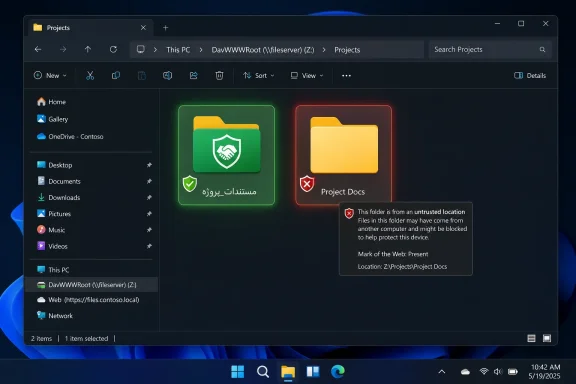
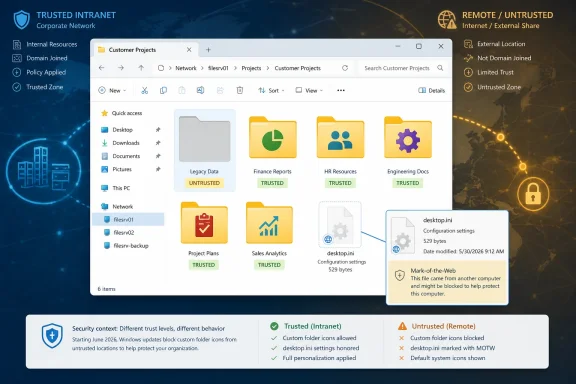
Windows File Explorer shows “Projects” folder with trusted and untrusted directory warning.Microsoft Turns a Cosmetic Feature Into a Security Boundary​

The visible symptom is humble: a carefully curated network share reverts to plain yellow folders, or a translated folder name falls back to its underlying English file-system name. That is the kind of thing users reasonably describe as “the update broke my folders.” In an enterprise, it is also the kind of thing that triggers help-desk tickets from people who have no reason to know what desktop.ini is.
But desktop.ini is not just a decorative flourish. It is part of the Windows Shell’s long-running habit of allowing folders to carry their own display instructions. Explorer reads those instructions to show custom icons, localized names, infotips, and other small pieces of interface personality.
That model made sense in the Windows 95 and Windows XP eras, when local file systems, office LANs, and user convenience were the dominant assumptions. It looks much less comfortable in a world where users routinely open synced folders, downloaded archives, WebDAV locations, vendor shares, and cloud-backed paths that may have passed through several trust zones before arriving in Explorer.
The June 2026 change is Microsoft saying, in effect, that folder appearance is no longer exempt from origin checks. If Windows cannot establish that the desktop.ini file came from a trusted place, Explorer now ignores it. The folder still opens. The files are still there. The presentation layer simply loses its authority.

The Old Shell Bug Was Never Really About Icons​

The reason this story has bite is that the shell behavior now being hardened has a long security tail. Microsoft documented an unchecked buffer in the Windows Shell’s desktop.ini parsing path in July 2003, in a bulletin aimed at Windows XP users. The key detail was not merely that a malformed desktop.ini could cause trouble. It was that the vulnerable function ran when the shell parsed folder customization data as part of opening a folder.
That is the sort of bug that security engineers dislike because it collapses the distance between browsing and execution. The user does not need to launch an attachment, enable a macro, or double-click an executable. They only need to navigate to a folder containing malicious metadata and let Explorer do what Explorer has always done.
The original 2003 bulletin described the worst case plainly: code could run in the security context of the logged-in user. That does not make every user an administrator, but it does make the attack useful. A standard user can still read documents, access mapped drives, authenticate to internal services, and provide the foothold attackers need for lateral movement.
This is why the phrase custom folder icon undersells the issue. The icon is merely the friendly face of a deeper design assumption: that the shell may automatically consume folder-supplied instructions in order to render the interface. The June 2026 hardening does not suggest that every desktop.ini file is malicious. It says Windows should stop pretending that every desktop.ini file is harmless.

The Patch Changes Trust, Not the File System​

The most important practical distinction is that Microsoft did not delete desktop.ini files, strip customizations, or block access to affected folders. It changed whether Explorer honors those files when their origin is suspect. That means the same folder can look different after the update without any file inside it being modified.
This distinction matters for troubleshooting. Rebuilding the icon cache, toggling folder attributes, resetting Explorer, or copying desktop.ini back into place may not solve the problem if Windows still classifies the source as untrusted. The file can be present, syntactically valid, and historically functional, yet ignored under the new rules.
The update applies to Windows 11 24H2 and 25H2 through KB5094126, and to Windows 11 23H2 through KB5093998. Microsoft’s broader support note also identifies the behavior across supported Windows 10 and Windows 11 releases, along with Windows Server versions still in support or under extended servicing. This is not a one-build experiment tucked into a narrow Insider channel.
The trust decision leans on familiar Windows machinery: security zones and Mark of the Web. Files downloaded from the internet can carry zone metadata that tells Windows they came from outside the local trust boundary. Network paths can also be classified according to zone policy. Explorer’s new behavior plugs desktop.ini processing into that same worldview.
That is why the experience will vary. A local folder customization may continue working as before. A managed intranet share that policy already classifies correctly may also keep its icons. A folder copied from a downloaded package, opened from WebDAV, or accessed through a network path Windows does not consider trusted may suddenly lose its polish.

Enterprises Will Feel This More Than Home Users​

For home users, the most common reaction will be confusion. A special folder may appear with a generic icon. A downloaded collection that once had branded folders may look plain. A localized display name may vanish. Annoying, yes, but usually not operationally serious.
In businesses, the blast radius can be stranger. Many organizations have quietly used desktop.ini customizations as lightweight wayfinding on shared drives. Project directories get special icons. Department folders are visually grouped. Multilingual environments use localized names so users see something friendly while scripts and legacy applications keep using stable file-system paths.
These setups often predate the administrators now responsible for maintaining them. They are rarely documented as dependencies. Nobody puts “custom Explorer presentation metadata on SMB shares” in the disaster-recovery plan, yet users may rely on those cues every day to avoid opening the wrong project folder or filing documents in the wrong place.
The result is a classic Windows administration trap: a security improvement that is objectively reasonable but operationally noisy because Windows has spent decades allowing convenience to become infrastructure. Microsoft is not wrong to harden the shell. But administrators are not wrong to be irritated that a visual convention became a post-Patch Tuesday investigation.

The Workaround Is a Policy Decision, Not a Fix​

Microsoft’s preferred path is to classify known, managed sources as trusted. That means using Windows zone policy so that the locations your organization controls are treated as intranet or trusted locations. When that trust is explicit, desktop.ini customizations from those places can work without throwing away the new protection everywhere else.
That is the right model. It forces administrators to answer the question Windows should have been asking all along: should this location be allowed to influence the shell experience? A file server run by your organization and governed by access controls is different from a random WebDAV endpoint or an archive downloaded from the public internet.
There is also a Group Policy setting, “Allow the use of remote paths in file shortcut icons,” that can restore legacy behavior for affected remote scenarios. That option will be tempting because it is familiar, fast, and likely to make tickets disappear. It is also the blunt instrument.
Enabling the old behavior broadly risks turning a security hardening change into a checkbox exercise. If every remote path is effectively trusted again, the organization has recreated the attack surface the update tried to close. The policy may be defensible as a temporary bridge for a narrow set of machines or workflows, but it is hard to justify as a permanent fleet-wide posture.
For downloaded desktop.ini files that carry Mark of the Web, administrators and power users may also remove the mark from files they have verified and trust. That is reasonable for known content under controlled circumstances. It is not a strategy for making the internet’s metadata safe.

Mark of the Web Keeps Expanding Its Jurisdiction​

The broader story is that Mark of the Web has become one of Windows’ most important security signals. Office macro restrictions, SmartScreen warnings, protected document handling, and now shell folder customization all reflect the same idea: origin matters. A file is not merely what its extension says it is; it is also where it came from.
That philosophy has steadily expanded because attackers abuse trust gaps, not just vulnerabilities. A document from the internet is different from a document created on your laptop. A script copied from a random site is different from a script staged in a managed software repository. A desktop.ini file sitting on a controlled file server is different from one unpacked from an untrusted archive.
The tension is that Windows users experience these distinctions as inconsistency. The same file “works” in one place and “doesn’t work” in another. The same folder looks correct locally and wrong on a share. The same customization survives one copy operation and fails after another because metadata was preserved, stripped, or reinterpreted.
That messiness is not going away. If anything, Windows will continue to attach more meaning to provenance. The age of treating every file as inert until double-clicked is over, because modern Windows contains too many parsers, previewers, indexers, sync engines, and shell extensions that interact with content before the user thinks of it as opened.

Microsoft’s Timing Is Defensible, Its Communication Less So​

There is a familiar rhythm to these episodes. Microsoft ships a security change in a cumulative update. Users notice a visible behavior change. Administrators scramble to determine whether it is a bug, a known issue, a policy interaction, or another casualty of Windows’ sprawling compatibility surface. Only then does the support language become the center of the story.
To Microsoft’s credit, the release notes did identify folder customization as a security hardening change, and the support documentation describes the affected behavior. The problem is that this kind of change lands differently from an ordinary bug fix. It touches workflows that organizations may not even know they have.
A preview period, stronger administrative messaging, or clearer compatibility guidance ahead of Patch Tuesday would have reduced the surprise. Microsoft has the telemetry to know that desktop.ini customizations are not exotic. It also has decades of evidence that Explorer behavior changes are noticed immediately because the shell is the front door to Windows.
Still, the company’s security rationale is stronger than the inevitable grumbling suggests. The fact that this attack surface has been discussed since the XP era does not make it harmless. It makes the delay more striking. A 23-year-old shell parsing risk being narrowed in 2026 is not Microsoft being capricious; it is Microsoft belatedly applying a modern trust model to old plumbing.

The Real Lesson Is That Presentation Metadata Is Code-Adjacent​

The desktop.ini episode belongs to a larger class of Windows hardening stories: things once treated as passive data turn out to be active enough to deserve suspicion. Shortcut files, icon handlers, thumbnail generators, preview panes, shell extensions, Office templates, and archive metadata all live in the gray zone between content and execution.
Attackers like that gray zone because users do not fear it. Nobody thinks opening a folder is risky. Nobody trains employees to distrust an icon. Nobody expects a localized folder name to be part of an attack chain. That is precisely why shell-integrated conveniences deserve hard boundaries.
The hard part for Microsoft is that Windows’ value has always come from integration. Explorer is useful because it renders meaning, not just filenames. It shows thumbnails, friendly names, overlays, sync status, file type icons, previews, and context menus. Every one of those features requires the shell to interpret something.
Security, therefore, cannot mean making Explorer blind. It has to mean teaching Explorer where interpretation is allowed. The June 2026 desktop.ini change is one small but telling example of that philosophy: local and trusted customization remains possible, while untrusted customization loses its automatic privilege.

The Yellow Folder Is a Warning Label​

For administrators, the immediate job is not to reverse the update but to map the dependency. If users report vanished icons or names, the useful question is not “How do we make Explorer behave like May 2026 again?” It is “Why was this folder’s presentation metadata coming from a place Windows does not trust?”
That audit may reveal old file shares with ambiguous zone treatment, downloaded software bundles that rely on shell customizations, WebDAV paths masquerading as internal storage, or multilingual folder schemes that were never formalized. Those are not merely icon problems. They are signs that the organization’s trust model and its user experience model have drifted apart.
The right response is surgical. Trust managed locations explicitly. Remove Mark of the Web only from known-good files when appropriate. Avoid global compatibility switches unless the business case is immediate and the exposure is understood. Document the choice, because six months from now a future administrator will otherwise rediscover the same mystery.
This is also a moment to reconsider whether desktop.ini should be carrying so much meaning in shared environments. If folder identity is important, there may be better places to express it: naming conventions, document management systems, SharePoint metadata, access-controlled portals, or application-level navigation. Explorer customizations are convenient, but convenience is a poor substitute for a managed information architecture.

The Patch Tuesday Folder Test​

The June update leaves Windows shops with a few practical realities that are easy to miss amid the icon-cache folklore and “broken update” posts. The change is narrow in what it disables, but broad in what it reveals about old assumptions.
  • Windows now ignores some desktop.ini customizations from locations it cannot verify as trusted, so missing icons or localized names after the June 2026 update are usually intentional behavior rather than file corruption.
  • Folder access is not blocked by this hardening change, and the desktop.ini file is not necessarily removed or damaged when Explorer stops honoring it.
  • Local customizations and customizations from explicitly trusted network locations are less likely to be affected than downloaded, WebDAV-hosted, or ambiguously zoned remote content.
  • The safest enterprise response is to classify managed shares through zone policy instead of globally restoring legacy remote icon behavior.
  • The Group Policy workaround should be treated as a compatibility bridge with security tradeoffs, not as a harmless return to normal.
  • Mark of the Web has become a practical boundary for more than documents and executables, and administrators should expect Microsoft to keep expanding that model.
The vanishing folder icon is easy to mock because it feels like Windows breaking something small. But the more useful reading is that Microsoft is still excavating old shell assumptions and deciding which ones can survive in a threat model shaped by internet-delivered files, hybrid work, and hostile metadata. If the cost of that excavation is a few yellow folders on trusted shares until administrators classify them properly, the inconvenience is real — but so is the overdue correction.

References​

  1. Primary source: Tech Times
    Published: Sat, 13 Jun 2026 10:35:41 GMT
  2. Official source: learn.microsoft.com
  3. Related coverage: windowscentral.com
  4. Related coverage: hardwarepremium.com
  5. Related coverage: allthings.how
  6. Related coverage: windowsforum.com
  1. Related coverage: windowslatest.com
  2. Related coverage: ahmandonk.com
  3. Related coverage: archive.decromancer.ca
  4. Related coverage: download.itadmins.net
  5. Official source: support.microsoft.com
  6. Related coverage: nsaneforums.com
 

Microsoft’s June 9, 2026 Windows security updates, including KB5094126 for Windows 11 24H2 and 25H2, can make custom folder icons and localized folder names disappear because Windows now ignores desktop.ini files whose source it cannot verify as trusted. The affected builds are 26100.8655 for Windows 11 24H2 and 26200.8655 for Windows 11 25H2. Microsoft’s position is blunt: this is not a conventional Explorer bug, but a hardening change. The irritation is real, but so is the security logic behind it.

Windows 11 File Explorer opens the Pictures folder while Windows Security blocks changes to a folder.Microsoft Turns a Cosmetic File Into a Trust Boundary​

The most Windows thing about this story is that the visible symptom looks trivial. A folder that used to carry a custom icon becomes a plain yellow folder. A localized display name gives way to the literal directory name underneath. Nothing seems broken enough to trigger alarms, but enough changes that users notice.
That is exactly why this update matters. Windows has spent decades teaching people to trust its visual language: icons, friendly names, folder templates, shell overlays, and localized labels all signal meaning before anyone opens a file. The June 2026 change says that some of those signals are no longer acceptable unless Windows can establish where they came from.
KB5094126 is the Windows 11 24H2 and 25H2 cumulative security update for June 2026, and the desktop.ini hardening is only one item in a broader patch. But it is the item most likely to look like a regression on a normal desktop. Security fixes are usually invisible until they fail; this one announces itself by making familiar folders look unfamiliar.
Microsoft’s bet is that a small amount of visual disruption is worth the reduction in ambiguity. That is a defensible call, but it also exposes how much legacy Windows behavior still depends on old shell mechanisms that were designed for convenience long before modern download provenance, browser zones, and endpoint security policy became central to daily computing.

The Old Shell Trick Still Shapes the Modern Desktop​

The desktop.ini file is not new, obscure malware magic, or an experimental Windows 11 feature. It is an old shell customization mechanism that lets a folder carry instructions about how Explorer should present it. A folder can use desktop.ini to define a custom icon, set an information tip, control some display behavior, or show a localized name instead of the raw folder name on disk.
That difference between name on disk and name on screen is the heart of the issue. Explorer is not merely listing directories like a terminal command. It is interpreting metadata and presentation hints, then turning the file system into a human-readable interface. desktop.ini is one of the ways that interpretation happens.
For most home users, the mechanism appears indirectly. Extracted theme packs, software bundles, portable app folders, language-specific resources, and downloaded archive structures may include these files. Users may never open or edit desktop.ini themselves, but they can still notice when Windows stops honoring it.
For administrators, desktop.ini is often part of the scenery. Shared template folders, redirected user folders, software distribution trees, departmental repositories, and localized enterprise images can all depend on shell presentation. A custom icon may not be mission-critical, but it can be a meaningful visual cue in a support script, onboarding share, or regulated document structure.
That is why calling the issue “missing icons” undersells it. The update changes whether Explorer trusts a set of instructions that can alter what users think they are looking at. A vanished icon is the visible artifact of a deeper policy decision.

The Threat Is Not the Text File, It Is the User’s Assumption​

desktop.ini is, in ordinary form, a text file. That fact invites the obvious objection: why harden the handling of something so small and apparently harmless? The answer is that Windows shell presentation is never just presentation. It is part of the system’s trust theater.
Attackers do not need every trick to execute code directly to make it useful. Sometimes they need a folder to look like something it is not, to inherit the visual identity of a trusted location, or to nudge a user into opening the wrong item. An icon and a localized display name can help build that illusion.
This does not mean desktop.ini has suddenly become a dramatic super-vulnerability. It means Microsoft is treating shell metadata from uncertain origins as something that should not automatically participate in the user interface. That is a smaller claim, and a more convincing one.
The security industry has learned this lesson repeatedly. Shortcuts, icon handlers, preview panes, document templates, archive metadata, and thumbnail generation have all been abused because the operating system tries to be helpful before the user has made a fully informed trust decision. Windows Explorer is especially sensitive because it sits at the intersection of storage, identity, habit, and muscle memory.
The June 2026 hardening follows that same logic. If a desktop.ini file arrives from the internet, from a remote source that Windows does not classify as trusted, or from a network path outside the expected intranet or trusted zone, Explorer may decline to process it. The file can remain present. The folder can remain accessible. The customization simply stops being honored.

Mark of the Web Moves From Browser Nuisance to Explorer Policy​

The phrase that matters here is Mark of the Web. Windows uses this metadata to record that a file came from the internet or another less-trusted zone. It is the same broad trust concept behind prompts, SmartScreen behavior, macro blocking decisions, and other “this came from somewhere else” friction points.
For years, users have mostly encountered Mark of the Web as an annoyance. A downloaded file is blocked. A script refuses to run. A document opens with restrictions. Administrators have had to understand it because it affects deployment, scripting, and Office security, but many ordinary users know it only as a mysterious reason Windows distrusts something they intentionally downloaded.
KB5094126 brings that provenance logic into a highly visible shell customization path. A desktop.ini file in a downloaded archive may be perfectly legitimate, but if Windows sees it as internet-originated and untrusted, Explorer may no longer use it to draw the folder differently. That is consistent with modern Windows security posture: origin matters, even when content looks benign.
The awkward part is that users experience this as a visual regression, not as a security warning. Windows does not necessarily say, “This folder customization was ignored because the instruction file came from an untrusted source.” It simply shows the default folder icon. For security engineers, that is a boundary being enforced. For everyone else, it looks like Explorer forgot how to dress itself.
This is where Microsoft’s communication problem becomes technical debt in its own right. A trust decision that surfaces as a cosmetic defect is still a user experience problem, even when the underlying security rationale is sound. Windows needs to harden old behaviors, but it also needs to explain when hardening is the reason familiar behavior changed.

The Update Does Not Delete Data, and That Distinction Matters​

The most important practical point is that KB5094126 does not remove the affected folders, corrupt their contents, or lock users out of files. The change is about whether Explorer evaluates the presentation instructions in desktop.ini. The directory structure remains what it was.
That distinction will save help desks time. A user who sees translated folder names disappear may assume an application reverted language settings, a sync client mangled a repository, or a deployment package lost resources. In many cases, none of that happened. Windows is showing the raw folder identity because it declined to apply a display layer.
The same applies to custom icons. A folder that reverts to the default icon is not necessarily missing its icon file. The icon file may still be present, and the desktop.ini file may still contain the relevant IconFile and IconIndex entries. The difference is that Explorer no longer considers that instruction trustworthy in its current context.
This distinction is especially important in environments where presentation carries operational meaning. A legal department might use custom folder names to distinguish localized document sets. A software vendor might ship sample projects with icons that indicate platform or build stage. A school or hospital might use customized network folders to reduce confusion for nontechnical users.
In those cases, “cosmetic” does not mean irrelevant. It means the failure mode is indirect. People may not lose files, but they may lose confidence in the structure around those files. That can create support tickets, duplicate work, or risky attempts to “fix” what was actually a policy change.

Enterprise IT Gets the Pain First, Because It Has the Most Old Assumptions​

Home users will notice this when a downloaded package, mod collection, archive, theme folder, or localized bundle suddenly looks plainer than before. The fix may be as simple as accepting that the folders still work or obtaining the package from a more trusted channel. Irritating, yes. Catastrophic, usually not.
Enterprise environments are different because they accumulate shell assumptions over time. Network shares are not just storage locations; they are workflows. Department drives, redirected folders, DFS namespaces, WebDAV paths, intranet portals, software depots, and imaging shares all build user habits around the way folders appear.
If those locations are not classified the way Windows expects, the desktop.ini hardening can expose a misalignment between organizational trust and Windows trust. The company may consider a share internal and safe. Windows may not, depending on zone mapping, access method, path, policy, and provenance metadata. The result is a classic enterprise Windows problem: the human organization’s mental model does not match the platform’s enforcement model.
Administrators should resist the temptation to treat this as just another Explorer annoyance to suppress globally. Microsoft’s recommended direction is to define trusted internal sources properly, not to throw away the protection everywhere. That means reviewing intranet zone classification, Trusted Sites configuration where appropriate, Group Policy behavior, and the paths through which users receive packaged folders.
The hard part is not the registry or policy mechanics. The hard part is inventory. Many organizations do not know where they depend on desktop.ini until those customizations vanish. That is how legacy convenience features become operational dependencies: slowly, invisibly, and without a ticket number.

The Escape Hatch Is Real, but It Is the Wrong Default​

Microsoft reportedly allows administrators to restore the previous behavior through policy. That is unsurprising; Windows has to give enterprise IT a way to preserve compatibility when a security hardening collides with production workflows. A switch exists because the installed base is messy.
But the existence of a compatibility switch does not make it the best first move. Reverting behavior globally restores the convenience and restores the risk. It also delays the necessary work of identifying which sources should actually be trusted and which should not.
A better response is narrower. If a desktop.ini file came from a known internal package repository, and the path is part of a managed deployment flow, classify that source accordingly. If a folder came from the internet, leave the new behavior alone unless there is a deliberate reason to unblock it. That keeps the hardening meaningful while reducing false friction in known-good environments.
For individual files marked as downloaded, removing the Mark of the Web can also restore processing when the file’s origin is known and trusted. That should be treated as a conscious act, not a blanket cleanup command copied into every support thread. The point of provenance metadata is to slow down exactly that kind of unthinking trust transfer.
This is the recurring bargain in Windows administration. Every compatibility workaround solves a visible problem and potentially recreates an invisible one. The most mature response to KB5094126 is not “turn it off,” but “decide where the old behavior is still justified.”

Explorer Is Becoming Less Naive, One Legacy Feature at a Time​

There is a broader pattern here. Microsoft has spent the last several years tightening Windows around old trust shortcuts: internet-marked Office files, unsigned scripts, vulnerable drivers, kernel attack surface, credential handling, and Secure Boot certificate updates. Some changes are dramatic. Others, like this one, are almost comically mundane.
That mundanity is the point. Mature platforms are full of small affordances that attackers can combine with social engineering. The Windows shell was built to make local and networked files feel friendly. Modern security increasingly asks whether that friendliness should be conditional.
desktop.ini sits in the uncomfortable middle. It is not executable in the way a program is executable. It is not content in the way a document is content. It is an instruction to the shell about presentation, and presentation changes user behavior. Microsoft is hardening the interpretation layer rather than the file itself.
This is a reasonable direction, but it also demands better observability. If Windows refuses to process a desktop.ini file because of trust, administrators should be able to see that clearly. Event logs, diagnostics, policy reporting, and Explorer messaging need to keep pace with the hardening. Otherwise, every security improvement becomes another round of folklore-driven troubleshooting.
Windows power users have a long memory for that kind of pain. They remember when an update “broke” something, even if the vendor later explains that it was intentional. Microsoft can win the security argument and still lose goodwill if the system does not make the cause legible.

KB5094126 Is Bigger Than Folder Icons, Which Is Why the Optics Are Awkward​

KB5094126 is not a single-purpose patch for desktop.ini. It is the June 2026 cumulative security update for Windows 11 24H2 and 25H2, and it includes security fixes along with improvements carried forward from the previous optional preview. It also participates in Microsoft’s broader current work around Windows servicing, including Secure Boot certificate transition efforts and gradual feature rollout behavior.
That context matters because users often judge an update by the first thing they notice after reboot. If the first thing is a broken-looking folder tree, the entire update becomes “the one that broke icons.” That is not technically fair, but it is how trust in updates erodes.
Microsoft’s servicing model compounds the problem. Cumulative updates contain security fixes, quality fixes, and sometimes feature enablement that rolls out over time. The result is a patch that is mandatory in security terms but variable in user-visible behavior. When something changes, users may not know whether they are seeing a bug, a staged feature, a policy change, or a side effect.
In this case, Microsoft has at least clarified that the desktop.ini behavior is intentional. That is better than silence. But the clarification arrives after the user-visible surprise, and it asks administrators to understand a chain of concepts—desktop.ini, zone classification, Mark of the Web, trusted sources, Explorer shell behavior—that many organizations have not had to think about in years.
The optics are therefore predictably strange. Microsoft is making Windows more secure by making some folders look less polished. That is not a sentence any product manager would put on a launch slide, but it is the reality of hardening a platform with three decades of compatibility sediment.

The Right Fix Starts With Classifying Sources, Not Chasing Icons​

The best troubleshooting path begins by confirming scope. If folders on a local, long-standing internal share lost custom icons after installing the June 2026 security update, administrators should check whether Windows classifies that location as intranet or trusted. If only downloaded archives are affected, the behavior may be exactly what Microsoft intended.
Next, inspect the files without assuming they are gone. The desktop.ini file may be hidden and marked as a system file, so Explorer’s default view may not show it. The referenced icon file or localized resource may still be present. The shell may simply be refusing to apply the instruction.
Then look at provenance. Was the folder downloaded as a ZIP from the internet? Was it copied from a WebDAV location? Did a sync tool preserve Mark of the Web on extracted content? Did a packaging system move files through an HTTP-based path before depositing them on a share? Those details are often more important than the folder’s final location.
Finally, decide whether the source deserves trust. That decision should be made at the repository, share, or deployment-channel level where possible, not by randomly unblocking files after users complain. If an internal software distribution share is trusted, make Windows understand that. If a random download is merely familiar-looking, leave it constrained.
This is where endpoint security and desktop engineering meet. The policy should preserve user productivity without teaching Windows to trust every presentation hint it encounters. That balance is dull, but it is exactly the work that prevents small legacy features from becoming useful attacker tools.

The Yellow Folder Is the Warning Light​

The practical lesson of KB5094126 is not that Microsoft hates customization, or that desktop.ini is suddenly dangerous in every context. It is that the shell is now treating origin as part of presentation. A folder’s appearance is no longer just a matter of what instruction file sits inside it.
That shift gives administrators a clear checklist, even if Microsoft could have made the transition easier to understand.
  • Windows 11 KB5094126 was released on June 9, 2026 for versions 24H2 and 25H2, moving them to builds 26100.8655 and 26200.8655.
  • The update can cause custom folder icons and localized folder names to disappear when they depend on desktop.ini files from sources Windows does not trust.
  • The affected folders and files are generally not deleted, damaged, or locked; Explorer is declining to apply the display customization.
  • Mark of the Web, WebDAV or HTTP-based sources, and network paths outside trusted or intranet classification are among the scenarios administrators should examine.
  • The safer remediation is to classify legitimate internal sources as trusted rather than globally restoring the old behavior.
  • Users should treat suddenly plain-looking downloaded folders as a trust signal, not merely as an aesthetic downgrade.
Microsoft has made a small Windows artifact carry a large security message: presentation is part of trust, and trust now depends on provenance. That will annoy users who only wanted their folder icons back, and it will burden administrators who have inherited years of quiet shell customizations. But the direction is hard to argue with. The next phase of Windows hardening will not only be about blocking malicious code; it will be about refusing to let untrusted content dress itself up as something safe.

References​

  1. Primary source: igor´sLAB
    Published: Sat, 13 Jun 2026 04:02:00 GMT
  2. Related coverage: allthings.how
  3. Related coverage: windows-faq.de
  4. Related coverage: windowscentral.com
  5. Related coverage: thewincentral.com
  6. Official source: learn.microsoft.com
  1. Related coverage: techtimes.com
  2. Related coverage: windowsforum.com
  3. Official source: catalog.update.microsoft.com
  4. Related coverage: windowscult.com
  5. Related coverage: cyber.gov.au
  6. Related coverage: archive.decromancer.ca

 

Back
Top