

Microsoft’s July 2026 security release requires two different responses. Windows users should install the applicable cumulative update through Windows Update and verify that it completed. IT teams should separately assess exposed AD FS and SharePoint Server deployments and obtain the applicable product updates through Microsoft’s security-update resources, then move through a controlled Windows client rollout that accounts for a Dell compatibility hold, third-party networking guidance, Secure Boot recovery media, and approaching Windows 11 support deadlines.
Samaa’s July 16 report characterizes the release as addressing 570 reported vulnerabilities, including three zero-days affecting Active Directory Federation Services, SharePoint Server, and Windows BitLocker. It also reports 254 privilege-escalation flaws, 145 remote-code-execution flaws, 102 information-disclosure vulnerabilities, and 59 issues rated critical.
The total number is useful context, but deployment priority comes from where the reported zero-days sit. Identity infrastructure, collaboration servers, and encrypted endpoints have different attack and recovery models. A Windows cumulative update should not be treated as proof that server products such as AD FS or SharePoint Server have been remediated.
The three named zero-days should be separated by product and ownership rather than treated as one generic Windows problem.
CVE-2026-56155 affects Active Directory Federation Services, or AD FS. Because AD FS is identity infrastructure and is often exposed to partners, remote users, or internet-facing authentication flows, administrators should determine whether their organization runs an affected deployment and consult Microsoft’s security-update guidance for the applicable product update.
CVE-2026-56164 affects Microsoft SharePoint Server. SharePoint commonly holds internal documents, workflows, intranet content, and connections to other business systems. SharePoint Server administrators should identify affected deployments, review Microsoft’s security-update guidance, and apply the relevant SharePoint update through their normal server-maintenance process.
CVE-2026-50661 concerns Windows BitLocker and is reported as a security-bypass issue. That makes the Windows client update relevant to organizations with BitLocker-protected endpoints, particularly where devices contain sensitive business or personal data.
These are not interchangeable risks. Internet-facing identity and collaboration infrastructure should lead the response because those services can represent high-consequence infrastructure. Windows endpoints should follow through a managed deployment process, with mobile and sensitive-data devices receiving early attention.
For consumers and small organizations using supported Windows 11 devices, the procedure is straightforward:
Microsoft says KB5101650 incorporates non-security improvements from the June 9 update, KB5094126, and the June 23 preview update, KB5095093. That is normal cumulative-update behavior, but it means a July deployment is not a narrow security-only change. Administrators are evaluating a consolidated servicing package with both security fixes and platform changes.
One of the more consequential changes concerns third-party TDI transports. Microsoft’s guidance applies to updates released on or after July 14, 2026. Organizations that maintain specialized applications, legacy networking components, endpoint tools, or vendor software built around older networking assumptions should review the guidance and validate relevant workloads before broad deployment.
That warning will not matter to most home PCs, but it can matter to organizations that have not fully inventoried older networking dependencies. As a WindowsForum operational recommendation, a pilot ring should include devices running specialized networking software before deployment expands across the fleet. The question is not whether every application uses TDI; it is whether the organization knows which applications depend on nonstandard or legacy networking components.
Microsoft is also updating the curl tool bundled with Windows to version 8.21.0. Developers, automation teams, and administrators that rely on the in-box command-line environment should account for that change in their routine validation.
Remote Desktop is another area where the update points toward trust-configuration maintenance. Microsoft recommends using SHA-256 or a stronger algorithm for trusted RDP publisher certificate thumbprints. Organizations should identify configurations that continue to rely on SHA-1 and plan an orderly migration in line with that guidance. This is a configuration-review task, not a reason to defer the Windows security update.
That reassurance is useful, but Secure Boot changes still deserve operational testing. They are most visible not during ordinary daily use, but during recovery, reimaging, bare-metal deployment, offline servicing, or booting from custom installation media. A device can appear healthy in production while an outdated recovery workflow fails at the moment it is needed most.
Microsoft warns that missing
The practical takeaway is narrower than a full imaging redesign: test the media your organization actually uses. Confirm that a representative device can boot it, reach the expected recovery or setup environment, and complete the organization’s standard provisioning sequence. This is a WindowsForum operational recommendation for teams that manage custom Windows deployment workflows.
June 23, 2026 — Microsoft released the KB5095093 preview update for Windows 11 25H2 and 24H2, advancing builds to 26200.8736 and 26100.8736.
July 14, 2026 — Microsoft’s guidance for the third-party TDI transport registration change applies to updates released on or after this date. KB5101650 applies to Windows 11 25H2 and 24H2, while KB5099414 applies to Windows 11 23H2.
October 13, 2026 — Windows 11 24H2 Home and Pro editions reach end of updates.
November 10, 2026 — Windows 11 23H2 Enterprise and Education editions reach end of updates.
For affected organizations, this is not an instruction to bypass Windows Update safeguards indiscriminately. It is an exception-management problem.
As a WindowsForum operational recommendation, administrators should identify the Dell systems in scope, record the affected driver and device populations, monitor Microsoft’s updated availability guidance, and maintain an explicit owner for each held device. Where a held device has elevated exposure or contains sensitive local data, teams can assess temporary compensating controls appropriate to their environment. Those controls should be based on the organization’s own risk model, not treated as a Microsoft-mandated substitute for the update.
For consumers, a Dell laptop that does not immediately receive KB5101650 may be subject to the safeguard hold rather than permanently excluded from servicing. The appropriate response is to use the normal Windows Update path and avoid improvised driver downloads or registry workarounds from untrusted sources.
A safeguard hold can be frustrating, but it is also a useful reminder that deployment velocity and deployment discipline are not opposites. The goal is to patch every eligible system quickly while keeping a visible, time-limited list of systems that cannot yet take the update.
Windows 11 version 24H2 Home and Pro editions stop receiving updates on October 13, 2026. Enterprise and Education editions of 24H2 have support through October 12, 2027. Windows 11 23H2 Enterprise and Education editions reach end of updates on November 10, 2026.
Those dates change the nature of patch compliance. A device can be fully patched this month and still become a near-term support problem if it remains on an edition or version nearing end of updates. Organizations should inventory not merely “Windows 11” devices, but the exact version and edition running on each device.
Microsoft also notes that KB5027397 is the enablement package needed to update to Windows 11 23H2. The larger lesson is that Windows servicing remains version-specific. Upgrade eligibility, enablement packages, cumulative updates, and lifecycle dates all depend on the precise release and edition in use.
Microsoft’s release information also includes updates to AI components such as Image Search, Content Extraction, Semantic Analysis, and Settings Model. Regardless of which devices receive those components, their inclusion reflects the increasingly modular nature of Windows servicing: endpoint-management teams must account for more than the traditional operating system core when validating a release.
Use Settings > Windows Update > Check for updates > Download & install > Restart, then confirm the result in one of two places:
Organizations should make the same distinction at scale. A deployment dashboard should show not only that an update was targeted, but that it downloaded, installed, restarted successfully, and reported the expected build. Devices that are offline, paused, held, or repeatedly failing installation need separate follow-up rather than being counted as broadly compliant.
The BitLocker issue reinforces the importance of promptly updating managed Windows endpoints. The Secure Boot and
For WindowsForum readers, the useful takeaway is not simply “install the update.” It is to install and verify the Windows update on clients, give server-product remediation to the appropriate owners, keep Dell-held devices on an explicit exception list, and validate recovery paths before the next incident makes that validation urgent.
Samaa’s July 16 report characterizes the release as addressing 570 reported vulnerabilities, including three zero-days affecting Active Directory Federation Services, SharePoint Server, and Windows BitLocker. It also reports 254 privilege-escalation flaws, 145 remote-code-execution flaws, 102 information-disclosure vulnerabilities, and 59 issues rated critical.
The total number is useful context, but deployment priority comes from where the reported zero-days sit. Identity infrastructure, collaboration servers, and encrypted endpoints have different attack and recovery models. A Windows cumulative update should not be treated as proof that server products such as AD FS or SharePoint Server have been remediated.
Microsoft’s Windows release information also shows that July carries changes beyond the CVE list. The applicable Windows updates include third-party TDI transport guidance, an update to the bundled curl tool, Remote Desktop publisher certificate guidance, and ongoing Secure Boot certificate work. That makes testing important, especially for organizations with legacy networking software, custom deployment media, or long-lived RDP trust configurations.Who needs to act now
Pilot rings, rollout sequencing, exception tracking, and compensating controls described below are WindowsForum operational recommendations, not documented Microsoft deployment requirements.
- Consumers and most Windows 11 users: Install KB5101650 or KB5099414, as applicable, through Settings > Windows Update.
- Dell systems using Intel Innovation Platform Framework drivers: Wait for the temporary safeguard hold to be lifted rather than forcing the update.
- AD FS and SharePoint Server owners: Obtain and apply the applicable separate product updates through Microsoft’s security-update guidance.
- Deployment and endpoint teams: Test recovery media and relevant legacy networking software before broad rollout.
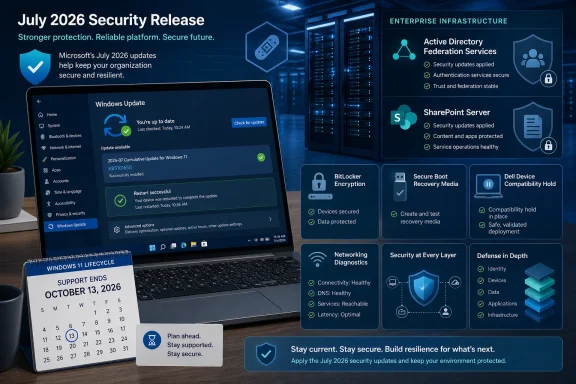 The Zero-Days Set the Patch Order
The three named zero-days should be separated by product and ownership rather than treated as one generic Windows problem.CVE-2026-56155 affects Active Directory Federation Services, or AD FS. Because AD FS is identity infrastructure and is often exposed to partners, remote users, or internet-facing authentication flows, administrators should determine whether their organization runs an affected deployment and consult Microsoft’s security-update guidance for the applicable product update.
CVE-2026-56164 affects Microsoft SharePoint Server. SharePoint commonly holds internal documents, workflows, intranet content, and connections to other business systems. SharePoint Server administrators should identify affected deployments, review Microsoft’s security-update guidance, and apply the relevant SharePoint update through their normal server-maintenance process.
CVE-2026-50661 concerns Windows BitLocker and is reported as a security-bypass issue. That makes the Windows client update relevant to organizations with BitLocker-protected endpoints, particularly where devices contain sensitive business or personal data.
These are not interchangeable risks. Internet-facing identity and collaboration infrastructure should lead the response because those services can represent high-consequence infrastructure. Windows endpoints should follow through a managed deployment process, with mobile and sensitive-data devices receiving early attention.
For consumers and small organizations using supported Windows 11 devices, the procedure is straightforward:
- Open Settings.
- Select Windows Update.
- Select Check for updates.
- Choose Download & install for the offered update.
- Select Restart when prompted.
Microsoft’s Windows Builds Carry Security Changes Beyond the CVE List
For Windows 11 25H2 and 24H2, Microsoft identifies KB5101650 as the July cumulative update. It moves version 25H2 to Build 26200.8875 and version 24H2 to Build 26100.8875. Windows 11 23H2 receives KB5099414 and moves to Build 22631.7376.| Windows 11 version | July cumulative update | July OS build | Support/lifecycle notice |
|---|---|---|---|
| 25H2 | KB5101650 | 26200.8875 | Current July security release |
| 24H2 | KB5101650 | 26100.8875 | Home and Pro end updates October 13, 2026; Enterprise and Education October 12, 2027 |
| 23H2 | KB5099414 | 22631.7376 | Enterprise and Education end updates November 10, 2026 |
One of the more consequential changes concerns third-party TDI transports. Microsoft’s guidance applies to updates released on or after July 14, 2026. Organizations that maintain specialized applications, legacy networking components, endpoint tools, or vendor software built around older networking assumptions should review the guidance and validate relevant workloads before broad deployment.
That warning will not matter to most home PCs, but it can matter to organizations that have not fully inventoried older networking dependencies. As a WindowsForum operational recommendation, a pilot ring should include devices running specialized networking software before deployment expands across the fleet. The question is not whether every application uses TDI; it is whether the organization knows which applications depend on nonstandard or legacy networking components.
Microsoft is also updating the curl tool bundled with Windows to version 8.21.0. Developers, automation teams, and administrators that rely on the in-box command-line environment should account for that change in their routine validation.
Remote Desktop is another area where the update points toward trust-configuration maintenance. Microsoft recommends using SHA-256 or a stronger algorithm for trusted RDP publisher certificate thumbprints. Organizations should identify configurations that continue to rely on SHA-1 and plan an orderly migration in line with that guidance. This is a configuration-review task, not a reason to defer the Windows security update.
Secure Boot and Recovery Media Need Validation, Not Assumptions
The Windows update information continues Microsoft’s work around newer Secure Boot certificates as existing certificates began expiring in June 2026. Microsoft says affected devices that have not yet received newer certificates will continue to start and that standard Windows updates will continue to install.That reassurance is useful, but Secure Boot changes still deserve operational testing. They are most visible not during ordinary daily use, but during recovery, reimaging, bare-metal deployment, offline servicing, or booting from custom installation media. A device can appear healthy in production while an outdated recovery workflow fails at the moment it is needed most.
Microsoft warns that missing
boot.stl on installation media can cause error 0xc0430001 when that media is used. Organizations using custom media, dynamic updates, Windows PE, or internally maintained deployment images should validate their recovery and provisioning paths before relying on them for broad rollout or incident recovery.The practical takeaway is narrower than a full imaging redesign: test the media your organization actually uses. Confirm that a representative device can boot it, reach the expected recovery or setup environment, and complete the organization’s standard provisioning sequence. This is a WindowsForum operational recommendation for teams that manage custom Windows deployment workflows.
Timeline
June 9, 2026 — Microsoft released KB5094126 for Windows 11 25H2 and 24H2, advancing builds to 26200.8655 and 26100.8655; Windows 11 23H2 received KB5093998.June 23, 2026 — Microsoft released the KB5095093 preview update for Windows 11 25H2 and 24H2, advancing builds to 26200.8736 and 26100.8736.
July 14, 2026 — Microsoft’s guidance for the third-party TDI transport registration change applies to updates released on or after this date. KB5101650 applies to Windows 11 25H2 and 24H2, while KB5099414 applies to Windows 11 23H2.
October 13, 2026 — Windows 11 24H2 Home and Pro editions reach end of updates.
November 10, 2026 — Windows 11 23H2 Enterprise and Education editions reach end of updates.
Dell’s Temporary Hold Requires Exception Tracking
Microsoft has placed a temporary safeguard hold on a limited number of Dell devices using Intel Innovation Platform Framework drivers because of an incompatibility involving an Intel component. Microsoft says affected systems may experience changes in performance, power consumption, or general system behavior, and that availability is expected to resume after the issue is addressed.For affected organizations, this is not an instruction to bypass Windows Update safeguards indiscriminately. It is an exception-management problem.
As a WindowsForum operational recommendation, administrators should identify the Dell systems in scope, record the affected driver and device populations, monitor Microsoft’s updated availability guidance, and maintain an explicit owner for each held device. Where a held device has elevated exposure or contains sensitive local data, teams can assess temporary compensating controls appropriate to their environment. Those controls should be based on the organization’s own risk model, not treated as a Microsoft-mandated substitute for the update.
For consumers, a Dell laptop that does not immediately receive KB5101650 may be subject to the safeguard hold rather than permanently excluded from servicing. The appropriate response is to use the normal Windows Update path and avoid improvised driver downloads or registry workarounds from untrusted sources.
A safeguard hold can be frustrating, but it is also a useful reminder that deployment velocity and deployment discipline are not opposites. The goal is to patch every eligible system quickly while keeping a visible, time-limited list of systems that cannot yet take the update.
Windows 11 Lifecycle Dates Belong in the Same Dashboard
Microsoft’s release information also highlights Windows 11 support deadlines that should be part of the same operational review.Windows 11 version 24H2 Home and Pro editions stop receiving updates on October 13, 2026. Enterprise and Education editions of 24H2 have support through October 12, 2027. Windows 11 23H2 Enterprise and Education editions reach end of updates on November 10, 2026.
Those dates change the nature of patch compliance. A device can be fully patched this month and still become a near-term support problem if it remains on an edition or version nearing end of updates. Organizations should inventory not merely “Windows 11” devices, but the exact version and edition running on each device.
Microsoft also notes that KB5027397 is the enablement package needed to update to Windows 11 23H2. The larger lesson is that Windows servicing remains version-specific. Upgrade eligibility, enablement packages, cumulative updates, and lifecycle dates all depend on the precise release and edition in use.
Microsoft’s release information also includes updates to AI components such as Image Search, Content Extraction, Semantic Analysis, and Settings Model. Regardless of which devices receive those components, their inclusion reflects the increasingly modular nature of Windows servicing: endpoint-management teams must account for more than the traditional operating system core when validating a release.
Prioritized rollout checklist for admins
The following sequence is a WindowsForum operational recommendation for organizations that need to balance exposure, testing, and deployment speed.- Hand off AD FS and SharePoint Server review to the relevant server owners. Identify affected deployments, consult Microsoft’s security-update guidance, obtain the applicable product updates, and use established server-maintenance and monitoring procedures to confirm completion.
- Pilot the Windows client updates. Deploy KB5101650 to a representative Windows 11 25H2 and 24H2 ring, and KB5099414 to a representative 23H2 ring. Include BitLocker-protected mobile systems, devices used by privileged staff, systems running critical line-of-business software, and machines with known legacy networking dependencies.
- Track Dell Intel IPF exceptions. Identify Dell devices affected by the temporary safeguard hold, document their business owner and risk level, and monitor Microsoft’s guidance for renewed availability. Keep the exception list active until affected devices receive the update.
- Validate recovery and deployment media. Test the organization’s installation and recovery media, especially where custom images, Windows PE, dynamic updates, or offline servicing are involved. Confirm that the media boots successfully and account for Microsoft’s warning that a missing
boot.stlfile can result in error 0xc0430001. - Test relevant networking workloads. Review specialized applications and vendor components that may depend on third-party TDI transports or older networking assumptions. Microsoft’s TDI guidance applies to updates released on or after July 14, 2026.
- Review RDP publisher trust settings. Identify trusted RDP publisher configurations using SHA-1 thumbprints and plan migration to SHA-256 or a stronger algorithm, following Microsoft’s recommendation.
- Move to broad client deployment after validation. Confirm installation through endpoint-management reporting, including successful installation and restart status. Devices that are offline, paused, held, or repeatedly failing installation should remain visible as exceptions rather than being counted as compliant.
- Reconcile version inventory with lifecycle dates. Flag Windows 11 24H2 Home and Pro systems approaching October 13, 2026, and Windows 11 23H2 Enterprise and Education systems approaching November 10, 2026. Treat version migration as part of security readiness rather than a separate future project.
What Windows Users Should Verify After Installation
For individual users, the most important check is that Windows Update has actually completed the cumulative update and restarted the device. Opening Windows Update without installing an offered update is not the same as being protected.Use Settings > Windows Update > Check for updates > Download & install > Restart, then confirm the result in one of two places:
- Settings > System > About for the Windows version and OS build.
- Windows Update > Update history for the installed cumulative update entry.
Organizations should make the same distinction at scale. A deployment dashboard should show not only that an update was targeted, but that it downloaded, installed, restarted successfully, and reported the expected build. Devices that are offline, paused, held, or repeatedly failing installation need separate follow-up rather than being counted as broadly compliant.
The Practical Reading of July’s Security Release
The July 2026 release calls for a focused sequence rather than a single blanket action. Server owners should review the applicable AD FS and SharePoint Server security updates through Microsoft’s security-update guidance. Endpoint teams should then pilot and deploy the applicable Windows cumulative updates, while tracking Dell Intel IPF exceptions and testing workloads covered by the TDI transport guidance.The BitLocker issue reinforces the importance of promptly updating managed Windows endpoints. The Secure Boot and
boot.stl warning reinforces the value of testing recovery media. The RDP publisher guidance reinforces the need to move away from SHA-1 dependencies in favor of SHA-256 or stronger configurations. And the Windows 11 lifecycle dates reinforce that patch compliance is incomplete if a fleet is left on versions nearing end of updates.For WindowsForum readers, the useful takeaway is not simply “install the update.” It is to install and verify the Windows update on clients, give server-product remediation to the appropriate owners, keep Dell-held devices on an explicit exception list, and validate recovery paths before the next incident makes that validation urgent.
References
- Primary source: samaa.tv
Published: 2026-07-16T09:53:30+00:00
Loading…
www.samaa.tv - Official source: support.microsoft.com
Loading…
support.microsoft.com - Related coverage: techrepublic.com
Loading…
www.techrepublic.com - Related coverage: bleepingcomputer.com
Loading…
www.bleepingcomputer.com - Related coverage: techlicious.com
Microsoft ships record Patch Tuesday fixing active attacks
July's Patch Tuesday fixes more vulnerabilities than any release in Microsoft's history, including two flaws already being exploited. Here's what to update now.www.techlicious.com - Related coverage: pcworld.com
Microsoft's July patches fix over 600 flaws, shattering last month's record | PCWorld
Microsoft's July 2026 Patch Tuesday fixed 570 security vulnerabilities, pushing the monthly total past 620 and to a new all-time record.www.pcworld.com
