

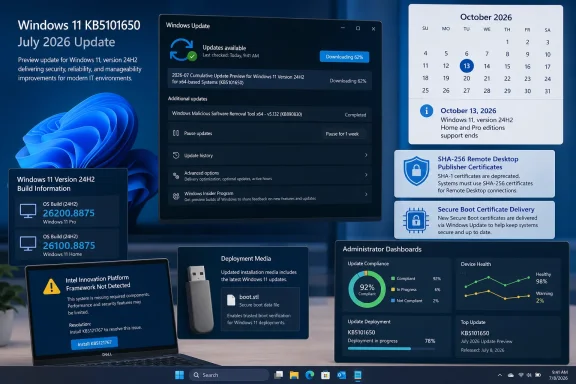
Microsoft’s July 14, 2026 cumulative update for Windows 11, KB5101650, applies to Windows 11 versions 25H2 and 24H2, bringing them to builds 26200.8875 and 26100.8875 respectively. The release adds SHA-2 thumbprint support for trusted Remote Desktop publishers, updates the inbox
For most organizations, KB5101650 belongs in the normal monthly deployment process: validate it in pilot rings, pay particular attention to Dell systems using Intel Innovation Platform Framework drivers, migrate Remote Desktop publisher trust settings from SHA-1 to SHA-256, and test deployment media that uses Dynamic Update.
Microsoft temporarily held KB5101650 for a limited set of Dell devices with Intel Innovation Platform Framework, or Intel IPF, drivers because of an incompatibility involving an Intel component. Microsoft resolved that issue with the out-of-band update KB5121767. Affected Dell and Intel IPF devices should obtain KB5121767 through their approved Windows Update or endpoint-management channel rather than by manually forcing KB5101650 onto devices subject to the compatibility safeguard.
The most actionable configuration change in KB5101650 is the addition of SHA-2 certificate-thumbprint support for trusted Remote Desktop publishers. Microsoft continues to support SHA-1 thumbprints for compatibility, but states that SHA-1 support is planned for future removal and recommends moving to SHA-256 or a stronger algorithm.
That gives administrators a transition period to identify signed
The relevant Group Policy settings are located at:
Computer Configuration > Administrative Templates > Windows Components > Remote Desktop Services > Remote Desktop Connection Client
Administrators should review these policy names:
This is also a useful opportunity to review who creates and distributes RDP files. The new capability does not replace normal controls around privileged access, signed scripts, remote-access gateways, multifactor authentication, or least-privilege administration. It does provide a clearer trust-management path for organizations that distribute signed RDP connection files.
The update also advances the Windows inbox
Microsoft additionally updated Image Search, Content Extraction, Semantic Analysis, and Settings Model AI components to version 1.2605.856.0. The supplied release information verifies the component names and version; administrators should confirm applicability within their own Windows deployment inventory before treating those component updates as relevant to a particular hardware group.
KB5101650 includes additional device-targeting data associated with this certificate-delivery work. The practical point for managed Windows environments is that Secure Boot certificate maintenance is now part of regular servicing and should be included in update validation, recovery planning, and image-management processes.
Microsoft’s deployment guidance also identifies a specific requirement for Dynamic Update scenarios that use existing Windows images: installation media must include
That makes boot-media validation a separate workstream from ordinary endpoint patch deployment. A device can successfully install the monthly cumulative update while an old task sequence, recovery image, USB deployment package, or bare-metal process still lacks the required file.
WindowsForum recommends that endpoint engineering teams test at least one representative deployment path after updating media:
June 23, 2026 — KB5095093 Preview released, advancing the two versions to builds 26200.8736 and 26100.8736.
June 2026 — Secure Boot certificates used by many Windows devices began reaching their expiration period.
July 14, 2026 — Microsoft released KB5101650 for Windows 11 25H2 and 24H2, taking them to builds 26200.8875 and 26100.8875.
October 13, 2026 — Windows 11 version 24H2 Home and Pro reach the end of updates.
October 12, 2027 — Windows 11 version 24H2 Enterprise and Education reach end of support.
For administrators, the key task is identifying whether their fleet includes affected Dell and Intel IPF combinations. If an organization has a supported Dell management platform or endpoint-management integration that reports installed drivers, that console is the preferred inventory source. This is vendor-management-console work where Dell-specific model, BIOS, driver, and support status data are required.
A practical Windows-side triage method is to query installed signed drivers and look for Intel Innovation Platform Framework naming. For example, an administrator can use PowerShell:
The output should be treated as an inventory lead, not as a substitute for Dell’s own device and driver guidance. Driver naming can vary by model and package. Organizations using Microsoft Intune, Configuration Manager, or a Dell management console should build a collection or report for Dell systems with Intel IPF-related drivers, then deploy KB5121767 through the approved update channel to devices identified as affected.
WindowsForum recommends a focused deployment ring for these systems. Validate restart behavior, basic performance, power-management behavior, and any business-critical workloads before expanding deployment to the remaining Dell population. The goal is to test the known hardware-driver boundary without delaying KB5101650 across unrelated Windows devices.
The release information does not establish which applications, product categories, configurations, or transport-registration states are affected. Administrators with older network software, proprietary communications components, or specialized endpoint tooling should therefore include those products in normal pilot-ring testing and engage the relevant vendor if a compatibility issue appears.
This is an area where targeted validation is more useful than broad assumptions. A standard Windows desktop population may never encounter the issue, while a small group of specialized systems could depend on legacy networking behavior that is not visible in ordinary application inventories.
KB5101650 also includes servicing stack update KB5120102, build 26100.8872. The supplied record verifies the KB number and build. As with other servicing components, administrators should include it in their normal cumulative-update reporting and validation process rather than assigning an unsupported purpose to the component.
Settings > System > About
Under Windows specifications, confirm the OS build:
For affected Dell and Intel IPF systems, use the organization’s approved Windows Update, Intune, Configuration Manager, WSUS, or vendor-management process to obtain KB5121767. Do not bypass a compatibility hold by manually forcing KB5101650 onto devices that were withheld.
The October 2026 date should be reflected in device-management reporting now. WindowsForum recommends separating 24H2 Home and Pro devices into a dedicated lifecycle report, identifying systems that cannot move immediately, and assigning owners for application testing, hardware review, and upgrade scheduling.
The immediate objective is straightforward: avoid reaching October with an unknown or unmanaged 24H2 Home and Pro population. Organizations should not use the later Enterprise and Education date as a proxy for Home and Pro support status.
The Dell and Intel IPF safeguard should be handled as a targeted compatibility-management task, not as a reason to suspend the month’s Windows servicing program. Likewise, the TDI note calls for testing of legacy or specialized networking products rather than assumptions about widespread impact.
The longer planning item is Windows 11 24H2 Home and Pro. October 13, 2026 is the verified end-of-updates date, and organizations should use the remaining time to reduce that population through normal upgrade planning. The best next step is to pair July’s deployment with evidence: verified OS builds, documented RDP SHA-256 migration, tested boot media, a Dell/IPF inventory, and a named upgrade plan for every remaining 24H2 Home or Pro device.
curl version to 8.21.0, continues Secure Boot certificate delivery through Windows Update, and carries an important lifecycle deadline: Windows 11 24H2 Home and Pro reach the end of updates on October 13, 2026.For most organizations, KB5101650 belongs in the normal monthly deployment process: validate it in pilot rings, pay particular attention to Dell systems using Intel Innovation Platform Framework drivers, migrate Remote Desktop publisher trust settings from SHA-1 to SHA-256, and test deployment media that uses Dynamic Update.
Microsoft temporarily held KB5101650 for a limited set of Dell devices with Intel Innovation Platform Framework, or Intel IPF, drivers because of an incompatibility involving an Intel component. Microsoft resolved that issue with the out-of-band update KB5121767. Affected Dell and Intel IPF devices should obtain KB5121767 through their approved Windows Update or endpoint-management channel rather than by manually forcing KB5101650 onto devices subject to the compatibility safeguard.
 Remote Desktop Publisher Trust Moves Toward SHA-2
The most actionable configuration change in KB5101650 is the addition of SHA-2 certificate-thumbprint support for trusted Remote Desktop publishers. Microsoft continues to support SHA-1 thumbprints for compatibility, but states that SHA-1 support is planned for future removal and recommends moving to SHA-256 or a stronger algorithm.That gives administrators a transition period to identify signed
.rdp file workflows, update trust lists, and find dependencies that still rely on SHA-1. RDP files commonly move among help desks, administrators, contractors, and users. Publisher trust controls provide a way to define which signed RDP files are acceptable in managed environments.The relevant Group Policy settings are located at:
Computer Configuration > Administrative Templates > Windows Components > Remote Desktop Services > Remote Desktop Connection Client
Administrators should review these policy names:
- Specify SHA1 thumbprints of trusted .rdp publishers
- Specify SHA256 thumbprints of trusted .rdp publishers
This is also a useful opportunity to review who creates and distributes RDP files. The new capability does not replace normal controls around privileged access, signed scripts, remote-access gateways, multifactor authentication, or least-privilege administration. It does provide a clearer trust-management path for organizations that distribute signed RDP connection files.
The update also advances the Windows inbox
curl utility to version 8.21.0. That version change is relevant to administrators and developers whose scripts, troubleshooting procedures, or deployment tooling call the copy of curl included with Windows. Organizations should verify which curl executable their automation invokes before assuming that every workflow uses the inbox version.Microsoft additionally updated Image Search, Content Extraction, Semantic Analysis, and Settings Model AI components to version 1.2605.856.0. The supplied release information verifies the component names and version; administrators should confirm applicability within their own Windows deployment inventory before treating those component updates as relevant to a particular hardware group.
Secure Boot Certificate Delivery Continues Through Windows Update
Secure Boot certificates used by many Windows devices began reaching their expiration period in June 2026. Microsoft states that newer certificates will continue to arrive through Windows Update in the coming months.KB5101650 includes additional device-targeting data associated with this certificate-delivery work. The practical point for managed Windows environments is that Secure Boot certificate maintenance is now part of regular servicing and should be included in update validation, recovery planning, and image-management processes.
Microsoft’s deployment guidance also identifies a specific requirement for Dynamic Update scenarios that use existing Windows images: installation media must include
boot.stl. If boot.stl is omitted, a device can fail to start from the media and display error 0xc0430001.That makes boot-media validation a separate workstream from ordinary endpoint patch deployment. A device can successfully install the monthly cumulative update while an old task sequence, recovery image, USB deployment package, or bare-metal process still lacks the required file.
WindowsForum recommends that endpoint engineering teams test at least one representative deployment path after updating media:
- Update the Windows installation media or task-sequence content used with Dynamic Update.
- Confirm that
boot.stlis present in the deployment media. - Test a bare-metal or recovery deployment in a controlled environment.
- Record whether the device starts from media without error 0xc0430001.
- Retain the tested media version and validation result in the deployment runbook.
Timeline
June 9, 2026 — KB5094126 released, taking Windows 11 versions 25H2 and 24H2 to builds 26200.8655 and 26100.8655.June 23, 2026 — KB5095093 Preview released, advancing the two versions to builds 26200.8736 and 26100.8736.
June 2026 — Secure Boot certificates used by many Windows devices began reaching their expiration period.
July 14, 2026 — Microsoft released KB5101650 for Windows 11 25H2 and 24H2, taking them to builds 26200.8875 and 26100.8875.
October 13, 2026 — Windows 11 version 24H2 Home and Pro reach the end of updates.
October 12, 2027 — Windows 11 version 24H2 Enterprise and Education reach end of support.
Dell Intel IPF Systems Need Targeted Inventory
The Dell issue associated with KB5101650 was narrow: Microsoft temporarily withheld the update from a limited number of Dell devices using Intel Innovation Platform Framework drivers because of an incompatibility involving an Intel component. Microsoft resolved the issue through KB5121767.For administrators, the key task is identifying whether their fleet includes affected Dell and Intel IPF combinations. If an organization has a supported Dell management platform or endpoint-management integration that reports installed drivers, that console is the preferred inventory source. This is vendor-management-console work where Dell-specific model, BIOS, driver, and support status data are required.
A practical Windows-side triage method is to query installed signed drivers and look for Intel Innovation Platform Framework naming. For example, an administrator can use PowerShell:
Code:
Get-CimInstance Win32_PnPSignedDriver |
    Where-Object {
        $_.DeviceName -match 'Innovation Platform Framework|Intel.*IPF' -or
        $_.DriverName -match 'Innovation Platform Framework|Intel.*IPF'
    } |
Select-Object DeviceName, DriverName, DriverVersion, Manufacturer, InfNameWindowsForum recommends a focused deployment ring for these systems. Validate restart behavior, basic performance, power-management behavior, and any business-critical workloads before expanding deployment to the remaining Dell population. The goal is to test the known hardware-driver boundary without delaying KB5101650 across unrelated Windows devices.
A Legacy Transport Compatibility Note
Microsoft notes that third-party TDI transport behavior may be affected by security updates released on or after July 14, 2026.The release information does not establish which applications, product categories, configurations, or transport-registration states are affected. Administrators with older network software, proprietary communications components, or specialized endpoint tooling should therefore include those products in normal pilot-ring testing and engage the relevant vendor if a compatibility issue appears.
This is an area where targeted validation is more useful than broad assumptions. A standard Windows desktop population may never encounter the issue, while a small group of specialized systems could depend on legacy networking behavior that is not visible in ordinary application inventories.
June Issues and Servicing Components
Microsoft links Office OLE Automation and Recycle Bin issues to the June 2026 update, KB5094126. The supplied information does not establish that KB5101650 resolves those issues, nor does it establish detailed symptoms or affected application scenarios. Organizations that encountered either issue after deploying KB5094126 should confirm their current update state and follow Microsoft’s applicable known-issue guidance.KB5101650 also includes servicing stack update KB5120102, build 26100.8872. The supplied record verifies the KB number and build. As with other servicing components, administrators should include it in their normal cumulative-update reporting and validation process rather than assigning an unsupported purpose to the component.
Installation and Verification Procedure
For a standard Windows device, install KB5101650 through Windows Update:- Open Settings.
- Select Windows Update.
- Select Check for updates.
- When KB5101650 is offered, select Download & install.
- Select Restart when prompted.
Settings > System > About
Under Windows specifications, confirm the OS build:
- Windows 11 version 25H2: 26200.8875
- Windows 11 version 24H2: 26100.8875
Code:
Get-ComputerInfo |
Select-Object WindowsProductName, WindowsVersion, OsBuildNumberOctober Is the 24H2 Home and Pro Planning Deadline
KB5101650 supports both Windows 11 24H2 and 25H2, but the lifecycle dates differ by edition. Windows 11 24H2 Home and Pro reach the end of updates on October 13, 2026. Windows 11 24H2 Enterprise and Education have a later end-of-support date of October 12, 2027.| Windows version / edition | KB5101650 target build | Update status | End of updates / support |
|---|---|---|---|
| Windows 11 25H2, all editions | 26200.8875 | Supported by this release | Not stated here |
| Windows 11 24H2 Home and Pro | 26100.8875 | Supported by this release | October 13, 2026 |
| Windows 11 24H2 Enterprise and Education | 26100.8875 | Supported by this release | October 12, 2027 |
The immediate objective is straightforward: avoid reaching October with an unknown or unmanaged 24H2 Home and Pro population. Organizations should not use the later Enterprise and Education date as a proxy for Home and Pro support status.
Action checklist for admins
- Install KB5101650 through the normal update process and verify build 26200.8875 on Windows 11 25H2 or 26100.8875 on Windows 11 24H2.
- Use pilot deployment rings before broad deployment, with focused validation for specialized networking software and custom deployment workflows.
- Inventory Dell systems with Intel Innovation Platform Framework drivers through an approved Dell or endpoint-management console where available.
- For identified Dell/IPF devices, obtain KB5121767 through the approved Windows Update or management channel; do not manually force KB5101650 past a safeguard hold.
- Review Computer Configuration > Administrative Templates > Windows Components > Remote Desktop Services > Remote Desktop Connection Client.
- Migrate approved RDP publisher thumbprints from Specify SHA1 thumbprints of trusted .rdp publishers to Specify SHA256 thumbprints of trusted .rdp publishers after testing.
- Validate Dynamic Update deployment media and confirm that
boot.stlis included to avoid error 0xc0430001. - Identify Windows 11 24H2 Home and Pro systems and schedule their move to a supported Windows 11 version before October 13, 2026.
- Verify which
curlbinary is used by scripts and automation if those workflows depend on the Windows inbox tool.
What to Carry Into the Next Maintenance Window
KB5101650 is a standard cumulative update in deployment terms, but it contains several items that benefit from planned operational follow-up. The confirmed build targets are clear, the RDP publisher-trust transition has a concrete Group Policy path, Secure Boot certificate delivery continues through Windows Update, and Dynamic Update media requires attention toboot.stl.The Dell and Intel IPF safeguard should be handled as a targeted compatibility-management task, not as a reason to suspend the month’s Windows servicing program. Likewise, the TDI note calls for testing of legacy or specialized networking products rather than assumptions about widespread impact.
The longer planning item is Windows 11 24H2 Home and Pro. October 13, 2026 is the verified end-of-updates date, and organizations should use the remaining time to reduce that population through normal upgrade planning. The best next step is to pair July’s deployment with evidence: verified OS builds, documented RDP SHA-256 migration, tested boot media, a Dell/IPF inventory, and a named upgrade plan for every remaining 24H2 Home or Pro device.
References
- Primary source: quasa.io
Published: 2026-07-20T01:45:00+00:00
July 2026 Patch Tuesday: KB5101650 Windows 11 Update
Details on KB5101650 for Windows 11 25H2 and 24H2, including RDP SHA-2 support, curl 8.21.0 upgrade, Secure Boot certificates, and known issues from the July 14, 2026 release.quasa.io
- Related coverage: windowscentral.com
Windows 11’s massive July 2026 update fixes 570 vulnerabilities and shows how AI is quietly reshaping Patch Tuesday itself | Windows Central
Microsoft says AI is reshaping Windows security, and the July 2026 Patch Tuesday update is the first major sign of what's coming.www.windowscentral.com - Official source: support.microsoft.com
July 14, 2026—KB5101650 (OS Builds 26200.8870 and 26100.8875) | Microsoft Support
July 14, 2026—KB5101650 (OS Builds 26200.8870 and 26100.8875)support.microsoft.com - Related coverage: windowsforum.com
KB5101650 July 2026: Install Windows 11 Builds 26200.8875 and 26100.8875 | Windows Forum
Microsoft’s July 2026 Patch Tuesday delivers KB5101650 for Windows 11 versions 25H2 and 24H2, moving supported PCs to builds 26200.8875 and 26100.8875...windowsforum.com - Related coverage: pureinfotech.com
KB5101650 (build 26200.8875) for Windows 11 drops as part of the July 2026 update - Pureinfotech
KB5101650 for Windows 11 (build 26200.8875) introduces Point-in-time Restore, Widgets changes, and major improvements to File Explorer, Bluetooth, and the system. pureinfotech.com
- Related coverage: windows-faq.de
KB5101650 für Windows 11: Juli Update 2026 mit Sicherheitsfixes und Dell Warnung - Windows FAQ
KB5101650 für Windows 11 24H2 und 25H2 bringt Sicherheitsfixes und neue Funktionen. Alle Änderungen, Probleme und Downloadlinks.www.windows-faq.de
