

A MakeUseOf writer replaced Windows 11 Snap Layouts with three third-party tiling window managers on a Windows gaming PC, testing GlazeWM, Komorebi, and FancyWM before settling on Komorebi for a more Linux-like, keyboard-driven desktop experience. The experiment lands because it says out loud what many power users discover slowly: Windows has learned to imitate tiled desktops without quite embracing the discipline that makes tiling useful. Snap Layouts are a convenience feature. A tiling window manager is a worldview.
Microsoft has spent years making Windows snapping prettier, more discoverable, and more marketable. Windows 11’s Snap Layouts are not a trivial feature; for mainstream users, they are one of the operating system’s better quality-of-life improvements. Hover over the maximize button, pick a grid, and Windows politely helps you arrange an application alongside others.
But the MakeUseOf piece exposes the old bargain underneath the new UI. Snap Layouts still assume the user is the window manager. Windows suggests, previews, and assists, but it does not truly take responsibility for the desktop.
That distinction matters more on modern hardware than it did when Aero Snap arrived in the Windows 7 era. A 13-inch laptop, a 15-inch gaming notebook, a 34-inch ultrawide, and a triple-monitor workstation are not the same computing environment. Yet Windows continues to treat layout as a mostly manual action performed after the mess has already appeared.
The appeal of tiling is not that windows become rectangular. Windows already does rectangles. The appeal is that new windows arrive with intent.
The trouble starts when a workflow becomes dynamic. Developers open terminals, editors, browsers, documentation, test runners, package managers, and chat windows. Sysadmins juggle remote consoles, monitoring dashboards, ticket queues, PowerShell, and vendor portals. Writers live between notes, drafts, research, screenshots, and messaging apps.
At that point, Snap Layouts stop feeling like automation and start feeling like a chore with a nicer animation. Each window still needs a decision. Each new application interrupts the current arrangement. Each monitor adds another surface where accidental snapping, inconsistent sizing, and display-specific layouts can become minor but persistent friction.
Microsoft’s own developer guidance also hints at the limits of the model. Desktop apps with minimum window sizes that exceed a Snap zone may not fit correctly, which means the feature is partly dependent on application behavior. That is not a fatal flaw, but it is a reminder that Snap Layouts are layered on top of the Win32 desktop rather than replacing its basic assumptions.
But FancyZones is still fundamentally a snapping tool. It improves the targets. It does not fully remove the act of targeting.
That is the philosophical gap the MakeUseOf test ran into. FancyZones is excellent when you know exactly where you want a window and want Windows to make that placement easier. A tiling window manager is different because it assumes the layout should continuously adapt as the set of open windows changes.
For a casual user, that may sound aggressive. For a Linux user who has spent time in i3, Sway, XMonad, AwesomeWM, bspwm, or Hyprland, it sounds normal. The system keeps the desktop coherent, and the user operates at a higher level: move focus, send a window to another workspace, split the current container, promote one pane, close another.
That is why FancyZones can feel powerful and insufficient at the same time. It gives Windows better lanes. It does not drive.
Keyboard-centric desktops are not merely about speed. They are about preserving mental state. Every time a user reaches for the mouse to rescue a window, resize a pane, drag something across a display boundary, or hunt through Alt-Tab chaos, the operating system has leaked into the task.
Linux tiling environments reduce that leakage by making navigation mechanical. Focus left. Focus right. Send this window to workspace two. Move this pane. Toggle floating mode. The learning curve is real, but once the commands settle into muscle memory, the desktop becomes less like a pile of windows and more like an instrument panel.
Windows has historically optimized for approachability, compatibility, and mouse-first flexibility. Those values explain much of its success. They also explain why tiling has never been a first-class Windows behavior.
The irony is that Windows now attracts exactly the kind of users who would benefit from stronger tiling. Windows Terminal, WSL, Dev Home, winget, PowerToys, Hyper-V, Visual Studio Code, and cloud administration have made Windows a legitimate developer and operations workstation again. But the shell those tools live inside still often behaves as if the primary workflow is one document, one browser, and one email client.
The MakeUseOf test found GlazeWM quick to install and immediately satisfying. That is important. Many Windows users curious about tiling will abandon the idea if the first hour involves dependency archaeology, PATH repairs, or opaque startup behavior. A tiling manager that can be installed with winget and begin arranging windows quickly has already cleared a major hurdle.
GlazeWM’s weakness, at least in the author’s test, was layout density. On a 15-inch display, horizontal tiling became cramped after several windows. Workspaces help, but that also shifts the burden from spatial layout to workspace discipline. Users who already think in workspaces will be comfortable. Users who expect one screen to absorb everything may feel constrained.
Still, GlazeWM is probably the most legible recommendation for anyone coming from i3-style Linux setups. It exposes the logic. It rewards configuration. It feels less like a Windows utility and more like an alternate desktop policy bolted onto Windows.
The reported installation friction is not trivial. If winget installs a package but the command-line environment cannot find the binaries properly, the experience feels broken even when the software itself is not. PATH problems are the kind of papercut that makes open-source tooling look amateurish to mainstream users and familiar to everyone else.
Yet Komorebi won the author over because it made better layout decisions. Instead of simply carving a small screen into an increasingly thin row of vertical panes, it used a more flexible tiling approach that could create a large primary area with smaller secondary panes. That is the difference between tiling as ideology and tiling as usability.
Good tiling is not about treating every window equally. It is about giving the active task room while keeping supporting tasks visible. A browser, editor, terminal, and file manager should not always receive identical real estate. Real workflows have hierarchy.
Komorebi’s apparent advantage is that it better captured that hierarchy without requiring constant intervention. The install process may have been ugly, but the daily interaction felt more like the Linux experience the author wanted. For a tool in this category, that is the metric that matters.
That is not a lesser ambition. In fact, it may be the path by which tiling becomes accessible to a broader Windows audience. Linux tiling window managers often assume the user is willing to configure, learn, and occasionally suffer. Windows users tend to expect integration, discoverability, and reversibility.
FancyWM’s title-bar controls address that expectation. Splitting, floating, and rearranging through visible UI gives users a way into tiling without forcing them to become keyboard maximalists on day one. For many Windows users, that is exactly the right compromise.
But the MakeUseOf test also ran into a very Windows-specific problem: hotkey collisions. Windows already claims many Win-key combinations, and Windows 11 has expanded that surface with tools such as Snipping Tool shortcuts and text extraction features. A third-party window manager must either negotiate around those shortcuts or ask the user to remap habits that may already be deeply embedded.
That is where FancyWM’s Windows-native friendliness cuts both ways. It feels more at home in Windows, but it is also more exposed to Windows’ crowded shortcut namespace. For Linux converts chasing the pure keyboard workflow, Komorebi or GlazeWM may still feel more direct.
What it lacks is the willingness to make tiling a core desktop mode with opinionated behavior. That reluctance is understandable. Windows must support decades of applications, unpredictable window behaviors, enterprise manageability requirements, accessibility tools, remote sessions, weird installers, games, overlays, and vendor utilities. A tiling manager that aggressively controls windows could break expectations in subtle ways.
Gaming makes the problem especially delicate. The MakeUseOf author tested on a gaming PC, which is exactly the kind of machine where overlays, launchers, anti-cheat tools, borderless fullscreen modes, chat apps, capture utilities, and GPU control panels can all interact strangely with window management. A Linux tiling setup is often used by people who are already comfortable troubleshooting this kind of edge case. Windows has a much broader population to protect from itself.
That leaves third-party tools to serve the users who want stronger behavior and accept the trade-offs. It is an old Windows pattern. Microsoft builds the broad feature; power users build the sharp version.
The risk is fragmentation. GlazeWM, Komorebi, FancyWM, FancyZones, DisplayFusion, AquaSnap, AutoHotkey scripts, and vendor monitor tools all solve overlapping problems with different assumptions. The Windows ecosystem becomes richer, but the user has to choose a philosophy before choosing an app.
Snap Layouts help, but they are still based on a small set of predetermined arrangements. On a standard laptop, that can be sensible. On a 34-inch ultrawide, a 49-inch super ultrawide, or a mixed-DPI multi-monitor setup, users often want more than halves, thirds, and quadrants.
This is where tiling becomes less of a Linux affectation and more of a response to hardware abundance. More pixels do not automatically produce more productivity. Without good window management, they produce larger messes.
A real tiling workflow turns screen space into a managed resource. It can make an ultrawide feel like a set of terminals, browser panes, dashboards, and documents rather than one enormous desktop where windows drift around like paper on a desk. It also makes small screens more disciplined, assuming the tiling algorithm is smart enough not to punish the user with unusably narrow panes.
That last caveat is important. Tiling is not magic. Poor tiling on a small display can be worse than manual windows. The MakeUseOf comparison between GlazeWM and Komorebi shows that the algorithm matters as much as the concept.
But the more meaningful comparison is not Windows versus macOS. It is Windows versus the muscle memory users develop elsewhere. Once a user has lived inside a keyboard-driven tiling environment, conventional window management starts to feel slow in a way that is hard to explain to anyone who has not made the transition.
This is the same pattern that made Vim, Emacs, tmux, and terminal multiplexers so sticky. The first week is awkward. The second week is tolerable. Then, at some point, using a mouse to rearrange windows feels like editing text without keyboard shortcuts.
Microsoft has tried to bridge that divide with features that are discoverable rather than demanding. Snap Layouts are visible. FancyZones has an editor. Virtual desktops are integrated into Task View. These are good choices for a mass-market OS.
But power users often want tools that are demanding because they are consistent. A tiling manager does not merely save clicks. It creates a contract: if I do this, the desktop will respond in this predictable way every time.
Those questions do not make tiling a bad idea. They simply define the boundary between personal productivity tooling and managed desktop policy. A sysadmin may love Komorebi on a personal workstation and still refuse to deploy it broadly.
There is also the support problem. When a third-party window manager changes how windows behave, every application issue can become ambiguous. Is the app broken? Is Windows behaving oddly? Is the window manager intercepting or repositioning something? Is a hotkey collision responsible? The productivity win for a skilled user can become a help desk tax in a shared environment.
That is where FancyZones retains an advantage. Because it comes through PowerToys, and because PowerToys is a Microsoft project aimed at power users, it may be easier to justify in some organizations than an independent tiling manager. Even then, many enterprises remain cautious about optional utilities that alter shell behavior.
The near-term future is therefore likely personal rather than corporate. Developers, administrators, analysts, and enthusiasts will keep adopting these tools machine by machine. Broad enterprise acceptance would require Microsoft to bless a tiling mode more formally or expose better management controls around it.
But Windows could absorb the central idea: new windows should be able to participate automatically in an active layout. Snap Layouts could become more persistent. Users could define a layout per monitor and choose whether new windows join it automatically. Virtual desktops could remember not just which apps are open, but how those apps relate spatially.
Microsoft could also make tiling a mode rather than a mandate. Imagine a per-desktop toggle: classic floating windows on one workspace, managed tiling on another. A developer could keep code, terminals, and documentation tiled on Desktop 2 while leaving meetings, games, and creative apps in the conventional floating model.
PowerToys is the obvious proving ground. FancyZones already knows about custom zones and per-monitor layouts. The next leap would be optional auto-placement rules, workspace-aware behavior, and stronger keyboard navigation. Microsoft does not need to clone Komorebi to learn from why it feels better.
The company should be careful, though. Tiling succeeds when it is predictable, and Windows features often fail power users when they become too adaptive, too animated, or too eager to guess. The point is not to make the desktop clever. It is to make it obedient.
That pressure will only grow as Windows becomes the host for more complex workflows. WSL has brought Linux command-line habits into Windows. Windows Terminal made multiplexed shell work feel modern. Cloud administration has turned browser tabs and terminals into the new office suite. AI coding tools, local models, remote development, and container workflows all multiply windows rather than reducing them.
Snap Layouts were designed for a cleaner desktop. Tiling window managers are designed for a busier one.
That is why the MakeUseOf author’s preference for Komorebi is so telling. The winner was not the easiest install, nor the most Windows-like interface. It was the tool that best reduced the recurring cost of window placement. In productivity software, daily friction beats setup friction almost every time.
But for the WindowsForum crowd — the people with too many consoles open, too many monitors attached, too many browser profiles running, and too much context switching in a day — tiling deserves a serious look. The category has matured enough that it is no longer just a novelty for Linux tourists.
The choice is less about which tool is objectively best than which trade-off fits your temperament. GlazeWM offers a familiar i3-like path with a clean configuration model. Komorebi appears to offer smarter dynamic layouts at the cost of more setup friction. FancyWM offers the gentlest Windows-native on-ramp, especially for users who still want mouse-visible controls.
The bigger point is that Windows itself is now the outlier in some advanced workflows. Not because it lacks window management features, but because it stops just short of automation.
The MakeUseOf test suggests a few concrete lessons for anyone trying to bring Linux-style tiling discipline to Windows:
Source: MakeUseOf I ditched Windows Snap Layouts for a tiling window manager and finally got the Linux experience I wanted
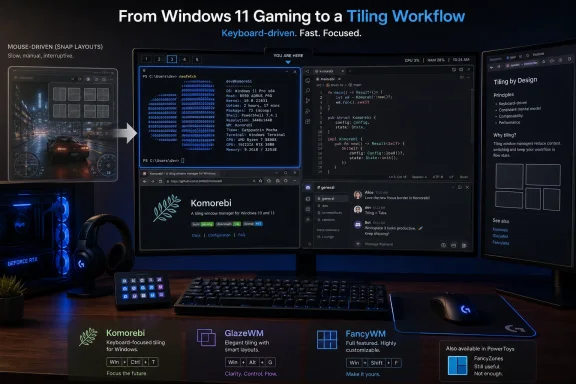 Windows Has a Window Management Problem It Keeps Decorating Instead of Solving
Microsoft has spent years making Windows snapping prettier, more discoverable, and more marketable. Windows 11’s Snap Layouts are not a trivial feature; for mainstream users, they are one of the operating system’s better quality-of-life improvements. Hover over the maximize button, pick a grid, and Windows politely helps you arrange an application alongside others.But the MakeUseOf piece exposes the old bargain underneath the new UI. Snap Layouts still assume the user is the window manager. Windows suggests, previews, and assists, but it does not truly take responsibility for the desktop.
That distinction matters more on modern hardware than it did when Aero Snap arrived in the Windows 7 era. A 13-inch laptop, a 15-inch gaming notebook, a 34-inch ultrawide, and a triple-monitor workstation are not the same computing environment. Yet Windows continues to treat layout as a mostly manual action performed after the mess has already appeared.
The appeal of tiling is not that windows become rectangular. Windows already does rectangles. The appeal is that new windows arrive with intent.
Snap Layouts Are Helpful Until the Third Window Arrives
Snap Layouts solve the first move elegantly. You drag a window to the top of the screen or hover over the maximize button, and the system offers a menu of sensible arrangements. For users who split a browser and Word, or Teams and Outlook, this is often enough.The trouble starts when a workflow becomes dynamic. Developers open terminals, editors, browsers, documentation, test runners, package managers, and chat windows. Sysadmins juggle remote consoles, monitoring dashboards, ticket queues, PowerShell, and vendor portals. Writers live between notes, drafts, research, screenshots, and messaging apps.
At that point, Snap Layouts stop feeling like automation and start feeling like a chore with a nicer animation. Each window still needs a decision. Each new application interrupts the current arrangement. Each monitor adds another surface where accidental snapping, inconsistent sizing, and display-specific layouts can become minor but persistent friction.
Microsoft’s own developer guidance also hints at the limits of the model. Desktop apps with minimum window sizes that exceed a Snap zone may not fit correctly, which means the feature is partly dependent on application behavior. That is not a fatal flaw, but it is a reminder that Snap Layouts are layered on top of the Win32 desktop rather than replacing its basic assumptions.
FancyZones Is the Halfway House Microsoft Built for Power Users
PowerToys FancyZones exists because Microsoft knows Snap Layouts do not satisfy everyone. FancyZones gives users custom zones, per-monitor layouts, and far more control over where windows can land. It is one of the strongest arguments for installing PowerToys on a serious Windows machine.But FancyZones is still fundamentally a snapping tool. It improves the targets. It does not fully remove the act of targeting.
That is the philosophical gap the MakeUseOf test ran into. FancyZones is excellent when you know exactly where you want a window and want Windows to make that placement easier. A tiling window manager is different because it assumes the layout should continuously adapt as the set of open windows changes.
For a casual user, that may sound aggressive. For a Linux user who has spent time in i3, Sway, XMonad, AwesomeWM, bspwm, or Hyprland, it sounds normal. The system keeps the desktop coherent, and the user operates at a higher level: move focus, send a window to another workspace, split the current container, promote one pane, close another.
That is why FancyZones can feel powerful and insufficient at the same time. It gives Windows better lanes. It does not drive.
The Linux Envy Is Really About Trusting the Keyboard
The most revealing part of the MakeUseOf account is not the complaint about Snap Layouts. It is the longing for a desktop where windows “just slot into the right place.” That is the emotional core of tiling window managers: they replace constant pointer corrections with a predictable grammar.Keyboard-centric desktops are not merely about speed. They are about preserving mental state. Every time a user reaches for the mouse to rescue a window, resize a pane, drag something across a display boundary, or hunt through Alt-Tab chaos, the operating system has leaked into the task.
Linux tiling environments reduce that leakage by making navigation mechanical. Focus left. Focus right. Send this window to workspace two. Move this pane. Toggle floating mode. The learning curve is real, but once the commands settle into muscle memory, the desktop becomes less like a pile of windows and more like an instrument panel.
Windows has historically optimized for approachability, compatibility, and mouse-first flexibility. Those values explain much of its success. They also explain why tiling has never been a first-class Windows behavior.
The irony is that Windows now attracts exactly the kind of users who would benefit from stronger tiling. Windows Terminal, WSL, Dev Home, winget, PowerToys, Hyper-V, Visual Studio Code, and cloud administration have made Windows a legitimate developer and operations workstation again. But the shell those tools live inside still often behaves as if the primary workflow is one document, one browser, and one email client.
GlazeWM Brings the i3 Instinct to Windows
GlazeWM is the cleanest conceptual bridge for Linux users because it borrows from the i3 tradition. It is configured with a YAML file, supports keyboard-driven navigation, and pairs with Zebar for a lightweight status bar. That matters because a tiling environment is not just a placement engine; it is also a way of representing workspaces, focus, and system state.The MakeUseOf test found GlazeWM quick to install and immediately satisfying. That is important. Many Windows users curious about tiling will abandon the idea if the first hour involves dependency archaeology, PATH repairs, or opaque startup behavior. A tiling manager that can be installed with winget and begin arranging windows quickly has already cleared a major hurdle.
GlazeWM’s weakness, at least in the author’s test, was layout density. On a 15-inch display, horizontal tiling became cramped after several windows. Workspaces help, but that also shifts the burden from spatial layout to workspace discipline. Users who already think in workspaces will be comfortable. Users who expect one screen to absorb everything may feel constrained.
Still, GlazeWM is probably the most legible recommendation for anyone coming from i3-style Linux setups. It exposes the logic. It rewards configuration. It feels less like a Windows utility and more like an alternate desktop policy bolted onto Windows.
Komorebi Wins Because Layout Intelligence Beats Installation Polish
Komorebi appears to have given the MakeUseOf author the roughest start and the best payoff. That is a very Windows power-user story: the tool that finally works the way you want is the one that makes you earn it first.The reported installation friction is not trivial. If winget installs a package but the command-line environment cannot find the binaries properly, the experience feels broken even when the software itself is not. PATH problems are the kind of papercut that makes open-source tooling look amateurish to mainstream users and familiar to everyone else.
Yet Komorebi won the author over because it made better layout decisions. Instead of simply carving a small screen into an increasingly thin row of vertical panes, it used a more flexible tiling approach that could create a large primary area with smaller secondary panes. That is the difference between tiling as ideology and tiling as usability.
Good tiling is not about treating every window equally. It is about giving the active task room while keeping supporting tasks visible. A browser, editor, terminal, and file manager should not always receive identical real estate. Real workflows have hierarchy.
Komorebi’s apparent advantage is that it better captured that hierarchy without requiring constant intervention. The install process may have been ugly, but the daily interaction felt more like the Linux experience the author wanted. For a tool in this category, that is the metric that matters.
FancyWM Understands Windows Users Better Than Linux Converts
FancyWM sits in the most interesting middle ground. It is available through the Microsoft Store, installs cleanly, and offers mouse-friendly controls above managed windows. It is tiling for people who want the desktop to organize itself but do not necessarily want to memorize a miniature command language.That is not a lesser ambition. In fact, it may be the path by which tiling becomes accessible to a broader Windows audience. Linux tiling window managers often assume the user is willing to configure, learn, and occasionally suffer. Windows users tend to expect integration, discoverability, and reversibility.
FancyWM’s title-bar controls address that expectation. Splitting, floating, and rearranging through visible UI gives users a way into tiling without forcing them to become keyboard maximalists on day one. For many Windows users, that is exactly the right compromise.
But the MakeUseOf test also ran into a very Windows-specific problem: hotkey collisions. Windows already claims many Win-key combinations, and Windows 11 has expanded that surface with tools such as Snipping Tool shortcuts and text extraction features. A third-party window manager must either negotiate around those shortcuts or ask the user to remap habits that may already be deeply embedded.
That is where FancyWM’s Windows-native friendliness cuts both ways. It feels more at home in Windows, but it is also more exposed to Windows’ crowded shortcut namespace. For Linux converts chasing the pure keyboard workflow, Komorebi or GlazeWM may still feel more direct.
Third-Party Tiling Lives in the Space Microsoft Leaves Unclaimed
There is a reason this niche exists at all. Microsoft could build a real tiling mode into Windows. It already has Snap Layouts, virtual desktops, PowerToys, window groups, and a modern terminal culture. The company has the ingredients.What it lacks is the willingness to make tiling a core desktop mode with opinionated behavior. That reluctance is understandable. Windows must support decades of applications, unpredictable window behaviors, enterprise manageability requirements, accessibility tools, remote sessions, weird installers, games, overlays, and vendor utilities. A tiling manager that aggressively controls windows could break expectations in subtle ways.
Gaming makes the problem especially delicate. The MakeUseOf author tested on a gaming PC, which is exactly the kind of machine where overlays, launchers, anti-cheat tools, borderless fullscreen modes, chat apps, capture utilities, and GPU control panels can all interact strangely with window management. A Linux tiling setup is often used by people who are already comfortable troubleshooting this kind of edge case. Windows has a much broader population to protect from itself.
That leaves third-party tools to serve the users who want stronger behavior and accept the trade-offs. It is an old Windows pattern. Microsoft builds the broad feature; power users build the sharp version.
The risk is fragmentation. GlazeWM, Komorebi, FancyWM, FancyZones, DisplayFusion, AquaSnap, AutoHotkey scripts, and vendor monitor tools all solve overlapping problems with different assumptions. The Windows ecosystem becomes richer, but the user has to choose a philosophy before choosing an app.
The Widescreen Monitor Is Forcing the Issue
The modern monitor market has made Microsoft’s old window model harder to defend. Ultrawide displays are not exotic anymore. Multi-monitor setups are common among developers, traders, creators, streamers, and IT staff. Even laptop panels have become sharper and taller, encouraging more side-by-side work.Snap Layouts help, but they are still based on a small set of predetermined arrangements. On a standard laptop, that can be sensible. On a 34-inch ultrawide, a 49-inch super ultrawide, or a mixed-DPI multi-monitor setup, users often want more than halves, thirds, and quadrants.
This is where tiling becomes less of a Linux affectation and more of a response to hardware abundance. More pixels do not automatically produce more productivity. Without good window management, they produce larger messes.
A real tiling workflow turns screen space into a managed resource. It can make an ultrawide feel like a set of terminals, browser panes, dashboards, and documents rather than one enormous desktop where windows drift around like paper on a desk. It also makes small screens more disciplined, assuming the tiling algorithm is smart enough not to punish the user with unusably narrow panes.
That last caveat is important. Tiling is not magic. Poor tiling on a small display can be worse than manual windows. The MakeUseOf comparison between GlazeWM and Komorebi shows that the algorithm matters as much as the concept.
The Real Competition Is Not macOS, It Is Muscle Memory
The article takes a quick swipe at macOS, arguing that Windows Snap Layouts are better than Apple’s native window management. That is a fair enough jab. Historically, macOS has leaned on full-screen spaces, Mission Control, and third-party tools rather than giving users a truly first-rate built-in tiling system.But the more meaningful comparison is not Windows versus macOS. It is Windows versus the muscle memory users develop elsewhere. Once a user has lived inside a keyboard-driven tiling environment, conventional window management starts to feel slow in a way that is hard to explain to anyone who has not made the transition.
This is the same pattern that made Vim, Emacs, tmux, and terminal multiplexers so sticky. The first week is awkward. The second week is tolerable. Then, at some point, using a mouse to rearrange windows feels like editing text without keyboard shortcuts.
Microsoft has tried to bridge that divide with features that are discoverable rather than demanding. Snap Layouts are visible. FancyZones has an editor. Virtual desktops are integrated into Task View. These are good choices for a mass-market OS.
But power users often want tools that are demanding because they are consistent. A tiling manager does not merely save clicks. It creates a contract: if I do this, the desktop will respond in this predictable way every time.
Enterprise IT Will Care About the Sharp Edges Before the Elegance
For individual enthusiasts, trying GlazeWM or Komorebi is a weekend project. For enterprise IT, third-party window managers raise the usual questions: how are they installed, updated, audited, configured, and removed? Do they require elevated privileges? Do they interfere with remote support? Do they confuse users during screen sharing or break line-of-business apps with unusual window constraints?Those questions do not make tiling a bad idea. They simply define the boundary between personal productivity tooling and managed desktop policy. A sysadmin may love Komorebi on a personal workstation and still refuse to deploy it broadly.
There is also the support problem. When a third-party window manager changes how windows behave, every application issue can become ambiguous. Is the app broken? Is Windows behaving oddly? Is the window manager intercepting or repositioning something? Is a hotkey collision responsible? The productivity win for a skilled user can become a help desk tax in a shared environment.
That is where FancyZones retains an advantage. Because it comes through PowerToys, and because PowerToys is a Microsoft project aimed at power users, it may be easier to justify in some organizations than an independent tiling manager. Even then, many enterprises remain cautious about optional utilities that alter shell behavior.
The near-term future is therefore likely personal rather than corporate. Developers, administrators, analysts, and enthusiasts will keep adopting these tools machine by machine. Broad enterprise acceptance would require Microsoft to bless a tiling mode more formally or expose better management controls around it.
Microsoft Should Steal the Best Idea, Not the Whole Subculture
The lesson for Microsoft is not that Windows needs to become i3. That would be a mistake. Most Windows users do not want their desktop transformed into a keyboard-first tiling environment with configuration files and workspace rituals.But Windows could absorb the central idea: new windows should be able to participate automatically in an active layout. Snap Layouts could become more persistent. Users could define a layout per monitor and choose whether new windows join it automatically. Virtual desktops could remember not just which apps are open, but how those apps relate spatially.
Microsoft could also make tiling a mode rather than a mandate. Imagine a per-desktop toggle: classic floating windows on one workspace, managed tiling on another. A developer could keep code, terminals, and documentation tiled on Desktop 2 while leaving meetings, games, and creative apps in the conventional floating model.
PowerToys is the obvious proving ground. FancyZones already knows about custom zones and per-monitor layouts. The next leap would be optional auto-placement rules, workspace-aware behavior, and stronger keyboard navigation. Microsoft does not need to clone Komorebi to learn from why it feels better.
The company should be careful, though. Tiling succeeds when it is predictable, and Windows features often fail power users when they become too adaptive, too animated, or too eager to guess. The point is not to make the desktop clever. It is to make it obedient.
The Komorebi Afternoon Says More About Windows Than About Linux
The MakeUseOf experiment is framed as one user chasing the Linux experience on a Windows gaming PC. But its broader significance is that Windows power users are no longer satisfied with decorative productivity features. They want the shell to do more of the work.That pressure will only grow as Windows becomes the host for more complex workflows. WSL has brought Linux command-line habits into Windows. Windows Terminal made multiplexed shell work feel modern. Cloud administration has turned browser tabs and terminals into the new office suite. AI coding tools, local models, remote development, and container workflows all multiply windows rather than reducing them.
Snap Layouts were designed for a cleaner desktop. Tiling window managers are designed for a busier one.
That is why the MakeUseOf author’s preference for Komorebi is so telling. The winner was not the easiest install, nor the most Windows-like interface. It was the tool that best reduced the recurring cost of window placement. In productivity software, daily friction beats setup friction almost every time.
The Windows Desktop Is Ready for a Managed Mode
The practical lesson is not that everyone should install Komorebi tomorrow. Many users are better served by Snap Layouts, and many more by FancyZones. Full-screen app users, mouse-first users, gamers, and people with simple workflows may find a tiling manager more intrusive than helpful.But for the WindowsForum crowd — the people with too many consoles open, too many monitors attached, too many browser profiles running, and too much context switching in a day — tiling deserves a serious look. The category has matured enough that it is no longer just a novelty for Linux tourists.
The choice is less about which tool is objectively best than which trade-off fits your temperament. GlazeWM offers a familiar i3-like path with a clean configuration model. Komorebi appears to offer smarter dynamic layouts at the cost of more setup friction. FancyWM offers the gentlest Windows-native on-ramp, especially for users who still want mouse-visible controls.
The bigger point is that Windows itself is now the outlier in some advanced workflows. Not because it lacks window management features, but because it stops just short of automation.
A Weekend Test Can Permanently Change a Desktop
For readers tempted to follow the same path, the safest approach is to treat tiling as an experiment rather than a conversion. Install one manager, learn the default shortcuts, and give it a few days. The first hour is not representative; tiling only starts to make sense after the desktop stops feeling unfamiliar.The MakeUseOf test suggests a few concrete lessons for anyone trying to bring Linux-style tiling discipline to Windows:
- Snap Layouts remain a strong default for casual multitasking, but they do not automatically manage new windows as a workflow grows.
- FancyZones is the right PowerToys upgrade when custom zones matter more than full keyboard-driven automation.
- GlazeWM is likely to appeal to users who already understand i3-style navigation and want a fast path into tiling on Windows.
- Komorebi may be worth the rougher setup if its layout behavior fits smaller screens and mixed workloads better.
- FancyWM is the friendliest option for users who want tiling benefits without giving up visible, mouse-oriented controls.
- Hotkey conflicts, application quirks, and gaming overlays remain the practical hazards that separate Windows tiling from a native Linux tiling session.
Source: MakeUseOf I ditched Windows Snap Layouts for a tiling window manager and finally got the Linux experience I wanted
