

LatencyMon is the kind of tiny, no‑nonsense utility that should live on every Windows PC because it looks where Task Manager cannot—inside the kernel—and turns confusing, intermittent stutter into actionable data you can actually use to fix the problem.
Windows is a general‑purpose operating system, not a real‑time OS. That design choice is why audio pops, micro‑stutters, and brief input freezes often happen even when CPU and RAM look perfectly normal in Task Manager. The root cause usually lies in kernel‑level timing: hardware interrupts, Deferred Procedure Calls (DPCs), and Interrupt Service Routines (ISRs) that take too long to complete and block other time‑sensitive work. LatencyMon measures those exact components—kernel timer latencies, DPC and ISR execution times, and hard page faults—and reports which kernel modules are responsible.
This is not theoretical: audio professionals and real‑time audio tools depend on predictable timing, and LatencyMon was explicitly designed as a suitability checker for real‑time audio and other tasks. That focus is why it’s useful far outside studios—games, video calls, streaming, and everyday desktop responsiveness all benefit from the same visibility.
Key signals LatencyMon provides:
LatencyMon’s combination of low cost, low friction, and high technical signal makes it a must‑have for power users, audio professionals, and anyone who needs a responsive, stable PC. Just remember: measure first, change carefully, and back up before you update firmware or make irreversible system changes.
Conclusion
LatencyMon turns invisible kernel timing problems into practical, testable data: a clear first step toward diagnosing the micro‑stutters and pops that frustrate gamers, streamers, creators, and remote workers. Treat its output as the starting point for a disciplined, evidence‑led troubleshooting process—update or roll back drivers, test BIOS and power settings conservatively, and use vendor diagnostics where appropriate. When used correctly and cautiously, LatencyMon moves you from symptoms to root causes faster than nearly any other free tool available today.
Source: MakeUseOf This free tool is perfect for diagnosing problems with your PC
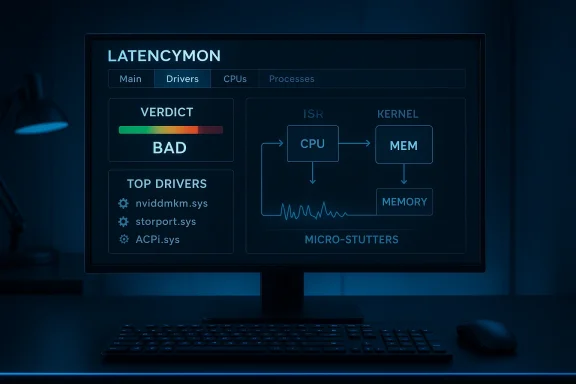 Background / Overview
Windows is a general‑purpose operating system, not a real‑time OS. That design choice is why audio pops, micro‑stutters, and brief input freezes often happen even when CPU and RAM look perfectly normal in Task Manager. The root cause usually lies in kernel‑level timing: hardware interrupts, Deferred Procedure Calls (DPCs), and Interrupt Service Routines (ISRs) that take too long to complete and block other time‑sensitive work. LatencyMon measures those exact components—kernel timer latencies, DPC and ISR execution times, and hard page faults—and reports which kernel modules are responsible.This is not theoretical: audio professionals and real‑time audio tools depend on predictable timing, and LatencyMon was explicitly designed as a suitability checker for real‑time audio and other tasks. That focus is why it’s useful far outside studios—games, video calls, streaming, and everyday desktop responsiveness all benefit from the same visibility.
How LatencyMon works — the essentials
LatencyMon performs three broad monitoring roles while it samples the system:- It measures kernel timer latencies to see where scheduling delays happen.
- It records ISR (Interrupt Service Routine) and DPC (Deferred Procedure Call) execution times, showing the top offenders by driver or kernel module.
- It tracks hard page faults, which occur when data must be read from disk rather than RAM and can cause audible dropouts in audio playback.
Why interrupts and DPCs matter
When hardware needs the CPU—say, a network adapter, USB controller, or GPU—it raises an interrupt. The ISR handles immediate work; if additional work remains, a DPC queues to complete it at a slightly lower priority. If either the ISR or DPC takes too long, the kernel cannot service other time‑sensitive tasks. That waiting is what your ears and eyes perceive as crackling audio, dropped frames, or momentary input freezes. LatencyMon quantifies those waits so you can see which component is blocking the queue.What LatencyMon tells you in practice
LatencyMon’s output is deceptively precise. The main tab gives a readable conclusion: if it says “suitable” in green, you likely don’t have kernel latency problems; red text means something is misbehaving. The real value, however, is the Drivers/ISR/DPC lists that let you name the culprit—for example, nvlddmkm.sys (NVIDIA), ACPI.)ge), or particular network and audio drivers. Community troubleshooting threads and guides repeatedly show the same pattern: once a driver is highlighted by LatencyMon, investigation and remediation become focused instead of guesswork.Key signals LatencyMon provides:
- Highest Execution times (ms) for ISRs and DPCs — these show the worst single runs.
- Cumulative counts and averages — useful for spotting intermittent but high‑impact spikes.
- Hard pagefault counts and which process or driver caused them.
- A readable conclusion and a saved report you can share with support or on forums.
Quick guide: Using LatencyMon effectively
LatencyMon is straightforward, but to get meaningful results you must reproduce the problem while the tool runs.- Install and run LatencyMon as administrator.
- Click the green Play button and continue using the PC exactly as you would when the stutter occurs (game, Zoom call, music playback).
- Let it run for a representative period—10–15 minutes is a common recommendation—but longer is better for intermittent issues.
- Return to the UI, read the top‑line conclusion, and switch to the Drivers tab if LatencyMon warns of problems.
- Sort by “Highest Execution (ms)” to find the top offenders, th for targeted investigation.
Common culprits and what to do about them
LatencyMon points to kernel modules, not fixes. Once you have a suspect, the next steps vary by driver type.Graphics drivers (nvlddmkm.sys, amdkmdag.sys)
Graphics drivers, particularly modern GPU drivers, often surface as the highest DPC/ISR consumers under load. Community reports since the GPU‑driver era show nvlddmkm.sys topping LatencyMon lists and correlating with stutter during gaming and video playback. When Nvidia or AMD drivers are implicated, common remediations include:- Try the latest driver from the GPU vendor and test; if the issue started after a driver update, roll back to the previous stable version.
- Use Display driver uninstall tools (for example, driver cleanup utilities mentioned in community threads) and reinstall in clean mode.
- Test with different Windows graphics options (disable features like Variable Rate Shading enhancements or vendor low‑latency toggles) to isolate the feature causing bad interactions.
Storage drivers and storport.sys
When storport.sys or other storage drivers show huge execution times, the sy/O blocking audio buffers or causing hard pagefaults. Fixes include:- Update or roll back storage/RAID/driver stacks.
- Test the drive (SMART, vendor diagnostics) and check for power‑saving features that spin drives up or down.
- Consider moving latency‑sensitive data (audio sample libraries, game assets) to a faster drive or ensuring they remain cached in RAM to avoid hard pagefaults.
ACPI.sys and power management
Power‑management drivers and firmware can introduce spikes by aggressively switching CPU or platform states. Users report ACPI.sys appearing in LatencyMon when aggressive power features or buggy firmware interact poorly. Troubleshooting steps:- Update BIOS/UEFI firmware; vendors periodically fix ACPI bugs.
- Try a High Performance or Ultimate Performance power plan and disable CPU C‑States or other aggressive power management features for testing.
- If a vendor utility (thermal framework, dynamic power tools) is present, try disabling it temporarily to check impact. Community threads demonstrate both success and risks with those changes—test and monitor system temperatures/battery life.
Network and USB drivers
Wi‑Fi and USB drivers—especially poorly behaved third‑party Wi‑Fi stacks or USB‑to‑serial adapters—can cause spikes. Standard practice:- Update the chipset, network adapter, and USB host controller drivers.
- Disable unused devices temporarily to see if latency improves.
- Check for IRQ sharing problems on older hardware.
A practical troubleshooting checklist (step‑by‑step)
Below is a prioritized workflow you can follow after LatencyMon flags an issue. Use it as a checklist—don’t skip steps.- Reproduce and record: Run LatencyMon while reproducing the stutter for 10–30 minutes and save the report.
- Identify the top .sys modules in the “Drivers” tab—note the top 3.
- For each top module:
- Search for the exact .sys name (e.g., nvlddmkm.sys, ACPI.sys, storport.sys) to identify the vendor/driver.
- Update the driver from the hardware vendor page (not just Windows Update).
- If problem appeared after an update, roll back to the last known‑good driver.
- Update BIOS/UEFI and chipset drivers. Many kernel timing issues are resolved at firmware or chipset level.
- Test power settings:
- Set Windows to High Performance or Ultimate Performance for testing.
- Disable USB selective suspend and PCIe Link State Power Management temporarily.
- Check memory and pagefile:
- If hard pagefaults are frequent, increase RAM, tune working sets for heavy audio apps, or consider moving large libraries to faster storage.
- Isolate third‑party software:
- Disable vendor utilities and background apps (especially audio, virtualization, or system utilities) to test.
- If a driver cannot be fixed, consider hardware workarounds:
- Use an external USB audio interface for audio work (bypasses some internal drivers).
- Replace or test suspect hardware on another system to confirm whether the issue is hardware‑bound.
Strengths — why LatencyMon deserves a permanent place on your toolbox
- Precision: It mlatencies and reports ISR/DPC execution times in microseconds—data few other free tools expose.
- Actionability: It names specific .sys files, letting you triage drivers quickly rather than guessing.
- Low friction: The interface is simple; start, reproduce, and read results. It is accessible to non‑experts while still providing deep data for power users.
- Free tier: A capable Home edition is available, with a Professional edition offering deeper features for advanced users. The Resplendence site documents editions and features.
Risks, limitations, and common pitfalls
No tool is magic. LatencyMon is powerful, but it has limitations and potential pitfalls you must understand.- LatencyMon diagnoses, it does not repair. It points to modules, not fixes. The next steps require careful updating, rolling back, or BIOS/firmware changes, which carry their own risk. Always back up data before major updates.
- Not every problem is a driver/ISR/DPC issue. Some stutters come from application‑level behavior, thermal throttling, or hardware faults that LatencyMon won’t directly reveal. Cross‑checking with hardware diagnostics remains essential. Community reports show examples where LatencyMon flagged a driver but the root cause was hardware or firmware.
- **False leads can occur during slling the latest driver is often the first suggestion, but sometimes the latest driver introduces regressions. Be prepared to roll back and test older driver versions. Community threads frequently document that the problem began after a driver update.
- BIOS and registry tweaks carry risk. Disabling C‑States or changing thermal frameworks can improve latency but may increase temperatures or reduce battery life. Apply such changes cautiously and monitor system health.
Real examples from the field
- A number of forum threads and community posts document consumers using LatencyMon to identify ACPI.sys and storport.sys as culprits and then resolving the problem through a combination of BIOS updates, driver rollbacks, and power‑plan changes. These threads illustrate both successful fixes and the stubborn cases that required more invasive workarounds.
- GPU driver problems, especially with high‑end or new GPU models, appear repeatedly in user reports: nvlddmkm.sys often shows high DPC peaks in LatencyMon and correlates with in‑game stuttering and audio crackling. The pattern shows up across independent community posts and technical blogs, underscoring that graphics drivers remain a frequent source of kernel latency issues.
Alternatives and complementary tools
LatencyMon should be th for, but several other utilities complement its output:- Windows Performance Toolkit (WPT) and Windows Performance Recorder (WPR) — far more detailed traces but with a steeper learning curve.
- Vendor diagnostic tools (Intel/AMD/NVIDIA utilities) — useful for firmware-level and vendor‑specific settings.
- Monitoring tools like Process Explorer and Resource Monitor — helpful for corroborating application‑level resource spikes.
- Audio‑specific solutions (ASIO4ALL, Voicemeeter) — useful workarounds for audio‑production contexts when kernel latency remains unresolved. Community experience shows these workarounds can mask issues for audio apps but introduce other compatibility tradeoffs.
Practical advice for forum and vendor support
When you open a support thread, a LatencyMon report is oneic things you can attach:- Include a short description of when the stutter occurs and the actions you were performing while LatencyMon was running.
- Attach or paste the LatencyMon summary and a screenshot of the Drivers tab sorted by “Highest Execution (ms).”
- Note any recent changes: driver updates, Windows updates, BIOS updates, or new peripherals.
Final verdict — When to reach for LatencyMon
If you experience intermittent audio pops, micro‑stutters in games, or brief input freezes while Task Manager looks calm, LatencyMon is the diagnostic jump‑start you need. It exposes kernel‑level timing issues and points you to exact drivers to investigate, transforming a long, unfocused troubleshooting session into a targeted plan of action. While it won’t automatically repair broken drivers or guarantee a fix, it gives you the evidence and vocabulary to move from guesswork to testing specific fixes—driver rollbacks, BIOS updates, power‑plan changes, or hardware replacement.LatencyMon’s combination of low cost, low friction, and high technical signal makes it a must‑have for power users, audio professionals, and anyone who needs a responsive, stable PC. Just remember: measure first, change carefully, and back up before you update firmware or make irreversible system changes.
Conclusion
LatencyMon turns invisible kernel timing problems into practical, testable data: a clear first step toward diagnosing the micro‑stutters and pops that frustrate gamers, streamers, creators, and remote workers. Treat its output as the starting point for a disciplined, evidence‑led troubleshooting process—update or roll back drivers, test BIOS and power settings conservatively, and use vendor diagnostics where appropriate. When used correctly and cautiously, LatencyMon moves you from symptoms to root causes faster than nearly any other free tool available today.
Source: MakeUseOf This free tool is perfect for diagnosing problems with your PC
