

Neowin’s guide to launching multiple Windows 11 apps with one action describes a deceptively simple trick: create a plaintext
Windows 11 is often sold through its visible surfaces: the centered Start menu, Snap layouts, Teams integration, widgets, Store apps, and whatever Microsoft is emphasizing in that release cycle. But Windows has always had another layer beneath the interface, one that assumes users and administrators may want the machine to do exactly what they specify, in exactly the order they specify it.
Batch files belong to that layer. Microsoft’s own Windows command documentation still describes the command shell as a way to automate routine tasks with batch files, even as Microsoft recommends PowerShell for more robust modern automation. That distinction matters. PowerShell is the better administrative language for complex logic, object handling, remoting, and enterprise-scale scripting; a batch file is the shortest path between “I click once” and “five things open.”
That is why Neowin’s example lands. Outlook, Teams, Chrome, Excel, and File Explorer are not exotic tools. They are the daily ceremony of office work. If that ceremony takes the same shape every morning, Windows can perform it instead of making the user repeat it manually.
The point is not that opening applications is hard. The point is that repeated low-value actions are where operating systems quietly waste attention. A batch file turns that friction into a single deliberate gesture.
The first line suppresses command echoing, which keeps the Command Prompt window from noisily printing every command as it runs. The following lines use the
The empty quotation marks after
The example also shows three different launch styles. Outlook, Chrome, and Excel are launched by direct executable path. Teams is launched through the
That mix is the real lesson. Windows automation is not only about executables. It is about knowing the different handles Windows exposes: executable paths, shell commands, environment variables, registered URI schemes, folders, documents, and file associations.
The
The
That handoff behavior is what makes batch files useful for everyday workflows. A morning launcher does not need to know how Chrome manages its own windows, how Excel initializes its add-ins, or how Explorer resolves the Downloads folder. It only needs to ask Windows to start the right targets and let the operating system and registered handlers take over.
There is a subtle performance benefit here, too. When graphical applications are launched from a command script, Command Prompt generally does not need to wait for each GUI program to exit before continuing. In plain English, your script can tell Outlook to open and then move on to Chrome, Excel, and Explorer rather than waiting for you to close Outlook hours later. That is the difference between a launcher and a queue.
The same behavior also explains why the script can feel more like pressing a macro key than running a “program.” The batch file is not managing your session after launch. It is firing off instructions and getting out of the way.
That does not make the script bad. It makes it personal. A batch launcher is less like downloading an app from the Store and more like tailoring a suit: the value comes from fitting it to the machine in front of you.
The fastest way to find a path is usually through the app shortcut. Right-click the app in Start or on the desktop, open its file location where available, then inspect the shortcut properties. For traditional desktop apps, the Target field often gives you the executable path you need. For Store apps and modern packaged apps, the answer may be a URI scheme, shell command, or shortcut target rather than a simple
That is why File Explorer is often the easiest entry point. If you can find the executable, you can copy its full path. If you cannot, the app may be better launched through a protocol handler, a Start menu shortcut, or PowerShell’s app package tooling. The beginner-friendly batch file is simple; Windows application packaging is not always simple underneath it.
The safest habit is to test each line independently. Open Command Prompt, paste one
But the moment you trust the launcher, Windows gives you other ways to trigger it. You can pin a shortcut to Start or the taskbar. You can assign a keyboard shortcut through a shortcut file’s properties. You can place it in the Startup folder if you want it to run when you sign in. You can hand it to Task Scheduler for more control.
Task Scheduler is where the idea starts to look less like a convenience hack and more like a real operating-system workflow. Microsoft’s
That distinction matters on Windows 11 machines that already have a heavy boot profile. Teams, OneDrive, Edge background tasks, update checks, OEM utilities, VPN clients, endpoint security, and cloud sync clients may all compete for CPU, disk, network, and memory during the first few minutes after sign-in. A batch file that launches five more heavyweight apps can feel magical on a fast desktop and punishing on a thin laptop.
The answer is not to abandon the launcher. The answer is to schedule it with intention. Task Scheduler can delay tasks after logon, and a batch file can insert pauses between launches. A ten- or twenty-second stagger may make the difference between a smooth sign-in and a machine that appears to freeze while every productivity app tries to authenticate at once.
This is not elegant, but it is effective. Outlook gets a head start, Teams follows, the browser comes next, and Excel does not join the pile-up immediately. The
For IT pros, this is the part of the story that should feel familiar. Most endpoint pain is not caused by one app launching. It is caused by too many agents, login scripts, cloud clients, and user apps trying to initialize in the same narrow window. The batch file is small, but it participates in the same resource economy as everything else on the device.
A personal launcher should therefore be treated like any other startup item. If it improves the user’s first five minutes, keep it. If it turns sign-in into a fan-spinning authentication storm, tune it. The goal is not maximum automation; the goal is a better session.
Running a daily app launcher as administrator changes the trust boundary. Any process started from that elevated context may inherit elevated rights or create confusing privilege behavior, depending on how it launches and interacts with User Account Control. At minimum, it increases the blast radius of a mistake inside the script.
The better rule is simple: do not elevate a launcher unless one of its commands genuinely requires elevation, and do not mix ordinary user apps with administrative maintenance inside the same file. If you need a script that mounts admin shares, changes services, clears protected directories, or launches management consoles, make that a separate administrative script. Your email-and-browser launcher should remain boring.
This is also why users should be cautious about batch files copied from the web. A
Batch files are not dangerous because they are obscure. They are dangerous when users treat them like shortcuts without reading them.
But this particular problem is not serious administration. It is launch Outlook, launch Teams, launch a browser, launch Excel, open Downloads. For that, a batch file has the advantage of being instantly legible to people who do not write scripts for a living.
A comparable PowerShell version might use
This is the recurring trade-off in Windows: the technically superior tool is not always the tool that survives contact with ordinary workflows. Batch files persist because they are portable, transparent, and already understood by decades of documentation, forum posts, and admin muscle memory.
That does not mean batch should be romanticized. It has awkward quoting rules, weak error handling, limited data structures, and a long inheritance from DOS and
Admins should be especially careful with shared scripts placed on network drives. A central launcher can be useful for kiosks, training labs, frontline devices, or specialized workflows, but it also becomes a dependency. If the network share is slow, unavailable, or modified incorrectly, the user experience suffers. If the script points to app paths that differ across device groups, support tickets follow.
Managed environments also need to account for security controls. Attackers have long abused script files, including batch and command scripts, because they are native to Windows and easy to execute. Endpoint protection products may scrutinize scripts that launch multiple processes, access network paths, or invoke shells. A clean app launcher should be transparent and signed or distributed through proper management channels where possible.
The better enterprise pattern is boring: package the launcher, document ownership, store it in a controlled location, deploy it through Intune, Group Policy, Configuration Manager, or another management platform, and avoid turning it into a dumping ground for unrelated startup tasks. Once a script becomes “the thing that fixes everything at logon,” it becomes technical debt with a
There is also a user-experience question. Some organizations already struggle with too many mandatory startup apps. Forcing more apps to open automatically may make sense for a call-center role or a shared workstation with a defined workflow. For knowledge workers, it may feel like the machine is seizing control before the user has decided what kind of day they are having.
Microsoft has tried to tame that with startup app settings, session restore, pinned layouts, cloud state, and app-specific “start with Windows” toggles. Those features help, but they are fragmented. Each app has its own preference, its own updater, its own sign-in behavior, and its own idea of whether it deserves to be present at boot.
The batch file cuts through that fragmentation because it is external. It does not ask whether Teams wants to auto-start or whether Chrome should restore tabs. It says: these are the things I need now. That user-defined grouping is powerful precisely because Windows does not offer a first-class “workspace launcher” for ordinary desktop apps that is as simple and universal as a batch script.
There are third-party launchers and automation tools that can do this with prettier interfaces. PowerToys, AutoHotkey, Stream Deck profiles, Windows Terminal commands, and enterprise provisioning tools can all participate in similar workflows. Yet the batch file remains the lowest common denominator: no installation, no account, no cloud dependency, no vendor lock-in.
That is why this trick keeps resurfacing. It solves a problem Microsoft has never fully productized at the user level.
There is value in keeping it disposable. If Teams changes its launch behavior, Office moves, or Chrome is replaced by Edge, you should be able to edit one line and move on. If the whole workflow changes, delete the file. The automation should serve the work, not become a shrine to a workday that no longer exists.
For users who want polish, the next step is to create a shortcut to the batch file, change the shortcut icon, and set it to run minimized. That keeps the visible command window from becoming the center of attention. For users who want speed, pinning the shortcut to Start or the taskbar may be enough.
For users who want no click at all, Task Scheduler is the better escalation path than stuffing everything into every app’s individual startup settings. A scheduled task can be delayed, disabled, exported, inspected, and managed centrally. That makes it more honest than five separate “launch at sign-in” checkboxes scattered across five applications.
That is the core advantage of Neowin’s example. It is not trying to hide Windows complexity behind a wizard. It shows the moving parts: one command per app, one file, one action. The user learns something about Windows rather than merely consuming another utility.
That learning has compounding value. Once you understand that a batch file can open five apps, you understand that it can open a folder, a document, an intranet page, a remote desktop file, or a custom URI. The same pattern can launch a writing workspace, a streaming setup, a development environment, a finance dashboard, or a support technician’s toolkit.
The line between convenience and automation is crossed quietly. One day it is a desktop shortcut for Outlook and Teams. The next day it is a repeatable workflow that saves time, reduces mistakes, and makes a PC feel less like a pile of icons and more like an instrument.
.bat file, add one start command per app, save it on the desktop, and run it whenever your workday begins. The mechanics are old, but the usefulness is current. In an operating system increasingly wrapped in widgets, recommendations, Copilot surfaces, and cloud prompts, one of the cleanest productivity wins still comes from a few lines of Command Prompt-era scripting.
 Windows 11 Still Rewards the User Who Knows Where the Old Tools Are
Windows 11 is often sold through its visible surfaces: the centered Start menu, Snap layouts, Teams integration, widgets, Store apps, and whatever Microsoft is emphasizing in that release cycle. But Windows has always had another layer beneath the interface, one that assumes users and administrators may want the machine to do exactly what they specify, in exactly the order they specify it.Batch files belong to that layer. Microsoft’s own Windows command documentation still describes the command shell as a way to automate routine tasks with batch files, even as Microsoft recommends PowerShell for more robust modern automation. That distinction matters. PowerShell is the better administrative language for complex logic, object handling, remoting, and enterprise-scale scripting; a batch file is the shortest path between “I click once” and “five things open.”
That is why Neowin’s example lands. Outlook, Teams, Chrome, Excel, and File Explorer are not exotic tools. They are the daily ceremony of office work. If that ceremony takes the same shape every morning, Windows can perform it instead of making the user repeat it manually.
The point is not that opening applications is hard. The point is that repeated low-value actions are where operating systems quietly waste attention. A batch file turns that friction into a single deliberate gesture.
The Small Script Is the Whole Product
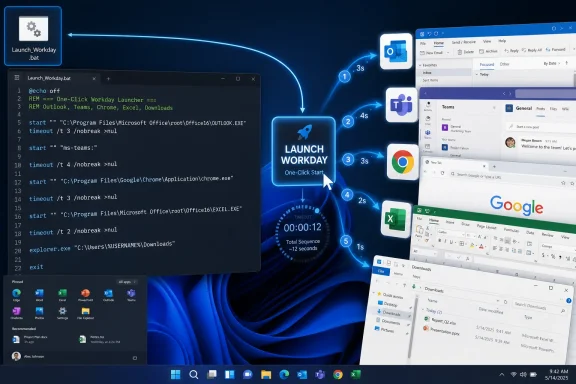
The basic pattern is almost aggressively plain. You create a text file, give it a.bat extension, and place a sequence of commands inside it. The version described by Neowin looks like this in spirit:
Code:
[USER=35331]@echo[/USER] off
start "" "C:\Program Files\Microsoft Office\root\Office16\OUTLOOK.EXE"
start "" "ms-teams:"
start "" "C:\Program Files\Google\Chrome\Application\chrome.exe"
start "" "C:\Program Files\Microsoft Office\root\Office16\EXCEL.EXE"
start "" explorer.exe "%USERPROFILE%\Downloads"start command to launch each app or target. Once the file is saved and double-clicked, Windows processes the commands sequentially, and the applications begin opening.The empty quotation marks after
start are not decorative. In Command Prompt syntax, start treats the first quoted string as the title for the new window. If you omit the empty title and begin with a quoted path, Windows can misread the application path as the window title instead of the thing you meant to launch. That is one of those tiny Windows scripting traps that explains why old command examples often look stranger than they need to.The example also shows three different launch styles. Outlook, Chrome, and Excel are launched by direct executable path. Teams is launched through the
ms-teams: URI scheme, which is how modern Windows apps and web-integrated clients often expose themselves to the shell. File Explorer is launched directly with a folder path, using %USERPROFILE% so the command resolves to the current user’s profile rather than hard-coding a username.That mix is the real lesson. Windows automation is not only about executables. It is about knowing the different handles Windows exposes: executable paths, shell commands, environment variables, registered URI schemes, folders, documents, and file associations.
The start Command Is Doing More Than It Looks Like
The start command is one of those Windows tools whose name undersells its behavior. Microsoft’s documentation describes it as a command that starts a separate Command Prompt window to run a specified program or command, but its practical value is broader. It can launch executables, open folders in File Explorer, and hand off certain file types or URLs to their registered default applications.That handoff behavior is what makes batch files useful for everyday workflows. A morning launcher does not need to know how Chrome manages its own windows, how Excel initializes its add-ins, or how Explorer resolves the Downloads folder. It only needs to ask Windows to start the right targets and let the operating system and registered handlers take over.
There is a subtle performance benefit here, too. When graphical applications are launched from a command script, Command Prompt generally does not need to wait for each GUI program to exit before continuing. In plain English, your script can tell Outlook to open and then move on to Chrome, Excel, and Explorer rather than waiting for you to close Outlook hours later. That is the difference between a launcher and a queue.
The same behavior also explains why the script can feel more like pressing a macro key than running a “program.” The batch file is not managing your session after launch. It is firing off instructions and getting out of the way.
The Paths Are the Fragile Part
The biggest weakness in Neowin’s sample is not the idea; it is the assumption that application paths are stable. On many Microsoft 365 installations, Outlook and Excel may live underC:\Program Files\Microsoft Office\root\Office16\, but Office deployment channels, legacy installations, Store packaging, 32-bit Office on 64-bit Windows, and enterprise app virtualization can all change that. Chrome’s default path is common, but not guaranteed.That does not make the script bad. It makes it personal. A batch launcher is less like downloading an app from the Store and more like tailoring a suit: the value comes from fitting it to the machine in front of you.
The fastest way to find a path is usually through the app shortcut. Right-click the app in Start or on the desktop, open its file location where available, then inspect the shortcut properties. For traditional desktop apps, the Target field often gives you the executable path you need. For Store apps and modern packaged apps, the answer may be a URI scheme, shell command, or shortcut target rather than a simple
.exe.That is why File Explorer is often the easiest entry point. If you can find the executable, you can copy its full path. If you cannot, the app may be better launched through a protocol handler, a Start menu shortcut, or PowerShell’s app package tooling. The beginner-friendly batch file is simple; Windows application packaging is not always simple underneath it.
The safest habit is to test each line independently. Open Command Prompt, paste one
start line, and confirm that the right app opens. Once every line works by itself, paste them into the batch file. Troubleshooting a five-line launcher is easy; troubleshooting five unknowns at once is needless self-inflicted fog.The Desktop Shortcut Is Only the First Automation Layer
A desktop.bat file is the entry-level version of the idea. It is visible, reversible, and easy to edit. That makes it ideal for a personal workstation, a lab machine, or a non-critical helper script.But the moment you trust the launcher, Windows gives you other ways to trigger it. You can pin a shortcut to Start or the taskbar. You can assign a keyboard shortcut through a shortcut file’s properties. You can place it in the Startup folder if you want it to run when you sign in. You can hand it to Task Scheduler for more control.
Task Scheduler is where the idea starts to look less like a convenience hack and more like a real operating-system workflow. Microsoft’s
schtasks documentation shows that scheduled tasks can be triggered on logon, at startup, daily, once, when idle, or on an event. For this kind of app launcher, “at logon” is usually more sensible than “at startup,” because users normally want their personal apps after their user session begins, not while the system is still initializing services in the background.That distinction matters on Windows 11 machines that already have a heavy boot profile. Teams, OneDrive, Edge background tasks, update checks, OEM utilities, VPN clients, endpoint security, and cloud sync clients may all compete for CPU, disk, network, and memory during the first few minutes after sign-in. A batch file that launches five more heavyweight apps can feel magical on a fast desktop and punishing on a thin laptop.
The answer is not to abandon the launcher. The answer is to schedule it with intention. Task Scheduler can delay tasks after logon, and a batch file can insert pauses between launches. A ten- or twenty-second stagger may make the difference between a smooth sign-in and a machine that appears to freeze while every productivity app tries to authenticate at once.
The Delay Is Not Cosmetic; It Is Load Management
The most obvious improvement to the barebones launcher is a delay. In a batch file, the classic way to do this is withtimeout, for example:
Code:
[USER=35331]@echo[/USER] off
start "" "C:\Program Files\Microsoft Office\root\Office16\OUTLOOK.EXE"
timeout /t 10 /nobreak >nul
start "" "ms-teams:"
timeout /t 10 /nobreak >nul
start "" "C:\Program Files\Google\Chrome\Application\chrome.exe"
timeout /t 5 /nobreak >nul
start "" "C:\Program Files\Microsoft Office\root\Office16\EXCEL.EXE"
start "" explorer.exe "%USERPROFILE%\Downloads">nul redirection hides the countdown output, keeping the experience quiet.For IT pros, this is the part of the story that should feel familiar. Most endpoint pain is not caused by one app launching. It is caused by too many agents, login scripts, cloud clients, and user apps trying to initialize in the same narrow window. The batch file is small, but it participates in the same resource economy as everything else on the device.
A personal launcher should therefore be treated like any other startup item. If it improves the user’s first five minutes, keep it. If it turns sign-in into a fan-spinning authentication storm, tune it. The goal is not maximum automation; the goal is a better session.
Administrator Rights Are a Tool, Not a Default
Neowin notes that some files may require administrator privileges and suggests running the batch file as administrator where appropriate. That is true, but it deserves a sharper warning. A launcher for Outlook, Teams, Chrome, Excel, and Downloads should not normally need elevation.Running a daily app launcher as administrator changes the trust boundary. Any process started from that elevated context may inherit elevated rights or create confusing privilege behavior, depending on how it launches and interacts with User Account Control. At minimum, it increases the blast radius of a mistake inside the script.
The better rule is simple: do not elevate a launcher unless one of its commands genuinely requires elevation, and do not mix ordinary user apps with administrative maintenance inside the same file. If you need a script that mounts admin shares, changes services, clears protected directories, or launches management consoles, make that a separate administrative script. Your email-and-browser launcher should remain boring.
This is also why users should be cautious about batch files copied from the web. A
.bat file is plaintext, which is good; you can read it before running it. But that also means there is no mystery about its power. If the commands delete files, change registry keys, map network drives, download payloads, or alter security settings, Windows will attempt to do exactly that within the permissions available.Batch files are not dangerous because they are obscure. They are dangerous when users treat them like shortcuts without reading them.
PowerShell Is the Better Language, but Batch Wins the Five-Minute Test
There is an inevitable objection from modern Windows administrators: why write a batch file at all when PowerShell exists? Microsoft itself frames PowerShell as the more extensible automation environment. For anything involving structured data, error handling, conditions, loops, remote systems, Microsoft Graph, Azure, or serious administration, PowerShell is the right answer.But this particular problem is not serious administration. It is launch Outlook, launch Teams, launch a browser, launch Excel, open Downloads. For that, a batch file has the advantage of being instantly legible to people who do not write scripts for a living.
A comparable PowerShell version might use
Start-Process, environment variables, and URI handlers. It would be more expressive and easier to extend cleanly. It would also run into execution policy questions on some managed systems, and it may feel heavier to a user who only wants one desktop file they can open in Notepad.This is the recurring trade-off in Windows: the technically superior tool is not always the tool that survives contact with ordinary workflows. Batch files persist because they are portable, transparent, and already understood by decades of documentation, forum posts, and admin muscle memory.
That does not mean batch should be romanticized. It has awkward quoting rules, weak error handling, limited data structures, and a long inheritance from DOS and
cmd.exe. It is a blunt instrument. Sometimes a blunt instrument is exactly what the task calls for.The Enterprise Version Needs Policy, Not Cleverness
On a personal Windows 11 PC, a batch launcher is harmless enough if the user understands what it does. In an enterprise, the same pattern intersects with software inventory, endpoint security, least privilege, login performance, and supportability.Admins should be especially careful with shared scripts placed on network drives. A central launcher can be useful for kiosks, training labs, frontline devices, or specialized workflows, but it also becomes a dependency. If the network share is slow, unavailable, or modified incorrectly, the user experience suffers. If the script points to app paths that differ across device groups, support tickets follow.
Managed environments also need to account for security controls. Attackers have long abused script files, including batch and command scripts, because they are native to Windows and easy to execute. Endpoint protection products may scrutinize scripts that launch multiple processes, access network paths, or invoke shells. A clean app launcher should be transparent and signed or distributed through proper management channels where possible.
The better enterprise pattern is boring: package the launcher, document ownership, store it in a controlled location, deploy it through Intune, Group Policy, Configuration Manager, or another management platform, and avoid turning it into a dumping ground for unrelated startup tasks. Once a script becomes “the thing that fixes everything at logon,” it becomes technical debt with a
.bat extension.There is also a user-experience question. Some organizations already struggle with too many mandatory startup apps. Forcing more apps to open automatically may make sense for a call-center role or a shared workstation with a defined workflow. For knowledge workers, it may feel like the machine is seizing control before the user has decided what kind of day they are having.
A One-Click Launcher Is Also a Statement About App Bloat
The mundane need for a batch launcher points to a larger Windows problem: modern work increasingly begins with an app explosion. Email, chat, browser, spreadsheet, file manager, password manager, VPN, sync client, ticketing system, dashboard, calendar, notes app, remote desktop tool — the operating system is not the workplace so much as the runway for it.Microsoft has tried to tame that with startup app settings, session restore, pinned layouts, cloud state, and app-specific “start with Windows” toggles. Those features help, but they are fragmented. Each app has its own preference, its own updater, its own sign-in behavior, and its own idea of whether it deserves to be present at boot.
The batch file cuts through that fragmentation because it is external. It does not ask whether Teams wants to auto-start or whether Chrome should restore tabs. It says: these are the things I need now. That user-defined grouping is powerful precisely because Windows does not offer a first-class “workspace launcher” for ordinary desktop apps that is as simple and universal as a batch script.
There are third-party launchers and automation tools that can do this with prettier interfaces. PowerToys, AutoHotkey, Stream Deck profiles, Windows Terminal commands, and enterprise provisioning tools can all participate in similar workflows. Yet the batch file remains the lowest common denominator: no installation, no account, no cloud dependency, no vendor lock-in.
That is why this trick keeps resurfacing. It solves a problem Microsoft has never fully productized at the user level.
The Morning Launcher Should Be Small, Readable, and Disposable
The best version of this technique is intentionally modest. It should be short enough that you can understand it months later. It should use full paths where needed, environment variables where sensible, and comments only when they clarify something non-obvious. It should not become a general-purpose startup script unless you are prepared to maintain it like one.There is value in keeping it disposable. If Teams changes its launch behavior, Office moves, or Chrome is replaced by Edge, you should be able to edit one line and move on. If the whole workflow changes, delete the file. The automation should serve the work, not become a shrine to a workday that no longer exists.
For users who want polish, the next step is to create a shortcut to the batch file, change the shortcut icon, and set it to run minimized. That keeps the visible command window from becoming the center of attention. For users who want speed, pinning the shortcut to Start or the taskbar may be enough.
For users who want no click at all, Task Scheduler is the better escalation path than stuffing everything into every app’s individual startup settings. A scheduled task can be delayed, disabled, exported, inspected, and managed centrally. That makes it more honest than five separate “launch at sign-in” checkboxes scattered across five applications.
The Practical Script Is the One You Can Explain
A good launcher does not need to be clever. It needs to be explainable. If you share it with a colleague or deploy it to a small team, they should be able to open it in Notepad and understand what will happen before they run it.That is the core advantage of Neowin’s example. It is not trying to hide Windows complexity behind a wizard. It shows the moving parts: one command per app, one file, one action. The user learns something about Windows rather than merely consuming another utility.
That learning has compounding value. Once you understand that a batch file can open five apps, you understand that it can open a folder, a document, an intranet page, a remote desktop file, or a custom URI. The same pattern can launch a writing workspace, a streaming setup, a development environment, a finance dashboard, or a support technician’s toolkit.
The line between convenience and automation is crossed quietly. One day it is a desktop shortcut for Outlook and Teams. The next day it is a repeatable workflow that saves time, reduces mistakes, and makes a PC feel less like a pile of icons and more like an instrument.
The Five Lines That Deserve a Place Beside the Start Menu
Before turning this into a daily habit, keep the implementation grounded. The batch file is simple, but the environment around it — app packaging, permissions, startup load, and security policy — can be messy.- A batch launcher is best for predictable personal workflows where the same apps or folders are opened together again and again.
- The
start "" "path"pattern avoids a common quoting problem in Command Prompt and should be used when launching quoted executable paths. - Application paths should be verified on the actual PC, because Office, browsers, Store apps, and enterprise deployments do not always live in the same locations.
- Delays are worth adding when several heavy apps launch at sign-in, especially on laptops or managed devices already running sync, security, and communication clients.
- Daily productivity launchers should normally run without administrator rights, and administrative maintenance should be kept in a separate script.
- In business environments, shared launch scripts should be controlled, documented, and deployed like any other managed endpoint configuration.
start commands, and the discipline to make the computer repeat the boring part of your morning instead of asking you to do it yourself. As Microsoft continues layering modern experiences over Windows, the users and admins who know how to reach the older machinery underneath will keep finding small, durable advantages hiding in plain sight.References
- Primary source: Neowin
Published: 2026-07-05T21:10:17.297632
Loading…
www.neowin.net