

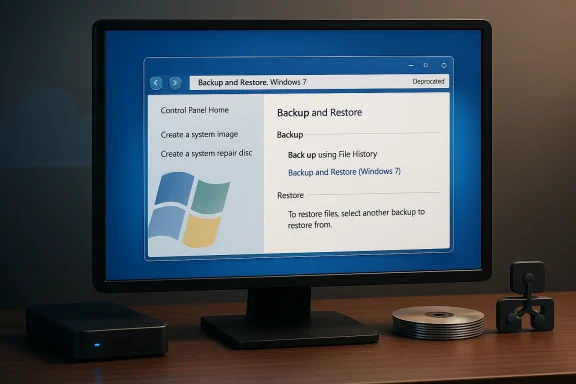
If you use Windows 10 or Windows 11, there’s a built‑in backup tool hiding in plain sight — the legacy “Backup and Restore (Windows 7)” control‑panel applet — and it still works well enough for many users who want a simple, file‑and‑image backup without installing extra software. The tool can back up selected folders, create scheduled backups, and produce a full system image that captures Windows, your installed apps, and data so you can restore a PC to a previous working state. That said, Microsoft has long classified this feature as deprecated, and the company now points users toward newer services and third‑party tools for full‑disk imaging and long‑term support. Before you rely on it for critical backups, you should understand how to find and use the legacy tool, what it can (and can’t) do, how to troubleshoot the common problems users encounter, and when you should choose a supported third‑party alternative instead. ])
Windows’ backup landscape has evolved over the last decade. Microsoft introduced the original Backup and Restore feature with Windows 7 — a single app that handled scheduled file backups and full system images. Starting with Windows 8, Microsoft began to deprecate the Windows 7 tool in favor of newer approaches (notably File History and, more recently, integrated OneDrive‑centric backups and the Settings → Accounts → Windows Backup flows). The legacy Backup and Restore control panel remains present in Windows 10 and Windows 11 primarily for compatibility and for users who already rely on it, but Microsoft has stated it is no longer under active development and may be removed at some point.
That history matters because it explains both the tool’s continued availability and the caution surrounding its long‑term reliability. For quick file backups or to create a one‑off system image before major maintenance, it’s convenient and familiar. For mission‑critical, business‑grade disaster recovery, Microsoft and many experts recommend a supported third‑party imaging product.
Try these steps in order:
However, there are important downsides and risks:
If you want, you can follow the short checklist below to get started right away:
Source: ZDNET Your Windows PC has a secretly useful backup tool - here's how to access it
 Background / Overview
Windows’ backup landscape has evolved over the last decade. Microsoft introduced the original Backup and Restore feature with Windows 7 — a single app that handled scheduled file backups and full system images. Starting with Windows 8, Microsoft began to deprecate the Windows 7 tool in favor of newer approaches (notably File History and, more recently, integrated OneDrive‑centric backups and the Settings → Accounts → Windows Backup flows). The legacy Backup and Restore control panel remains present in Windows 10 and Windows 11 primarily for compatibility and for users who already rely on it, but Microsoft has stated it is no longer under active development and may be removed at some point. That history matters because it explains both the tool’s continued availability and the caution surrounding its long‑term reliability. For quick file backups or to create a one‑off system image before major maintenance, it’s convenient and familiar. For mission‑critical, business‑grade disaster recovery, Microsoft and many experts recommend a supported third‑party imaging product.
What the legacy Backup and Restore does (and how it differs from “new” Windows Backup)
What it can do
- Back up selected folders and libraries on a schedule (files level backups).
- Create a system image (a block‑level copy of system partitions) that lets you restore Windows, apps, and files to the same state as when the image was created.
- Save backups to a range of destinations: an external hard drive, writable CD/DVD media, or a network location (subject to network permission and compatibility).
What it does not do well (or at all)
- Microsoft treats the feature as deprecated and does not maintain or update it; there are known edge cases and intermittent failures that Microsoft may not fix. Relying on it as your only, long‑term backup strategy is risky.
- The feature’s UI and access points are legacy: you use the Control Panel item labeled Backup and Restore (Windows 7). Microsoft’s newer Windows Backup (the Settings → Accounts feature) is a different product focused on cloud‑centred user settings, OneDrive file sync, and moving between PCs — it is not the same as the traditional system‑image tool.
- Some removable media have known limitations (for instance, older Windows versions and specific optical media/Blu‑ray configurations could fail during image creation), and network backups can be flaky depending on SMB configuration, NAS firmware, and credentials.
How to access and use the hidden tool (step‑by‑step)
Below are practical steps to access the legacy Backup and Restore UI and to create either a scheduled file backup or a system image. These instructions track the same actions covered in recent hands‑on guides and are what you’ll see in the Control Panel applet.- Open Control Panel (press Win + R, type control, press Enter).
- Set view to “Large icons” or “Small icons” and click Backup and Restore (Windows 7).
- To create scheduled file backups, click Set up backup and follow the wizard: choose a destination (external drive, CD/DVD, or Save on a network), select either default locations or choose folders yourself, set a schedule, and save settings.
- To create a full system image, open the same control panel applet and click Create a system image (usually a left‑hand link). Then select where you want to save the image — on a hard disk, on one or more DVDs, or on a network location — and start the backup. Windows will create a WindowsImageBackup folder at the destination. For restoration you can use recovery media or the Windows recovery environment to apply the image.
- If you plan to use a USB drive, format it as NTFS and ensure it has free space at least equal to the used space of the volumes you plan to image. Do not save a system image to the same physical disk that you are backing up.
- If you choose DVDs, expect a large number of discs for modern drives/partitions — optical media is slow and error‑prone compared with modern external HDDs/SSDs. Blu‑ray and some DVD setups have historical bugs and limitations, so optical media is generally not recommended for large images.
- If you intend to store a system image on a network share, be prepared to test it and verify compatibility with your NAS or server. Not all network shares behave the same, and some users report errors when saving to SMB shares.
Troubleshooting the common problems (practical fixes)
“The specified network location cannot be used” (or similar SMB/share errors)
This is one of the more common complaints when people try to back up to a NAS or a Windows file share. The cause can be on the client side (SMB version, credentials, networking), on the server side (NAS firmware, share permissions), or in transit (antivirus and firewall interference).Try these steps in order:
- Verify the network path works in File Explorer: use the share address (server\share or \IP\share). If the path fails, the backup tool won’t succeed either.
- Use an explicit IP address instead of hostname (e.g., \192.168.1.50\backup) to avoid DNS/name resolution issues.
- Confirm permissions: the account you enter in the backup UI must have read/write permission to create folders and files in the destination share. Provide credentials in the wizard when prompted, and test them by mapping the drive in File Explorer first.
- Temporarily disable third‑party antivirus / firewall during a test (some protection software blocks SMB or blocks the backup program’s access). Re‑enable after testing.
- Check SMB version compatibility: older NAS devices sometimes require SMBv1; modern Windows ships SMBv2/3 by default. Enabling SMBv1 is insecure and should be a last resort — instead update NAS firmware or consult vendor guidance.
Optical media and “insert disk repeatedly” problems
If the system image to Blu‑ray/DVD repeatedly asks for disc insertion or never completes, that’s a known issue in certain Windows builds and with particular ficial resolution historically involved installing a Microsoft hotfix or using alternative media like an external HDD. The practical takeaway: use a modern external drive for system images instead of optical media unless you have a specific reason and are prepared for extra troubleshooting.Backups start but fail or complete with errors
- Check Event Viewer (Applications and Services Logs → Microsoft → Windows → Backup) for diagnostic error codes.
- Confirm sufficient free space at the destination. System images are sized based on used sectors and can be surprisingly large.
- If scheduled backups fail, try running the backup manually to capture immediate error messages and logs; then consult the specific error code in Microsoft’s docs or community Q&A.
Reliability, deprecation risk, and the real world: a critical assessment
The legacy Backup and Restore tool is useful because it’s already on the machine, simple to use, and capable of creating full system images without installing anything else. For casual, one‑off images or to restore an older backup created years ago, it remains a workable option. Many community posts and how‑to guides still document the process because the functionality is familiar and often “just works” for typical consumer setups.However, there are important downsides and risks:
- Official support status: Microsoft has labeled the feature deprecated and has said it will not receive updates. That means any newly discovered bugs, compatibility regressions, or security issues may never be fixed. If you depend on this tool and a problem arises, you’re largely on your own.
- Environmental fragility: Network shares, NAS devices, SMB versions, optical drives, and third‑party security software can all introduce failure modes that are not easy to diagnose. The control panel applet was not designed for modern cloud workflows or for enterprise management.
- Feature limitations vs. modern needs: The “new” Windows Backup in Settings and cloud‑based OneDrive syncing target a different use case (moving apps, settings, and files between PCs and keeping user files in the cloud). They are more future‑facing for Microsoft, while the legacy tool is a best‑effort imaging utility that won’t evolve.
Alternatives and when to choose them
If you want a supported, modern approach, consider these options and when to use them:- File History — Good for continuous, versioned backups of personal files (Documents, Pictures, Desktop). Simpler than full imaging and still built into Windows. Use it if your main concern is recovering previous versions of documents.
- Windows Backup (Settings → Accounts) — Microsoft’s newer backup for user settings and enabling easier PC‑to‑PC migrations; integrates with Microsoft account/OneDrive. Use it when moving between PCs or when you want cloud‑backed settings and app lists restored during Out‑Of‑Box Experience.
- Third‑party disk‑imaging tools (Macrium Reflect, Acronis True Image, EaseUS, etc.) — These products offer robust, tested imaging and incremental block backups, scheduled jobs, verification, and support. Choose them for regular system images, enterprise deployments, or when you need vendor support and advanced features. EaseUS’ guides, among others, still document Windows’ built‑in image options but recommend third‑party solutions for reliability.
- Cloud sync (OneDrive, Google Drive, Dropbox) — Excellent for continuously backed up user files and cross‑device access; not a substitute for full‑disk imaging. Use cloud sync for critical documents and photos, but combine with other strategies for OS recovery.
A practical, defensible backup plan you can implement today
If you want a simple but resilient approach (recommended), follow this multi‑layer plan:- Follow the 3‑2‑1 rule: keep at least 3 copies of your data, on 2 different media types, with 1 copy offsite (cloud or physically remote).
- Use File History or OneDrive for continuous file syncing (documents, photos) so you have versioned cloud copies.
- Use either the legacy Create a system image once (as a snapshot) and test restoring it, or — preferably — use a maintained third‑party imaging tool for periodic full images and verified incremental images. Verify images by mounting or using the vendor’s recovery environment to ensure the backups are usable.
- Create a bootable recovery drive (Windowsdrive”) or ensure you have vendor recovery media so you can restore an image if Windows won’t boot. Test the recovery workflow so you know the steps under pressure.
- Schedule and automate: use a scheduled backup for file copies and monthly images for system images; check logs periodically and perform restore drills every 3–6 months.
- Encrypt and protect backups: if backups include personal or sensitive data, use encryption (either at the drive level or via the backup tool) and store credentials securely. For network shares, use secure SMB configurations and avoid exposing backup shares to the public internet.
Practical checklist for using the legacy Backup and Restore safely
- Use an external HDD/SSD (NTFS) as your primary image destination — fast, reliable, and easy to restore.
- If you must use a network share, map it first in File Explorer and test read/write access with the same credentials you’ll provide to the backup wizard. Use IP addresses if name resolution is unreliable.
- Don’t store the system image on the same physical drive you’re imaging. Keep an independent copy.
- Keep one copy in a diversified location (cloud or offsite drive) per the 3‑2‑1 principle.
- If you rely on the legacy tool, test restoring at least once: create a system image, then either mount it or perform a test restore in a controlled environment to ensure the image and recovery media work.
Final assessment and recommendation
The legacy Backup and Restore (Windows 7) tool is a useful, no‑cost convenience for users who want a built‑in way to create file backups or a one‑time system image. It remains available in Windows 10 and Windows 11 and can be a pragmatic stopgap for personal use. However, Microsoft has deprecated the feature, and community reports show recurring hiccups with network destinations and some optical media, plus the tool won’t receive new updates or features. For any backup strategy you rely on to protect important data or to ensure rapid recovery of a work machine, plan for redundancy: combine file sync (OneDrive or File History), a maintained disk‑imaging product, and regular verification of recovery procedures. That combination gives you the convenience of built‑in tools and the reliability and support of modern backup software.If you want, you can follow the short checklist below to get started right away:
- Quick start checklist:
- Open Control Panel → Backup and Restore (Windows 7) and make a one‑off system image to an external NTFS drive.
- Create a recovery USB drive using the Windows Recovery Drive tool and store it with the image.
- Set up File History or OneDrive for continuous file safety.
- Evaluate and schedule a third‑party imaging product (trial or free edition) if you need regular incremental images and vendor support.
Source: ZDNET Your Windows PC has a secretly useful backup tool - here's how to access it
