

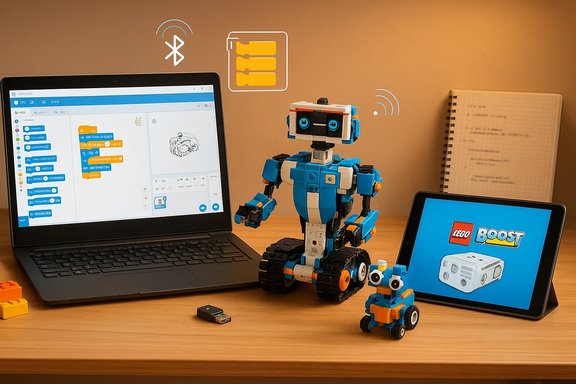
If you still have a LEGO Boost Creative Toolbox (set 17101) on your shelf and a Windows 10 PC, you can bring Vernie, Frankie and the AutoBuilder to life — but the route from box to working robot on Windows is more complicated in 2026 than it was in 2017. This guide breaks down the current state of LEGO Boost software for Windows 10, explains what works and what doesn’t, compares the top PC-side options, and gives step‑by‑step setup and troubleshooting advice so you can pick the best, safest path for your hardware and skill level.
Background / Overview
LEGO Boost (17101) launched in 2017 as an approachable STEM kit for 7–12 year olds that combines a motorized Move Hub, an interactive motor and a color & distance sensor with more than 840 bricks and a tablet-driven coding app. The official LEGO product pages and retail descriptions make a constant claim: the building instructions and guided learning experiences are delivered through a companion app, and the Move Hub connects to your device using Bluetooth Low Energy (BLE). At the time of release LEGO published an official Windows 10 app in the Microsoft Store so owners could run Boost on tablets and some PCs. That Windows Store app offered the same drag‑and‑drop block interface and the digital building instructions that ship with the iOS and Android tablet apps. Several tech outlets and community sites covered the Windows Store launch back in 2017 and confirmed the app targeted Windows 10 devices with BLE support. Important hardware and OS realities to keep in mind up front:- The Boost Move Hub uses Bluetooth Low Energy (Bluetooth Smart). Your PC must support BLE (commonly 4.1+), or you’ll need a supported USB BLE adapter.
- Some Windows 10 app behaviors (including Store downloads and BLE pairing flows) depend on Windows 10 build and Store status; historically these required Anniversary Update (or later) and compatible BLE stacks.
- Over time the Microsoft Store listing and regional availability have been inconsistent; community reports show owners who cannot find or run the Windows Store app today.
What “top software for LEGO Boost on Windows 10” actually means
When we say “top software” for Boost on Windows 10 we mean: programs or toolchains that let you connect to the Move Hub, access building instructions or create programs that drive motors and read sensors. There are five practical approaches today, and each is aimed at a different audience:- Official LEGO BOOST Windows app (when available)
- Official mobile apps on tablet (iOS/Android) — recommended baseline
- Scratch 3 + Scratch Link (desktop-friendly, block-based)
- Pybricks / Pybricks Code (advanced, Python-capable)
- Emulation or unsupported Store packages (generally not recommended)
1) Official LEGO BOOST app for Windows 10 — the “expected” experience
What it is
The official LEGO BOOST app provides the same guided building instructions and icon‑based drag‑and‑drop coding interface you get on tablets, and it was published to the Microsoft Store in late 2017 so Windows 10 users could run Boost on supported devices. The app integrates the digital building guides and over 60 guided activities tied to the 17101 models.Why it’s the best option when it works
- Full feature parity with the tablet app: digital instructions, guided challenges, and the same teaching progression.
- Official firmware flows and pairing UI designed specifically for the Move Hub.
- Familiar icon-based coding for kids and teachers.
Practical caveats and risks
- Availability is inconsistent. Multiple community threads and regional reports show the Microsoft Store edition has become difficult to find or may not download for some users; some owners report the Store entry is gone or behaves unpredictably. This regional/Store availability problem is the single biggest real-world blocker for Windows 10 owners.
- BLE dependency and drivers. Even if the app installs, BLE pairing on Windows can be fragile. Older Bluetooth stacks, missing drivers, or unsupported dongles cause problems. LEGO’s support pages and other LEGO desktop products (WeDo) document similar BLE constraints for Windows.
- Store / OS version constraints. Historically the download required Windows 10 Anniversary Update or above. While that OS barrier is old news for most modern machines, Store delivery and signing issues can still occur.
2) Tablet apps (iOS / Android / Kindle): the baseline recommended experience
What it is
LEGO’s official Boost app for tablets is the most supported experience. LEGO still lists the Boost app as available for selected iOS, Android and Kindle devices; the official product pages direct owners to the device guide for supported tablets.Why choose a tablet app
- Best compatibility: tablet BLE stacks and app support are more stable and better maintained than the Store edition for many users.
- Digital instructions are built into the app, so you don’t need paper instructions.
- For families and classroom setups, a mid‑range Android tablet or iPad is usually the fastest, most trouble‑free option.
Downsides
- Requires a tablet. If your workflow is desktop‑focused, that’s an extra purchase or device to manage.
- Some educators prefer running everything on a laptop; this is where the next two options are useful.
3) Scratch 3 + Scratch Link — the easiest PC-based workaround
What it is
Scratch 3 (the block‑based educational programming environment) supports LEGO Boost when paired with Scratch Link, a small background connector that bridges BLE-enabled LEGO hubs with the Scratch web editor. Scratch Link is available for Windows and macOS and is the official way to use Boost in Scratch projects from a desktop.Why it’s a top Windows 10 choice
- Free and supported: Scratch 3 + Scratch Link is actively maintained by the Scratch team and is a low‑barrier, kid-friendly approach.
- Works on ordinary Windows 10 machines that have a functioning BLE radio or a compatible BLE dongle.
- Great learning path: Scratch provides block‑based sequencing and visual debugging that pairs well with Boost hardware.
How to set it up (high‑level)
- Install the latest Scratch 3 editor (online or desktop).
- Download and run Scratch Link for Windows from the Scratch site. This launches an S‑icon in the system tray when active.
- Power the Move Hub and let Scratch Link detect it. Use the Boost extension in the Scratch editor to control motors and read the color/distance sensor.
Limitations
- You lose LEGO’s digital building instructions inside the Boost app — the Scratch workflow is focused on programming and creative projects rather than guided model construction.
- Some advanced Boost‑exclusive features and guided mission content are absent.
4) Pybricks / Pybricks Code — for advanced users and power learners
What it is
Pybricks is an open, actively developed firmware + software ecosystem that lets you write MicroPython programs for LEGO hubs, including the BOOST Move Hub. Pybricks supports Move Hub programming, offers block and text options, and allows advanced robotics projects beyond the official app’s learning path.Why it’s a top choice for makers and older students
- True coding: write Python scripts that run on the hub for precise motor control, sensor loops and custom behaviors.
- Active community and documentation: Pybricks docs include Move Hub specifics, examples, and guides for firmware installation and BLE connection.
- No reliance on the discontinued or region‑limited Microsoft Store app; it runs through its own tooling and web IDE.
Practical setup notes and cautions
- You may need to update the hub’s firmware or enter a special install flow to use Pybricks; follow the official Pybricks firmware steps carefully.
- Firmware installation and flashing is powerful but carries risk — if interrupted it can leave a device temporarily unusable until restored.
- Pybricks supports the Move Hub directly, and its documentation shows clear APIs for motors, sensors and the hub system.
5) Emulators and other “tricks” — why they usually fail
A common impulse is to run the Android Boost app in an Android emulator (BlueStacks, Nox) on Windows to avoid the Store — but Bluetooth passthrough is largely unsupported on mainstream emulators. As a result, the mobile app inside an emulator can’t see the Move Hub. BlueStacks itself documents limited Bluetooth support, so this route is typically a dead end for a real hardware connection.Bottom line: avoid emulators for real Boost hardware unless you have a verified, hardware‑layered ADB/Bluetooth bridge — and even then it’s fragile.
Step‑by‑step: How to choose and set up the best option for your Windows 10 PC
Step 1 — Confirm your goals and hardware
- Are you primarily after guided building instructions and the Boost learning path? If yes, use an iPad/Android tablet if available, or try the official Windows Store app if you can download it.
- Do you want PC‑based block programming? Use Scratch 3 + Scratch Link.
- Do you want text coding and robotics projects? Choose Pybricks.
- Check hardware: confirm your PC’s Bluetooth adapter supports BLE (look for Bluetooth 4.1 or higher), and ensure Windows 10 is reasonably up to date (Anniversary Update or newer historically required for Store app pairing flows).
Step 2 — If you want the Microsoft Store app (try this first)
- Open Microsoft Store and search for “LEGO BOOST” or follow the Store link if you have it. The Store listing exists historically and will show region‑specific availability.
- If the app installs, power the Move Hub (6x AAA) and open the app. Allow Bluetooth pairing when prompted.
- Follow the in‑app building instructions.
Step 3 — Scratch 3 + Scratch Link (recommended fallback)
- Install Scratch Link for Windows from the Scratch site and run it (you’ll see an S icon in the tray).
- Open Scratch (scratch.mit.edu) and add the LEGO Boost extension.
- Turn on the Move Hub; Scratch Link should find it. Use block sprites to drive motors and read the sensor.
Step 4 — Pybricks (advanced)
- Read the Pybricks Move Hub documentation to confirm hardware and firmware steps. Pybricks supports the Boost Move Hub and includes sample projects.
- Follow firmware installation instructions precisely and use the Pybricks web IDE (or pybricksdev) to deploy MicroPython scripts over BLE.
Step 5 — BLE adapters and driver tips
- If your laptop’s Bluetooth is older or unreliable, use a modern USB BLE 4.0/4.2/5.0 dongle (preferably from a known brand). Avoid cheap, no‑brand sticks that rely on flaky drivers.
- On Windows, ensure your vendor drivers are current (Intel, Qualcomm, Broadcom/CSR stacks) and enable device discovery in Settings → Bluetooth & devices.
- If pairing repeatedly fails, try removing past pairings from Windows’ Bluetooth settings and re‑start the LEGO Move Hub; pairing flows can be sensitive to stale entries.
Troubleshooting quick reference
- App won’t find the Move Hub:
- Confirm the hub LED shows BLE advertising (the hub light should be on).
- Power cycle hub and close other apps that might connect.
- Remove stale pairings in Windows Bluetooth settings and re‑run the app or Scratch Link.
- The Microsoft Store app fails to download:
- Check regional availability — the Store listing changed over time and may be absent in some locales. If unavailable, switch to Scratch Link or a tablet.
- Emulator installs but no Bluetooth:
- This is normal — most Android emulators on Windows do not pass host Bluetooth to the guest. Use real tablet or Scratch Link instead.
- Want more advanced control and Python:
- Use Pybricks, but follow firmware flashing steps carefully and be prepared for additional setup work.
Pros, cons and final recommendations — which option to pick
Official LEGO Boost app (Windows Store)
- Pros: Official feature set, digital instructions, intended experience.
- Cons: Store availability and stability vary by region and time; BLE pairing on Windows can be fragile.
- Recommendation: Try first if you can find the app and have a device with modern BLE and a recent Windows 10 build. If you encounter download or pairing issues, move to one of the alternatives below.
Tablet (iOS / Android / Kindle)
- Pros: Most stable and supported, best turnkey experience.
- Cons: Requires a tablet — extra device or purchase.
- Recommendation: Best overall user experience for families and classrooms.
Scratch 3 + Scratch Link
- Pros: Free, desktop‑friendly, robust for block programming on Windows 10.
- Cons: No LEGO guided building content.
- Recommendation: Best Windows 10 fallback for education and block programming.
Pybricks
- Pros: Powerful Python programming, actively maintained, supports Move Hub.
- Cons: Technical setup, firmware flashing risk.
- Recommendation: Choose this for advanced students, hobbyists and teachers who want to teach real coding.
Emulators / sideloading
- Pros: Sometimes tempting when the Store app isn’t available.
- Cons: Most emulators don’t support Bluetooth passthrough; generally unreliable.
- Recommendation: Avoid unless you have a verified Bluetooth passthrough setup.
Practical buying and availability notes (Amazon, outlets and retired status)
The BOOST Creative Toolbox 17101 remains widely sold on mainstream retail sites and third‑party marketplaces like Amazon, but it is listed as a retired product on LEGO’s product page — meaning LEGO has discontinued production and availability will fluctuate. Expect to see new, used and third‑party listings on Amazon with variable pricing; read seller reviews and confirm condition when buying. If you’re buying for a classroom or for after‑school clubs:- Prioritize a package that includes a tablet (if you don’t already have one), or budget for a reliable BLE‑capable USB dongle.
- Confirm the seller’s return policy in case parts, the Move Hub or sensors are missing or damaged.
Security, privacy and classroom policy considerations
- Any app that connects to hardware over Bluetooth involves pairing and limited telemetry. Use school‑managed devices or test the app on a non‑critical home PC before deploying to managed systems.
- For institutionally managed devices, standard IT precautions apply: check Microsoft Store distribution policies, test in a small pilot group, and ensure BLE drivers are permitted by local endpoint protection policies. LEGO’s educational pages and WeDo guidance include W10 driver recommendations that also apply to Boost.
Final verdict
- If you want the full official Boost experience, the tablet apps remain the safest, most predictable option.
- For Windows 10 users who prefer the desktop, Scratch 3 + Scratch Link is the best practical choice: it’s free, reliable, and broadly supported.
- For older students and hobbyists who want powerful control and real programming, Pybricks is the superior long‑term platform once you accept the extra setup complexity.
- The Microsoft Store app is the ideal scenario when it’s available and your BLE stack cooperates, but regional availability and Store problems have made it an unreliable single solution — treat it as a “try it first” option rather than the only path.
If you need a concise checklist or a companion how‑to targeted to a specific laptop model (for example, a Surface, a Dell with Intel Bluetooth, or a budget laptop with no BLE), that can be provided as a step‑by‑step troubleshooting guide tailored to the model’s Bluetooth stack and driver availability.
Source: Born2Invest https://born2invest.com/?b=style-410391012/
