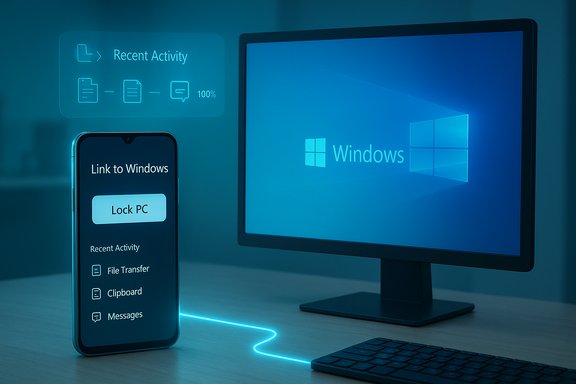
Microsoft’s Phone Link ecosystem just took a substantive step toward turning your Android handset into a practical security and productivity remote for Windows 11 — the Link to Windows companion has acquired a suite of cross-device features that includes a one‑tap Lock PC action, native clipboard sharing between phone and PC, improved file transfer flows, a consolidated Recent activity hub, one‑tap screen mirroring, and at‑a‑glance laptop status tiles. These additions are rolling out now and are already showing up in hands‑on coverage and app build listings, but availability varies by app build, OEM and region, and some claims about exact build numbers and rollout timing require careful verification.
Phone Link (the Windows app) and Link to Windows (the Android companion) have evolved beyond notification mirroring and simple photo access into a continuity layer that reduces device switching for everyday work. Microsoft and select OEM partners — most notably Samsung in past rollouts — have been expanding the set of actions that can be initiated from the phone, moving from “passive mirror” features to actionable controls and bi‑directional data flows. The latest wave of changes emphasizes security, convenience, and a smaller set of deliberate interactions that improve productivity for students, knowledge workers, and help desks alike.
This article verifies the headline claims, checks version and timing details, explains how each new capability works in practice, highlights meaningful security and enterprise considerations, and offers step‑by‑step guidance and practical recommendations for safe adoption.
Enable the features selectively, test them in the environments you use daily, and apply the security checklist above to get the convenience without unnecessary exposure.
Conclusion
The Phone Link refresh makes Android a more capable control surface for Windows 11: a pragmatic mix of security, convenience, and continuity that reduces friction and saves small but frequent time costs. The Lock PC toggle and clipboard sharing are the headline improvements, but their safe and reliable use depends on thoughtful pairing practices, cautious clipboard use, and testing in your specific device and network environment. As with any cross‑device integration, the best practice is to enable features that materially improve your workflow, secure both endpoints, and stage changes in managed settings before wide adoption.
Source: Windows Report Phone Link Update Adds Remote PC Locking and Clipboard Sharing for Android
 Background / Overview
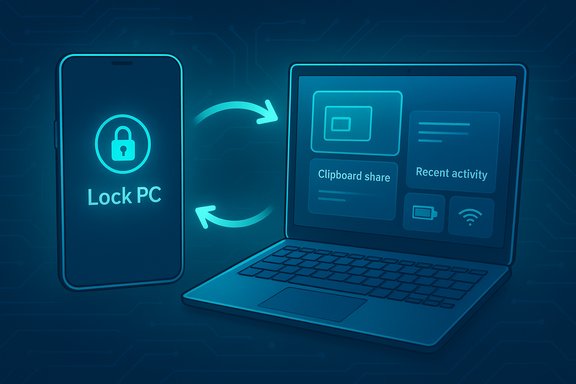
Phone Link (the Windows app) and Link to Windows (the Android companion) have evolved beyond notification mirroring and simple photo access into a continuity layer that reduces device switching for everyday work. Microsoft and select OEM partners — most notably Samsung in past rollouts — have been expanding the set of actions that can be initiated from the phone, moving from “passive mirror” features to actionable controls and bi‑directional data flows. The latest wave of changes emphasizes security, convenience, and a smaller set of deliberate interactions that improve productivity for students, knowledge workers, and help desks alike.This article verifies the headline claims, checks version and timing details, explains how each new capability works in practice, highlights meaningful security and enterprise considerations, and offers step‑by‑step guidance and practical recommendations for safe adoption.
What changed — feature-by-feature
1) Lock PC: a manual, one‑tap remote lock from Android
- What it does: A new Lock PC button in Link to Windows lets a paired Android phone send a lock command to a linked Windows 11 PC. Reported behavior in testing shows the command typically locks the machine within seconds and then breaks the Phone Link session until a local sign‑in occurs.
- How it differs from Dynamic Lock: Dynamic Lock uses Bluetooth proximity to automatically lock a Windows session when a paired device goes out of range. The new Lock PC control is manual and explicit — you press a button and the PC locks immediately; it does not rely on Bluetooth proximity thresholds.
- Practical behavior and limits:
- The action appears to be intentionally one‑way: lock only, not remote unlock. This reduces the window of abuse if a phone is lost.
- The lock depends on a healthy Link to Windows connection; flaky Wi‑Fi or BLE states can produce misleading UI states where the phone reports a lock that didn’t complete. Test before relying on it for critical situations.
2) Cross‑device clipboard (text and images)
- What it does: When enabled, the clipboard on Windows and the Android device are synchronized so that text — and in many cases images/screenshots — copied on one device can be pasted on the other. Microsoft exposes settings to opt in and manage this behavior from Windows settings and the Link to Windows UI.
- Real‑world notes:
- Clipboard sync is a huge convenience for copy/paste tasks, but it creates a transient data path for sensitive information (passwords, 2FA codes, PHI, etc.. Treat this feature as opt‑in and ephemeral for sensitive workflows.
- Community reports indicate occasional instability and device/OEM differences — in some setups the flow is reliable, in others it can be temperamental and require a re‑pair.
3) Improved file sharing — Send files to PC
- What it does: You can now choose files on the phone and use a “Send files” option to push them directly to the PC; reciprocal flows from PC → phone are also exposed via the Share UI or File Explorer context actions. Transfers land in a Phone Link/Downloads folder on the receiving device and show up in Recent activity on the phone.
- Transport and performance: The flow usually uses BLE for discovery and local Wi‑Fi (or an instant hotspot) for bulk transfer to maximize throughput. For small‑to‑medium assets (photos, PDFs, documents) the experience is fast and convenient; very large video files may still be faster over wired USB or dedicated LAN tools.
4) Recent activity: a unified timeline on the phone
- What it does: A new Recent activity panel aggregates recent file transfers, clipboard history items, and quick PC status tiles (battery level and network strength). It acts as a lightweight audit trail so users can confirm what moved between devices without digging through the PC.
5) Screen mirroring: Mirror to PC / Cast to PC from the phone
- What it does: You can now initiate screen mirroring or casting directly from the Link to Windows app via Mirror to PC or Cast to PC buttons. On supported OEM devices (notably Samsung and some partners), you can also stream Android apps in resizable windows on the PC (the phone executes the app while the PC renders and controls).
- Limitations: App streaming and interactivity depend on OEM cooperation, the phone’s CPU, and local network quality. It’s a streaming model (the phone does the work), not full virtualization.
6) Laptop status tiles: battery and network glance
- What it does: Link to Windows now shows laptop battery percentage and network strength inside the app, refreshed on a near‑real‑time cadence (reported about every three minutes in at least one hands‑on). These are informational only; remote control of system settings (for example volume or night light) is not included in this update.
Version, timing and rollout: what to verify
Several publications and build repositories document the feature rollouts, but the exact build number that first included every feature is inconsistent across reports and repositories. Independent checks show:- An APK mirror listing identifies Link to Windows version 1.25102.140.0 appearing on November 24, 2025, and a newer listing 1.25112.77.0 on December 8, 2025. That suggests incremental builds over late November → early December.
- WindowsLatest published hands‑on coverage showing the Lock PC, clipboard sync, Recent activity, and file send features in a Dec 17, 2025 article, after the December 8/early December builds were circulating. That coverage confirms the features in practice for at least some testers.
- Community and forum reporting (and the Phone Link/Link to Windows internal notes captured in aggregated logs) indicate Microsoft is staggering the rollout by region, handset OEM, and account channel — so not everyone will see the new UI at the same time.
Security, privacy and reliability — a critical analysis
These changes are meaningful but carry clear trade‑offs. Here’s a pragmatic risk assessment.Strengths and practical benefits
- Fast hardening: The Lock PC button is a clear productivity + security win — locking a workstation no longer requires returning to the keyboard. For users who frequently step away from shared or public workstations, that one‑tap lock reduces exposure to shoulder‑surfing and casual access.
- Fewer friction points: Cross‑device clipboard and quick file transfers eliminate many tiny context switches (e.g., emailing yourself a screenshot or retyping a URL), which adds up to real time saved for researchers, writers, and content creators.
- Auditing on the phone: The Recent activity feed gives rapid confirmation of actions across devices and reduces the need to search the desktop for a just‑sent file. That’s helpful for people juggling many short transfers.
Risks and attack surface considerations
- Phone compromise risk: A phone that is fully compromised and still paired can issue nuisance or denial‑of‑service actions (for example repeated Lock PC commands) or be used to harvest clipboard contents if clipboard sync is enabled. Locking alone doesn’t grant access to files if Windows sign‑in protections (PIN, biometrics, BitLocker) are in place, but it is an asset to protect. Treat the phone as part of your sign‑in surface.
- Clipboard leakage: Copy/paste is convenient but creates a transient channel for secrets. Treat Clipboard sync as ephemeral, disable it for sensitive workflows, and train users not to copy passwords or 2FA codes into the shared clipboard. Microsoft exposes opt‑in toggles for this reason; use them.
- Rollout fragmentation & OEM conflicts: OEM continuity services (for example, some Samsung or SwiftKey behaviors) can conflict with Link to Windows clipboard/file flows, producing inconsistent behavior. Expect to test on your exact handset model before enabling features for critical workflows. Community threads report intermittent failures that require re‑pairing.
- Reliability under poor connectivity: Because many flows use BLE for discovery and local Wi‑Fi for bulk transfer, flaky connections can cause partial results (failed lock or failed transfer). The lock feature especially depends on Link to Windows showing a healthy connected status to be reliable.
Enterprise guidance
- Treat Link to Windows as a user‑level convenience feature that should be governed by MDM/Group Policy in corporate environments.
- For high‑security deployments:
- Restrict pairing to managed, corporate‑owned handsets only.
- Disable cross‑device clipboard for regulated workloads.
- Consider disabling Phone Link entirely on shared/terminal servers.
- Test updates in staging environments — features can be rolled out incrementally and behave differently with enterprise VPNs, conditional access, or device management policies.
Troubleshooting and practical setup steps
Quick checklist to get the new features working
- On Windows 11:
- Update Phone Link to the latest version available in the Microsoft Store.
- Confirm Windows is up to date (some features rely on recent Windows builds).
- Enable cross‑device settings where prompted: Settings > Bluetooth & devices > Mobile devices (or Settings > System > Clipboard for clipboard sync toggles).
- On Android:
- Update Link to Windows (check the Play Store or your OEM’s update channel).
- Confirm the app has required permissions (camera for QR pairing, notification access, and storage where applicable).
- Disable battery optimization for Link to Windows to avoid background throttling on some OEM skins.
If Lock PC fails or reports success incorrectly
- Verify the Link to Windows app shows Connected.
- Check PC Bluetooth Manage devices and refresh the Phone Link connection if necessary.
- Try manual lock from Windows before relying on remote lock for mission‑critical situations.
- If connection is flaky, use the traditional physical lock (Windows+L) until you can confirm reliability.
If clipboard sync or file transfers are flaky
- Re‑pair the devices: unpair then re‑link via QR code pairing.
- Toggle clipboard sync off and on again from Windows Settings and restart both apps.
- Disable any OEM clipboard/continuity that may conflict (for example some vendor keyboard or continuity services).
- Use wired transfers for bulk media migration. Community threads show re‑pairing often fixes intermittent clipboard issues.
Compatibility and alternatives
- Compatibility: Microsoft’s documented baseline for Phone Link historically requires Windows 10 (May 2019 Update or later) or Windows 11 and Android 7.0+; advanced features work best with modern Android versions and supported OEM builds. Expect functional differences between OEMs and Android skins.
- Alternatives: For users with high privacy demands or who want a local‑first approach, open‑source projects like Sefirah provide many similar continuity features without mandatory cloud accounts, though they require more manual setup and administrative overhead. These alternatives remain niche but are maturing and worth consideration where corporate policy or privacy posture demands it.
Broader context: verify collateral issues before updating Windows
While Link to Windows is improving, Windows administrators must be mindful of a separate recent event: the December 9, 2025 cumulative update KB5072033 has been confirmed to cause a WSL mirrored networking regression with some third‑party VPNs (Cisco Secure Client, OpenVPN), producing “No route to host” errors inside WSL when mirrored networking is enabled. Microsoft has documented the issue and provided guidance; enterprises relying on WSL + corporate VPNs should consider delaying KB5072033 deployment or using a mitigation such as switching WSL networkingMode to NAT until a fix is available. This is an important reminder to validate platform updates against your organization’s specific tooling before broad deployment.Recommendations — enable safely and get value
- For personal users:
- Update Link to Windows on your phone and Phone Link on your PC.
- Enable Lock PC only on trusted pairings; avoid pairing public or shared phones.
- Keep cross‑device clipboard off while working with passwords, 2FA codes, or regulated data.
- Use Recent activity to confirm file transfers landed correctly.
- For IT admins:
- Test Link to Windows/Phone Link features in a controlled pilot before wide rollout.
- Use MDM/Group Policy to restrict pairing and to disable clipboard sync for regulated user groups.
- Maintain an update‑staging cadence to detect interactions between Windows cumulative updates (for example KB5072033) and corporate VPN/WSL setups.
Final assessment
Microsoft’s latest Phone Link/Link to Windows enhancements are a practical, productized step toward a more integrated Android ↔ Windows workflow. The addition of a one‑tap Lock PC action is the clearest example of Microsoft shifting from passive mirroring to active cross‑device control, and the combined improvements — clipboard sync, bidirectional file transfers, Recent activity, and simplified mirroring — add measurable convenience for many everyday scenarios. Multiple independent reports and app build listings confirm the features exist in recent late‑November / early‑December builds; hands‑on coverage shows the Lock PC command often completes in under a few seconds for many users. At the same time, the rollout is intentionally staggered, behavior varies by handset and OEM, and there are real security trade‑offs to manage. Clipboard sync brings new data paths that require caution; the Lock PC feature hinges on a healthy Link to Windows connection; and enterprise environments should be especially wary of update interactions (for example KB5072033’s unrelated WSL/VPN issue) before mass deployment. For most users the productivity benefits are tangible — provided you pair only trusted devices, apply good account hygiene, and test the flows you care about.Enable the features selectively, test them in the environments you use daily, and apply the security checklist above to get the convenience without unnecessary exposure.
Conclusion
The Phone Link refresh makes Android a more capable control surface for Windows 11: a pragmatic mix of security, convenience, and continuity that reduces friction and saves small but frequent time costs. The Lock PC toggle and clipboard sharing are the headline improvements, but their safe and reliable use depends on thoughtful pairing practices, cautious clipboard use, and testing in your specific device and network environment. As with any cross‑device integration, the best practice is to enable features that materially improve your workflow, secure both endpoints, and stage changes in managed settings before wide adoption.
Source: Windows Report Phone Link Update Adds Remote PC Locking and Clipboard Sharing for Android