

A new How-To Geek opinion piece argues that Linux Mint remains one of the friendliest Linux distributions for Windows switchers, but is not a direct replacement for Windows for users expecting the same workflows. The July 13 article identifies software installation, troubleshooting, and Linux’s command-heavy support culture as the main friction points.
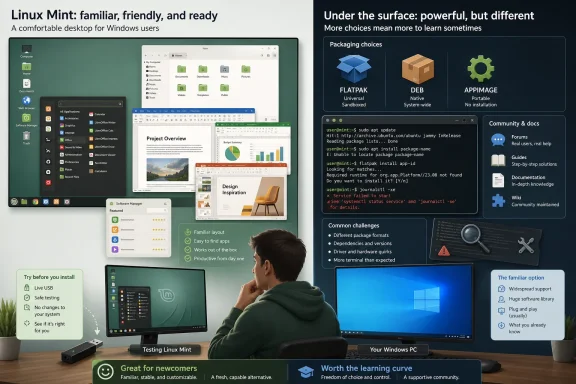
Mint’s Cinnamon desktop deliberately resembles the familiar Windows 7 and Windows 10 layout, and its bundled graphical tools make routine web, office, media, and file-management tasks accessible without a terminal. That familiarity is why it is frequently recommended to first-time Linux users. But familiar presentation does not remove the differences underneath.
Windows users are accustomed to finding a vendor website, downloading an EXE or MSI installer, and stepping through a setup wizard. Mint instead favors its Software Manager and distribution repositories, with Debian packages as the usual local format.
That model can be safer and easier to maintain when an application is in the repository. Problems start when it is not. Users may be directed to add a third-party repository, install a downloaded
None of this is inherently difficult for an experienced Linux user. For a Windows migrant, however, it can turn a simple request — “install this program” — into a choice between packages, sources, and trust models.
Windows has no shortage of awkward legacy control panels and inconsistent diagnostic interfaces, but it also has a large ecosystem of GUI-based troubleshooting tools. A user can often navigate Task Manager, Device Manager, Event Viewer, Settings, or vendor utilities without learning a command syntax.
On Mint, GUI alternatives exist for some tasks, but the most complete instructions — and the answers most likely to appear in forums — commonly begin with commands to paste into a terminal.
That does not make Linux Mint a poor choice for Windows users. It makes it a different operating system with different maintenance habits. Users who need specific Windows-only applications, depend on vendor utilities, or want familiar click-through recovery options should test Mint from a live USB or secondary drive before replacing a working Windows installation.
Mint can ease the move away from Windows, but newcomers should expect to learn its software and support conventions rather than expect a Windows clone.
Mint’s Cinnamon desktop deliberately resembles the familiar Windows 7 and Windows 10 layout, and its bundled graphical tools make routine web, office, media, and file-management tasks accessible without a terminal. That familiarity is why it is frequently recommended to first-time Linux users. But familiar presentation does not remove the differences underneath.
 App installation remains fragmented
Windows users are accustomed to finding a vendor website, downloading an EXE or MSI installer, and stepping through a setup wizard. Mint instead favors its Software Manager and distribution repositories, with Debian packages as the usual local format.That model can be safer and easier to maintain when an application is in the repository. Problems start when it is not. Users may be directed to add a third-party repository, install a downloaded
.deb, or choose between Flatpak, Snap, AppImage, and other packaging approaches. Mint supports Flatpak prominently, while Snap support is not enabled by default.None of this is inherently difficult for an experienced Linux user. For a Windows migrant, however, it can turn a simple request — “install this program” — into a choice between packages, sources, and trust models.
Diagnostics still often point to the terminal
As reported by How-To Geek, Mint includes graphical utilities for normal system administration but can feel less approachable when something breaks. Process inspection, service control, detailed log review, driver investigation, storage diagnostics, and package repair frequently lead users toward terminal commands and community documentation.Windows has no shortage of awkward legacy control panels and inconsistent diagnostic interfaces, but it also has a large ecosystem of GUI-based troubleshooting tools. A user can often navigate Task Manager, Device Manager, Event Viewer, Settings, or vendor utilities without learning a command syntax.
On Mint, GUI alternatives exist for some tasks, but the most complete instructions — and the answers most likely to appear in forums — commonly begin with commands to paste into a terminal.
The documentation gap matters
The piece’s strongest point is not that a terminal is bad, but that terminal-first support changes the burden on newcomers. Commands are concise and easier for experienced volunteers to share than a sequence of screenshots across differing desktop environments and release versions. They can also be copied incorrectly, run without understanding, or rely on repositories a user should not trust.That does not make Linux Mint a poor choice for Windows users. It makes it a different operating system with different maintenance habits. Users who need specific Windows-only applications, depend on vendor utilities, or want familiar click-through recovery options should test Mint from a live USB or secondary drive before replacing a working Windows installation.
Mint can ease the move away from Windows, but newcomers should expect to learn its software and support conventions rather than expect a Windows clone.
References
- Primary source: How-To Geek
Published: 2026-07-13T11:30:14+00:00
They promised Linux Mint could replace Windows—here's 3 ways it falls short
The most beginner-friendly distro still expects you to stop thinking like a Windows user. www.howtogeek.com
