

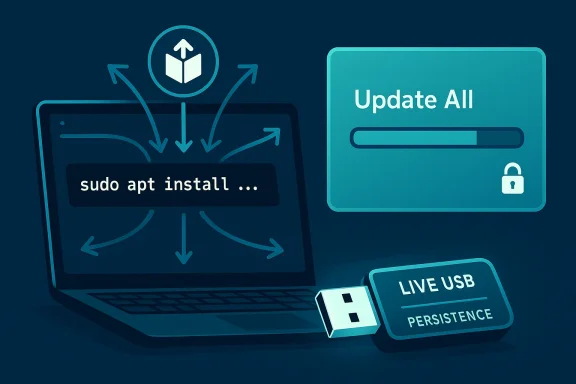
Linux does three everyday things better than Windows 11 — and for many power users those differences translate directly into minutes (and sometimes hours) saved every week. The differences are not arcane OS trivia; they’re practical features that change how you install, update, recover, and test systems. At the center of that speed advantage are centralized package management, unified, non-invasive updates, and live-boot environments — each of which streamlines common tasks that on Windows typically require browser hunting, vendor-specific installers, multiple update agents, or full OS reinstall cycles.
Linux and Windows are built on distinct design philosophies that shape daily workflow. Windows emphasizes a single, curated shell and broad application compatibility; Linux emphasizes modularity, transparency, and user control. That difference shows up in mundane but time-consuming activities: installing software, applying updates, recovering files from a broken system, and customizing the desktop for maximum productivity. When developers and technicians talk about “Linux saving time,” they rarely mean a few milliseconds of benchmark improvement — they mean fewer manual steps, less context switching, and more deterministic outcomes during routine maintenance.
Below I summarize the concrete features that create those wins, explain how they work, and offer a critical appraisal of strengths, limitations, and realistic migration paths for Windows users who want the same productivity benefits.
That said, the decision to migrate should hinge on application compatibility and the acceptable level of hands-on maintenance. If your daily work depends on Windows‑only creative tools, proprietary enterprise software, or competitive multiplayer titles with anti-cheat, a hybrid approach (Windows host + WSL/VMs + a portable Linux rescue USB) usually delivers the best productivity-per-risk trade-off. For others — especially users with older hardware or who like keyboard-centric workflows — a well-planned Linux transition can free up time and reduce the friction of daily computing.
Linux isn’t objectively “faster” at everything, but in three highly practical areas — package management, updates, and live bootability — it removes common, time-consuming friction points in ways Windows still does not. The result is a system that lets skilled users move faster, recover quicker, and maintain predictable, auditable environments with less babysitting. If saving daily minutes matters to you, these aren’t niche wins: they add up. Test the features with a live USB, put a snapshot strategy in place, and you’ll quickly see whether Linux’s workflow advantages match your daily work.
Source: How-To Geek 3 Linux features that make my daily work faster than Windows 11
 Background / Overview
Linux and Windows are built on distinct design philosophies that shape daily workflow. Windows emphasizes a single, curated shell and broad application compatibility; Linux emphasizes modularity, transparency, and user control. That difference shows up in mundane but time-consuming activities: installing software, applying updates, recovering files from a broken system, and customizing the desktop for maximum productivity. When developers and technicians talk about “Linux saving time,” they rarely mean a few milliseconds of benchmark improvement — they mean fewer manual steps, less context switching, and more deterministic outcomes during routine maintenance.Below I summarize the concrete features that create those wins, explain how they work, and offer a critical appraisal of strengths, limitations, and realistic migration paths for Windows users who want the same productivity benefits.
Centralized package management: install once, trust the source
What centralized package management actually is
Linux distributions maintain curated software repositories — signed collections of packages that a package manager (APT, DNF, Pacman, etc.) pulls from when you request software. Instead of visiting vendor websites, you tell the package manager what you want and it downloads and installs the correct files and dependencies from a verified repository. That single-source model makes installs predictable and auditable.Why it speeds up daily work
- You eliminate the “browser search, vendor site, click-this-link, avoid-that-button” loop that often consumes minutes per app install.
- Dependencies are resolved automatically; no hunting for specific shared libraries or redistributables.
- Installs (and removes) are clean and reversible: the package manager tracks which files belong to which package, reducing leftover services, orphaned DLLs, or hidden background agents that clog a system over time.
Practical benefits (real-world)
- Rapid provisioning: a new workstation can be equipped with the same toolset via a short script (e.g., sudo apt install package1 package2) rather than clicking through installers.
- Auditable state: package lists are exportable, allowing reproducible environments (useful for labs, imaging, or IT rollouts).
- Reduced malware risk: packages are pulled from signed repositories, dramatically lowering the chance of picking up trojanized installers from shady sites.
How Windows compares today
Windows has made progress — winget, Chocolatey, and other package managers provide scripted installs — but the ecosystem remains more fragmented. Many Windows apps still ship with standalone installers that create background services or schedule their own update agents, producing a long-term “software rot” that package managers on Linux avoid by design. The practical result: Linux keeps systems leaner with less manual maintenance.Strengths
- Speed: single-command installs for most software.
- Security: signed repos reduce accidental malware installs.
- Maintainability: package managers track and remove dependencies cleanly.
Risks and limits
- Not all software is packaged for every distro; some commercial Windows-only apps remain unavailable.
- Third-party repos (or adding random PPAs) can bring the same risks as bad Windows download sites if you don’t vet them.
- Package manager power requires discipline: blind bulk upgrades on a production system without snapshots can be risky.
Unified, low-friction updates: one command to rule them all
How Linux updates differ
On most Linux systems the package manager is also the update engine. A single update command checks and updates the kernel, drivers, and every installed application that the distribution packages. Because files in use can be replaced on disk while the old versions remain in memory, many updates apply without requiring an immediate reboot; only kernel updates typically require one. This reduces forced restarts and surprise downtime.Why this feels faster in practice
- No separate vendor update daemons, each with its own scheduler and prompts (no Adobe/Chrome/Steam background agents contending for resources).
- Updates are predictable and batched: one maintenance window updates everything, not a scatter of alerts and popups.
- Tools like Btrfs or Timeshift enable snapshot-based rollbacks, removing the “fear factor” of applying updates.
Real-world examples
- On a Linux laptop you can run a nightly script that pulls all updates and creates a pre-update snapshot; if an update breaks something you roll back in minutes instead of reformatting.
- Rolling-release distros (Arch, or curated rolling distros) deliver incremental updates that avoid large “feature upgrade” deltas which on other systems can cause regressions. That guards against the cumulative performance regression many Windows users experience after years of ad-hoc installs.
Strengths
- Predictability: single administrative surface for updates.
- Control: you choose when to reboot and can schedule kernel restarts.
- Performance stability: fewer background update agents reduce idle RAM and CPU overhead.
Risks and caveats
- Rolling updates trade lower upgrade friction for a requirement: you must update frequently and maintain snapshots/backups. If you skip updates, you can be blindsided by breaking changes later.
- Hardware vendor drivers (especially proprietary GPU drivers) are a common pain point; distributions must balance driver lifecycles and compatibility. Test before committing on mission-critical machines.
Live boot environments: instant test, rescue, and portability
The capability explained
A Linux live image boots a full operating system from USB (or DVD) into RAM without writing to the internal disk. Many distros support persistence, which allows settings and installed packages to survive across boots on the same stick. Tools like Ventoy make carrying multiple ISOs trivial. The live-USB model is designed for testing and rescue, not for replacing the installed OS by necessity.How live-boot saves time
- Hardware compatibility check: boot a live USB to confirm Wi‑Fi, display, sound, and peripherals work before installing or wiping disks.
- Emergency rescue: if Windows refuses to boot, a live USB can mount NTFS partitions and copy critical files off, get you back online, or let you continue working from a portable environment. No reinstall required to recover files.
- Portable environment: with persistence you can carry a familiar OS and toolset between machines — useful for consultants, technicians, or anyone who frequently moves between hardware.
Windows’ limitations here
Windows installer media is not designed to be a full, persistent desktop environment; it’s an installation and recovery tool that is far less convenient for hardware testing or as a portable workspace. Recovery environments exist but generally lack the convenience and full-featured userland that Linux live sessions provide.Strengths
- Zero-risk testing: verify compatibility without touching internal drives.
- Disaster recovery: immediate access to files and networking from a non-booting PC.
- Portability: carry a consistent working environment on a small flash drive.
Risks and pressure points
- Live environments depend on kernel and driver support in the image; very new or unusual hardware may still require vendor drivers not included in the live ISO.
- USB longevity and speed matter: cheap sticks can be slow and degrade the experience; prefer quality USB 3+ devices for persistence setups.
Other Linux productivity levers worth mentioning
Tiling window managers and keyboard-first workflows
Tiling compositors (Hyprland, i3, Sway, bspwm) reorganize screen real estate and emphasize keyboard control — reducing repeated mouse fiddling and improving task switching for heavy multi-window workflows. For multi-monitor developers, operators, and power users, this can be an immediate daily time saver once muscle memory is established. Windows has Snap Layouts and PowerToys/FancyZones, but those remain GUI-centric approximations rather than native tiling compositors.Snapshots and rollback (Timeshift, Btrfs, ZFS)
Combining package-managed updates with filesystem snapshots gives Linux users a cheap insurance policy: if an update causes regression, roll back in minutes. That removes much of the maintenance anxiety that causes users to delay updates or avoid important security patches. Windows has system restore points but lacks the same seamless integration for whole-system snapshots as many Linux setups.Lower base overhead and filesystem behavior
Lean Linux setups (minimal DE or tiling WM) frequently show significantly lower idle RAM use, which matters on constrained hardware. Modern Linux filesystems use extent-based allocation and delayed allocation strategies that reduce fragmentation on HDDs, helping long-term responsiveness on older machines. Swapouts to SSD provide the largest real-world gains, but Linux’s lower OS footprint preserves headroom for applications.Critical analysis — strengths, realistic limits, and migration risks
Where Linux’s advantages are decisive
- Small-to-mid memory systems: Linux breathes life into aging machines by lowering baseline overhead and offering lightweight desktops.
- Administrative predictability: package-managed installs and unified updates create reproducible, scriptable systems that scale across fleets.
- Recovery and testing: live-USB workflows and snapshots minimize downtime during critical failures.
Where Windows still leads or is more pragmatic
- Application compatibility: many professional creative suites, niche engineering tools, and games (especially ones depending on proprietary anti-cheat) remain Windows-first. For those use cases, Linux is often impractical without virtualization or cloud-hosted Windows.
- Vendor support and driver lifecycles: enterprise suites and some vendor drivers target Windows first; this matters in corporate deployments. Linux may require more manual driver work for edge-case hardware.
- User familiarity and enterprise management: Windows provides centralized enterprise tooling and vendor support chains that many organizations require. Migrating to Linux at scale demands careful app compatibility testing.
Practical migration risks and mitigations
- Risk: Breaking a mission-critical workflow if an essential app is Windows-only. Mitigation: run a side-by-side test (VM or dual-boot) and verify every crucial tool before full migration.
- Risk: Hardware driver gaps (e.g., some fingerprint readers, proprietary Wi‑Fi chips, or niche capture hardware). Mitigation: use a live USB to test hardware before installing and maintain a fallback plan (Windows image, VM).
- Risk: Maintenance discipline for rolling systems. Mitigation: adopt snapshots and a regular update cadence; use curated distros if you prefer less breakage.
How to get the most important Linux benefits on Windows today
If you value those productivity gains but can’t abandon Windows, there are pragmatic hybrid paths.- Use WSL2 for Linux-native tooling inside Windows. It offers near-native Linux performance for development workflows and integrates GUI Linux apps into the Windows desktop. This gives you package-managed Linux for development without leaving Windows.
- Adopt winget and configuration scripts for declarative provisioning. While not as deep as Linux repos, winget lets you script and reproduce tool installs on Windows machines quickly.
- Maintain a live-USB rescue drive (Linux) for file recovery and hardware testing. Even as a Windows user, a prepared Linux live environment drastically shortens recovery time when the host OS won’t boot.
- Use virtualization for Windows-only apps: retain Windows for specialized apps while using a Linux VM or WSL for daily tooling and automation. This hybrid approach minimizes disruption while giving you the best of both worlds.
Quick-start checklist for Windows users who want to experiment
- Create a bootable Linux live USB (Ventoy recommended for multiple ISOs) and test your laptop’s Wi‑Fi, display, and peripherals in “Try” mode.
- On a VM or spare machine, try a lightweight distro with a tiling WM (optional) and practice installing common apps via the distro’s package manager.
- If you like the package model, script your installed app list and试 or capture it for repeatable provisioning.
- For developers: install WSL2 and set up VS Code Remote‑WSL to run toolchains inside Linux while editing on Windows. This reduces context-switch reboots and gives immediate Linux access.
Final assessment — when Linux is worth the move and when hybrid is wiser
Linux’s centralized package management, unified updates, and live-USB workflows aren’t academic niceties; they’re workflow accelerants. For technicians, developers, and anyone who manages multiple machines or values quick recovery and deterministic updates, Linux can be measurably faster — not necessarily in raw benchmark numbers, but in reduced manual effort and fewer frustrating interruptions.That said, the decision to migrate should hinge on application compatibility and the acceptable level of hands-on maintenance. If your daily work depends on Windows‑only creative tools, proprietary enterprise software, or competitive multiplayer titles with anti-cheat, a hybrid approach (Windows host + WSL/VMs + a portable Linux rescue USB) usually delivers the best productivity-per-risk trade-off. For others — especially users with older hardware or who like keyboard-centric workflows — a well-planned Linux transition can free up time and reduce the friction of daily computing.
Linux isn’t objectively “faster” at everything, but in three highly practical areas — package management, updates, and live bootability — it removes common, time-consuming friction points in ways Windows still does not. The result is a system that lets skilled users move faster, recover quicker, and maintain predictable, auditable environments with less babysitting. If saving daily minutes matters to you, these aren’t niche wins: they add up. Test the features with a live USB, put a snapshot strategy in place, and you’ll quickly see whether Linux’s workflow advantages match your daily work.
Source: How-To Geek 3 Linux features that make my daily work faster than Windows 11
