

Microsoft had to be reasonably current on March 18, 2026, and here is a fully researched, publication-ready feature article based on the TechRadar angle and current Microsoft and Apple documentation:
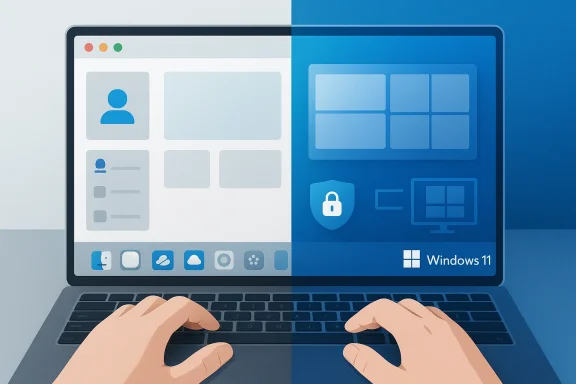
Moving from a Mac to Windows 11 Pro is still a workflow change, not just a hardware change, and that distinction matters more than ever in 2026. The operating system itself is more polished than the Windows versions longtime Mac users once feared, but the first few days can still feel surprisingly friction-heavy because the logic is different even when the tasks are the same. The upside is that Windows 11 Pro is built around faster multitasking, stronger security controls, and a broader set of business-friendly tools than most new switchers expect. Once you understand where Windows hides its power, the transition gets much easier.
For years, switching from macOS to Windows felt like crossing between two very different computing philosophies. Apple emphasized a tightly integrated experience, a strong visual model, and a small number of highly consistent controls, while Windows evolved into a more flexible environment with a broader range of hardware, layouts, and user habits. That old contrast still exists, but Windows 11 has narrowed the gap enough that many Mac users now find the move less painful than the reputation suggests.
The biggest shift is not about whether Windows can do the same things as a Mac. It absolutely can, and in many areas it goes further. The issue is that familiar actions are distributed differently across the interface, rely on different keyboard habits, and often reward a more explicit understanding of system structure rather than the “it just happens” feeling many Apple users are used to. That is why the first phase of switching is less about features and more about retraining instinct.
Windows 11 Pro adds another layer to that story. Microsoft’s Pro edition is not just the same desktop with a few enterprise checkboxes added at the end. It is positioned for people who want stronger device security, remote access, and more serious workplace readiness, even if they are coming from a personal Mac or a mixed Apple-and-PC setup. BitLocker, Remote Desktop host support, and other Pro-specific advantages make the edition feel more businesslike, but those features are also relevant to independent professionals and power users.
The timing matters as well. Microsoft continues to refine Windows 11 through regular updates, while Apple continues to tighten cross-device behavior around iPhone, iCloud, and macOS. That means the modern switcher is not choosing between old Windows and modern macOS. Instead, they are choosing between two mature ecosystems, each with its own strengths, assumptions, and compromises. The best move is to understand those assumptions early, before the friction hardens into habit.
One more reason this transition deserves close attention is that the Mac-to-Windows journey is no longer a niche corporate migration. It is increasingly common among freelancers, hybrid workers, students, creators, and people who want a more flexible PC ecosystem without giving up the convenience they associate with Apple devices. In that sense, this is not just a platform switch. It is a practical reset of how you organize work.
The Windows key is the other major habit change. It is not just a logo on the keyboard; it is a launch pad for Search, Settings access, and a wide range of shortcuts that make Windows feel efficient once you stop treating it like an extra modifier. For a switcher, learning a small handful of key combinations upfront pays off far faster than trying to discover them gradually.
A subtle advantage here is that Windows shortcuts are designed to lead directly into system functions rather than simply app functions. That is useful for switchers because it shortens the path between “I need to do something” and “the system is open.” Mac users often rely on the menu bar or trackpad gestures; Windows asks you to use the keyboard more deliberately.
This matters because multitasking on a laptop often breaks down when windows become chaotic. On macOS, many users end up juggling Spaces, resizing panes, or floating apps by habit. Windows 11 Pro offers a more explicit structure, and while that structure can feel rigid at first, it often produces a calmer workspace once you embrace it.
For Mac users, the easiest mental shift is to stop expecting manual window placement to be the default. Windows 11 Pro rewards users who think in terms of layouts rather than freeform dragging. Once that clicks, it can feel more disciplined and less cluttered than the Mac way.
The mistake many new users make is trying to do everything from one desktop and one taskbar view. That quickly becomes overwhelming, particularly when you are learning a new file system, new settings locations, and new app behaviors at the same time. Creating separate desktops for different roles gives you breathing room.
There is also a psychological benefit. Windows can initially feel busy because the interface exposes more controls in more places. Desktops reduce that feeling by giving you clean, bounded environments. In practical terms, that means less hunting, less minimizing, and less accidental distraction.
Settings is where deeper changes live. Quick Settings is for fast toggles like Wi-Fi, Bluetooth, brightness, and volume. File Explorer is the everyday workhorse for file navigation, downloads, folders, and device storage. The move from Mac to Windows becomes much easier when you stop expecting one central catch-all location.
A useful mindset shift is to think of Windows as a system with more specialized doors. Once you know which door leads to which function, the platform feels less chaotic and more efficient. That is one reason experienced users often find Windows “logical” even when first-time switchers do not.
The integration is not as seamless as Apple-to-Apple continuity, and it does not pretend to be. But for many users, that is not a deal-breaker. Calls, notifications, messages, contacts, and some file sharing are available through Phone Link, while iCloud for Windows offers access to important Apple data from the PC side.
That means the switch is fully workable, but it requires a little more intention. Former Mac users who accept that upfront tend to settle in faster than those who keep expecting Apple-style automaticity from a Microsoft environment.
BitLocker is especially important in a mobile world. If your laptop is lost, stolen, or left behind in a taxi, drive encryption helps protect the data stored on it. Microsoft documentation shows BitLocker is available on Windows Pro and can be managed in enterprise and professional environments, with encryption settings and recovery options tied to system configuration.
For switchers coming from a MacBook Pro, that may actually feel natural. Many Apple users already think in terms of a premium portable work machine. Windows 11 Pro gives them a more explicit management layer around that idea.
That distinction matters because Windows 11 Pro is often marketed through business language even when its features are useful outside business. BitLocker, Remote Desktop, and stronger account control sound like IT terms, but they map neatly onto practical needs: keeping a laptop secure, accessing it from afar, and separating personal workspaces. Microsoft’s own feature pages increasingly frame Windows 11 Pro as a productivity platform for both personal and professional use.
This is a meaningful difference from the Mac world, where Apple tends to position most of its mainstream laptops around a relatively unified consumer experience. Windows 11 Pro is more modular and more intentional about role separation. If you like control, that is a strength.
The good news is that Windows 11 settles faster than older versions of Windows did. The interface is cleaner, Search is more central, and many of the operating system’s best features are visible enough that new users can discover them without deep digging. Microsoft’s current support and product pages reinforce that Windows 11 is designed around fast access to search, snap layouts, virtual desktops, and quick settings.
That is also why many former Mac users end up appreciating Windows in ways they did not anticipate. They discover that the platform is not trying to emulate Apple. It is trying to be efficient on its own terms, and once that becomes clear, the learning curve gets much gentler.
That matters in a market where people increasingly expect their laptop to behave like a flexible command center. Microsoft is leaning into a version of Windows where search, snap, security, remote access, and productivity features are part of the default conversation. Apple, by contrast, continues to optimize around a highly integrated ecosystem that shines most brightly when all your devices are Apple devices. Neither approach is inherently better, but they do reward different kinds of users.
So the real question is not whether Windows 11 Pro is “better” than macOS in the abstract. It is whether you want more control, more hardware flexibility, and more explicit productivity tools, even if that means a little less elegance in the handoff between devices.
The next big determinant will be how much of the Apple ecosystem a user is truly giving up. If your day is built around AirDrop, iMessage, and a Mac-to-iPhone handoff, you will feel the switch more sharply. If your priorities are window management, device flexibility, and secure work features, Windows 11 Pro may end up feeling more capable than you expected.
Source: TechRadar Switching from Mac to Windows 11 Pro? Here are the 7 things you need to know right away
Moving from a Mac to Windows 11 Pro is still a workflow change, not just a hardware change, and that distinction matters more than ever in 2026. The operating system itself is more polished than the Windows versions longtime Mac users once feared, but the first few days can still feel surprisingly friction-heavy because the logic is different even when the tasks are the same. The upside is that Windows 11 Pro is built around faster multitasking, stronger security controls, and a broader set of business-friendly tools than most new switchers expect. Once you understand where Windows hides its power, the transition gets much easier.
 Background
For years, switching from macOS to Windows felt like crossing between two very different computing philosophies. Apple emphasized a tightly integrated experience, a strong visual model, and a small number of highly consistent controls, while Windows evolved into a more flexible environment with a broader range of hardware, layouts, and user habits. That old contrast still exists, but Windows 11 has narrowed the gap enough that many Mac users now find the move less painful than the reputation suggests.The biggest shift is not about whether Windows can do the same things as a Mac. It absolutely can, and in many areas it goes further. The issue is that familiar actions are distributed differently across the interface, rely on different keyboard habits, and often reward a more explicit understanding of system structure rather than the “it just happens” feeling many Apple users are used to. That is why the first phase of switching is less about features and more about retraining instinct.
Windows 11 Pro adds another layer to that story. Microsoft’s Pro edition is not just the same desktop with a few enterprise checkboxes added at the end. It is positioned for people who want stronger device security, remote access, and more serious workplace readiness, even if they are coming from a personal Mac or a mixed Apple-and-PC setup. BitLocker, Remote Desktop host support, and other Pro-specific advantages make the edition feel more businesslike, but those features are also relevant to independent professionals and power users.
The timing matters as well. Microsoft continues to refine Windows 11 through regular updates, while Apple continues to tighten cross-device behavior around iPhone, iCloud, and macOS. That means the modern switcher is not choosing between old Windows and modern macOS. Instead, they are choosing between two mature ecosystems, each with its own strengths, assumptions, and compromises. The best move is to understand those assumptions early, before the friction hardens into habit.
One more reason this transition deserves close attention is that the Mac-to-Windows journey is no longer a niche corporate migration. It is increasingly common among freelancers, hybrid workers, students, creators, and people who want a more flexible PC ecosystem without giving up the convenience they associate with Apple devices. In that sense, this is not just a platform switch. It is a practical reset of how you organize work.
The Keyboard Adjustment Is Bigger Than You Think
The first thing many Mac users notice is that muscle memory becomes a liability. Command is no longer the center of the universe; on Windows, Ctrl takes over many of the shortcuts that used to feel automatic. That means copy, paste, cut, undo, and save quickly become familiar again, but only after a short period of fumbling.The Windows key is the other major habit change. It is not just a logo on the keyboard; it is a launch pad for Search, Settings access, and a wide range of shortcuts that make Windows feel efficient once you stop treating it like an extra modifier. For a switcher, learning a small handful of key combinations upfront pays off far faster than trying to discover them gradually.
The shortcuts worth memorizing first
If you want the fastest payoff, start with the shortcuts that reduce friction immediately. Microsoft’s own guidance and Windows 11 support material make clear how central these combinations are to day-to-day use. The goal is not to learn every shortcut in one sitting, but to build just enough fluency to stop reaching for menus.- Ctrl + C, Ctrl + V, Ctrl + X, Ctrl + Z
- Alt + Tab for app switching
- Windows + E for File Explorer
- Windows + I for Settings
- Windows + L to lock the PC
- Windows + Z for Snap Layouts
- Windows + H for voice typing
- Windows key for Start and Search
A subtle advantage here is that Windows shortcuts are designed to lead directly into system functions rather than simply app functions. That is useful for switchers because it shortens the path between “I need to do something” and “the system is open.” Mac users often rely on the menu bar or trackpad gestures; Windows asks you to use the keyboard more deliberately.
Why Window Management Wins People Over
If there is one area where Windows 11 Pro can genuinely impress former Mac users, it is window management. The platform is built around snapping, grouping, and arranging apps in ways that reduce manual housekeeping. Rather than constantly dragging and resizing windows, you can let the operating system do more of the organizing for you. Microsoft positions Snap Layouts as a core productivity feature, not an advanced trick, and that is the right framing.This matters because multitasking on a laptop often breaks down when windows become chaotic. On macOS, many users end up juggling Spaces, resizing panes, or floating apps by habit. Windows 11 Pro offers a more explicit structure, and while that structure can feel rigid at first, it often produces a calmer workspace once you embrace it.
Snap Layouts, snap groups, and the new rhythm of work
The main attraction is Snap Layouts, which appear when you hover over the maximize button or press Windows + Z. You can drop apps into prebuilt grids, creating a layout that supports email, browser, chat, notes, or spreadsheets without much effort. Microsoft also notes that Snap Groups can remember layouts, helping you return to an arrangement after moving between tasks or docking and undocking a device.- Hover over the maximize button to choose a layout
- Use Windows + Z to open layouts from the keyboard
- Build repeatable setups for different jobs
- Use larger displays to get more value from snapping
- Let Snap Groups preserve your work context
For Mac users, the easiest mental shift is to stop expecting manual window placement to be the default. Windows 11 Pro rewards users who think in terms of layouts rather than freeform dragging. Once that clicks, it can feel more disciplined and less cluttered than the Mac way.
Virtual Desktops Are the Closest Thing to a Fresh Start
Windows 11’s virtual desktops are one of the most underrated features for switchers. If you used Spaces on macOS, the concept will feel familiar enough, but Windows treats it as a practical workspace management tool rather than a niche convenience. That makes it especially useful when you are still learning the operating system and need a way to compartmentalize.The mistake many new users make is trying to do everything from one desktop and one taskbar view. That quickly becomes overwhelming, particularly when you are learning a new file system, new settings locations, and new app behaviors at the same time. Creating separate desktops for different roles gives you breathing room.
Organizing by task, not by app
Task View is the center of this approach. Microsoft’s own Windows 11 guidance recommends selecting Task view and creating a new desktop for projects, then switching among them as needed. That makes the system feel more intentional and helps reduce the “lost window” effect that can happen during a platform migration.- One desktop for work apps
- One desktop for personal use
- One desktop for research and browser tabs
- One desktop for meetings and communication
- One desktop for creative or file-heavy tasks
There is also a psychological benefit. Windows can initially feel busy because the interface exposes more controls in more places. Desktops reduce that feeling by giving you clean, bounded environments. In practical terms, that means less hunting, less minimizing, and less accidental distraction.
Settings, Quick Settings, and File Explorer Have Their Own Logic
One of the most disorienting parts of moving from macOS is not that Windows lacks basic controls, but that it separates them differently. Apple users are accustomed to a strong central logic built around System Settings, Finder, and the menu bar. Windows 11 Pro spreads equivalent functions across Settings, Quick Settings, and File Explorer, and the split is actually useful once you understand it. Microsoft’s support documentation clearly distinguishes those roles.Settings is where deeper changes live. Quick Settings is for fast toggles like Wi-Fi, Bluetooth, brightness, and volume. File Explorer is the everyday workhorse for file navigation, downloads, folders, and device storage. The move from Mac to Windows becomes much easier when you stop expecting one central catch-all location.
How to build a mental map fast
The best early habit is to spend time in these three places on purpose. That sounds obvious, but many new users leave discovery to chance and then assume Windows is confusing when the problem is simply unfamiliarity. A short period of deliberate exploration can save a lot of frustration later.- Use Settings for system changes
- Use Quick Settings for immediate device controls
- Use File Explorer for daily file work
- Use Start/Search to find apps and documents
- Use the taskbar as a launch and status area
A useful mindset shift is to think of Windows as a system with more specialized doors. Once you know which door leads to which function, the platform feels less chaotic and more efficient. That is one reason experienced users often find Windows “logical” even when first-time switchers do not.
Your iPhone Still Fits Into the Picture
A Mac-to-Windows move no longer means cutting yourself off from the iPhone ecosystem. That is an important point because a lot of Apple loyalty is really ecosystem loyalty, not operating-system loyalty. Microsoft now supports Phone Link for iPhone, and Apple also offers iCloud for Windows, which helps keep photos, files, mail, calendar data, and more accessible on a PC.The integration is not as seamless as Apple-to-Apple continuity, and it does not pretend to be. But for many users, that is not a deal-breaker. Calls, notifications, messages, contacts, and some file sharing are available through Phone Link, while iCloud for Windows offers access to important Apple data from the PC side.
What changes when you leave AirDrop behind
The biggest loss for many switchers is not the device handoff itself but the convenience of invisible syncing. AirDrop, iMessage continuity, and the very fluid feeling of Apple device handoff create a sense that your devices are one large workspace. On Windows 11 Pro, that effect exists in fragments rather than as a single magic trick.- Phone Link handles core phone-to-PC interactions
- iCloud for Windows covers Apple data access on the PC
- Bluetooth and app setup matter more than on Mac
- The experience is functional, not magical
- Some features depend on device and region support
That means the switch is fully workable, but it requires a little more intention. Former Mac users who accept that upfront tend to settle in faster than those who keep expecting Apple-style automaticity from a Microsoft environment.
Windows 11 Pro’s Extra Features Matter More Than You Might Expect
At a glance, Windows 11 Pro looks similar to Home, which is why some buyers underestimate it. But Pro earns its name by adding security and remote-work tools that are genuinely useful in real life. Microsoft highlights BitLocker and Remote Desktop among the edition’s key advantages, and those features can shape how comfortable you feel using the machine day to day.BitLocker is especially important in a mobile world. If your laptop is lost, stolen, or left behind in a taxi, drive encryption helps protect the data stored on it. Microsoft documentation shows BitLocker is available on Windows Pro and can be managed in enterprise and professional environments, with encryption settings and recovery options tied to system configuration.
Security and remote access in plain English
Remote Desktop is the other standout. Windows 11 Pro can serve as a host machine, letting you connect to it from elsewhere if the device is left on and properly configured. For people who move between office, home, and travel, that can turn a single laptop into a reachable workspace rather than a machine that only works when you are physically in front of it.- BitLocker helps protect data at rest
- Remote Desktop supports remote access to the PC
- Pro suits mixed home-and-work workflows
- Security features can matter even for solo users
- Device recovery becomes more manageable in a loss scenario
For switchers coming from a MacBook Pro, that may actually feel natural. Many Apple users already think in terms of a premium portable work machine. Windows 11 Pro gives them a more explicit management layer around that idea.
How the Consumer Experience Differs From the Enterprise One
Not every Mac switcher is a corporate IT buyer, and that is worth emphasizing. A consumer moving to Windows 11 Pro will care about the same platform fundamentals as an employee, but they will experience the system differently. The enterprise user may value manageability and compliance first, while the consumer wants speed, familiarity, and low friction.That distinction matters because Windows 11 Pro is often marketed through business language even when its features are useful outside business. BitLocker, Remote Desktop, and stronger account control sound like IT terms, but they map neatly onto practical needs: keeping a laptop secure, accessing it from afar, and separating personal workspaces. Microsoft’s own feature pages increasingly frame Windows 11 Pro as a productivity platform for both personal and professional use.
Why Pro can still be the right choice for individuals
A solo user may never touch Group Policy or enterprise management, but still benefit from Pro’s baseline security posture. If you travel frequently, store client files locally, or simply want a more capable PC without constantly thinking about what edition you bought, the Pro tier makes sense. The point is not to become an IT admin; it is to reduce the number of limitations in the background.- Better security posture than consumer-focused defaults
- Easier remote access for travel or hybrid work
- More confidence around sensitive files
- Fewer edition-related upgrade regrets
- Better fit for a “one laptop does everything” lifestyle
This is a meaningful difference from the Mac world, where Apple tends to position most of its mainstream laptops around a relatively unified consumer experience. Windows 11 Pro is more modular and more intentional about role separation. If you like control, that is a strength.
The Learning Curve Is Real, But It Fades Quickly
Switching platforms always creates a short period of awkwardness, and it is a mistake to interpret that discomfort as a sign you chose the wrong machine. In reality, most of the friction comes from ordinary habit displacement. The tasks are familiar; the pathways are different. That is why the first few days matter so much.The good news is that Windows 11 settles faster than older versions of Windows did. The interface is cleaner, Search is more central, and many of the operating system’s best features are visible enough that new users can discover them without deep digging. Microsoft’s current support and product pages reinforce that Windows 11 is designed around fast access to search, snap layouts, virtual desktops, and quick settings.
A practical first-week checklist
The most successful switchers usually make a few deliberate moves in the first week rather than trying to learn everything on day one. That reduces stress and prevents bad habits from forming. The idea is to create a usable baseline quickly, then refine the experience over time.- Learn the core keyboard shortcuts.
- Set up Snap Layouts for your daily workflows.
- Create at least two virtual desktops.
- Find Settings, Quick Settings, and File Explorer.
- Set up Phone Link and iCloud for Windows if you use an iPhone.
- Turn on BitLocker if your device supports it and you want stronger protection.
- Revisit your workflow after a few days and simplify what feels cluttered.
That is also why many former Mac users end up appreciating Windows in ways they did not anticipate. They discover that the platform is not trying to emulate Apple. It is trying to be efficient on its own terms, and once that becomes clear, the learning curve gets much gentler.
The Real Competitive Story Is About Control, Not Cosmetics
The visual comparison between macOS and Windows 11 is no longer the main story. Both are polished. Both are modern. Both can support demanding work. The deeper competitive question is which operating system gives you more control over your workflow without becoming cumbersome. Windows 11 Pro makes a strong case because it exposes structure that helps users organize work instead of hiding everything behind a single elegant surface.That matters in a market where people increasingly expect their laptop to behave like a flexible command center. Microsoft is leaning into a version of Windows where search, snap, security, remote access, and productivity features are part of the default conversation. Apple, by contrast, continues to optimize around a highly integrated ecosystem that shines most brightly when all your devices are Apple devices. Neither approach is inherently better, but they do reward different kinds of users.
Where Mac users may feel the biggest trade-offs
Former Mac users often care about three things most: consistency, polish, and ecosystem continuity. Windows 11 Pro can match the first two reasonably well in 2026, but the third remains more challenging unless you are willing to stitch together services like Phone Link and iCloud for Windows. That is not necessarily a problem, but it is a reality worth naming clearly.- Windows gives more explicit system control
- macOS still wins on seamless Apple-to-Apple continuity
- Windows 11 Pro is better suited to mixed-device households
- File and window management are more configurable on Windows
- Ecosystem comfort depends on how tied you are to iPhone and iCloud
So the real question is not whether Windows 11 Pro is “better” than macOS in the abstract. It is whether you want more control, more hardware flexibility, and more explicit productivity tools, even if that means a little less elegance in the handoff between devices.
Strengths and Opportunities
The biggest strengths of Windows 11 Pro for Mac switchers are not hidden in obscure admin menus; they are built into the daily experience. If you take the time to learn the system’s logic, you get a platform that can feel faster, more structured, and more scalable than expected.- Snap Layouts make multitasking cleaner and less manual.
- Virtual desktops help separate work from personal context.
- Keyboard shortcuts accelerate almost every common task.
- File Explorer is more powerful than many first-time switchers assume.
- BitLocker adds meaningful device protection.
- Remote Desktop gives Pro real practical value.
- iPhone compatibility remains usable through Phone Link and iCloud for Windows.
- Search-centric navigation shortens the path to settings and apps.
- Hardware choice lets users pick the laptop that fits their priorities.
- Enterprise-style controls can benefit freelancers as much as companies.
Risks and Concerns
The transition is still not friction-free, and some of the pain points are structural rather than temporary. A Mac user who expects Windows 11 Pro to behave like macOS will probably feel disappointed before the system has time to prove itself.- Muscle memory conflict slows the first few days.
- Fragmented settings locations can feel inconsistent at first.
- Apple ecosystem features are still less seamless on Windows.
- Hardware quality varies much more across PC brands.
- Feature discovery can require more deliberate learning.
- Some Pro tools may be overkill for casual users.
- Sync behavior between iPhone and Windows is functional, not magical.
- Different update patterns can change interface details over time.
Looking Ahead
Windows 11 Pro is likely to keep moving in the same direction: more productivity-focused, more security-aware, and more tightly aligned with hybrid work. That should help Mac switchers who care about practical efficiency more than aesthetic continuity. Microsoft is clearly betting that users want an OS that organizes work, not just displays it.The next big determinant will be how much of the Apple ecosystem a user is truly giving up. If your day is built around AirDrop, iMessage, and a Mac-to-iPhone handoff, you will feel the switch more sharply. If your priorities are window management, device flexibility, and secure work features, Windows 11 Pro may end up feeling more capable than you expected.
- Keep learning the shortcut language
- Build desktop habits early
- Use Pro’s security features deliberately
- Test your iPhone integration before you rely on it
- Reassess your workflow after the first week
- Choose hardware carefully, not just the OS
Source: TechRadar Switching from Mac to Windows 11 Pro? Here are the 7 things you need to know right away
