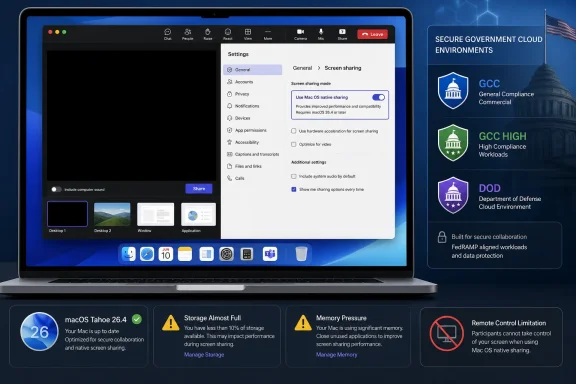
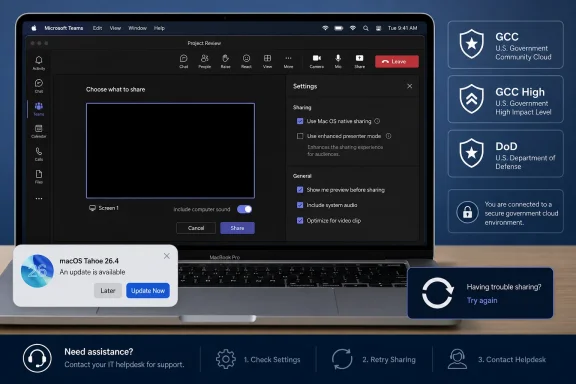
Microsoft says Teams users on Macs running versions earlier than macOS Tahoe 26.4 should update the operating system to resolve blank, black, interrupted, or failed screen shares; when an update cannot be deployed immediately, enable Apple’s native sharing experience inside Teams as the temporary mitigation. Reinstalling Teams is not the primary fix because Microsoft’s guidance points to the macOS version and the sharing path, not a damaged client installation.
The immediate workaround takes effect without restarting Teams. Open Teams, select Settings, choose General, find Screen sharing, and enable Use Mac OS native sharing; then return to the meeting and try sharing again.
That is the practical verdict: update to macOS Tahoe 26.4 or later when the machine can be upgraded safely under organizational policy, but use native macOS sharing when a presentation is imminent, the device is managed, or the operating-system update needs testing and approval. Microsoft is also preparing in-product guidance for affected users, but that rollout will not replace the need for administrators to act now.
Microsoft’s published support guidance identifies macOS Tahoe 26.4 or later as the resolution for this Teams screen-sharing problem. Systems running an earlier macOS release can produce a blank or black share, stop sharing unexpectedly, or fail to begin sharing at all.
Those symptoms can easily send users and help desks down the wrong troubleshooting path. A black presentation canvas looks like a Teams rendering failure, while an interrupted share can resemble a network problem, overloaded meeting, or unstable client. A failure to start may prompt checks of permissions, application state, and account policy before anyone examines the operating-system build.
Microsoft’s diagnosis changes the order of operations. Once an affected Mac is confirmed to be running a version earlier than Tahoe 26.4, updating macOS becomes the durable corrective action. Restarting Teams, clearing its state, signing out, or reinstalling the application should not displace that recommendation.
That does not mean every organization should approve an operating-system update seconds before an important meeting. Endpoint teams may need time to validate business applications, security agents, device-management controls, and other dependencies. The fact that Tahoe 26.4 is the resolution does not make a hurried production rollout automatically prudent.
The distinction is between the correct destination and the safest immediate step. Tahoe 26.4 or later is the destination; native macOS sharing is the bridge for users who cannot get there today.
Microsoft says the change requires no restart. That detail matters because the workaround is designed for the moment when a user has already discovered the failure, perhaps while colleagues are waiting for a demonstration or briefing to begin.
After enabling the option, the user can return directly to the meeting and retry the share. There is no reason to close the meeting, reinstall Teams, or schedule downtime merely to activate this mitigation.
Native sharing should therefore be the default first response when a meeting is already underway or about to begin. It is also the safer immediate choice when the Mac is centrally managed, the user lacks authority to install an operating-system update, or IT has not yet approved Tahoe 26.4 for the organization.
The word mitigation remains important. Microsoft is not presenting this toggle as a substitute for updating affected systems indefinitely. It is a fast way to route around the unreliable behavior while the operating-system remediation is scheduled.
For support teams, that makes native sharing an effective incident-containment measure. It restores the user’s ability to attempt the presentation without forcing the help desk to undertake invasive client repairs that Microsoft has not identified as the primary answer.
The calculus changes on managed hardware. A sysadmin may agree that an update is required while still declining to deploy it broadly before compatibility checks are complete. That is normal change control, not resistance to the fix.
In that environment, IT should make native sharing available as the short-term response and place the macOS update into the organization’s established deployment process. Users get a workable path for meetings, while administrators preserve the testing, staging, and rollback discipline expected for operating-system changes.
Urgency should also be judged against the user’s work. Someone presenting several times a day cannot reasonably wait for a fleet-wide maintenance window without an interim solution. Conversely, a user who rarely shares a screen may be able to wait for the approved update without changing Teams settings.
The timing of the next meeting is often more important than the theoretical speed of the update. If a presentation begins in ten minutes, activate native sharing. If the machine has an approved maintenance window and can receive Tahoe 26.4 or later without disrupting critical work, apply the update.
The two recommendations are not contradictory. One addresses operational continuity; the other removes the condition Microsoft associates with the failures.
Microsoft’s guidance does not identify reinstallation as the resolution. It identifies the macOS update and provides the native-sharing setting as the immediate mitigation. That should determine the support sequence.
A reinstall also imposes disruption without guaranteeing progress. The user must leave the application, repeat setup work, and potentially recover preferences or authentication state, only to return to the same operating-system environment that was present before the reinstall.
This is a recurring problem in modern support: the application displaying an error is not necessarily the layer that must change. WindowsForum has seen the inverse as well, including the recent Teams loading-loop episode in which a desktop update reportedly had to be rolled back after a build-cache regression. The useful lesson is not that Teams should always be reinstalled or always be rolled back, but that remediation has to match the diagnosed failure domain.
The same principle applies to broader service incidents. During major Outlook and Teams disruptions, local client surgery can generate substantial help-desk activity while doing nothing about the underlying service condition. Here, Microsoft has supplied a specific local dividing line—macOS earlier than Tahoe 26.4—so support teams should use it.
A reinstall may remain relevant later if evidence reveals a separate client problem. It should not be the opening move for the blank, black, interrupted, or non-starting shares described in Microsoft’s notice.
Help-desk scripts should group those symptoms together when they occur on Teams for macOS. Treating each as a separate incident risks producing three troubleshooting trees for what Microsoft describes as one known reliability problem.
The first useful fact to gather is the macOS version. If it is earlier than Tahoe 26.4, the machine fits the operating-system condition identified by Microsoft. Support can then offer native sharing immediately and route the device toward an approved update.
The second fact is whether the device is under memory or disk pressure. Microsoft’s Message Center notice specifically includes machines facing those system constraints among the affected groups. That does not justify inventing a precise threshold or promising that closing one application will solve the issue, but it does give administrators another reason to inspect the device’s operating condition.
A constrained Mac and an older macOS release should not trigger a frantic Teams reinstall. They should strengthen the case for using Microsoft’s documented workaround and planning the operating-system update.
Support staff should also avoid overpromising. The available facts identify affected conditions and recommended actions, but they do not provide a universal diagnostic test proving that every black Teams share has this exact cause. If the Mac is already on Tahoe 26.4 or later, the case no longer fits the central version condition and deserves separate investigation.
That boundary protects users from generic advice being applied indefinitely. A known-issue article is valuable because it narrows a diagnosis, not because it eliminates every other possible cause of screen-sharing trouble.
Government and regulated organizations commonly manage changes through formal endpoint policies and support processes. Microsoft’s notice therefore lands as an administrative task as much as a user-facing troubleshooting tip.
IT teams should identify Macs running versions earlier than Tahoe 26.4, determine whether those devices can receive the update under current policy, and prepare native sharing as the interim response. The goal is to prevent a predictable screen-sharing failure from becoming an urgent exception request during a sensitive meeting.
The notice’s inclusion of devices under memory or disk pressure also broadens the help-desk audience. Administrators should not assume that only one narrowly defined model or user profile will experience the issue. Microsoft’s supplied scope is based on environment, operating-system version, and system constraints rather than a single hardware configuration.
This makes clear internal communication more valuable than repeated one-off troubleshooting. A short support advisory can tell affected users what the symptoms look like, where the native-sharing setting lives, and why Tahoe 26.4 or later is being scheduled.
The best runbook is also explicit about authority. Users who cannot update a managed Mac should not be encouraged to bypass policy. They should enable the approved mitigation, report the device, and let endpoint administrators handle the operating-system deployment.
Administrators should resist filling that gap with arbitrary numbers. Doing so would convert useful but limited guidance into false precision.
The practical implication is narrower. When a Mac experiences the listed Teams sharing symptoms, support staff should consider system pressure alongside the macOS version rather than viewing the incident exclusively as a Teams installation failure.
Freeing resources may be a reasonable operational precaution, but it should not be presented as the documented resolution. Microsoft assigns that role to macOS Tahoe 26.4 or later.
This distinction matters for recurring incidents. If resource cleanup temporarily changes behavior but the device remains on an earlier macOS release, the underlying condition identified by Microsoft has not been removed. The machine should remain in the update queue.
Likewise, an administrator should not infer that a well-provisioned Mac is immune. The notice separately identifies systems earlier than Tahoe 26.4, meaning the operating-system version remains relevant even when the machine does not appear visibly constrained.
The product prompt is welcome, but it is not a reason to postpone support preparation. Until the rollout begins—and while it progresses unevenly toward completion—some affected users may encounter the symptoms without receiving the new explanation.
Even after completion, an in-product message can only guide the person facing the failure. It cannot approve a managed macOS update, schedule organizational testing, change endpoint policy, or brief a help desk before a high-profile meeting.
Admins should view the prompt as a second line of communication. The first line remains an internal advisory delivered before users are surprised by a black screen.
The timeline also creates a support-management challenge. During the rollout window, two users with apparently similar devices may receive different on-screen guidance depending on whether the experience has reached them. That difference should not be interpreted as evidence that one device is affected and the other is not.
The documented symptoms and operating-system condition remain the useful criteria. The forthcoming prompt merely reduces the time needed to connect those symptoms with Microsoft’s recommended response.
The first track protects meetings. Support teams document the exact Teams setting, allow affected users to switch to native macOS sharing, and emphasize that no Teams restart is required.
The second track corrects the platform condition. Endpoint administrators identify Macs running earlier releases, test Tahoe 26.4 or later under their normal process, and deploy it according to risk and business priority.
High-frequency presenters can be prioritized because the operational cost of another failed share is high. Devices in GCC, GCC High, and DoD environments also deserve deliberate attention because Microsoft explicitly identified those users in the Message Center notice.
Machines experiencing memory or disk pressure should be flagged rather than treated as ordinary client reinstall cases. The combination of system constraints and an older macOS version gives support staff a stronger basis for applying the documented path.
Once an affected device has been updated, IT can reassess whether the temporary sharing configuration still serves the organization’s preferred experience. What matters during the incident is avoiding unnecessary churn and getting the user back to a functional sharing path.
Next, record the macOS version. If it is earlier than Tahoe 26.4, explain that Microsoft identifies Tahoe 26.4 or later as the resolution and determine whether the user or IT is responsible for applying the update.
Then note whether the device is managed and whether memory or disk pressure is present. Those facts help route the case without pretending to establish more certainty than Microsoft’s limited public detail supports.
Only after that should the help desk consider whether a separate Teams-client problem may be involved. This prevents reinstallation from becoming an automatic ritual performed before the documented actions.
The script should also preserve the symptom language Microsoft uses. “Blank or black sharing,” “sharing stops unexpectedly,” and “sharing fails to start” are clearer ticket tags than a broad description such as “Teams broken.”
Consistent wording helps organizations find related incidents and measure whether the problem declines after operating-system updates. It also makes escalation cleaner because the ticket shows that the native-sharing mitigation and version check were completed first.
That is why this incident matters to Windows-oriented administrators too. Many WindowsForum readers manage mixed estates in which the primary admin workstation is Windows but executives, designers, developers, or mobile staff use Macs.
A cross-platform application does not create a cross-platform support answer. Windows remediation habits—particularly aggressive client repair or reinstallation—should not be copied blindly to a Mac issue when Microsoft has identified a macOS update as the resolution.
The native-sharing mitigation reinforces that point. Teams itself provides a switch to use the Mac’s native sharing path, acknowledging that the platform integration layer can be the decisive variable.
This is also a reminder that application ownership and endpoint ownership cannot operate in isolation. The Teams administrator may see the incident first, while the endpoint team controls the required operating-system update. Without a shared runbook, the case can bounce between teams while the user continues to miss presentations.
Microsoft’s earlier push toward a unified Teams app simplified account access and product positioning, but it did not remove platform-specific dependencies. Unified branding is not unified failure behavior.
The immediate workaround takes effect without restarting Teams. Open Teams, select Settings, choose General, find Screen sharing, and enable Use Mac OS native sharing; then return to the meeting and try sharing again.
That is the practical verdict: update to macOS Tahoe 26.4 or later when the machine can be upgraded safely under organizational policy, but use native macOS sharing when a presentation is imminent, the device is managed, or the operating-system update needs testing and approval. Microsoft is also preparing in-product guidance for affected users, but that rollout will not replace the need for administrators to act now.
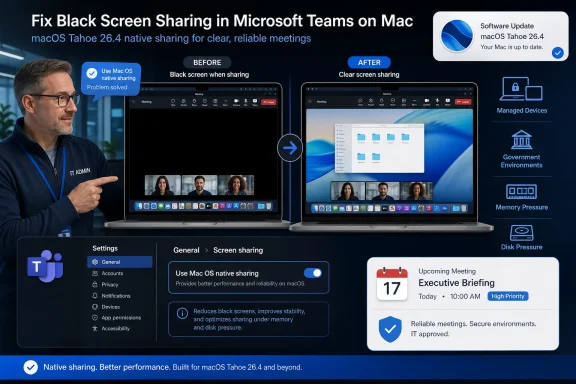 The Operating-System Update Is the Fix, Not the First Aid
Microsoft’s published support guidance identifies macOS Tahoe 26.4 or later as the resolution for this Teams screen-sharing problem. Systems running an earlier macOS release can produce a blank or black share, stop sharing unexpectedly, or fail to begin sharing at all.Those symptoms can easily send users and help desks down the wrong troubleshooting path. A black presentation canvas looks like a Teams rendering failure, while an interrupted share can resemble a network problem, overloaded meeting, or unstable client. A failure to start may prompt checks of permissions, application state, and account policy before anyone examines the operating-system build.
Microsoft’s diagnosis changes the order of operations. Once an affected Mac is confirmed to be running a version earlier than Tahoe 26.4, updating macOS becomes the durable corrective action. Restarting Teams, clearing its state, signing out, or reinstalling the application should not displace that recommendation.
That does not mean every organization should approve an operating-system update seconds before an important meeting. Endpoint teams may need time to validate business applications, security agents, device-management controls, and other dependencies. The fact that Tahoe 26.4 is the resolution does not make a hurried production rollout automatically prudent.
The distinction is between the correct destination and the safest immediate step. Tahoe 26.4 or later is the destination; native macOS sharing is the bridge for users who cannot get there today.
Native Sharing Is the Sensible Meeting-Room Escape Hatch
Microsoft’s immediate mitigation is unusually straightforward. In the Teams desktop app, open Settings > General > Screen sharing and turn on Use Mac OS native sharing.Microsoft says the change requires no restart. That detail matters because the workaround is designed for the moment when a user has already discovered the failure, perhaps while colleagues are waiting for a demonstration or briefing to begin.
After enabling the option, the user can return directly to the meeting and retry the share. There is no reason to close the meeting, reinstall Teams, or schedule downtime merely to activate this mitigation.
Native sharing should therefore be the default first response when a meeting is already underway or about to begin. It is also the safer immediate choice when the Mac is centrally managed, the user lacks authority to install an operating-system update, or IT has not yet approved Tahoe 26.4 for the organization.
The word mitigation remains important. Microsoft is not presenting this toggle as a substitute for updating affected systems indefinitely. It is a fast way to route around the unreliable behavior while the operating-system remediation is scheduled.
For support teams, that makes native sharing an effective incident-containment measure. It restores the user’s ability to attempt the presentation without forcing the help desk to undertake invasive client repairs that Microsoft has not identified as the primary answer.
The Decision Turns on Timing and Change Control
For an individually owned Mac with no organizational restrictions, the decision is comparatively simple. If the device is running an earlier macOS version and can be updated normally, moving to Tahoe 26.4 or later follows Microsoft’s resolution guidance directly.The calculus changes on managed hardware. A sysadmin may agree that an update is required while still declining to deploy it broadly before compatibility checks are complete. That is normal change control, not resistance to the fix.
In that environment, IT should make native sharing available as the short-term response and place the macOS update into the organization’s established deployment process. Users get a workable path for meetings, while administrators preserve the testing, staging, and rollback discipline expected for operating-system changes.
Urgency should also be judged against the user’s work. Someone presenting several times a day cannot reasonably wait for a fleet-wide maintenance window without an interim solution. Conversely, a user who rarely shares a screen may be able to wait for the approved update without changing Teams settings.
The timing of the next meeting is often more important than the theoretical speed of the update. If a presentation begins in ten minutes, activate native sharing. If the machine has an approved maintenance window and can receive Tahoe 26.4 or later without disrupting critical work, apply the update.
The two recommendations are not contradictory. One addresses operational continuity; the other removes the condition Microsoft associates with the failures.
Reinstalling Teams Attacks the Most Visible Component
Teams is where the symptom appears, so Teams is naturally where users look for the cause. That intuition makes reinstalling the client feel like a decisive response even when the evidence points elsewhere.Microsoft’s guidance does not identify reinstallation as the resolution. It identifies the macOS update and provides the native-sharing setting as the immediate mitigation. That should determine the support sequence.
A reinstall also imposes disruption without guaranteeing progress. The user must leave the application, repeat setup work, and potentially recover preferences or authentication state, only to return to the same operating-system environment that was present before the reinstall.
This is a recurring problem in modern support: the application displaying an error is not necessarily the layer that must change. WindowsForum has seen the inverse as well, including the recent Teams loading-loop episode in which a desktop update reportedly had to be rolled back after a build-cache regression. The useful lesson is not that Teams should always be reinstalled or always be rolled back, but that remediation has to match the diagnosed failure domain.
The same principle applies to broader service incidents. During major Outlook and Teams disruptions, local client surgery can generate substantial help-desk activity while doing nothing about the underlying service condition. Here, Microsoft has supplied a specific local dividing line—macOS earlier than Tahoe 26.4—so support teams should use it.
A reinstall may remain relevant later if evidence reveals a separate client problem. It should not be the opening move for the blank, black, interrupted, or non-starting shares described in Microsoft’s notice.
Symptom Matching Prevents a Week of Misdiagnosis
The known issue covers several outwardly different failures. A participant may see only black content, a previously functioning share may stop unexpectedly, or the presentation may never begin.Help-desk scripts should group those symptoms together when they occur on Teams for macOS. Treating each as a separate incident risks producing three troubleshooting trees for what Microsoft describes as one known reliability problem.
The first useful fact to gather is the macOS version. If it is earlier than Tahoe 26.4, the machine fits the operating-system condition identified by Microsoft. Support can then offer native sharing immediately and route the device toward an approved update.
The second fact is whether the device is under memory or disk pressure. Microsoft’s Message Center notice specifically includes machines facing those system constraints among the affected groups. That does not justify inventing a precise threshold or promising that closing one application will solve the issue, but it does give administrators another reason to inspect the device’s operating condition.
A constrained Mac and an older macOS release should not trigger a frantic Teams reinstall. They should strengthen the case for using Microsoft’s documented workaround and planning the operating-system update.
Support staff should also avoid overpromising. The available facts identify affected conditions and recommended actions, but they do not provide a universal diagnostic test proving that every black Teams share has this exact cause. If the Mac is already on Tahoe 26.4 or later, the case no longer fits the central version condition and deserves separate investigation.
That boundary protects users from generic advice being applied indefinitely. A known-issue article is valuable because it narrows a diagnosis, not because it eliminates every other possible cause of screen-sharing trouble.
Government Teams Environments Need the Earliest Runbook
Microsoft’s Message Center notice specifically identifies users in GCC, GCC High, and DoD Teams environments. These are precisely the environments where casually telling users to “just update the Mac” is least likely to constitute an adequate deployment plan.Government and regulated organizations commonly manage changes through formal endpoint policies and support processes. Microsoft’s notice therefore lands as an administrative task as much as a user-facing troubleshooting tip.
IT teams should identify Macs running versions earlier than Tahoe 26.4, determine whether those devices can receive the update under current policy, and prepare native sharing as the interim response. The goal is to prevent a predictable screen-sharing failure from becoming an urgent exception request during a sensitive meeting.
The notice’s inclusion of devices under memory or disk pressure also broadens the help-desk audience. Administrators should not assume that only one narrowly defined model or user profile will experience the issue. Microsoft’s supplied scope is based on environment, operating-system version, and system constraints rather than a single hardware configuration.
This makes clear internal communication more valuable than repeated one-off troubleshooting. A short support advisory can tell affected users what the symptoms look like, where the native-sharing setting lives, and why Tahoe 26.4 or later is being scheduled.
The best runbook is also explicit about authority. Users who cannot update a managed Mac should not be encouraged to bypass policy. They should enable the approved mitigation, report the device, and let endpoint administrators handle the operating-system deployment.
Memory and Disk Pressure Are Signals, Not a License to Guess
The reference to memory or disk pressure deserves attention because it can easily be stretched beyond what Microsoft has actually said. The notice identifies constrained devices as an affected group, but the supplied facts do not define a minimum amount of free storage, a memory threshold, or a guaranteed cleanup procedure.Administrators should resist filling that gap with arbitrary numbers. Doing so would convert useful but limited guidance into false precision.
The practical implication is narrower. When a Mac experiences the listed Teams sharing symptoms, support staff should consider system pressure alongside the macOS version rather than viewing the incident exclusively as a Teams installation failure.
Freeing resources may be a reasonable operational precaution, but it should not be presented as the documented resolution. Microsoft assigns that role to macOS Tahoe 26.4 or later.
This distinction matters for recurring incidents. If resource cleanup temporarily changes behavior but the device remains on an earlier macOS release, the underlying condition identified by Microsoft has not been removed. The machine should remain in the update queue.
Likewise, an administrator should not infer that a well-provisioned Mac is immune. The notice separately identifies systems earlier than Tahoe 26.4, meaning the operating-system version remains relevant even when the machine does not appear visibly constrained.
Microsoft’s Guidance Rollout Arrives After IT Should Act
Microsoft plans to begin displaying in-product failure guidance in late July 2026, with rollout expected to finish by mid-August 2026. That guidance should make the known issue more discoverable when Teams detects a sharing failure.The product prompt is welcome, but it is not a reason to postpone support preparation. Until the rollout begins—and while it progresses unevenly toward completion—some affected users may encounter the symptoms without receiving the new explanation.
Even after completion, an in-product message can only guide the person facing the failure. It cannot approve a managed macOS update, schedule organizational testing, change endpoint policy, or brief a help desk before a high-profile meeting.
Admins should view the prompt as a second line of communication. The first line remains an internal advisory delivered before users are surprised by a black screen.
The timeline also creates a support-management challenge. During the rollout window, two users with apparently similar devices may receive different on-screen guidance depending on whether the experience has reached them. That difference should not be interpreted as evidence that one device is affected and the other is not.
The documented symptoms and operating-system condition remain the useful criteria. The forthcoming prompt merely reduces the time needed to connect those symptoms with Microsoft’s recommended response.
A Two-Track Deployment Beats a Forced Choice
Organizations do not need to choose between enabling native sharing everywhere forever and forcing Tahoe 26.4 onto every Mac immediately. A staged, two-track response is more defensible.The first track protects meetings. Support teams document the exact Teams setting, allow affected users to switch to native macOS sharing, and emphasize that no Teams restart is required.
The second track corrects the platform condition. Endpoint administrators identify Macs running earlier releases, test Tahoe 26.4 or later under their normal process, and deploy it according to risk and business priority.
High-frequency presenters can be prioritized because the operational cost of another failed share is high. Devices in GCC, GCC High, and DoD environments also deserve deliberate attention because Microsoft explicitly identified those users in the Message Center notice.
Machines experiencing memory or disk pressure should be flagged rather than treated as ordinary client reinstall cases. The combination of system constraints and an older macOS version gives support staff a stronger basis for applying the documented path.
Once an affected device has been updated, IT can reassess whether the temporary sharing configuration still serves the organization’s preferred experience. What matters during the incident is avoiding unnecessary churn and getting the user back to a functional sharing path.
Help Desks Should Rewrite the Order of Operations
A good support script for this issue begins with the user’s immediate need. If a meeting is active, direct the user to Teams Settings > General > Screen sharing > Use Mac OS native sharing, have the user retry, and keep the conversation focused on restoring the presentation.Next, record the macOS version. If it is earlier than Tahoe 26.4, explain that Microsoft identifies Tahoe 26.4 or later as the resolution and determine whether the user or IT is responsible for applying the update.
Then note whether the device is managed and whether memory or disk pressure is present. Those facts help route the case without pretending to establish more certainty than Microsoft’s limited public detail supports.
Only after that should the help desk consider whether a separate Teams-client problem may be involved. This prevents reinstallation from becoming an automatic ritual performed before the documented actions.
The script should also preserve the symptom language Microsoft uses. “Blank or black sharing,” “sharing stops unexpectedly,” and “sharing fails to start” are clearer ticket tags than a broad description such as “Teams broken.”
Consistent wording helps organizations find related incidents and measure whether the problem declines after operating-system updates. It also makes escalation cleaner because the ticket shows that the native-sharing mitigation and version check were completed first.
Cross-Platform Teams Has Become an Endpoint Problem
The unified Teams client may present a broadly consistent interface across Windows and Mac, but screen sharing still depends on platform-specific behavior. A familiar Teams button can invoke a chain of operating-system capabilities that differs substantially between endpoints.That is why this incident matters to Windows-oriented administrators too. Many WindowsForum readers manage mixed estates in which the primary admin workstation is Windows but executives, designers, developers, or mobile staff use Macs.
A cross-platform application does not create a cross-platform support answer. Windows remediation habits—particularly aggressive client repair or reinstallation—should not be copied blindly to a Mac issue when Microsoft has identified a macOS update as the resolution.
The native-sharing mitigation reinforces that point. Teams itself provides a switch to use the Mac’s native sharing path, acknowledging that the platform integration layer can be the decisive variable.
This is also a reminder that application ownership and endpoint ownership cannot operate in isolation. The Teams administrator may see the incident first, while the endpoint team controls the required operating-system update. Without a shared runbook, the case can bounce between teams while the user continues to miss presentations.
Microsoft’s earlier push toward a unified Teams app simplified account access and product positioning, but it did not remove platform-specific dependencies. Unified branding is not unified failure behavior.
The Tahoe 26.4 Playbook Fits on One Screen
The facts are limited, but the operational answer is clear enough for a concise support advisory. Administrators should preserve that clarity rather than surrounding users with speculative fixes.- Users who can safely update should install macOS Tahoe 26.4 or later because Microsoft identifies that as the resolution.
- Users who need an immediate workaround should enable Teams Settings > General > Screen sharing > Use Mac OS native sharing.
- The native-sharing change takes effect without restarting Teams.
- Blank or black shares, unexpected interruptions, and failures to start all fit the known symptom set.
- GCC, GCC High, DoD, and system-constrained Mac users require particular support attention under Microsoft’s notice.
- Reinstalling Teams should not precede the documented operating-system update and native-sharing mitigation.
References
- Primary source: learn.microsoft.com
Does Microsoft plan to fix the Team on Mac issue? - Microsoft Q&A
Why is it that I have to constantly delete cache or completely remove Teams on Mac only to have it work for a short time and then fail to connect to calls again? Other video companies have figured it out. Why is Microsoft having so many problems?learn.microsoft.com - Independent coverage: mc.merill.net
MC1392559 - Microsoft Teams: Known issue affecting screen sharing on macOS | Microsoft 365 Message Center Archive
Microsoft Teams on macOS (versions earlier than Tahoe 26.4) has a known screen sharing issue causing blank screens, interruptions, or failures. In-product guidance will roll out…mc.merill.net - Primary source: WindowsForum
Microsoft Teams Rollback Fixes Loading Loop Caused by Build Cache Regression | Windows Forum
Microsoft’s rollback of a faulty Teams desktop update is another reminder that the modern productivity stack can fail in surprisingly brittle ways. What...windowsforum.com