

If you like the Windows 11 aesthetic but prefer to run GNOME, you can get remarkably close — and often with more control — by combining a few themes, icon packs, and carefully chosen GNOME extensions. This guide walks through the practical how-to, explains why the pieces work together, flags common compatibility and stability pitfalls, and shows safer alternatives so you can get the Windows 11 look without trashing your desktop experience.
GNOME ships as a purposely minimalist, opinionated desktop: fewer visible chrome elements, a strong emphasis on Activities overview and keyboard-driven workflows, and a design language that leans toward simplicity rather than heavy UI ornamentation. Windows 11, by contrast, favors a centered taskbar, a start/menu metaphor with pinned apps, rounded corners, and a highly curated set of icons and wallpapers. The good news is that GNOME’s modularity makes it possible to adopt Windows-like visual patterns without rewriting the shell.
At the center of any “make GNOME look like Windows 11” workflow are three things:
Where to install:
Once icons are in place you’ll change them from GNOME Tweaks: Appearance → Icons. If Tweaks doesn’t display your new pack, confirm the folder structure includes an index.theme file at top-level inside the icon folder. Flatpak-sandboxed apps may not pick up system-wide icons unless you give them access; copying a pack into your home directory sidesteps that problem.
Common install commands (tested and widely used across distributions):
Extensions management:
If your goal is a faithful aesthetic with minimal breakage, limit yourself to theming and icons. If you want a full Windows-like workflow, accept the maintenance overhead: keep Extension Manager on hand, check extension compatibility before upgrades, and prefer actively maintained themes and extensions. Do it right, and you’ll have the best of both worlds — the visual familiarity of Windows 11 with the freedom and polish of a customized GNOME desktop.
Source: ZDNET How to make your GNOME desktop look like Windows 11 (if that's your jam)
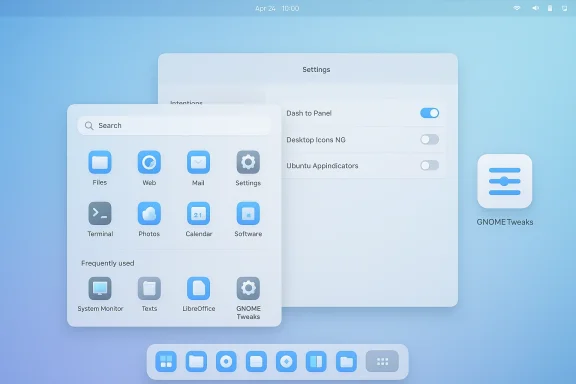 Background / Overview
GNOME ships as a purposely minimalist, opinionated desktop: fewer visible chrome elements, a strong emphasis on Activities overview and keyboard-driven workflows, and a design language that leans toward simplicity rather than heavy UI ornamentation. Windows 11, by contrast, favors a centered taskbar, a start/menu metaphor with pinned apps, rounded corners, and a highly curated set of icons and wallpapers. The good news is that GNOME’s modularity makes it possible to adopt Windows-like visual patterns without rewriting the shell.At the center of any “make GNOME look like Windows 11” workflow are three things:
- a GTK + shell theme that mimics Windows 11 visual cues (rounded controls, translucency),
- an icon pack that matches Windows’ pictograms, and
- extensions that change GNOME Shell layout and menu behavior (notably Dash to Panel and a Windows-style menu extension such as Arc Menu). These are the components that turn GNOME from a vertical-activity-first shell into a bottom-centered taskbar and start menu — the two changes most people notice when they first see a Windows desktop.
Why you might (or might not) want to do this
Customizing GNOME into a Windows-like desktop is satisfying and useful for specific audiences:- Windows migrants who want a familiar anchor while using Linux.
- Work environments where a uniform look reduces training friction.
- Enthusiasts who enjoy deep personalization.
- GNOME is designed to be simple and to evolve; adding many extensions or nonstandard themes increases the chance of breakage on shell updates.
- Extensions can be powerful but also fragile — GNOME version upgrades sometimes change internal APIs, which can leave extensions broken until they’re updated. The community maintains many popular extensions but the risk of incompatibility is real.
What you’ll need (short checklist)
- A current GNOME install (GNOME 3.36 or later recommended for Extensions app compatibility).
- Administrative access (for system-wide installs) or a normal user account (for per-user installs).
- The following tools installed:
- GNOME Tweaks (switch themes and icon packs).
- Extension manager / GNOME Extensions (to install and manage extensions).
- Flatpak (optional but recommended for installing the Extensions app and Extension Manager from Flathub).
- Theme and icon files you like (Windows 11 GTK theme, ZorinOS-based themes, Fluent/Windows-like icon packs).
- Patience for a little fiddling.
1) Install a theme — what to pick and where to put it
A GTK/shell theme is the fastest way to change the overall look: window borders, controls, rounding, and sometimes the shell (top bar) appearance. Popular choices for a Windows-like aesthetic include variants titled “Windows 11 GTK theme,” ports of Fluent/Fluent-gtk, or carefully curated distributions’ default themes such as Zorin’s.Where to install:
- For a single user, place theme folders under your home directory. Common locations are:
- ~/.local/share/themes (recommended modern location), or
- ~/.themes (legacy — still widely used).
- For system-wide availability for every user, extract theme folders into /usr/share/themes (requires sudo). System-wide theme installation is handy for shared machines but requires care because package updates and permissions are involved.
2) Install an icon pack — the visual glue
A consistent icon set is critical. “Windows 11” style icon packs typically borrow Fluent or Iconic metaphors: soft shapes, consistent padding, and a distinct set of system icons. Put icon folders in /usr/share/icons for system-wide use or ~/.local/share/icons for your account only.Once icons are in place you’ll change them from GNOME Tweaks: Appearance → Icons. If Tweaks doesn’t display your new pack, confirm the folder structure includes an index.theme file at top-level inside the icon folder. Flatpak-sandboxed apps may not pick up system-wide icons unless you give them access; copying a pack into your home directory sidesteps that problem.
3) Install GNOME Tweaks and the GNOME Extensions tools
GNOME Tweaks is the classic tool for switching application themes, icons, cursors, and some legacy GNOME settings. Depending on your distribution, packages are available in the distro repositories.Common install commands (tested and widely used across distributions):
- Ubuntu / Debian:
- sudo apt install gnome-tweaks
- Fedora:
- sudo dnf install gnome-tweaks
- Arch / Manjaro:
- sudo pacman -S gnome-tweaks
Extensions management:
- GNOME now ships an official “Extensions” app (available via Flathub) that manages install, enable/disable, and updates. The app requires GNOME 3.36+.
- Alternatively, the community-built Extension Manager (com.mattjakeman.ExtensionManager) is a popular Flatpak that provides a richer browsing and install experience. It’s recommended when browser integration fails (see next section).
4) Key extensions to get the Windows 11 layout
To make GNOME behave like Windows 11 you mainly need two extensions:- Dash to Panel — combines the top bar dash and the dash/dock into a single, Windows-like bottom panel with running app icons and system tray-style items. It’s the backbone of the conversion: center or left align the app icons, show the favorites, and add a Windows-style taskbar. Dash to Panel is mature and actively maintained on GitHub; it’s the most widely used extension for creating a traditional taskbar.
- Arc Menu (or similar “Start menu” extensions) — provides a familiar start menu experience with search, pinned apps, and submenus. Arc Menu often requires a small dependency on the GMenu bindings (packages commonly named gir1.2-gmenu-3.0 or gnome-menus depending on the distribution). If the menu doesn’t appear after install, check that GMenu support is present. Community reports frequently point to missing GMenu as the cause when Arc Menu fails to show.
- Install the Extensions app (or Extension Manager) from Flathub with Flatpak, or use your package manager when available. The Flathub package is an easy cross-distro route. Example:
- flatpak install flathub org.gnome.Extensions (Extensions app)
- flatpak install flathub com.mattjakeman.ExtensionManager (Extension Manager)
- Open the Extensions tool and search for Dash to Panel and Arc Menu; install and enable them.
- Configure Dash to Panel: position at bottom, disable multi-monitor panels if undesired, adjust icon size and app grouping. Configure Arc Menu to show a Windows-style menu and select the right icon.
5) Flatpak, browser integration, and extension installation headaches
A recurring friction point is installing GNOME shell extensions from a browser. Historically, the GNOME Shell Integration browser plugin plus the host connector (chrome-gnome-shell / gnome-browser-connector) allowed toggling extensions on the official extensions site. However:- Browsers installed as Snap or Flatpak often lack the native messaging bridge required by that plugin, preventing direct install from the website.
- The practical solution is to use the Extensions app or Extension Manager Flatpak to browse and install extensions, since Flatpak apps have direct access to the extensions.gnome.org API through libadwaita/gnome-software integration. Community threads and docs point this out: if extensions won't install from the browser, install Extension Manager or use a non-snap native browser build.
- If Flatpak isn’t present, install it using your distro package manager (dnf/pacman/apt). Then add Flathub:
- sudo flatpak remote-add --if-not-exists flathub https://dl.flathub.org/repo/flathub.flatpakrepo
- After adding Flathub, install Extension Manager or the GNOME Extensions app via flatpak. The Flathub docs document this remote-add workflow and explain why it’s the recommended repo for Flatpak installs.
6) Step-by-step: a practical, repeatable install flow
- Update your system and install GNOME Tweaks:
- Ubuntu: sudo apt update && sudo apt install gnome-tweaks
- Fedora: sudo dnf install gnome-tweaks
- Arch: sudo pacman -Syu gnome-tweaks
(Exact package names vary slightly by distro—check your repo if a package cannot be located.) - Install Flatpak (if not already present) and add Flathub:
- Ubuntu: sudo apt install flatpak
- Fedora: sudo dnf install flatpak
- Arch: sudo pacman -S flatpak
- Then add Flathub: flatpak remote-add --if-not-exists flathub https://dl.flathub.org/repo/flathub.flatpakrepo. Confirm the remote with flatpak remotes.
- Install the Extensions app or Extension Manager via Flatpak:
- flatpak install flathub org.gnome.Extensions
- flatpak install flathub com.mattjakeman.ExtensionManager.
- Download and install a Windows-like GTK + Shell theme and an icon pack:
- Extract theme folders into ~/.local/share/themes or /usr/share/themes.
- Extract icon packs into ~/.local/share/icons or /usr/share/icons.
- Open GNOME Tweaks → Appearance and select your new theme and icon set. If the cursor or some UI elements don’t change, those are managed separately (cursor themes, shell themes).
- Open Extension Manager or the Extensions app and install:
- Dash to Panel (configure: bottom bar, centered tray if you want the Windows 11 centered icons).
- Arc Menu (or an equivalent start menu extension). Ensure GMenu dependencies are present if Arc Menu fails to appear.
- Final polish:
- Add the Windows 11 wallpaper image (optional) — placing a wallpaper is purely cosmetic but completes the illusion.
- Tweak Dash to Panel icon size, spacing, and behavior (grouping, show windows previews) until it feels right.
- Reboot or restart GNOME Shell (Alt+F2 → r on Xorg; on Wayland, log out and log back in) to ensure shell-level theme changes apply.
Troubleshooting common problems
- Extension appears installed but the icon/menu does not show:
- Verify the extension is enabled in the Extensions app.
- Check for missing dependencies (Arc Menu commonly requires GMenu bindings — install gir1.2-gmenu-3.0 or gnome-menus on Debian/Ubuntu derivatives; package names vary). Community troubleshooting threads are full of this exact symptom.
- Browser won’t install extensions from the website:
- If your browser is a Snap or Flatpak build, the native messaging host won’t work. Use Extension Manager or install a native, repo-provided browser package.
- Theme appears partially applied or flatpak apps ignore system theme:
- Flatpak apps are sandboxed and may not see system themes; copy the theme into ~/.themes or use Flatseal to grant file-system access to /usr/share/themes for specific Flatpak apps if necessary, or prefer user-level installs. Also ensure the theme includes GTK4 support for modern apps (themes that lack gtk-4.0 directories won’t theme GTK4 apps).
- Upgrading GNOME breaks your setup:
- Extensions are version-sensitive. Before upgrading GNOME (major version changes), check whether your installed extensions have compatible updates. Extension Manager can compare your installed extensions against future GNOME versions and warn about incompatibilities. If you rely on your Windows-like build daily, delay major updates until extension authors publish compatible releases.
Risks and caveats — what can go wrong
- Extensions can break the shell: because many extensions run in-process with GNOME Shell, a buggy extension (or incompatibility after an update) can crash or freeze the shell, requiring a logout/login or even a login manager restart. Keep a backup plan: know how to log into a fallback session or reach a VT to uninstall the offending extension.
- Security and trust: extensions are arbitrary code running with your user session privileges. Install extensions from reputable sources and check reviews and recent update activity. The extension ecosystem is community-driven; active maintenance is a good sign.
- Performance: some combinations of shell themes + extensions + system animations can increase memory and CPU usage, especially on older hardware. Dash to Panel is well-optimized, but the cumulative effect of multiple small extensions and heavy compositor effects (translucency, blur) can be measurable.
- Compatibility across Wayland/Xorg: restarting GNOME Shell with Alt+F2 → r only works on Xorg. On Wayland you must log out. Some extensions interact differently under Wayland; test your configuration on the compositor you plan to use daily.
- Flatpak-sandbox quirks: flatpak-packaged apps may not inherit system themes, icons, or cursor themes without per-app overrides. Expect slightly different looks between native and flatpak apps unless you accommodate this explicitly.
Alternatives and safer approaches
- If you want the Windows layout but prefer lower risk, consider a desktop environment designed for Windows-like paradigms out of the box (Cinnamon or KDE Plasma). Both offer built-in bottom panels and menu systems with equal or better configurability and far fewer third-party extensions required.
- Use only a theme and icon pack to get a Windows-like aesthetic but keep the GNOME Activities model intact. This minimizes breakage but gives a familiar visual cue without fully changing shell behavior.
- If you like the Windows 11 centered icons, Dash to Panel can center icons without adding a start menu extension. Combine Dash to Panel with GNOME’s built-in search (or the Overview) to keep the configuration simpler.
Final notes and best practices
- Back up your GNOME settings before major experimentation:
- You can export and re-import key gsettings schemas, and keep a list of installed extensions so you can restore them quickly if needed.
- Test configuration changes in a secondary user account first if you’re on a shared machine; user-level theming and icons avoid system-level permission headaches.
- Track active updates for extensions and themes; prefer those with a visible commit history and recent maintenance.
- If an extension stops working after a GNOME upgrade, disable it and check the extension’s issue tracker and GitHub repository for patches or forks; active projects often release updates quickly for popular extensions. Dash to Panel is an excellent example of a well-maintained, community-trusted extension.
Conclusion
Transforming GNOME into a Windows 11-like desktop is entirely possible and can be remarkably polished when you choose the right theme, icon pack, and — crucially — the right extensions. The path is straightforward: add a Windows-like GTK/Shell theme, apply a Windows-style icon set, install Dash to Panel for a bottom taskbar, and add Arc Menu for a start menu. But you’ll trade some of GNOME’s out-of-the-box stability for flexibility — and that trade requires care. Use Flatpak-sourced tools like the Extensions app or Extension Manager to simplify installation, watch for extension compatibility before upgrading GNOME, and adopt a staged approach to make it possible to revert when updates break things.If your goal is a faithful aesthetic with minimal breakage, limit yourself to theming and icons. If you want a full Windows-like workflow, accept the maintenance overhead: keep Extension Manager on hand, check extension compatibility before upgrades, and prefer actively maintained themes and extensions. Do it right, and you’ll have the best of both worlds — the visual familiarity of Windows 11 with the freedom and polish of a customized GNOME desktop.
Source: ZDNET How to make your GNOME desktop look like Windows 11 (if that's your jam)
